> For the complete documentation index, see [llms.txt](https://developer.harness.io/llms.txt). Markdown versions of documentation pages are available by appending `.md` to page URLs; this page is available as [Markdown](https://developer.harness.io/harness-platform/use-harness-platform/notifications-alerts-and-banners/platform-alerts.md).

# Platform alerts

Resource limits can block workflows without warning, and release changes can go unnoticed until they affect your application. Platform alerts could prevent this by notifying you directly in the Harness UI, with no external channels or configuration required.

Harness sends these platform alerts automatically for events such as:

* A new release deploying to your account
* A resource limit you are approaching

Unlike platform alerts, [notifications](/harness-platform/use-harness-platform/notifications-alerts-and-banners/notifications/centralised-notification.md) are configured based on rules for resources such as pipelines, delegates, and GitOps applications.

***

### What you will learn in this topic <a href="#what-you-will-learn-in-this-topic" id="what-you-will-learn-in-this-topic"></a>

By the end of this topic, you will know how to:

* [Distinguish platform alerts from notifications](#platform-alerts-vs-notification-rules).
* [Identify alert categories](#platform-alert-categories), and know which ones affect you.
* [View](#view-platform-alerts) and [manage](#manage-platform-alerts) your alerts.

***

### Before you begin <a href="#before-you-begin" id="before-you-begin"></a>

Before you [configure platform alerts](#configure-platform-alerts), ensure you have a Harness account with permissions to view and edit platform alerts.

***

### Platform alerts vs. notifications <a href="#platform-alerts-vs-notifications" id="platform-alerts-vs-notifications"></a>

|                   | Platform alerts                                                                       | Notifications                                                      |
| ----------------- | ------------------------------------------------------------------------------------- | ------------------------------------------------------------------ |
| **Triggered by**  | Harness (automatically) for platform events such as releases, resource limit breaches | Rules configured for resources such as pipelines, delegates, etc,. |
| **Delivered via** | Harness UI (in-app)                                                                   | External channels such as Slack, email, PagerDuty, MS Teams        |

### Platform alert categories <a href="#platform-alert-categories" id="platform-alert-categories"></a>

Platform alerts are grouped into categories. Each category describes the type of event that triggered the alert. Harness currently supports the following **System** alert categories and will expand this list as new alert categories are added.

* **Resource Utilization:** These alerts are triggered when your account has reached a [platform resource limit](/harness-platform/use-harness-platform/account-license-limits.md) (for example, Feature Flags, Secrets, Pipelines).
* **Major SaaS Release:** These alerts are triggered when Harness [deploys a new version](/release-notes/readme.md) to your account.

If you have the permissions to edit these system alerts, you can [configure these alert categories](#configure-platform-alerts). By default, **all alert categories are enabled** and visible to all users in the account.

***

### View platform alerts <a href="#view-platform-alerts" id="view-platform-alerts"></a>

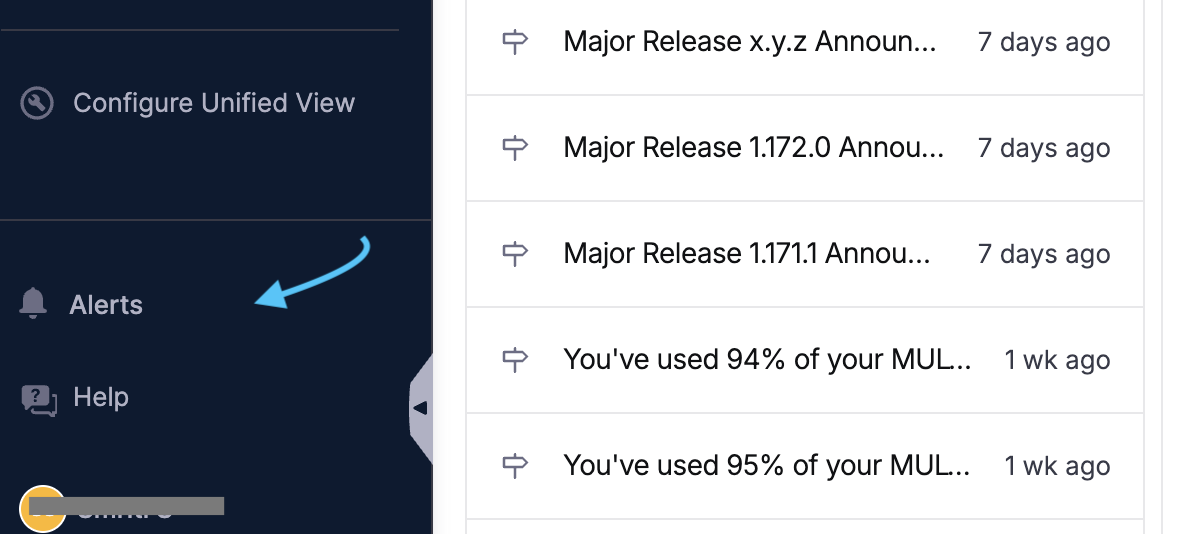
Alerts are sent to your alerts inbox. To access your alerts inbox, look for the **bell icon** in the left sidebar, above the **Help** option.

* Select **Alerts** to open the **alerts popover**. The popover gives you a quick-access view of your most recent alerts without leaving your current page.

  <figure><img src="/files/zXv4bjORSrPWoZMkaYJK" alt="Alerts popover showing unread alerts in the Harness left sidebar"><figcaption><p>Click to view full size image</p></figcaption></figure>
* Select an alert to open the full detail view. This automatically marks it as read and shows the alert's context.
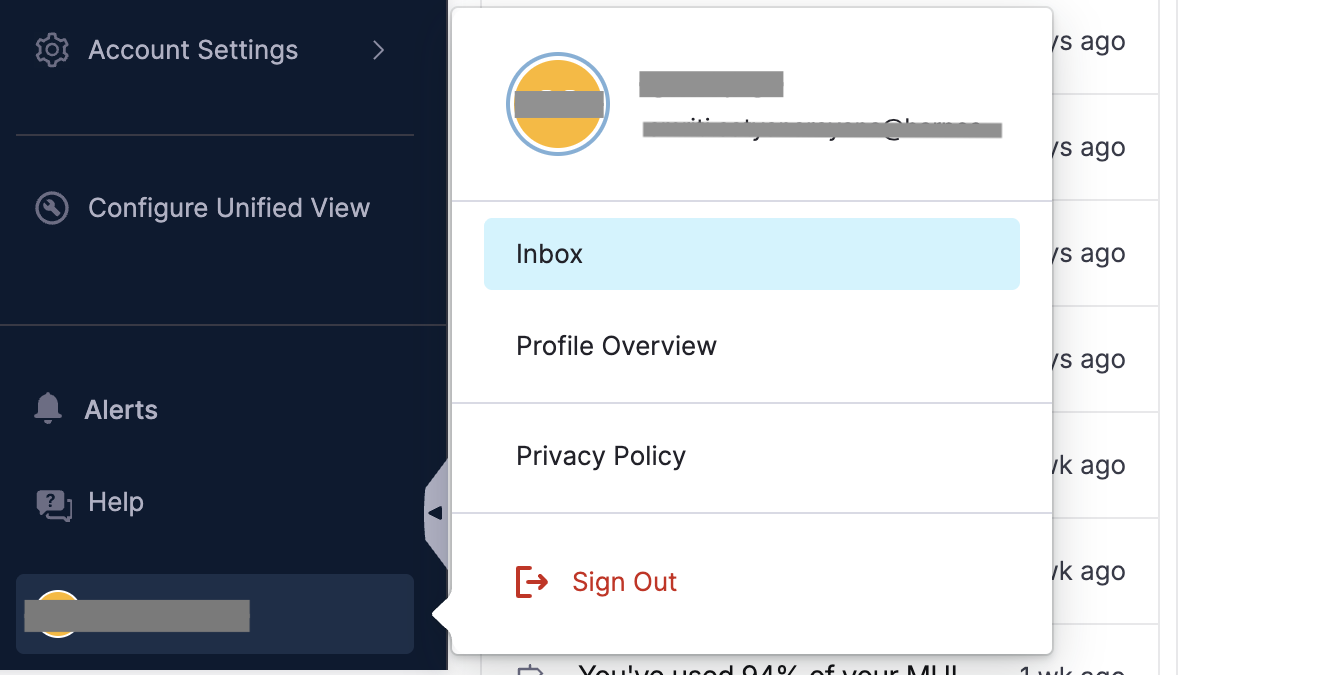
* You can also view the alerts from your user profile menu's inbox. To view your alerts inbox, go to your User Profile Menu -> **Inbox**.

  <figure><img src="/files/OpHMSzKm9VTIOTLjPQyf" alt="System alerts types"><figcaption><p>Click to view full size image</p></figcaption></figure>
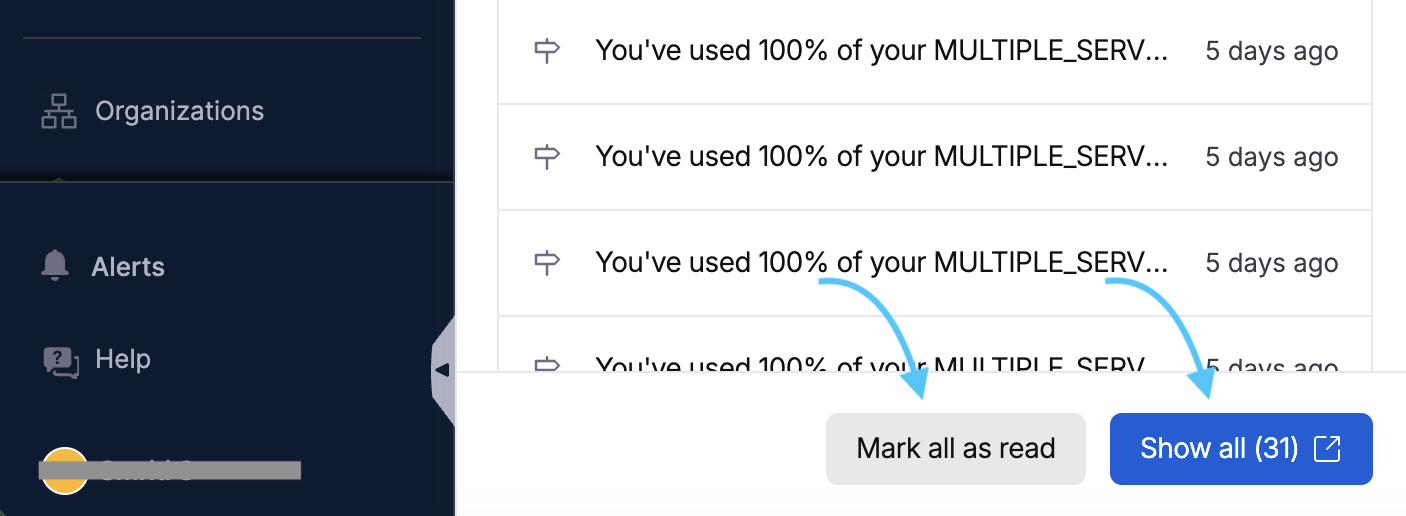
* Go to your **User Profile menu**, select **Inbox** and select **Show All** at the bottom of the popover to view all alerts.

#### Clear unread alerts <a href="#clear-unread-alerts" id="clear-unread-alerts"></a>

Select **Mark all as read** to mark all unread alerts as read.

<figure><img src="/files/qzjGBUGvp0kp7WHR6Y1F" alt="Alerts popover showing unread alerts in the Harness left sidebar"><figcaption><p>Click to view full size image</p></figcaption></figure>

#### Filter inbox <a href="#filter-inbox" id="filter-inbox"></a>

To filter alerts, select **Alerts** -> **Show All** and use the filters at the top. You can filter by **Group** and **Modules**.

<figure><img src="/files/U3hheXSFL6ZSjeKQ9WdF" alt="Inbox filter options including show only unread, by type, and by module"><figcaption><p>Click to view full size image</p></figcaption></figure>

***

### Manage platform alerts <a href="#manage-platform-alerts" id="manage-platform-alerts"></a>

Any user with the permissions to edit platform alert settings can control which alert categories are active and who receives them. This permission is assigned to Account Admins by default but can be granted to custom roles.

For each category, a user with appropriate permissions can:

* **Enable alerts for all users**: Everyone in the account sees these alerts.
* **Restrict to specific users/user groups**: Only selected users/user groups can view these alerts.

#### Configure platform alerts <a href="#configure-platform-alerts" id="configure-platform-alerts"></a>

To limit the alerts to specific user(s) / user group(s), follow the steps below:

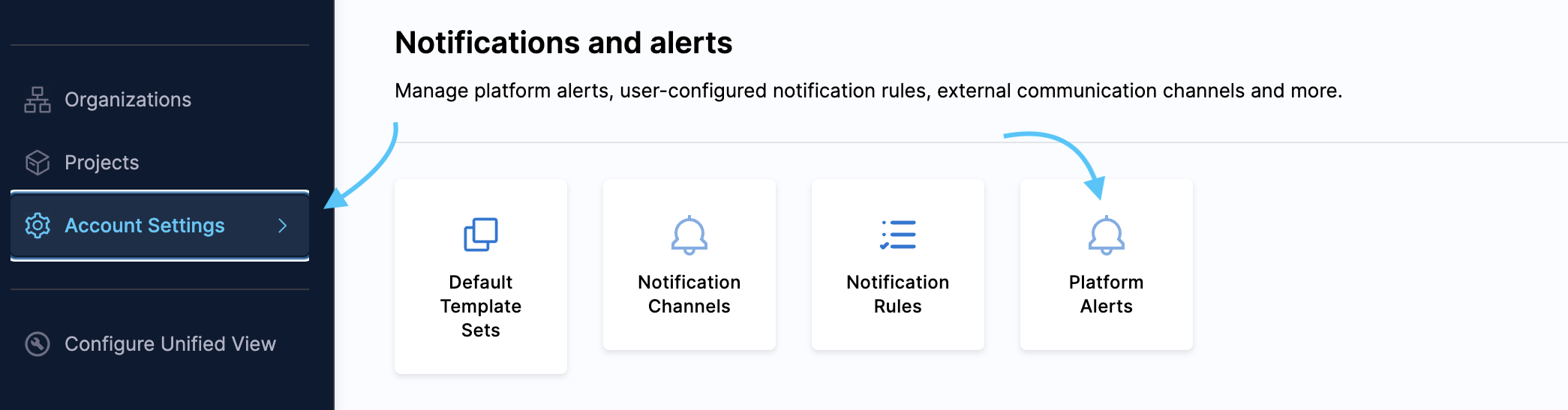
1. Go to your Harness account -> **Account Settings** -> **Platform Alerts**.

   <figure><img src="/files/60a6PusSgPz52nTT5LeZ" alt="Configure alerts"><figcaption><p>Click to view full size image</p></figcaption></figure>
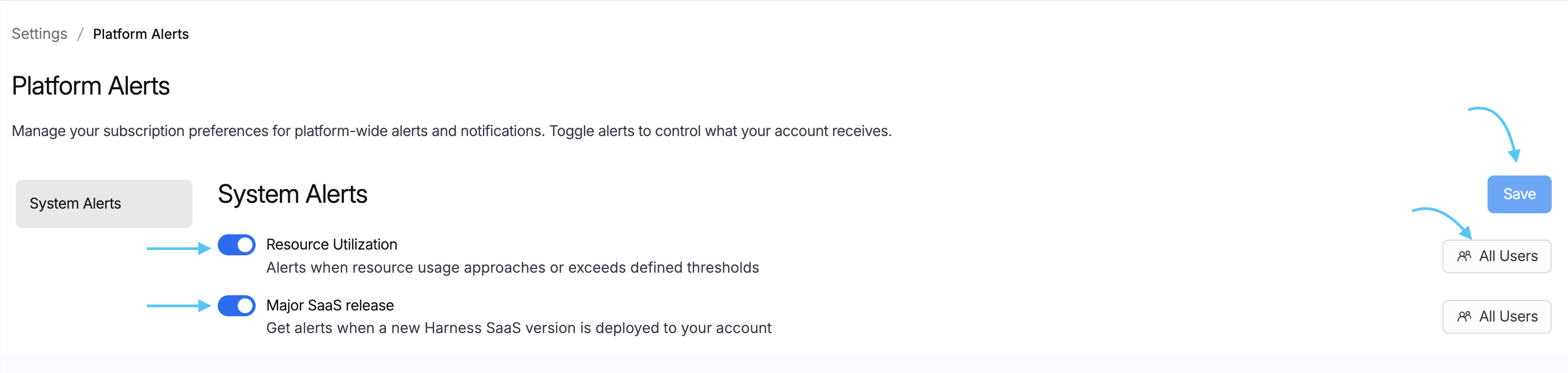
2. Based on the system alert you want to limit to specific user(s) / user group(s), select the corresponding button on the extreme right. This button shows the current user configuration.

   <figure><img src="/files/L5wwS9xP664TuzSVJbmJ" alt="System alerts types"><figcaption><p>Click to view full size image</p></figcaption></figure>
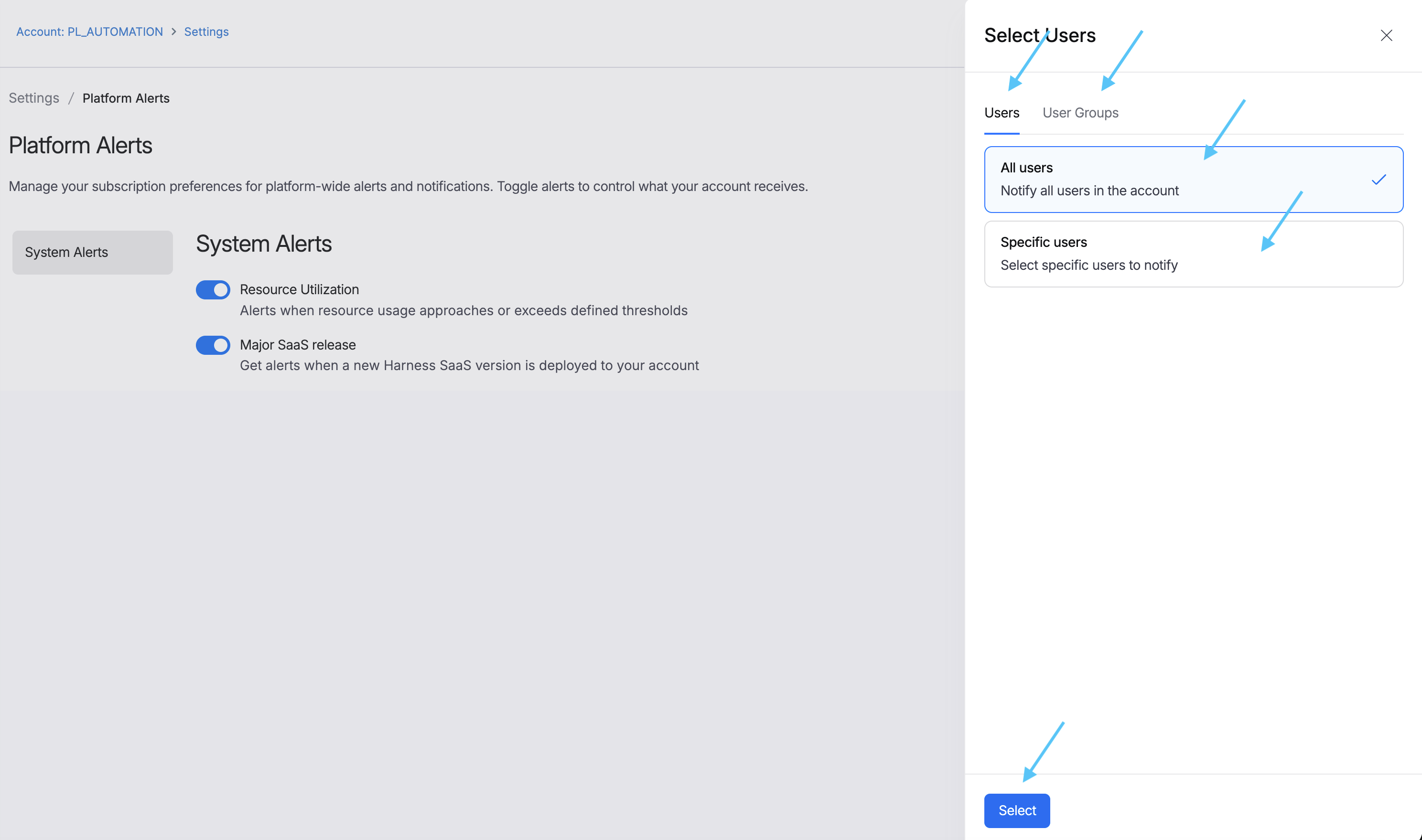
3. Select the user(s) and user group(s) you want to add, and click **Save**.

   <figure><img src="/files/5lgjHsGZshDQiMvEVYbu" alt="Configure alerts"><figcaption><p>Click to view full size image</p></figcaption></figure>

***

### Disable platform alerts <a href="#disable-platform-alerts" id="disable-platform-alerts"></a>

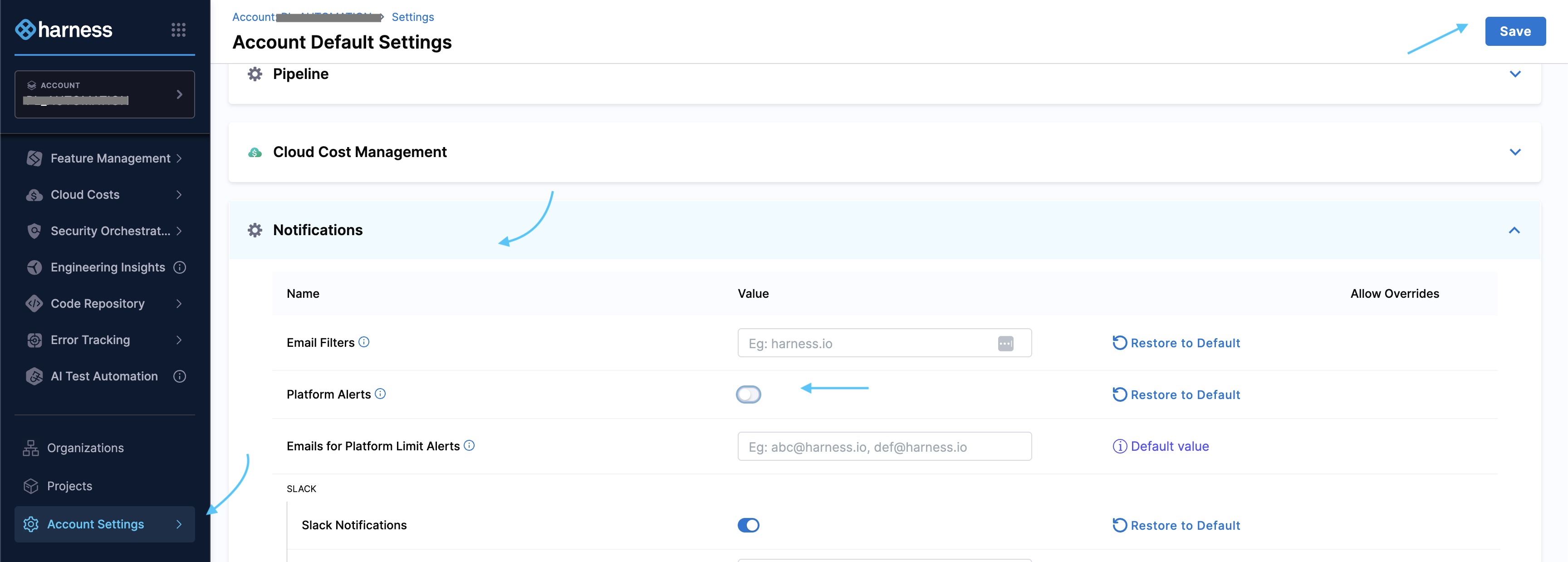
1. To disable platform alerts, go to your account, select **Account Settings** -> **Default Settings** -> **Notifications**.
2. Disable the **Platform Alerts** button and click **Save**.

   <figure><img src="/files/NqWzp0oBPM1cZDETLkIl" alt="System alerts types"><figcaption><p>Click to view full size image</p></figcaption></figure>

***

### Platform alert retention <a href="#platform-alert-retention" id="platform-alert-retention"></a>

Harness retains alerts in your Inbox for **90 days**. After that, they are no longer visible in your alert list. New alerts always appear at the top of the inbox.

***

### Related articles <a href="#related-articles" id="related-articles"></a>

* [Notification settings](/harness-platform/use-harness-platform/notifications-alerts-and-banners/notifications/notifications-overview.md): Learn how to configure additional notification channels like email and Slack.
* [Centralised notifications](/harness-platform/use-harness-platform/notifications-alerts-and-banners/notifications/centralised-notification.md): Understand how to set up event-based rules for pipeline and resource notifications.
* [Account license limits](/harness-platform/use-harness-platform/account-license-limits.md): Understand platform resource limits and avoid hitting them unexpectedly.