> For the complete documentation index, see [llms.txt](https://developer.harness.io/llms.txt). Markdown versions of documentation pages are available by appending `.md` to page URLs; this page is available as [Markdown](https://developer.harness.io/harness-platform/use-harness-platform/platform-access-control/add-manage-roles.md).
# Manage roles
Use roles for RBAC in Harness.
Roles are an [RBAC component](/harness-platform/3.0/harness-platform-resources/platform-access-control/rbac-in-harness.md#rbac-components) that bundle together [permissions](/harness-platform/use-harness-platform/platform-access-control/permissions-reference.md). They define which actions a user can take on Harness resources, including view, create, edit, and delete operations. When you assign a role to a user, user group, or service account, Harness grants the permissions defined in the role to that principal.
Roles are scope-specific, and you can create them at any [scope](/harness-platform/3.0/harness-platform-resources/platform-access-control/rbac-in-harness.md#permissions-hierarchy-scopes). For example, a role created at the project scope is available only in that project. Harness provides [built-in roles](#built-in-roles) for common use cases, and you can create [custom roles](#create-a-role) for fine-grained access control.
***
### What you will learn in this topic
By the end of this page, you will be able to:
* View [built-in roles](#built-in-roles) in Harness.
* Create [custom roles](#create-a-role) with specific permissions.
* [Edit](#edit-a-role) and [delete](#delete-a-role) existing roles.
* [Assign roles to users, user groups, and service accounts](#assign-the-role-to-users-at-the-organization-scope) across different scopes.
* [Reuse roles](#reuse-roles-across-scopes) across account, organization, and project scopes.
***
### Before you begin
Before you create or manage roles, ensure you have the following:
* **Harness account access**: Access to the account, organization, or project where you want to manage roles.
* **Appropriate permissions**: A role with permissions to view, create, edit, and delete roles, such as **Account Admin**, **Organization Admin**, or **Project Admin**.
* **RBAC familiarity**: Understanding of RBAC components and permissions hierarchy scopes. Go to [RBAC components](/harness-platform/3.0/harness-platform-resources/platform-access-control/rbac-in-harness.md#rbac-components) and [permissions hierarchy scopes](/harness-platform/3.0/harness-platform-resources/platform-access-control/rbac-in-harness.md#permissions-hierarchy-scopes) for more information on these concepts.
#### Navigate to Access Control
Many procedures on this page require you to navigate to **Access Control** at a specific scope:
* **Account scope**: Navigate to **Account Settings** → **Access Control**.
* **Organization scope**: Navigate to **Organizations**, select your organization, and then select **Access Control**.
* **Project scope**: Navigate to **Projects**, select your project, and then select **Access Control**.
***
### Roles and resource groups
Roles work alongside [resource groups](/harness-platform/3.0/harness-platform-resources/platform-access-control/add-resource-groups.md) to create a complete set of permissions and access. For example, you can:
* Assign the **Organization Admin** role with a resource group that is limited to specific projects or specific organizations.
* Assign the **Pipeline Executor** role with a resource group that allows access only to specific pipelines, rather than all pipelines in the project.
{% hint style="info" %}
**RECOMMENDATION**
Follow the principle of least privilege (PoLP), and give users only the access they need to complete their tasks.
{% endhint %}
RBAC is additive. A user's total permissions come from:
* All roles and resource groups from user groups they are in.
* Any roles and resource groups assigned directly to them.
***
### Built-in roles
Built-in roles provide ready-to-use permission sets, so you do not have to build access control from scratch. Harness pre-configures them with relevant permission sets for common responsibilities, such as admin and viewer, which saves setup time.
Built-in platform roles cover all levels of your hierarchy: **Account**, **Organization**, and **Project**. They give your teams a baseline for access control, which you can complement with custom roles for fine-grained control.
Harness includes several built-in roles. To examine the permissions assigned to these roles, do the following:
1. In Harness, navigate to the [scope](#navigate-to-access-control) where the role exists.
2. Select **Roles** in the header.
3. Select the role you want to view. Go to the [permissions reference](/harness-platform/use-harness-platform/platform-access-control/permissions-reference.md) for more information on specific permissions.
{% hint style="info" %}
Currently, some built-in roles are behind the feature flags `PL_HIDE_PROJECT_LEVEL_MANAGED_ROLE`, `PL_HIDE_ORGANIZATION_LEVEL_MANAGED_ROLE`, and `PL_HIDE_ACCOUNT_LEVEL_MANAGED_ROLE`. Contact [Harness Support](mailto:support@harness.io) to enable them.
{% endhint %}
{% hint style="info" %}
**RECOMMENDATION**
Harness provides built-in roles and resource groups, but you should:
* Be selective when you assign them. Do not give everyone the **Account Admin** role.
* Create custom roles and resource groups when built-in ones are too broad.
{% endhint %}
#### Platform roles
Platform roles are not specific to any module. Use them for administration and oversight of an entire Harness account, organization, or project. They also provide access to cross-module components, such as dashboards and pipelines.
| Role | Scope |
| ------------------------------------------------------------------------------- | ------------ |
| Account Admin, Account Viewer, Dashboard Admin, Dashboard Viewer, Billing Admin | Account |
| Organization Admin, Organization Viewer | Organization |
| Project Admin, Project Viewer, Pipeline Executor | Project |
#### Module-specific roles
Harness creates these roles for you depending on the modules you use. These roles exist at all [scopes](/harness-platform/3.0/harness-platform-resources/platform-access-control/rbac-in-harness.md#permissions-hierarchy-scopes).
* **Feature Flag Manage Role**: Manage feature flags, including creating, editing, and targeting flags.
* **CET Admin**: Administer Continuous Error Tracking, including managing monitored services and error events.
* **Chaos Admin**: Administer Chaos Engineering experiments and chaos infrastructure.
* **CCM Admin**: Administer Cloud Cost Management, including viewing costs, creating budgets, and managing cost optimization.
* **CCM Viewer**: View Cloud Cost Management dashboards and reports without editing capabilities.
* **Security Testing AppSec Role**: Manage security testing for application security teams, including reviewing scan results and configuring security policies.
* **Security Testing Developer Role**: View security testing scan results and exemptions for development teams.
* **GitOps Admin Role**: Administer GitOps applications, repositories, clusters, and agents.
* **Code Admin**: Administer Harness Code Repository, including managing repositories, branches, and pull requests.
***
### Manage roles in Harness
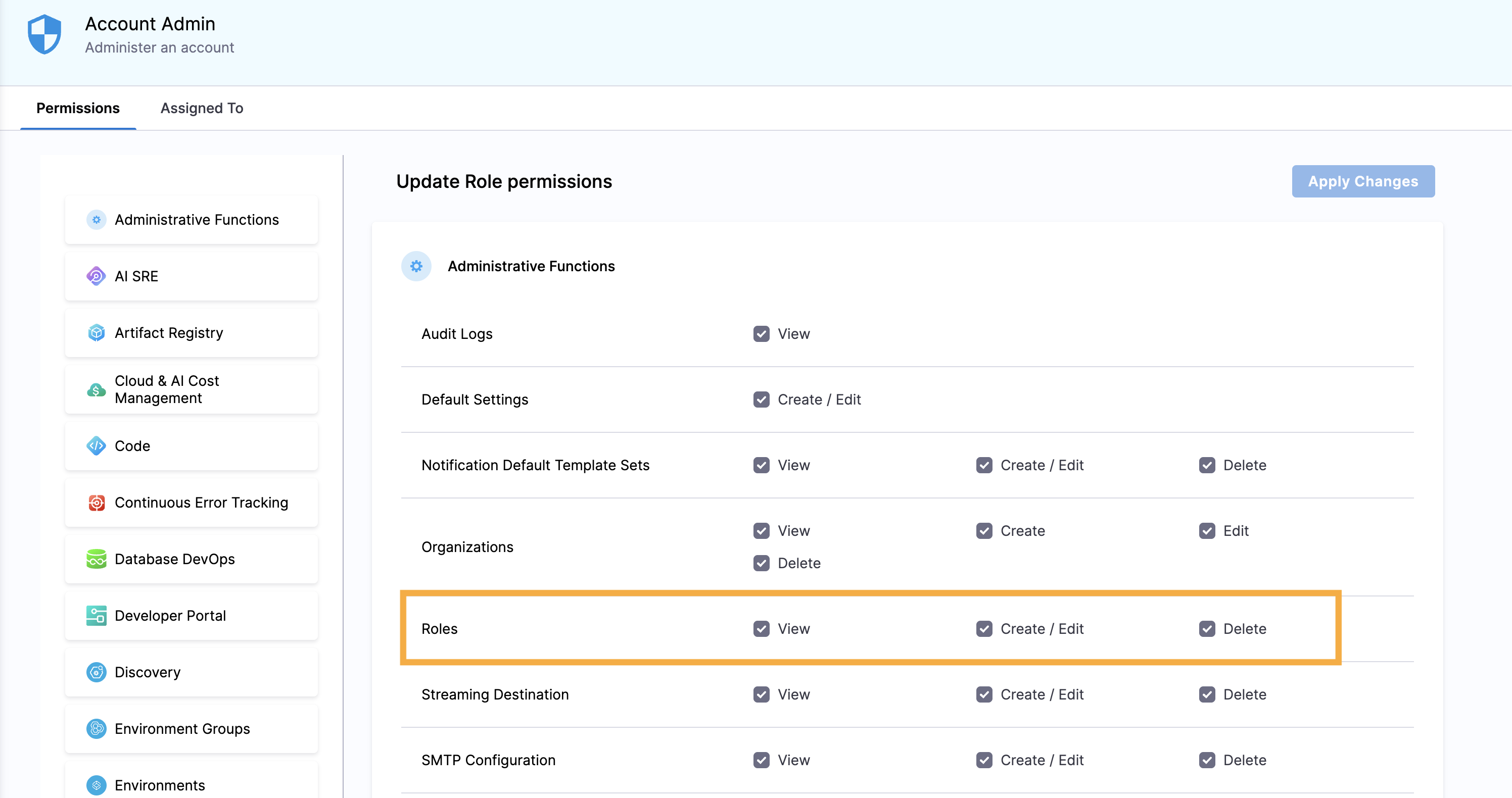
To manage roles in Harness, you need a role, such as **Account Admin**, that has [permission](/harness-platform/use-harness-platform/platform-access-control/permissions-reference.md) to view, create, edit, and delete roles.
Click to view full size image
#### Create a role
To create a role, do the following:
1. In Harness, navigate to the [scope](#navigate-to-access-control) where you want to create the role.
2. Select **Roles** in the header, and then click **New Role**.
3. Enter a **Name** for the role. **Description** and **Tags** are optional.
4. Click **Save**.
5. Select the [permissions](/harness-platform/use-harness-platform/platform-access-control/permissions-reference.md) for the role.
6. Click **Apply Changes**.
#### Edit a role
To edit a role, do the following:
1. In Harness, navigate to the [scope](#navigate-to-access-control) where the role exists.
2. Select **Roles** in the header.
3. Locate the role you want to edit.
4. Select **More options** (⋮) on the role card, and then select **Edit**.
5. Edit the role's name, description, or tags, if needed, and then click **Save**.
6. Edit the role's permissions, and then click **Apply Changes**. Go to the [permissions reference](/harness-platform/use-harness-platform/platform-access-control/permissions-reference.md) for more information on specific permissions.
#### Delete a role
To delete a role, do the following:
1. In Harness, navigate to the [scope](#navigate-to-access-control) where the role exists.
2. Select **Roles** in the header.
3. Locate the role you want to delete.
4. Select **More options** (⋮) on the role card, and then click **Delete**.
***
### Reuse roles across scopes
Reuse roles across scopes to simplify access control configuration across your account, organizations, and projects. When you create a role at the account level, you can assign it to users, user groups, or service accounts at granular levels, such as the organization or project scope.
{% hint style="info" %}
* Currently, this feature is behind the feature flag `PL_ROLE_REUSABILITY_ACROSS_CHILD_SCOPES`. Contact [Harness Support](mailto:support@harness.io) to enable it.
* You can reuse only custom roles across scopes. Built-in roles are not reusable.
{% endhint %}
The following example walks through reusing a role across scopes. The role is created at the account scope, and then assigned to users at the organization and project scopes.
#### Create a role at the account scope
To create the role at the account scope, do the following:
1. In Harness, navigate to **Account Settings** → **Access Control**.
2. Select **Roles** in the header, and then click **New Role**.
3. For **Name**, enter `TEST_ROLE`. **Description** and **Tags** are optional.
4. Click **Save**.
5. Select the following permissions:
* For **Pipelines**, select **Execute**.
6. Click **Apply Changes**.
#### Assign the role to users at the organization scope
To assign the role to users at the organization scope, do the following:
1. In Harness, navigate to **Account Settings** → **Organizations**, select the relevant organization, and then select **Access Control**.
2. Select **User Groups** in the header, and then select the user group you want to assign the role to.
3. Select **Manage Role Bindings**.
4. Under **Role Bindings**, click **Add**.
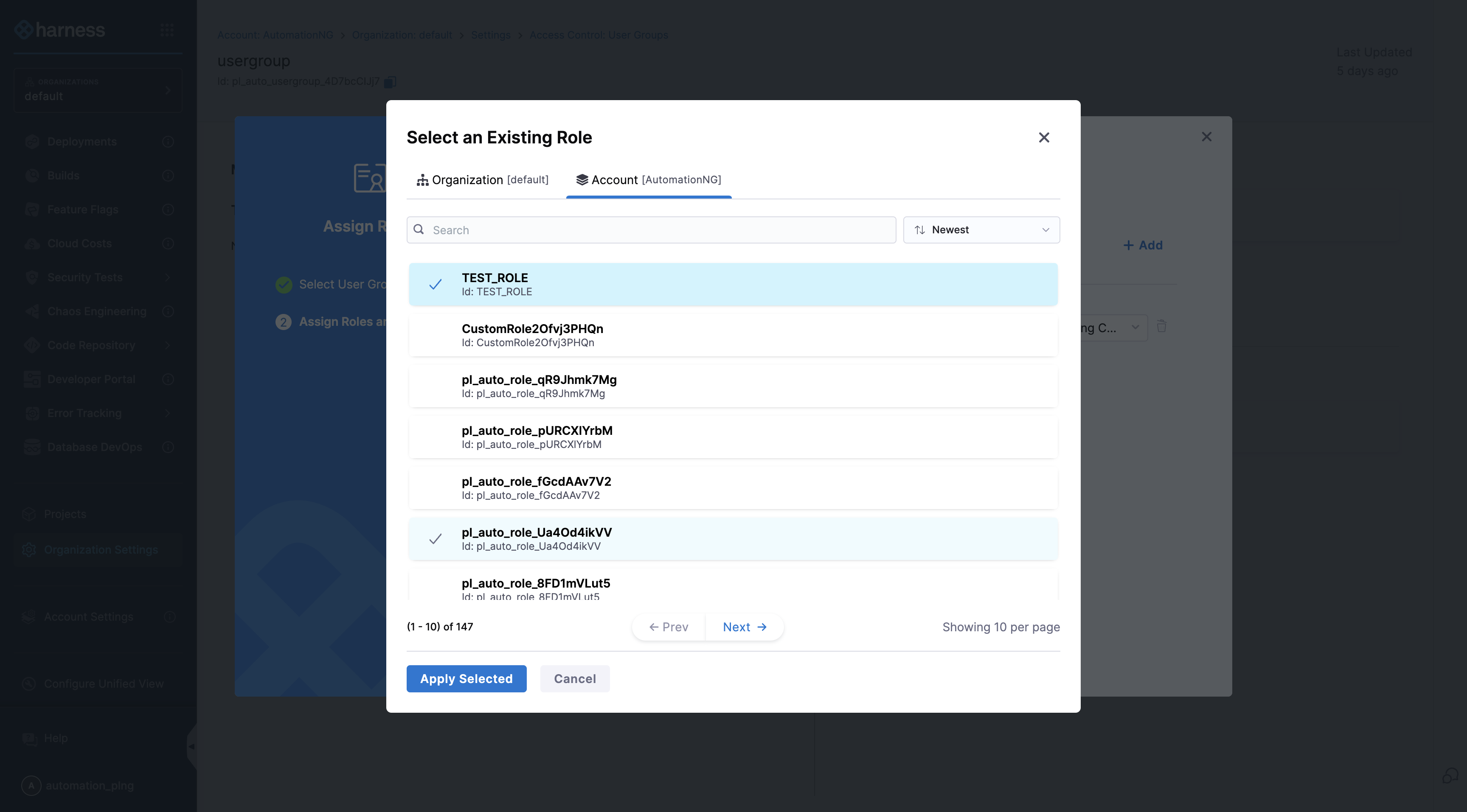
5. Under **Select an Existing Role**, select **Account** in the header, and then select the role you want to assign.
Click to view full size image
6. Click **Apply Selected**.
7. Click **Save**.
***
### View principals assigned to a role
View the principals assigned to a role to audit which users, user groups, and service accounts hold a given set of permissions.
{% hint style="info" %}
Currently, this feature is behind the feature flag `PL_ROLE_REUSABILITY_ACROSS_CHILD_SCOPES`. Contact [Harness Support](mailto:support@harness.io) to enable it.
{% endhint %}
To view the principals assigned to a [specified role](#platform-roles), navigate to the appropriate scope (account, organization, or project) and follow the steps below. The steps use the **Account** scope and **Account Admin** role as an example. You can follow the same steps for the organization and project scopes.
{% tabs %}
{% tab title="Interactive" %}
{% embed url="" %}
{% endtab %}
{% tab title="Manual" %}
1. Navigate to the scope's **Settings** → **Access Control** → **Roles**.
2. Locate or search for the [specific role](#platform-roles).
3. Select the role, and then switch to the **Assigned To** tab.
4. By default, the **Users** list appears for the assigned role. You can also switch to the **User Groups** or **Service Accounts** tabs to view principals for the specified role.
{% endtab %}
{% endtabs %}
***
### Related articles
Go to the following pages for related tasks:
* [Create resource groups](/harness-platform/3.0/harness-platform-resources/platform-access-control/add-resource-groups.md): Define access to specific Harness resources.
* [Add users](/harness-platform/use-harness-platform/platform-access-control/add-users.md): Add users to your Harness account, organization, or project.
* [Create user groups](/harness-platform/use-harness-platform/platform-access-control/add-user-groups.md): Create user groups and assign roles and resource groups to them.
* [Manage service accounts](/harness-platform/use-harness-platform/platform-access-control/add-and-manage-service-account.md): Configure programmatic access to Harness.
* [Permissions reference](/harness-platform/use-harness-platform/platform-access-control/permissions-reference.md): Review detailed information about available permissions.
{% @harness-feedback/feedback module="harness-ai" pagePath="harness-ai/use-harness-platform/platform-access-control/add-manage-roles" %}