> For the complete documentation index, see [llms.txt](https://developer.harness.io/llms.txt). Markdown versions of documentation pages are available by appending `.md` to page URLs; this page is available as [Markdown](https://developer.harness.io/harness-platform/use-harness-platform/platform-access-control/just-in-time-user-provisioning.md).
# Just-In-Time (JIT) user provisioning
Automatically provision users in Harness when they first log in via SAML SSO using Just-In-Time provisioning.
Just-In-Time (JIT) provisioning in Harness automatically creates user accounts when users log in for the first time via SAML single sign-on (SSO). JIT provisioning eliminates the need to manually invite each user to Harness by creating user accounts dynamically based on the SAML assertion sent by your identity provider (IdP).
The key principle is that JIT provisioning only handles user creation automatically. Authorization (permissions, group memberships, roles, and resource groups) requires separate configuration through [SAML authorization settings](/harness-platform/use-harness-platform/authentication/single-sign-on-saml.md) and user group linking. Users only receive permissions if they are placed in Harness user groups that already have role bindings configured.
***
### What you will learn in this topic
By the end of this topic, you will be able to:
* Understand how JIT provisioning works with SAML SSO.
* Enable JIT provisioning in Harness for supported identity providers.
***
### Before you begin
Before you enable JIT provisioning in Harness, ensure you have the following:
* **SAML SSO configured**: An active SAML SSO provider already configured in Harness (Okta, Microsoft Entra ID, OneLogin, or Keycloak). Go to the appropriate SAML SSO guide to configure your provider:
* [Okta](/harness-platform/use-harness-platform/authentication/single-sign-on-saml/okta.md)
* [Microsoft Entra ID](/harness-platform/use-harness-platform/authentication/single-sign-on-saml/microsoft-entra-id.md)
* [OneLogin](/harness-platform/use-harness-platform/authentication/single-sign-on-saml/onelogin.md)
* [Keycloak](/harness-platform/use-harness-platform/authentication/single-sign-on-saml/keycloak.md)
* **Account administrator permissions**: Account administrator access in Harness to configure authentication settings. Go to [RBAC in Harness](/harness-platform/3.0/harness-platform-resources/platform-access-control/rbac-in-harness.md) to review roles and permissions.
* **Users assigned in IdP**: Users must exist in your identity provider and be assigned to the Harness SAML application before they can use JIT provisioning.
***
### How JIT provisioning works
This describes the JIT provisioning flow when a user logs in to Harness for the first time via SAML SSO.
When a user attempts to log in to Harness:
1. The user is redirected to your configured identity provider (IdP) for authentication.
2. After successful authentication, the IdP sends a SAML assertion containing user attributes (email, name, groups) back to Harness.
3. Harness checks if the user already exists in the account:
* **If the user exists**: Harness authenticates the user and grants access based on their assigned roles and permissions.
* **If the user does not exist and JIT provisioning is enabled**: Harness validates the SAML assertion against configured JIT validation rules (if any), creates a new user account using the email from the assertion, and grants access.
4. If JIT validation rules are configured, the SAML assertion must contain the specified validation key-value pair for automatic provisioning to occur. If the validation fails, the user is denied access.
***
### Enable JIT provisioning in Harness
To enable JIT provisioning for your SAML SSO provider, do the following:
1. In your Harness account, go to **Account Settings** -> **Authentication**.
2. Select **SAML Provider** to add a new SAML provider, or select **Login via SAML** to edit an existing provider.
3. If creating a new provider, enter a **Name** for the SAML provider and select your IdP (Okta, Microsoft Entra ID, OneLogin, or Other).
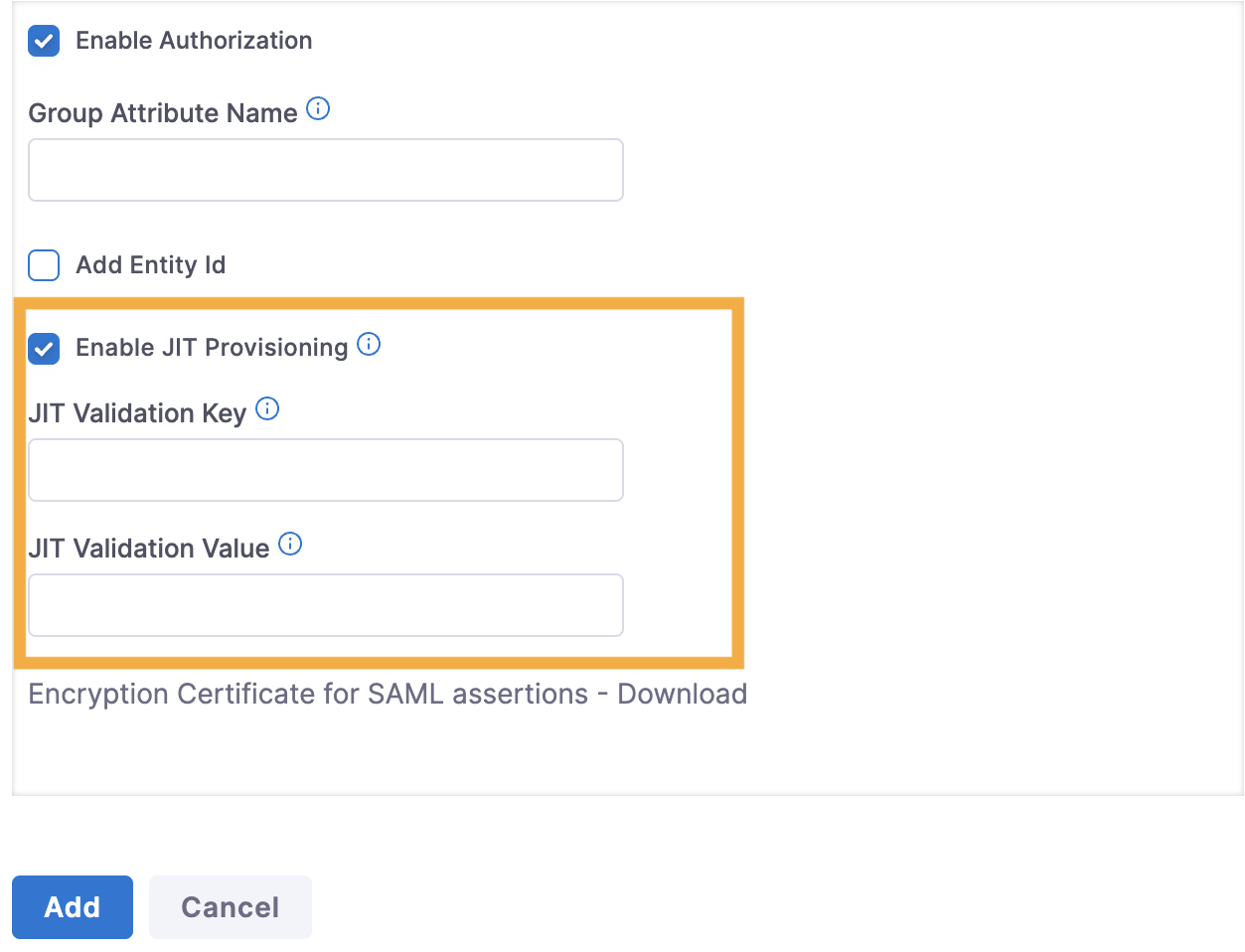
4. Select **Enable JIT Provisioning**.
Enable JIT provisioning in Harness
5. (Optional) To control who can get added to Harness on their first login, specify **JIT Validation Key** and **JIT Validation Value**, which serve as the key-value that must be present in the SAML assertions.
6. Complete the remaining SAML provider configuration, such as uploading metadata, configuring entity ID, and enabling authorization if needed.
7. Select **Save** or **Add**.
After you enable JIT provisioning, new users who authenticate via SAML SSO are automatically created in Harness on their first successful login.
***
### User management with JIT provisioning
The following table compares user management workflows with and without JIT provisioning enabled.
| Aspect | Without JIT Provisioning | With JIT Provisioning |
| ---------------------- | ------------------------------------------------------------------------------------------------------------------------------- | ----------------------------------------------------------------------------------------------------------------------------------------------------------------------------------------------------------------------------------- |
| **User invitation** | You must manually invite users to Harness before they can log in via SAML SSO. | You do not need to manually invite users to Harness. |
| **Invitation process** | Users receive an email invitation to join Harness. | No email invitation is required. |
| **First login** | After accepting the invitation and logging in for the first time via SAML SSO, their email addresses are registered in Harness. | On first successful SAML SSO login, Harness automatically creates a user account with the email address from the SAML assertion. |
| **User access** | Users can log in only after accepting the invitation. | The user can immediately log in to Harness. However, roles and resource groups are not assigned automatically. Users only receive permissions if they are placed in Harness user groups that already have role bindings configured. |
| **IdP requirements** | Users must be assigned to the Harness SAML application in your IdP. | Users must be assigned to the Harness SAML application in your IdP. |
| **Group membership** | User groups must be manually assigned in Harness. | If SAML authorization is enabled, the user is automatically added to Harness user groups based on IdP group memberships. |
***
### Troubleshooting Users cannot log in on first attempt after JIT provisioning is enabled
Users must first log in through the SAML SSO application in their identity provider (click the Harness icon in Okta, Microsoft Entra ID, OneLogin, or Keycloak) instead of accessing app.harness.io directly. This provisions the user in Harness. Subsequent logins can be direct to Harness.
Error when updating JIT-provisioned user via SCIM
Choose one provisioning method exclusively. If using SCIM, remove the JIT-provisioned user and re-add them through SCIM. Users should be managed by a single provisioning method (either JIT or SCIM, not both).
JIT-provisioned users have no permissions or group memberships
JIT provisioning only creates the user account. Permissions must be configured separately in Harness. Enable SAML authorization (not just authentication) to sync group memberships from your IdP, then link Harness user groups to SAML SSO provider groups. If SAML authorization is not enabled, manually assign users to user groups.
User loses group access after logging in via SAML
SAML-linked user groups synchronize on every login. If group assignments changed in the IdP or the user was removed from the SAML application group claims, those changes sync to Harness on next login. Verify the user group assignments in your identity provider.
What should I put in JIT Validation Key and JIT Validation Value fields?
These fields are optional. Leave them blank if you want all users assigned to the Harness SAML application in your IdP to be provisioned. Specify a Key (SAML attribute name) and Value if you want to selectively provision users based on a specific attribute in the SAML assertion. Only users whose SAML assertion contains the matching key-value pair will be provisioned.
Does JIT provisioning send confirmation emails to new users?
No, JIT provisioning does not send emails for confirmation or password creation. The user account is created automatically without requiring an invitation or email confirmation.
Can Harness automatically map permissions from my identity provider to Harness roles?
No, Harness does not support automatic permission mapping or inheritance from external systems. User permissions must be explicitly configured within Harness. While JIT provisioning creates user accounts automatically, their permissions and role assignments must be configured separately through SAML authorization and user group linking.
***
### Related articles
Go to the following pages for related tasks:
* [SAML SSO with Okta](/harness-platform/use-harness-platform/authentication/single-sign-on-saml/okta.md) - Configure Okta as a SAML SSO provider with JIT provisioning.
* [SAML SSO with Microsoft Entra ID](/harness-platform/use-harness-platform/authentication/single-sign-on-saml/microsoft-entra-id.md) - Configure Microsoft Entra ID as a SAML SSO provider with JIT provisioning.
* [SAML SSO with OneLogin](/harness-platform/use-harness-platform/authentication/single-sign-on-saml/onelogin.md) - Configure OneLogin as a SAML SSO provider with JIT provisioning.
* [SAML SSO with Keycloak](/harness-platform/use-harness-platform/authentication/single-sign-on-saml/keycloak.md) - Configure Keycloak as a SAML SSO provider with JIT provisioning.
* [RBAC in Harness](/harness-platform/3.0/harness-platform-resources/platform-access-control/rbac-in-harness.md) - Understand roles, permissions, and user group management.
* [Manage user groups](/harness-platform/use-harness-platform/platform-access-control/add-user-groups.md) - Create and manage user groups for role-based access control.
{% @harness-feedback/feedback module="harness-ai" pagePath="harness-ai/use-harness-platform/platform-access-control/just-in-time-user-provisioning" %}