> For the complete documentation index, see [llms.txt](https://developer.harness.io/llms.txt). Markdown versions of documentation pages are available by appending `.md` to page URLs; this page is available as [Markdown](https://developer.harness.io/harness-platform/use-harness-platform/platform-access-control/manage-dashboards.md).
# Manage dashboards
This topic describes how to add and manage access control for dashboards.
[Dashboards](/harness-platform/use-harness-platform/harness-dashboards/dashboard-standard/overview.md) display key metrics and data related to your builds, deployments, security, cloud costs, and more. You can control who can view, create, edit, and delete dashboards in Harness through role-based access control. This page describes how to assign dashboard roles and configure access to specific dashboard folders.
***
### What you will learn in this topic
By the end of this topic, you will be able to:
* Understand the [Dashboard Editor and Dashboard Viewer roles](#dashboard-roles-and-permissions) and their permissions.
* [Assign the Dashboard Editor role](#add-and-manage-the-dashboard-editor-role-for-users-or-user-groups) to users or user groups.
* [Assign the Dashboard Viewer role](#add-and-manage-the-dashboard-viewer-role-for-users-or-user-groups) to users or user groups.
* [Configure resource groups](#add-and-manage-access-control-for-resource-groups) to limit access to specific dashboards.
* [Restrict project access](#limit-project-access-for-sto-dashboards) for STO dashboards based on RBAC permissions.
***
### Before you begin
Before you manage dashboard access control, ensure you have the following:
* **Account Admin permissions**: Permissions to modify access control settings at the **Account** level. Go to [RBAC in Harness](/harness-platform/3.0/harness-platform-resources/platform-access-control/rbac-in-harness.md) to review role requirements.
* **Understanding of resource groups**: Knowledge of how resource groups work in Harness. Go to [Manage resource groups](/harness-platform/3.0/harness-platform-resources/platform-access-control/add-resource-groups.md) to review the basics.
* **Dashboards overview:** Understanding of what dashboards are and how they work in Harness before configuring access control. Go to [Dashboards](/harness-platform/use-harness-platform/harness-dashboards/dashboard-standard/overview.md).
***
### Dashboard roles and permissions
Harness provides two built-in roles that control dashboard access. They are described as follows:
* **Dashboard Editor**: To add, edit, and delete dashboards.
* **Dashboard Viewer**: To view all the **By Harness** and **Custom** dashboards.
These roles are scoped to dashboard folders, and they determine what users can do with dashboards.
The following roles control dashboard access and capabilities. Assign these roles to users or user groups based on their responsibilities.
| **Roles** | **Scope** | **Permissions** |
| ---------------- | --------- | ------------------------------------------------------------------------------------------------ |
| Dashboard Editor | Folder |
Add Dashboard
Add Tile
Edit Dashboard
Delete Dashboard
|
| Dashboard Viewer | Folder | View Dashboards |
The **Account Admin** and **Account Viewer** roles include these permissions by default.
***
### Add and manage the Dashboard Editor role for users or user groups
Assign the **Dashboard Editor** role to users or user groups to allow them to create, modify, and delete dashboards.
To add and manage permissions for the **Dashboard Editor** role for users, do the following:
1. In Harness, navigate to **Account Settings**, and then select **Access Control**.
2. Select **Manage Roles** for the user or user group. The **Manage Role Bindings** settings display.
3. Click **Add**.
4. Under **Roles**, select **Dashboard Editor**, and then click **Apply**.
***
### Add and manage the Dashboard Viewer role for users or user groups
Assign the **Dashboard Viewer** role to users or user groups to allow them to view dashboards without editing capabilities.
To add and manage permissions for the **Dashboard Viewer** role for users, do the following:
1. In Harness, navigate to **Account Settings**, and then select **Access Control**.
2. Select **Manage Roles** for the user or user group. The **Manage Role Bindings** settings display.
3. Click **Add**.
4. Under **Roles**, select **Dashboard Viewer**, and then click **Apply**.
***
### Limit project access for STO dashboards
You can restrict the **Project** filter on STO dashboards to only show projects where users have RBAC permissions. This prevents users from viewing entity information from projects they do not have access to.
By default, RBAC for STO custom dashboards is restricted to dashboard entities exclusively. When you grant folder access to a user, they can view all entity information on the dashboard. Therefore, the **Project** filter on dashboards includes all STO projects across your **Organization** by default, regardless of user RBAC project permissions.
You can restrict the projects available in the **Project** filter on STO dashboards to only those where users have RBAC permissions.
{% hint style="info" %}
Currently, this feature is behind the feature flag `CDB_PROJECT_RBAC`. Contact [Harness Support](mailto:support@harness.io) to enable it.
{% endhint %}
***
### Add and manage access control for resource groups
Limit access to specific dashboards by configuring resource groups. This ensures users only see the dashboards relevant to their work.
To limit access to specific dashboards, do the following:
1. Navigate to **Account Settings**, and then select **Access Control**.
2. In **Resource Groups**, select your resource group. Go to [Manage resource groups](/harness-platform/3.0/harness-platform-resources/platform-access-control/add-resource-groups.md) to add and manage resource groups.
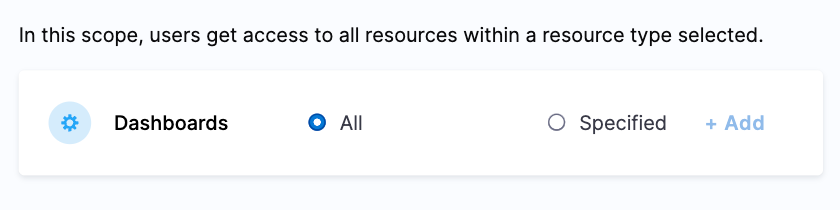
3. In **Shared Resources**, select **Dashboards**.
By default, **All Dashboards** is selected.
Click to view full size image
4. Select **Specified**, and then click **Add**. The **Add Dashboards** settings display.
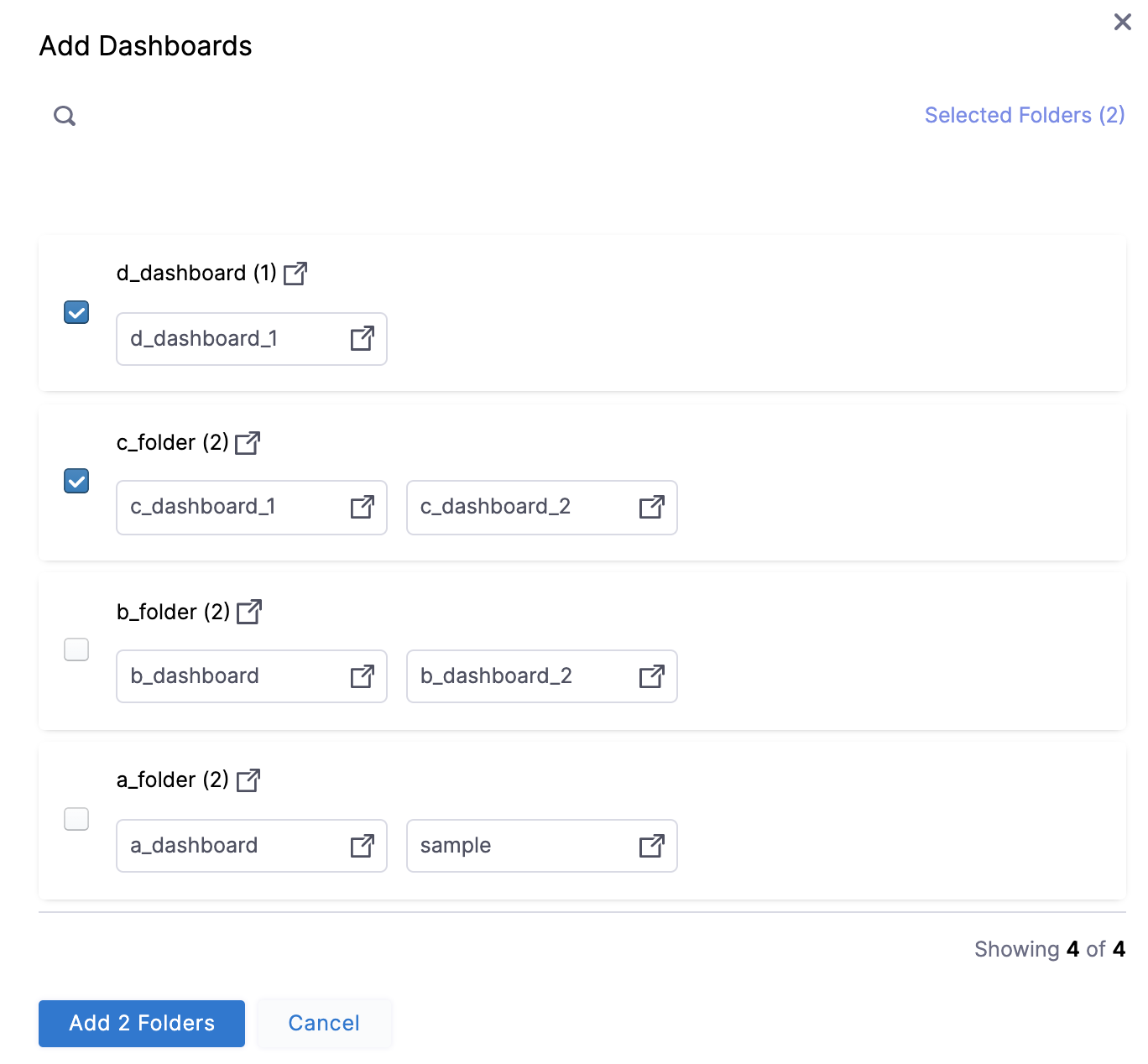
5. In **Add Dashboards**, select the folders for which you want to limit the access.
The selected folder may have more than one dashboard. All the dashboards in the selected folders will have the same access.
Click to view full size image
6. Click **Add Folders**.
7. Click **Save**.
***
### Related articles
The following articles provide more context on dashboard access control and related concepts.
* [RBAC in Harness](/harness-platform/3.0/harness-platform-resources/platform-access-control/rbac-in-harness.md): Understand role-based access control and permissions hierarchy.
* [Manage resource groups](/harness-platform/3.0/harness-platform-resources/platform-access-control/add-resource-groups.md): Learn how to create and configure resource groups.
* [Dashboards overview](/harness-platform/use-harness-platform/harness-dashboards/dashboard-legacy/dashboards-overview.md): Explore dashboard capabilities and features.
* [Manage users](/harness-platform/use-harness-platform/platform-access-control/add-users.md): Add and manage users in your Harness **Account**.
{% @harness-feedback/feedback module="harness-ai" pagePath="harness-ai/use-harness-platform/platform-access-control/manage-dashboards" %}