> For the complete documentation index, see [llms.txt](https://developer.harness.io/llms.txt). Markdown versions of documentation pages are available by appending `.md` to page URLs; this page is available as [Markdown](https://developer.harness.io/harness-platform/use-harness-platform/templates/use-template-labels.md).
# Use template labels
Reference templates using semantic labels instead of fixed version numbers for flexible template management.
{% hint style="info" %}
This feature is behind the feature flag `PIPE_TEMPLATE_LABELS_FEATURE`. Contact [Harness Support](mailto:support@harness.io) to enable the feature.
{% endhint %}
Template labels provide a way to reference template versions using semantic names instead of fixed version numbers. You can assign labels like `canary`, `prod`, or `staging` to template versions, and pipelines can reference templates using these labels. When you move a label to a different version, all pipelines using that label automatically reference the new version without requiring any changes to the pipeline YAML.
This solves the challenge of promoting template updates across many pipelines. When a template is used by hundreds of pipelines, promoting a new version traditionally requires updating each pipeline individually. With labels, you update the label pointer once, and all pipelines using that label pick up the new version automatically.
### How template labels work
A label is a pointer that you assign to a specific template version. You can create labels with any name that fits your workflow, such as `dev`, `staging`, `prod`, `canary`, or `lts`. Each label points to exactly one version of a template at any time.
When you assign a label to a version, that label becomes associated with that specific version. If you later assign the same label to a different version, the label automatically moves from the old version to the new version. This ensures that a label always points to exactly one version.
Multiple labels can point to the same version simultaneously. For example, you might have both `canary` and `latest` pointing to version `v3`, while `stable` points to `v2`. When you are ready to promote version `v3`, you reassign the `stable` label from `v2` to `v3`, and all pipelines using the `stable` label automatically start using `v3`.
The built-in `stable` label is special. You can assign it to any version like other labels, but you cannot remove it. There will always be a `stable` label pointing to a version in your template.
When a template reference includes both `versionLabel` and `label`, the `versionLabel` takes priority. This ensures existing pipelines with hard-coded version numbers continue to work exactly as before.
### Supported template types
Template labels are supported for the following template types:
* Step templates
* Stage templates
* Pipeline templates
* Step Group templates
* Artifact Source templates
* Custom Deployment templates
Template labels are not supported for Monitored Service templates, Secret Manager templates, Workspace templates, Notification templates, or Agent templates.
### Before you begin
* **Template permissions:** You need template create and edit permissions to add and manage labels on templates. Go to [RBAC in templates](/harness-platform/use-harness-platform/platform-access-control/rbac-in-pipelines-templates-and-secrets.md) to review required permissions.
* **Template versioning:** You should understand how template versions work in Harness. Go to [Templates overview](/harness-platform/use-harness-platform/templates/template.md) to understand template versioning.
### Add labels to a template version
You add labels to template versions in the template editor. When you save a template version, you can specify one or more labels to assign to that version.
{% hint style="info" %}
Template labels can only be managed through the Harness UI. They are not configurable directly in YAML files.
{% endhint %}
To add labels to a template version, do the following:
1. In Harness Project/Org/account settings, go to **Templates** and select the template you want to label.
2. Select the version you want to label from the version dropdown at the top of the template editor.
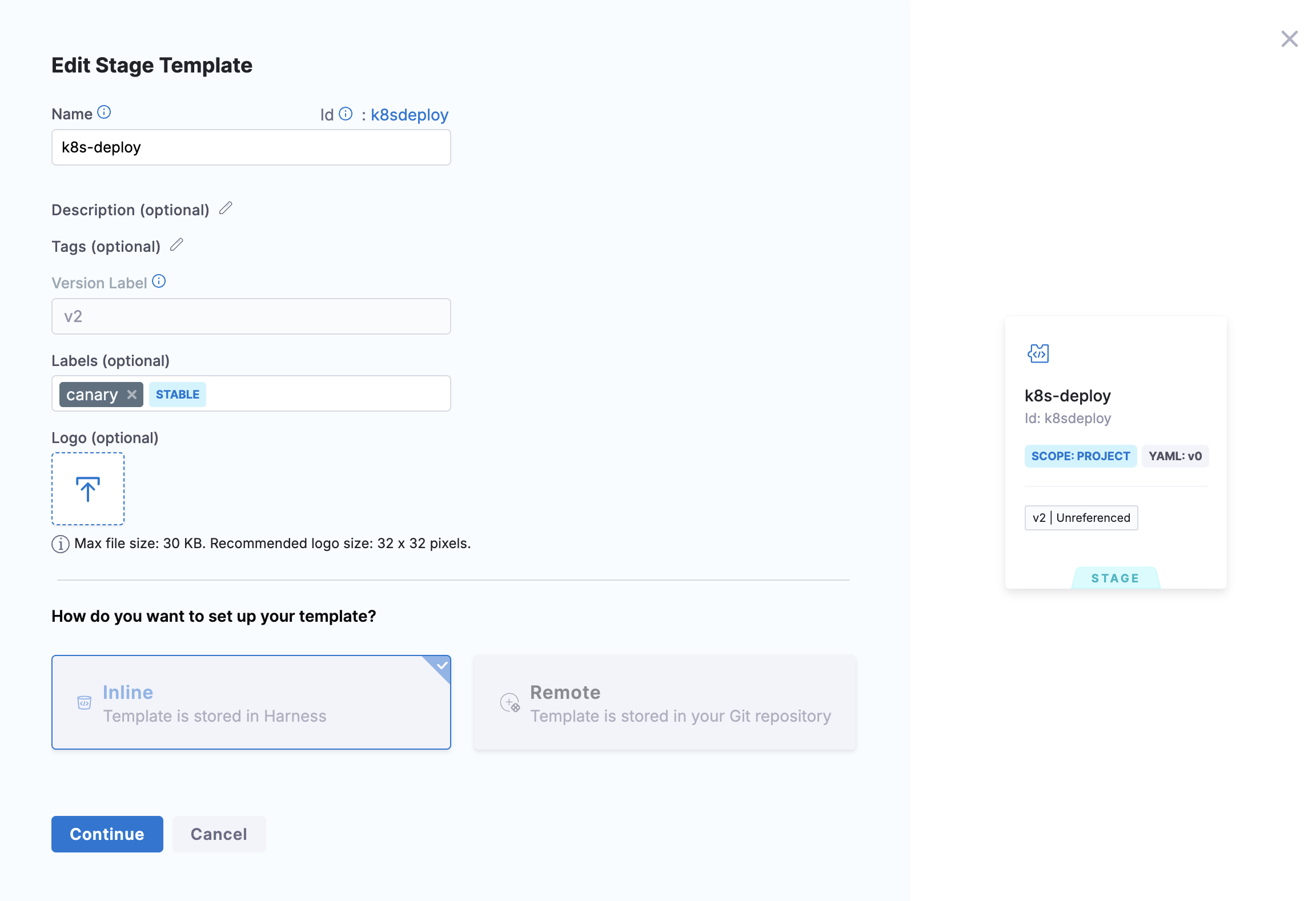
3. In the **Labels** field at the top of the editor, enter one or more label names separated by commas. Label names must be lowercase, single words, and can include underscores (for example, `canary`, `prod`, `staging`, `lts_2024`).
Click to view full size image
4. Select **Save** to apply the labels to the selected version.
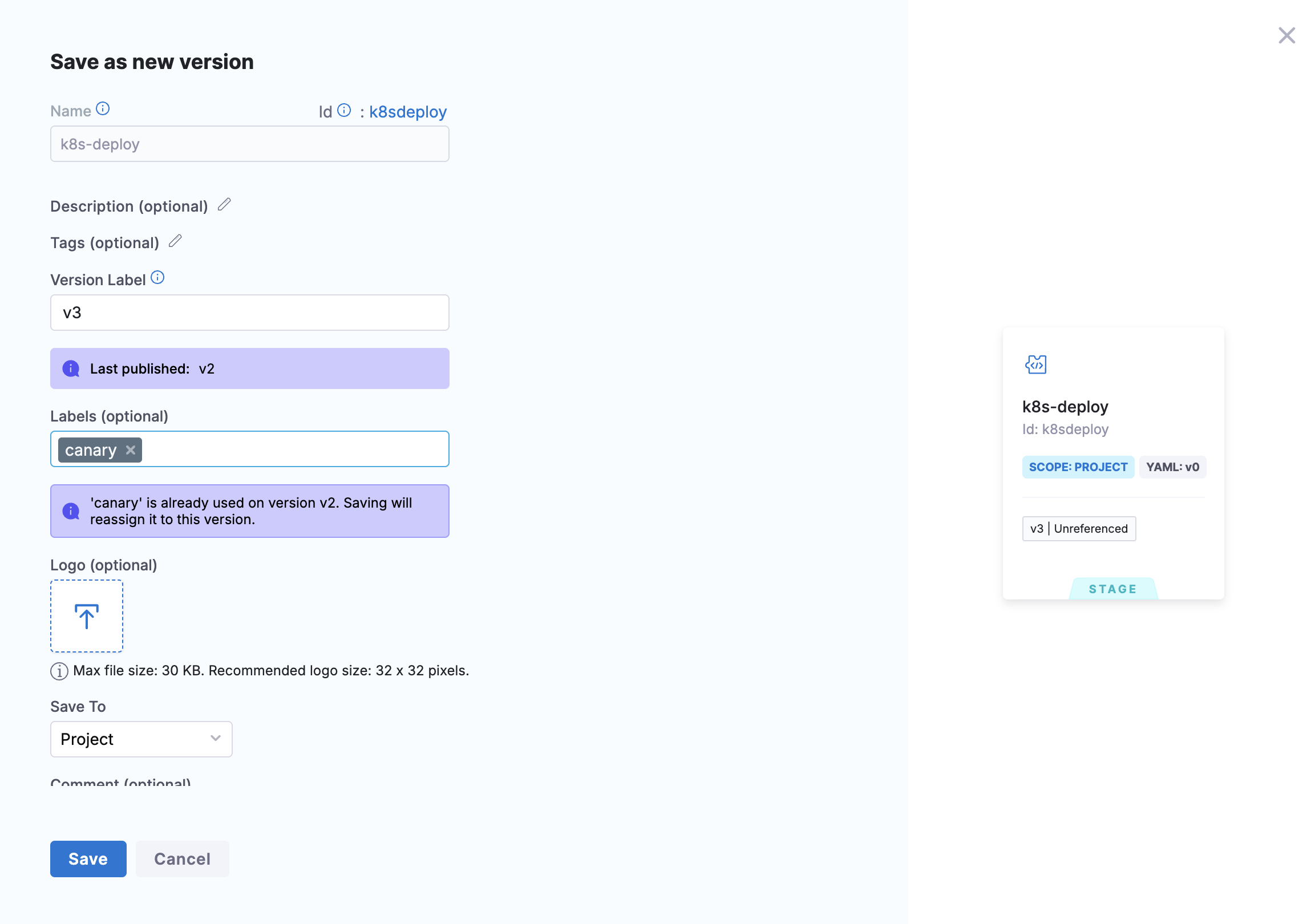
When you assign a label that already exists on another version of the same template, Harness automatically moves the label from the previous version to the new version. For example, if the `canary` label is currently on version `v2` and you assign `canary` to version `v3`, the label moves from `v2` to `v3`. Version `v2` no longer has the `canary` label.
Click to view full size image
### Reference a template using a label
When you add a template to a pipeline, you can reference it using a label instead of a specific version number. The pipeline then automatically uses whichever version the label currently points to.
To reference a template using a label, do the following:
1. In your pipeline, add or edit a stage, step, or step group that uses a template.
2. In the template selection dialog, select the template you want to use.
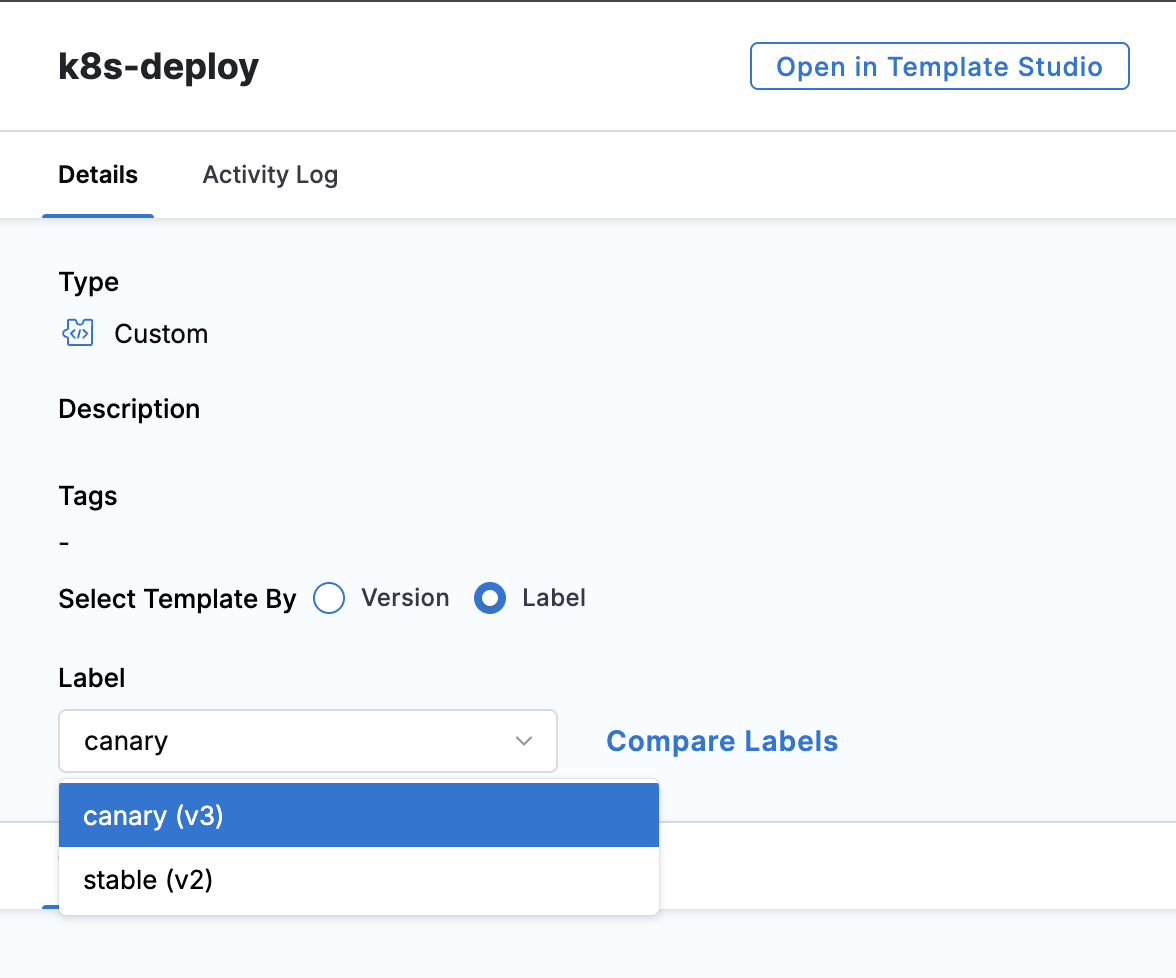
3. Under **Select Template By**, choose **Label** instead of **Version**.
4. In the **Label** dropdown that appears, select the label you want to use. The dropdown shows all labels currently assigned to any version of the template.
Click to view full size image
5. Select **Use Template** to add the template reference to your pipeline.
Your pipeline now uses the selected label to reference the template. When you or your team moves that label to a different version, the pipeline automatically uses the new version on its next execution. You do not need to edit the pipeline YAML.
In the pipeline YAML, the reference uses `label` instead of `versionLabel`:
Pipeline YAML with template label reference
```yaml
pipeline:
name: Deploy Application
identifier: deploy_app
stages:
- stage:
name: Build
identifier: build
type: Custom
spec:
execution:
steps:
- step:
name: Build Script
identifier: build_script
template:
templateRef: buildStepTemplate
label: canary
```
### Move a label to a different version
You move a label by assigning it to a different version. This is how you promote new template versions to your pipelines without editing each pipeline.
To move a label to a different version, do the following:
1. In Harness, go to **Templates** and select the template containing the label you want to move.
2. Select the version you want the label to point to from the version dropdown.
3. In the **Labels** field, add the label name. If the label already exists on another version, Harness moves it to this version.
4. Select **Save** to apply the change.
All pipelines referencing the template using that label now use the new version. If the new version has different inputs or structure compared to the previous version, Harness prompts you to reconcile affected pipelines the next time you open them.
### Switch between label and version references
You can change which version or label a pipeline stage uses by selecting a different option from the version dropdown in the pipeline editor.
To switch the version or label reference, do the following:
1. Open the pipeline in Pipeline Studio.
2. Select the stage, step, or step group that uses the template.
3. In the template details section, select the version dropdown. The dropdown shows:
* **Always use the stable version:** Automatically uses whichever version is marked as stable
* Available labels with their current version (for example, **canary (v3)**, **v2 (Stable)**)
* Available version numbers (for example, **v1**, **v2**, **v3**)
Click to view full size image
4. Select the version or label you want to use. The pipeline immediately updates to reference the selected option.
If you select a specific version number, the pipeline becomes pinned to that version and will not automatically update when labels move. If you select a label, the pipeline follows the label and automatically uses whichever version the label points to.
### Reconcile pipelines after label changes
When you move a label to a template version that has different inputs or structure, pipelines using that label may require reconciliation. Harness detects when a template reference is out of sync and shows a reconciliation prompt when you open the pipeline.
To reconcile a pipeline, do the following:
1. Open the pipeline in Pipeline Studio.
2. If Harness detects that a template used by the pipeline has changed, you see a message indicating that referenced entities are out of sync, along with a **Reconcile** button.
3. Select **Reconcile** to view the differences between your current pipeline configuration and the new template version.
4. Review the changes, including any new inputs, removed inputs, or changed default values.
5. Select **Update** to apply the changes to your pipeline.
6. Select **Save** to save the reconciled pipeline.
For remote pipelines stored in Git, you must commit and push the reconciliation changes to your repository. Go to [Reconcile pipeline template changes](/harness-platform/use-harness-platform/templates/reconcile-pipeline-templates.md) to understand the full reconciliation workflow.
### Compare template versions
You can compare two versions of a template to see what changed between them. This is useful for understanding the differences before switching to a different version or label.
To compare template versions, do the following:
1. Open the pipeline in Pipeline Studio.
2. Select the stage, step, or step group that uses the template.
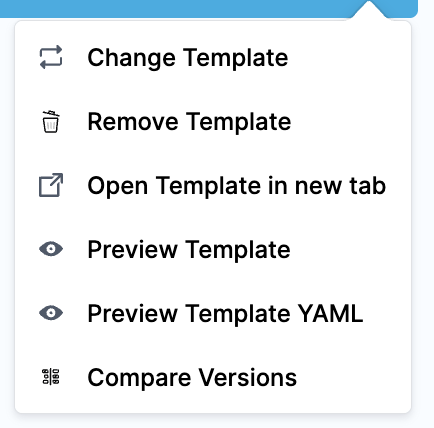
3. In the template details section, select the three-dot menu (More Options).
Click to view full size image
4. Select **Compare Versions** from the menu.
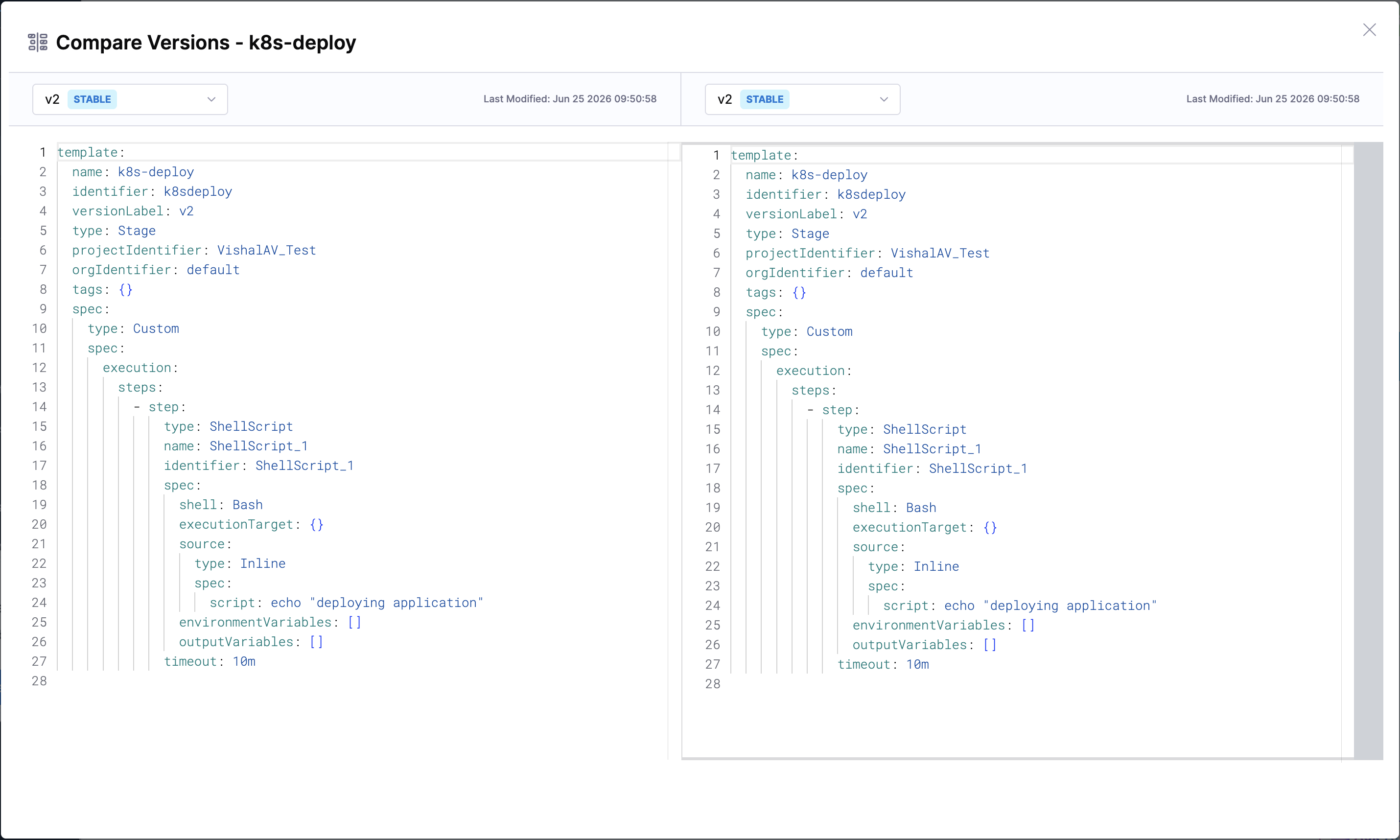
5. In the **Compare Versions** dialog, select the two versions or labels you want to compare from the dropdowns. Each dropdown shows available versions with their labels (for example, **v2 STABLE**, **v3**).
6. Harness displays a side-by-side diff showing the YAML differences between the two selected versions.
Click to view full size image
This comparison helps you understand what changed between versions before you switch your pipeline to use a different version or label.
### Label naming rules
Template labels must follow specific naming conventions.
A valid label must meet the following requirements:
* Contains only lowercase letters, numbers, and underscores
* Starts with a lowercase letter
* Cannot contain spaces, hyphens, or other special characters
* Must be a single word
Valid examples: `canary`, `prod`, `staging`, `lts_2024`, `dev_latest`
Invalid examples: `Canary` (uppercase), `prod-v2` (hyphen), `stable version` (space), `2024_lts` (starts with number)
The built-in `stable` label is special. You can assign it to any version like other labels, but you cannot remove it. There will always be a `stable` label pointing to a version in your template.
### YAML examples
The following examples show how to use template labels in different scenarios.
#### Step template with label reference Pipeline YAML with step template label reference
```yaml
pipeline:
name: Build and Deploy
identifier: build_deploy
projectIdentifier: default_project
orgIdentifier: default
stages:
- stage:
name: Build Stage
identifier: build_stage
type: Custom
spec:
execution:
steps:
- step:
name: Build Application
identifier: build_app
template:
templateRef: buildStepTemplate
label: staging
```
#### Stage template with label reference Pipeline YAML with stage template label reference
```yaml
pipeline:
name: Production Deployment
identifier: prod_deployment
projectIdentifier: default_project
orgIdentifier: default
stages:
- stage:
name: Deploy to Production
identifier: deploy_prod
template:
templateRef: prodDeploymentStage
label: prod
```
#### Nested templates with label references Stage template referencing step templates using labels
```yaml
template:
name: Deployment Stage
identifier: deploymentStage
versionLabel: v2
type: Stage
projectIdentifier: default_project
orgIdentifier: default
spec:
type: Deployment
spec:
execution:
steps:
- step:
name: Deploy Application
identifier: deploy_app
template:
templateRef: deploymentStep
label: stable
- step:
name: Run Integration Tests
identifier: run_tests
template:
templateRef: testStep
label: canary
```
### Important notes
* When you delete a template version that has labels assigned, the labels are automatically removed. Pipelines referencing the template using those labels will fail until you assign the labels to another version or update the pipelines to use a different reference.
* Template labels are scoped to the template's scope (account, organization, or project). A label named `prod` in one project is independent from a `prod` label in another project, even if both are on templates with the same identifier.
* The built-in `stable` label is special. You can assign it to any version like other labels, but you cannot remove it. There will always be a `stable` label pointing to a version in your template.
* If a template reference includes both `versionLabel` and `label`, the `versionLabel` takes priority and the `label` is ignored.
* Template labels work with both inline templates (stored in Harness) and remote templates (stored in Git). Label management happens in Harness, while template content versioning happens in Git for remote templates.
* When a label moves to a version with different inputs or structure, you must reconcile any pipelines using that label before those pipelines can execute successfully.
### Next steps
* Go to [Reconcile pipeline template changes](/harness-platform/use-harness-platform/templates/reconcile-pipeline-templates.md) to understand template reconciliation.
* Go to [Templates best practices](/harness-platform/use-harness-platform/templates/templates-best-practices.md) for guidance on managing templates at scale.
* Go to [Templates overview](/harness-platform/use-harness-platform/templates/template.md) to learn about other template features.
{% @harness-feedback/feedback module="harness-ai" pagePath="harness-ai/use-harness-platform/templates/use-template-labels" %}