> For the complete documentation index, see [llms.txt](https://developer.harness.io/llms.txt). Markdown versions of documentation pages are available by appending `.md` to page URLs; this page is available as [Markdown](https://developer.harness.io/harness-platform/use-harness-platform/templates/view-template-usage-dashboard.md).
# Pipeline template usage dashboard
Access the Pipeline Template Usage Dashboard to see how many pipelines reference each template version across your Harness account.
The **Pipeline Template Usage Dashboard** shows how many pipelines reference each template version across your Harness account. Use it to track template adoption, identify pipelines using older versions, and verify that a template version is no longer in use before deprecating or deleting it.
{% hint style="info" %}
The dashboard displays only pipeline references that you have permission to view.
{% endhint %}
***
### What you will learn in this topic
This topic covers the following:
* How to [access the Pipeline Template Usage Dashboard](#access-the-pipeline-template-usage-dashboard)
* How to [read the Pipelines per Template Version table](#pipelines-per-template-version)
* How to [use dashboard and widget actions](#dashboard-actions)
* How to [view references for a single template](#view-references-for-a-single-template)
* How to [plan template version deprecation using the dashboard](#plan-template-deprecation-using-the-dashboard)
***
## Before you begin
Review the following before you begin:
* **Account-level access**: You need access to the account scope in Harness. Go to [RBAC in Harness](/harness-platform/use-harness-platform/platform-access-control.md) to review role requirements.
* **Dashboards View permission**: You need the **View** permission on **Dashboards** to access the pre-built dashboard. Go to [Manage dashboards](/harness-platform/use-harness-platform/platform-access-control/manage-dashboards.md) to configure access.
***
### Access the Pipeline Template Usage Dashboard
The **Pipeline Template Usage Dashboard** is a pre-built dashboard available at the account scope.
To access the dashboard:
1. In Harness, navigate to your account and select **Dashboards** from the left navigation.
2. In the dashboards list, search for **Pipeline Template Usage Dashboard**.
3. Select the dashboard to open it.
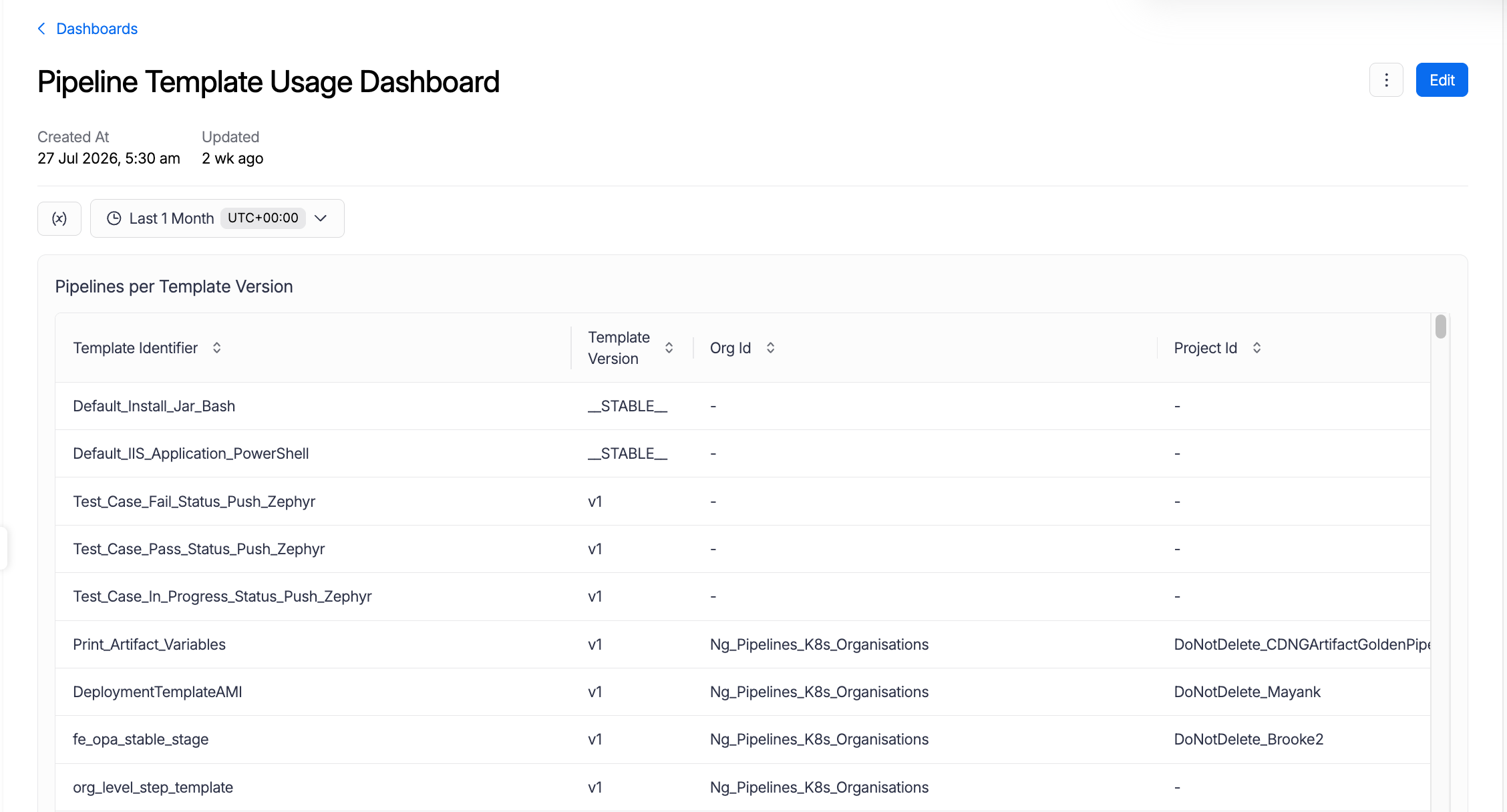
Pipeline Template Usage Dashboard
***
### Use the Pipeline Template Usage Dashboard
The dashboard contains a single widget, **Pipelines per Template Version**, which shows how template versions are used across your account. The table displays the number of pipelines referencing each template version, grouped by template, version, organization, and project. Deleted references are excluded, and results are sorted by pipeline count in descending order.
#### Time range
The dashboard toolbar displays a time range selector. This control is a standard element present on all Harness dashboards, but it does not affect the data shown in the **Pipeline Template Usage Dashboard**. The table always reflects the current state of pipeline-to-template references in your account, regardless of the time range selected.
#### Timezone
The dashboard toolbar displays a timezone selector. Harness automatically sets the timezone from your browser's locale settings. Because this dashboard shows current-state reference counts rather than time-series data, the timezone setting does not affect the results displayed.
#### Dashboard actions
The dashboard header provides two controls:
* **Edit**: Opens the **Edit Dashboard** dialog where you can update the dashboard name and description. This button is visible only if you have the **Edit** permission on **Dashboards**.
* **More** (three-dot icon): Opens the actions menu with the following options:
| Action | Description |
| ---------------- | ------------------------------------------------------------------------------------------------------------------------------------------------------------------- |
| **Refresh** | Refreshes all widget data to show the latest state. Use this after template changes or new pipeline references are created. |
| **Copy as JSON** | Copies the full dashboard definition, including widget queries and layout, to your clipboard. Useful for sharing configurations or replicating the dashboard setup. |
| **Clone** | Creates a duplicate of the entire dashboard in your account. You can then modify the clone independently without affecting the original. |
| **Export data** | Downloads the current query results as a file in CSV or JSON format for offline analysis or reporting. |
#### Pipelines per Template Version
The **Pipelines per Template Version** table displays the following columns:
| Column | Description |
| ----------------------- | --------------------------------------------------------------------------------------------------------------------------------------------------------------------------------------------------------------------------------------- |
| **Template Identifier** | The unique identifier of the referenced template. |
| **Template Version** | The version label of the template being used. Displays `__STABLE__` if the pipeline references the stable version without a fixed label. If the pipeline references a template using a floating label, the floating label is displayed. |
| **Org Id** | The organization where the template is scoped. Displays `-` for account-level templates. |
| **Project Id** | The project where the template is scoped. Displays `-` for org-level or account-level templates. |
| **Pipeline Count** | The number of distinct pipelines referencing this specific template version in the given org and project. |
Select the three-dot (**More**) icon on the widget to access widget-level actions:
| Action | Description |
| ------------------ | -------------------------------------------------------------------------------------------------- |
| **Refresh widget** | Refreshes only the selected widget to fetch the latest data without refreshing the full dashboard. |
| **View Data** | Opens the raw query result data for this widget so you can inspect individual rows. |
***
### View references for a single template
If you want to check references for one specific template without opening the dashboard, use the **Referenced By** tab in **Template Studio**.
To view references for a single template:
1. In your Harness project, select **Project Settings**, then select **Templates** under **Project-level resources**.
2. Select the template you want to inspect.
3. In the template details panel, select the **Referenced By** tab.
4. The table shows each entity referencing the template, with columns for **Entity**, **Details**, **Created**, and **Scope**.
5. To see references broken down by version, select the **All Versions** checkbox above the table.
***
### Plan template deprecation using the dashboard
Before you remove a template version, confirm that no pipelines still reference it.
1. Access the **Pipeline Template Usage Dashboard** and locate the template version you plan to deprecate.
2. If the **Pipeline Count** is greater than zero, use the **Org Id** and **Project Id** columns to identify which teams still reference the template version.
3. Notify the owning teams and ask them to reconcile their pipelines to a newer version. Go to [Reconcile pipelines with templates](/harness-platform/use-harness-platform/templates/reconcile-pipeline-templates.md) to update pipeline references.
4. After all pipelines are updated, select **Refresh** on the dashboard to confirm the count drops to zero before you delete the version.
***
## Troubleshooting The Pipeline Template Usage Dashboard does not appear in the dashboards list
The Pipeline Template Usage Dashboard is available at the account scope only. Make sure you are viewing Dashboards from account-level navigation, not from within a project or organization. You also need the View permission on Dashboards to see it in the list.
The pipeline count for a template version is lower or higher than expected
The dashboard reflects entity setup usage data, which updates on a scheduled cadence. Wait a few minutes after adding or removing a pipeline reference, then select Refresh on the dashboard. If the count remains inconsistent, contact Harness Support.
The Referenced By tab in Template Studio shows no results
If no entities appear in the Referenced By tab, the template may not be in use at the current scope. Confirm you are viewing the template at the correct account, organization, or project scope, and select the All Versions checkbox to check whether other versions have references.
***
## Next steps
Go to the following topics to continue working with templates:
* Go to [Reconcile pipelines with templates](/harness-platform/use-harness-platform/templates/reconcile-pipeline-templates.md) to update pipelines that reference an older template version.
* Go to [Template overrides](/harness-platform/use-harness-platform/templates/template-overrides.md) to understand how version resolution works across account, organization, and project scopes.
* Go to [Create dashboards](/harness-platform/use-harness-platform/harness-dashboards/dashboard-legacy/create-dashboards.md) to build a custom dashboard using template reference data.
{% @harness-feedback/feedback module="harness-ai" pagePath="harness-ai/use-harness-platform/templates/view-template-usage-dashboard" %}