> For the complete documentation index, see [llms.txt](https://developer.harness.io/llms.txt). Markdown versions of documentation pages are available by appending `.md` to page URLs; this page is available as [Markdown](https://developer.harness.io/harness-platform/use-harness-platform/triggers/triggers-overview.md).
# Triggers overview
An overview of the types of triggers available in Harness.
Harness uses triggers to automate and streamline deployment workflows. A trigger starts a pipeline execution in response to an event, such as a new artifact or manifest, an external webhook, or a schedule. Triggers give you a versatile, event-driven way to initiate pipelines based on specific events, changes, or conditions.
***
### What you will learn in this topic
By the end of this topic, you will be able to:
* Identify the [four trigger types](#types-of-triggers) available in Harness and when to use each.
* [Add a trigger](#add-a-trigger-to-a-pipeline) to a pipeline.
* [View trigger events](#view-trigger-events) for the triggers in a pipeline.
***
### Before you begin
Before you create a trigger, ensure you have the following:
* **Harness pipeline**: An existing pipeline to attach the trigger to. For more information on trigger setup, go to [Triggers](/harness-platform/use-harness-platform/triggers.md).
* **Pipeline access**: [Permissions](/harness-platform/use-harness-platform/platform-access-control/add-manage-roles.md#manage-roles-in-harness) to create and edit triggers on the pipeline.
* **Event source access**: Access to the Git repository, artifact registry, or Helm repository that the trigger listens to.
***
### Types of triggers
Harness supports four trigger types. Select the one that fits your use case:
* **Webhook**: Trigger Harness pipelines in response to Git events that match specific payload conditions you set up in a Harness trigger. Go to [Trigger pipelines using Git events](/harness-platform/use-harness-platform/triggers/triggering-pipelines.md) to configure Git event triggers.
* Trigger Harness pipelines in response to specific Slack events. For more information on Slack event triggers, go to [Trigger pipelines using Slack events](/harness-platform/use-harness-platform/triggers/trigger-pipelines-using-slack-events.md).
* Trigger Harness pipelines in response to events from third-party artifact repositories that match specific payload conditions. For more information on generic event triggers, go to [Trigger pipelines using Generic events](/harness-platform/use-harness-platform/triggers/trigger-pipelines-using-generic-events.md).
* **Artifact**: Trigger Harness pipelines in response to a new artifact version being added to a registry. For more information on artifact triggers, go to [Trigger pipelines on a new artifact](/harness-platform/use-harness-platform/triggers/trigger-on-a-new-artifact.md).
* **Manifest**: Trigger Harness pipelines in response to a new Helm chart version being added to an HTTP Helm repository. For more information on manifest triggers, go to [Trigger pipelines on new Helm chart](/harness-platform/use-harness-platform/triggers/trigger-pipelines-on-new-helm-chart.md).
* **Scheduled**: Schedule Harness pipeline executions using Cron-based triggers. For more information on scheduled triggers, go to [Schedule pipelines using triggers](/harness-platform/use-harness-platform/triggers/schedule-pipelines-using-cron-triggers.md).
***
#### Webhook triggers
Use a webhook trigger to run a pipeline in response to Git events that match specific payload conditions you set up in a Harness trigger. For example, when a pull request or push event occurs on a Git repo and your trigger settings match the payload conditions, a CI or CD pipeline runs.
Webhook triggers enable event-driven CI/CD and support the practice of every commit building or deploying to a target environment. Role-based access control (RBAC) does not apply to webhook triggers, because the events occur on the repository side.
Harness supports the following source control management (SCM) providers:
* Artifact Registry
* Azure Repos
* Bitbucket
* Custom
* Event Relay
* GitHub
* GitLab
* Harness
***
#### Artifact triggers
Use an artifact trigger to run a pipeline automatically when a new version of an artifact is added to a registry. For example, when a new Docker image is uploaded to your Docker Hub account, it can trigger a CD pipeline that automatically deploys the image.
{% hint style="info" %}
Currently, this feature is behind the feature flag `CD_TRIGGERS_REFACTOR`. Contact [Harness Support](mailto:support@harness.io) to enable it.
{% endhint %}
**Supported artifact providers for artifact triggers**
You can use the following artifact providers to trigger pipelines:
* [Harness Artifact Registry](/artifact-registry/use-artifact-registry/manage-registries/ar-webhooks.md)
* ACR (Azure Container Registry)
* Amazon Machine Image (AMI)
* Amazon S3
* Artifactory
* Azure Artifacts
* Bamboo
* Custom
* Docker Registry
* ECR (Amazon Elastic Container Registry)
* GCE Image (Google Compute Engine Image)
* GCR (Google Container Registry)
* GitHub Package Registry
* Google Artifact Registry
* Google Cloud Storage
* Jenkins
* Nexus2
* Nexus3
Google Container Registry (GCR) is deprecated and was shut down on March 18, 2025. Migrate to Google Artifact Registry (GAR) instead. Go to [Google's official transition documentation](https://cloud.google.com/artifact-registry/docs/transition/transition-from-gcr) to review the migration path, and go to the [Harness GCR documentation](/continuous-delivery/use-continuous-delivery/cd-building-blocks/services/artifact-sources.md#google-container-registry-gcr) to review GCR support in Harness.
***
#### Manifest triggers
Use a manifest trigger to automate deployments when a new Helm chart version is published. Helm chart triggers listen to the repo where one or more of the Helm charts in your pipeline are hosted. You can set conditions on the triggers, such as matching one or more chart versions.
***
#### Scheduled triggers
Use a scheduled trigger to run pipelines at fixed times without a source event. With scheduled triggers, you automate pipeline executions by setting up Cron-based triggers to run pipelines at specific times and intervals, which makes your workflow more efficient and reliable.
***
### Add a trigger to a pipeline
Add a trigger to connect a pipeline to the event that should start it. To add a trigger to a pipeline, do the following:
1. Open your Harness pipeline in Pipeline Studio.
2. Select **Triggers**.
3. Click **+ New Trigger** or **Add New Trigger**. The **Triggers** pane opens.
4. Select the Webhook, Artifact, Manifest, or Scheduled trigger.
5. Complete the required fields for your trigger type. For more information on setting up each trigger type, go to the [Triggers documentation](/harness-platform/use-harness-platform/triggers.md).
{% hint style="info" %}
You can also add Git, Generic, and Slack Webhook trigger for account level, organization level, and project level using:
* **Account Level**: Account Settings → Account-level Resources → Webhooks → New Webhook
* **Organization Level**: Organization Resources → Organization-level Resources → Webhooks → New Webhook
* **Project Level**: Project Settings → Project-level Resources → Webhooks → New Webhook
{% endhint %}
***
### View trigger events
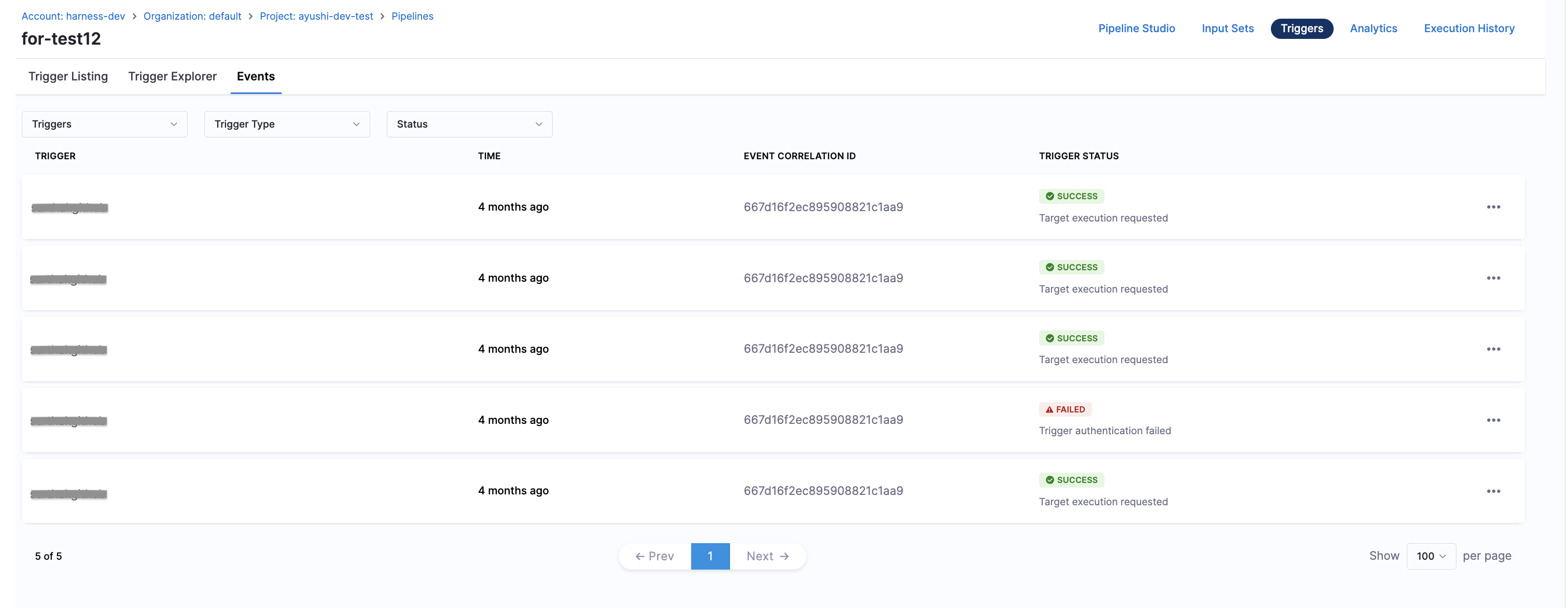
View trigger events to monitor how and when your triggers fire. You can view trigger events for all triggers created within a pipeline in the **Events** tab.
{% hint style="info" %}
Currently, this feature is behind the feature flag `PIPE_TRIGGER_EVENTS_PAGE_UI`. Contact [Harness Support](mailto:support@harness.io) to enable it.
{% endhint %}
The **Events** tab provides information on **Event Correlation ID**, **Trigger Status**, **Time**, and **Trigger Name**.
Click to view full size image
Select the three dots next to each trigger to view additional details, including the **Payload** and **Trigger Details**.
Click to view full size image
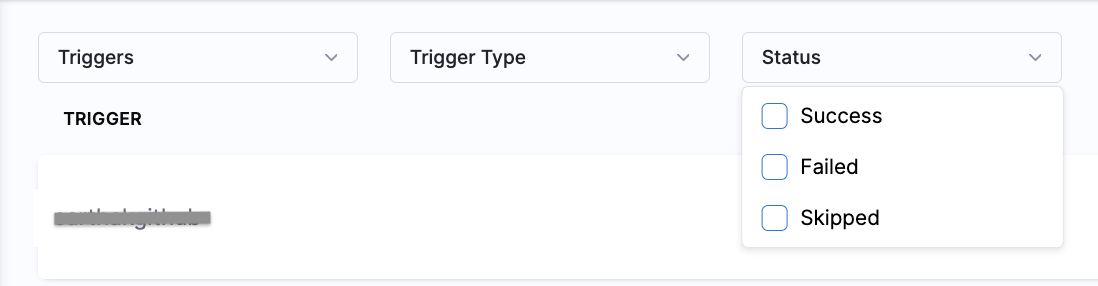
You can filter triggers based on **Trigger Name**, **Trigger Type**, and **Status**:
* **Trigger Type** includes **All**, **Webhook**, **Artifact**, **Manifest**, and **Scheduled**.
Click to view full size image
* **Trigger Status** includes **Success**, **Failed**, and **Skipped**.
Click to view full size image
***
### Related articles
Go to these related topics for more information about triggers:
* [Trigger pipelines using Git events](/harness-platform/use-harness-platform/triggers/triggering-pipelines.md)
* [Trigger pipelines on a new artifact](/harness-platform/use-harness-platform/triggers/trigger-on-a-new-artifact.md)
* [Trigger pipelines on new Helm chart](/harness-platform/use-harness-platform/triggers/trigger-pipelines-on-new-helm-chart.md)
* [Schedule pipelines using triggers](/harness-platform/use-harness-platform/triggers/schedule-pipelines-using-cron-triggers.md)
* [Trigger executor identity](/harness-platform/use-harness-platform/triggers/trigger-executor-identity.md): Run trigger-started pipelines under a specific user or service account's RBAC.
{% @harness-feedback/feedback module="harness-ai" pagePath="harness-ai/use-harness-platform/triggers/triggers-overview" %}