Select one or more of the following:
Select one or more of the following:
Select one or more of the following:
Select one or more of the following:
Select one or more of the following:
When a tag is pushed or created in GitLab, a pipeline is triggered.
Currently, this feature is behind the feature flag CDS\_GITLAB\_TRIGGER\_TAG\_EVENT. Contact Harness Support to enable the feature.
Select one or more of the following:
This event type doesn't support PRs attempting to merge Bitbucket forked repos into the original, base repo if the base repo is configured as the pipeline's codebase. For more information, go to Troubleshoot Git event triggers.
| | | Pull Request Comment |Select one or more of the following:
Note that this event type is currently supported only for Bitbucket cloud, and not for Bitbucket on-premises triggers.
| | | Push | Bitbucket Cloud push triggers respond to commit and tag creation actions by default. | | **Azure** | Pull Request |Select one or more of the following:
This event type doesn't support the Changed Files condition, because the Azure DevOps API doesn't provide a mechanism to fetch files in a PR.
| | | Issue Comment |Select one or more of the following:
Select one or more of the following:
Select one or more of the following:
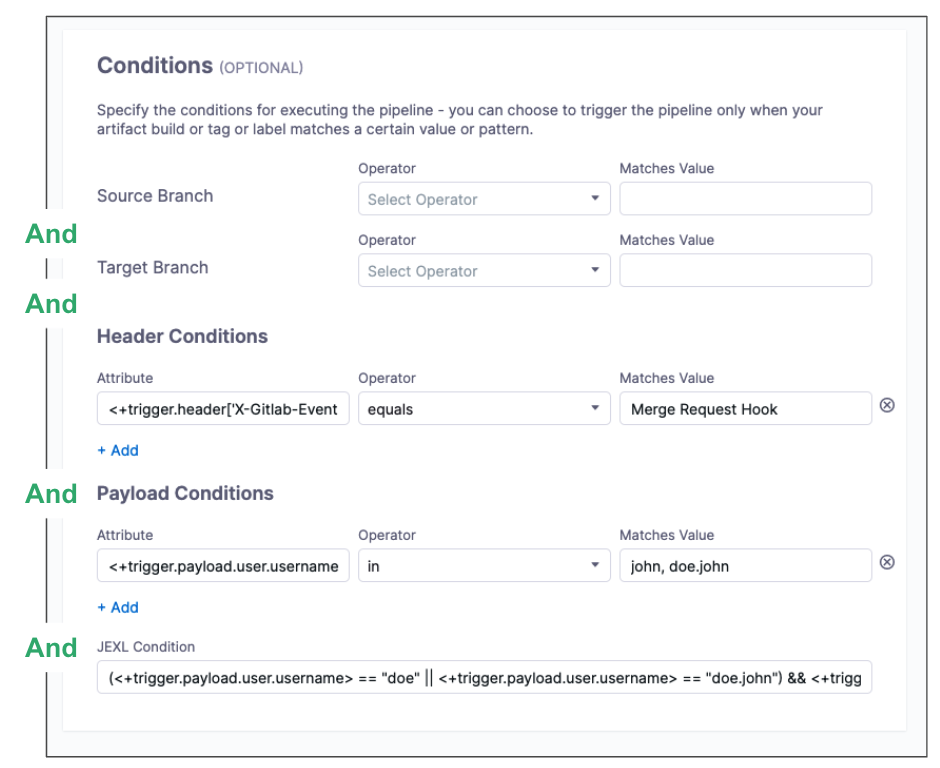 If you want a trigger that uses `OR`, `NOT`, or other operators across the payload, define only a **JEXL Condition** and leave the other conditions empty (unless you want to `AND` them to your JEXL condition).
The JEXL `in` operator is not supported in the **JEXL Condition** field.
{% endhint %}
#### Attributes
Some attributes are predefined and some require you to define a value.
The default attribute conditions depend on the selected provider and [event type](#event-and-actions). For example, GitHub push event triggers provide attribute conditions for **Branch Name** and **Changed Files**.
#### Operators
Some operators require single values and some operators allow single or multiple values.
Single-value operators include:
* **Equals** and **Not Equals:** Expects a single, full path value.
* **Starts With:** Expects a single value. Harness matches any full path starting with the value.
* **Ends With:** Expects a single value. Harness matches any full path ending with the value.
* **Contains:** Expects a single value. Harness matches any full path containing the value.
* **In** and **Not In:** Allows a single value or multiple comma-separated values. Requires full paths, such as `source/folder1/file1.txt,source/folder2/file2.txt`. For some **Conditions**, you can also use Regex, such as `main,release/.*`. You can use Regex to specify all files in a parent folder, such as `ci/.*`.
* **Regex:** Expects a single Regex value. Harness matches full paths based on the Regex. You can use complex Regex expressions, such as `^((?!README\.md).)*$`. You can use this operator to specify multiple paths, and you can use Regex to specify all files in a parent folder, such as `ci/.*`.
{% hint style="info" %}
**IN VS. REGEX OPERATOR COMPARISON**
The **In** operator matches exact literal values, and for some conditions, such as branch filters, it also accepts Regex patterns like `release/.*`. The **Regex** operator is dedicated to pattern matching. If you need wildcard-style matching, for example, `release/*`, use the **Regex** operator with a pattern like `release/.*`.
{% endhint %}
#### Matches Value
Matches values are the values for the trigger to match. Acceptable values and value formatting depend on the condition type, attribute, and operator.
Depending on the attribute and operator, you can supply a single value, comma-separated values, and Regex or JEXL.
#### Built-in Git payload expressions
To create dynamic triggers, Harness includes built-in Git payload expressions for referencing trigger details, such as a PR number.
* Main expressions:
* `<+trigger.type>`
* Webhook
* `<+trigger.event>`
* PR, PUSH, etc.
* PR and Issue Comment expressions
* `<+trigger.targetBranch>`
* `<+trigger.sourceBranch>`
* `<+trigger.prNumber>`
* `<+trigger.prTitle>`
* `<+trigger.gitUser>`
* `<+trigger.repoUrl>`
* `<+trigger.commitSha>`
* `<+trigger.baseCommitSha>`
* `<+trigger.event>`
* PR, PUSH, etc.
* Push expressions
* `<+trigger.targetBranch>`
* `<+trigger.gitUser>`
* `<+trigger.repoUrl>`
* `<+trigger.commitSha>`
* `<+trigger.event>`
* PR, PUSH, etc.
#### Reference payload fields
You can reference any payload fields using the expression `<+trigger.payload.[path-in-json]>`, where `[path-in-json]` is the path to the field in the JSON payload, such as `<+trigger.payload.pull_request.user.login>`.
How you reference the path depends on:
* The payload format for the event type. Not all event types use the same payload format.
* The Git provider. Different Git providers send JSON payloads in different formats, even for the same event. For example, a GitHub push payload might be formatted differently than a Bitbucket push payload.
Always make sure the path you use works with the provider's payload format and the event type.
{% hint style="info" %}
For instructions on using default values for pipeline inputs based on a trigger's payload, go to [ternary operator](/continuous-delivery/troubleshooting-and-resources/knowledge-base-article/ternary-operator.md).
{% endhint %}
#### Branch and Changed Files Conditions
You can configure triggers to match a branch name, specific source branch, specific target branch, and/or changed files in a Git merge. Available conditions depend on the [event type](#event-and-actions) selected. For example, any event that belongs to a merge can have **Source Branch** and **Target Branch** conditions, and push event triggers can have a **Branch Name** condition (which is the same as **Target Branch**).
For example, the following image shows a trigger that would start a pipeline if both of the following conditions were true:
* The source branch starts with `new-`.
* The target branch equals `main`.

{% hint style="info" %}
**EXCLUDE A SPECIFIC FILE WITHOUT EXCLUDING EVERY OTHER CHANGE**
The **Equals** and **Not Equals** operators expect a single, full file path, so they cannot express "any file other than X" for a **Changed Files** condition. To fire a trigger only when a change includes more than a specific file, for example, to skip triggering when a commit changes only the README, use the **Regex** operator with a negative-lookahead pattern, such as `^((?!README\.md).)*$`.
{% endhint %}
{% hint style="info" %}
**AZURE REPOS**
With Azure Repos, **Changed Files** conditions are supported for **Push** [events](#event-and-actions) only. **Changed Files** conditions aren't supported for **Pull Request** events because the Azure DevOps API doesn't provide a mechanism to fetch files in a PR.
{% endhint %}
#### Header Conditions
In the **Attribute** field, the header expression format is `<+trigger.header['key-name']>`, such as `<+trigger.header['X-GitHub-Event']>`. The following image shows how the expression `<+trigger.header['X-GitHub-Event']>` was derived from the `X-GitHub-Event` key in a GitHub webhook payload.

While valid JSON cannot contain a dash (-), headers are not JSON strings and often contain dashes. For example, `X-Github-Event` and `content-type` in the following payload:
```json
Request URL: https://app.harness.io:
Request method: POST
Accept: */*
content-type: application/json
User-Agent: GitHub-Hookshot/0601016
X-GitHub-Delivery: be493900-000-11eb-000-000
X-GitHub-Event: create
X-GitHub-Hook-ID: 281868907
X-GitHub-Hook-Installation-Target-ID: 250384642
X-GitHub-Hook-Installation-Target-Type: repository
```
If the header key doesn't contain a dash (`-`), then the following format also works: `<+trigger.header['key name']>`
When Harness evaluates the header key you provide, the comparison is case insensitive.
Depending on the [operator](#operators), In **Matches Value**, you can enter a single value or multiple comma-separated values, and you can use wildcards.
#### Payload Conditions
These conditions are based on the values of the webhook's JSON payload. Harness treats the JSON payload as a data model and parses the payload and listens for events on a JSON payload key.
To reference payload values, you use `<+eventPayload.[path-to-key-name]`, for example `<+eventPayload.repository.full_name>`.
For example, here is some data from a webhook payload that shows the repository owner:
```json
...
> "repository" : {
> "id": 1296269,
> "full_name": "octocat/Hello-World",
> "owner": {
> "login": "octocat",
> "id": 1,
> ...
> },
...
```
To reference the repository owner in a trigger's payload condition attribute, use the expression `<+eventPayload.repository.owner>`, and enter a matching value in **Matches Value**.
The following image shows how the expression `<+eventPayload.repository.name>` was derived from the `repository:name` key in a GitHub webhook payload.

The following image shows payload conditions that trigger a pipeline if the comment body starts with `This` *and* the repository owner is `johndoe`.

{% hint style="info" %}
**NOTE**
The `<+eventPayload>` expression may resolve as a list in initial executions, causing issues if [string operations](/harness-platform/use-harness-platform/variables-and-expressions/expressions-java-methods.md) (e.g., .replace("'", "")) are applied, as these are incompatible with lists. However, on reruns, `<+eventPayload>` usually resolves as a string, allowing such operations to proceed without errors.
**Tip:** Use `<+trigger.eventPayload>` instead to ensure a consistent string format, compatible with string operations in all executions.
{% endhint %}
#### JEXL Conditions
You can refer to payload data and headers using [JEXL expressions](https://commons.apache.org/proper/commons-jexl/reference/syntax.html). That includes all constants, methods, and operators in [JexlOperator](https://commons.apache.org/proper/commons-jexl/apidocs/org/apache/commons/jexl3/JexlOperator.html).
Be careful when you combine Harness variables and JEXL expressions:
* **Invalid expression format:** `<+pipeline.variables.MAGIC.toLowerCase()>`
* This expression is ambiguous. It could be evaluated as a Harness variable (return the value of variable `pipeline.variables.MAGIC.toLowerCase()`) or as a JEXL operation (return the lowercase of literal string `pipeline.variables.MAGIC`).
* **Valid expression format:** `<+<+pipeline.variables.MAGIC>.toLowerCase()>`
* First, this expression gets the value of the variable `pipeline.variables.MAGIC`, and then it returns the value converted to all lowercase.
Here are some examples of valid combined JEXL and Harness expressions:
* `<+trigger.payload.pull_request.diff_url>.contains("triggerNgDemo")`
* `<+trigger.payload.pull_request.diff_url>.contains("triggerNgDemo") || <+trigger.payload.repository.owner.name> == "wings-software"`
* `<+trigger.payload.pull_request.diff_url>.contains("triggerNgDemo") && (<+trigger.payload.repository.owner.name> == "wings-software" || <+trigger.payload.repository.owner.name> == "harness")`
{% hint style="info" %}
**OR AND NOT CONDITIONS**
Triggers are like complex filters in which all conditions (Payload, header, branch, file, and JEXL) are `AND`-ed together. To execute a trigger, the event payload must match *all* trigger conditions.
If you want a trigger that uses `OR`, `NOT`, or other operators across the payload, define only a **JEXL Condition** and leave the other conditions empty (unless you want to `AND` them to your JEXL condition).
The JEXL `in` operator is not supported in the **JEXL Condition** field.
{% endhint %}
### Pipeline Input
When executing pipelines using triggers, you can select stages and provide input sets dynamically.
Select **Pipeline Stages** to execute pipelines using triggers. This can be a fixed value or an expression.
#### Select pipeline stages and input sets as a fixed value
If you select fixed value for pipeline stages, all stages in the pipeline are displayed. Select a stage or all stages that you want to execute using the trigger.
For input sets, in **Pipeline Input**, select or create the input set to use when the trigger executes the pipeline.
#### Select pipeline stages and input sets using expressions
Here's a sample expression to select pipeline stages, `<+<+trigger.payload.stages_to_execute>.split(",")>`.
In **Pipeline Input**, select or create the input set using expressions. Here's a sample expression to select input sets, `<+<+trigger.payload.input_set_refs>.split(",")>`.

Here's is a sample trigger YAML:
```yaml
trigger:
name: test
identifier: test
enabled: true
description: ""
tags: {}
stagesToExecute: <+<+trigger.payload.stages_to_execute>.split(",")>
orgIdentifier: default
projectIdentifier: Sarthak
pipelineIdentifier: Testing
source:
type: Webhook
spec:
type: Custom
spec:
payloadConditions:
- key: <+trigger.payload.sample_key>
operator: Equals
value: sample_value
headerConditions: []
inputYaml: |
pipeline:
identifier: Testing
stages:
- stage:
identifier: Custom
type: Custom
variables:
- name: var1
type: String
value: "78"
inputSetRefs: <+<+trigger.payload.input_set_refs>.split(",")>
```
Here's a sample trigger payload:
```yaml
{
"sample_key": "sample_value",
"stages_to_execute" : "Custom,Custom2",
"input_set_refs" : "inputSet1,inputSet2"
}
```
#### Important notes when using expressions
* If the value provided for the input set YAML reference is an expression, Harness checks for the key `input_set_refs` in the trigger payload and uses the value provided there.
* By default, a trigger-started pipeline runs as the system principal, so RBAC for input sets is not enforced. To make a trigger-started pipeline run under a specific user or service account's RBAC, go to [Trigger executor identity](/harness-platform/use-harness-platform/triggers/trigger-executor-identity.md) to attach an executor.
* Limitation: You cannot pass the stages or inputRefs as an expression in the trigger payload.
You can specify [runtime inputs](/harness-platform/use-harness-platform/pipelines/input-sets.md) for the trigger to use, such as Harness Service and artifact.
You can use [built-in Git payload expressions](#built-in-git-payload-expressions) and [JEXL expressions](#jexl-conditions) in this setting.
{% hint style="info" %}
For instructions on using default values in pipeline inputs, go to [ternary operator](/continuous-delivery/troubleshooting-and-resources/knowledge-base-article/ternary-operator.md).
{% endhint %}
When Git Experience is enabled for your Pipeline, the **Pipeline Input** tab includes the **Pipeline Reference Branch** field. This field is set to `<+trigger.branch>` by default. Any build started by this trigger uses the pipeline and Input Set definitions in the branch specified in the webhook payload. This default is applicable for webhook-based triggers only. For all other trigger types, you must enter a specific branch name.
{% hint style="info" %}
Currently, the `<+trigger.branch>` expression for Issue Comment event triggers is behind the feature flag `CDS_USE_EXECUTION_TRIGGER_PAYLOAD_TO_EVALUATE_BRANCH_EXPRESSION`. Contact [Harness Support](mailto:support@harness.io) to enable the feature.
{% endhint %}
### Webhook registration
For all Git providers supported by Harness, a webhook is automatically created in the repo. Usually, the webhook is automatically registered. If automatic registration fails, you can [manually register the webhook](#manual-and-custom-webhook-registration).
For each repo, Harness creates one webhook with a superset of all permissions, rather than separate webhooks for each Git event type. The following Git events are included in the webhooks that Harness registers.
{% tabs %}
{% tab title="GitHub" %}
[GitHub events](https://docs.github.com/en/developers/webhooks-and-events/webhooks/webhook-events-and-payloads):
* `create`
* `push`
* `delete`
* `deployment`
* `pull_request`
* `pull_request_review`
{% endtab %}
{% tab title="GitLab" %}
[GitLab events](https://docs.gitlab.com/ee/user/project/integrations/webhooks.html):
* Comment events
* Issue events
* Merge request events
* Push events
[GitLab System Hooks](https://docs.gitlab.com/ee/administration/system_hooks.html#create-a-system-hook):
* Push events
* Push tag events
* Merge request events
{% endtab %}
{% tab title="Bitbucket" %}
* [Bitbucket Cloud events](https://support.atlassian.com/bitbucket-cloud/docs/event-payloads/):
* `issue`
* `pull request`
* [Bitbucket Server events](https://confluence.atlassian.com/bitbucketserver/event-payload-938025882.html):
* Pull requests
* Branch push tag
When the feature flag `PIPE_BITBUCKET_EXCLUDE_ISSUE_EVENTS_FROM_WEBHOOK` is enabled, Bitbucket webhooks configured with a workspace access token no longer support issue-type events (`issue:created`, `issue:updated`, `issue:comment_created`).
{% endtab %}
{% endtabs %}
#### Manual and custom webhook registration
Use the manual webhook registration process if [automatic webhook registration fails](/harness-platform/use-harness-platform/triggers/triggering-pipelines.md#common-causes-of-webhook-registration-failure) or is impossible (as with custom webhooks).
{% hint style="info" %}
Harness Self-Managed Enterprise Edition does not support webhook triggers for Helm-based installations using self-signed certificates.
{% endhint %}
1. In Harness, obtain the trigger webhook by selecting the **Webhook/Link** icon in the list of triggers.

2. Log in to your Git provider and navigate to the repo's webhook settings. For example, here's the **Webhooks** section of GitHub.

3. Add a webhook. In the webhook settings, paste the webhook URL that you copied from Harness into the payload URL setting in the repo. Make sure that you select JSON for the content type. For example, in GitHub, you select **application/json** in **Content type**.
{% hint style="info" %}
**CUSTOM WEBHOOK URL FORMAT**
The format for the custom webhook URL is `https://app.harness.io/pipeline/api/webhook/custom?accountIdentifier=ACCOUNT_ID&orgIdentifier=ORG_ID&projectIdentifier=PROJECT_ID&pipelineIdentifier=PIPELINE_ID&triggerIdentifier=TRIGGER_ID`
The `orgIdentifier` and `projectIdentifier` are mandatory.
The `pipelineIdentifier` and `triggerIdentifier` target the webhook at the specific pipeline and trigger.
In some cases, you won't want to target the webhook at the specific pipeline and trigger. For example, there are events in GitHub that are not covered by Harness and you might want to set up a custom trigger for those events that applies to all pipelines and their triggers in a project. To instruct Harness to evaluate the custom trigger against all pipelines (until it finds matching **Conditions**), remove `pipelineIdentifier` and `triggerIdentifier` from the URL before adding the trigger to your repo.
{% endhint %}
#### GitLab System Hooks
Setting Up GitLab System Hooks
GitLab supports various system hooks, including:
Push Events Push Tag Events Merge Request Events
To set up a webhook to listen for GitLab system hooks, configure the trigger similarly to how you would set up a GitLab event trigger.
Configuration Steps
1. Navigate to Admin Settings: In your GitLab instance, go to Admin Settings and select System Hooks.
2. Add a New Webhook: Click on Add New Webhook.
3. Copy the Webhook URL: From the Harness triggers page, copy the webhook URL and paste it into the System Webhook URL field.
4. Provide Additional Details: Fill in the Name, Description, and Secret Token for validation.
5. Select Events: Under Triggers, choose all the events you want the webhook to listen for.
6. Save Configuration: Click on Save to complete the setup.
Your GitLab system hook is now configured. You can test your trigger by pushing an event.
### Last activation
On the list of triggers for a pipeline, you can see when each trigger was last activated.
**Activation** means the trigger was able to *request* pipeline execution; it doesn't mean that the webhook didn't work.
**Failed** usually means the pipeline has a configuration issue that prevented the trigger from initiating a pipeline.
### Activity History
You can verify the payload received by the trigger in the Activity History section of the trigger.

If headers contain a key with any of the following names, its value will be masked as `****`.
* `Authorization`
* `Proxy-Authorization`
* `X-Api-Key`
* `X-Amz-Security-Token`
* `X-Amz-Credential`
* `Set-Cookie`
* `Cookie`
If the value of any header looks like a **bearer token, JWT token, or base64-encoded string**, the value will be masked as `****`.
Examples:
Given the following headers:
```json
{
"X-Api-Key": "auth-token",
"Authorization": "Bearer 12345abcde",
"custom-header": "custom-value",
"custom-header-with-jwt": "eyJ0e.sometokenbody.signature"
}
```
The masked headers will look like this:
```json
{
"X-Api-Key": "****",
"Authorization": "****",
"custom-header": "custom-value",
"custom-header-with-jwt": "****"
}
```
{% @harness-feedback/feedback module="harness-ai" pagePath="harness-ai/use-harness-platform/triggers/triggers-reference" %}
If you want a trigger that uses `OR`, `NOT`, or other operators across the payload, define only a **JEXL Condition** and leave the other conditions empty (unless you want to `AND` them to your JEXL condition).
The JEXL `in` operator is not supported in the **JEXL Condition** field.
{% endhint %}
#### Attributes
Some attributes are predefined and some require you to define a value.
The default attribute conditions depend on the selected provider and [event type](#event-and-actions). For example, GitHub push event triggers provide attribute conditions for **Branch Name** and **Changed Files**.
#### Operators
Some operators require single values and some operators allow single or multiple values.
Single-value operators include:
* **Equals** and **Not Equals:** Expects a single, full path value.
* **Starts With:** Expects a single value. Harness matches any full path starting with the value.
* **Ends With:** Expects a single value. Harness matches any full path ending with the value.
* **Contains:** Expects a single value. Harness matches any full path containing the value.
* **In** and **Not In:** Allows a single value or multiple comma-separated values. Requires full paths, such as `source/folder1/file1.txt,source/folder2/file2.txt`. For some **Conditions**, you can also use Regex, such as `main,release/.*`. You can use Regex to specify all files in a parent folder, such as `ci/.*`.
* **Regex:** Expects a single Regex value. Harness matches full paths based on the Regex. You can use complex Regex expressions, such as `^((?!README\.md).)*$`. You can use this operator to specify multiple paths, and you can use Regex to specify all files in a parent folder, such as `ci/.*`.
{% hint style="info" %}
**IN VS. REGEX OPERATOR COMPARISON**
The **In** operator matches exact literal values, and for some conditions, such as branch filters, it also accepts Regex patterns like `release/.*`. The **Regex** operator is dedicated to pattern matching. If you need wildcard-style matching, for example, `release/*`, use the **Regex** operator with a pattern like `release/.*`.
{% endhint %}
#### Matches Value
Matches values are the values for the trigger to match. Acceptable values and value formatting depend on the condition type, attribute, and operator.
Depending on the attribute and operator, you can supply a single value, comma-separated values, and Regex or JEXL.
#### Built-in Git payload expressions
To create dynamic triggers, Harness includes built-in Git payload expressions for referencing trigger details, such as a PR number.
* Main expressions:
* `<+trigger.type>`
* Webhook
* `<+trigger.event>`
* PR, PUSH, etc.
* PR and Issue Comment expressions
* `<+trigger.targetBranch>`
* `<+trigger.sourceBranch>`
* `<+trigger.prNumber>`
* `<+trigger.prTitle>`
* `<+trigger.gitUser>`
* `<+trigger.repoUrl>`
* `<+trigger.commitSha>`
* `<+trigger.baseCommitSha>`
* `<+trigger.event>`
* PR, PUSH, etc.
* Push expressions
* `<+trigger.targetBranch>`
* `<+trigger.gitUser>`
* `<+trigger.repoUrl>`
* `<+trigger.commitSha>`
* `<+trigger.event>`
* PR, PUSH, etc.
#### Reference payload fields
You can reference any payload fields using the expression `<+trigger.payload.[path-in-json]>`, where `[path-in-json]` is the path to the field in the JSON payload, such as `<+trigger.payload.pull_request.user.login>`.
How you reference the path depends on:
* The payload format for the event type. Not all event types use the same payload format.
* The Git provider. Different Git providers send JSON payloads in different formats, even for the same event. For example, a GitHub push payload might be formatted differently than a Bitbucket push payload.
Always make sure the path you use works with the provider's payload format and the event type.
{% hint style="info" %}
For instructions on using default values for pipeline inputs based on a trigger's payload, go to [ternary operator](/continuous-delivery/troubleshooting-and-resources/knowledge-base-article/ternary-operator.md).
{% endhint %}
#### Branch and Changed Files Conditions
You can configure triggers to match a branch name, specific source branch, specific target branch, and/or changed files in a Git merge. Available conditions depend on the [event type](#event-and-actions) selected. For example, any event that belongs to a merge can have **Source Branch** and **Target Branch** conditions, and push event triggers can have a **Branch Name** condition (which is the same as **Target Branch**).
For example, the following image shows a trigger that would start a pipeline if both of the following conditions were true:
* The source branch starts with `new-`.
* The target branch equals `main`.

{% hint style="info" %}
**EXCLUDE A SPECIFIC FILE WITHOUT EXCLUDING EVERY OTHER CHANGE**
The **Equals** and **Not Equals** operators expect a single, full file path, so they cannot express "any file other than X" for a **Changed Files** condition. To fire a trigger only when a change includes more than a specific file, for example, to skip triggering when a commit changes only the README, use the **Regex** operator with a negative-lookahead pattern, such as `^((?!README\.md).)*$`.
{% endhint %}
{% hint style="info" %}
**AZURE REPOS**
With Azure Repos, **Changed Files** conditions are supported for **Push** [events](#event-and-actions) only. **Changed Files** conditions aren't supported for **Pull Request** events because the Azure DevOps API doesn't provide a mechanism to fetch files in a PR.
{% endhint %}
#### Header Conditions
In the **Attribute** field, the header expression format is `<+trigger.header['key-name']>`, such as `<+trigger.header['X-GitHub-Event']>`. The following image shows how the expression `<+trigger.header['X-GitHub-Event']>` was derived from the `X-GitHub-Event` key in a GitHub webhook payload.

While valid JSON cannot contain a dash (-), headers are not JSON strings and often contain dashes. For example, `X-Github-Event` and `content-type` in the following payload:
```json
Request URL: https://app.harness.io:
Request method: POST
Accept: */*
content-type: application/json
User-Agent: GitHub-Hookshot/0601016
X-GitHub-Delivery: be493900-000-11eb-000-000
X-GitHub-Event: create
X-GitHub-Hook-ID: 281868907
X-GitHub-Hook-Installation-Target-ID: 250384642
X-GitHub-Hook-Installation-Target-Type: repository
```
If the header key doesn't contain a dash (`-`), then the following format also works: `<+trigger.header['key name']>`
When Harness evaluates the header key you provide, the comparison is case insensitive.
Depending on the [operator](#operators), In **Matches Value**, you can enter a single value or multiple comma-separated values, and you can use wildcards.
#### Payload Conditions
These conditions are based on the values of the webhook's JSON payload. Harness treats the JSON payload as a data model and parses the payload and listens for events on a JSON payload key.
To reference payload values, you use `<+eventPayload.[path-to-key-name]`, for example `<+eventPayload.repository.full_name>`.
For example, here is some data from a webhook payload that shows the repository owner:
```json
...
> "repository" : {
> "id": 1296269,
> "full_name": "octocat/Hello-World",
> "owner": {
> "login": "octocat",
> "id": 1,
> ...
> },
...
```
To reference the repository owner in a trigger's payload condition attribute, use the expression `<+eventPayload.repository.owner>`, and enter a matching value in **Matches Value**.
The following image shows how the expression `<+eventPayload.repository.name>` was derived from the `repository:name` key in a GitHub webhook payload.

The following image shows payload conditions that trigger a pipeline if the comment body starts with `This` *and* the repository owner is `johndoe`.

{% hint style="info" %}
**NOTE**
The `<+eventPayload>` expression may resolve as a list in initial executions, causing issues if [string operations](/harness-platform/use-harness-platform/variables-and-expressions/expressions-java-methods.md) (e.g., .replace("'", "")) are applied, as these are incompatible with lists. However, on reruns, `<+eventPayload>` usually resolves as a string, allowing such operations to proceed without errors.
**Tip:** Use `<+trigger.eventPayload>` instead to ensure a consistent string format, compatible with string operations in all executions.
{% endhint %}
#### JEXL Conditions
You can refer to payload data and headers using [JEXL expressions](https://commons.apache.org/proper/commons-jexl/reference/syntax.html). That includes all constants, methods, and operators in [JexlOperator](https://commons.apache.org/proper/commons-jexl/apidocs/org/apache/commons/jexl3/JexlOperator.html).
Be careful when you combine Harness variables and JEXL expressions:
* **Invalid expression format:** `<+pipeline.variables.MAGIC.toLowerCase()>`
* This expression is ambiguous. It could be evaluated as a Harness variable (return the value of variable `pipeline.variables.MAGIC.toLowerCase()`) or as a JEXL operation (return the lowercase of literal string `pipeline.variables.MAGIC`).
* **Valid expression format:** `<+<+pipeline.variables.MAGIC>.toLowerCase()>`
* First, this expression gets the value of the variable `pipeline.variables.MAGIC`, and then it returns the value converted to all lowercase.
Here are some examples of valid combined JEXL and Harness expressions:
* `<+trigger.payload.pull_request.diff_url>.contains("triggerNgDemo")`
* `<+trigger.payload.pull_request.diff_url>.contains("triggerNgDemo") || <+trigger.payload.repository.owner.name> == "wings-software"`
* `<+trigger.payload.pull_request.diff_url>.contains("triggerNgDemo") && (<+trigger.payload.repository.owner.name> == "wings-software" || <+trigger.payload.repository.owner.name> == "harness")`
{% hint style="info" %}
**OR AND NOT CONDITIONS**
Triggers are like complex filters in which all conditions (Payload, header, branch, file, and JEXL) are `AND`-ed together. To execute a trigger, the event payload must match *all* trigger conditions.
If you want a trigger that uses `OR`, `NOT`, or other operators across the payload, define only a **JEXL Condition** and leave the other conditions empty (unless you want to `AND` them to your JEXL condition).
The JEXL `in` operator is not supported in the **JEXL Condition** field.
{% endhint %}
### Pipeline Input
When executing pipelines using triggers, you can select stages and provide input sets dynamically.
Select **Pipeline Stages** to execute pipelines using triggers. This can be a fixed value or an expression.
#### Select pipeline stages and input sets as a fixed value
If you select fixed value for pipeline stages, all stages in the pipeline are displayed. Select a stage or all stages that you want to execute using the trigger.
For input sets, in **Pipeline Input**, select or create the input set to use when the trigger executes the pipeline.
#### Select pipeline stages and input sets using expressions
Here's a sample expression to select pipeline stages, `<+<+trigger.payload.stages_to_execute>.split(",")>`.
In **Pipeline Input**, select or create the input set using expressions. Here's a sample expression to select input sets, `<+<+trigger.payload.input_set_refs>.split(",")>`.

Here's is a sample trigger YAML:
```yaml
trigger:
name: test
identifier: test
enabled: true
description: ""
tags: {}
stagesToExecute: <+<+trigger.payload.stages_to_execute>.split(",")>
orgIdentifier: default
projectIdentifier: Sarthak
pipelineIdentifier: Testing
source:
type: Webhook
spec:
type: Custom
spec:
payloadConditions:
- key: <+trigger.payload.sample_key>
operator: Equals
value: sample_value
headerConditions: []
inputYaml: |
pipeline:
identifier: Testing
stages:
- stage:
identifier: Custom
type: Custom
variables:
- name: var1
type: String
value: "78"
inputSetRefs: <+<+trigger.payload.input_set_refs>.split(",")>
```
Here's a sample trigger payload:
```yaml
{
"sample_key": "sample_value",
"stages_to_execute" : "Custom,Custom2",
"input_set_refs" : "inputSet1,inputSet2"
}
```
#### Important notes when using expressions
* If the value provided for the input set YAML reference is an expression, Harness checks for the key `input_set_refs` in the trigger payload and uses the value provided there.
* By default, a trigger-started pipeline runs as the system principal, so RBAC for input sets is not enforced. To make a trigger-started pipeline run under a specific user or service account's RBAC, go to [Trigger executor identity](/harness-platform/use-harness-platform/triggers/trigger-executor-identity.md) to attach an executor.
* Limitation: You cannot pass the stages or inputRefs as an expression in the trigger payload.
You can specify [runtime inputs](/harness-platform/use-harness-platform/pipelines/input-sets.md) for the trigger to use, such as Harness Service and artifact.
You can use [built-in Git payload expressions](#built-in-git-payload-expressions) and [JEXL expressions](#jexl-conditions) in this setting.
{% hint style="info" %}
For instructions on using default values in pipeline inputs, go to [ternary operator](/continuous-delivery/troubleshooting-and-resources/knowledge-base-article/ternary-operator.md).
{% endhint %}
When Git Experience is enabled for your Pipeline, the **Pipeline Input** tab includes the **Pipeline Reference Branch** field. This field is set to `<+trigger.branch>` by default. Any build started by this trigger uses the pipeline and Input Set definitions in the branch specified in the webhook payload. This default is applicable for webhook-based triggers only. For all other trigger types, you must enter a specific branch name.
{% hint style="info" %}
Currently, the `<+trigger.branch>` expression for Issue Comment event triggers is behind the feature flag `CDS_USE_EXECUTION_TRIGGER_PAYLOAD_TO_EVALUATE_BRANCH_EXPRESSION`. Contact [Harness Support](mailto:support@harness.io) to enable the feature.
{% endhint %}
### Webhook registration
For all Git providers supported by Harness, a webhook is automatically created in the repo. Usually, the webhook is automatically registered. If automatic registration fails, you can [manually register the webhook](#manual-and-custom-webhook-registration).
For each repo, Harness creates one webhook with a superset of all permissions, rather than separate webhooks for each Git event type. The following Git events are included in the webhooks that Harness registers.
{% tabs %}
{% tab title="GitHub" %}
[GitHub events](https://docs.github.com/en/developers/webhooks-and-events/webhooks/webhook-events-and-payloads):
* `create`
* `push`
* `delete`
* `deployment`
* `pull_request`
* `pull_request_review`
{% endtab %}
{% tab title="GitLab" %}
[GitLab events](https://docs.gitlab.com/ee/user/project/integrations/webhooks.html):
* Comment events
* Issue events
* Merge request events
* Push events
[GitLab System Hooks](https://docs.gitlab.com/ee/administration/system_hooks.html#create-a-system-hook):
* Push events
* Push tag events
* Merge request events
{% endtab %}
{% tab title="Bitbucket" %}
* [Bitbucket Cloud events](https://support.atlassian.com/bitbucket-cloud/docs/event-payloads/):
* `issue`
* `pull request`
* [Bitbucket Server events](https://confluence.atlassian.com/bitbucketserver/event-payload-938025882.html):
* Pull requests
* Branch push tag
When the feature flag `PIPE_BITBUCKET_EXCLUDE_ISSUE_EVENTS_FROM_WEBHOOK` is enabled, Bitbucket webhooks configured with a workspace access token no longer support issue-type events (`issue:created`, `issue:updated`, `issue:comment_created`).
{% endtab %}
{% endtabs %}
#### Manual and custom webhook registration
Use the manual webhook registration process if [automatic webhook registration fails](/harness-platform/use-harness-platform/triggers/triggering-pipelines.md#common-causes-of-webhook-registration-failure) or is impossible (as with custom webhooks).
{% hint style="info" %}
Harness Self-Managed Enterprise Edition does not support webhook triggers for Helm-based installations using self-signed certificates.
{% endhint %}
1. In Harness, obtain the trigger webhook by selecting the **Webhook/Link** icon in the list of triggers.

2. Log in to your Git provider and navigate to the repo's webhook settings. For example, here's the **Webhooks** section of GitHub.

3. Add a webhook. In the webhook settings, paste the webhook URL that you copied from Harness into the payload URL setting in the repo. Make sure that you select JSON for the content type. For example, in GitHub, you select **application/json** in **Content type**.
{% hint style="info" %}
**CUSTOM WEBHOOK URL FORMAT**
The format for the custom webhook URL is `https://app.harness.io/pipeline/api/webhook/custom?accountIdentifier=ACCOUNT_ID&orgIdentifier=ORG_ID&projectIdentifier=PROJECT_ID&pipelineIdentifier=PIPELINE_ID&triggerIdentifier=TRIGGER_ID`
The `orgIdentifier` and `projectIdentifier` are mandatory.
The `pipelineIdentifier` and `triggerIdentifier` target the webhook at the specific pipeline and trigger.
In some cases, you won't want to target the webhook at the specific pipeline and trigger. For example, there are events in GitHub that are not covered by Harness and you might want to set up a custom trigger for those events that applies to all pipelines and their triggers in a project. To instruct Harness to evaluate the custom trigger against all pipelines (until it finds matching **Conditions**), remove `pipelineIdentifier` and `triggerIdentifier` from the URL before adding the trigger to your repo.
{% endhint %}
#### GitLab System Hooks
Setting Up GitLab System Hooks
GitLab supports various system hooks, including:
Push Events Push Tag Events Merge Request Events
To set up a webhook to listen for GitLab system hooks, configure the trigger similarly to how you would set up a GitLab event trigger.
Configuration Steps
1. Navigate to Admin Settings: In your GitLab instance, go to Admin Settings and select System Hooks.
2. Add a New Webhook: Click on Add New Webhook.
3. Copy the Webhook URL: From the Harness triggers page, copy the webhook URL and paste it into the System Webhook URL field.
4. Provide Additional Details: Fill in the Name, Description, and Secret Token for validation.
5. Select Events: Under Triggers, choose all the events you want the webhook to listen for.
6. Save Configuration: Click on Save to complete the setup.
Your GitLab system hook is now configured. You can test your trigger by pushing an event.
### Last activation
On the list of triggers for a pipeline, you can see when each trigger was last activated.
**Activation** means the trigger was able to *request* pipeline execution; it doesn't mean that the webhook didn't work.
**Failed** usually means the pipeline has a configuration issue that prevented the trigger from initiating a pipeline.
### Activity History
You can verify the payload received by the trigger in the Activity History section of the trigger.

If headers contain a key with any of the following names, its value will be masked as `****`.
* `Authorization`
* `Proxy-Authorization`
* `X-Api-Key`
* `X-Amz-Security-Token`
* `X-Amz-Credential`
* `Set-Cookie`
* `Cookie`
If the value of any header looks like a **bearer token, JWT token, or base64-encoded string**, the value will be masked as `****`.
Examples:
Given the following headers:
```json
{
"X-Api-Key": "auth-token",
"Authorization": "Bearer 12345abcde",
"custom-header": "custom-value",
"custom-header-with-jwt": "eyJ0e.sometokenbody.signature"
}
```
The masked headers will look like this:
```json
{
"X-Api-Key": "****",
"Authorization": "****",
"custom-header": "custom-value",
"custom-header-with-jwt": "****"
}
```
{% @harness-feedback/feedback module="harness-ai" pagePath="harness-ai/use-harness-platform/triggers/triggers-reference" %}