> For the complete documentation index, see [llms.txt](https://developer.harness.io/llms.txt). Markdown versions of documentation pages are available by appending `.md` to page URLs; this page is available as [Markdown](https://developer.harness.io/harness-solutions-factory/3.0/troubleshooting-and-resources/hands-on-labs/project-customizations-lab.md).
# Customize Your Harness Project Configuration
Customize the project template.
{% hint style="info" %}
*Before proceeding, ensure that the Harness Solutions Factory has been deployed into your account*
{% endhint %}
#### Modify the Harness Project Setup workflow to source from the Custom Template Library
{% hint style="info" %}
If you have deployed HSF after February 2026, a copy of harness-project and harness-organization should be already in your custom-harness-template-library and therefore steps 1-14 can be skipped. If you are looking to customize a different workflow follow steps 1-14 but use the desired folder.
{% endhint %}
1. Log into your Harness Account and select `Code Repository`
2. Change your scope to the organization named `Harness Platform Management`
3. Select the repository - `harness-template-library` and clone this locally to your machine
4. Select the repository - `custom-harness-template-library` and clone this locally to your machine
5. Open both repositories in separate VSCode windows. *When prompted, **do not click*** *`Reopen in Container`. This is done after the initial copy process*
6. Locally, in the `harness-template-library` repository, find the folder named `harness-project`
7. Copy the folder to the root of the `custom-harness-template-library`
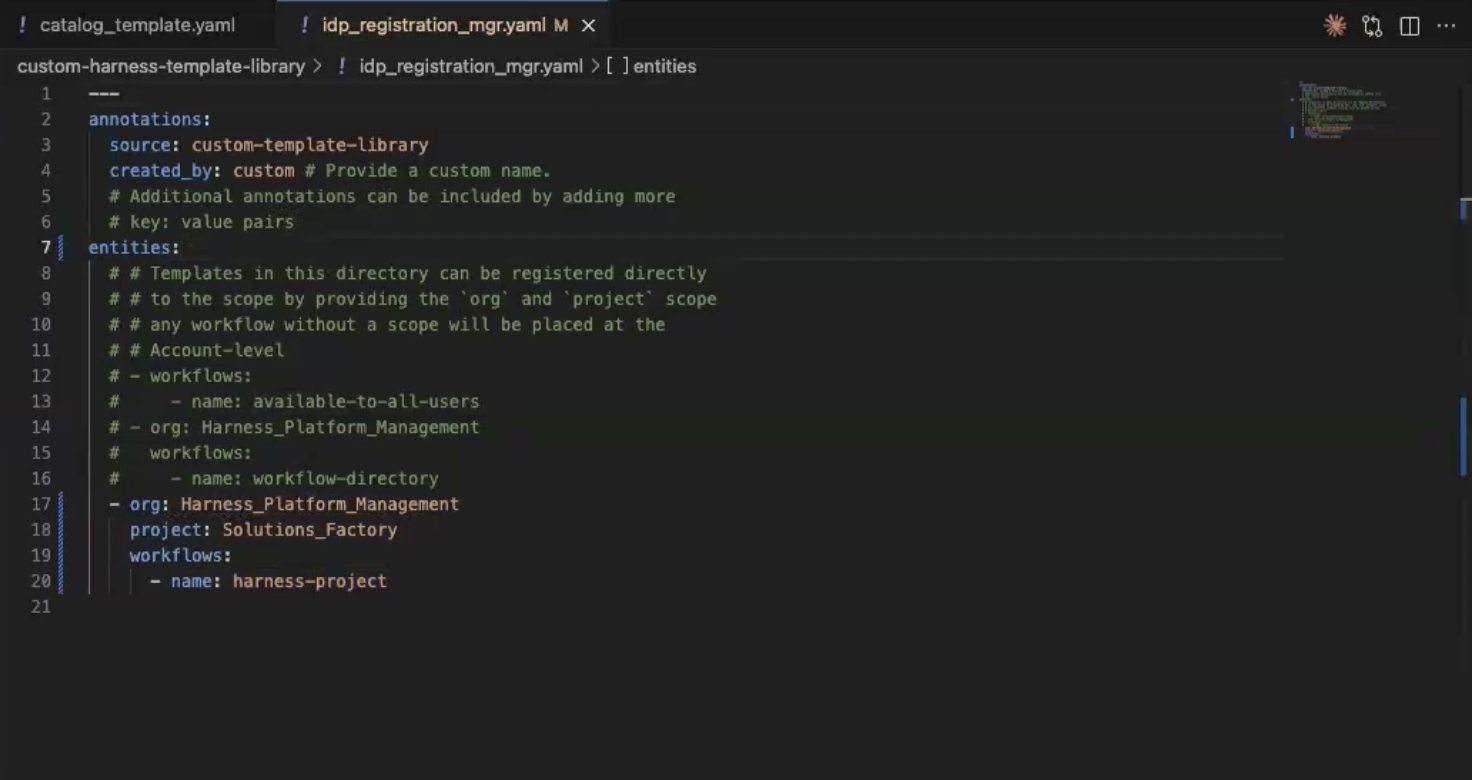
8. Prepare the IDP Resource Manager file
* Open the `idp_registration_mgr.yaml` in the repository `harness-template-library`
* Find the `harness-project` entry
```yaml
- org: Harness_Platform_Management
project: Solutions_Factory
workflows:
- name: harness-project
```
* Open the `idp_registration_mgr.yaml` in the repository `custom-harness-template-library`
* Paste the above code snippet entry under the `entities` key.
You will need to remove the [] at the end of this line entities: []
Click to view full size image
9. Reopen the `custom-harness-template-library` in the container
* On the bottom left corner of VSCode is a blue box `><`, click on this icon to open the DevContainers management panel and choose `Reopen in Container`
10. Modify the Harness IDP workflow for the `harness-project` template: open the file `harness-project/.harness/catalog_template.yaml` in VSCode
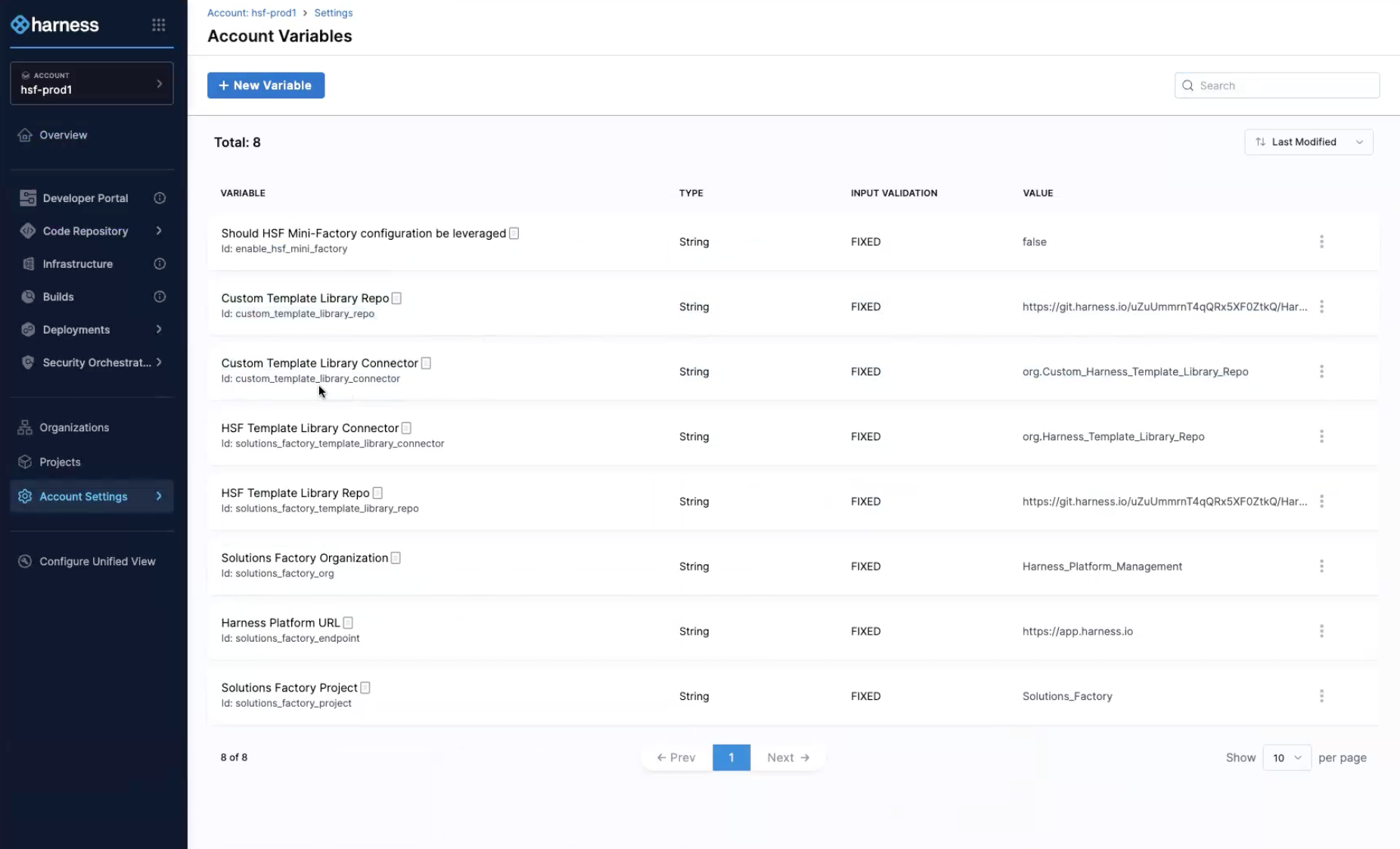
There are account level variables that manage the configuration of the Custom Template Library Connector and Repositories. You can access these variables and adjust them by updating the variable in the Account Settings for the platform.
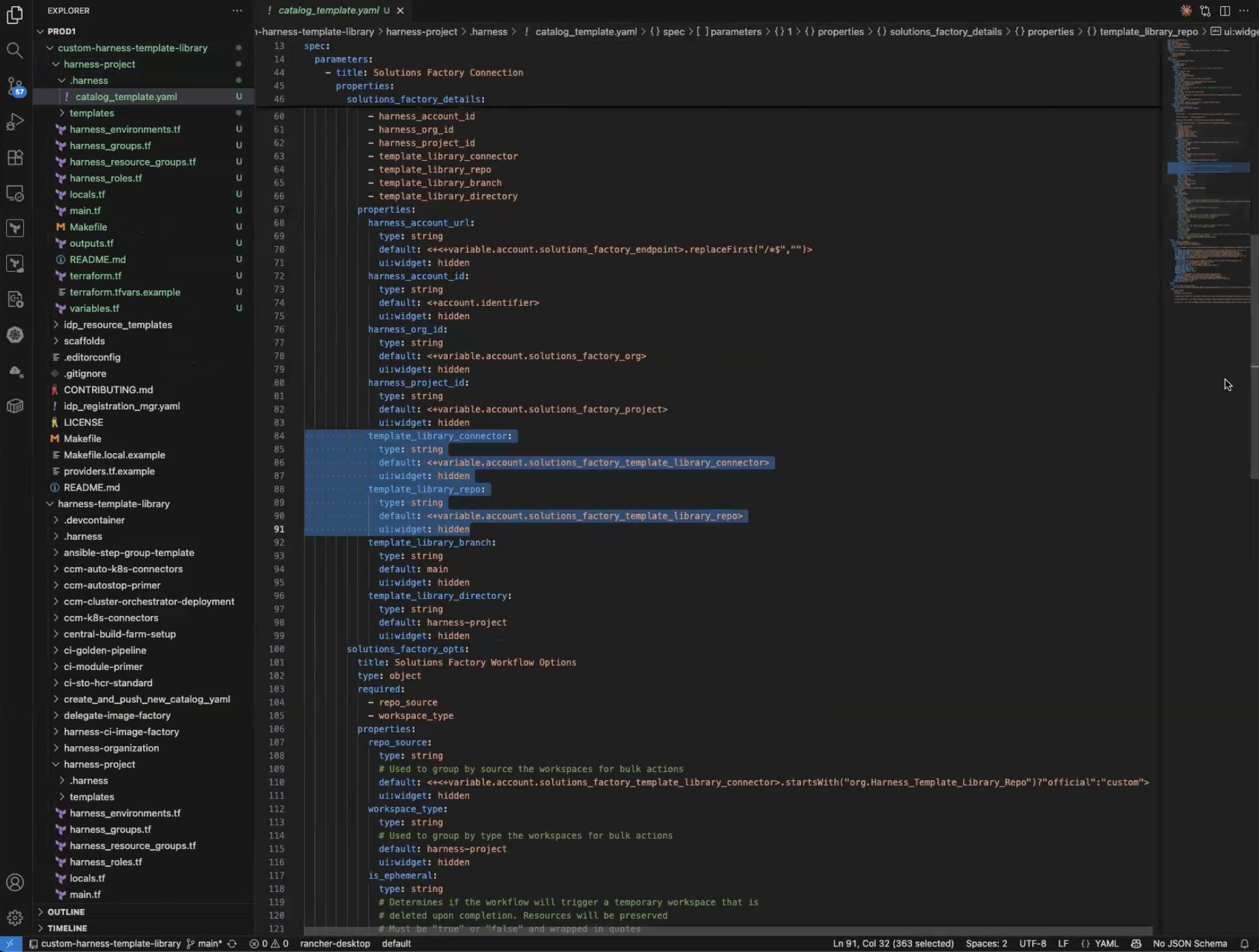
11. Find and Modify the following `Solutions Factory Details` parameters to match the following values
```yaml
template_library_connector:
type: string
default: <+variable.account.custom_template_library_connector>
ui:widget: hidden
template_library_repo:
type: string
default: <+variable.account.custom_template_library_repo>
ui:widget: hidden
template_library_branch:
type: string
default: main
ui:widget: hidden
```
Click to view full size image
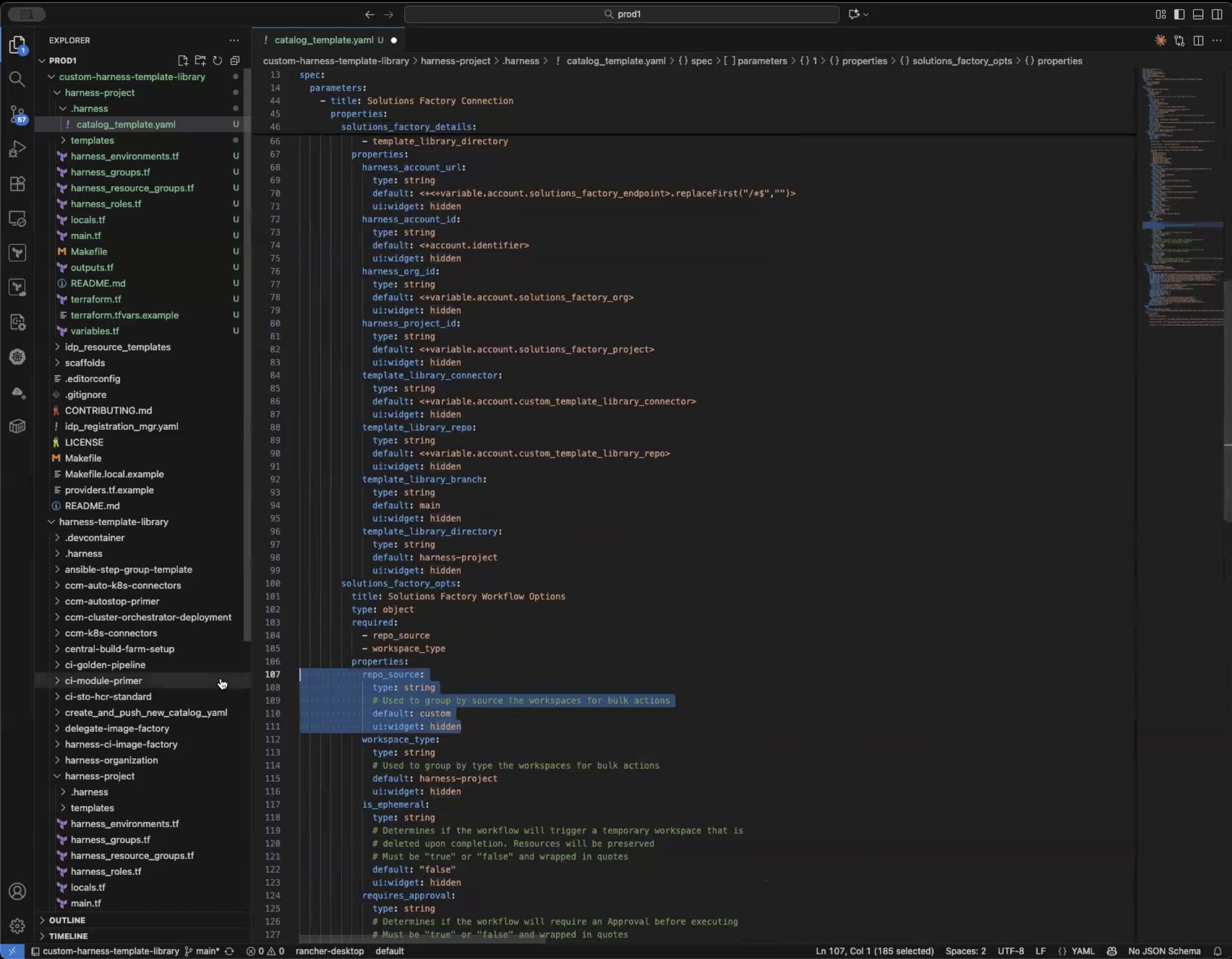
12. Find and Modify the following `Solutions Factory Options` parameters to match the following values
```yaml
repo_source:
type: string
# Used to group by source the workspaces for bulk actions
default: custom
ui:widget: hidden
```
Click to view full size image
13. Save and Commit your changes.
For this workshop, commit directly to main. In a different workshop, you will work through a feature branch upgrade process
14. Push your changes to Harness Code
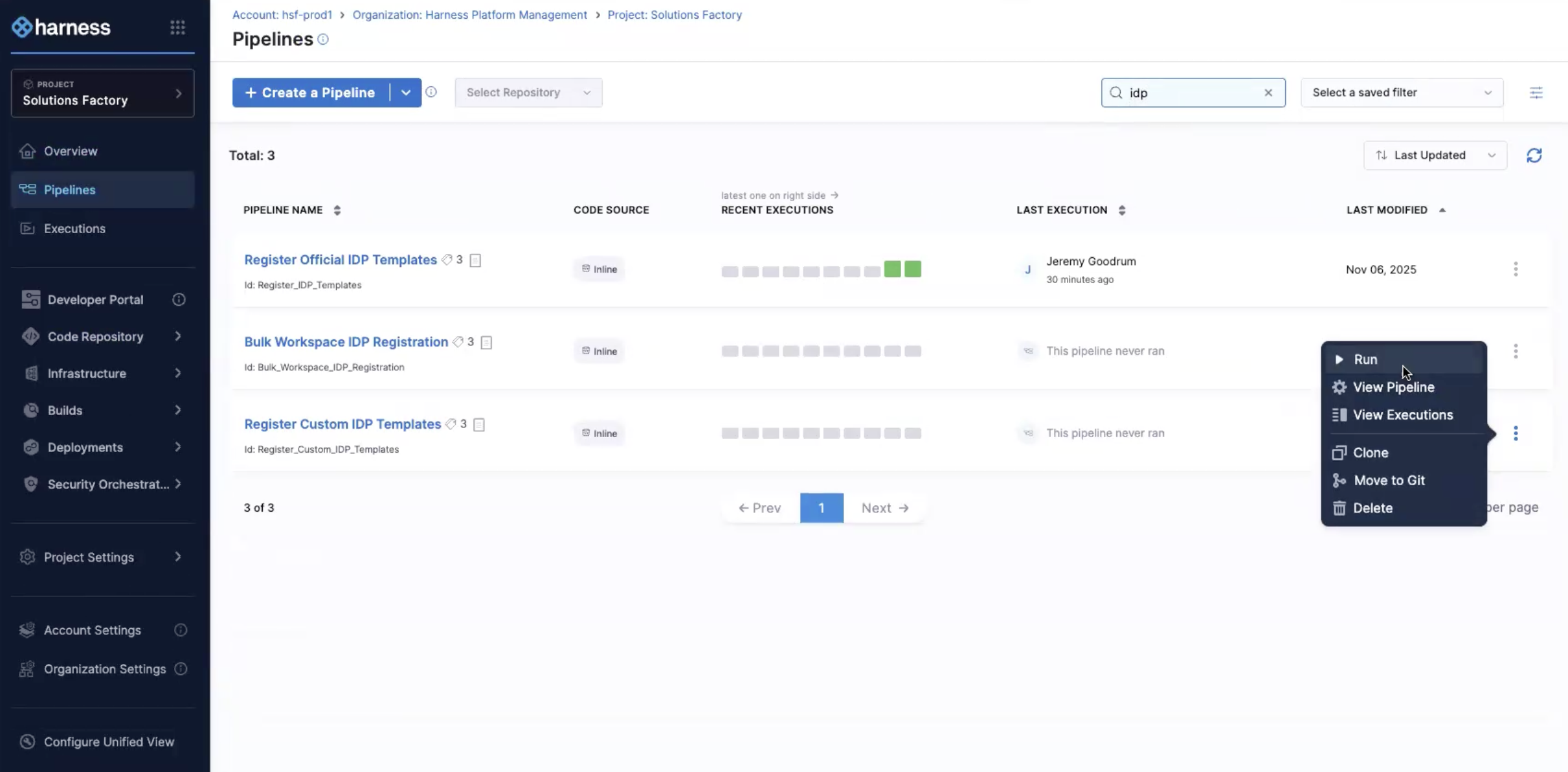
15. Find and Execute the pipeline named `Register Custom IDP Templates`:
* Navigate to the `Solutions Factory` project in your Harness Account
* Filter your pipelines by typing `idp` in the pipeline search bar
For this execution, make no changes to the inputs and accept the default details
Click to view full size image
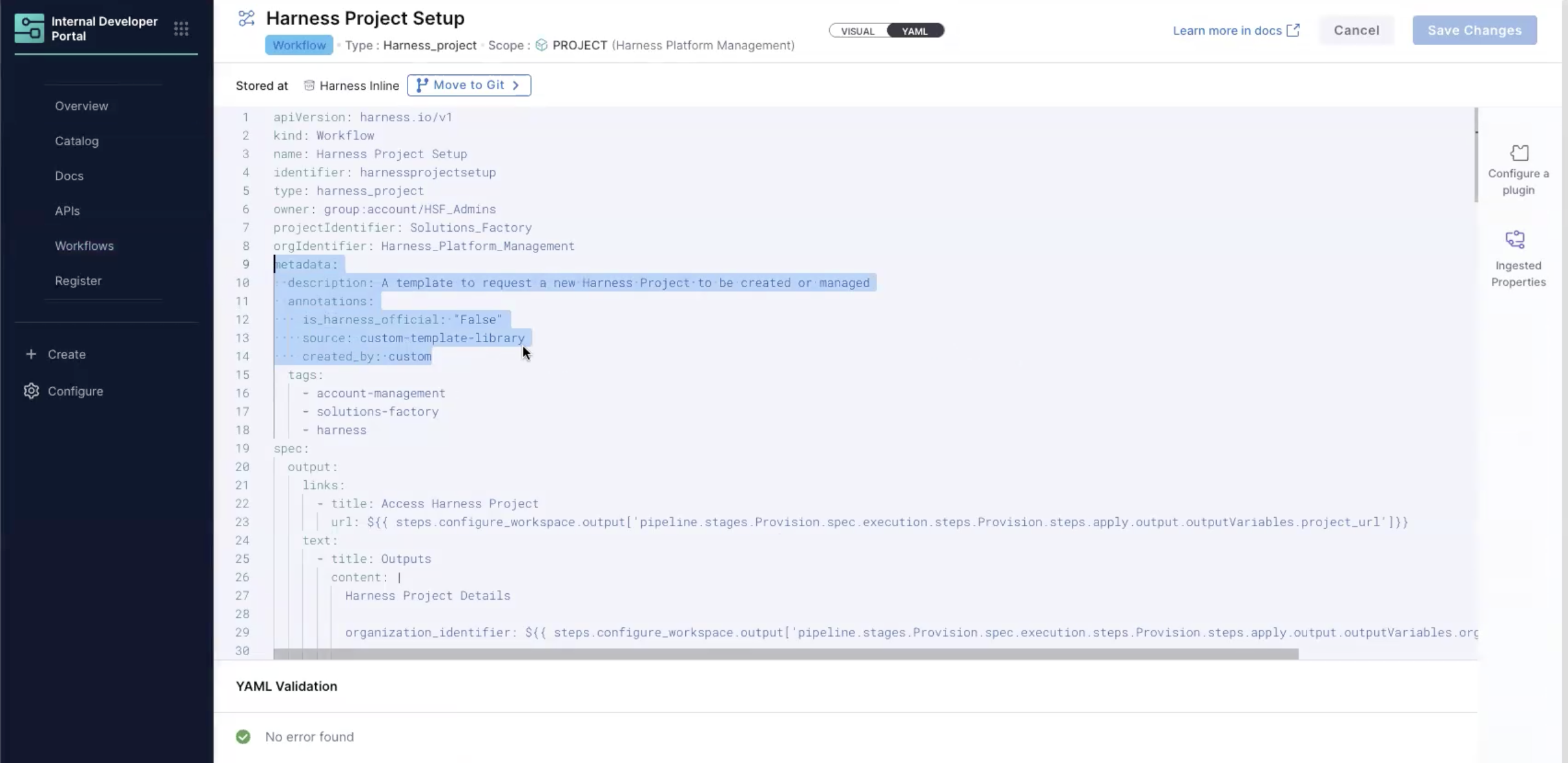
16. Navigate to IDP, Workflows, `Harness Project Setup` and click the three dots to choose `View Raw YAML` to verify that the change has been made.
```yaml
annotations:
is_harness_official: "False"
source: custom-template-library
created_by: custom
```
Click to view full size image
17. Create a new Project with the name `Custom Project`
* Wait for the execution to complete.
18. Review the IACM Workspace `Lab_Custom-Project` in the `Solutions Factory` project
* Select the Configuration Tab
* Notice the Tags `source:custom` and `type:harness-project`
* Verify that the Repository Git Connector is `Custom Harness Template Library Repo`
#### Customize your Harness Project template
1. Open the `custom-harness-template-library` in VSCode. Make sure you `Reopen in Container`
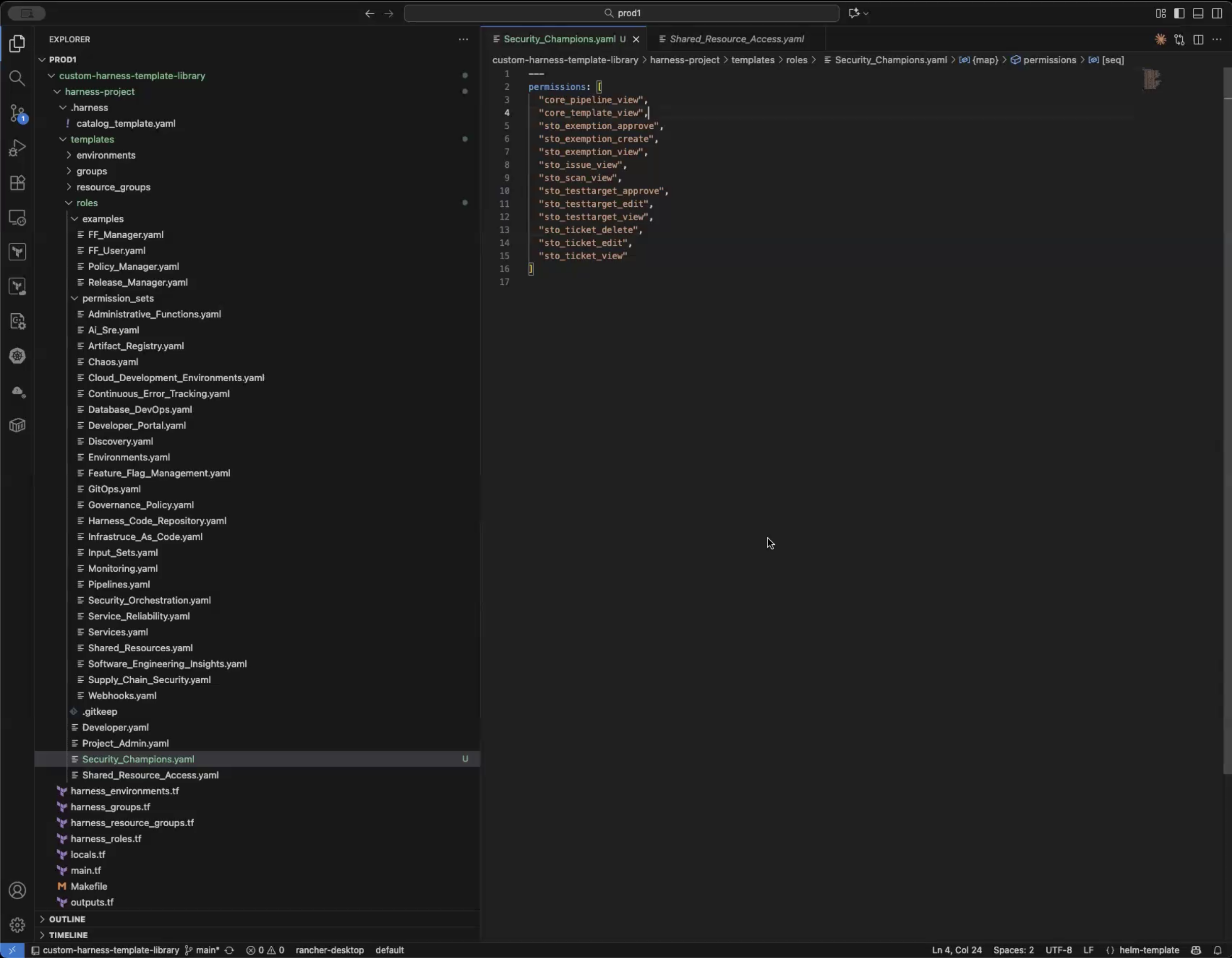
2. Create the file `harness-project/templates/roles/Security_Champions.yaml`
3. Sample permission sets are included under the `permission_sets` directory. Copy the contents from this file `harness-project/templates/roles/permission_sets/Security_Orchestration.yaml` into the new role file created.
Multiple permissions could be added and interspersed from other permission sets. For the purposes of this exercise, copy the entire set.
Click to view full size image
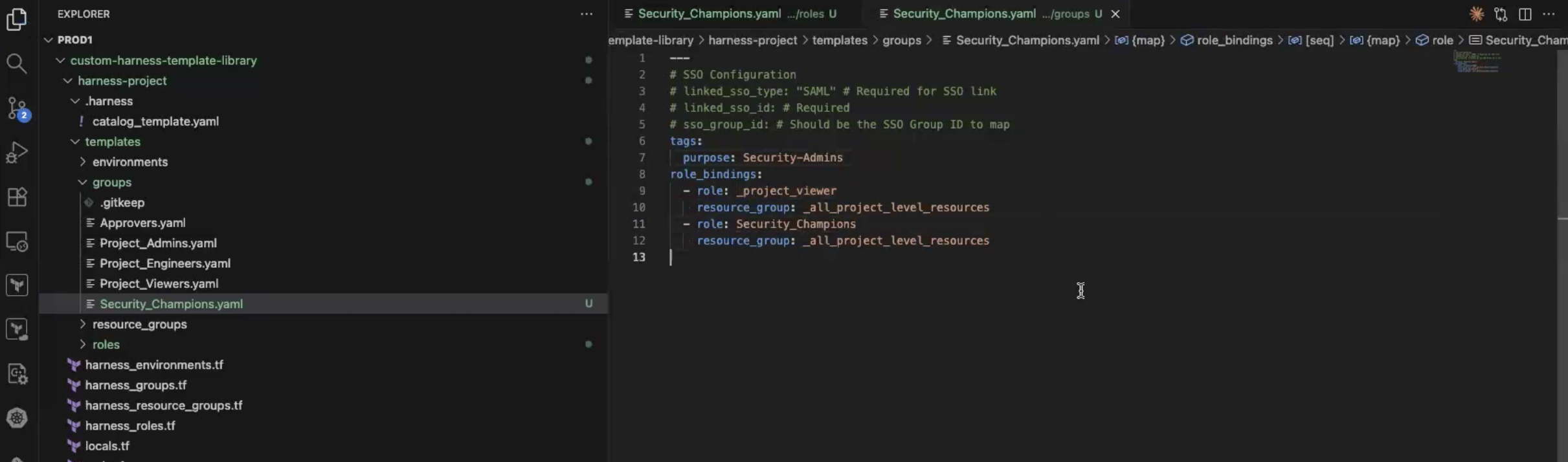
4. Create the file `harness-project/templates/groups/Security_Champions.yaml`
5. Copy the contents from this file `harness-project/templates/groups/Project_Viewers.yaml` into the new group file created.
6. Add a new role binding to include the new role.
```yaml
- role: Security_Champions
resource_group: _all_project_level_resources
```
Click to view full size image
7. Save and commit your changes.
For this workshop, commit directly to main. In a different workshop, you will work through a feature branch upgrade process
8. Push your changes to Harness Code
9. Apply customizations to the custom project
* Navigate to the `Solutions Factory` project in your Harness Account
* Open the IACM Workspaces and select the workspace `Lab_Custom-Project`
* Click Provision and Run the pipeline
This pipeline will require a review to verify the changes to be applied. Based on the changes included, you should see four resources Added
* Approve the change and wait for the pipeline to finish
10. Navigate to the `Custom Project` project and look at the new RBAC configuration that was added
11. Apply the change to all the existing workspaces
* Navigate to the `Solutions Factory` project in your Harness Account
* Filter your pipelines by typing `iacm` in the pipeline search bar
* Run the pipeline `Bulk Workspace Management`
* WORKSPACE\_SOURCE = `official`
* WORKSPACE\_TYPE = `harness-project`
* WORKSPACE\_STATUS = `any`
* WORKSPACE\_CHANGE\_SOURCE = `yes`
* WORKSPACE\_ACTION = `apply`
This pipeline will migrate the original two projects created to use the new custom-template-library changes.
* After the `Bulk Workspace Management` completes, it will have started new executions of the `Provision Workspace` pipeline for each matching IACM Workspace
* Approve the changes to the existing workspaces
12. Verify the changes have been applied.
* The projects should include the new changes
* The Workspaces will now be `source:custom` and the Repository Git Connector is `Custom Harness Template Library Repo`
{% @harness-feedback/feedback %}