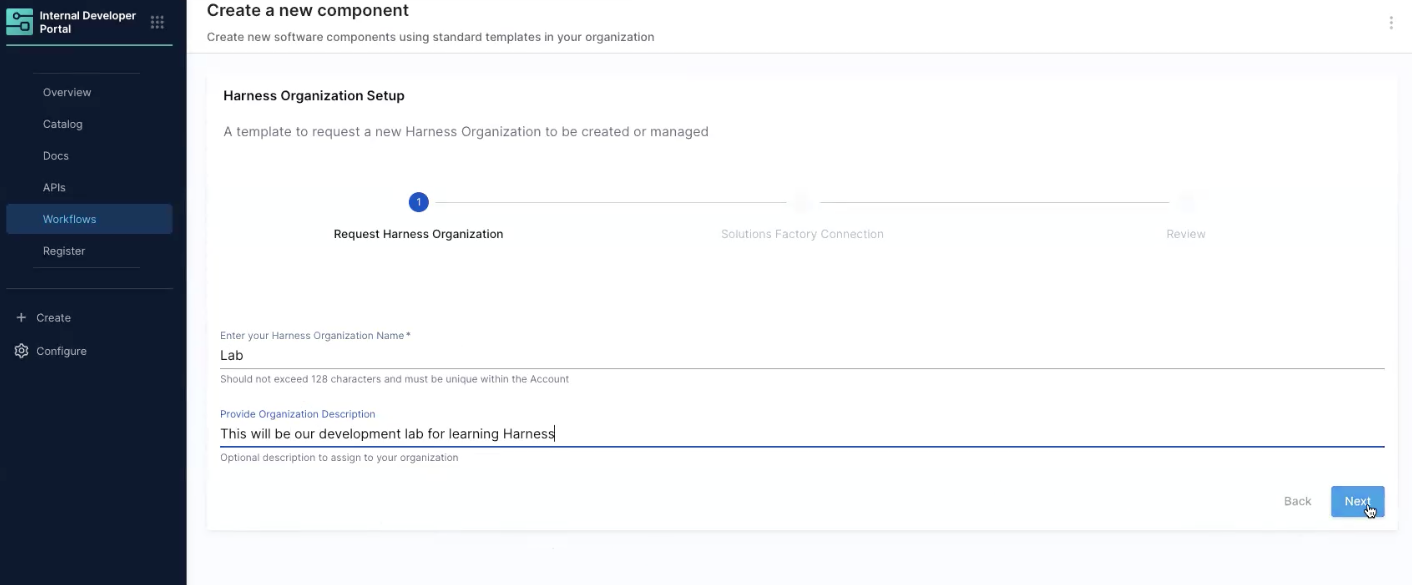
Click to view full size image
Click to view full size image
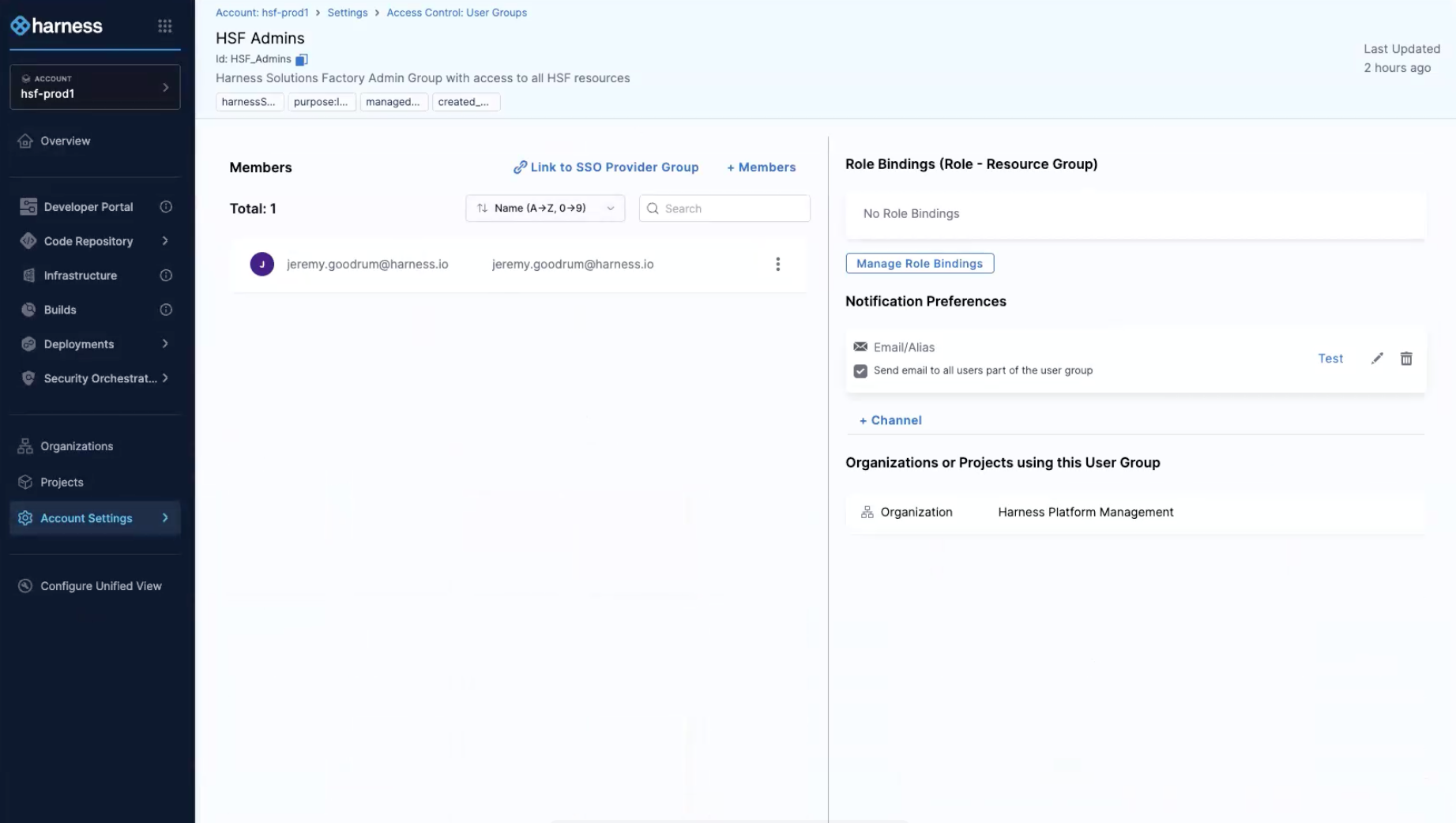 There are two approval points in this execution: - The first Harness Approval is an acknowledgement that the request is ready to review - The second IACM Approval will show a review of the resources that will be created during the execution
{% endhint %}
9. Review and approve both approval requests.
10. Return to the IDP Workflow to watch the execution complete
11. Click to review the deployed organization
#### Create a new Harness Project
1. Log into your Harness Account, navigate to the Internal Developer Portal, and from the sidebar, choose `Workflows`
2. In the `Solutions Factory` scoped workflows, find `Harness Project Setup`, and click `Execute`
3. Enter the following details:
* Name: `workshop`
* Description: `This will be our initial workshop project to learn about Harness pipelines`
4. Click *Next*
5. Click *Review* to review the final configuration details
6. Click *Create*
7. While the pipeline is running, follow the same steps to create a second project called `infrastructure`
8. Complete the approvals for both executions
9. Review the deployed project
There are two approval points in this execution: - The first Harness Approval is an acknowledgement that the request is ready to review - The second IACM Approval will show a review of the resources that will be created during the execution
{% endhint %}
9. Review and approve both approval requests.
10. Return to the IDP Workflow to watch the execution complete
11. Click to review the deployed organization
#### Create a new Harness Project
1. Log into your Harness Account, navigate to the Internal Developer Portal, and from the sidebar, choose `Workflows`
2. In the `Solutions Factory` scoped workflows, find `Harness Project Setup`, and click `Execute`
3. Enter the following details:
* Name: `workshop`
* Description: `This will be our initial workshop project to learn about Harness pipelines`
4. Click *Next*
5. Click *Review* to review the final configuration details
6. Click *Create*
7. While the pipeline is running, follow the same steps to create a second project called `infrastructure`
8. Complete the approvals for both executions
9. Review the deployed project
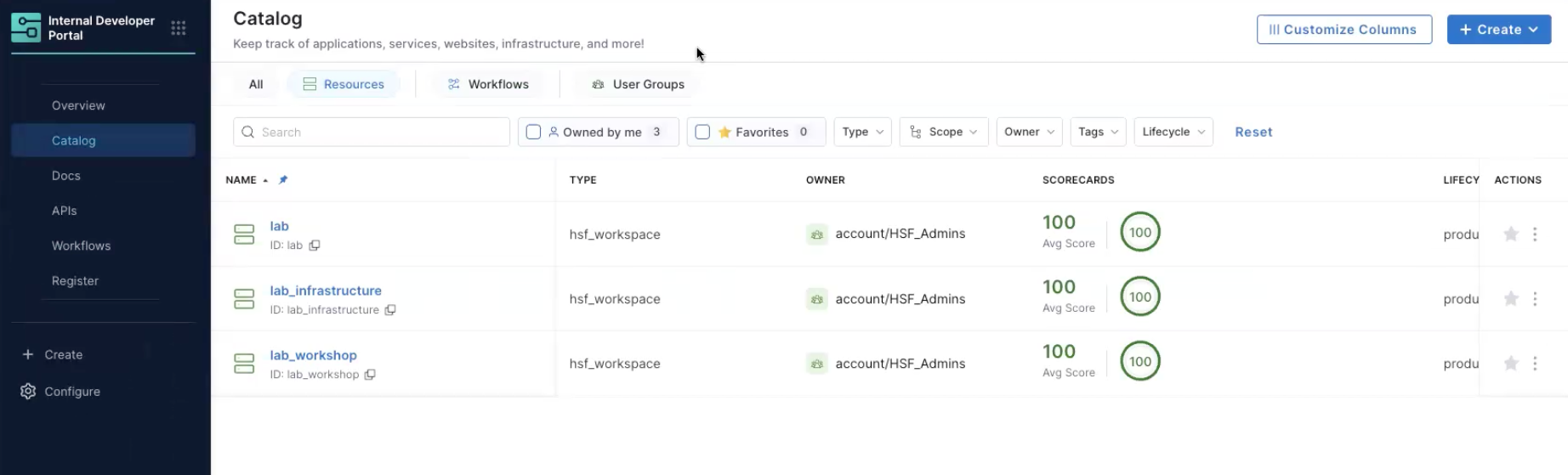
Click to view full size image