> For the complete documentation index, see [llms.txt](https://developer.harness.io/llms.txt). Markdown versions of documentation pages are available by appending `.md` to page URLs; this page is available as [Markdown](https://developer.harness.io/infrastructure-as-code-management/3.0/registry/module-registry/module-version-lifecycle-management.md).
# Manage Version Lifecycle
Configure version lifecycle rules in the Harness IaCM Module Registry to classify module versions as supported, update required, or deprecated, and control enforcement in pipelines.
{% hint style="info" %}
**TWO INDEPENDENT SYSTEMS**
Version lifecycle management (this page) and governance policies ([Govern Module Usage](/infrastructure-as-code-management/3.0/registry/module-registry/module-governance.md)) are separate mechanisms. Lifecycle controls which versions are considered current; governance controls which modules and versions are allowed. You can use either without the other.
{% endhint %}
{% hint style="info" %}
**BETA**
This feature is in beta. Contact [Harness Support](mailto:support@harness.io) to enable it.
{% endhint %}
This topic walks you through configuring version lifecycle rules on a module in the Harness IaCM Module Registry, choosing how each tier is enforced, and adding manual overrides for exceptions.
Version lifecycle management classifies each module version into one of three tiers: supported, update required, or deprecated. You define a sliding window rule that assigns those tiers automatically based on how recent each version is. When a [pipeline](/infrastructure-as-code-management/3.0/platform/workspaces/provision-workspace.md) uses a module, Harness checks the module version against the rule and either lets it proceed, logs a warning, or fails the run, depending on the enforcement behaviour you set for that tier.
Optionally, you can pin a specific version to any tier with a manual override, for example to archive a broken version or to continue using a deprecated version for testing.
***
## What you will learn
By the end of this topic, you will be able to:
* Identify the [three version lifecycle tiers](#three-lifecycle-tiers).
* Configure a [sliding window rule](#how-are-tiers-assigned-to-a-version) that classifies versions automatically.
* [Set the enforcement behaviour](#configure-a-lifecycle-rule) for each tier.
* Add [manual overrides](#add-manual-overrides-for-exceptions) for exceptions.
* Understand [how enforcement runs](#how-tier-enforcement-works-during-a-pipeline-run) during a pipeline and what users see.
***
## Before you begin
* **Registered module**: A module already registered in the IaCM Module Registry. Go to [Register a Module](/infrastructure-as-code-management/3.0/registry/module-registry/module-registry.md) to add one.
* **Published versions**: The module has more than one published version. Lifecycle tiers apply only when multiple versions exist.
* **Edit permission**: You need the **Edit** permission on the IaCM module registry resource to configure lifecycle rules or overrides. Anyone with **View** permission can see the lifecycle status, but only **Edit** lets you change the rule. Go to [RBAC in Harness](/harness-platform/3.0/harness-platform-resources/platform-access-control.md) to configure roles, and go to the [Permissions reference](/harness-platform/3.0/harness-platform-resources/platform-access-control/permissions-reference.md#infrastructure-as-code) to review the IaCM permissions.
{% hint style="info" %}
**DEFAULT BEHAVIOUR**
If no rule is configured on a module, all versions are treated as supported and nothing is enforced. Existing modules behave exactly as before until you configure a rule.
{% endhint %}
***
## Three lifecycle tiers
Every version falls into one of the following three tiers. Supported versions are always allowed. For the other two tiers, you set an **Enforcement behaviour** that controls what happens when a pipeline uses a version in that tier.
| Tier | What it means | Enforcement behaviour |
| --------------- | --------------------------------------------------------------------------------------------------- | ------------------------------ |
| Supported | The most recent versions. You can reference them without any warning. | Not enforced |
| Update Required | Versions just outside the supported range. You are warned but not blocked by default. | Configurable. Default: Warning |
| Deprecated | All older versions. These should not be used, for example because of security gaps or known issues. | Configurable. Default: Fail |
A version's badge (Supported, Update Required, or Deprecated) appears in the version dropdown and the module detail header, so you can see its status without opening the **Lifecycle Management** tab.
***
## How are tiers assigned to a version?
You define two numbers, and a sliding window assigns tiers from the newest version down:
* **most recent versions (N)**: How many of the most recent versions are supported.
* **next versions after supported (M)**: How many versions after the supported ones are in the update required tier.
Everything older falls into the deprecated tier. Versions are ordered by semantic version, newest first, not by publish date. A backport patch published later than a higher version does not jump ahead of the tier.
For example, with **most recent versions** set to 3 and **next versions after supported** set to 2, on a module whose latest version is `v2.3.0`:
* Supported: `v2.3.0`, `v2.2.0`, `v2.1.0`
* Update required: `v2.0.0`, `v1.9.0`
* Deprecated: everything older
{% hint style="info" %}
**FEWER VERSIONS THAN THE SUPPORTED COUNT**
If a module has fewer versions than the **most recent versions** count, all of its versions are supported. The update required and deprecated tiers apply only once enough versions exist.
{% endhint %}
When you publish `v2.4.0`, the window slides automatically. `v2.4.0` becomes supported, the oldest supported version drops into update required, and so on.
{% hint style="warning" %}
**NEW VERSIONS SHIFT THE WINDOW**
Publishing a version can move existing versions down a tier. A pipeline that passed yesterday can start to warn or fail today, with no change to the consumer's code, because a newer version was published. Tell consumer teams about the rule before you set the deprecated tier's **Enforcement behaviour** to `Fail`, and start with a generous supported count.
{% endhint %}
***
## Configure a lifecycle rule
Complete the following steps to configure the sliding window and enforcement behaviour on the module's **Lifecycle Management** tab:
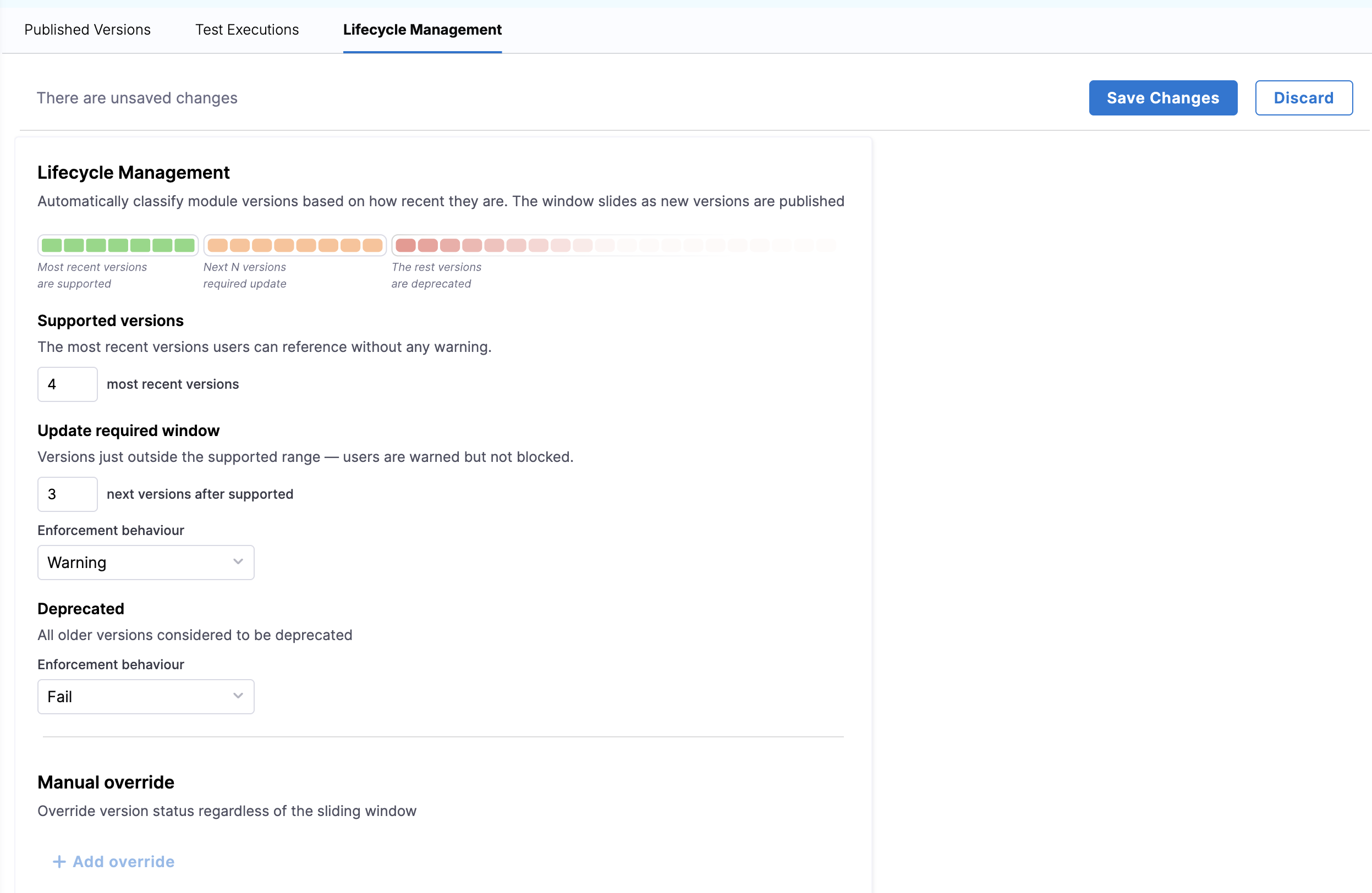
1. In Harness, navigate to the module in the IaCM Module Registry and select the **Lifecycle Management** tab.
Click to view full size
*The Lifecycle Management tab with the sliding window configuration fields.*
2. Under **Supported versions**, set **most recent versions** to the number of newest versions to keep supported.
3. Under **Update required window**, set **next versions after supported** to the number of versions to flag, then set the **Enforcement behaviour** (default **Warning**).
4. Under **Deprecated**, set the **Enforcement behaviour** (default **Fail**).
5. Click **Save Changes**. The rule takes effect immediately.
***
## Add manual overrides for exceptions
A manual override pins a specific version to any tier, regardless of where the sliding window would place it. An override always wins over the window. Complete the following steps to add a manual override:
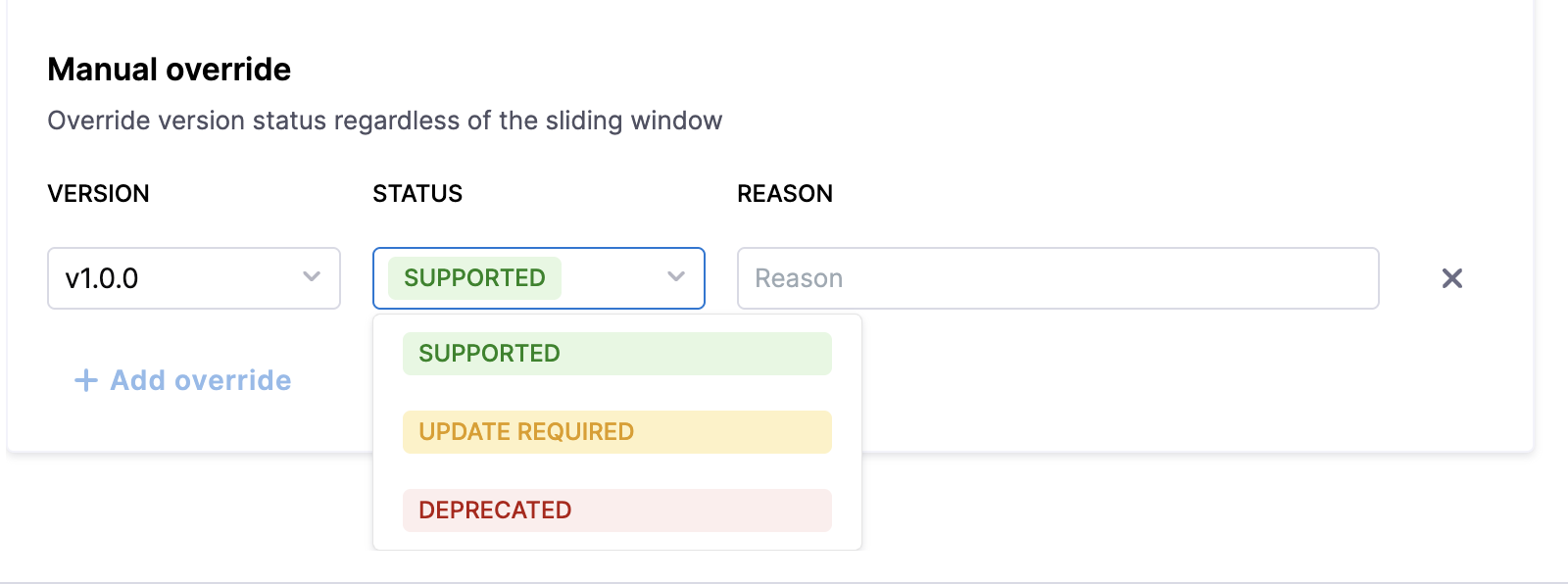
1. On the **Lifecycle Management** tab, under **Manual override**, select **Add override**.
Click to view full size
*The Manual override panel where you select the version, target tier, and reason for the exception.*
2. In **Version**, select the version to override.
3. In **Status**, select the tier to pin the version to: **Supported**, **Update required**, or **Deprecated**.
4. In **Reason**, enter why you are overriding the version, so other admins understand the exception.
5. Click **Save Changes**.
To remove an override, click the **×** icon next to it. The version then follows the sliding window again.
Common uses:
* **Archive a bad version**: A version that would otherwise be supported has a known critical bug, so you pin it to deprecated. Any pipeline that resolves that version then fails.
* **Extend support for an exception**: A team needs more time to migrate off a deprecated version, so you pin that version to supported or update required for a period.
{% hint style="info" %}
**OVERRIDE PERSISTENCE**
An override stays in place until you remove it. If you pin a version to supported as a temporary exception, remove the override once the team migrates, otherwise that version stays supported no matter where the sliding window places it.
{% endhint %}
***
## How tier enforcement works during a pipeline run
Enforcement happens inside the Harness IaCM pipeline step, not at the registry level. The check runs after `terraform init` resolves the module versions and before `plan` proceeds. The **Enforcement behaviour** you set for a tier maps to one of the following outcomes:
* **No enforcement**: The version proceeds with no message. This is always the case for supported versions.
* **Warning**: The pipeline step succeeds but logs an upgrade notice that names the module, the current version, and the recommended version.
* **Fail**: The pipeline step errors out before plan, with a message naming the module, the version, its status, and the minimum supported version.
### Best practices
* **Resolved version is checked**: If your Terraform code uses a version constraint such as `~> 2.0`, the version that `terraform init` resolves is the one evaluated.
* **Direct references only**: Enforcement applies to modules referenced directly in your workspace. Transitive dependencies (a module that depends on another module) are not evaluated.
* **Plan is the gate**: Enforcement runs at plan time. A plan that passes is not re-evaluated at apply.
* **Harness pipelines are the boundary**: Running Terraform locally or outside Harness bypasses lifecycle enforcement by design.
{% hint style="info" %}
**GOVERNANCE SCOPE**
Because Harness pipelines are the enforcement boundary, lifecycle rules govern usage but do not physically remove a version. A developer running Terraform locally can still resolve a deprecated version. Treat this as a governance guardrail within Harness, not a hard removal from the registry.
{% endhint %}
***
## Troubleshooting A pipeline started failing after a new module version was published in Harness IaCM
Publishing a new version shifts the sliding window, which can move the version a workspace uses into the update required or deprecated tier. Check the module's Lifecycle Management tab to see the current tier of the version your workspace resolves, then either upgrade the workspace to a supported version or add a manual override for the affected version.
A deprecated module version is not being blocked in a Harness IaCM pipeline
Confirm the deprecated tier's Enforcement behaviour is set to Fail rather than Warning. Enforcement also applies only to modules referenced directly in the workspace and only within Harness pipelines. Local Terraform runs are not enforced.
A module version shows an unexpected lifecycle tier in Harness IaCM
A manual override always wins over the sliding window. Check the Manual override section on the Lifecycle Management tab to see whether the version is pinned.
***
## Next steps
* Go to [Module Registry Overview](/infrastructure-as-code-management/3.0/registry/module-registry/module-registry-overview.md) to understand module structure, settings, and governance.
* Go to [Register a Module](/infrastructure-as-code-management/3.0/registry/module-registry/module-registry.md) to register a module in Harness IaCM.
* Go to [Module Artifacts](/infrastructure-as-code-management/3.0/registry/module-registry/module-registry-artifacts.md) to learn how artifact storage and the onboarding pipeline work.
* Go to [Test a Module](/infrastructure-as-code-management/3.0/registry/module-registry/module-registry-testing.md) to validate module changes before consumers use them.
* Go to [Govern Module Usage](/infrastructure-as-code-management/3.0/registry/module-registry/module-governance.md) to understand OPA-based governance for module usage.
* Go to [Provider Registry](/infrastructure-as-code-management/3.0/registry/provider-registry.md) to understand the provider counterpart to the module registry.
{% @harness-feedback/feedback %}