> For the complete documentation index, see [llms.txt](https://developer.harness.io/llms.txt). Markdown versions of documentation pages are available by appending `.md` to page URLs; this page is available as [Markdown](https://developer.harness.io/infrastructure-as-code-management/platform/iacm-pipelines/blast-radius-agent.md).

# Analyze infrastructure risk with AI

{% hint style="warning" %}
**BETA**

The AI Blast Radius Agent is currently **pending release**. Contact [Harness Support](mailto:support@harness.io) to request access.
{% endhint %}

Infrastructure changes can carry risk beyond the resources you directly modify. A single misconfigured resource can affect dozens of dependent services. The AI Blast Radius Agent is a native Harness pipeline step that runs immediately after a Terraform or OpenTofu plan to analyze the scope and potential risk of those changes before you apply them. It combines resource dependency analysis with LLM-powered reasoning to assign a risk score from 1–10, identify the main risk drivers, and summarize what could be affected. The execution Resources tab also provides an interactive dependency graph that shows how changes propagate across your infrastructure. Contact [Harness Support](mailto:support@harness.io) to request access.

The AI Blast Radius Agent step is currently available only for Terraform and OpenTofu provisioners.

***

### What you will learn from this topic <a href="#what-you-will-learn-from-this-topic" id="what-you-will-learn-from-this-topic"></a>

* **Risk analysis**: How the AI Blast Radius Agent scores the risk of a planned change and generates a plain-language explanation of the main risk drivers.
* **Resource dependency graph**: How to use the Graph View to identify resources directly or indirectly affected by a planned change.
* **Pipeline setup**: How to add and configure the AI Blast Radius Agent step in an IaCM pipeline.
* **Output variables**: How to reference the risk score in downstream steps to gate apply or approval workflows.

***

### Before you begin <a href="#before-you-begin" id="before-you-begin"></a>

Before you use this guide, ensure you have the following:

* **Harness account with IaCM enabled**: You need Infrastructure as Code Management under Infrastructure in Harness when it is entitled on your account. Go to [Getting started with Harness Platform](/harness-ai/new-to-harness-platform/get-started.md) to access or create a Harness account.

  <div data-gb-custom-block data-tag="hint" data-style="info" class="hint hint-info"><p><strong>CONTACT HARNESS SUPPORT</strong></p><p>If IaCM does not appear, contact your account administrator or <a href="mailto:support@harness.io">Harness Support</a>.</p></div>
* **Pipeline permissions**: You need **View**, **Create/Edit**, and **Execute** for [Pipelines](/harness-ai/use-harness-platform/platform-access-control/permissions-reference.md#pipelines). To get these, an administrator must assign you a role that includes them. Go to [RBAC in Harness](/harness-ai/use-harness-platform/platform-access-control.md) and [Manage roles](/harness-ai/use-harness-platform/platform-access-control/add-manage-roles.md) to configure access.
* **Plan step**: Your IaCM stage must include a Terraform or OpenTofu plan step. Go to [Provision workspace](/infrastructure-as-code-management/platform/workspaces/provision-workspace.md) to create a pipeline that includes one.

***

### Add the AI Blast Radius Agent step <a href="#add-the-ai-blast-radius-agent-step" id="add-the-ai-blast-radius-agent-step"></a>

Complete the following steps to add the AI Blast Radius Agent step in your pipeline:

1. In Harness, navigate to the IaCM module and select the **Pipelines** tab.
2. Open an existing pipeline that runs the plan command for your Terraform or OpenTofu code. Alternatively, click **Create a Pipeline** to start with a fresh pipeline. Go to [Provision Workspaces](/infrastructure-as-code-management/platform/workspaces/provision-workspace.md) to review the steps to create a new pipeline.
3. Click the **Execution** tab.

   <div data-gb-custom-block data-tag="hint" data-style="warning" class="hint hint-warning"><p><strong>PLACEMENT REQUIREMENT</strong></p><p>A Terraform or OpenTofu plan step must exist earlier in the same IaCM stage. If no plan file is present when the AI Blast Radius Agent step runs, the step fails with a clear error. Do not add this step to a stage that does not include a plan step.</p></div>
4. Hover after the plan step in the stage, then click **Add Step**.
5. From the **Step Library**, under the **IaCM** section, select **IaCM Blast Radius Agent**.
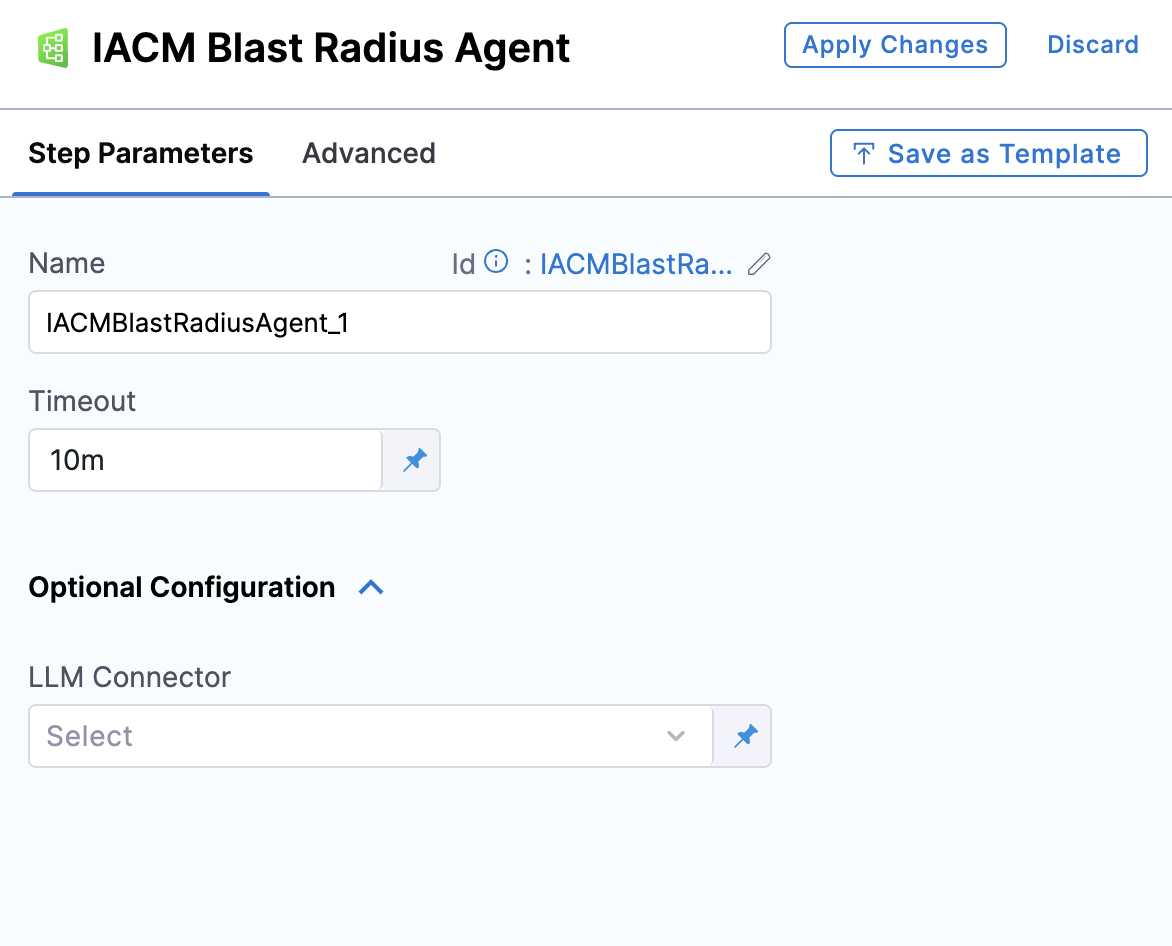
6. Configure the step in the panel that opens.

   <figure><img src="/files/Uavxu8AIoigPkTdMYiN2" alt="IaCM Blast Radius Agent step configuration panel showing Name, Timeout, and LLM Connector fields"><figcaption><p>Click to view full size</p></figcaption></figure>

   *Configure the step name, timeout, and optional LLM connector before clicking Apply Changes.*

   * **Name**: Enter a name for the step. Harness generates a step ID from the name using the format `IACMBlastRadiusAgent_N`. Note the generated ID; you will need it if you reference the output variables in downstream steps.
   * **Timeout**: Enter the maximum duration for the step. The default is `10m`. For plans with a large number of resources, increase this value to allow sufficient time for the AI analysis to complete.
   * **LLM Connector (optional)**: Select an LLM connector to route risk analysis through your own AI model instead of the Harness built-in model. Go to [Connect with AI](/harness-ai/use-harness-ai/harness-ai/connect-with-ai.md) to create an LLM connector.
7. Click **Apply Changes**.
8. Click **Save**, then click **Run** to trigger your pipeline. After the run completes, open the execution from the pipeline detail page and select the **Resources** tab to view the analysis.

***

### Review analysis results <a href="#review-analysis-results" id="review-analysis-results"></a>

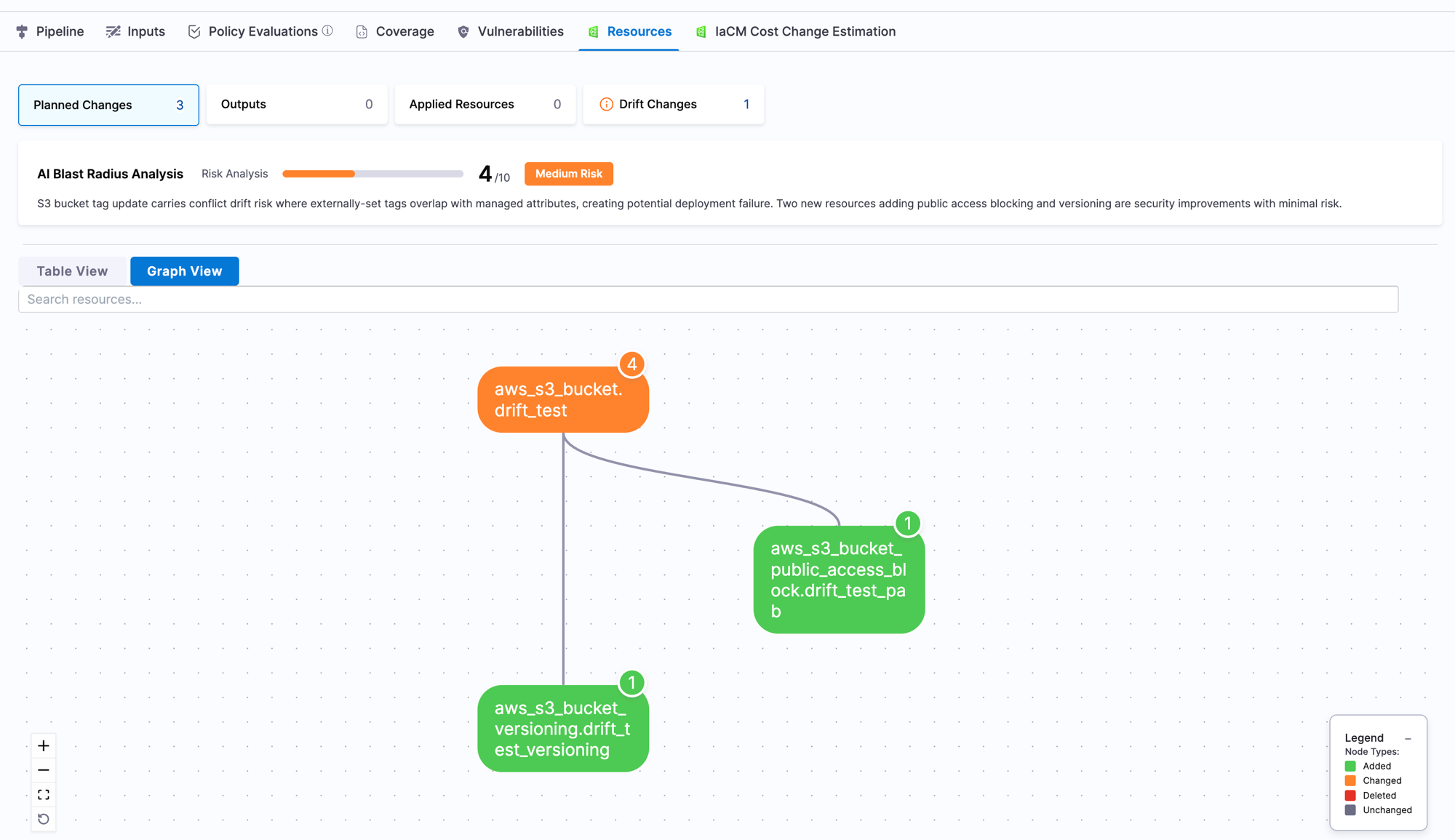
After the pipeline runs, navigate to the execution and select the **Resources** tab. If blast radius data exists for the execution, the tab displays the following:

<figure><img src="/files/H2RngEYxvPSbkuQeMwqv" alt="IaCM Blast Radius Agent analysis results on the Resources tab, showing the risk score banner and graph view toggle"><figcaption><p>Click to view full size</p></figcaption></figure>

*The Resources tab displays the AI Blast Radius Analysis banner and Graph View toggle when blast radius data is available.*

#### AI Blast Radius Analysis banner <a href="#ai-blast-radius-analysis-banner" id="ai-blast-radius-analysis-banner"></a>

The banner at the top of the Resources tab shows:

* **Risk score**: The overall plan risk score on a 1–10 scale. This is a plan-level score that reflects the aggregate risk of all planned changes, not the highest individual resource score.
* **Risk level**: A label that classifies the score as **Low**, **Medium**, **High**, or **Critical**.

  | Label    | Score range |
  | -------- | ----------- |
  | Low      | 1–3         |
  | Medium   | 4–6         |
  | High     | 7–8         |
  | Critical | 9–10        |
* **Plain-language summary**: A short explanation of the main risk drivers identified in the plan.

If no blast radius data exists for the execution, the Resources tab displays exactly as it does without the feature. No extra banners or tabs appear.

#### Table View and Graph View <a href="#table-view-and-graph-view" id="table-view-and-graph-view"></a>

Use the **Table View** and **Graph View** toggle below the banner to switch between views.

* **Table View**: Lists all planned changes with Provider, Type, Name, and Module columns. This is the same view available on pipelines without the Blast Radius Agent step.
* **Graph View**: Renders an interactive dependency graph of changed resources and their relationships.

***

### Use Graph View <a href="#use-graph-view" id="use-graph-view"></a>

Use the Graph View to identify resources that are directly or indirectly affected by a planned change. Select a resource to highlight its dependencies and understand how a change can ripple through related infrastructure before you apply.

The graph renders resources from your plan and their related dependencies as nodes, with edges representing the dependency relationships between them. Each node displays the resource address in `type.name` format and a badge showing its individual risk score. The individual risk score reflects the risk for that specific resource and is separate from the overall plan risk score shown in the banner.

Node labels indicate the planned change type for each resource:

| Label | Change type                                                              |
| ----- | ------------------------------------------------------------------------ |
| Green | Resource will be added                                                   |
| Amber | Resource will be changed                                                 |
| Red   | Resource will be deleted                                                 |
| Gray  | Resource is unchanged but is a dependency of a resource that will change |

Select a node to highlight its direct dependencies. Use the zoom controls in the lower-left corner to zoom in and out, or use **Fit to screen** to reset the view.

#### Large-graph behavior <a href="#large-graph-behavior" id="large-graph-behavior"></a>

When a plan contains a large number of resources, the Graph View may enter large-graph mode and limit the display to the highest-risk resources with their full dependency chains. A minimap navigator appears so you can pan to other areas of the graph. A banner at the top of the graph indicates when large-graph mode is active.

The legend includes additional entries for:

* **High risk**: Nodes with a high individual risk score.
* **Dense dependency**: Nodes that have a large number of direct dependencies.

***

### Control downstream steps with output variables <a href="#control-downstream-steps-with-output-variables" id="control-downstream-steps-with-output-variables"></a>

The AI Blast Radius Agent step exposes the following output variables that you can reference in downstream steps:

| Variable     | Type   | Description                                             |
| ------------ | ------ | ------------------------------------------------------- |
| `RISK_SCORE` | Number | Numeric risk score on a 1–10 scale                      |
| `RISK_LEVEL` | String | Text risk level: `Low`, `Medium`, `High`, or `Critical` |

Use these variables to control downstream steps based on the risk score. For example, add an [IaCM Approval step](/infrastructure-as-code-management/platform/iacm-pipelines/operations-overview.md) after the AI Blast Radius Agent step and set a conditional execution expression on the approval step so that it only activates when the risk score meets your threshold. Go to [Conditional execution](/harness-ai/use-harness-platform/pipelines/step-skip-condition-settings.md) to configure the expression on the downstream step.

The following example expression checks the risk score from the first Blast Radius Agent step in the stage:

```
<+execution.steps.IACMBlastRadiusAgent_1.output.outputVariables.RISK_SCORE>
```

Adjust the step ID (`IACMBlastRadiusAgent_1`) to match the **Id** shown in your step configuration panel.

Go to [Output variables](/infrastructure-as-code-management/platform/reports-and-insights/output-variables.md) to learn how to reference step output variables in pipeline expressions.

***

### Troubleshooting <a href="#troubleshooting" id="troubleshooting"></a>

<details>

<summary>IaCM Blast Radius Agent step fails with a missing plan file error</summary>

The AI Blast Radius Agent step requires a Terraform or OpenTofu plan step to exist earlier in the same IaCM stage. Add a plan step before the AI Blast Radius Agent step and re-run the pipeline.

</details>

<details>

<summary>AI Blast Radius Analysis banner does not appear on the Resources tab after the Blast Radius Agent step completes successfully</summary>

Verify that you have been granted access to the AI Blast Radius Agent Beta. If access is confirmed and the step completed without errors, refresh the pipeline execution page. If the banner still does not appear, contact Harness Support.

</details>

<details>

<summary>IaCM Blast Radius Agent step times out on a plan with a large number of resources</summary>

Increase the step timeout in the step configuration panel. For large plans, set the timeout to at least 20m. If the step continues to time out, contact Harness Support to review resource limits for your account.

</details>

<details>

<summary>LLM Connector is not available or returns an error in the IaCM Blast Radius Agent step</summary>

Verify that the LLM connector is correctly configured and that the credentials are valid. Go to Connect with AI in the Harness Platform docs to review connector requirements. If you remove the connector selection, the step falls back to the Harness built-in model.

</details>

***

### Next steps <a href="#next-steps" id="next-steps"></a>

Use the AI Blast Radius Agent step to understand deployment risk before you apply, then combine it with the following features to build a complete review and approval workflow:

* Go to [Pipeline operations overview](/infrastructure-as-code-management/platform/iacm-pipelines/operations-overview.md) to add an approval gate, drift detection, or queue step to your pipeline.
* Go to [Output variables](/infrastructure-as-code-management/platform/reports-and-insights/output-variables.md) to reference the risk score in downstream pipeline expressions.
* Go to [Connect with AI](/harness-ai/use-harness-ai/harness-ai/connect-with-ai.md) to bring your own LLM for risk analysis.