> For the complete documentation index, see [llms.txt](https://developer.harness.io/llms.txt). Markdown versions of documentation pages are available by appending `.md` to page URLs; this page is available as [Markdown](https://developer.harness.io/internal-developer-portal/use-idp/self-service-workflows/workflows-tutorials/pull-request-creator.md).
# Use Dynamic Pickers for a Pull Request Creator Workflow
Get started with interactive Workflows to develop a Pull Request Creator Workflow.
[Dynamic Pickers](/internal-developer-portal/use-idp/self-service-workflows/workflows-tutorials/dynamic-picker.md) in **Harness IDP Self-Service Workflows** enable users to interact with input form fields and receive real-time options, ensuring validation for workflow creators. These dynamic pickers allow users to select input values dynamically, making workflows more interactive.
The primary goal of this tutorial is to help you understand the following concepts and features in detail:
✔ [**Conditional API requests**](/internal-developer-portal/use-idp/self-service-workflows/workflows-tutorials/dynamic-picker.md#conditional-api-requests)
✔ [**Updating Fields using Form Context**](/internal-developer-portal/use-idp/self-service-workflows/workflows-tutorials/dynamic-picker.md#updating-fields-using-form-context)
✔ [**Live User Validation using API Requests**](/internal-developer-portal/use-idp/self-service-workflows/workflows-tutorials/dynamic-picker.md#live-user-validation-using-api-requests)
{% hint style="info" %}
This tutorial uses `SelectFieldFromApi` and `ValidateAndFetch`. The same workflow can be built with the [`CustomField` component](/internal-developer-portal/use-idp/self-service-workflows/create-workflow/custom-field.md) using `fieldType: dropdown` and `fieldType: button`.
{% endhint %}
These features allow users to dynamically filter results based on previous inputs and make customizable API requests with real-time validation.
### Pull request creator workflow
For new hires and developers, the onboarding process can be complex and overwhelming. It often takes days for developers to become familiar with the system and start contributing effectively.
This tutorial demonstrates how to build a **GitHub Pull Request Creator Workflow** that significantly reduces the time required for a developer's first pull request, from days to just a few minutes. This tutorial aims to provide a detailed understanding of the various features of Dynamic Pickers.
The workflow enables developers to:
* **Select a repository** where they want to contribute.
* **Validate branch details** auto-fetched using Dynamic Pickers.
* **Provide additional details** required to create a pull request.

### Before you begin
Before starting, ensure you meet the following requirements:
* **Harness IDP is enabled** for your account. Refer to this guide for setup instructions.
* You have [**IDP Admin Role access**](/internal-developer-portal/admin-and-customization/rbac/scopes.md#idp-admin-role) or a role with full access to IDP resources.
* [**Git Integration**](/internal-developer-portal/new-to-idp/get-started.md) is configured and setup for your Harness IDP account.
* A [**GitHub token**](https://docs.github.com/en/authentication/keeping-your-account-and-data-secure/managing-your-personal-access-tokens) is stored as a secret in Harness IDP for API authentication. You can add the token as a secret directly while creating a [Backend Proxy](#defining-a-backend-proxy).
### Create the workflow
The workflow is built in the following steps:
1. [**Define a Backend Proxy**](#defining-a-backend-proxy): Establish authentication for API requests from the workflow frontend to the third-party provider (GitHub).
2. [**Create a Repository Picker**](#creating-a-repository-picker): Implement a dynamic picker field in the workflow frontend to fetch available GitHub repositories.
3. [**Auto-update Repository Details**](#auto-updating-repository-details): Fetch and store context data (e.g., repository name, branch, and type) and display it for user validation.
4. [**Add Live User Validation**](#adding-live-user-validation): Allow users to enter additional details and validate auto-updated information before creating a pull request.
### Define a backend proxy
To enable the workflow frontend to make **authenticated API requests** to **GitHub**, a Backend Proxy is required. **Read more about configuring a Backend Proxy** [**here**](/internal-developer-portal/use-idp/self-service-workflows/workflows-tutorials/dynamic-picker.md#creating-a-dynamic-workflow-picker)**.**
#### Add the backend proxy configuration
To add the backend proxy configuration, complete the following steps:
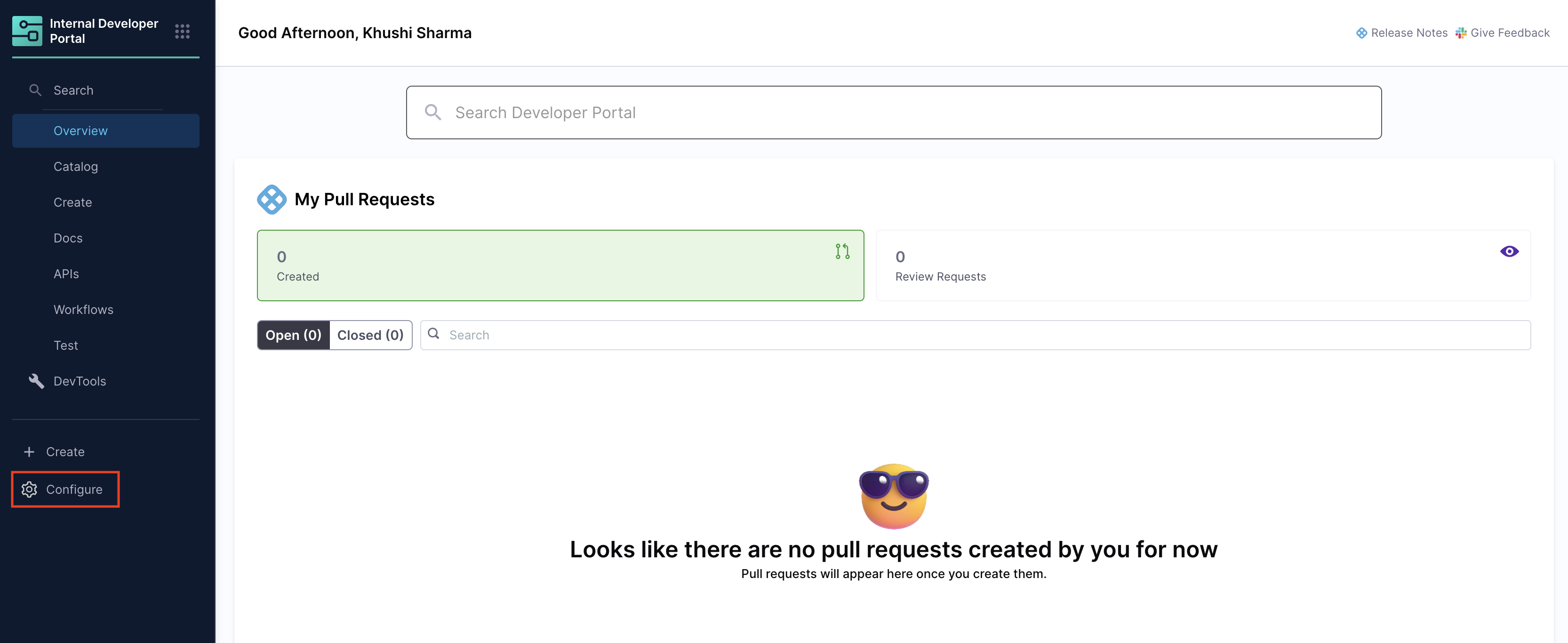
1. Navigate to Harness IDP and click **"Configure"** from the main menu.
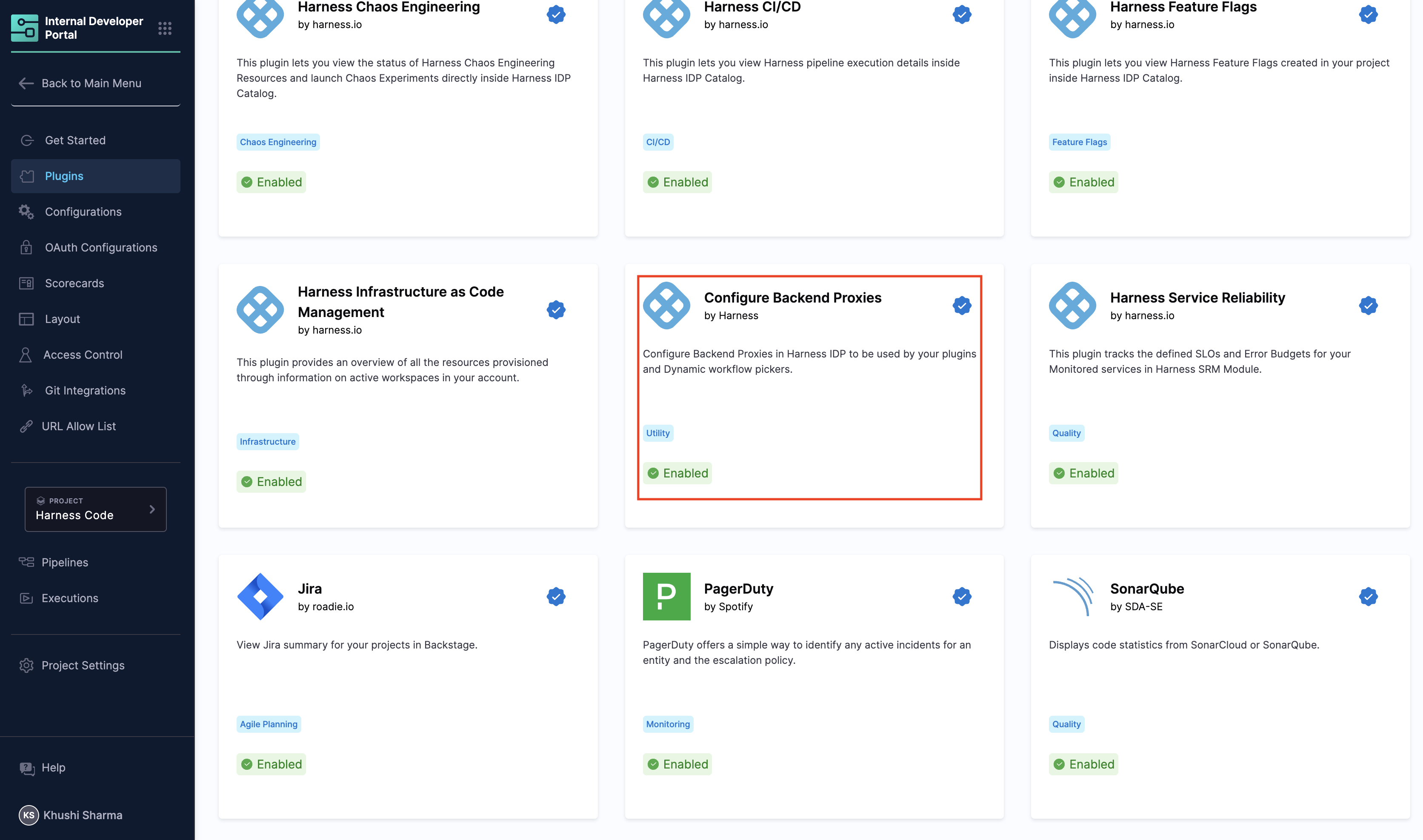
2. Under the **"Plugins"** page, search for **"Configure Backend Proxies"** by Harness IDP. Ensure this plugin is enabled.
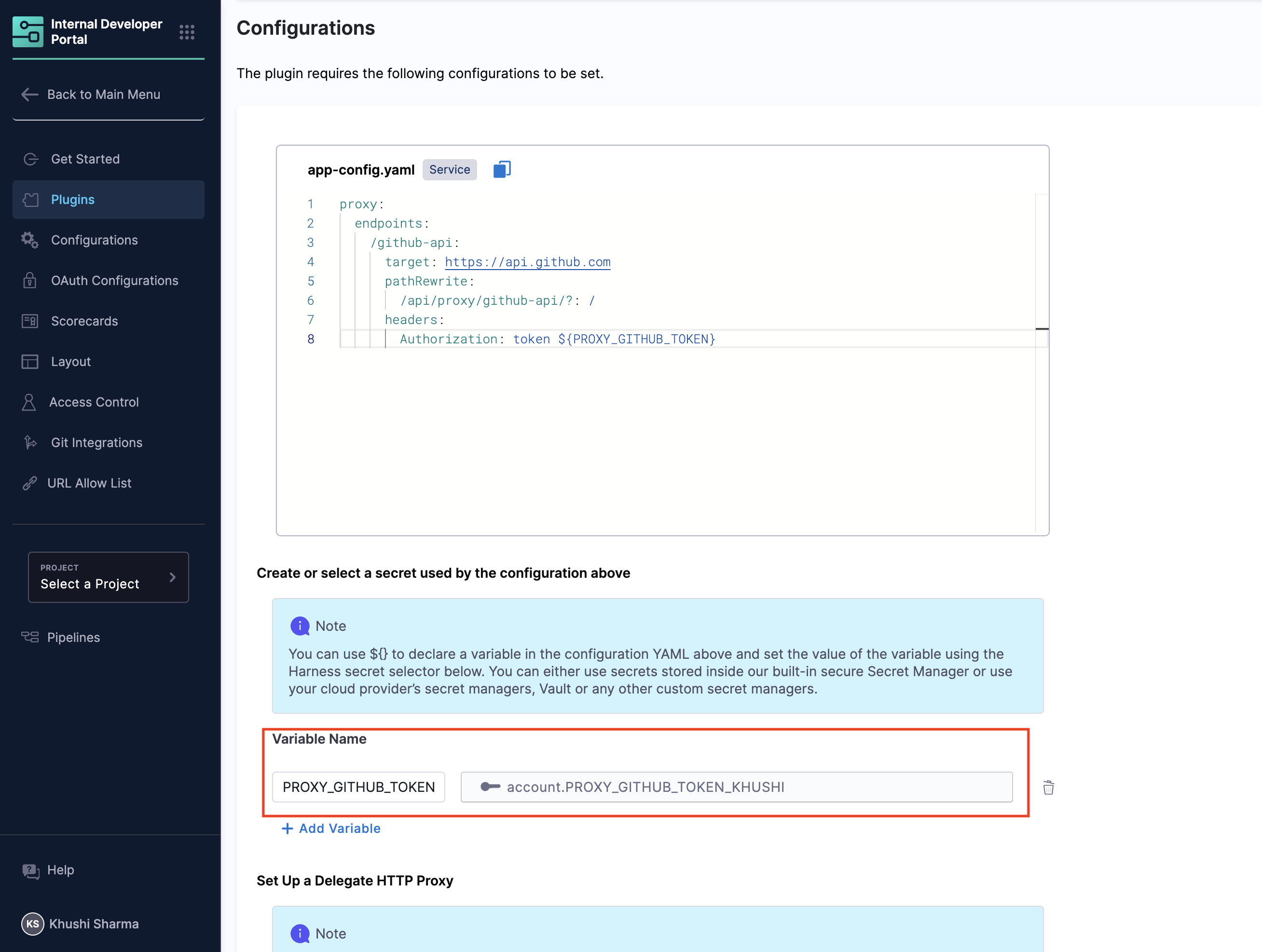
3. Add the following configuration in `app-config.yaml` under the **"Configurations"** tab:
```yaml
proxy:
endpoints:
/github-api:
target: https://api.github.com
pathRewrite:
/api/proxy/github-api/?: /
headers:
Authorization: token ${PROXY_GITHUB_TOKEN}
```
**Configuration details**
* `github-api`: Unique endpoint name for the backend proxy.
* `target`: Points to the API base URL (GitHub).
* `pathRewrite`: Ensures proper API request routing.
* `headers`: Includes the GitHub authentication token (stored as a secret in Harness IDP).
**Important notes**
* Use a **unique token** name. Avoid system-defined names like GITHUB\_TOKEN, as these might conflict with system variables.
* The token name itself does not matter, as long as a **corresponding secret** is set up in Harness IDP.
#### Save and verifying the configuration
To save and verify the configuration, complete the following steps:
1. Click **"Save Configurations"** to apply the backend proxy setup.
2. To verify, make a request to the proxy endpoint: `https://idp.harness.io/{ACCOUNT_IDENTIFIER}/idp/api/proxy/github-api/user`
3. The proxy endpoint URL: `https://idp.harness.io/{ACCOUNT_IDENTIFIER}/idp/api/proxy/github-api/` mirrors the GitHub API base URL (), allowing you to use any GitHub API endpoint by appending the correct path.
4. For more details on consuming **Harness IDP APIs**, refer to the Harness API Documentation.
Once verified, the backend proxy is ready to authenticate API requests within the workflow.
### Create a repository picker
Now, let us define the [**Workflow Frontend**](/internal-developer-portal/use-idp/self-service-workflows/workflowyaml.md#workflow-frontend) in the Workflow YAML configuration. A **Repository Picker** dynamically fetches GitHub repositories based on the provided GitHub username. This feature is based on conditional API requests in self service workflows.
**Read more about conditional API requests in Dynamic Pickers** [**here**](/internal-developer-portal/use-idp/self-service-workflows/workflows-tutorials/dynamic-picker.md#conditional-api-requests)**.**
#### Required fields
The form includes the following required fields:
* **GitHub Username**: A text field that accepts a **GitHub username** as input.
* **Choose Repository**: A **Dynamic Picker field** that fetches and displays repositories based on the entered username.
{% hint style="info" %}
Ensure that this workflow is configured to accept the end user's **GitHub username** as input, rather than the **organization's name**. For more details on this request, refer to the [GitHub API documentation](https://docs.github.com/en/rest/repos/repos?apiVersion=2022-11-28#list-repositories-for-the-authenticated-user).
{% endhint %}
#### YAML configuration
{% tabs %}
{% tab title="YAML" %}
```yaml
parameters:
- title: Enter your details
properties:
gitUsername:
title: Repository Owner Username
description: Enter the GitHub repository owner username.
type: string
repoPicker:
title: GitHub Repositories
type: string
description: Select a GitHub repository
ui:field: SelectFieldFromApi
ui:options:
path: proxy/github-api/users/{{parameters.gitUsername}}/repos
valueSelector: full_name
```
{% endtab %}
{% tab title="Workflow Frontend" %}

{% endtab %}
{% endtabs %}
#### YAML breakdown
The YAML defines the following fields:
* `gitUsername`: A simple text input field that accepts a **GitHub username** as a string. This input is required to fetch repositories associated with the user.
* `repoPicker`: A Dynamic Picker field that **retrieves and displays repositories** based on the GitHub username input.
**Key attributes**
* `ui:field`: Must be set to `SelectFieldFromApi` to enable dynamic selection.
* `title`, `description`, and `placeholder`: Text fields that guide the user on what information to enter.
* `path`: Specifies the API endpoint format: `proxy/endpoint-name/API-path`
Here, endpoint-name is `github-api`, as defined in the backend proxy.
**Dynamic path reference**
The `gitUsername` variable is referenced in the Dynamic Picker field path, ensuring that when a user enters a GitHub username, the picker dynamically fetches and displays all associated repositories.
**`path`:** `proxy/github-api/users/{{ parameters.gitUsername }}/repos`
This setup ensures that the repository list updates dynamically based on the entered username.
### Auto-update repository details
Once a repository is selected, the workflow should **automatically fetch and display repository details**.
**Read more about auto-updating input fields in Workflows** [**here**](/internal-developer-portal/use-idp/self-service-workflows/workflows-tutorials/dynamic-picker.md#updating-fields-using-form-context)**.**
#### Required fields
The form includes the following required fields:
* **Repository Name**: Name of the repsoitory, Auto-fetched, read-only.
* **Repository Branch**: Origin Branch of the repository, Auto-fetched, but editable.
* **Repository Type**: Visibility of the repository, Auto-fetched, read-only.
#### YAML configuration
{% tabs %}
{% tab title="YAML" %}
```yaml
parameters:
- title: Repo Picker
properties:
gitUsername:
title: Github username
description: Enter your Github username
type: string
repoPicker:
title: GitHub Repositories
type: string
description: Pick one of GitHub Repos
ui:field: SelectFieldFromApi
ui:options:
path: proxy/github-api/users/{{parameters.gitUsername}}/repos
valueSelector: full_name
setContextData:
repoName: name
branch: default_branch
type: visibility
repositoryName:
title: Repo Name
readonly: true
description: Repository Name
type: string
ui:field: ContextViewer
ui:options:
getContextData: {{formContext.repoName}}
branchName:
title: Default Branch
readonly: true
description: Default Branch
type: string
ui:field: ContextViewer
ui:options:
getContextData: {{formContext.branch}}
typeName:
title: Visibility
readonly: true
description: Visibility
type: string
ui:field: ContextViewer
ui:options:
getContextData: {{formContext.type}}
```
{% endtab %}
{% tab title="Workflow Frontend" %}

{% endtab %}
{% endtabs %}
#### YAML breakdown
To make the workflow more dynamic, repository details such as **name, branch, and type** need to be fetched and displayed automatically.
**Data fields stored in form context**
The following values are retrieved and stored in **form context**:
* `repoName`: Repository name
* `branch`: Default branch
* `type`: Repository visibility (Public/Private)
**Define context data**
Context data is stored in the `ui:options` section within the Dynamic Picker field using the `setContextData`property:
```yaml
setContextData:
repoName: name
branch: default_branch
type: visibility
```
**Auto-update input fields**
Once context data is set, we use `getContextData` to auto-update the input fields dynamically.
* **repositoryName** and **typeName** are **read-only** (using the `readonly` tag) fields (users cannot modify them)
* **originBranchName** remains **editable** so users can specify a branch if required.
```yaml
originBranchName:
title: Default Branch
description: Default Branch where you want the changes pulled into.
type: string
ui:field: ContextViewer
ui:options:
getContextData: {{formContext.branch}}
```
**Field References**
* `originBranchName` is the frontend input field.
* `formContext.branch` retrieves and automatically updates this field based on the GitHub API response.
### Add live user validation
Before creating a pull request, users should validate auto-updated details and provide additional inputs.
**Read more about adding live user validation in Workflows** [**here**](/internal-developer-portal/use-idp/self-service-workflows/workflows-tutorials/dynamic-picker.md#live-user-validation-using-api-requests)**.**
#### Required fields
The form includes the following required fields:
* **PR Title**: User input for the Pull Request title.
* **New Branch**: User input for the branch name where changes are implemented.
* **Custom Button**: Triggers GitHub API call for validation and PR creation.
#### YAML configuration
{% tabs %}
{% tab title="YAML" %}
```yaml
parameters:
- title: Enter your details
properties:
titlePR:
title: Title of PR
description: Enter the Pull Request title
type: string
newBranch:
title: Branch Name for PR
description: Enter the branch where changes are implemented
type: string
customValidate:
type: string
ui:field: ValidateAndFetch
ui:options:
button:
title: Create a Pull Request
path: proxy/github-api/repos/{{parameters.gitUsername}}/{{parameters.repositoryName}}/pulls
request:
method: POST
headers:
Content-Type: application/json
body:
title: "{{parameters.titlePR}}"
head: "{{parameters.newBranch}}"
base: "{{parameters.originBranchName}}"
setContextData:
prUrl: html_url
```
{% endtab %}
{% tab title="Workflow Frontend" %}

{% endtab %}
{% endtabs %}
#### YAML breakdown
To finalize the workflow, we need a **validation button** that allows users to verify auto-fetched details and create a pull request.
**Custom validation button**
* `customValidate`: The **custom button field** for validation and PR creation.
* `ui:field`: Must be set to **ValidateAndFetch** to trigger validation and API calls.
**Configurable options in `ui:options`**
* `button`: Defines and adds the "Create a Pull Request" button.
* `path`: Specifies the API endpoint for the PR creation request.
* `setContextData`: Stores additional context data upon API request execution.
```yaml
setContextData:
prUrl: html_url
```
* `prUrl`: A workflow variable that stores the pull request URL.
* `html_url`: The API response field containing the PR URL.
**Define the API request**
The **GitHub API request** is structured as a **POST request**, containing the necessary fields for PR creation. [Read more about making a POST API request here](/internal-developer-portal/use-idp/self-service-workflows/workflows-tutorials/dynamic-picker.md#post-method-support)
```yaml
request:
method: POST
headers:
Content-Type: application/json
body:
title: "{{parameters.titlePR}}"
head: "{{parameters.newBranch}}"
base: "{{parameters.originBranchName}}"
```
**API Request Breakdown**
* `title`: The **Pull Request title**, dynamically retrieved from the user input field `titlePR`.
* `head`: The **changes source branch**, retrieved from `newBranch`.
* `base`: The destination branch (default branch of the repository).
**Show form context live**
At any time, if you need to display the **Form Context** live in your Workflow Frontend for debugging purposes, you can use the following format:
```yaml
formContext:
title: Live Form Context
description: DEBUG Context
type: string
ui:field: ContextViewer
ui:options:
getContextData: {{formContext}}
```
Go to [Show form context live in the Workflow frontend](/internal-developer-portal/use-idp/self-service-workflows/workflows-tutorials/dynamic-picker.md#4-show-form-context-live-in-the-workflow-frontend) to review the syntax.
### Workflow YAML
**Additional notes**
* Added a new field in the frontend that **retrieves and displays** the **"Pull Request URL"** stored in the **Form Context**.
* No specific **Action** has been added for this tutorial, as its primary purpose is to help users **understand the features and concepts**.
**Example YAML**
{% tabs %}
{% tab title="YAML" %}
```yaml
apiVersion: scaffolder.backstage.io/v1beta3
kind: Template
metadata:
name: Dynamic-Picker-Demo-Pull-Request-Creator
title: Pull-Request-Creator
description: Create a new PR
spec:
owner: owner-id
type: service
parameters:
- title: Enter your details
properties:
gitUsername:
title: Repository Owner Username
description: Enter the repository owner username
type: string
repoPicker:
title: GitHub Repositories
type: string
description: Pick one of GitHub Repos
ui:field: SelectFieldFromApi
ui:options:
path: proxy/github-api/users/{{parameters.gitUsername}}/repos
valueSelector: full_name
setContextData:
repoName: name
branch: default_branch
type: visibility
repositoryName:
title: Repository Name
readonly: true
description: Check your Repository Name
type: string
ui:field: ContextViewer
ui:options:
getContextData: {{formContext.repoName}}
typeName:
title: Visibility
readonly: true
description: Repository Visibility
type: string
ui:field: ContextViewer
ui:options:
getContextData: {{formContext.type}}
originBranchName:
title: Default Branch
description: Default Branch where you want the changes pulled into.
type: string
ui:field: ContextViewer
ui:options:
getContextData: {{formContext.branch}}
titlePR:
title: Title of PR
description: Enter the Title of your Pull Request
type: string
newBranch:
title: Branch Name for PR
description: Enter the name of the branch where your changes are implemented
type: string
customValidate:
type: string
ui:field: ValidateAndFetch
ui:options:
button:
title: Create a Pull Request
path: proxy/github-api/repos/{{parameters.gitUsername}}/{{parameters.repositoryName}}/pulls
request:
method: POST
headers:
Content-Type: application/json
body:
title: "{{parameters.titlePR}}"
head: "{{parameters.newBranch}}"
base: "{{parameters.originBranchName}}"
setContextData:
prUrl: html_url
latestPR_URL:
title: Pull Request URL
readonly: true
description: Check your PR
type: string
ui:field: ContextViewer
ui:widget: url
ui:options:
getContextData: {{formContext.prUrl}}
formContext:
title: Live Form Context
description: DEBUG Context
type: string
ui:field: ContextViewer
ui:options:
getContextData: {{formContext}}
token:
title: Harness Token
type: string
ui:widget: password
ui:field: HarnessAuthToken
steps:
- action: debug:log
id: debug-pull-request
name: Pull Request Created
input:
message: Hello, Your Pull Request has been created.
```
{% endtab %}
{% tab title="Workflow Frontend" %}

{% endtab %}
{% endtabs %}
{% @harness-feedback/feedback %}