> For the complete documentation index, see [llms.txt](https://developer.harness.io/llms.txt). Markdown versions of documentation pages are available by appending `.md` to page URLs; this page is available as [Markdown](https://developer.harness.io/internal-developer-portal/use-idp/software-catalog/create-entity/catalog-discovery/initial-config.md).
# Initial Configuration for Integrations
Choose Harness Cloud or Kubernetes as the infrastructure, and configure the Docker and sync settings required to run catalog discovery integrations in Harness IDP.
Before you create catalog discovery integrations (say GitHub, PagerDuty, SonarQube and many more), you need to configure the infrastructure that runs the data collection tasks. You can run them on [Harness Cloud](#cloud) or on your [own infra](#kubernetes).
This is a one-time setup done from the **Integrations** section of IDP, and can be updated at any time.
{% hint style="info" %}
**POINTS TO REMEMBER**
* If you attempt to create an integration without completing this initial configuration, your integration will not be created. Additionally, you may see an **Infra configuration required** notification in the Integrations section.
* Platform integrations like **Harness CD** run directly and do not require this setup.
* [Custom Integrations](/internal-developer-portal/use-idp/software-catalog/create-entity/catalog-discovery/custom-integrations/overview.md) do not require this setup either. Your systems push data to Harness, so no data collection runs in your cluster.
{% endhint %}
## Access the configuration
To access the configuration, complete the following steps:
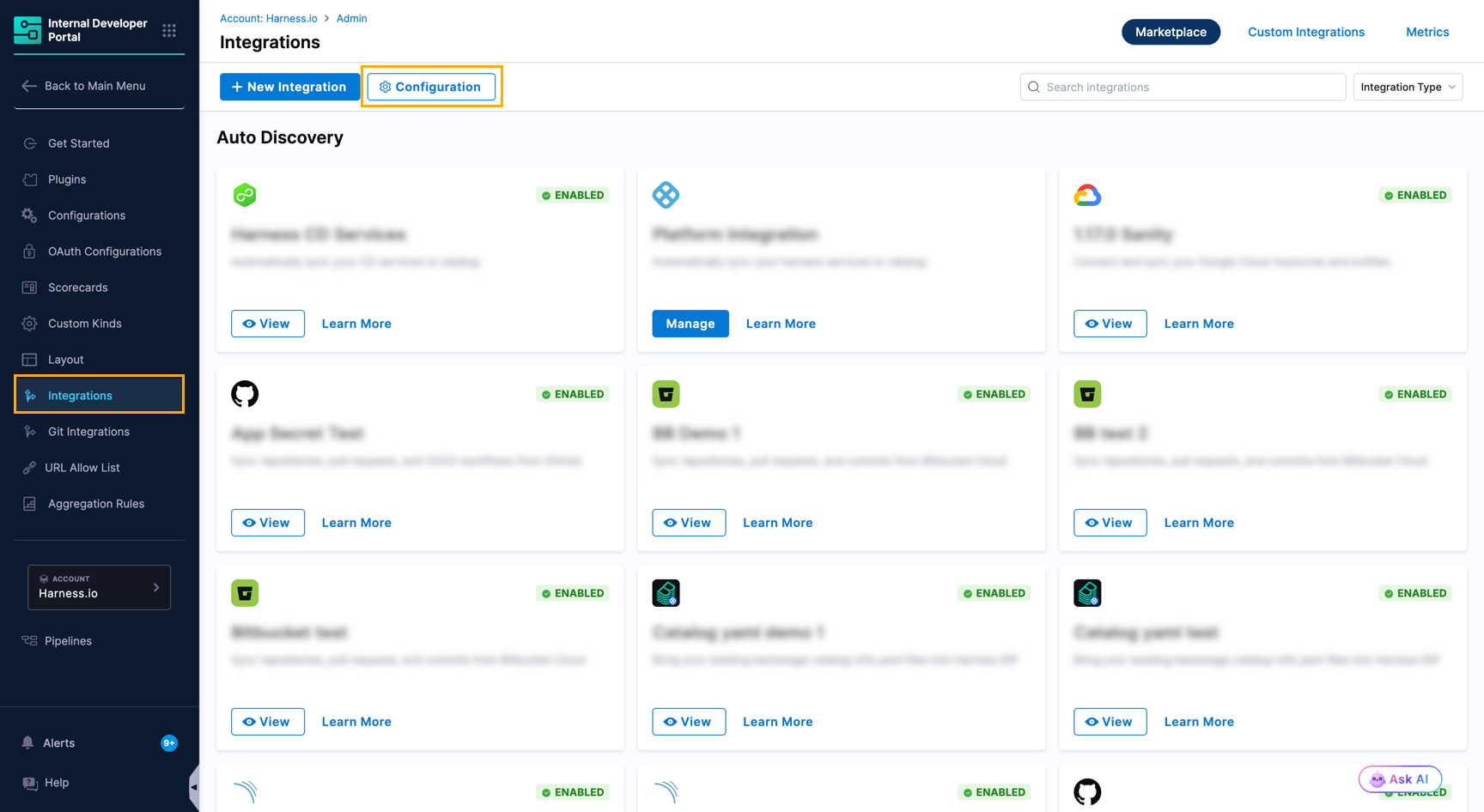
1. In Harness IDP, go to **Configure** → **Integrations**.
2. Click the **Configuration** button at the top.
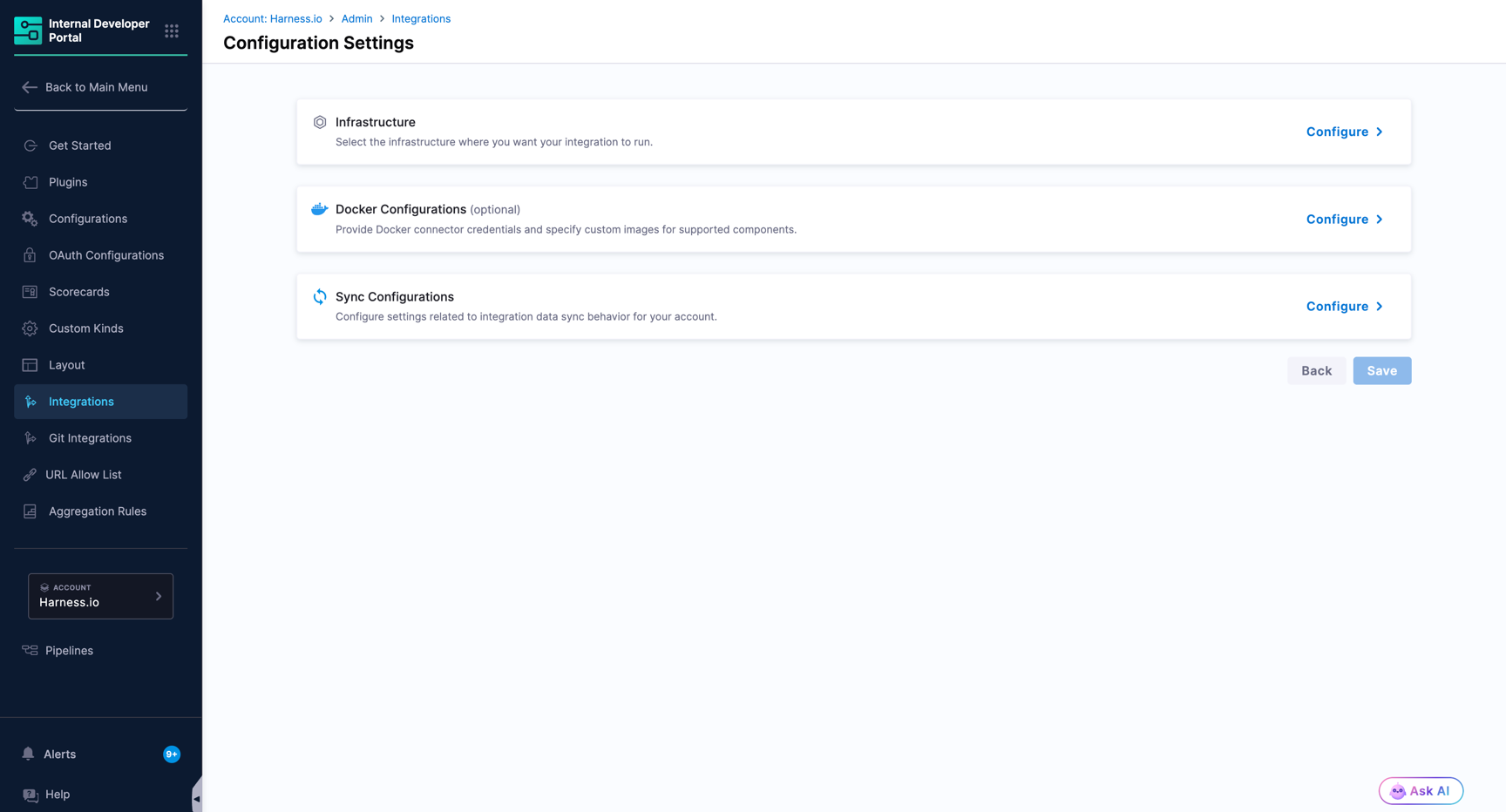
3. The **Configuration Settings** page opens with three sections: [Infrastructure](#infrastructure), [Docker Configurations](#docker-configurations), and [Sync Configurations](#sync-configurations). Click **Configure** next to a section to expand it.
***
## Infrastructure
The **Infrastructure** section informs IDP where to run the data collection tasks for your integrations. Choose one of the following options:
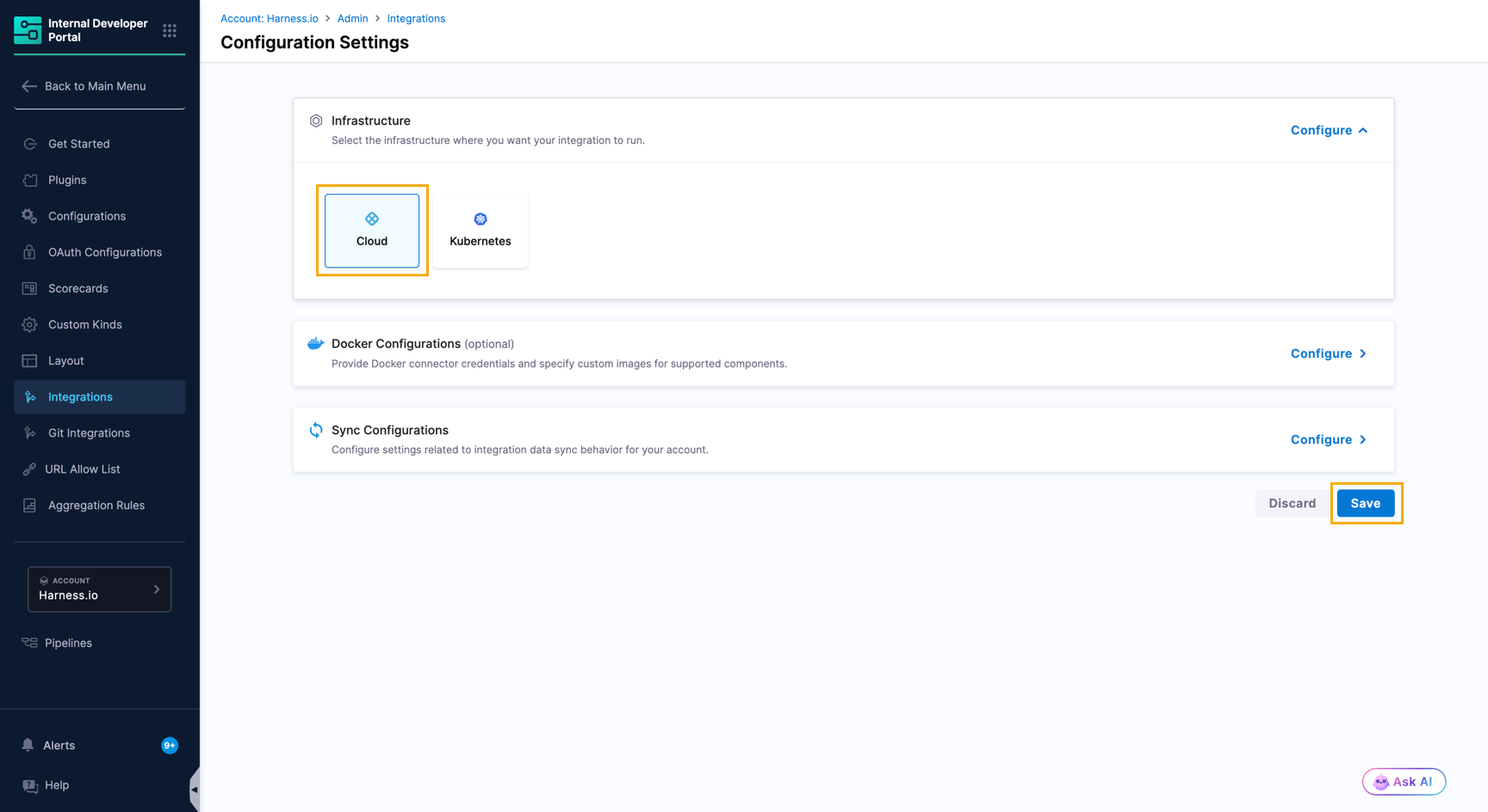
* **Cloud**: Harness runs the data collection on Harness-managed infrastructure. You do not configure a connector or a namespace.
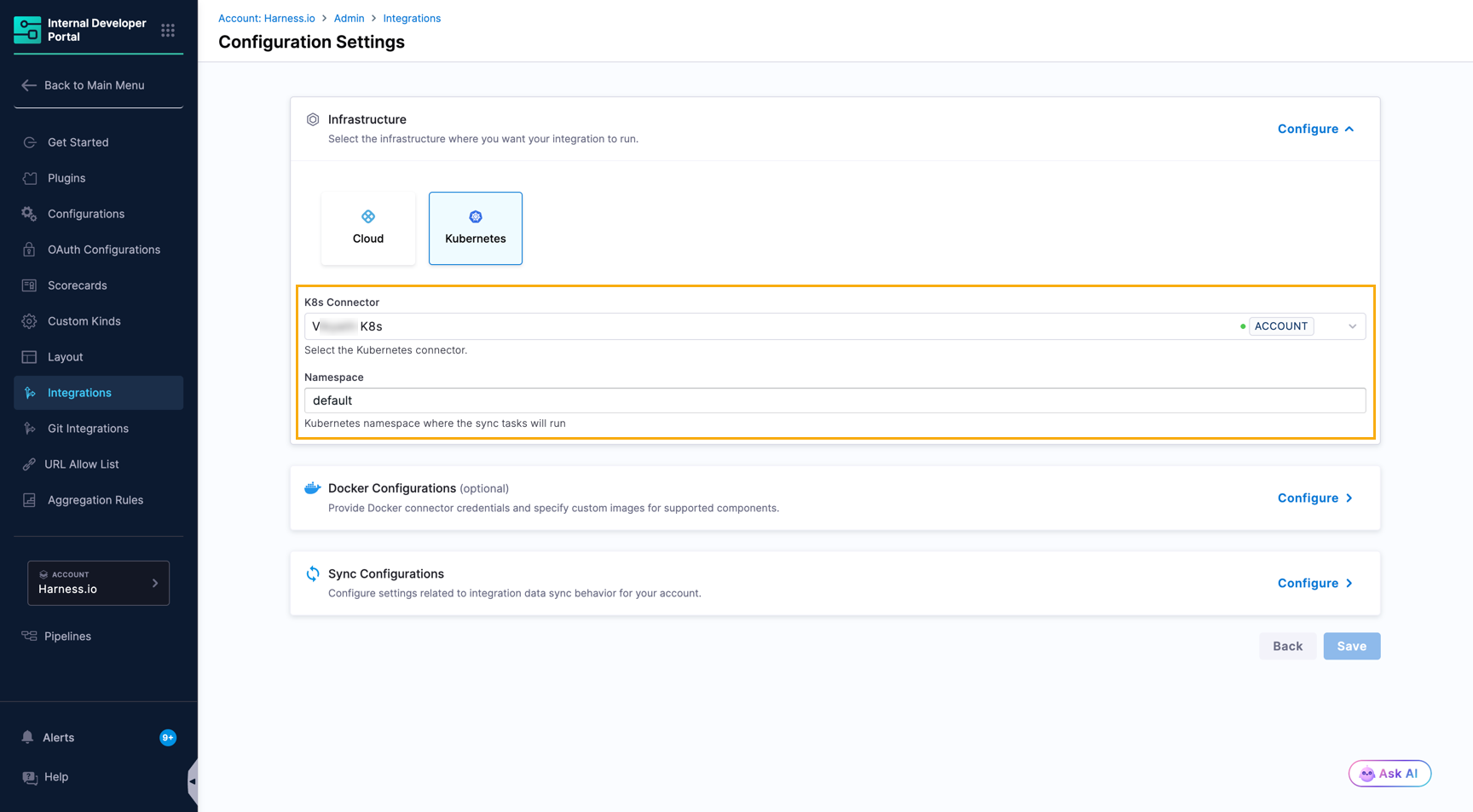
* **Kubernetes**: Data collection runs in your own Kubernetes cluster. You configure a Kubernetes connector and a namespace.
{% hint style="info" %}
The **Cloud** option is available behind the **`IDP_INTEGRATIONS_ENABLE_HARNESS_CLOUD`** Feature Flag. Contact [Harness Support](https://support.harness.io) to enable it on your account.
{% endhint %}
1. Next to **Infrastructure**, click **Configure**.
2. Select **Cloud** or **Kubernetes**, and then follow the steps for your choice.
### Cloud
Harness runs the integration container on Harness infrastructure. It does not require any configuration from you.
1. Select **Cloud**.
2. Click **Save**, or continue to [Docker Configurations](#docker-configurations) and [Sync Configurations](#sync-configurations) before you save.
{% hint style="warning" %}
**Use Harness Secret Manager With Harness Cloud**
If you choose **Cloud**, make sure to store the secrets for every connector you create for your integrations in [Harness Secret Manager](https://developer.harness.io/harness-platform/3.0/harness-platform-resources/secrets/secrets-management/harness-secret-manager-overview), as Harness Cloud cannot access secrets stored in other or external secret managers.
{% endhint %}
### Kubernetes
Data collection for each integration runs as pods inside your Kubernetes cluster. IDP sends collection tasks to a [delegate](https://developer.harness.io/harness-platform/use-harness-platform/delegates/delegate/delegate-concepts/delegate-overview) running in your cluster, which executes them using credentials stored in your own environment. The Kubernetes configuration informs IDP which cluster and namespace to use for these pods.
1. Select **Kubernetes**.
2. In the **K8s Connector** field, pick an existing connector from your account or click **+ New Connector** to create one. Go to [Add a Kubernetes Cluster Connector](https://developer.harness.io/harness-platform/use-harness-platform/connectors/cloud-providers/add-a-kubernetes-cluster-connector) to create a Kubernetes connector.
3. After selecting the connector, enter the **Namespace** where data collection pods will be spun up. This is a Kubernetes namespace and must already exist in the cluster before you configure this.
The Harness Delegate used by your Kubernetes connector must have permissions on the namespace.
4. Click **Save**, or continue to [Docker Configurations](#docker-configurations) and [Sync Configurations](#sync-configurations) before you save.
***
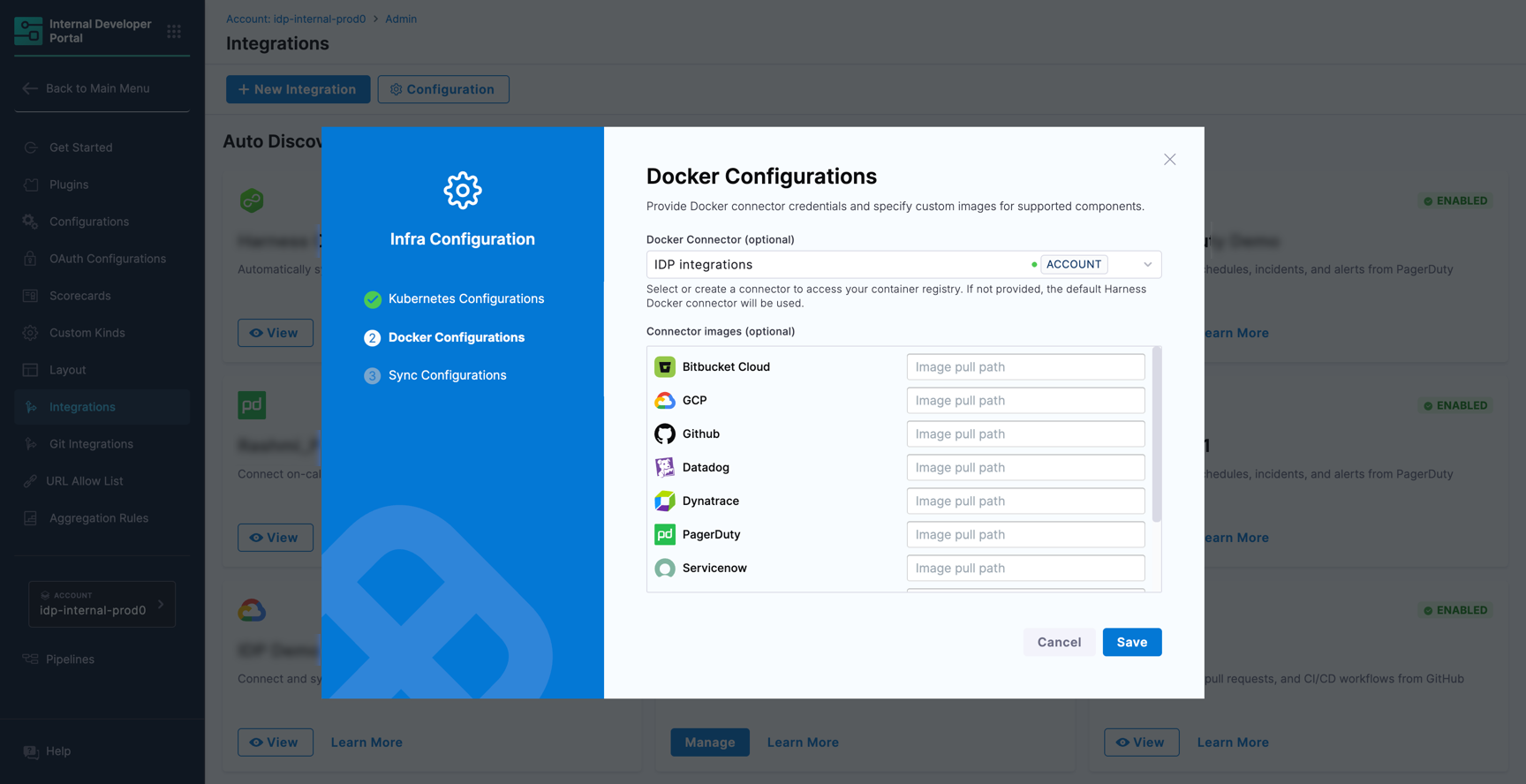
## Docker configurations
Data collection pods run as containers that need images to start. By default, IDP pulls these images from the public Harness container registry.
{% hint style="info" %}
Docker Configurations can only be configured at the account level and are not editable at the [organization or project scope](/internal-developer-portal/admin-and-customization/rbac/scopes.md#scopes-idp-20).
{% endhint %}
{% hint style="info" %}
All fields in this section are optional. Configure them if any of the following apply:
* **Rate limiting**: Without credentials, Docker Hub throttles unauthenticated pulls after a number of requests. A Docker connector with credentials bypasses this limit.
* **Private registry**: If your organization's security policy prohibits pulling from public Docker Hub, you can mirror the required images to your private registry and point IDP to it here.
{% endhint %}
1. Next to **Docker Configurations**, click **Configure**.
2. In the **Docker Connector** field, select an existing Docker Registry connector or click **+ New Connector** to create one. Go to [Add a Docker Registry Connector](https://developer.harness.io/harness-platform/use-harness-platform/connectors/artifact-repositories/connect-to-an-artifact-repo#add-a-docker-registry) to create a Docker Registry connector.
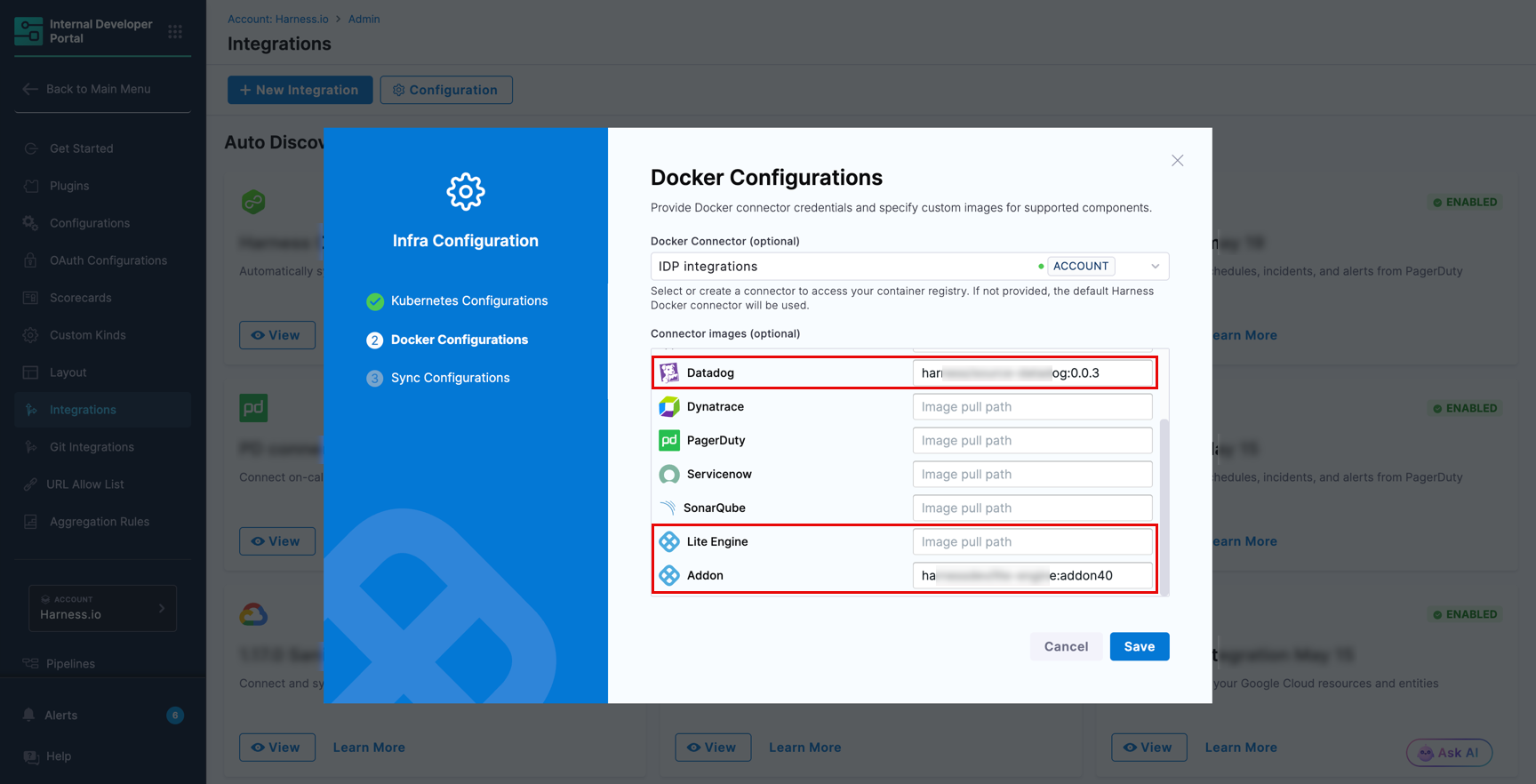
3. Under **Connector images**, you can specify custom image pull paths for these components:
* **Individual Connector Images** (Bitbucket Cloud, GCP, GitHub, Datadog, Dynatrace, PagerDuty, ServiceNow, SonarQube): Only specify image paths (sample format: `/:`) for the integrations you actually use. Leave all others blank.
* **Lite Engine and Addon**: These two components are a must for every data collection run. IDP pulls them from the [public Harness registry](https://hub.docker.com/u/harness). If you do not wish to use the public images or your environment cannot access public Docker Hub, you must provide your custom image paths for these two components.
4. Click **Continue** to proceed to [Sync Configurations](#sync-configurations), or click **Save** to apply your changes.
***
## Sync configurations
{% hint style="info" %}
Sync Configurations are optional and can be set only at the account level. They aren't editable at the [organization or project scope](/internal-developer-portal/admin-and-customization/rbac/scopes.md#scopes-idp-20).
This is an optional configuration.
{% endhint %}
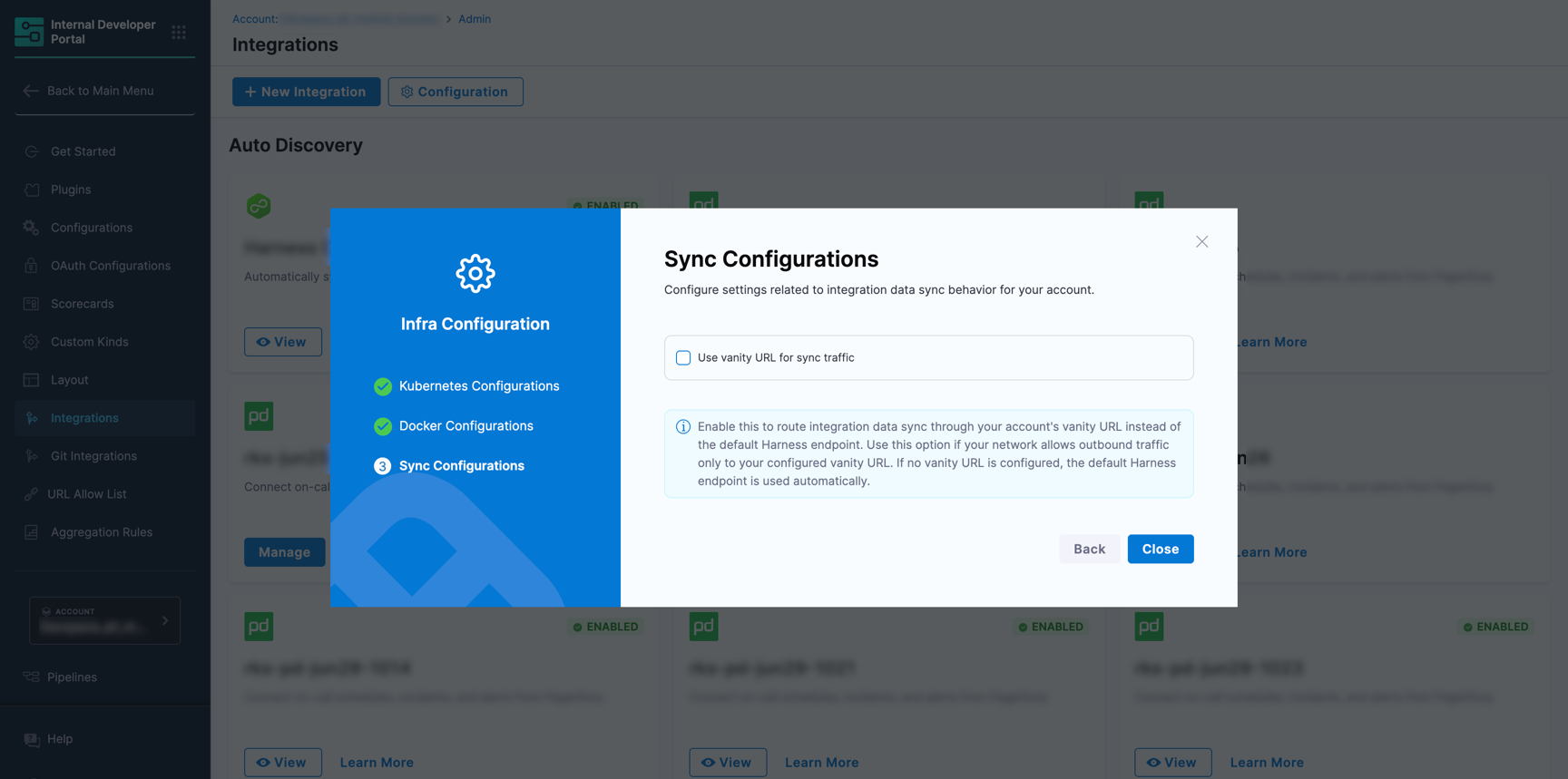
By default, integration sync data travels through the default endpoint (i.e., `accounts.harness.io`, `app.harness.io`, or `app3.harness.io`). This section lets you override that behavior if your network restricts outbound traffic to your account's vanity URL only.
1. Next to **Sync Configurations**, click **Configure**, and then toggle on the **Use vanity URL for sync traffic** checkbox if your network whitelists your custom vanity URL (e.g., `yourcompany.harness.io`) and does not allow the default endpoint.
Once enabled, the sync traffic routes through your vanity URL. No manual URL input is needed.
If your account has no vanity URL configured, the default endpoint is used regardless of this setting.
2. Click **Save** to apply your Infrastructure, Docker, and Sync configurations.
The initial configuration is now complete and you may create your integrations successfully.
{% @harness-feedback/feedback %}