> For the complete documentation index, see [llms.txt](https://developer.harness.io/llms.txt). Markdown versions of documentation pages are available by appending `.md` to page URLs; this page is available as [Markdown](https://developer.harness.io/internal-developer-portal/use-idp/software-catalog/teams/manage-teams.md).
# Managing Teams
Learn how to browse Teams, read the Team details page, and assign Catalog entities to a Team in Harness IDP.
Once your Teams exist, the **Teams** page is where you browse them, and the Team details page is where you manage members, sub-teams, and the entities each Team owns.
***
### Browse Teams
Go to **Teams** in the IDP sidebar. Two views are available ([List](#list-view) and [Hierarchy](#hierarchy-view)), and you can switch between them using the toggle on the right.
#### List view
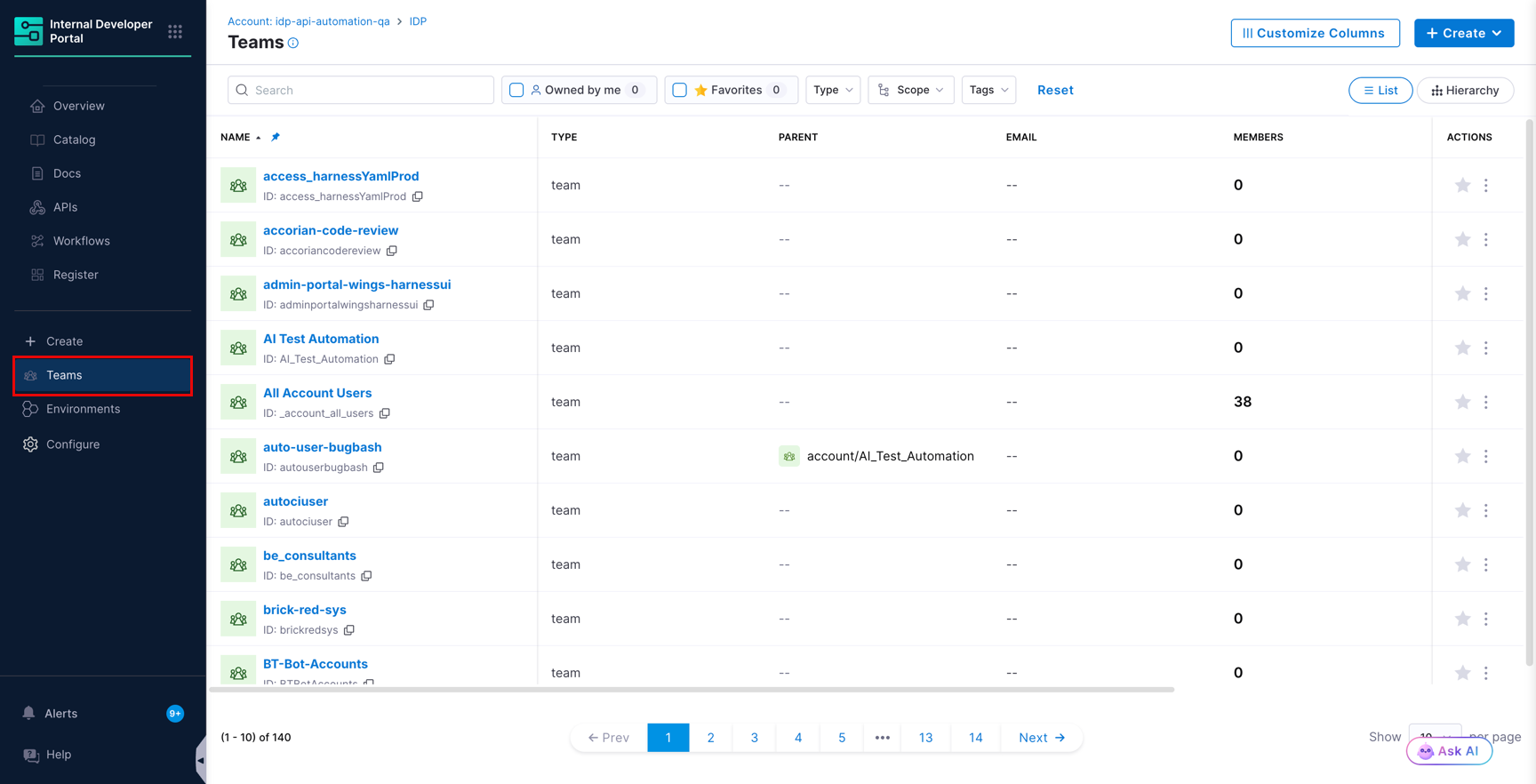
The List view is a flat table of every Team you have access to. Each row shows the Team name, type, parent, email, and member count. Use this view when you know the name of the Team you are looking for.
Teams page in List view
Filter the list using the following controls.
| Filter | What it does |
| --------------- | ------------------------------------------------------------------------ |
| **Owned by me** | Shows only the Teams you own. |
| **Favorites** | Shows only the Teams you have starred. |
| **Type** | Limits the list to Teams of a given type, for example `team`. |
| **Scope** | Limits the list to Teams at the Account, Organization, or Project scope. |
| **Tags** | Limits the list to Teams carrying the selected tags. |
Click **Reset** to clear all filters.
#### Hierarchy view
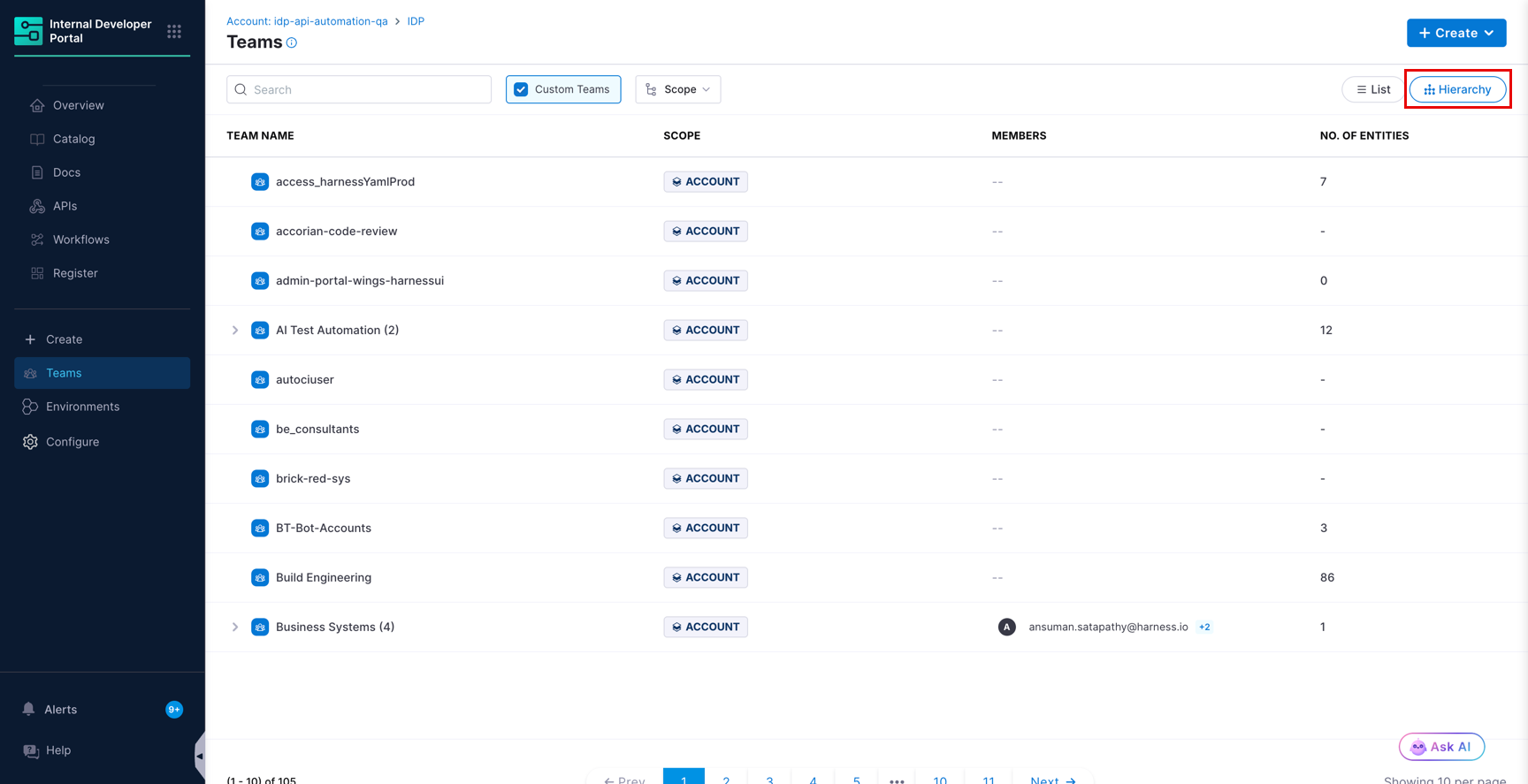
The Hierarchy view shows Teams as a tree, with sub-teams nested under their parents. The number in brackets next to a Team name is its count of direct sub-teams. Expand a row to walk down the tree. This view also shows the scope each Team belongs to and the number of entities it owns.
Teams page in Hierarchy view
The Hierarchy view offers two filters.
| Filter | What it does |
| ---------------- | -------------------------------------------------------------------------------------------------------------------------------- |
| **Custom Teams** | Shows only the Teams created inside IDP, and hides Teams synced from your identity provider. This filter is selected by default. |
| **Scope** | Shows the root Teams at the Account, Organization, or Project scope. |
{% hint style="info" %}
In the Hierarchy view, search matches Teams at the top level of the hierarchy only. To find a nested sub-team, expand its parent, or switch to the List view and search there.
{% endhint %}
#### Customize the Teams table
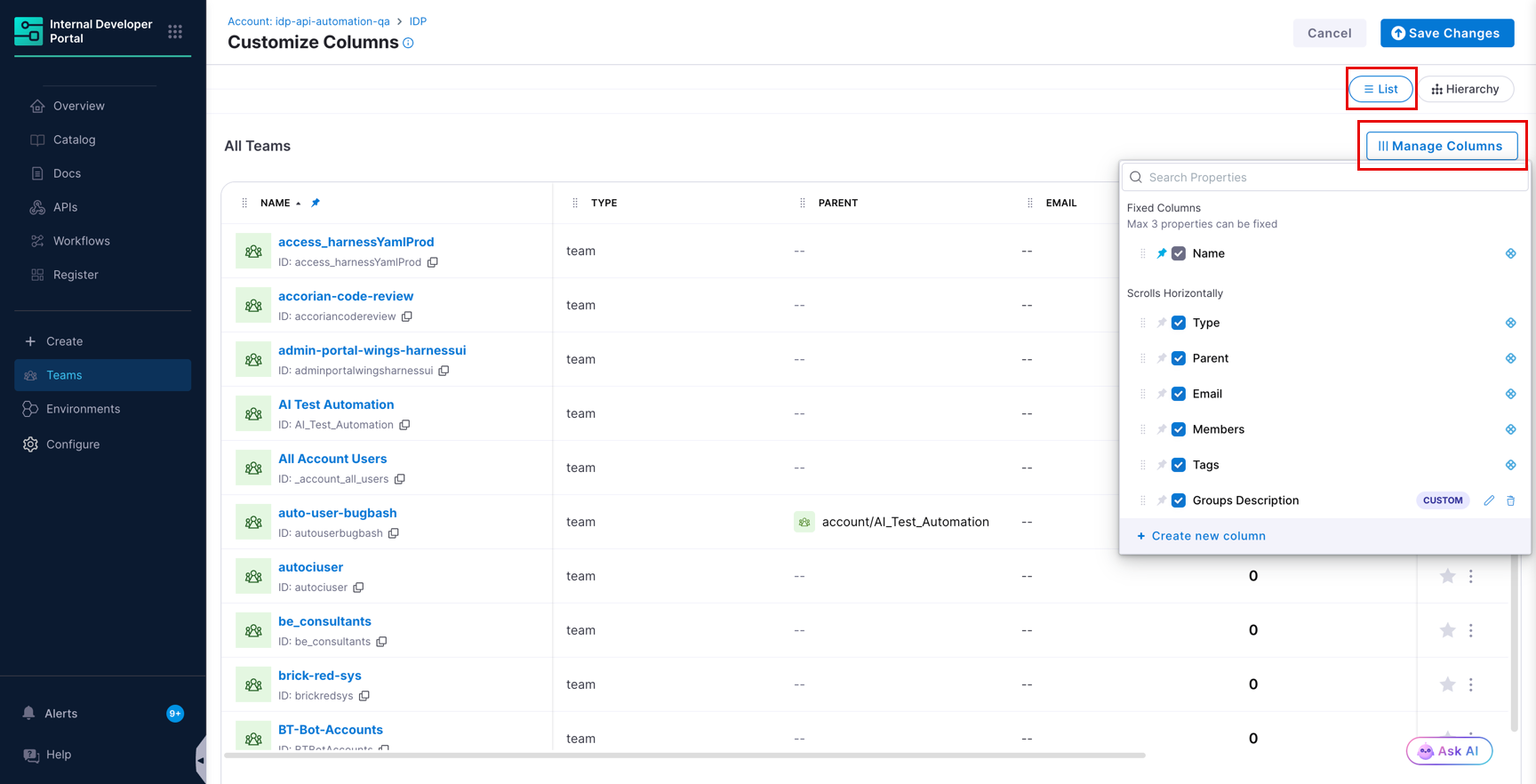
In the List view, click **Customize Columns**, then **Manage Columns**, to choose which properties appear as columns and in what order.
Customize Columns view for Teams
* Pin up to three properties as fixed columns. The remaining columns scroll horizontally.
* Click **Create new column** to add a column driven by a metadata property on your Teams.
* Click **Save Changes** to apply the layout.
***
### Read the Team details page
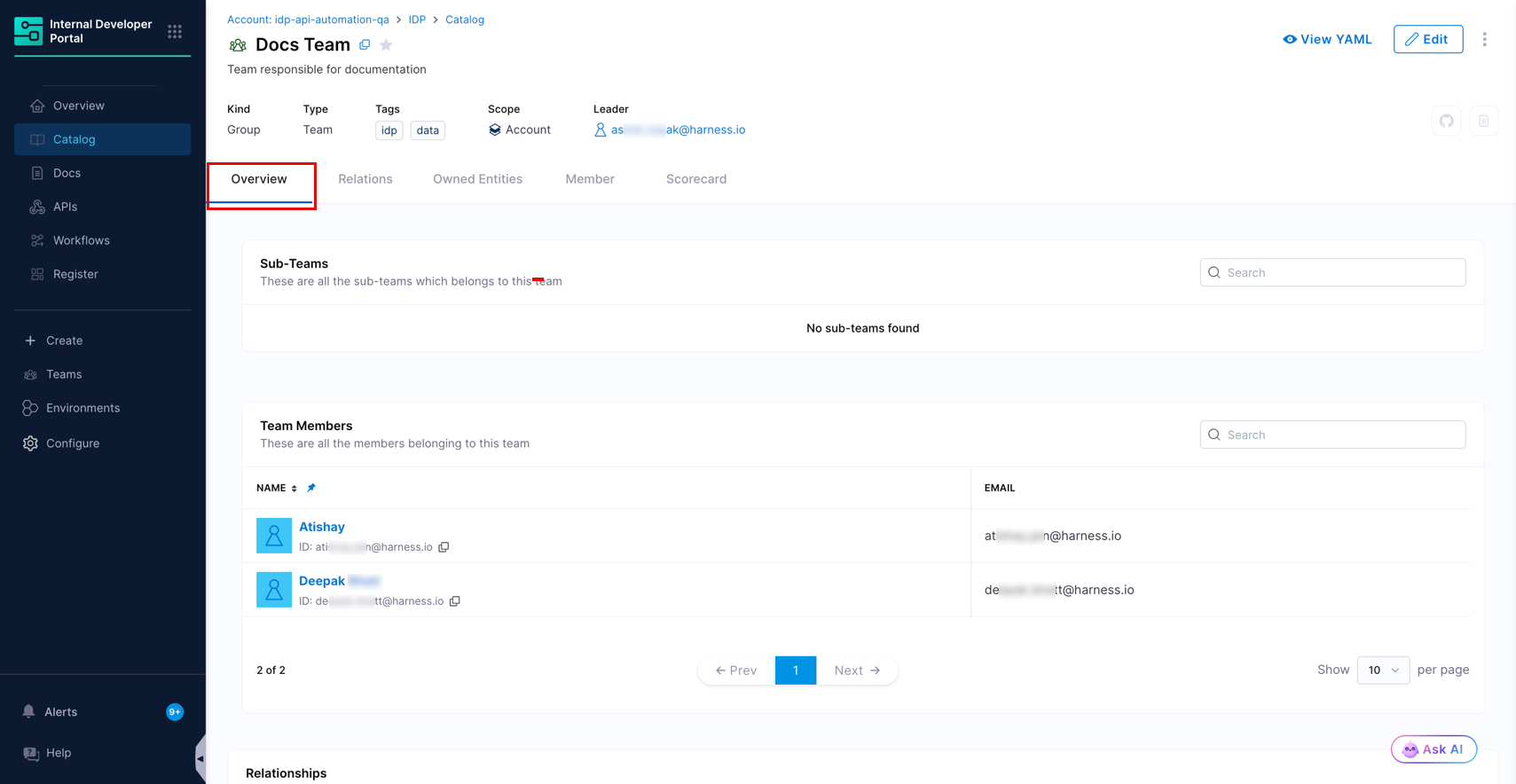
Click any Team to open its details page. The header shows the **Kind**, the **Type**, any tags, and the **Scope**.
Team details page, Overview tab
| Tab | What it shows |
| ------------------ | ----------------------------------------------------------------------------------------------------------------------------------------------- |
| **Overview** | The **Sub-Teams** table, the **Team Members** table, and the **Relationships** graph for this Team. |
| **Relations** | The full interactive relationship graph, including sub-teams, members, and the scope the Team is a child of. Filter the graph by kind and type. |
| **Owned Entities** | Every Catalog entity owned by this Team and by its sub-teams. |
| **Member** | The sub-teams and the individual members belonging to this Team. |
| **Scorecard** | Scorecard results for this Team. This tab appears only after you add it to the Team layout. |
{% hint style="info" %}
The tabs on a Team page are controlled by the layout configured for this entity kind. Go to [Team entity layouts](/internal-developer-portal/admin-and-customization/layout-and-appearance/catalog.md#team-entity-layouts) to add or remove tabs and cards.
{% endhint %}
To inspect the underlying definition, click **View YAML**. The **Raw YAML** panel shows the stored entity, and the **Ingested Properties** panel shows the properties added through the [Catalog Ingestion API](/internal-developer-portal/use-idp/software-catalog/integrate-tools/catalog-ingestion-api.md).
***
### Assign entities to a Team
Marking a Team as the owner of a Catalog entity records responsibility, and it also grants access. Go to [Team access control](/internal-developer-portal/use-idp/software-catalog/teams/team-access-control.md) to understand what ownership unlocks.
A Team can be named as the owner of an entity only if the entity is in the same scope as the Team, or in one of the Team's child scopes. A Team at the Organization scope can own entities in that organization and in its projects, but it cannot own entities at the Account scope.
There are two ways to set ownership.
* **From the entity** - Set the **Owner** field on the Catalog entity to the Team. The owner list is scope-aware and shows the Teams available at the entity's scope. In YAML, set `spec.owner` to a `group:/` reference. Go to [`owner`](/internal-developer-portal/use-idp/software-catalog/catalog-yaml.md#owner) to review the supported reference and scope formats.
* **From the Team** - Add one or many entities to the Team in a single action, as described below.
#### Add entities from the Team page
To add entities from the Team page, complete the following steps:
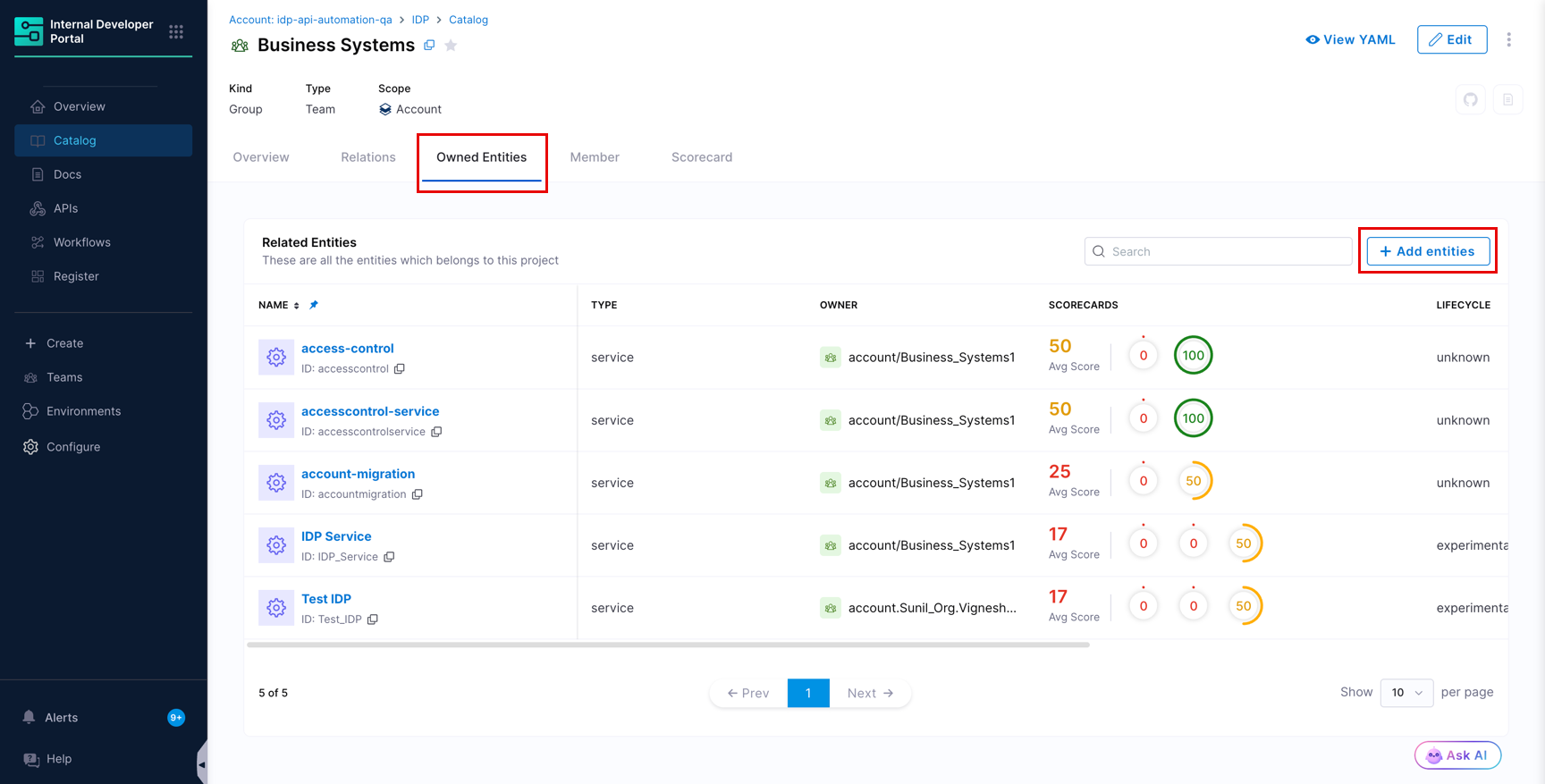
1. Open the Team and go to the **Owned Entities** tab.
2. Click **+ Add entities**.
Add entities to team dialog
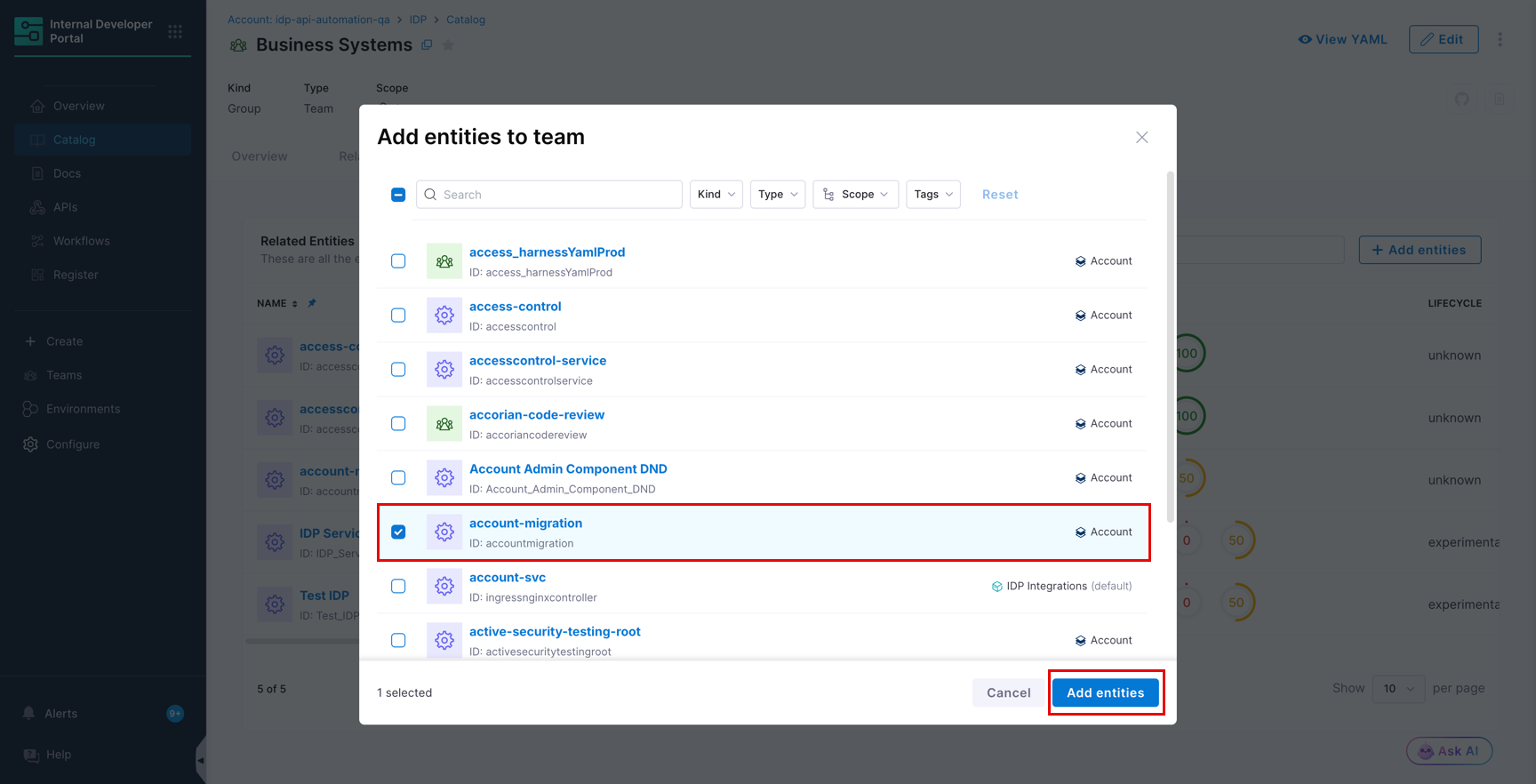
3. In the **Add entities to team** dialog, use the **Kind**, **Type**, **Scope**, and **Tags** filters, or the search field, to find what you need.
4. Select the entities and click **Add entities**.
Add entities to team dialog
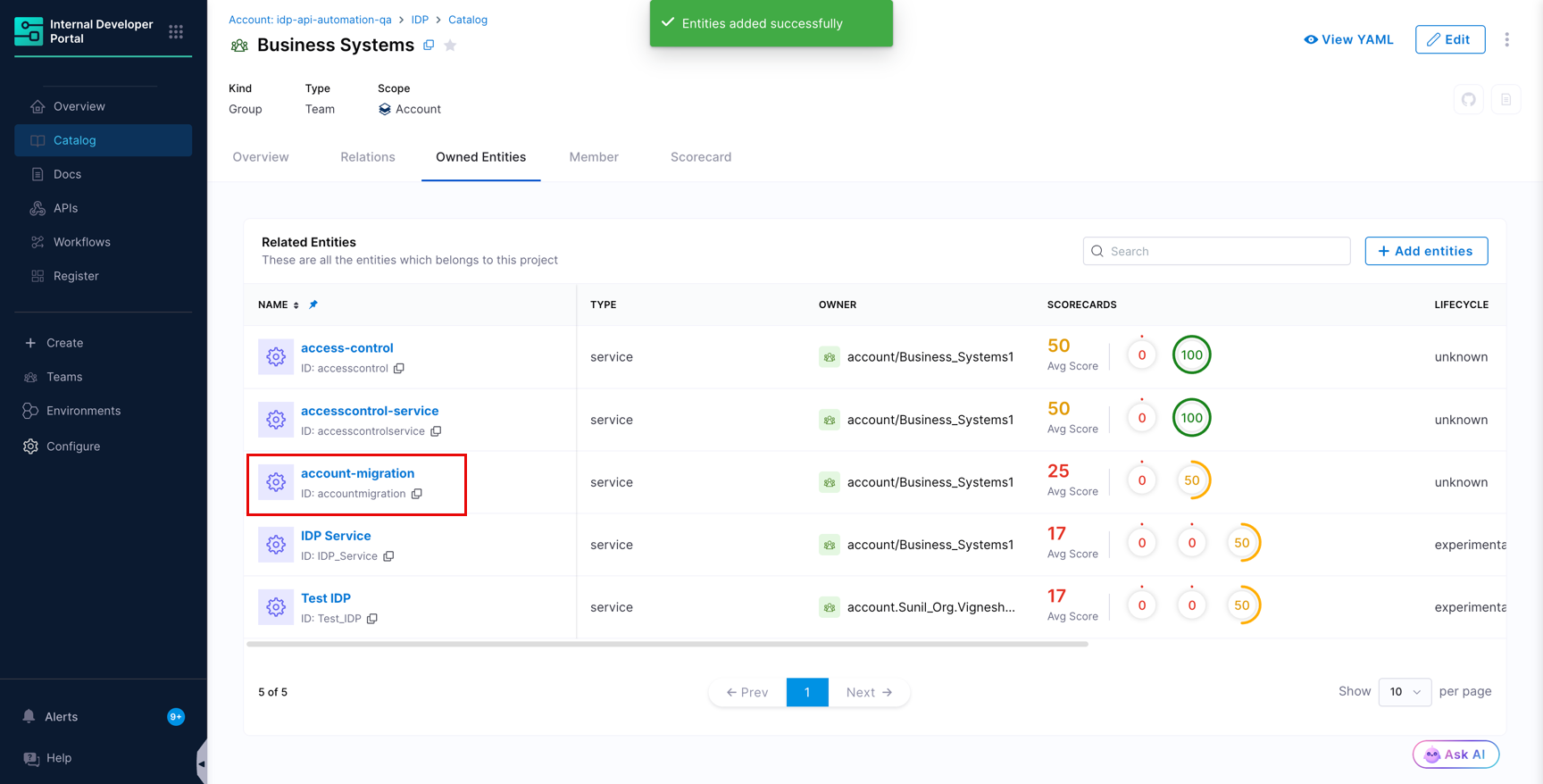
Harness IDP confirms the action with an **Entities added successfully** message.
Owned Entities tab after adding an entity
{% hint style="info" %}
Ownership is applied in the background. If a newly added entity does not appear immediately in the **Owned Entities** list, refresh the page after a moment.
{% endhint %}
{% hint style="warning" %}
**ADDING AN ENTITY REPLACES ITS EXISTING OWNER**
An entity has a single owner. If you add an entity that is already owned by another Team, the previous ownership relation is removed and replaced by the new Team. Check the **Owner** column before you add entities that may already be assigned.
{% endhint %}
#### Understand the Owned Entities list
The **Owned Entities** tab lists the entities owned by the Team **and** the entities owned by its sub-teams. The **Owner** column tells you which Team in the hierarchy actually owns each row, so a parent Team gives you a complete rollup of everything its part of the organization is responsible for.
{% hint style="info" %}
The **Owned Entities** list cannot yet be filtered by sub-team. To see the entities owned by one sub-team only, open that sub-team and view its own **Owned Entities** tab.
{% endhint %}
***
### Edit and delete a Team
Open the Team and click **Edit** in the header to change its details.
The three-dot menu next to **Edit** offers two further actions.
* **Copy URL**: Copies a direct link to the Team page, which you can share with anyone who has access to it.
* **Delete**: Removes the Team from the Catalog.
{% hint style="warning" %}
Deleting a Team removes the ownership relations it held, so the Catalog entities it owned are left without an owner. Reassign ownership before you delete a Team.
{% endhint %}
***
### Next steps
Explore the following pages next:
* [Configure Team access control](/internal-developer-portal/use-idp/software-catalog/teams/team-access-control.md)
* [Roll up metrics and run scorecards on Teams](/internal-developer-portal/use-idp/software-catalog/teams/team-metrics-and-scorecards.md)
{% @harness-feedback/feedback %}