> For the complete documentation index, see [llms.txt](https://developer.harness.io/llms.txt). Markdown versions of documentation pages are available by appending `.md` to page URLs; this page is available as [Markdown](https://developer.harness.io/release-orchestration/use-release-orchestration/notifications.md).
# Notifications
Configure notifications for release events in Release Orchestration
Release Orchestration allows you to configure notifications for key release lifecycle events. You can set up conditional notifications that trigger on release events such as start, completion, or failure and route them to Slack channels.
### What you will learn from this topic
* How to [set up a notification](#notification-setup-workflow) by defining a name, resources, conditions, and channels.
* How to configure the [release, phase, and activity events](#release-events) that can trigger a notification.
* How to configure [Slack as a notification channel](#notification-channels).
* How to apply [common use cases](#use-cases), such as production release monitoring and approval tracking.
### Notification setup workflow
Setting up notifications involves a four-step process: define the notification name, select resources to monitor, configure event conditions, and choose notification channels.
**Step 1: Overview**
Start by creating a new notification setup from your Release Orchestration account settings or project settings.
1. Navigate to **Account Settings** or **Project Settings**
2. Select **Notifications**
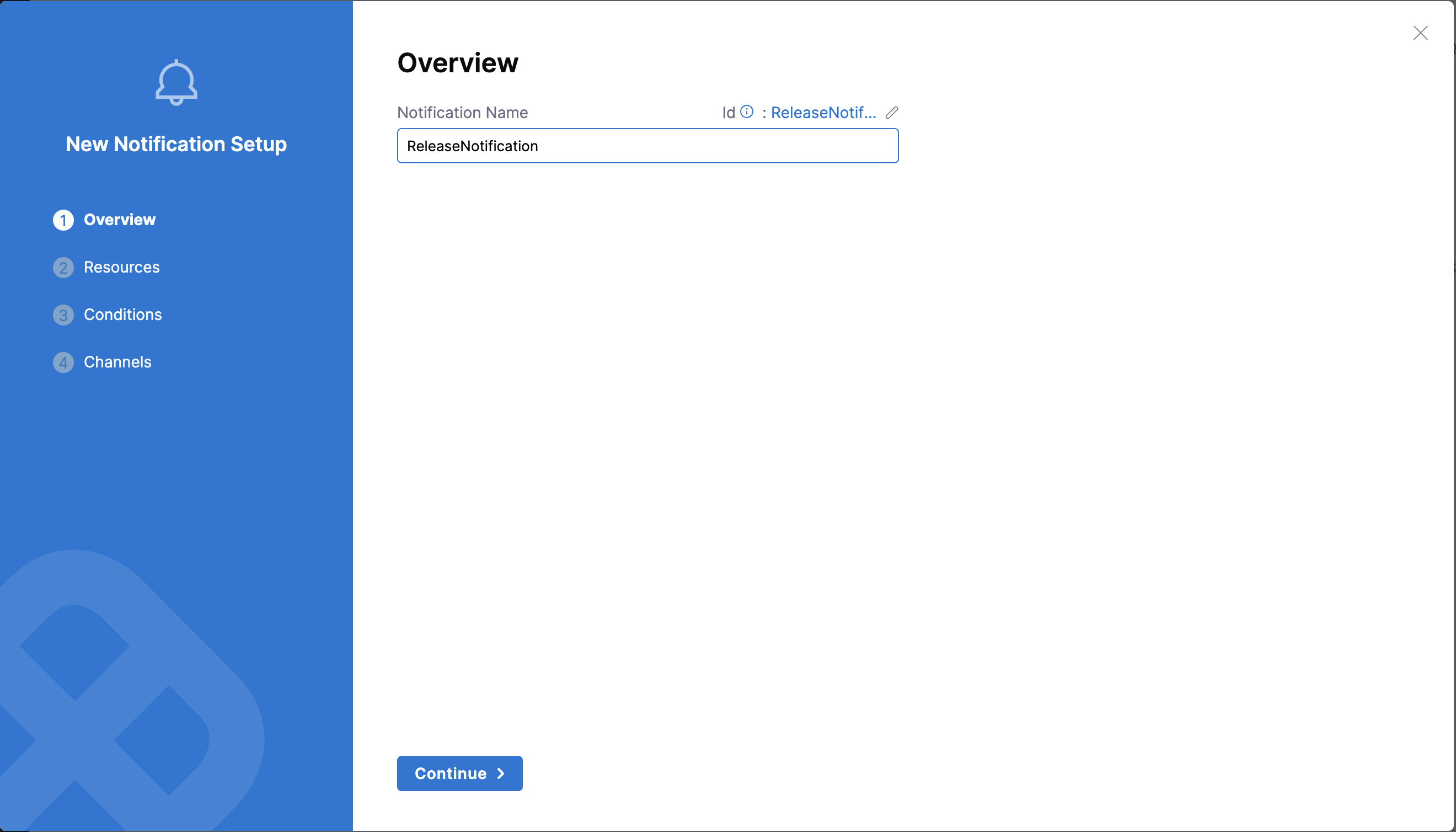
3. Click **New Notification Setup**
4. Provide a **Notification Name** (e.g., "ReleaseNotification")
5. Click **Continue**
Click to view full size image
The notification name helps you identify and manage your notification rules. Choose a descriptive name that reflects what events you are monitoring.
**Step 2: Resources**
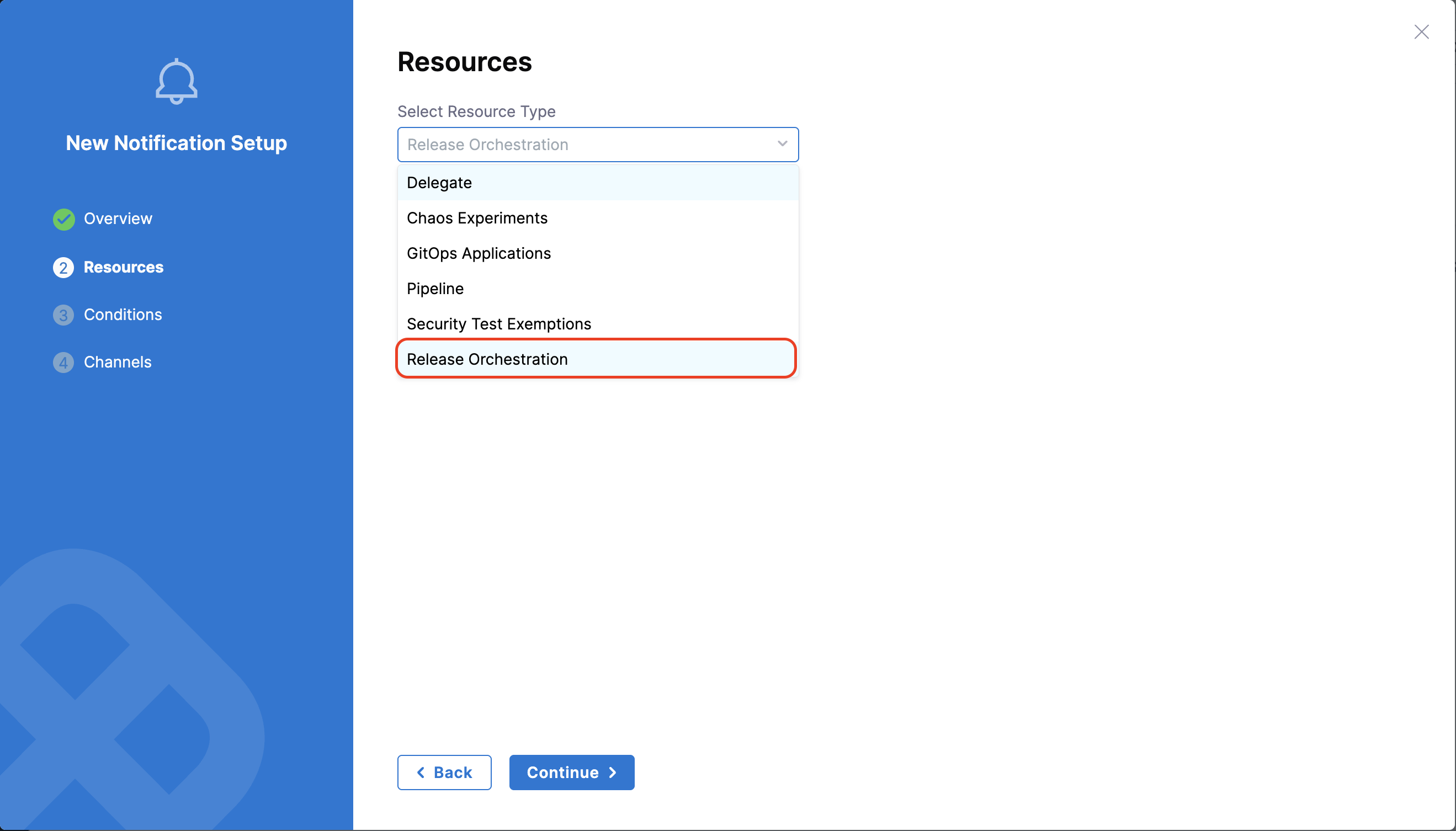
Select which resources this notification should monitor.
1. Select **Resource Type**: Select **Release Orchestration** from the dropdown
Click to view full size image
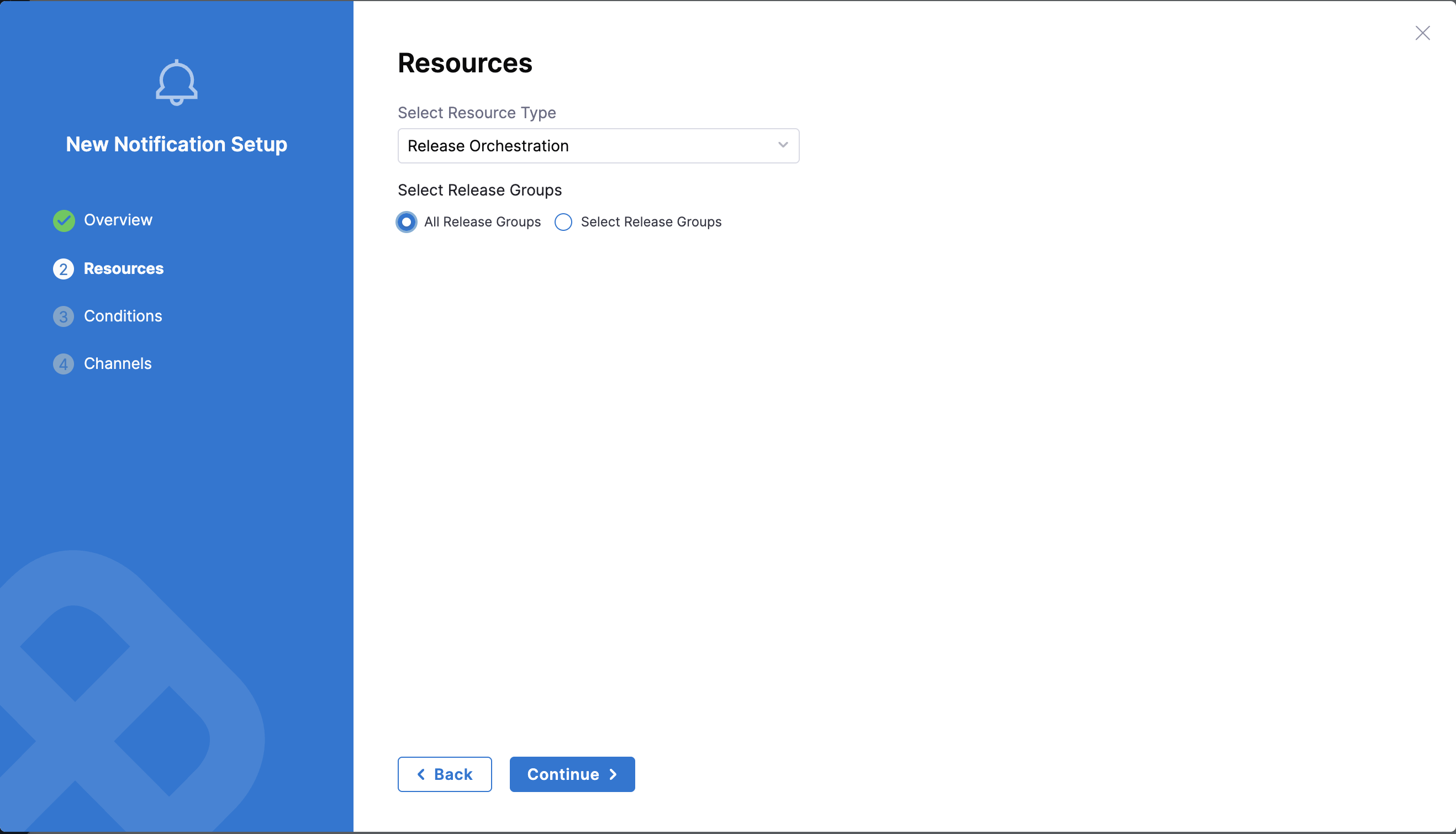
2. Select **Release Groups**:
* **All Release Groups**: Monitor all releases in your account/project
* **Select Release Groups**: Select specific release groups to monitor
Click to view full size image
Click **Continue** to proceed to the conditions setup.
**Step 3: Conditions**
Define which release events should trigger notifications. You can create multiple conditions that monitor different events.
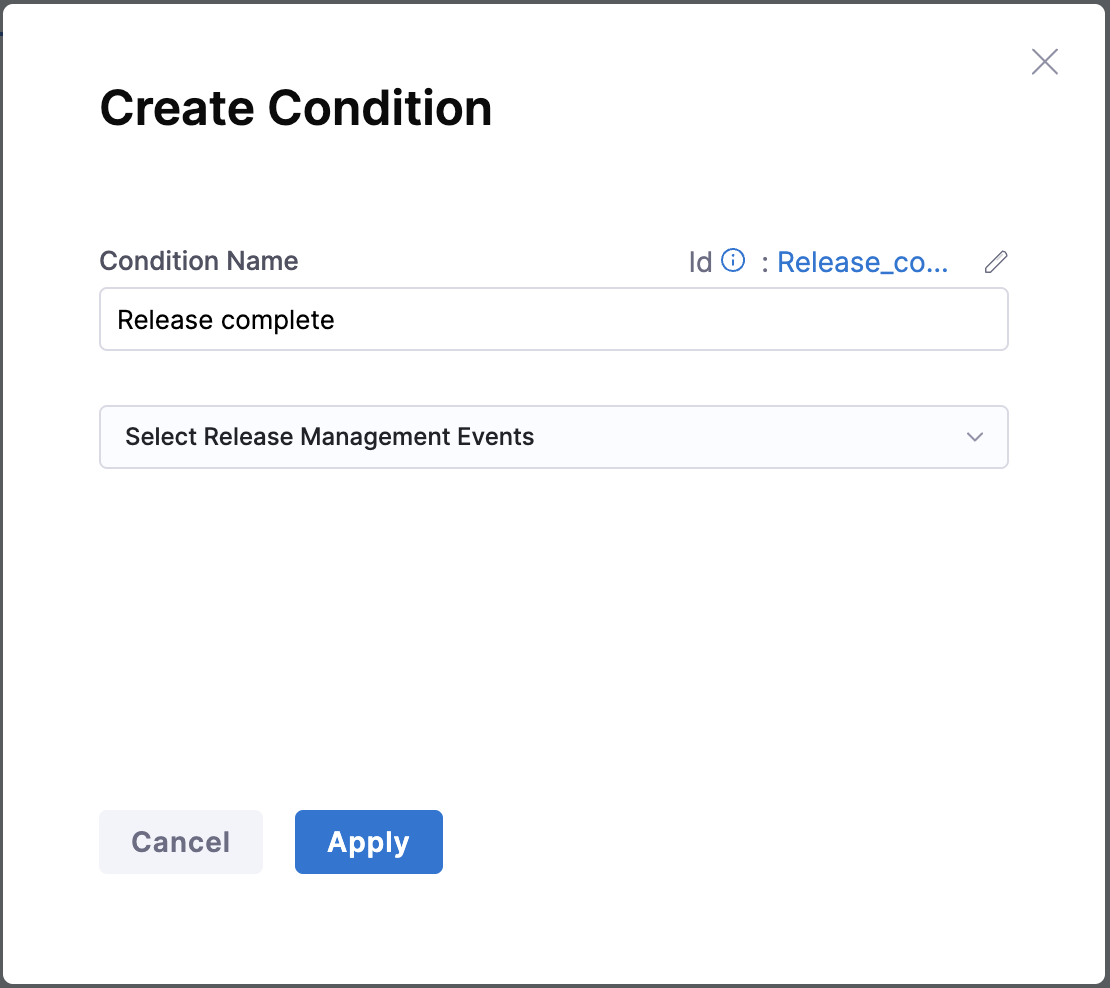
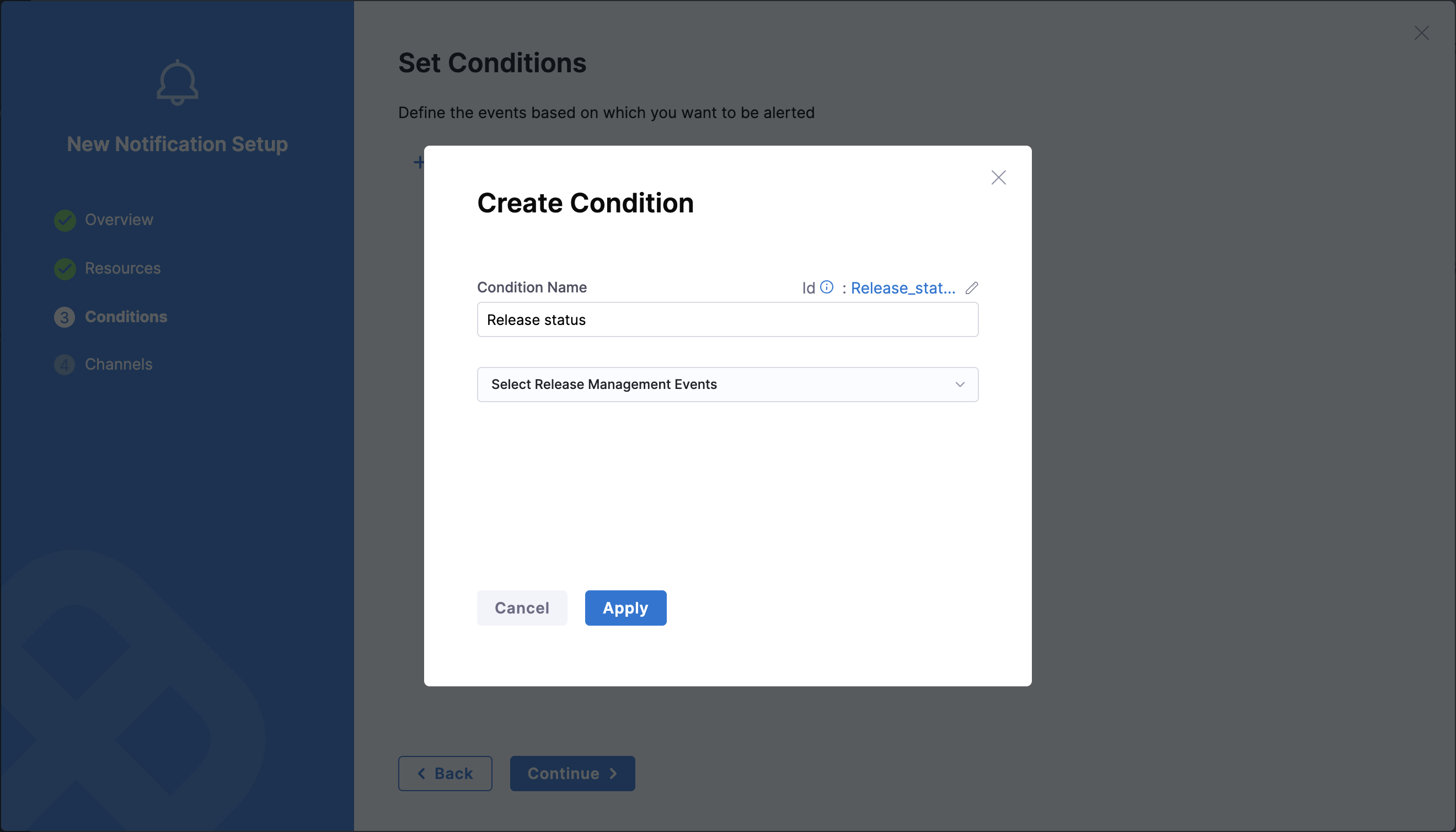
1. Click **+ Add Condition** to create a new condition
2. Provide a **Condition Name** (e.g., "Release complete" or "Release status")
Click to view full size image
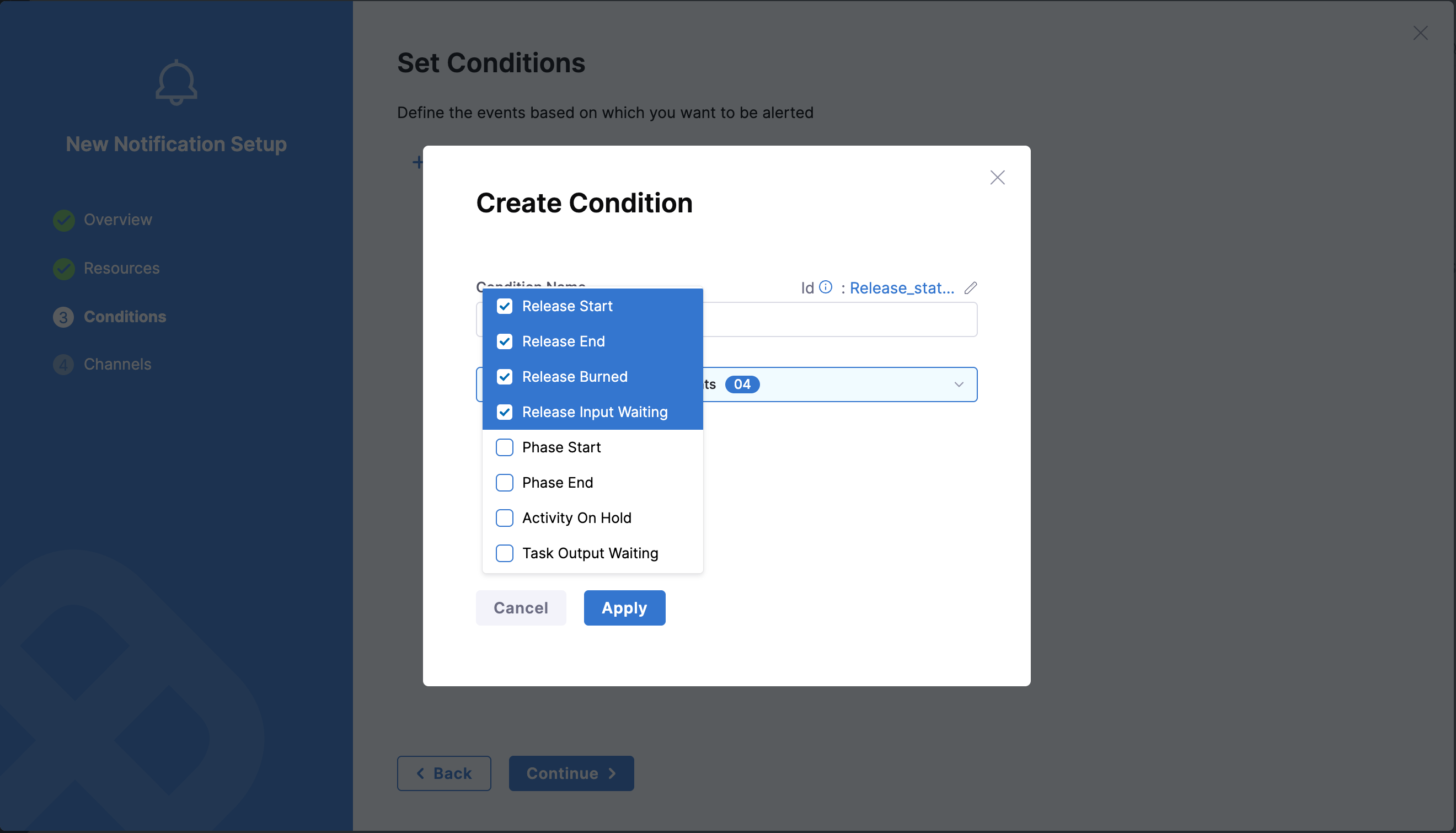
3. Select **Release Management Events** from the dropdown
Click to view full size image
4. Select which events to monitor:
* **Release Start**: Triggered when a release execution starts
* **Release End**: Triggered when a release completes successfully
* **Release Burned**: Triggered when a release fails or is terminated
* **Release Input Waiting**: Triggered when a release pauses waiting for manual input
* **Phase Start**: Triggered when a phase execution begins
* **Phase End**: Triggered when a phase completes
* **Activity On Hold**: Triggered when an activity is placed on hold
* **Task Output Waiting**: Triggered when a task is waiting for output
Click to view full size image
You can select multiple events in a single condition. The notification will trigger when any of the selected events occur.
Click **Apply** to save the condition, then **Continue** to configure notification channels.
**Step 4: Channels**
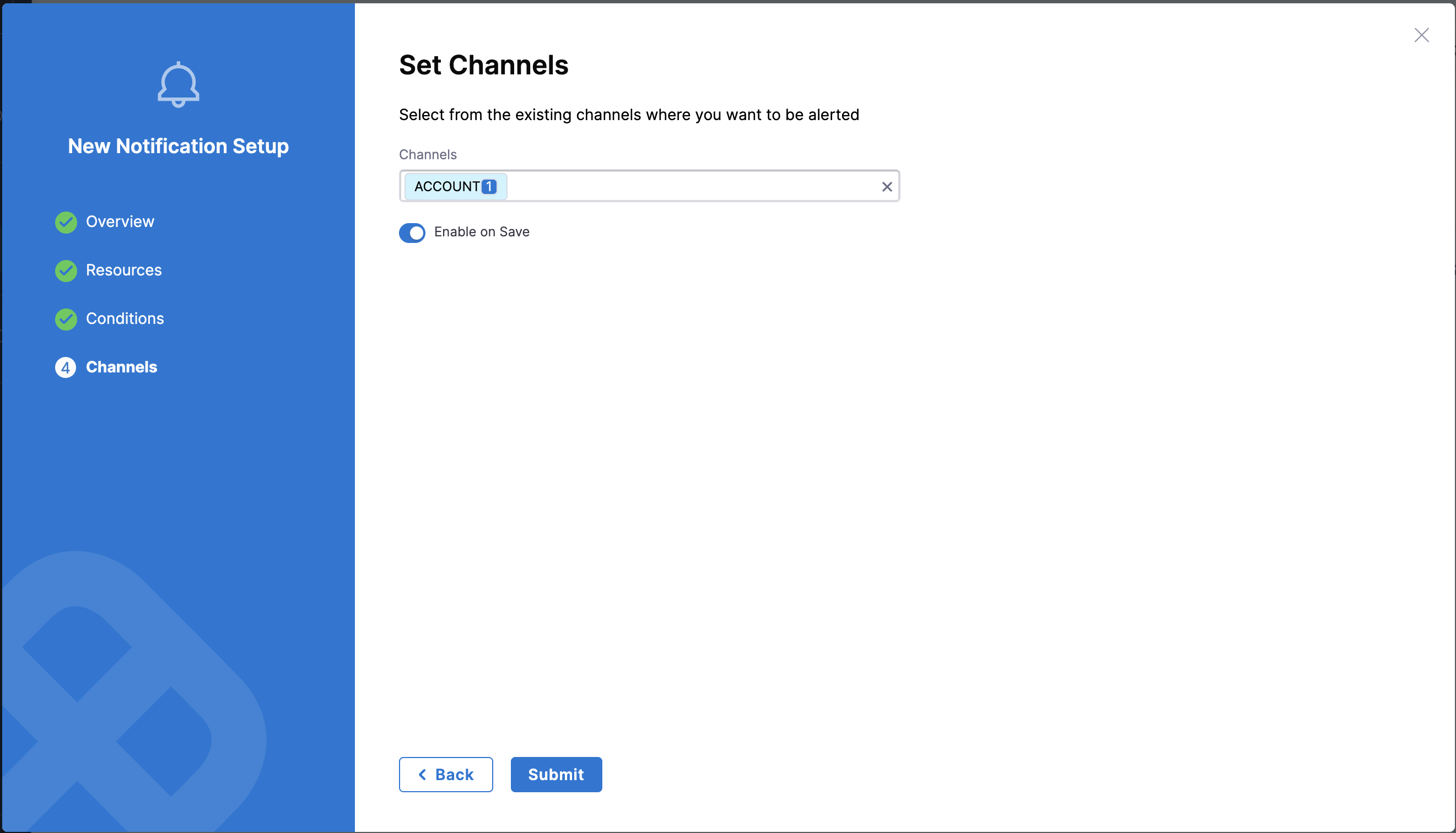
Select where notifications should be sent when your conditions are met.
Click to view full size image
1. Select from existing Slack notification channels configured in your account.
2. **Slack** is the supported notification channel for Release Orchestration events.
3. Toggle **Enable on Save** to activate the notification immediately.
4. Click **Submit** to create the notification setup.
{% hint style="info" %}
Release Orchestration supports Slack notifications. Ensure you have configured at least one Slack notification channel in your account settings before setting up release notifications.
{% endhint %}
### Release events
Release Orchestration supports notifications for the following event types:
**Release-level events**
**Release Start**\
Triggered when a release execution begins. Use this to notify stakeholders that a deployment has started.
**Release End**\
Triggered when a release completes successfully. This indicates that all phases and activities were completed without errors.
**Release Burned**\
Triggered when a release fails or is terminated. This includes execution failures, manual cancellations, and timeout scenarios.
**Release Input Waiting**\
Triggered when a release pauses waiting for manual input, such as approval steps or manual activity execution.
**Phase-level events**
**Phase Start**\
Triggered when any phase within a release begins execution. This helps track progress through different deployment stages.
**Phase End**\
Triggered when a phase completes, either successfully or with errors. This marks the completion of a major deployment stage.
**Activity-level events**
**Activity On Hold**\
Triggered when an activity is placed on hold, typically due to manual intervention requirements or upstream dependencies.
**Task Output Waiting**\
Triggered when a task completes, but downstream activities are waiting for its output before proceeding.
### Notification channels
Before setting up release notifications, ensure you have configured Slack notification channels in your account settings.
**Slack** is the supported notification channel for Release Orchestration. You can post notifications to Slack channels or direct messages. Each Slack channel can be reused across multiple notification rules, making it easy to send different event types to the same destination.
To configure Slack channels:
1. Navigate to **Account Settings** > **Notifications**
2. Set up Slack integration with your workspace
3. Configure channels or users to receive notifications
4. Use these channels when setting up release notification rules
### Use cases
**Production release monitoring**
Configure notifications to track production deployments:
* Monitor **Release Start** to know when production deployment begins
* Monitor **Release End** to confirm successful completion
* Monitor **Release Burned** for immediate alerts on deployment failures
* Send to Slack channel for team visibility and real-time alerts
**Approval and input tracking**
Set up notifications for manual intervention requirements:
* Monitor **Release Input Waiting** for approval steps
* Monitor **Activity On Hold** for blocked activities
* Send to Slack channels where stakeholders can see when input is needed
**Multi-phase deployment tracking**
Track progress through complex multi-stage deployments:
* Monitor **Phase Start** and **Phase End** for each deployment stage
* Send to Slack for real-time progress updates
* Use different channels for different phases (e.g., test vs. production phases)
### Best practices
**Group Related Events**\
Create separate notification rules for related events rather than combining them into a single rule. For example, create one rule for release lifecycle events (start, end, burned) and another for input/approval events.
**Use Descriptive Names**\
Give your notification setups and conditions clear, descriptive names that explain what they monitor. This makes it easier to manage multiple notification rules.
**Target Appropriate Channels**\
Route different event types to appropriate Slack channels based on urgency:
* Critical failures → Dedicated on-call or incident Slack channel
* Release status updates → Team release channel
* Approval requests → Stakeholder Slack channel or direct messages
* General notifications → Shared team channel
**Scope Notifications Appropriately**\
Use "Select Release Groups" to limit notifications to specific release groups rather than monitoring all releases. This prevents notification fatigue and ensures teams only see relevant events.
**Test Before Production**\
Create test notification rules in non-production projects first to validate event triggers and channel configurations before applying to production releases.
### Related topics
* [Release overview](/release-orchestration/use-release-orchestration/release-orchestration-releases/overview.md): Learn about releases and their lifecycle.
{% @harness-feedback/feedback %}