> For the complete documentation index, see [llms.txt](https://developer.harness.io/llms.txt). Markdown versions of documentation pages are available by appending `.md` to page URLs; this page is available as [Markdown](https://developer.harness.io/release-orchestration/use-release-orchestration/release-orchestration-activities/activity-store.md).
# Activity Store
Learn about the activity store and how to create and reuse activities across release processes
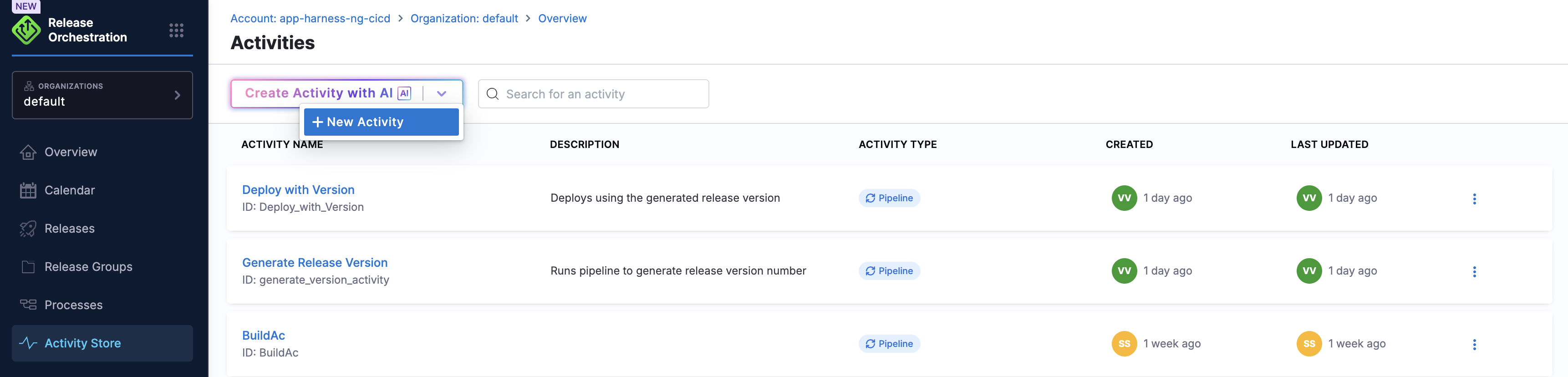
The activity store is a centralized repository for defining reusable activities that can be referenced across multiple release processes. It promotes consistency, reduces duplication, and accelerates process creation by providing a library of pre-configured activities.
Click to view full size image
### What you will learn from this topic
* Understand [what the Activity Store is](#what-is-the-activity-store) and why you use it
* How activities in the store [flow into a process](#how-activities-flow-from-store-to-process)
* How to [create activities in the store](#create-activities-in-the-store) using the UI or YAML
* How to [use, update, and delete activities](#use-activities-from-the-store) that are already in the store
### What is the Activity Store?
The Activity Store is a collection of activity definitions that you create and maintain for your organization. Each activity encapsulates its complete configuration: inputs, outputs, and the underlying pipeline or manual steps it executes. Multiple processes can reference the same activity definition without copying it. This centralized approach ensures consistent execution and makes updates easier. Change the definition once, and all referencing processes pick up the change on their next execution.
Think of it as a library of pre-configured activities that processes can reference, similar to how a code library provides reusable functions.
### Why use the Activity Store?
**Consistency across processes**
When you define an activity once in the store, all processes that reference it use the same configuration. This ensures standardized implementations across release workflows with consistent execution behavior and uniform input/output contracts. Configuration drift between teams is reduced because everyone references the same centralized definition rather than maintaining separate copies.
**Reduce duplication**
Without the activity store, you would define the same activity configuration repeatedly in each process. The store eliminates this duplication by allowing you to define an activity once and reference it many times across different processes. Updates happen in one place and apply everywhere the activity is used. This approach avoids copy-paste errors and maintains a single source of truth for each activity's configuration.
**Accelerate process creation**
Using preconfigured activities from the store speeds up the process of developing. Instead of configuring activities from scratch, you select proven configurations from the store. This allows you to use organizational best practices and focus on orchestration logic rather than activity implementation details.
### Activity types in the store
The activity store can contain any type of activity supported by Release Orchestration. Automated activities execute Harness pipelines automatically and include build activities that compile code and create artifacts, deployment activities that deploy to environments, testing activities that run test suites, and integration activities that trigger external systems.
Manual activities require human intervention and include approval for review and sign-off gates, verification for manual validation steps, and communication for coordination tasks. Signal activities wait for external events, including webhook activities that wait for incoming webhook signals and queue activities that wait for messages from external systems.
### How activities flow from store to process
When you use an activity from the store in a process, you create a reference to that activity's definition, not a copy. The flow works as follows.
**1. Define activity in the store**
Create the activity in the store with a unique identifier (such as `build_backend_service`), the inputs it expects (such as `SERVICE_NAME` and `BRANCH`), the outputs it produces (such as `BUILD_VERSION` and `ARTIFACT_URL`), and its execution configuration. For automated activities, this includes the pipeline to execute. Manual activities include the instructions or approval requirements.
**2. Reference activity in process**
In your process YAML, reference the activity:
```yaml
phases:
- phase:
id: build_phase
name: Build Phase
activities:
- activity: build_backend_service # References store activity
id: build_backend
```
**3. Provide inputs at the process level**
The process supplies values for the activity's inputs via process input configuration:
```yaml
processInput:
phases:
- id: build_phase
activities:
- id: build_backend
inputs:
SERVICE_NAME: "auth-service"
BRANCH: <+globalInput.release_branch>
```
**4. Execute activity**
When the release runs:
1. The system resolves the activity reference from the store
2. Merges process-provided inputs with activity defaults
3. Executes the activity with the resolved configuration
4. Captures outputs for use by later activities
### Create activities in the store
You can create an activity in the store either using the UI or by defining it in YAML directly.
{% tabs %}
{% tab title="UI" %}
Navigate to Release Orchestration and select **Activity Store**, then click **+ New Activity** to begin creating a new activity definition.
Click to view full size image
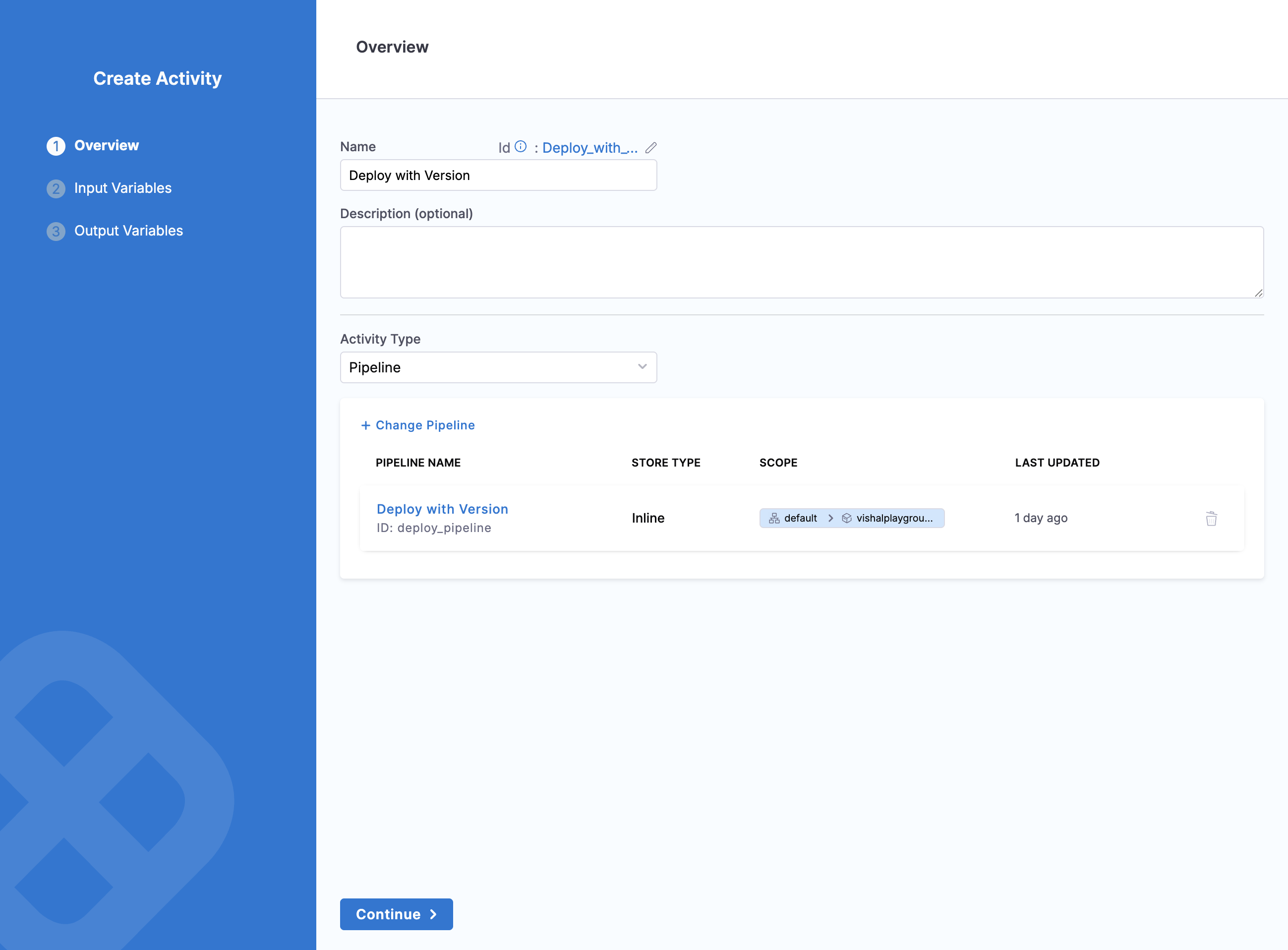
**Step 1: Configure Activity Overview**
In the Overview step, configure the basic details of your activity. Provide a unique name for the activity (such as `Deploy with Version`), optionally add a description explaining its purpose, and select the activity type. For pipeline activities, choose the pipeline to execute by clicking **Change Pipeline** and selecting one from the available pipelines in your project.
Click to view full size image
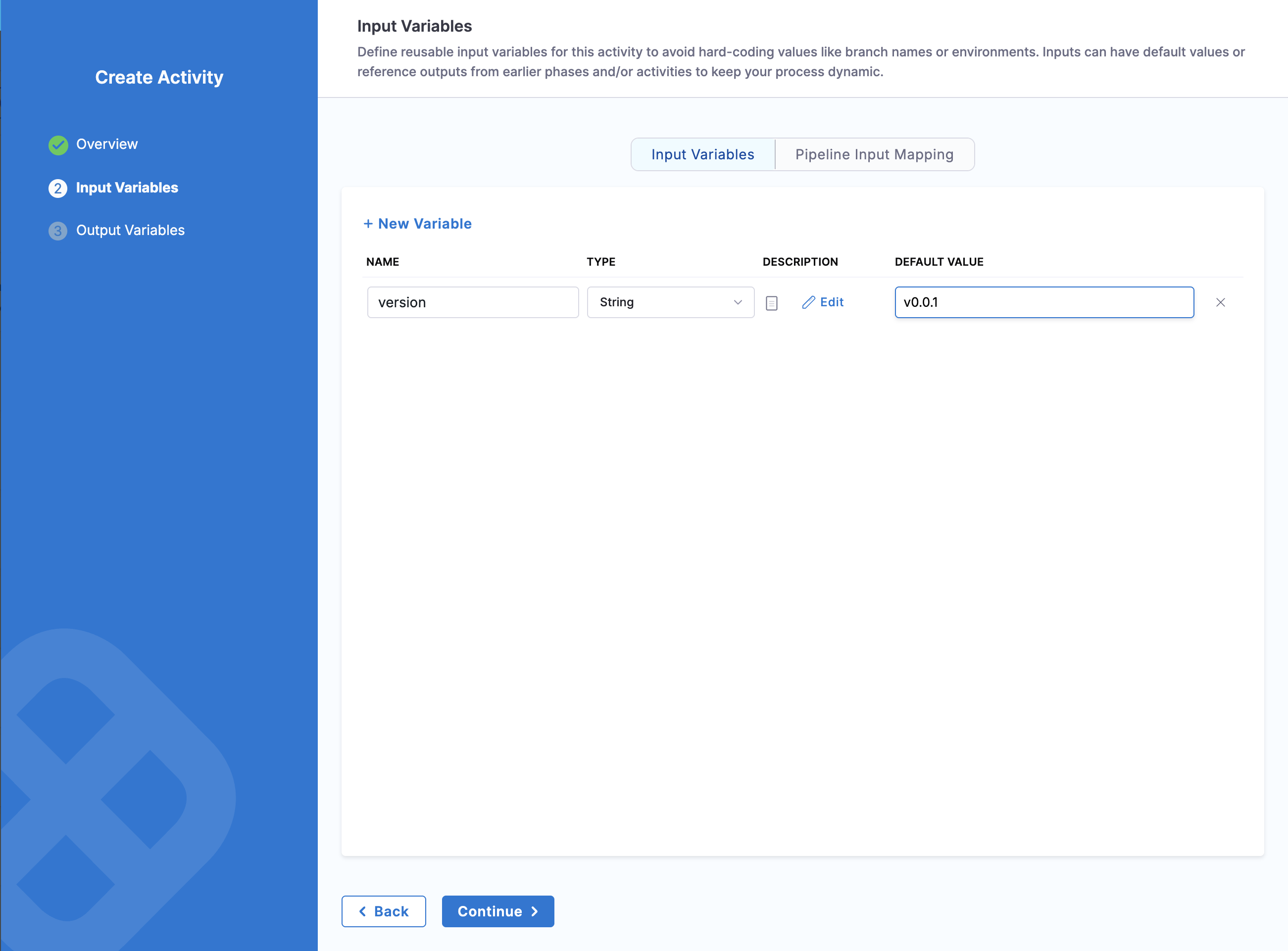
**Step 2: Define Input Variables**
In the Input Variables step, define the inputs that this activity expects. Click **+ New Variable** to add each input, providing a name (such as `version`), selecting the type (**String**, **Number**, **Secret**, and so on), and optionally setting a default value. These inputs are supplied by processes when they reference this activity.
Click to view full size image
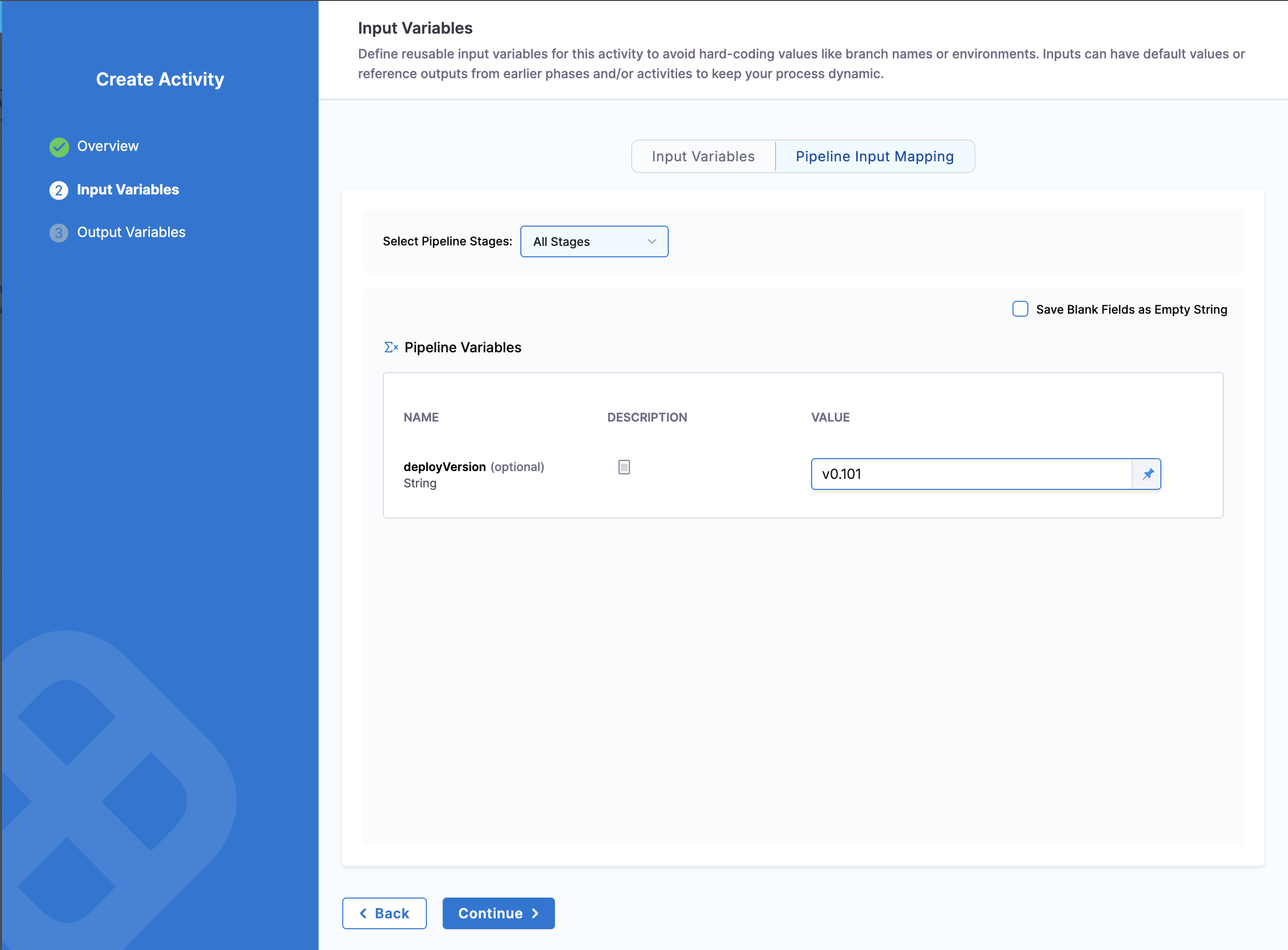
Under the **Pipeline Input Mapping** tab, you can map the activity inputs you defined to your pipeline variables. Select which pipeline stages to include, then map each activity input to the corresponding pipeline variable using expressions like `<+activityInput.version>`.
Click to view full size image
{% hint style="warning" %}
**Stage selection does not work**
If the **Select Pipeline Stages** dropdown does not let you select individual stages, the referenced pipeline does not have selective stage execution enabled. In the pipeline, navigate to **Advanced Options** -> **Stage Execution Settings** and set **Allow selective stage(s) executions?** to **Yes**, then return to this tab to select the required stages. For more information, see [Run specific stages](https://developer.harness.io/harness-platform/use-harness-platform/pipelines/run-specific-stage-in-pipeline#enable-selective-stage-executions).
{% endhint %}
**Step 3: Configure Output Variables (Optional)**
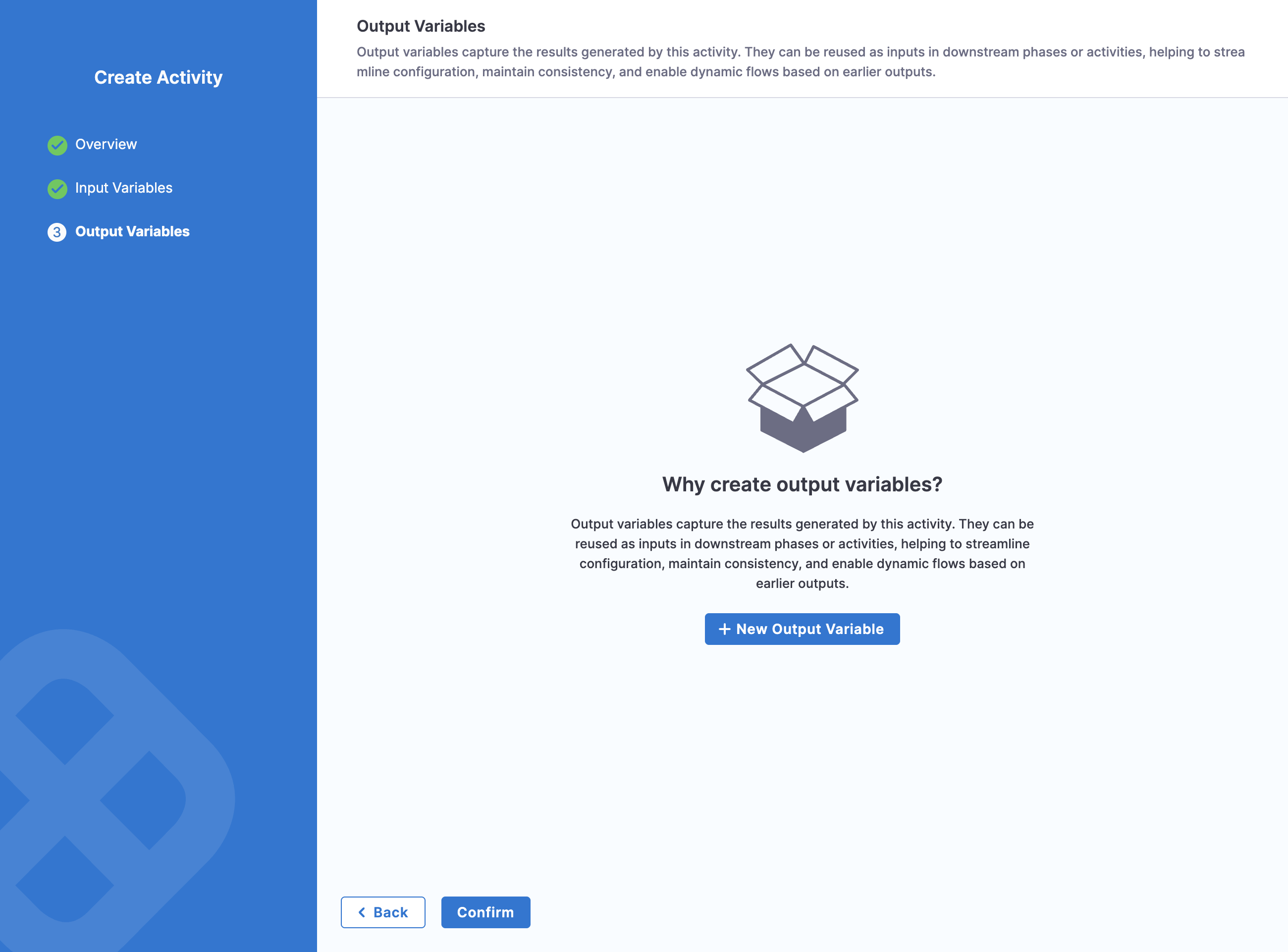
In the Output Variables step, define any outputs you want to capture from the pipeline execution. Click **+ New Output Variable** to add outputs that reference pipeline output variables using Harness expressions. These outputs can then be used as inputs to later activities in your release process.
Click to view full size image
After configuring all settings, click **Confirm** to save the activity to the store. The activity appears in the Activity Store list and becomes available for processes to reference.
{% endtab %}
{% tab title="YAML" %}
You can also create activities by defining YAML:
```yaml
activity:
id: build_backend_service
name: Build Backend Service
description: Compiles backend service and creates Docker image
inputs:
SERVICE_NAME:
type: string
default: "default-service"
BRANCH:
type: string
default: "main"
outputs:
BUILD_VERSION: <+pipeline.stages.build.spec.execution.steps.version.output.outputVariables.VERSION>
ARTIFACT_URL: <+pipeline.stages.build.spec.execution.steps.publish.output.outputVariables.URL>
pipeline:
pipeline: org/project/build_pipeline
inputSet:
variables:
- name: serviceName
value: <+activityInput.SERVICE_NAME>
- name: branch
value: <+activityInput.BRANCH>
```
{% endtab %}
{% endtabs %}
### Use activities from the store
**In the process definition**
Reference activities by their identifier:
```yaml
phases:
- phase:
id: deployment
activities:
- activity: deploy_to_production # Store reference
id: prod_deploy_instance
```
**Provide input values**
Configure inputs via process input:
```yaml
processInput:
phases:
- id: deployment
activities:
- id: prod_deploy_instance
inputs:
ENVIRONMENT: "production"
VERSION: <+phase.build.activity.build_app.outputs.BUILD_VERSION>
```
**View activity details**
To inspect an activity from the store, navigate to the Activity Store and click the activity name. This opens the activity details view where you can see its inputs, outputs, and complete configuration. You can also see which processes currently reference this activity.
### Update activities in the store
When you update an activity in the store, the changes affect all processes that reference it, so updates require care.
**Update impact**
Processes using the activity use the updated definition on their next execution. Running releases continue using the definition from when they started, ensuring no mid-flight changes disrupt in-progress releases. Historical releases remain unchanged and continue to reflect the activity configuration in effect when they ran.
**Best practices for updates**
Before updating a widely used activity, test changes in a non-production process to verify behavior. Coordinate with teams on the activity and notify them of any upcoming changes that might affect their workflows. For breaking changes that alter the activity's interface or behavior significantly, create a new activity with a versioned name (such as `deploy_v2`) rather than modifying the existing one. When possible, update incrementally with small, backward-compatible changes to minimize disruption.
### Delete activities
You can delete activities from the store only if no processes currently reference the activity and the activity is not in use by any running releases. If processes reference the activity, you must first update those processes to remove the reference before deleting the activity from the store.
### Activity Store organization
**Naming conventions**
Use clear, descriptive identifiers that explain the activity's purpose. Good examples include `deploy_backend_to_staging`, `run_integration_tests`, and `security_approval_gate`. Avoid generic names like `activity1` or `temp_deploy` that do not convey meaning.
**Grouping by purpose**
Organize activities logically using consistent prefixes. Build activities use the `build_*` prefix, deployment activities use `deploy_*`, testing activities use `test_*`, and approval activities use the prefix `approval_*`. This naming convention makes it easier to find activities when browsing the store.
### Common use cases
**Standardized deployment activity**
Create a deployment activity that all teams use for production deployments:
```yaml
activity:
id: standard_prod_deploy
name: Standard Production Deployment
inputs:
SERVICE_NAME:
type: string
DEPLOYMENT_STRATEGY:
type: string
default: "rolling"
pipeline:
pipeline: org/platform/production_deployment_pipeline
```
Teams reference this activity in their processes to ensure consistent deployment practices.
**Reusable approval gate**
Define a manual approval activity for production releases:
```yaml
activity:
id: prod_approval_gate
name: Production Approval Gate
description: Requires approval from the release manager before production deployment
```
Every production process references this activity, ensuring no deployments bypass approval.
**Dynamic version generator**
Create an activity that generates release version numbers:
```yaml
activity:
id: generate_release_version
name: Generate Release Version
outputs:
RELEASE_VERSION: <+pipeline.stages.version.spec.execution.steps.gen.output.outputVariables.VERSION>
pipeline:
pipeline: org/platform/version_generator
```
Later activities reference `<+phase.version.activity.generate_release_version.outputs.RELEASE_VERSION>` for consistent versioning.
### Related topics
* [Activities Overview](/release-orchestration/use-release-orchestration/release-orchestration-activities/activities-overview.md)
* [Automated Activities](/release-orchestration/use-release-orchestration/release-orchestration-activities/activity-types/automated-activities.md)
* [Manual Activities](/release-orchestration/use-release-orchestration/release-orchestration-activities/activity-types/manual-activities.md)
* [Move an activity to Git](https://developer.harness.io/harness-platform/use-harness-platform/git-experience/move-inline-entities-to-git#move-inline-activity)
{% @harness-feedback/feedback %}