> For the complete documentation index, see [llms.txt](https://developer.harness.io/llms.txt). Markdown versions of documentation pages are available by appending `.md` to page URLs; this page is available as [Markdown](https://developer.harness.io/release-orchestration/use-release-orchestration/release-orchestration-releases/adhoc-releases.md).
# Ad Hoc Releases
Learn how to create and execute releases on demand, outside of release groups.
Ad hoc releases let you create and execute a release on demand, outside any release group or recurring cadence. You can run them immediately or schedule them for a one-time execution. Use them for customer-specific releases, for testing new processes, or for one-off deployments that do not fit your standard release schedule.
Unlike releases generated by release groups, ad hoc releases are standalone. A guided wizard walks you through selecting a process, setting the execution window, providing inputs, and optionally running the release straight away.
## What you will learn from this topic
* How to decide [when to use ad hoc releases](#when-to-use-ad-hoc-releases)
* How to [create an ad hoc release](#create-an-ad-hoc-release) through the creation wizard
* What happens [after you create](#after-creation) an ad hoc release
* How to [manage and track](#managing-ad-hoc-releases) ad hoc releases
* How ad hoc releases [differ from scheduled releases](#differences-from-scheduled-releases)
## Before you begin
* **Release Manager access**: You need the Account Release Manager or Organization Release Manager persona. Go to [Persona-based access](/release-orchestration/use-release-orchestration/release-orchestration-releases/overview.md#persona-based-access) to review what each persona can do.
* **A process**: You need an existing process for the release to execute. Go to the [Processes overview](/release-orchestration/use-release-orchestration/release-orchestration-processes/overview.md) to create one.
* **An input set (optional)**: If the process needs inputs, an input set saves entering them by hand. Go to [Input Store](/release-orchestration/use-release-orchestration/release-orchestration-inputs-variables/input-store.md) to create one.
### When to use ad hoc releases
Ad hoc releases suit work that does not fit your regular release cadence:
* **Customer-specific deployments**: Deploy changes on a customer's own timeline without disrupting the standard release calendar or creating a release group for a one-time deployment. You reuse your existing processes and customize the inputs for each customer's environment.
* **Testing release processes**: Validate a new process in isolation before you add it to a recurring release group. This also suits testing configuration changes or training team members without touching production release groups.
* **Unscheduled maintenance**: Orchestrate infrastructure upgrades, security patches, or configuration changes that must happen outside normal release windows, using your standard processes and tracking them alongside regular releases.
### Create an ad hoc release
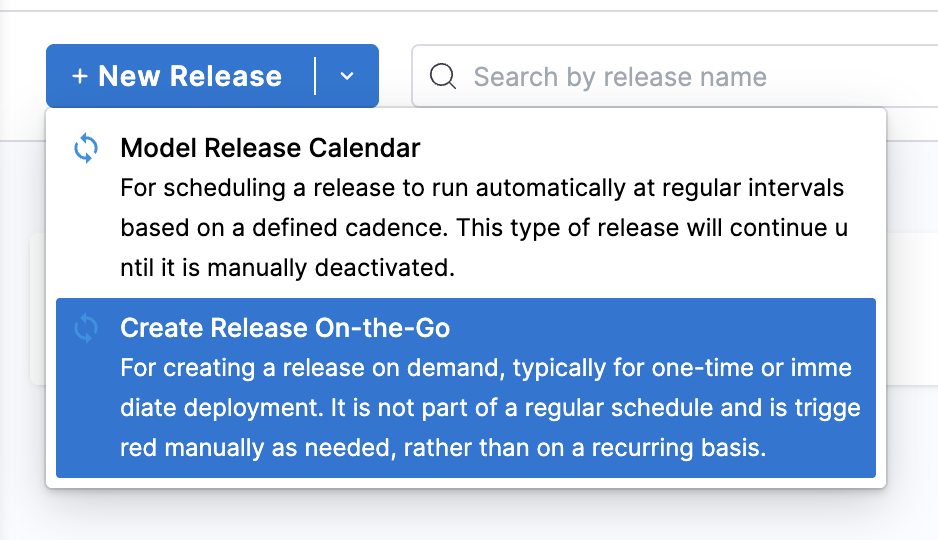
On the releases page, select **New Release**, and then select **Create Release On-the-Go** to open the creation wizard.
{% stepper %}
{% step %}
### Release overview
1. Enter a **Name** for the release. Harness generates an identifier from the name, which you can edit.
2. Optionally, add **Tags** to categorize the release for filtering and reporting.
3. Enter a **Description** that explains why you are creating this release, so teammates understand the context when they review execution history.
4. Enter a **Version** using numbers and periods, for example, `1.0.0` or `2.1.3`.
5. Select a **Color** to distinguish the release on the calendar and in lists.
6. Select **Next: Process & Date/Time**.
{% endstep %}
{% step %}
### Process and date/time
1. Select a **Process**. The process determines which phases and activities run when the release executes. If the process is stored remotely in Git, a branch selector appears next to it showing the current branch. Select a different branch to choose which branch's process definition the release runs.
2. If the process requires inputs, optionally select a **Process Input Set** to supply predefined values for its global variables and activity inputs. You can leave this blank and provide inputs in the final step instead.
3. Set the **Expected Start** and **Expected End** times. The expected end defaults to one week after the expected start.
4. Select **Next: Summary**.
The expected start and end times are for scheduling and reporting only. They do not stop the release from running outside that window.
{% endstep %}
{% step %}
### Summary
Review the release overview, schedule window, linked process, and input set. After you create the release, you cannot change the linked process or input set.
To make changes, select **Back**. When everything is correct, continue to the final step.
{% endstep %}
{% step %}
### Configure and run
Review the process details and execution configuration, then select one of the following:
* **Create**: Saves the release in a Scheduled state. It does not execute until someone triggers it. Use this to prepare a release in advance or when it still needs approvals.
* **Create & Run**: Creates the release and starts it immediately, then opens the release execution page so you can monitor progress. Use this for urgent deployments or when approvals are already in place.
{% endstep %}
{% endstepper %}
### After creation
The release appears in the releases list alongside releases from release groups, marked with its source type so you can tell it apart from scheduled releases.
* **If you selected Create**: The release stays in the Scheduled state until someone triggers it or its expected end time passes without execution. To run it, open the release and select **Execute**.
* **If you selected Create & Run**: The release starts immediately and Harness opens the execution page, where you can follow phase and activity progress.
Either way, the release follows the same execution flow as any other release: it progresses through phases, waits for approvals at manual activities, and records every step for audit.
### Manage ad hoc releases
Ad hoc releases appear in all the same views as regular releases. Filter by release type to show only ad hoc releases or to exclude them.
### View ad hoc releases
The [release calendar](/release-orchestration/use-release-orchestration/release-orchestration-releases/release-calendar.md) shows ad hoc releases alongside releases from release groups, using the color you selected during creation. In the releases list view, each release is marked with its creation source, so you can see whether it was created by hand or generated by a release group.
### Execution tracking
After an ad hoc release starts, tracking works the same as for any other release. You can monitor progress in real time, view execution history, complete manual activities, and generate [release reports](/release-orchestration/use-release-orchestration/release-orchestration-releases/release-reports.md). Error handling, retry options, and remediation apply in the same way. Go to [Error handling](/release-orchestration/use-release-orchestration/release-orchestration-execution/error-handling.md) for recovery options.
### Audit trail
Ad hoc releases keep a complete audit trail of who created them, when they ran, which activities ran, and who approved manual steps. These records appear in reports alongside scheduled releases, so emergency and unscheduled deployments carry the same accountability as planned ones.
### Differences from scheduled releases
Ad hoc releases execute the same way as releases from release groups, but they differ in how they are created and managed:
* **No release group association**: Ad hoc releases do not belong to a release group, do not appear in release group views, and do not follow a recurring schedule. They can still use the same processes and input sets as your scheduled releases.
* **Manual creation only**: Ad hoc releases are always created by hand in the UI. Harness never generates them on a schedule. If you keep creating the same ad hoc release, create a [release group](/release-orchestration/use-release-orchestration/release-orchestration-releases/modeling-releases.md#release-groups-and-cadence) with a suitable cadence instead.
* **Flexible timing**: You can set any execution window without coordinating with release group schedules or blackout windows. Still consider operational constraints and team availability.
## Next steps
Go to [Execute a release](/release-orchestration/use-release-orchestration/release-orchestration-execution/executing-a-release.md) to monitor and manage your ad hoc release while it runs.
* [Releases overview](/release-orchestration/use-release-orchestration/release-orchestration-releases/overview.md)
* [Modeling releases](/release-orchestration/use-release-orchestration/release-orchestration-releases/modeling-releases.md)
* [Release groups](/release-orchestration/use-release-orchestration/release-orchestration-releases/modeling-releases.md#release-groups-and-cadence)
* [Processes overview](/release-orchestration/use-release-orchestration/release-orchestration-processes/overview.md)
{% @harness-feedback/feedback %}