> For the complete documentation index, see [llms.txt](https://developer.harness.io/llms.txt). Markdown versions of documentation pages are available by appending `.md` to page URLs; this page is available as [Markdown](https://developer.harness.io/release-orchestration/use-release-orchestration/release-orchestration-releases/release-calendar.md).
# Release Calendar
Visualize and manage all your releases using the Release Calendar
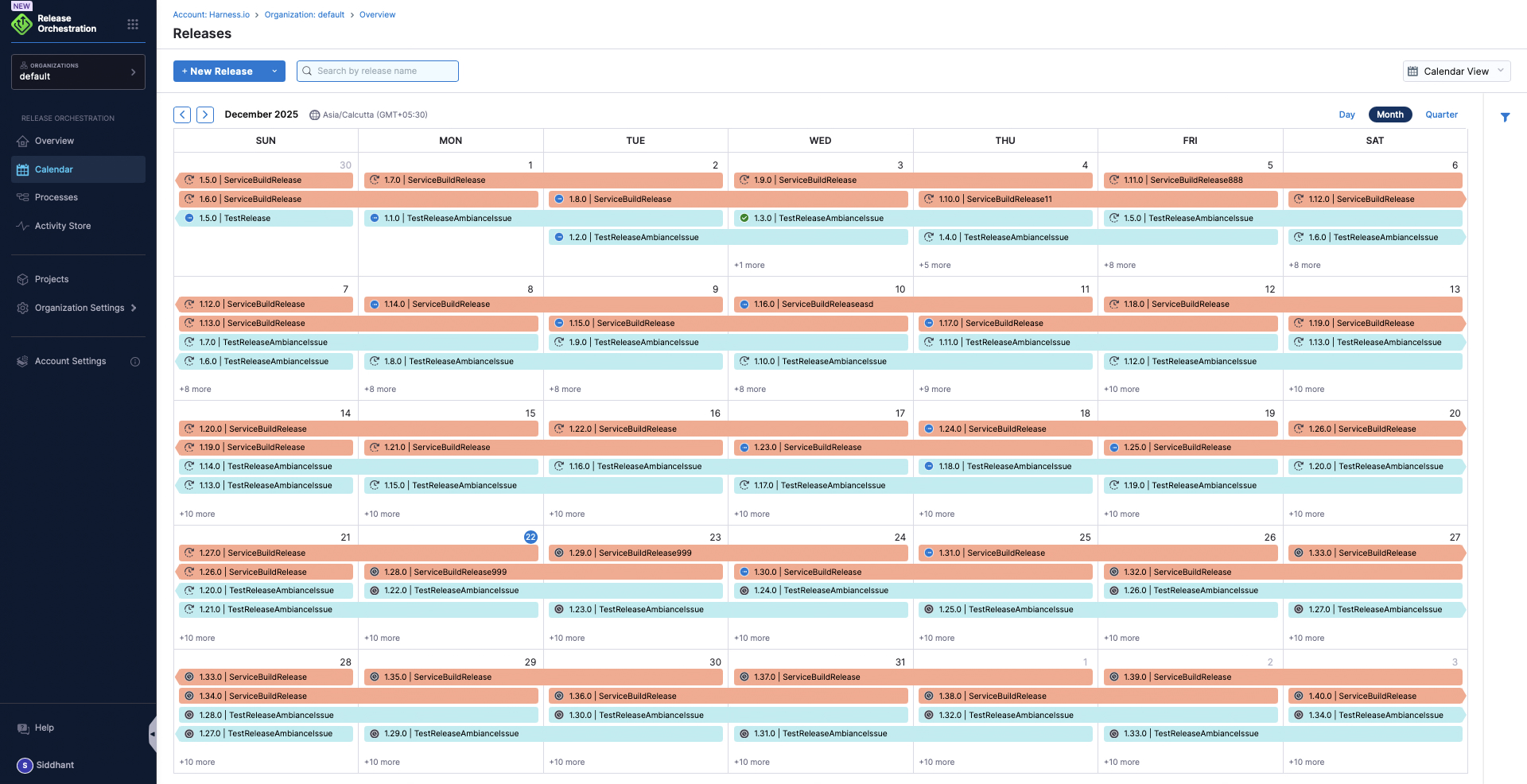
The Release Calendar provides a unified view of all planned, scheduled, and in-flight releases across your organization. It helps teams coordinate timing, avoid conflicts, and understand release dependencies at a glance.
Click to view full size image
### Overview
The Release Calendar displays releases as visual blocks on a timeline, with each release shown across the days it is scheduled to run. Releases are color-coded by release group, making it easy to distinguish between different release types like production releases, staging releases, or weekly deployments.
The calendar supports three viewing modes (Day, Month, Quarter) and multiple filters to help you focus on the releases that matter to your team. You can filter by release name, status, type, and project to get exactly the view you need.
### Calendar Views
Switch between different time horizons using the view selector in the top right. Each view is optimized for different planning needs, from real-time monitoring to long-term capacity planning.
#### Day View
The day view shows a single day with hourly breakdown of release execution. This is the most granular view for tracking releases in progress.
Use this view to:
* Monitor releases running today in real-time
* Track hour-by-hour progress of complex releases
* Identify overlapping releases that might compete for resources
* Drill into detailed timing for coordination with other teams
#### Month View
The month view shows a monthly calendar with releases displayed as multi-day blocks. This is the default view and the most commonly used for planning and coordination.
Use this view to:
* Plan release windows across the month
* Identify release-free periods for maintenance or testing
* Coordinate releases across multiple teams and services
* Spot potential conflicts between overlapping releases
* See patterns in your release cadence (weekly, bi-weekly, monthly)
Each day shows the releases scheduled for that date. When multiple releases are scheduled on the same day, you'll see "+X more" indicators showing additional releases that are collapsed.
#### Quarter View
The quarter view shows a three-month view for strategic planning. This gives you the big picture of release activity across a longer time horizon.
Use this view to:
* Plan major releases and system upgrades
* Coordinate multi-service releases across quarters
* Identify capacity and resource constraints
* Align release schedules with business milestones
* Visualize release density and balance workload
### Filters
The Release Calendar provides powerful filtering to help you focus on specific releases. You can combine multiple filters to create custom views, for example, showing only running production releases for your project, or viewing all failed hotfixes across the organization.
#### Release Filter
Search by release name or identifier to find specific releases. The dropdown shows a searchable list of all release groups, allowing you to select multiple releases to display on the calendar.
Available options include:
* All release groups in your account (e.g., WorkdayWeeklyRelease, Order Service Release, DemoRelease25thFeb)
* Search field to quickly find releases by typing partial names
* Multiple selection support with checkboxes
* Clear Selection option to reset the filter
Use this filter to:
* Focus on specific release groups you're interested in
* Filter to show only releases matching a pattern
* Monitor a subset of releases across the calendar
#### Status Filter
Filter releases by their execution status to focus on releases that need attention or track overall health. You can select multiple statuses to view.
Available status options:
* **Running**: Releases currently in progress
* **Success**: Successfully completed releases
* **Failed**: Releases that encountered failures
* **Scheduled**: Releases scheduled but not yet started
* **Paused**: Releases paused waiting for input or resolution
* **Aborted**: Releases that were manually stopped
* **Input Waiting**: Releases waiting for manual input or approval
Use this filter to:
* Monitor all running releases across the organization
* Review failed releases that need attention
* Track successful releases for reporting
* Find releases waiting for input or approval
#### Release Type Filter
Filter by release type to focus on specific deployment categories. Different release types often have different urgency levels and coordination requirements.
Available release types:
* **Ad Hoc**: One-time releases created outside of release groups
* **Recurring**: Releases created as part of a recurring release group cadence
Use this filter to:
* Separate one-off releases from recurring releases
* Focus on releases that follow a regular cadence
* Identify ad hoc releases that might need special attention
#### Project Filter
When working in a multi-project account, filter releases by Harness project to see only your team's releases or monitor specific project activity. The dropdown shows a searchable list of all projects with releases.
Available options include:
* All projects in your account (e.g., AIDI Sandbox, Demo Prod2, IDP)
* Search field to quickly find projects by name
* Multiple selection support with checkboxes
* Clear Selection option to reset the filter
Use this filter to:
* View releases for a specific project
* Focus on your team's releases
* Monitor cross-project dependencies
* Plan capacity per project
#### View Filter
Switch between different calendar layouts to match your planning needs.
Available view options:
* **Calendar View**: Shows releases on a traditional calendar grid (default)
* **List View**: Shows releases as a vertical list with details
Use this filter to:
* Switch to list view for a detailed, sortable list of releases
* Return to calendar view for visual timeline planning
* Choose the view that best fits your current task
### Release Display
Each release on the calendar shows key information at a glance. The visual design helps you quickly understand release status, timing, and ownership without opening individual release details.
#### Release Blocks
Releases appear as colored blocks spanning the days they're scheduled to run. The color, version number, and name provide immediate context about each release.
Visual elements:
* **Color coding**: Each release group has a distinct color, making it easy to identify release types
* **Multi-day spans**: Releases running over multiple days appear as continuous blocks across dates
* **Version numbers**: Each release shows its version (e.g., 1.68.0, 1.15.0)
* **Release names**: The release group name appears on each block (e.g., "ModelDemo17th", "Order Service Release")
#### Status Indicators
Visual icons show the current state of each release, so you can spot issues or progress at a glance.
Icon meanings:
* **Clock icon**: Release is scheduled but hasn't started
* **Running icon**: Release is currently executing
* **Checkmark icon**: Release completed successfully
* **Warning icon**: Release has warnings or non-critical issues
* **Error icon**: Release has failed or encountered critical errors
* **Hold icon**: Release is paused waiting for input
#### Collapsed Releases
When multiple releases are scheduled on the same day, the calendar keeps the view clean by showing the first few releases and indicating additional releases with "+X more" labels. Click on a day to expand and see all releases scheduled for that date.
### Related Topics
* [Modeling Releases](/release-orchestration/use-release-orchestration/release-orchestration-releases/modeling-releases.md) - Create releases and release groups
* [Ad Hoc Releases](/release-orchestration/use-release-orchestration/release-orchestration-releases/adhoc-releases.md) - Create one-time releases outside release groups
* [Executing a Release](/release-orchestration/use-release-orchestration/release-orchestration-execution/executing-a-release.md) - Run and monitor releases
* [Release Groups](/release-orchestration/use-release-orchestration/release-orchestration-releases/modeling-releases.md#release-groups-and-cadence) - Set up recurring release cadences
* [Notifications](/release-orchestration/use-release-orchestration/notifications.md) - Configure alerts for release events
{% @harness-feedback/feedback %}