> For the complete documentation index, see [llms.txt](https://developer.harness.io/llms.txt). Markdown versions of documentation pages are available by appending `.md` to page URLs; this page is available as [Markdown](https://developer.harness.io/security-testing-orchestration/use-sto/harness-security-scanners/sca.md).

# Harness Container Scanner

Harness Container scanner integrates directly within your CI/CD pipelines to scan container images to find vulnerabilities in OS packages and libraries installed in the image - without requiring external scanners or connectors.

With one-click configuration, Harness automatically manages authentication and licensing, while providing built-in data flow visualization, reachability analysis to determine whether a vulnerability is exploitable, and AI-powered remediation to help developers quickly understand and fix issues.

The Harness Container step works natively within STO, with all findings unified and visible alongside results from other security scanners.

{% hint style="info" %}

#### Licensing <a href="#licensing" id="licensing"></a>

Running the Harness Container step in STO pipelines requires both **Harness SAST** and **Harness SCA** licenses.

For licensing details or to enable the Enterprise license, contact [Harness Sales](mailto:support@harness.io).

#### Free Trial <a href="#free-trial" id="free-trial"></a>

A **45-day free trial** is available. If you are an existing Harness STO customer and want to access the Harness scanners, contact the [Harness sales](mailto:support@harness.io) representative to have them enabled for your account.
{% endhint %}

The following topics contain useful information for setting up scanner integrations in STO:

* [What's supported in STO](/security-testing-orchestration/new-to-sto/sto-whats-supported/sto-deployments.md)
* [Security Testing Orchestration FAQs](/security-testing-orchestration/troubleshooting-and-resources/faqs.md)
* [Optimize STO pipelines](/security-testing-orchestration/troubleshooting-and-resources/sto-use-cases/set-up-sto-pipelines/optimize-sto-pipelines.md)

### Harness Container step settings for STO scans <a href="#harness-container-step-settings-for-sto-scans" id="harness-container-step-settings-for-sto-scans"></a>

{% hint style="info" %}
To view [Reachability](/security-testing-orchestration/use-sto/harness-security-scanners/sast.md#reachability) information in Harness Container, you must run the Harness Code scanner. The scanner uses SAST based data flow analysis to understand how data moves through your code and determine whether an issue is reachable.
{% endhint %}

Setting up the Harness Container scanner is the same as configuring any other [built-in scanner step](/security-testing-orchestration/use-sto/set-up-sto-scans/built-in-scanners.md). The required configuration for the scanner step is handled automatically, making the setup process simple and straightforward. Here’s how to set it up:

* In your **Build** or **Security** stage, open the step palette by clicking the **Add Step** option in your pipeline.
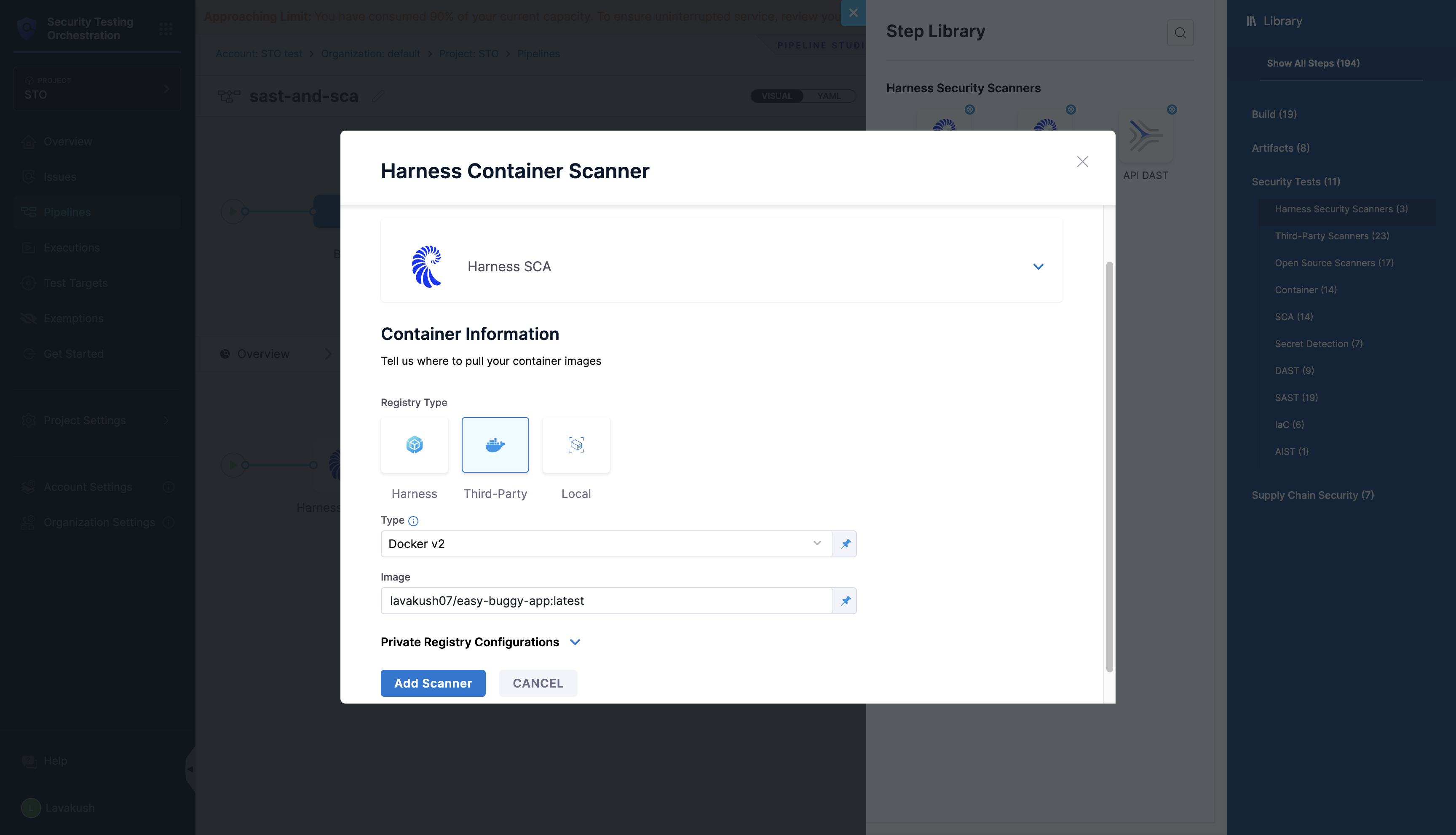
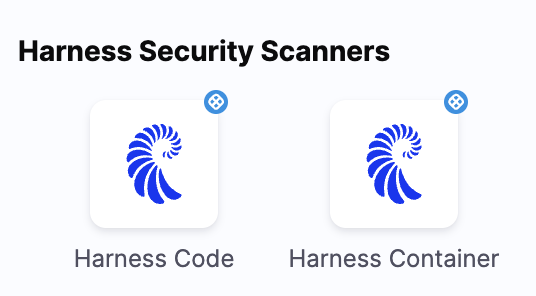
* Navigate to the Harness Security Scanners section under the Security Tests category. Select the **Harness Container** step.

<figure><img src="/files/nf4QwSSh88H8W0e8t8tH" alt=""><figcaption><p>Add shared path for scan results</p></figcaption></figure>

* Provide the container information from which you want to pull your container images.
* By default, all the below fields are configured automatically by the Harness Container scanner.
  * Set the **Scan Mode** to **Orchestration**.
  * Set the **Scan Configuration** to **Default**
  * Set the **Target Type** to **Container Image**.

To run the Harness Container scan step in the pipeline, no further configuration is required; If you want to add additional scan settings, you can configure the following below fields in the step.

{% tabs %}
{% tab title="HAR" %}

* **Registry:** Select the Harness Registry configured for the Harness Artifact Registry where your artifact is stored.
* **Image:** Enter the name of your image with tag or digest, such as `imagename:tag` or `imagename:digest`.
  {% endtab %}

{% tab title="Third-Party" %}
The registry type where the image is stored:

* **Docker v2** A registry that uses the Docker Registry v2 API such as [Docker Hub](https://docs.docker.com/registry/spec/api/), [Google Container Registry](https://cloud.google.com/container-registry), or [Google Artifact Registry](https://cloud.google.com/artifact-registry). STO will automatically pull and scan the container image or OCI/Docker archive.
  * **Image:** Enter the name of your image using either a tag or a digest. For example: `my-docker-org/repo-name:tag` or `my-docker-org/repo-name@sha256:<digest>`
* [**AWS ECR**](https://aws.amazon.com/ecr/) Set your AWS ECR connector with image details. STO will automatically pull and scan the container image or OCI/Docker archive.
  * **Image:** Image: Enter the name of your image with tag or digest. For example: such as `my-docker-repo/my-artifact:latest` or `my-docker-repo/my-artifact@sha256:<digest>`.
  * **Access ID:** The Access ID is the AWS Access Key ID used to authenticate with Amazon ECR.
  * **Access Token:** The Access Token is the AWS Secret Access Key associated with the Access ID.
  * **Region:** The region where the image to scan is located, as defined by the cloud provider such as AWS.
* [**Jfrog Artifactory**](https://jfrog.com/artifactory/) Set your Jfrog Artifactory connector with image details. STO will automatically pull and scan the container image or OCI/Docker archive.
  * **Image:** Specify the fully qualified image name stored in JFrog Artifactory. For example: such as `<registry>/<repository>/<image>:<tag>` or `<registry>/<repository>/<image>@sha256:<digest>`
  * **Access ID/Username:** The username to log in to the image registry.
  * **Access Token:** The access token used to log in to the image registry. This is usually a password or an API key.

You should create a Harness text secret with your encrypted token and reference the secret using the format `<+secrets.getValue("container-access-id")>`. For more information, go to [Add and Reference Text Secrets](/harness-ai/use-harness-platform/secrets/add-use-text-secrets.md).
{% endtab %}

{% tab title="Local" %}

* **Local Image in this Stage** Scan a local image built and stored within the context of the current stage (via `/var/run/docker.sock` registered as a stage level volume mount). For this, you will need to [configure Docker-in-Docker](/security-testing-orchestration/use-sto/sto-scanner-configuration/security-step-settings-reference.md#configuring-docker-in-docker-dind-for-your-pipeline) as a background step. STO will identify and scan the container image matching the step configuration inside the Docker-in-Docker background within that stage.
* **Local OCI/Docker archive in this Stage** Scan an OCI or Docker archive created and stored within the current stage. STO will scan the archive based on the path configured in the workspace field during the step. Ensure that the path to which the archive is saved is a shared volume mount.
* **Image** Enter the name of your image with tag or digest, such as `imagename:tag`.
  {% endtab %}
  {% endtabs %}

<figure><img src="/files/8LZ3pyHMnK0ND8BhEFuD" alt=""><figcaption><p>Add shared path for scan results</p></figcaption></figure>

#### Target <a href="#target" id="target"></a>

**Type**

* **Container Image** Scan the layers, libraries, and packages in a container image.

**Target and Variant Detection**

When **Auto** is enabled for container images, the step detects the target and variant using the **Container Image Name** and **Tag/Digest** defined in the step or runtime input.

Note the following:

* **Auto** is not available when the **Scan Mode** is **Ingestion**.
* By default, **Auto** is selected when you add the step. You can change this setting if needed.

**Name**

The identifier for the [target](/security-testing-orchestration/new-to-sto/key-concepts/targets-and-baselines.md), such as `codebaseAlpha` or `jsmith/myalphaservice`. Descriptive target names make it much easier to navigate your scan data in the STO UI.

It is good practice to [specify a baseline](/security-testing-orchestration/new-to-sto/key-concepts/targets-and-baselines.md#every-target-needs-a-baseline) for every target.

**Variant**

The identifier for the specific variant to scan. This is usually the branch name, image tag, or product version. Harness maintains a historical trend for each variant.

**Workspace**

This field is visible only when you select **Repository** as the Target Type.

Use this field to specify an individual folder or file to scan. For example, if you want to scan a specific file like `/tmp/example/test.py`, set the workspace path to:\
`/harness/tmp/example/test.py`

{% hint style="info" %}

* The Harness Container scanner is not supported in SMP.
* With a Harness Container Enterprise license, you also get access to the **Qwiet AI by Harness** platform. AppSec users can log in to the platform.
* The Qwiet AI dashboard does not support [exemptions](/security-testing-orchestration/use-sto/sto-exempt-issues/issue-exemption-workflow.md), so any issues you mark as exempt in Harness STO will not appear as exempted in Qwiet AI. Exemptions must be managed in Harness STO only.
  {% endhint %}

#### Scan Tool <a href="#scan-tool" id="scan-tool"></a>

**App Name**

Provide a unique name to identify this scanning application. All scan results for this application are grouped and tracked under this name in the [Qwiet AI by Harness dashboard](https://docs.shiftleft.io/sast/ui-v2/dashboard).

**Log Level**

The minimum severity of the messages you want to include in your scan logs. You can specify one of the following:

* **DEBUG**
* **INFO**
* **WARNING**
* **ERROR**

**Additional CLI flags**

**Fail on Severity**

Every STO scan step has a **Fail on Severity** setting. If the scan finds any vulnerability with the specified [severity level](/security-testing-orchestration/new-to-sto/key-concepts/severities.md) or higher, the pipeline fails automatically. You can specify one of the following:

* **`CRITICAL`**
* **`HIGH`**
* **`MEDIUM`**
* **`LOW`**
* **`INFO`**
* **`NONE`** — Do not fail on severity

The YAML definition looks like this: `fail_on_severity : critical # | high | medium | low | info | none`

#### Settings <a href="#settings" id="settings"></a>

You can use this field to specify environment variables for your scanner.

#### Additional Configuration <a href="#additional-configuration" id="additional-configuration"></a>

The fields under **Additional Configuration** vary based on the type of infrastructure. Depending on the infrastructure type selected, some fields may or may not appear in your settings. Below are the details for each field

* Override Security Test Image
  * [Container Registry](/security-testing-orchestration/troubleshooting-and-resources/sto-use-cases/set-up-sto-pipelines/configure-pipeline-to-use-sto-images-from-private-registry.md#step-level-override)
  * [Image Tag](/security-testing-orchestration/troubleshooting-and-resources/sto-use-cases/set-up-sto-pipelines/configure-pipeline-to-use-sto-images-from-private-registry.md#step-level-override)
* [Privileged](/continuous-integration/use-harness-ci/use-harness-ci/manage-dependencies/background-step-settings.md#privileged)
* [Image Pull Policy](/continuous-integration/use-harness-ci/use-harness-ci/manage-dependencies/background-step-settings.md#image-pull-policy)
* [Run as User](/continuous-integration/use-harness-ci/use-harness-ci/manage-dependencies/background-step-settings.md#run-as-user)
* [Set Container Resources](/continuous-integration/use-harness-ci/use-harness-ci/manage-dependencies/background-step-settings.md#set-container-resources)
* [Timeout](/continuous-integration/use-harness-ci/use-harness-ci/run-step-settings.md#timeout)

#### Advanced settings <a href="#advanced-settings" id="advanced-settings"></a>

In the **Advanced** settings, you can use the following options:

* [Conditional Execution](/harness-ai/use-harness-platform/pipelines/step-skip-condition-settings.md)
* [Failure Strategy](/harness-ai/use-harness-platform/pipelines/failure-handling/define-a-failure-strategy-on-stages-and-steps.md)
* [Looping Strategy](/harness-ai/use-harness-platform/pipelines/looping-strategies/looping-strategies-matrix-repeat-and-parallelism.md)
* [Policy Enforcement](/harness-ai/use-harness-platform/governance/policy-as-code/harness-governance-overview.md)

#### View Harness Container Scan results in the Vulnerabilities tab <a href="#view-harness-container-scan-results-in-the-vulnerabilities-tab" id="view-harness-container-scan-results-in-the-vulnerabilities-tab"></a>

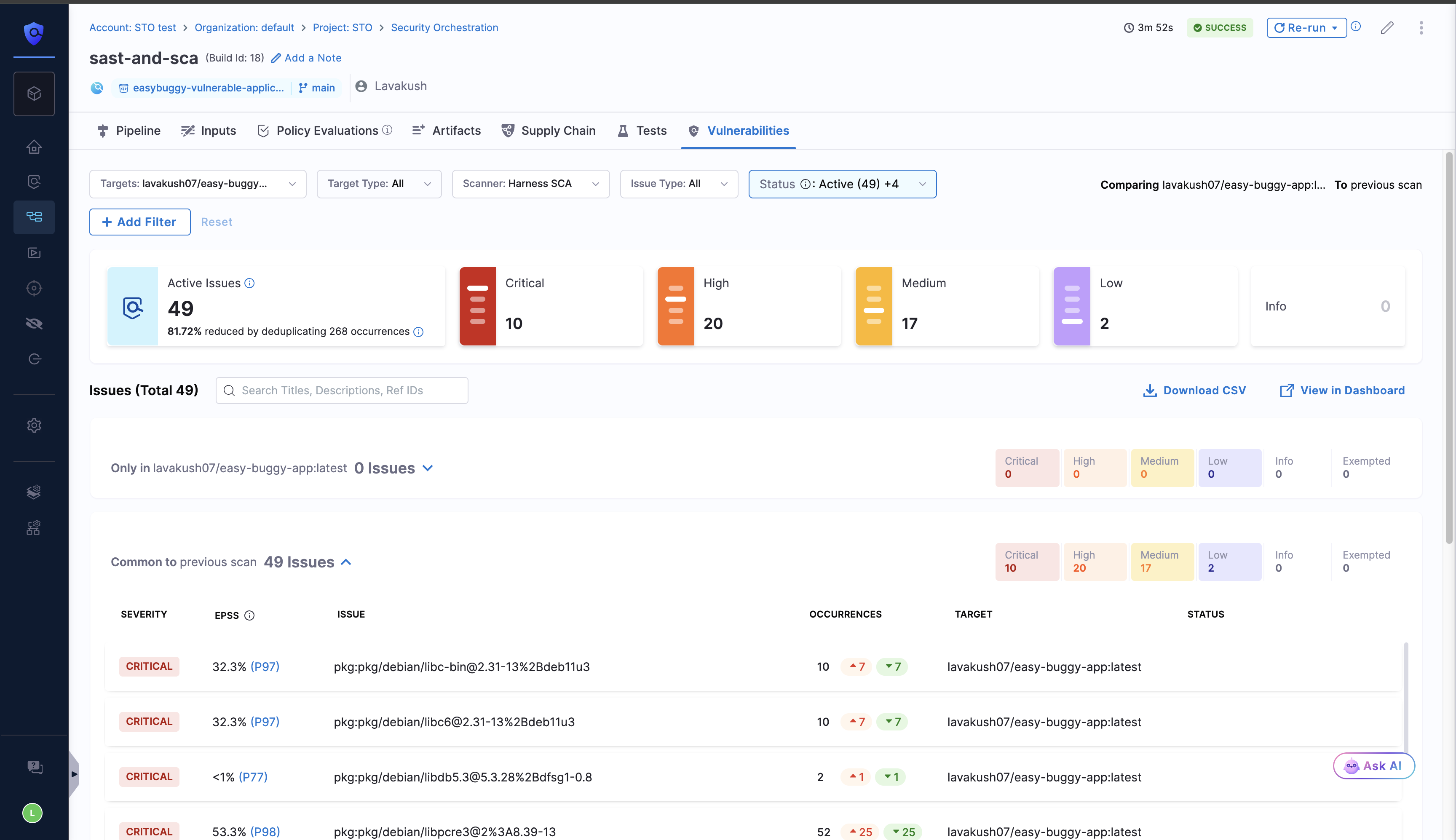
After you complete the pipeline run with the Harness Container scanner, in the vulnerabilities tab, apply the **Issue Type** filter as SCA to view the vulnerabilities identified by the Harness Container scanner.

<figure><img src="/files/JbTGvQytT2LReQlANq8T" alt=""><figcaption><p>Add shared path for scan results</p></figcaption></figure>

#### Static Reachability <a href="#static-reachability" id="static-reachability"></a>

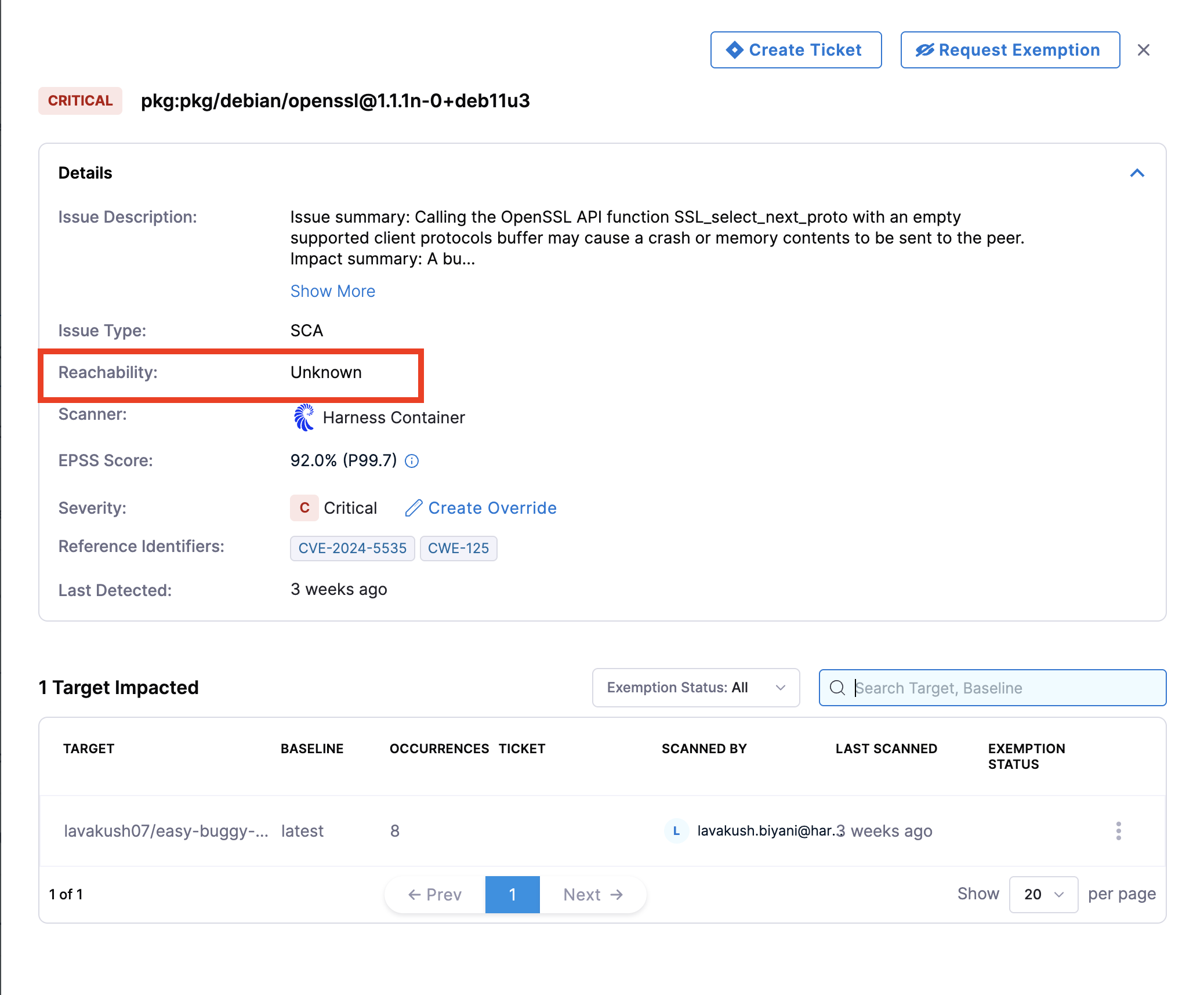
A vulnerability is considered as Reachable when an attacker can reach the affected code (CVE) through a controlled path from application input. A vulnerability is marked as Reachable if at least one of its occurrences is reachable. Exempted occurrences are not considered. You can view the Reachability for each of the occurrences of a security issue in the [**Vulnerabilities**](/security-testing-orchestration/use-sto/sto-security-issues/view-scan-results.md) and [**Issues**](/security-testing-orchestration/use-sto/sto-security-issues/issues.md) page.

After a successful pipeline run, the Vulnerabilities tab shows whether a vulnerability is marked as Reachable. On the Vulnerabilities page, use the Reachability filter to view findings by reachability. This helps reduce noise and focus on vulnerabilities that pose real risk. [Learn more](https://docs.shiftleft.io/sast/analyzing-applications/oss-vulnerabilities?_highlight=reac#reachable-and-exploitable-findings).

<figure><img src="/files/LR2hubyhYq9ZsgH30aPA" alt=""><figcaption><p>Add shared path for scan results</p></figcaption></figure>

#### IDE Integration

Harness provides a code extension that helps you shift security even further left by allowing you to identify and fix vulnerabilities as you write code. It integrates directly into the developer workflow through IDE plugins for [VS Code](https://docs.shiftleft.io/sast/integrations/vs-code-extension) and [JetBrains](https://docs.shiftleft.io/sast/integrations/jetbrains-plugin), with support for AI-native IDEs such as Cursor and Windsurf coming soon.

Harness also provides a CLI to run SAST and SCA scans locally, to help you identify code vulnerabilities and dependency risks before pushing code to your repository. [Learn more](https://docs.shiftleft.io/cli/reference/overview) on how to install, authenticate, and use the CLI commands in the Harness CLI.

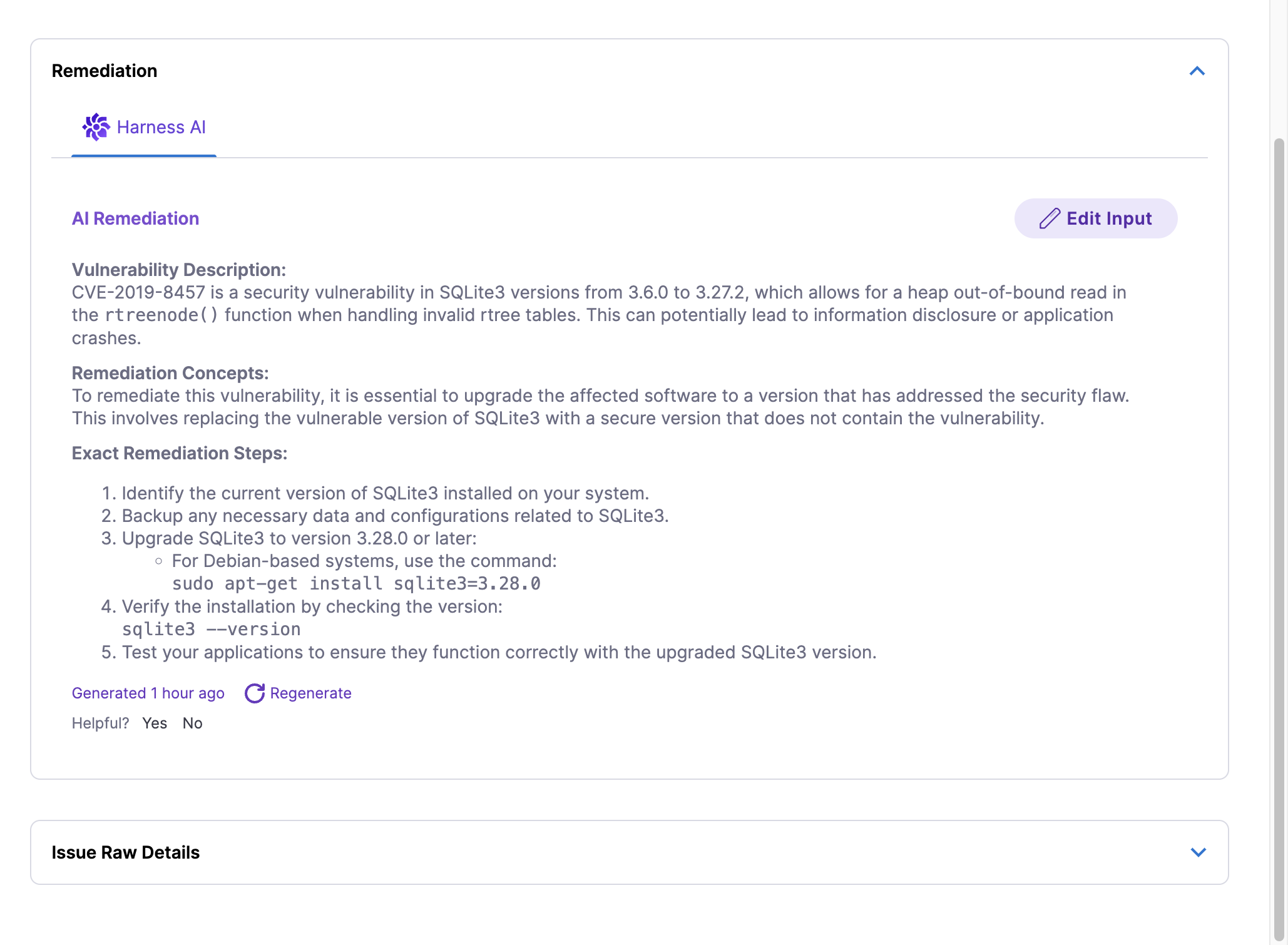
#### AI remediation for Harness Container Security Issues <a href="#ai-remediation-for-harness-container-security-issues" id="ai-remediation-for-harness-container-security-issues"></a>

Harness AI analyzes security issues and provides AI remediation within the security details for each specific issue. This includes an analysis of the issue, remediation concepts, and step-by-step instructions to fix them. Additionally, for Container issues, Harness AI recommends safer package versions for upgrade, with remediation details available for each occurrence of an issue.

<figure><img src="/files/y0rBeRzOfbBRpoNcczUF" alt=""><figcaption><p>Add shared path for scan results</p></figcaption></figure>

#### Enforce OPA Policy to block the Static Reachable Vulnerabilities <a href="#enforce-opa-policy-to-block-the-static-reachable-vulnerabilities" id="enforce-opa-policy-to-block-the-static-reachable-vulnerabilities"></a>

Enforce OPA Policy to automatically [warn or block pipelines](/security-testing-orchestration/use-sto/enforce-sto-policies-for-governance/create-opa-policies.md#warn-or-block-reachable-or-exploitable-vulnerabilities-reported-by-the-harness-scanner) based on static reachability, exploitability, and license metadata, to help you prevent risky deployments and maintain security and compliance.

#### View Harness Container Scan results in the Qwiet AI Dashboard <a href="#view-harness-container-scan-results-in-the-qwiet-ai-dashboard" id="view-harness-container-scan-results-in-the-qwiet-ai-dashboard"></a>

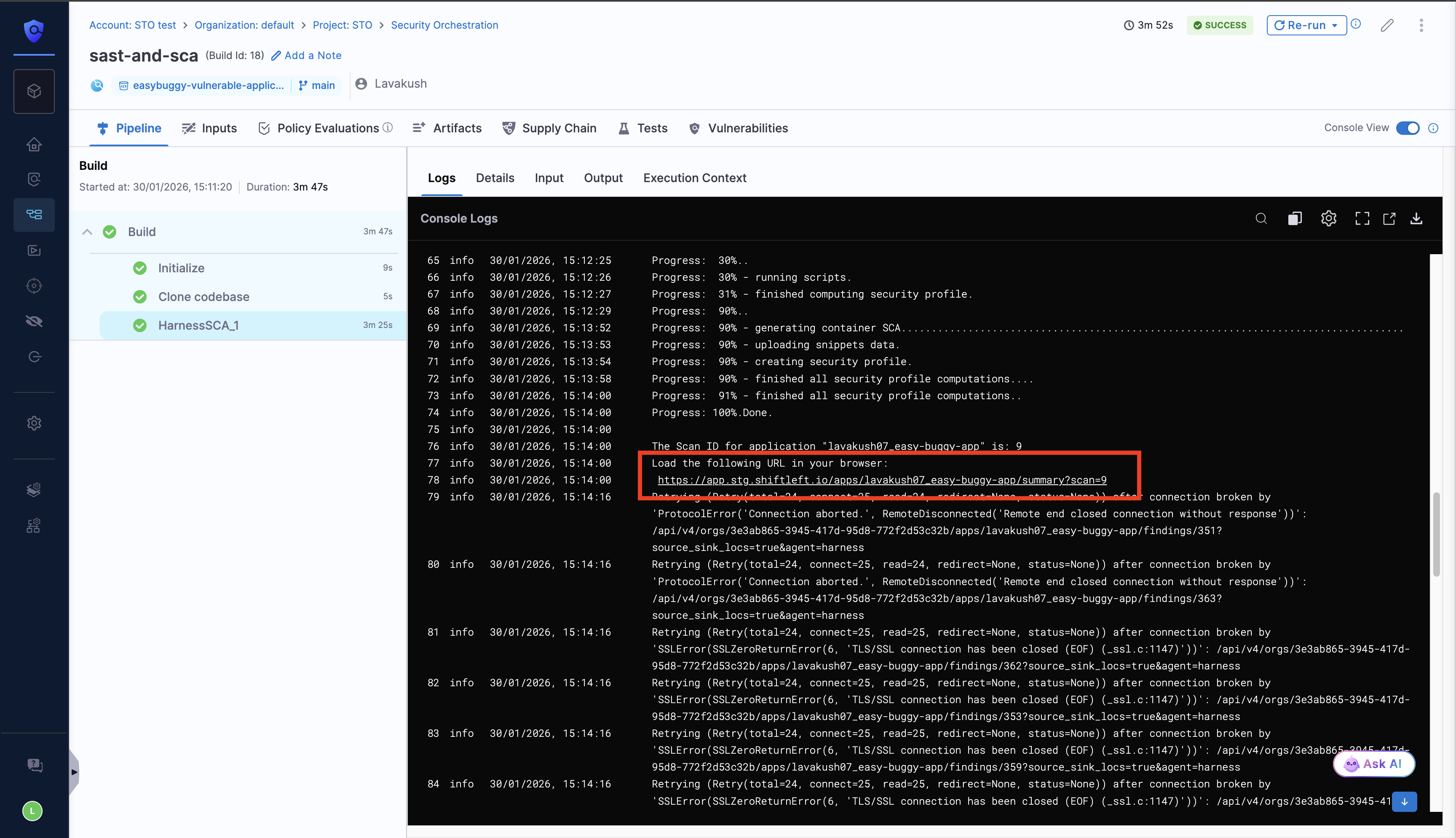
After you complete the pipeline run with the Harness Container scanner, in the scan logs, you can click the provided `shiftleft`link, which redirects you to the [Qwiet AI dashboard](https://docs.shiftleft.io/sast/ui-v2/dashboard), where you can explore detailed scan results and analyze identified issues.

You can also find the Qwiet AI dashboard URL in the pipeline **Output** tab. Look for the `SCANNER_CONSOLE_URL` output variable, which contains the direct link to your scan results in the Qwiet AI dashboard.

Alternatively, you can manually log in to the Qwiet AI by Harness dashboard and search for the application name that corresponds to the target name used in the scan.

You can view the [generated SBOM](https://docs.shiftleft.io/sast/ui-v2/application-details/sbom) for container image dependencies, along with the [scan summary](https://docs.shiftleft.io/sast/ui-v2/application-details/summary) and [compliance results](https://docs.shiftleft.io/sast/ui-v2/application-details/compliance), in the [Qwiet AI by Harness dashboard](https://docs.shiftleft.io/sast/ui-v2/dashboard). These details are currently available only in Qwiet AI by Harness dashboard and are not currently supported in Harness STO.

<figure><img src="/files/KlfEFNcQ9YVZEP5zaQpQ" alt=""><figcaption><p>Add shared path for scan results</p></figcaption></figure>

#### License Usage <a href="#license-usage" id="license-usage"></a>

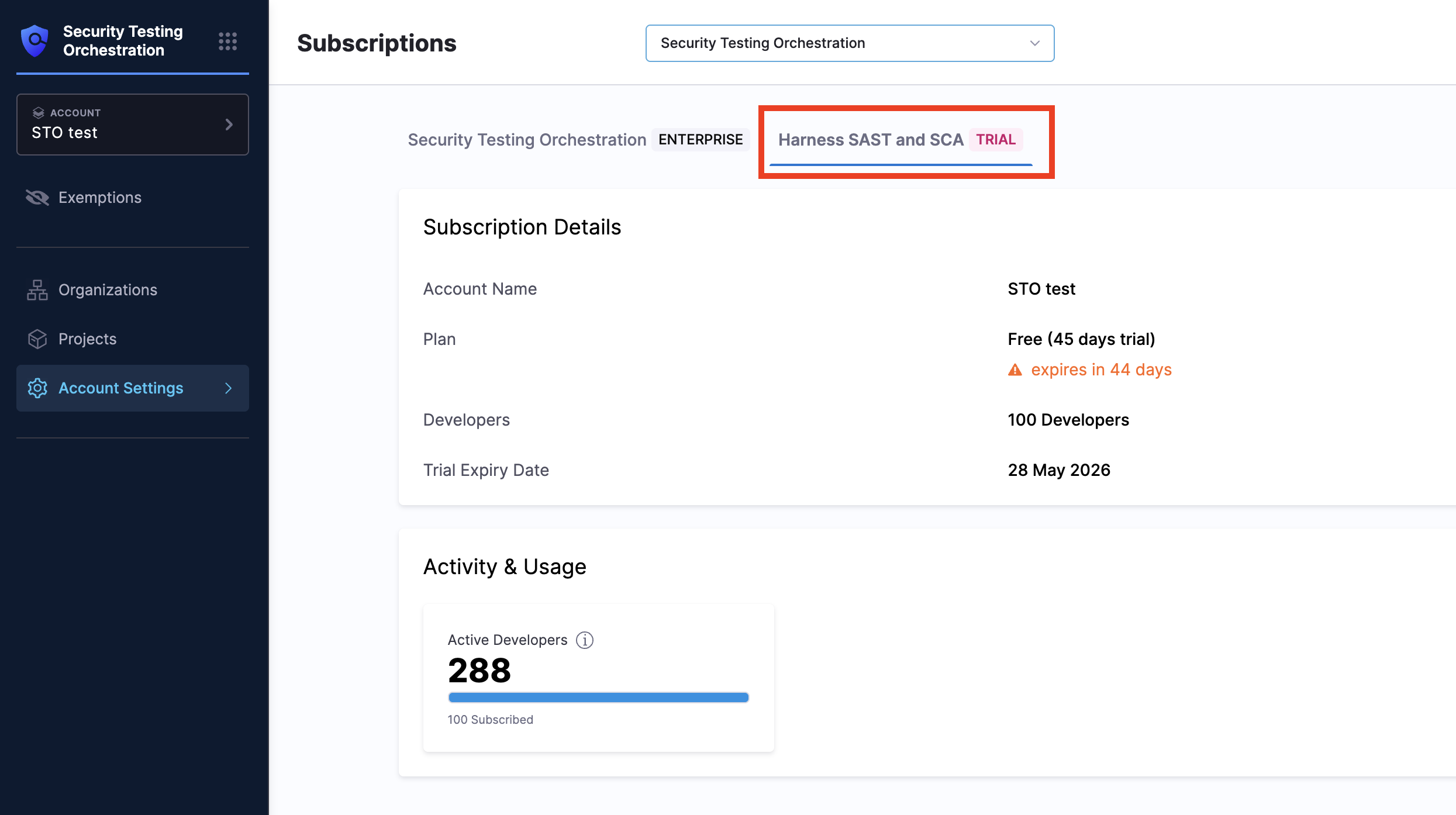
Usage is calculated based on Active Developers. An Active [Developer](https://docs.shiftleft.io/sast/getting-started/definitions#contributing-developer) is an individual who, within the last 90 days, has created or modified code, configurations, content, or artifacts that are scanned by STO. An individual is counted only once, even if they contribute to multiple scanned repositories.

You can view your current usage and subscription details on the STO subscription page under the **Harness Code and Container** sub-tab

<figure><img src="/files/dXaIJVuOgmZRBIvmpD8w" alt=""><figcaption><p>Add shared path for scan results</p></figcaption></figure>