> For the complete documentation index, see [llms.txt](https://developer.harness.io/llms.txt). Markdown versions of documentation pages are available by appending `.md` to page URLs; this page is available as [Markdown](https://developer.harness.io/security-testing-orchestration/use-sto/set-up-sto-scans/container-scanning/base-image-vulnerabilites/base-image-detection.md).
# Detect Base Image Vulnerabilities
Set up container image scanning to identify vulnerabilities in base images.
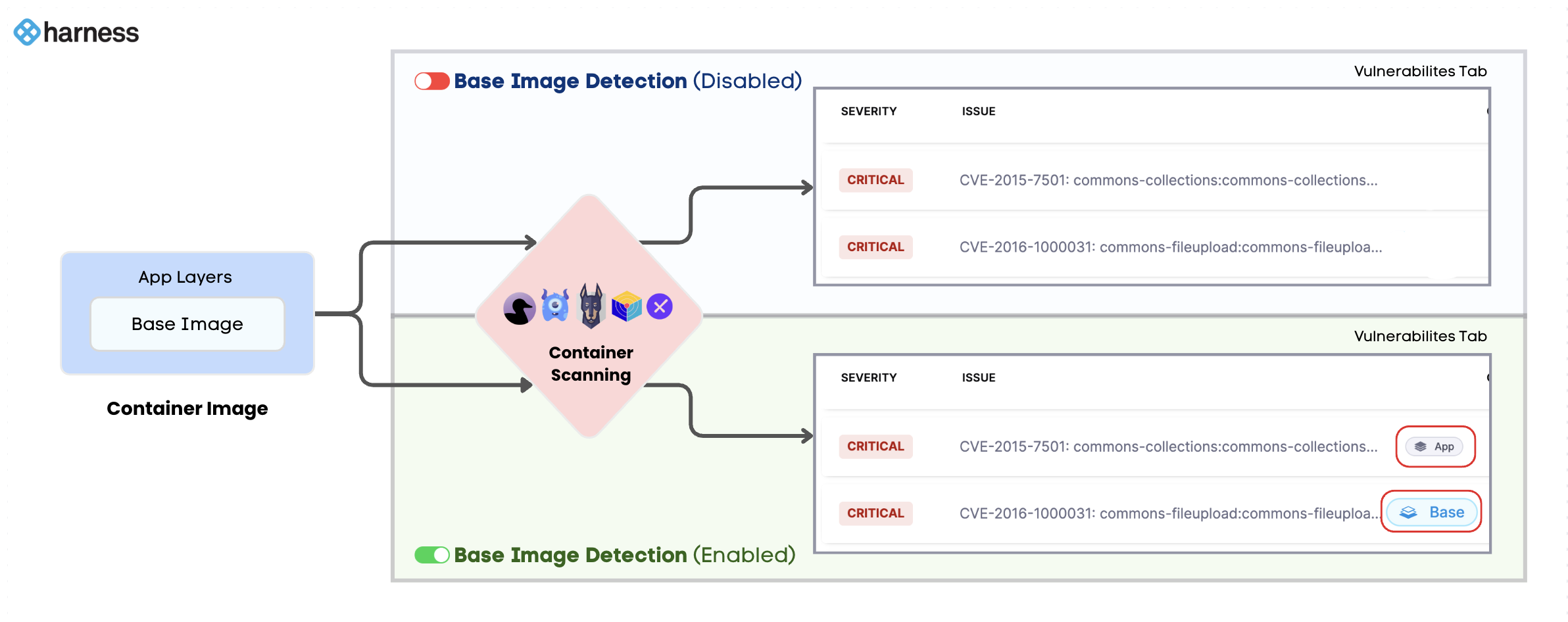
Most containerized applications are built on top of base images (e.g., debian, alpine, node). These base images can introduce a significant number of vulnerabilities that are not part of your application code. STO's base image identification feature helps you distinguish between vulnerabilities inherited from the base image and those introduced in your application layers.
{% hint style="info" %}
* This feature is behind the feature flags `STO_BASE_IMAGE` and `STO_BASE_IMAGE_DETECTION`. Contact [Harness Support](mailto:support@harness.io) to enable this flag.
* Currently, this feature is supported only for scans using **Orchestration** scan mode. Support for **Ingestion** and **Extraction** scan modes will be available soon.
{% endhint %}
This detection and labeling is key for:
* **Noise Reduction**: Focus on the vulnerabilities your team is directly responsible for in the application layer.
* **Prioritization**: Address base image vulnerabilities as a separate concern, often by updating to a newer, patched base image, while your developers focus on application-level fixes.
* **Targeted Policies**: Create granular security policies that treat base image vulnerabilities differently from application vulnerabilities.
{% embed url="" %}
This document explains how to configure base image identification in your container image scans, so that vulnerabilities originating from the base image are detected and labeled appropriately.
* [How to Configure Base Image Detection](#how-to-configure-base-image-detection)
* [How to View Base Image Vulnerabilities](#how-to-view-base-image-vulnerabilities)
* [Step Output Variables for App and Base Image Vulnerabilities](#step-output-variables-for-app-and-base-image-vulnerabilities)
{% hint style="info" %}
Refer to [Approve Base Image](/security-testing-orchestration/use-sto/set-up-sto-scans/container-scanning/base-image-vulnerabilites/approve-base-image.md) on how to approve base images and enforce policies.
{% endhint %}
***
### How to Configure Base Image Detection
In order to use this feature, you need to configure the following:
1. [Enable Base Image Detection](#enable-base-image-detection)
2. [Scan Your Base Image](#scan-your-base-image)
3. [Add Labels to Your Container Image](#add-labels-to-your-container-image)
#### Enable Base Image Detection
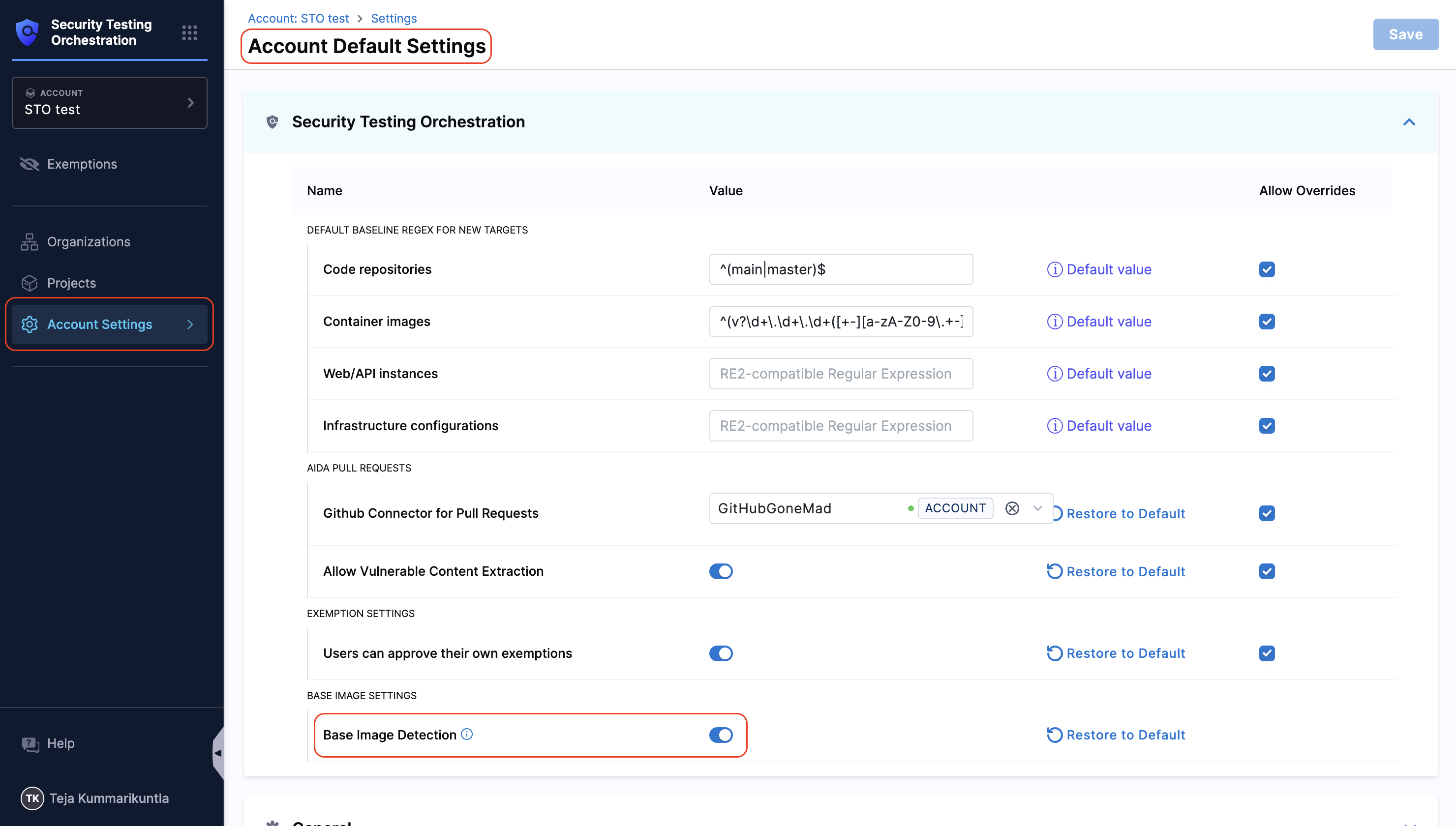
You must have the setting **Base Image Detection** enabled for your account. This setting is available in the **Default Settings** from Account level settings.
#### Scan Your Base Image
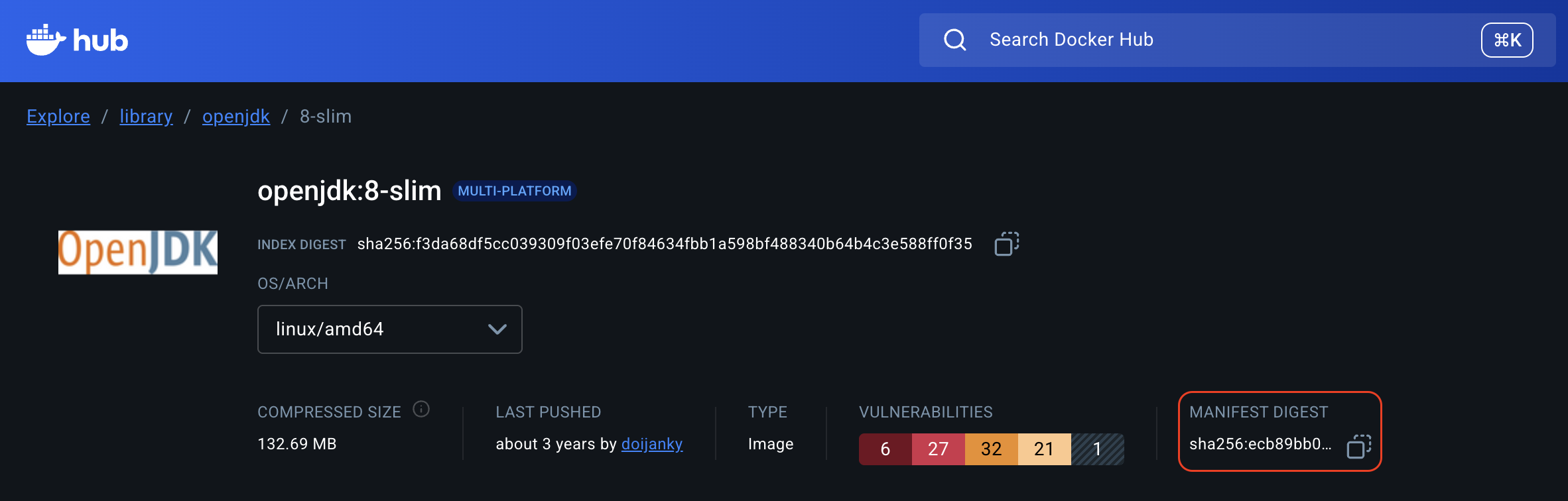
You must scan your base image (e.g., `debian:bookworm-slim`) in a Harness pipeline at least once. This scan can be in any project or organization within your Harness account. STO uses your base image digest to find this scan later. Make sure to use the same scanner for both base image and application image scanning. It's recommended to dedicate a project for scanning all your base images.
#### Add Labels to Your Container Image
When you build your container image, you must include the following [OCI labels](https://github.com/opencontainers/image-spec/blob/main/annotations.md) in its Dockerfile. These labels link your container image to its base image.
````
```Dockerfile
# Example for an application image based on debian:bookworm-slim
LABEL org.opencontainers.image.base.name="debian"
LABEL org.opencontainers.image.base.tag="bookworm-slim"
LABEL org.opencontainers.image.base.digest="sha256:ccb33c3ac5b02588fc1d9e4fc09b952e433d0c54d8618d0ee1afadf1f3cf2455"
```
* `org.opencontainers.image.base.name`: The name of the base image.
* `org.opencontainers.image.base.tag`: The tag of the base image.
* `org.opencontainers.image.base.digest`: The manifest digest (SHA256) of the base image.
````
After completing all the [configurations](#how-to-configure-base-image-detection), you must re-scan your container image to perform base image detection. Refer to [How to View Base Image Vulnerabilities](#how-to-view-base-image-vulnerabilities) for more details.
***
### How to View Base Image Vulnerabilities
After configuring the [base image detection](#how-to-configure-base-image-detection), you must re-run your pipeline that performs your container image scanning. It's essential that you use the same scanner for both the base image and your container image scans. After you re-run your pipeline to scan your container image, STO will perform the following steps:
1. STO extracts the `base.digest` from the OCI labels you added as a part of [Add Labels to Your Container Image](#add-labels-to-your-container-image).
2. It searches your Harness account for an existing scan of an image matching that digest.
3. If a match is found, STO correlates the scans.
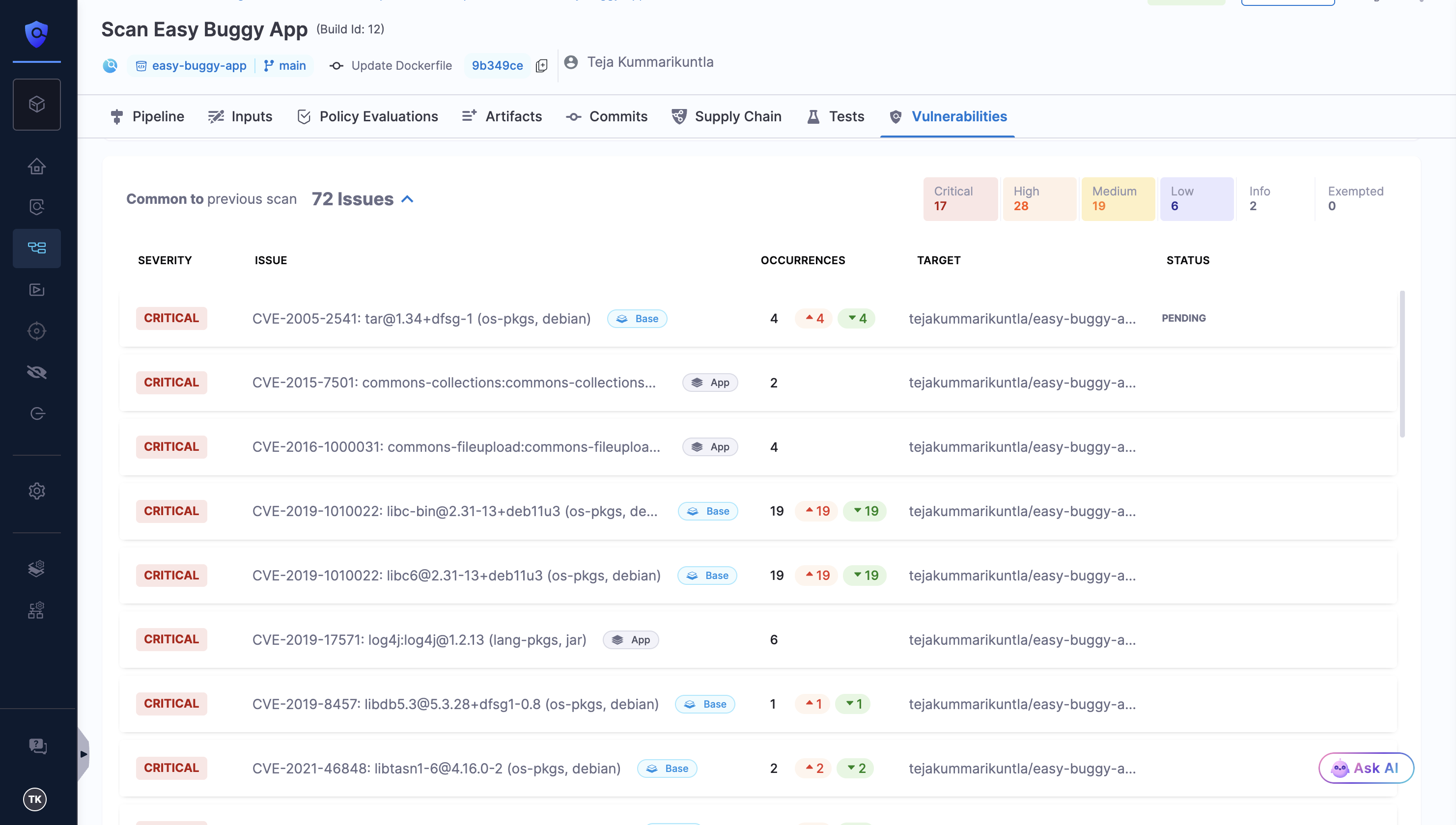
STO will then label the base image vulnerabilities and display them in the **Vulnerabilities tab** of the pipeline execution window.
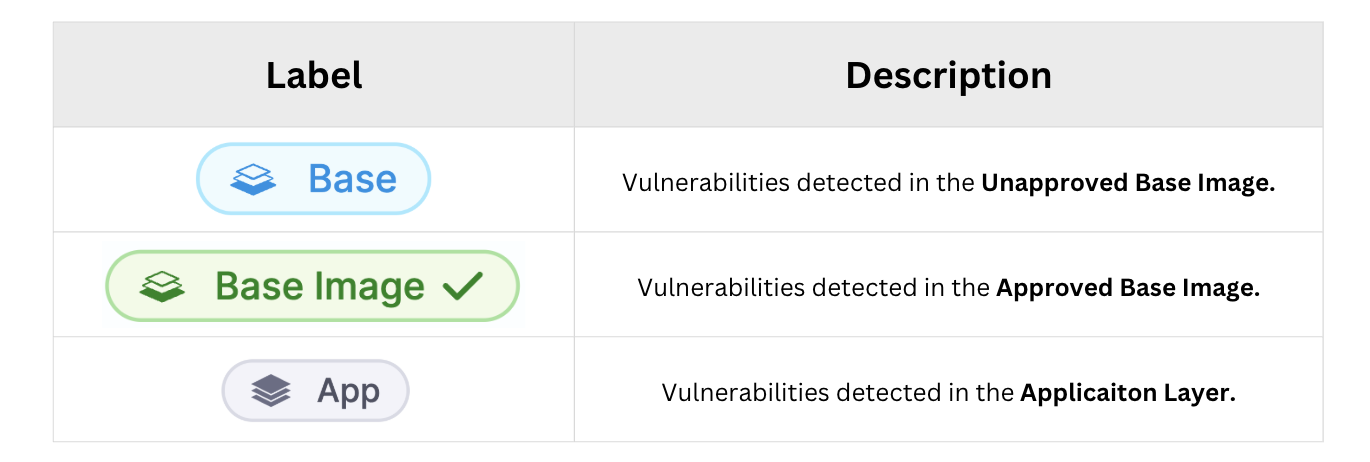
The vulnerabilities will be tagged with `Base` and `App` labels.
* `Base`: These are the vulnerabilities detected in the base image of your application.
* `Base` label in Blue color: vulnerabilities detected in an unapproved base image.
* `Base Image` label in Green color: vulnerabilities detected in an approved base image. Refer to [Approve Base Image](/security-testing-orchestration/use-sto/set-up-sto-scans/container-scanning/base-image-vulnerabilites/approve-base-image.md) for more details.
* `App`: These are the vulnerabilities detected in the application layer of your container image.
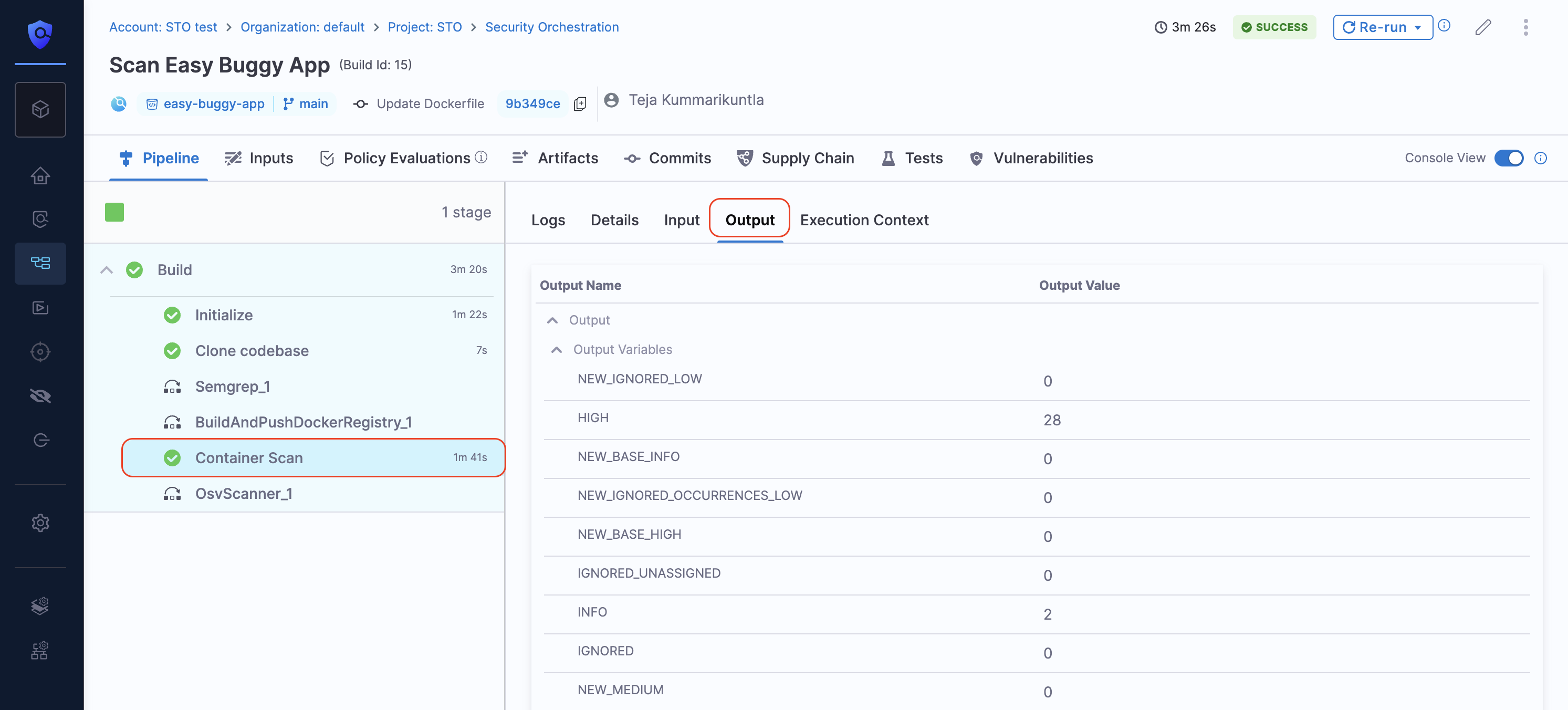
The scan step also adds vulnerability data specific to the base image and app layers in the **step output variables** of the scanner step in the pipeline execution window. For more details, see [Output Variables for App and Base Image Vulnerabilities](#output-variables-for-app-and-base-image-vulnerabilities).
***
### Step Output Variables for App and Base Image Vulnerabilities
When base image identification is active, the STO step generates a set of output variables that you can use in your pipelines or policies. These variables provide counts for both total and newly introduced vulnerabilities from the base image and application layer of your container image.
To view these output variables, navigate to the **Output** tab in your scanner step in the pipeline execution window.
Depending on your use case, you can use the following step output variables to create and enforce policies on your scanner steps. For example, you might want to enforce policies based only on vulnerabilities detected in the application layer while ignoring vulnerabilities from the base image. Refer to [Policies for Vulnerabilities from Application and Base Images](/security-testing-orchestration/use-sto/set-up-sto-scans/container-scanning/base-image-vulnerabilites/approve-base-image.md#policies-for-vulnerabilities-from-application-and-base-images) for more details.
| Variable | Description |
| --------------------- | -------------------------------------------------------------------------- |
| `APP_CRITICAL` | Total number of Critical vulnerabilities from the application layer. |
| `APP_HIGH` | Total number of High vulnerabilities from the application layer. |
| `APP_MEDIUM` | Total number of Medium vulnerabilities from the application layer. |
| `APP_LOW` | Total number of Low vulnerabilities from the application layer. |
| `APP_INFO` | Total number of Info vulnerabilities from the application layer. |
| `NEW_APP_CRITICAL` | Number of new Critical vulnerabilities from the application layer. |
| `NEW_APP_HIGH` | Number of new High vulnerabilities from the application layer. |
| `NEW_APP_MEDIUM` | Number of new Medium vulnerabilities from the application layer. |
| `NEW_APP_LOW` | Number of new Low vulnerabilities from the application layer. |
| `NEW_APP_INFO` | Number of new Info vulnerabilities from the application layer. |
| `BASE_CRITICAL` | Total number of Critical vulnerabilities from the base image. |
| `BASE_HIGH` | Total number of High vulnerabilities from the base image. |
| `BASE_MEDIUM` | Total number of Medium vulnerabilities from the base image. |
| `BASE_LOW` | Total number of Low vulnerabilities from the base image. |
| `BASE_INFO` | Total number of Info vulnerabilities from the base image. |
| `TOTAL_BASE` | Total count of all vulnerabilities from the base image. |
| `NEW_BASE_CRITICAL` | Number of new Critical vulnerabilities from the base image. |
| `NEW_BASE_HIGH` | Number of new High vulnerabilities from the base image. |
| `NEW_BASE_MEDIUM` | Number of new Medium vulnerabilities from the base image. |
| `NEW_BASE_LOW` | Number of new Low vulnerabilities from the base image. |
| `NEW_BASE_INFO` | Number of new Info vulnerabilities from the base image. |
| `NEW_TOTAL_BASE` | Total count of all new vulnerabilities from the base image. |
| `BASE_IMAGE_APPROVED` | A boolean value indicating if the base image is approved (`true`/`false`). |
{% @harness-feedback/feedback %}