> For the complete documentation index, see [llms.txt](https://developer.harness.io/llms.txt). Markdown versions of documentation pages are available by appending `.md` to page URLs; this page is available as [Markdown](https://developer.harness.io/security-testing-orchestration/use-sto/sto-scanner-configuration/aws-security-hub-scanner-reference.md).
# AWS Security Hub step configuration
Scan configurations with AWS Image scanner.
You can scan your configurations and ingest the scan results from [AWS Security Hub](https://docs.aws.amazon.com/securityhub/latest/userguide/what-is-securityhub.html).
### Important notes for running AWS Security Hub scans in STO
* This integration supports session-based authentication with AWS. You can pass the token as a key-value pair in the [Settings](#settings) field.
* You can utilize custom STO scan images and pipelines to run scans as a non-root user. For more details, refer [Configure your pipeline to use STO images from private registry](/security-testing-orchestration/troubleshooting-and-resources/sto-use-cases/set-up-sto-pipelines/configure-pipeline-to-use-sto-images-from-private-registry.md).
* STO supports three different approaches for loading self-signed certificates. For more information, refer [Run STO scans with custom SSL certificates](/security-testing-orchestration/troubleshooting-and-resources/sto-use-cases/secure-sto-pipelines/ssl-setup-in-sto.md#supported-workflows-for-adding-custom-ssl-certificates).
The following topics contain useful information for setting up scanner integrations in STO:
* [What's supported in STO](/security-testing-orchestration/new-to-sto/sto-whats-supported/sto-deployments.md)
* [Security Testing Orchestration FAQs](/security-testing-orchestration/troubleshooting-and-resources/faqs.md)
* [Optimize STO pipelines](/security-testing-orchestration/troubleshooting-and-resources/sto-use-cases/set-up-sto-pipelines/optimize-sto-pipelines.md)
### AWS Security Hub step configuration
The default workflow is to add an AWS Security Hub step to a Build or Security stage and configure it as described below.
#### Scan
**Scan Mode**
* **Extraction** Configure the step to [extract scan results from an external SaaS service](/security-testing-orchestration/new-to-sto/key-concepts/sto-workflows-overview.md#extraction-workflows-in-sto) and then ingest, normalize, and deduplicate the data.
* **Ingestion** Configure the step to [read scan results from a data file](/security-testing-orchestration/new-to-sto/key-concepts/ingest-scan-results-into-an-sto-pipeline.md) and then ingest, normalize, and deduplicate the data.
**Scan Configuration**
The predefined configuration to use for the scan. All scan steps have at least one configuration.
#### Target
**Type**
* **Instance** Scan a running application.
* **Configuration** Scan your cloud environment by gathering configuration data via the cloud provider’s APIs.
**Name**
The identifier for the [target](/security-testing-orchestration/new-to-sto/key-concepts/targets-and-baselines.md), such as `codebaseAlpha` or `jsmith/myalphaservice`. Descriptive target names make it much easier to navigate your scan data in the STO UI.
It is good practice to [specify a baseline](/security-testing-orchestration/new-to-sto/key-concepts/targets-and-baselines.md#every-target-needs-a-baseline) for every target.
**Variant**
The identifier for the specific variant to scan. This is usually the branch name, image tag, or product version. Harness maintains a historical trend for each variant.
#### Ingestion File
The path to your scan results when running an [Ingestion scan](/security-testing-orchestration/new-to-sto/key-concepts/ingest-scan-results-into-an-sto-pipeline.md), for example `/shared/scan_results/myscan.latest.sarif`.
* The data file must be in a [supported format](/security-testing-orchestration/new-to-sto/sto-whats-supported/scanners.md#supported-ingestion-formats) for the scanner.
* The data file must be accessible to the scan step. It's good practice to save your results files to a [shared path](/continuous-integration/new-to-harness-ci/key-concepts.md#stages) in your stage. In the visual editor, go to the stage where you're running the scan. Then go to **Overview** > **Shared Paths**. You can also add the path to the YAML stage definition like this:
```yaml
- stage:
spec:
sharedPaths:
- /shared/scan_results
```
#### Authentication
You should create [Harness text secrets](/harness-platform/use-harness-platform/secrets/add-use-text-secrets.md) with your encrypted access ID and token and access them using the format `<+secrets.getValue("my-secret")>`.
**Access ID**
The access ID for your AWS account.
**Access Token**
The access token for your AWS account.
**Access Region**
Your AWS region.
#### Log Level
The minimum severity of the messages you want to include in your scan logs. You can specify one of the following:
* **DEBUG**
* **INFO**
* **WARNING**
* **ERROR**
#### Fail on Severity
Every STO scan step has a **Fail on Severity** setting. If the scan finds any vulnerability with the specified [severity level](/security-testing-orchestration/new-to-sto/key-concepts/severities.md) or higher, the pipeline fails automatically. You can specify one of the following:
* **`CRITICAL`**
* **`HIGH`**
* **`MEDIUM`**
* **`LOW`**
* **`INFO`**
* **`NONE`** — Do not fail on severity
The YAML definition looks like this: `fail_on_severity : critical # | high | medium | low | info | none`
#### Settings
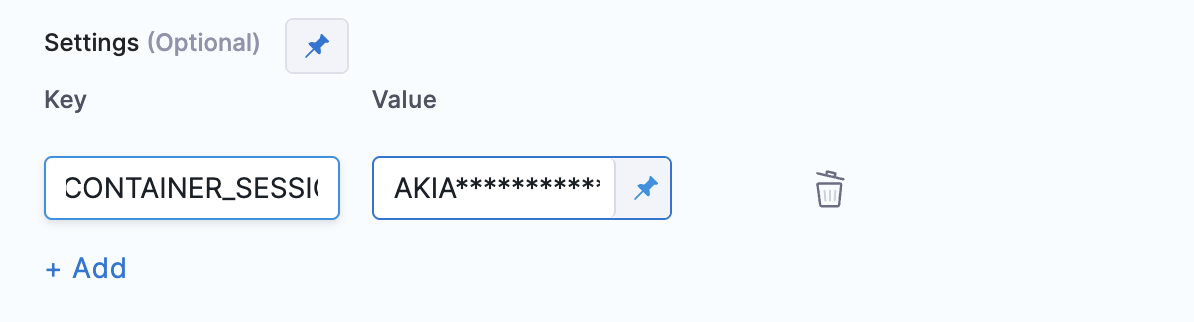
To enable session-based authentication with AWS, for example, you can pass AWS session token using the key `CONTAINER_SESSION_TOKEN` with a [Harness text secret](/harness-platform/use-harness-platform/secrets/add-use-text-secrets.md) of your token.
Add shared path for scan results
### Proxy settings
This step supports private network connectivity if you're using Harness Cloud infrastructure. For information on connectivity options, see [IP allowlisting](https://developer.harness.io/harness-platform/use-harness-platform/references/private-network-connectivity/ip-allowlisting). When using proxy configurations, the `HTTPS_PROXY` and `HTTP_PROXY` variables are automatically set to route traffic through the secure tunnel. If there are specific addresses that you want to bypass the proxy, you can define those in the `NO_PROXY` variable. This can be configured in the **Settings** of your step.
If you need to configure a different proxy, you can manually set the `HTTPS_PROXY`, `HTTP_PROXY`, and `NO_PROXY` variables in the **Settings** of your step.
**Definitions of Proxy variables:**
* `HTTPS_PROXY`: Specify the proxy server for HTTPS requests, example `https://sc.internal.harness.io:30000`
* `HTTP_PROXY`: Specify the proxy server for HTTP requests, example `http://sc.internal.harness.io:30000`
* `NO_PROXY`: Specify the domains as comma-separated values that should bypass the proxy. This allows you to exclude certain traffic from being routed through the proxy.
{% @harness-feedback/feedback %}