> For the complete documentation index, see [llms.txt](https://developer.harness.io/llms.txt). Markdown versions of documentation pages are available by appending `.md` to page URLs; this page is available as [Markdown](https://developer.harness.io/security-testing-orchestration/use-sto/sto-scanner-configuration/wiz/artifact-scans-with-wiz.md).
# Artifact scans with Wiz
Scan artifacts with Wiz. Orchestration and Ingestion modes supported.
You can easily set up a Wiz step to run automated scans in a Harness pipeline. This step scans the container image you specify using the Wiz CLI. Then it correlates, deduplicates, and ingests the scan results into STO. You can see your scan results in the [Vulnerabilities](/security-testing-orchestration/use-sto/sto-security-issues/view-scan-results.md) tab of the pipeline execution.
{% hint style="info" %}
**Wiz CLI Upgrade Notice**
The Wiz CLI will be upgraded from version `0.x` to `1.x`. Harness STO supports this upgrade transparently, and no pipeline changes are required. CLI version `0.x` will continue to work with existing credentials, while CLI version `1.x` requires new credentials. Credentials used with CLI `0.x` are not supported in CLI `v1.x`.
{% endhint %}
### Important notes for running Wiz scans in STO
* You can set up your STO scan images and pipelines to run scans as non-root and establish trust for your proxies using custom certificates. For more information, go to [Configure your pipeline to use STO images from private registry](/security-testing-orchestration/troubleshooting-and-resources/sto-use-cases/set-up-sto-pipelines/configure-pipeline-to-use-sto-images-from-private-registry.md).
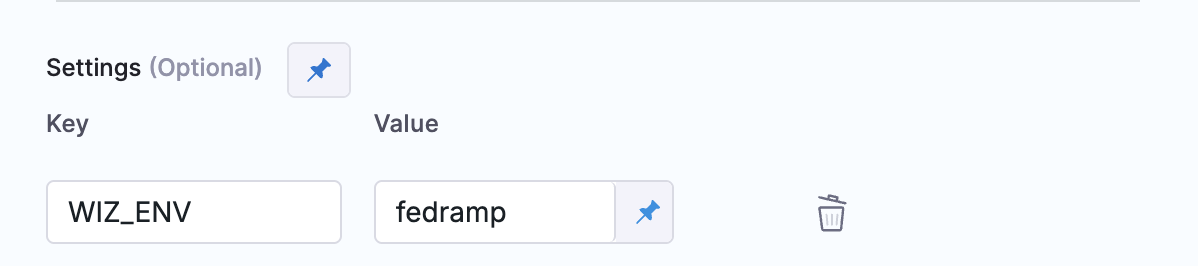
* If you use Wiz for Gov or GovCloud on Linux/macOS, configure `WIZ_ENV` environment variable in your wiz stage settings.
* For `app.wiz.us` (Wiz for Gov, FedRAMP), set `WIZ_ENV=fedramp`.
* For `gov.wiz.io` (GovCloud), set `WIZ_ENV=gov`.
Click to view full size
The following topics contain useful information for setting up scanner integrations in STO:
* [What's supported in STO](/security-testing-orchestration/new-to-sto/sto-whats-supported/sto-deployments.md)
* [Security Testing Orchestration FAQs](/security-testing-orchestration/troubleshooting-and-resources/faqs.md)
* [Optimize STO pipelines](/security-testing-orchestration/troubleshooting-and-resources/sto-use-cases/set-up-sto-pipelines/optimize-sto-pipelines.md)
### Set-up workflows Orchestration scans for artifacts
The setup process for Kubernetes and Docker build infrastructures has a few additional steps and requirements.
PrerequisitesA Kubernetes or Docker build infrastructureHarness text secrets if your image registry requires an access ID and access tokenHarness text secrets for your client-id and client-secret to authenticate with the Wiz CLIAdd a Docker-in-Docker background stepThis is required for orchestrated image scans on Kubernetes or Docker build infrastructures.Add the Wiz scannerDo the following:Add a CI Build or Security stage to your pipeline.Add a Wiz step to the stage.Set up the Wiz scannerRequired settingsScan mode = OrchestrationTarget type = Container imageTarget and Variant Detection = AutoContainer image:TypeDomain — Required only if you're using a registry with a non-standard domain, such as a private registry.Name — for example, jsmith/myimageTag — for example, latestAuthentication — Required only if the registry requires authentication:Registry access Id as a Harness secretRegistry access token as a Harness secretAuthentication:Wiz access ID as a Harness secret. This is your client-id to authenticate with the Wiz CLI.Wiz access token as a Harness secret. This is your client-secret to authenticate with the Wiz CLI.Optional settingsFail on Severity — Stop the pipeline if the scan detects any issues at a specified severity or higherLog Level — Useful for debuggingPrerequisitesHarness text secrets if your image registry requires an access Id and access tokenHarness text secrets for your client-id and client-secret to authenticate with the Wiz CLIAdd the Wiz scannerDo the following:Add a Build or Security stage to your pipeline.Add a Wiz step to the stage.Set up the Wiz scannerRequired settingsScan mode = OrchestrationTarget type = Container imageTarget and Variant Detection = AutoContainer image:TypeDomain — Required only if you're using a registry with a non-standard domain, such as a private registryName — for example, jsmith/myimageTag — for example, latestAuthentication — Required only if the registry requires authentication:Registry access Id as a Harness secretRegistry access token as a Harness secretAuthentication:Wiz access ID as a Harness secret. This is your client-id to authenticate with the Wiz CLI.Wiz access token as a Harness secret. This is your client-secret to authenticate with the Wiz CLI.Optional settingsFail on Severity — Stop the pipeline if the scan detects any issues at a specified severity or higher.Log Level — Useful for debugging.
Ingestion scans for artifacts
{% hint style="info" %}
Harness STO can ingest both JSON and SARIF data from Wiz, but Harness recommends publishing to JSON because this format includes more detailed information.
{% endhint %}
**Add a shared path for your scan results**
1. Add a Build or Security stage to your pipeline.
2. In the stage **Overview**, add a shared path such as `/shared/scan_results`.
**Copy scan results to the shared path**
There are two primary workflows to do this:
* Add a Run step that runs a Wiz scan from the command line and then copies the results to the shared path.
* Copy results from a Wiz scan that ran outside the pipeline.
For more information and examples, go to [Ingestion scans](/security-testing-orchestration/new-to-sto/key-concepts/ingest-scan-results-into-an-sto-pipeline.md).
**Set up the Wiz scanner**
Add a Wiz step to the stage and set it up as follows.
**Required settings**
1. [Scan mode](#scan-mode) = **Ingestion**
2. [Target type](#type) = **Container Image**
3. [Target name](#name) — Usually the image name, such as `jsmith/myimage`
4. [Target variant](#name) — Usually the image tag, such as `latest`. You can also use a [runtime input](/harness-platform/use-harness-platform/variables-and-expressions/runtime-input-usage.md) and specify the tag at runtime.
5. [Ingestion file](#ingestion-file) — For example, `/shared/scan_results/wiz-scan.json`
**Optional settings**
* [Fail on Severity](#fail-on-severity) — Stop the pipeline if the scan detects any issues at a specified severity or higher
* [Log Level](#log-level) — Useful for debugging
### Wiz step settings reference
The recommended workflow is to add a Wiz step to a Security Tests or CI Build stage and then configure it as described below.
#### Scan
**Scan Mode**
* **Orchestration** Configure the step to [run a scan](/security-testing-orchestration/new-to-sto/key-concepts/run-an-orchestrated-scan-in-sto.md) and then ingest, normalize, and deduplicate the results.
* **Ingestion** Configure the step to [read scan results from a data file](/security-testing-orchestration/new-to-sto/key-concepts/ingest-scan-results-into-an-sto-pipeline.md) and then ingest, normalize, and deduplicate the data.
#### Target
**Type**
* **Container Image** Scan the layers, libraries, and packages in a container image.
**Target and Variant Detection**
When **Auto** is enabled for container images, the step detects the target and variant using the **Container Image Name** and **Tag/Digest** defined in the step or runtime input.
Note the following:
* **Auto** is not available when the **Scan Mode** is **Ingestion**.
* By default, **Auto** is selected when you add the step. You can change this setting if needed.
**Name**
The identifier for the [target](/security-testing-orchestration/new-to-sto/key-concepts/targets-and-baselines.md) such `jsmith/myalphaservice`. Descriptive target names make it much easier to navigate your scan data in the STO UI.
It is good practice to [specify a baseline](/security-testing-orchestration/new-to-sto/key-concepts/targets-and-baselines.md#every-target-needs-a-baseline) for every target.
**Variant**
The identifier for the specific variant to scan. This is usually the branch name, image tag, or product version. Harness maintains a historical trend for each variant.
**Workspace**
The workspace path on the pod running the scan step. The workspace path is `/harness` by default.
You can override this if you want to scan only a subset of the workspace. For example, suppose the pipeline publishes artifacts to a subfolder `/tmp/artifacts` and you want to scan these artifacts only. In this case, you can specify the workspace path as `/harness/tmp/artifacts`.
Additionally, you can specify individual files to scan as well. For instance, if you only want to scan a specific file like `/tmp/iac/infra.tf`, you can specify the workspace path as `/harness/tmp/iac/infra.tf`
#### Container image
**Type**
The registry type where the image is stored:
* **Docker v2** A registry that uses the Docker Registry v2 API such as [Docker Hub](https://docs.docker.com/registry/spec/api/), [Google Container Registry](https://cloud.google.com/container-registry), or [Google Artifact Registry](https://cloud.google.com/artifact-registry). STO will automatically pull and scan the container image or OCI/Docker archive.
* [**AWS ECR**](https://aws.amazon.com/ecr/) Set your AWS ECR connector with image details. STO will automatically pull and scan the container image or OCI/Docker archive.
* [**Jfrog Artifactory**](https://jfrog.com/artifactory/) Set your Jfrog Artifactory connector with image details. STO will automatically pull and scan the container image or OCI/Docker archive.
* **Local Image in this Stage** Scan a local image built and stored within the context of the current stage (via `/var/run/docker.sock` registered as a stage level volume mount). For this, you will need to [configure Docker-in-Docker](/security-testing-orchestration/use-sto/sto-scanner-configuration/security-step-settings-reference.md#configuring-docker-in-docker-dind-for-your-pipeline) as a background step. STO will identify and scan the container image matching the step configuration inside the Docker-in-Docker background within that stage.
* **Local OCI/Docker archive in this Stage** Scan an OCI or Docker archive created and stored within the current stage. STO will scan the archive based on the path configured in the workspace field during the step. Ensure that the path to which the archive is saved is a shared volume mount.
**Domain**
The URL of the registry that contains the image to scan. Examples include:
* `docker.io`
* `app.harness.io/registry`
* `us-east1-docker.pkg.dev`
**Name**
The image name. For non-local images, you also need to specify the image repository. Example: `jsmith/myalphaservice`
**Tag/Digest**
The image tag or digest. Examples: `latest`, `1.2.3`, `@sha256:abc123...`
**Access ID**
The username to log in to the image registry.
**Access Token**
The access token used to log in to the image registry. This is usually a password or an API key.
You should create a Harness text secret with your encrypted token and reference the secret using the format `<+secrets.getValue("container-access-id")>`. For more information, go to [Add and Reference Text Secrets](/harness-platform/use-harness-platform/secrets/add-use-text-secrets.md).
#### Ingestion File
The path to your scan results when running an [Ingestion scan](/security-testing-orchestration/new-to-sto/key-concepts/ingest-scan-results-into-an-sto-pipeline.md), for example `/shared/scan_results/wiz.latest.json`.
* The data file must be in a [supported format](/security-testing-orchestration/new-to-sto/sto-whats-supported/scanners.md#supported-ingestion-formats) for the scanner.
* The data file must be accessible to the scan step. It's good practice to save your results files to a [shared path](/continuous-integration/new-to-harness-ci/key-concepts.md#stages) in your stage. In the visual editor, go to the stage where you're running the scan. Then go to **Overview** > **Shared Paths**. You can also add the path to the YAML stage definition like this:
```yaml
- stage:
spec:
sharedPaths:
- /shared/scan_results
```
#### Authentication
**Access ID**
This is your `client-id` to authenticate with the Wiz CLI.
**Access Token**
This is your `client-secret` to authenticate with the Wiz CLI.
You should create a Harness text secret with your encrypted token and reference the secret using the format `<+secrets.getValue("my-access-token")>`. For more information, go to [Add and Reference Text Secrets](/harness-platform/use-harness-platform/secrets/add-use-text-secrets.md).
#### Log Level
The minimum severity of the messages you want to include in your scan logs. You can specify one of the following:
* **DEBUG**
* **INFO**
* **WARNING**
* **ERROR**
#### Additional CLI flags
Use this field to run the scanner binary with additional flags supported by the external scanner.
{% hint style="warning" %}
Passing CLI flags is an advanced feature. Some flags might not work in the context of STO. You should test your flags and arguments thoroughly before you use them in your production environment.
{% endhint %}
#### Fail on Severity
Every STO scan step has a **Fail on Severity** setting. If the scan finds any vulnerability with the specified [severity level](/security-testing-orchestration/new-to-sto/key-concepts/severities.md) or higher, the pipeline fails automatically. You can specify one of the following:
* **`CRITICAL`**
* **`HIGH`**
* **`MEDIUM`**
* **`LOW`**
* **`INFO`**
* **`NONE`** — Do not fail on severity
The YAML definition looks like this: `fail_on_severity : critical # | high | medium | low | info | none`
#### Settings
You can add more settings to the scan step as needed.
#### Additional Configuration
The fields under **Additional Configuration** vary based on the type of infrastructure. Depending on the infrastructure type selected, some fields may or may not appear in your settings. Below are the details for each field
* Override Security Test Image
* [Container Registry](/security-testing-orchestration/troubleshooting-and-resources/sto-use-cases/set-up-sto-pipelines/configure-pipeline-to-use-sto-images-from-private-registry.md#step-level-override)
* [Image Tag](/security-testing-orchestration/troubleshooting-and-resources/sto-use-cases/set-up-sto-pipelines/configure-pipeline-to-use-sto-images-from-private-registry.md#step-level-override)
* [Privileged](/continuous-integration/use-harness-ci/use-harness-ci/manage-dependencies/background-step-settings.md#privileged)
* [Image Pull Policy](/continuous-integration/use-harness-ci/use-harness-ci/manage-dependencies/background-step-settings.md#image-pull-policy)
* [Run as User](/continuous-integration/use-harness-ci/use-harness-ci/manage-dependencies/background-step-settings.md#run-as-user)
* [Set Container Resources](/continuous-integration/use-harness-ci/use-harness-ci/manage-dependencies/background-step-settings.md#set-container-resources)
* [Timeout](/continuous-integration/use-harness-ci/use-harness-ci/run-step-settings.md#timeout)
#### Advanced settings
In the **Advanced** settings, you can use the following options:
* [Conditional Execution](/harness-platform/use-harness-platform/pipelines/step-skip-condition-settings.md)
* [Failure Strategy](/harness-platform/use-harness-platform/pipelines/failure-handling/define-a-failure-strategy-on-stages-and-steps.md)
* [Looping Strategy](/harness-platform/use-harness-platform/pipelines/looping-strategies/looping-strategies-matrix-repeat-and-parallelism.md)
* [Policy Enforcement](/harness-platform/use-harness-platform/governance/policy-as-code/harness-governance-overview.md)
### View Wiz policy failures
The Wiz policy failure results appear in the scan results as an `Info` level issue, categorized as `External Policy` Issue Type. Additionally, you can apply an OPA policy to fail the pipeline based on the policy failures. This can be achieved using the [Security Tests - External Policy Failures](/security-testing-orchestration/use-sto/enforce-sto-policies-for-governance/create-opa-policies.md#block-the-pipeline-based-on-external-policy-failures) policy from the [security tests policy samples](/security-testing-orchestration/use-sto/enforce-sto-policies-for-governance/create-opa-policies.md#security-test-policy-samples).
### Configure External Policy Failures
You can configure Harness STO to treat external policy failures as vulnerabilities. To do this, navigate to Account Settings, go to the Default Settings page, select Security Test Orchestration, and click the External Policy Failures setting.
Enable the external policy failures setting to map them to a selected severity level — `Critical`, `High`, `Medium`, or `Low` to treat them as vulnerabilities instead of `Info` level issues. This setting takes effect from the next pipeline execution.
{% hint style="info" %}
This feature is behind the Feature flag `STO_EXTERNAL_POLICY_FAILURES_AS_VULNS`. Contact [Harness Support](mailto:support@harness.io) to enable this flag.
{% endhint %}
### Proxy settings
This step supports private network connectivity if you're using Harness Cloud infrastructure. For information on connectivity options, see [IP allowlisting](https://developer.harness.io/harness-platform/use-harness-platform/references/private-network-connectivity/ip-allowlisting). When using proxy configurations, the `HTTPS_PROXY` and `HTTP_PROXY` variables are automatically set to route traffic through the secure tunnel. If there are specific addresses that you want to bypass the proxy, you can define those in the `NO_PROXY` variable. This can be configured in the **Settings** of your step.
If you need to configure a different proxy, you can manually set the `HTTPS_PROXY`, `HTTP_PROXY`, and `NO_PROXY` variables in the **Settings** of your step.
**Definitions of Proxy variables:**
* `HTTPS_PROXY`: Specify the proxy server for HTTPS requests, example `https://sc.internal.harness.io:30000`
* `HTTP_PROXY`: Specify the proxy server for HTTP requests, example `http://sc.internal.harness.io:30000`
* `NO_PROXY`: Specify the domains as comma-separated values that should bypass the proxy. This allows you to exclude certain traffic from being routed through the proxy.
{% @harness-feedback/feedback %}