> For the complete documentation index, see [llms.txt](https://developer.harness.io/llms.txt). Markdown versions of documentation pages are available by appending `.md` to page URLs; this page is available as [Markdown](https://developer.harness.io/security-testing-orchestration/use-sto/sto-scanner-configuration/zap/dast-scan-zap.md).
# Tutorial: DAST app scans using Zed Attack Proxy
Scan a web app using ZAP
[Zed Attack Proxy (ZAP)](https://www.zaproxy.org) is a free, open-source penetration tool for testing web applications. ZAP runs as a "man-in-the-middle proxy" between the tester's browser and the web app. You can use ZAP to run penetration testing to simulate a malicious external attack and use the results to protect your app from unauthorized access and denial-of-service attacks.
In this tutorial, you'll set up a simple pipeline with a Zap step that scans the app and ingests the results into STO.

{% hint style="info" %}
**PREREQUISITES**
* This tutorial has the following prerequisites:
* A Harness account and STO module license.
* A basic understanding of key STO concepts and good practices.
* A working instance of the web app you want to scan. Your app must be accessible from your Harness pipeline.
* Docker requirements:
* A Docker Hub account and access token.
* A [Docker connector](broken://spaces/3F2TpHXhur2QtQnORSM9/pages/LZPXMHJjbQyZXdwC5Omo) is required to push the image.
* Your Docker Hub access token must be stored as a [Harness secret](/harness-platform/use-harness-platform/secrets/add-use-text-secrets.md).
{% endhint %}
### Set up your app instance
If you don't have your web app running yet, you can go through this tutorial by scanning an instance of the [Google Gruyere](https://google-gruyere.appspot.com/part1) app.
To create an instance of this app for scanning, go to [Start Gruyere](https://google-gruyere.appspot.com/start).
### Set up your pipeline
Do the following:
1. Select **Security Testing Orchestration** (left menu, top) > **Pipelines** > **Create a Pipeline**. Enter a name and click **Start**.
2. In the new pipeline, select **Add stage** > **Security**.
3. Set up your stage as follows:
1. Enter a **Stage Name**.
2. Unselect **Clone Codebase**.
4. Go to **Infrastructure** and select **Cloud**, **Linux**, and **AMD64** for the infrastructure, OS, and architecture.
You can also use a Kubernetes or Docker build infrastructure, but these require additional work to set up. For more information, go to [Supported Infrastructure](/security-testing-orchestration/new-to-sto/sto-whats-supported/infrastructure.md) documentation.
### Add the Zap step
Harness provides a set of customized steps that make it easy to set up popular scanners such as ZAP.
{% tabs %}
{% tab title="Visual" %}
1. In **Execution**, add a [**Zap**](/security-testing-orchestration/use-sto/sto-scanner-configuration/zap/zap-scanner-reference.md#scan-configuration) step.
2. Configure the step as follows:
1. Name = `dast_scan_my_web_app`
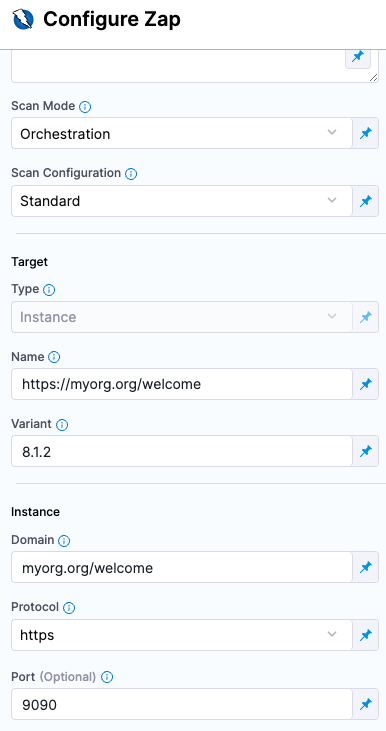
2. Scan Mode = **Orchestration**
3. [Scan Configuration](/security-testing-orchestration/use-sto/sto-scanner-configuration/zap/zap-scanner-reference.md#scan-configuration)
4. Set the following fields based on the app you're scanning.
For example, suppose you're scanning version 8.1.2 of `https://myorg.org:9090/welcome`. You could then set the fields like this:
* Target Name = `myorg.org/welcome`
* Target Variant = `8.1.2`
* Instance Domain = `myorg.org/welcome`
* Instance Protocol = **https**
* Instance Port = `9090`
If you're scanning a [Google Gruyere instance](#set-up-your-app-instance), set the fields like this:
* Target Name = `https://google-gruyere.appspot.com/`
* Target Variant = MY\_APP\_INSTANCE\_ID
* Instance Domain = `https://google-gruyere.appspot.com/`MY\_APP\_INSTANCE\_ID
* Instance Protocol = **https**
5. [Fail on Severity](/security-testing-orchestration/use-sto/sto-scanner-configuration/trivy/aqua-trivy-scanner-reference.md#fail-on-severity) = **Critical**
{% endtab %}
{% tab title="YAML" %}
Add a [**Zap**](/security-testing-orchestration/use-sto/sto-scanner-configuration/zap/zap-scanner-reference.md#scan-configuration) step and set the following fields based on the web app you want to scan. For example, suppose you're scanning version 8.1.2 of `https://myorg.org/welcome:9090`. You could then set the fields like this:
* `type:` [`Zap`](/security-testing-orchestration/use-sto/sto-scanner-configuration/zap/zap-scanner-reference.md)
* `name:` A name for the step.
* `identifier:` A unique step ID.
* `spec :`
* `mode :` [`orchestration`](/security-testing-orchestration/new-to-sto/key-concepts/sto-workflows-overview.md)
* [`config`](/security-testing-orchestration/use-sto/sto-scanner-configuration/zap/zap-scanner-reference.md#scan-configuration) `: default # | standard | attack | quick`
* `target :`
* `name : https://myorg.org/welcome`
* `type : instance`
* `variant : 8.1.2`
* `port : 9090`
* `advanced :`
* `log :`
* `level : info`
* [`fail_on_severity`](/security-testing-orchestration/new-to-sto/key-concepts/fail-pipelines-by-severity.md) `: critical`
Here's a YAML example for scanning a [Google Gruyere instance](#set-up-your-app-instance):
```yaml
- step:
type: Zap
name: dast_scan_my_web_app
identifier: dast_scan_my_web_app
spec:
mode: orchestration
config: standard # | standard | attack | quick
target:
name: https://google-gruyere.appspot.com
type: instance
variant: MY_APP_INSTANCE_ID
advanced:
log:
level: info
fail_on_severity: critical
instance:
domain: https://google-gruyere.appspot.com/MY_APP_INSTANCE_ID
protocol: https
```
{% endtab %}
{% endtabs %}
### Run the pipeline and check your results
1. Run the pipeline and then wait for the execution to finish.
2. Select [**Vulnerabilities tab**](/security-testing-orchestration/use-sto/sto-security-issues/view-scan-results.md) and examine any issues detected by your scan.

### Specify the baseline
{% hint style="info" %}
It is [good practice](/security-testing-orchestration/new-to-sto/key-concepts/targets-and-baselines.md#every-target-needs-a-baseline) to specify a baseline for every target. Defining a baseline makes it easy for developers to drill down into "shift-left" issues in downstream variants and security personnel to drill down into "shift-right" issues in the baseline.
{% endhint %}
1. Select **Test Targets** (left menu).
2. Select the baseline you want for your target.

### YAML pipeline example
Here's an example of the pipeline you created in this tutorial. If you copy this example, replace the placeholder values with appropriate values for your project, organization, and app instance ID.
```yaml
pipeline:
name: v1-dast-zap-scan-gruyere-test
identifier: v1dastzapscangruyeretest
projectIdentifier: YOUR_HARNESS_PROJECT_ID
orgIdentifier: YOUR_HARNESS_ORGANIZATION_ID
tags: {}
stages:
- stage:
name: dast_stage_scan_gruyere
identifier: dast_stage_scan_gruyere
description: ""
type: SecurityTests
spec:
cloneCodebase: false
platform:
os: Linux
arch: Amd64
runtime:
type: Cloud
spec: {}
execution:
steps:
- step:
type: Zap
name: zap_step_scan_gruyere
identifier: zap_step_scan_gruyere
spec:
mode: orchestration
config: standard
target:
name: https://google-gruyere.appspot.com
type: instance
variant: YOUR_APP_INSTANCE_ID
advanced:
log:
level: info
fail_on_severity: critical
instance:
domain: https://google-gruyere.appspot.com/YOUR_APP_INSTANCE_ID
protocol: https
```
{% @harness-feedback/feedback %}