> For the complete documentation index, see [llms.txt](https://developer.harness.io/llms.txt). Markdown versions of documentation pages are available by appending `.md` to page URLs; this page is available as [Markdown](https://developer.harness.io/security-testing-orchestration/use-sto/sto-security-issues/export-scan-results.md).
# Export security test results
Export security test results of a specific pipeline execution.
After a successful pipeline scan execution, you can view results in the [**Vulnerabilities**](/security-testing-orchestration/use-sto/sto-security-issues/view-scan-results.md) tab of the pipeline execution window.
You can export scan results in three ways:
1. [**Export as CSV from the Vulnerabilities tab**](#export-as-csv-from-the-vulnerabilities-tab)**:** Instantly download scan results in CSV format.
2. [**Export as PDF or CSV from the Dashboard**](#export-as-pdf-or-csv-from-the-dashboard)**:** Open the [Pipeline Execution Summary Dashboard](/security-testing-orchestration/use-sto/sto-dashboards-and-reports/sto-pipeline-execution-summary.md) to download results in PDF or CSV format.
3. [**Automated export via pipeline**](#automated-export-using-a-pipeline-run-step)**:** Configure a pipeline with a **Run** step to automatically generate and email reports.
### Export as CSV from the Vulnerabilities tab
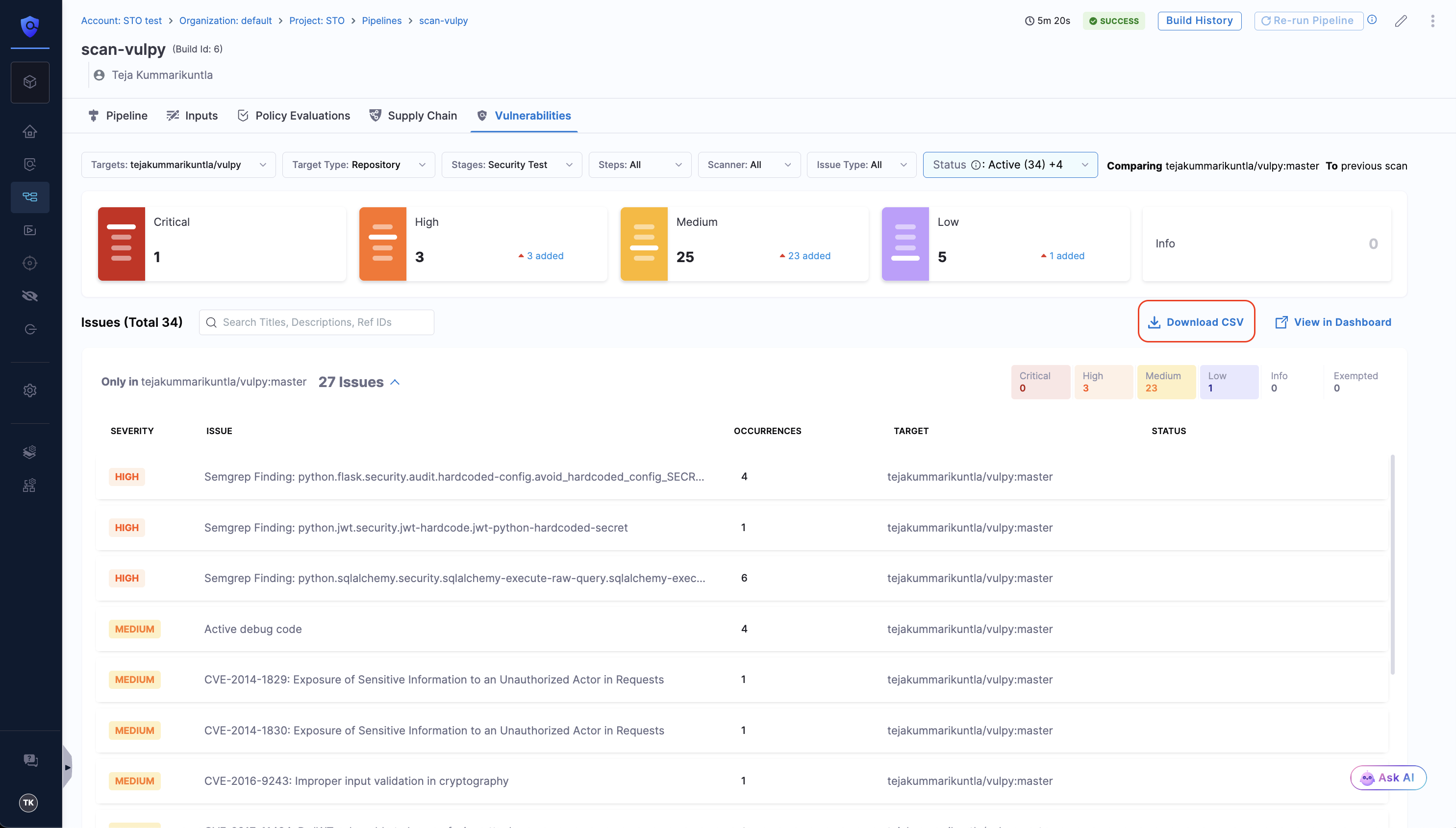
In the **Vulnerabilities** tab of a pipeline execution, select **Download CSV** to instantly export the scan results in CSV format.
Click to view full size image
Example Scan Results from Download CSV option
| Organisation name | Project Name | Pipeline Name | Pipeline Execution ID | Issue ID | Issue Title | Severity | Severity Score | No. of Occurrences | Target Type | Target Name | Status | Exemption Status | Scanner Name | Exemption Requestor Email | Exemption Approver Email | Only in Current Scan |
| ----------------- | --------------- | ------------------- | --------------------- | ---------- | ------------------------ | -------- | -------------- | ------------------ | ----------- | --------------- | ------------------- | ---------------- | ------------ | ------------------------- | ------------------------ | -------------------- |
| default | WebApp-Frontend | CI-Gitleaks-Scan | exec-id-1 | issue-id-1 | Discord API Key Detected | High | 8.5 | 3 | repository | frontend-app | REMEDIATED | Approved | Aqua Trivy | | | yes |
| default | Backend-API | Dev-Bandit-Scan | exec-id-2 | issue-id-2 | Hardcoded Password | Critical | 9.2 | 1 | repository | user-service | NONE | Pending | Bandit | | | no |
| default | WebApp-Frontend | Prod-Checkmarx-Scan | exec-id-3 | issue-id-3 | SQL Injection | High | 7.8 | 5 | container | payment-gateway | EXEMPTED | Rejected | Checkmarx | | | yes |
| default | Backend-API | QA-Snyk-Scan | exec-id-4 | issue-id-4 | Outdated Library | Medium | 6.1 | 2 | repository | auth-service | PARTIALLY\_EXEMPTED | Expired | Snyk | | | no |
* **Organisation name**: The name of the organisation (e.g., `default`).
* **Project Name**: The name of the project (e.g., `WebApp-Frontend`).
* **Pipeline Name**: The name of the pipeline (e.g., `CI-Gitleaks-Scan`). This column can show multiple values if your pipeline includes **child pipelines** as **Pipeline stages**, or if the pipeline is re-run from a selected stage of an existing execution.
* **Pipeline Execution ID**: The unique identifier of the pipeline execution (e.g., `iDtDn5tnTW2qg21iURaJWA`). This column can also contain multiple IDs if your pipeline includes **child pipelines** as **Pipeline stages**, or if it is re-run from a selected stage of a previous execution.
* **Issue ID**: The unique identifier for the issue (e.g., `8-Yp-1vlRB6MIqa69DdtVj`).
* **Issue Title**: A descriptive title for the issue (e.g., `Discord API Key Detected`).
* **Severity**: The vulnerability's severity level. If a severity override exists, STO uses the scanner-provided severity. Otherwise, it uses the severity that STO provides. Possible values are `Critical`, `High`, `Medium`, `Low`, and `Info`.
* **Severity Score**: A numeric representation of the severity (e.g., `6.5`, `7.0`, `8.5`).
* **No. of Occurrences**: The total number of times an issue has been detected (e.g., `3`, `4`, `8`).
* **Target Type**: The type of target scanned, such as `repository` or `container`.
* **Target Name**: The specific name of the target that was scanned.
* **Status**: The current status of the issue. Possible values include `EXEMPTED`, `PARTIALLY_EXEMPTED`, `REMEDIATED`, and `NONE`.
* **Exemption Status**: The status of the issue's exemption request at the time of the scan. Values can be `Approved`, `Rejected`, `Pending`, or `Expired`.
* **Scanner Name**: The name of the tool that performed the scan (e.g., `Aqua Trivy`).
* **Exemption Requestor Email**: The email address of the user who requested the exemption.
* **Exemption Approver Email**: The email address of the user who approved the exemption.
* **Only in Current Scan**:
* **Yes**: This indicates a new vulnerability. It is found in the most recent scan but was not present in the baseline or previous scan you are comparing against.
* **No**: This indicates a pre-existing or recurring vulnerability. It is found in the current scan and was also present in the baseline scan.
### Export as PDF or CSV from the Dashboard
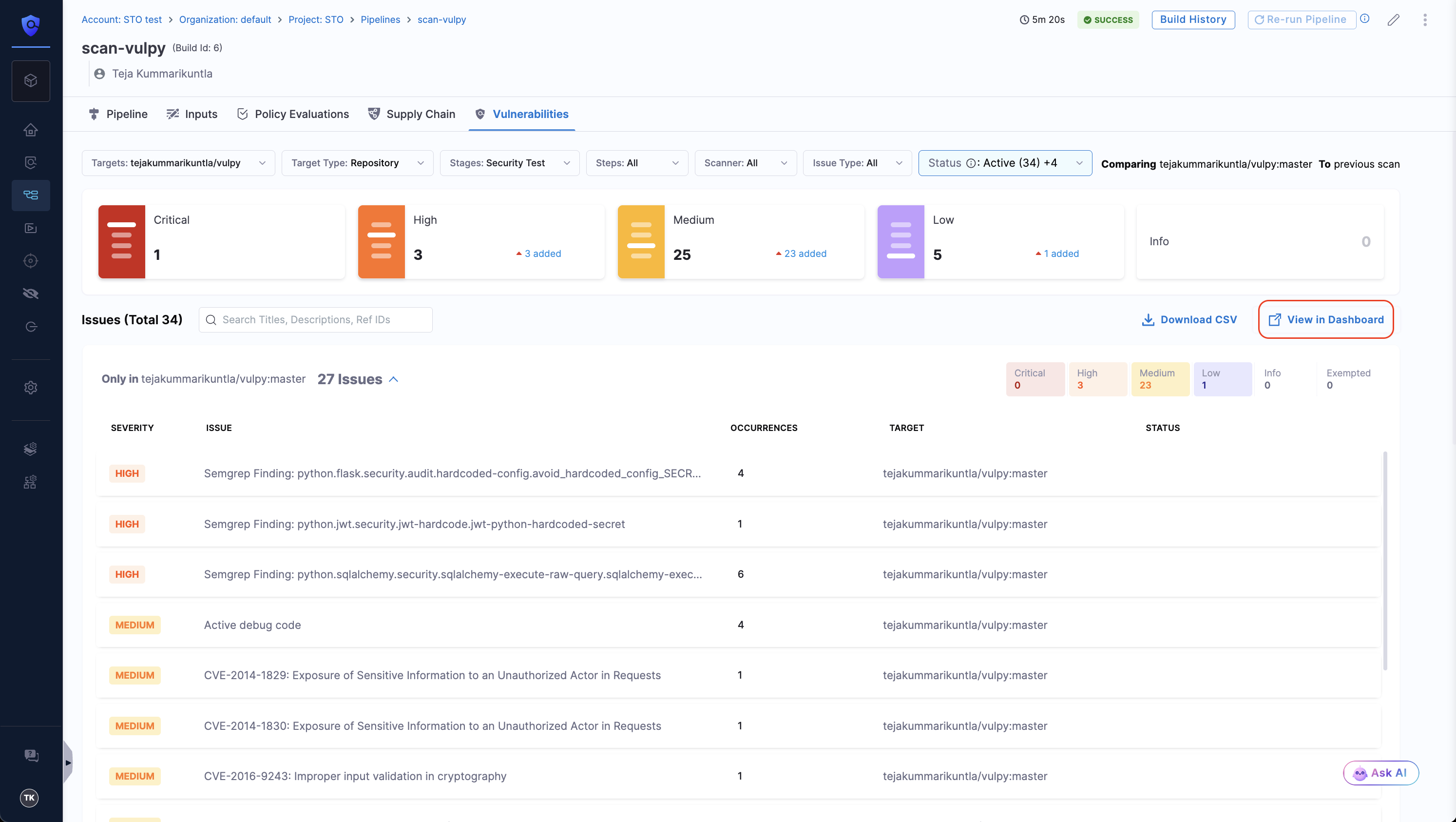
To export scan results from the Dashboard, you need to go to the [Pipeline Execution Summary Dashboard](/security-testing-orchestration/use-sto/sto-dashboards-and-reports/sto-pipeline-execution-summary.md). You can find the dashboard by [navigating to the Dashboards section](https://developer.harness.io/docs/platform/dashboards/dashboards-overview/#navigate-to-dashboards) in your Harness account or you can also access the dashboard by clicking on the **View in Dashboard** option in the **Vulnerabilities** tab.
Click to view full size image
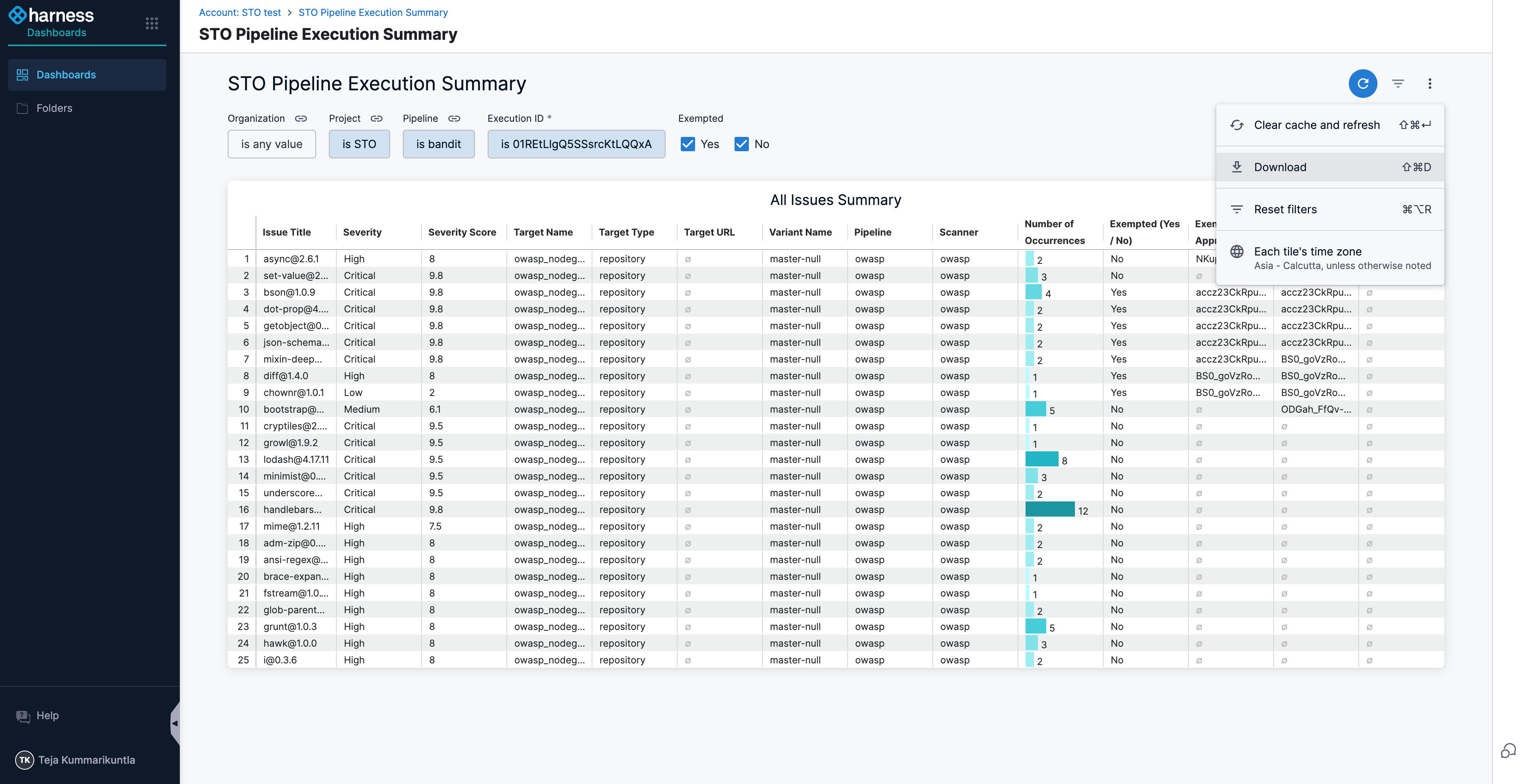
Once you are on the dashboard, you need to filter the results by your pipeline execution ID. To get the execution ID, go to your pipeline execution, and copy the ID from the URL. For example, in the URL `https://app.harness.io/ng/account/ACCOUNT_ID/module/MODULE/orgs/ORG/projects/PROJECT/pipelines/PIPELINE/executions/EXECUTION_ID/pipeline`, the value after `/executions/` is the **Execution ID**.
From there, click the **Options** menu (top-right) and select **Download** (choose **PDF** or **CSV**).
Click to view full size image
### Automated export using a pipeline Run step
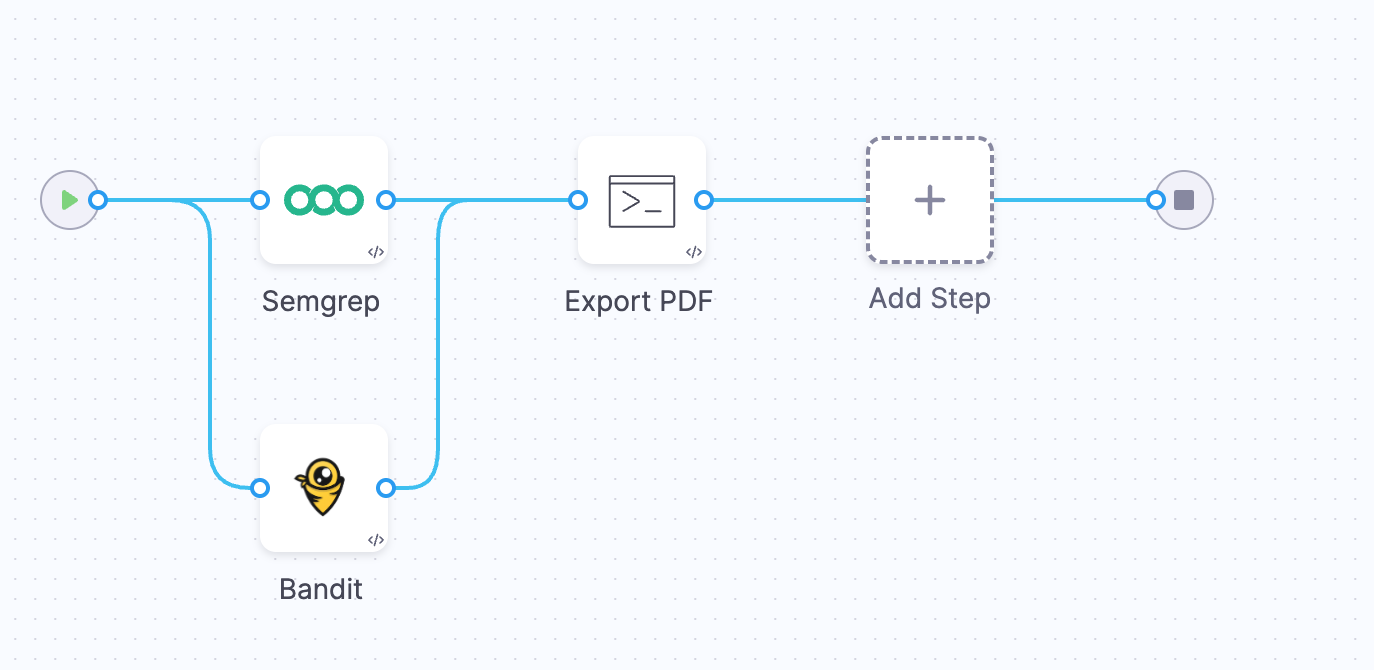
Click to view full size image
You can configure your pipeline to automatically generate and email scan results using a **Run** step that interacts with the Harness API.
#### Prerequisites
* **Harness API Key**: Refer to [Add and Manage API Keys](/harness-platform/use-harness-platform/automation/api/add-and-manage-api-keys.md). Store this API key securely as a [Harness Secret](/harness-platform/use-harness-platform/secrets/secrets-management/harness-secret-manager-overview.md).
* **Dashboard ID** of the **Pipeline Execution Summary Dashboard**:
* Navigate to the [STO Pipeline Execution Summary Dashboard](/security-testing-orchestration/use-sto/sto-dashboards-and-reports/sto-dashboards-overview.md#view-sto-dashboards).
* Obtain the Dashboard ID from the dashboard URL, e.g., `https://app.harness.io/ng/account/ACCOUNT/dashboards/folder/shared/view/30442`. In this URL, the ID is `30442`.
#### Configure the Run step
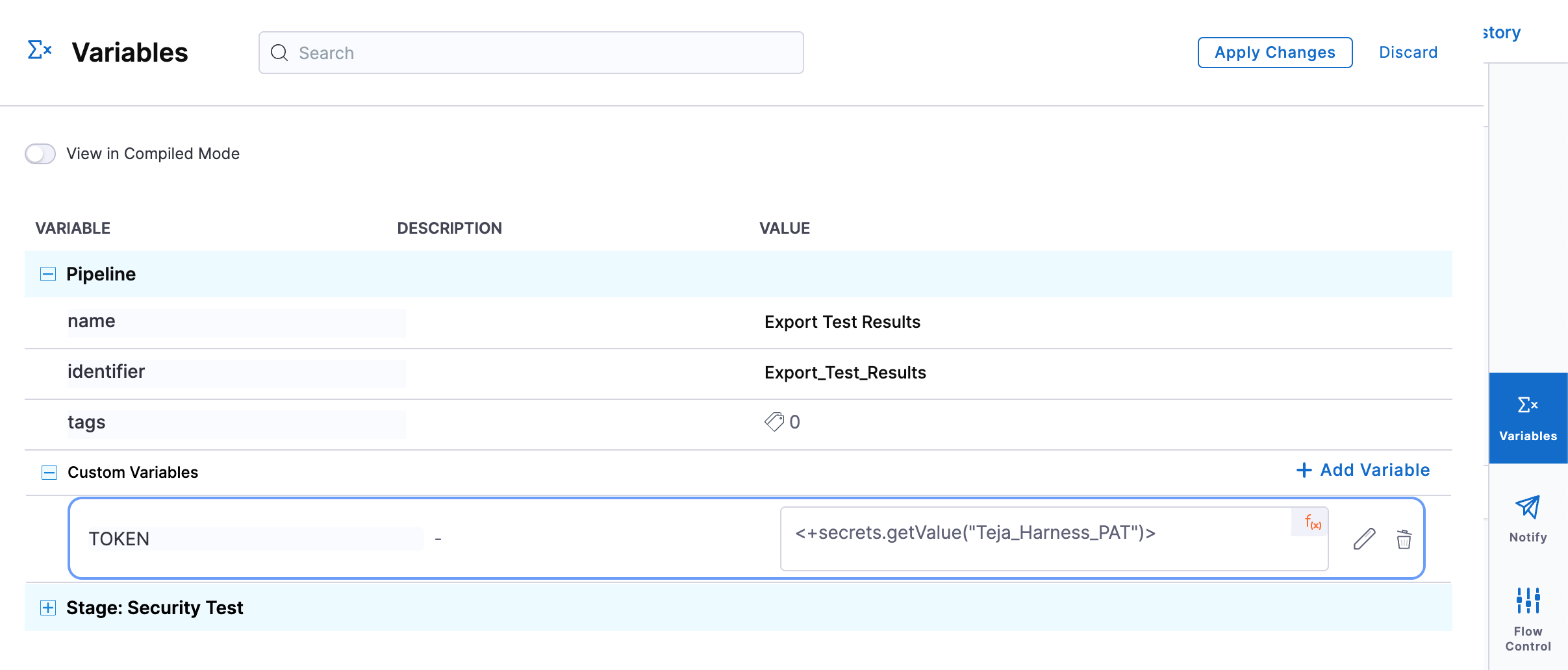
1. Create a pipeline variable named `TOKEN` and reference the stored Harness API key as a secret.
Click to view full size image
2. Add a **Run** step after your security scan steps.
3. Configure the step with:
* **Image**: `curlimages/curl`
* **Shell**: `Sh`
4. Use the following script, replacing `` and `example@harness.io`:
```sh
EXECUTION_ID=<+pipeline.executionId>
ACCOUNT_ID=<+account.identifier>
TOKEN=<+pipeline.variables.TOKEN>
PIPELINE=<+pipeline.name>
DASHBOARD_ID=
echo 'Sleeping for a few seconds to ensure dashboard data is available'
sleep 20
echo 'Scheduling report generation'
curl --location "https://app.harness.io/dashboard/schedules/run_once?accountId=${ACCOUNT_ID}" \
--header "x-api-key: ${TOKEN}" \
--header 'Accept: */*' \
--header 'Content-Type: application/json' \
--data-raw "{
\"dashboard_id\":\"${DASHBOARD_ID}\",
\"destination_emails\":\"example@harness.io\",
\"file_type\":\"wysiwyg_pdf\",
\"name\":\"${PIPELINE}:${EXECUTION_ID}\",
\"filters\":\"Execution=${EXECUTION_ID}\"
}"
```
{% @harness-feedback/feedback %}