> For the complete documentation index, see [llms.txt](https://developer.harness.io/llms.txt). Markdown versions of documentation pages are available by appending `.md` to page URLs; this page is available as [Markdown](https://developer.harness.io/security-testing-orchestration/use-sto/sto-security-issues/issues.md).
# View and manage baseline issues
View and manage issues across all baseline scans in your project.
The [**Issues**](#issues-overview) section at the **Project** level provides a consolidated view of all security issues affecting your baseline targets, providing a comprehensive list of issues identified across scans in the selected **Project**. **Issues** section is currently available only at the **Project** level.
From the **Issues** section, you can:
* [View all baseline issues](#navigate-to-issues-section)
* [Review issue details](#issue-details)
* [Identify impacted targets](#target-details)
* [Inspect occurrences of issues](#occurrence-details)
* Create Jira tickets at Issues and Target level
* Create issue exemption request with Project and Target scope
* [Approve/Reject Exemption Requests](#exemption-status)
{% hint style="info" %}
* The **Issues** section displays only the issues impacting your project's baselines. If your project has no targets or baselines configured, this page will not present the issues, even if scans have been executed against non-baseline targets.
* To see detected issues in a non-baseline variant, such as a feature or developer branch, go to a pipeline execution where the variant was scanned and then go to **Vulnerabilities tab**.
* To request exemptions for multiple issues at once, go to the **Vulnerabilities** tab for a pipeline execution. Go to Create bulk exemption requests for the workflow.
{% endhint %}
***
## What you will learn in this topic
By the end of this topic, you will be able to:
* The steps to view and filter all baseline issues affecting your project.
* The way to review issue details, impacted targets, and occurrences of an issue.
* How to create Jira tickets and manage exemption requests directly from the Issues section.
***
## Issues overview
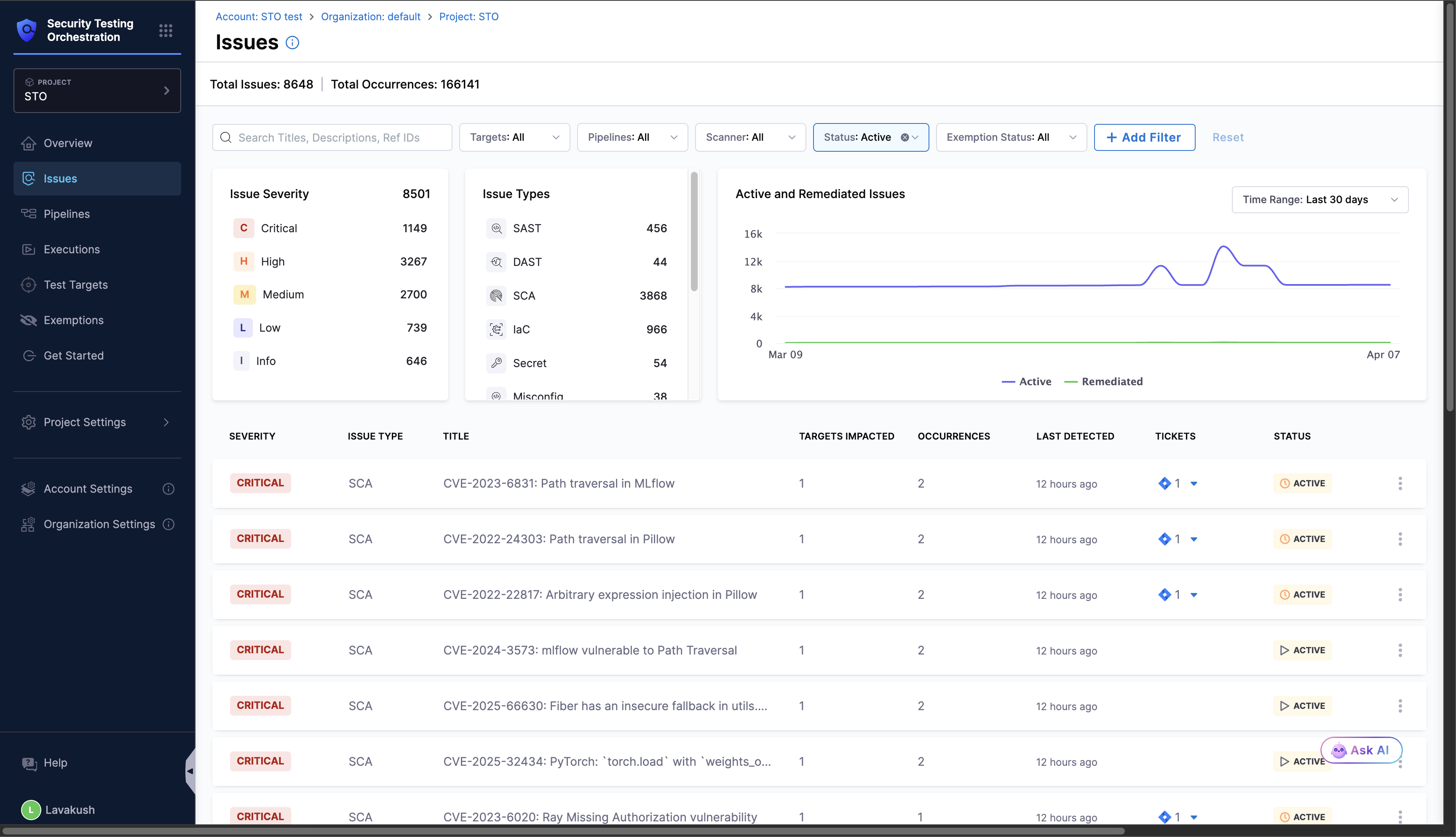
Access the **Issues** section from the left navigation in the STO module. At the top of the page, you can view the summary of the **Total Issues** and **Total Occurrences** counts for your project's baseline issues. You can apply filters to narrow down the issues in your project. See [Filters in the issues section](#filters-in-issues-section) for details.
The Issues page displays three summary cards that provide a quick overview of your security posture:
#### Issue severity
Displays the distribution of issues by severity level (Critical, High, Medium, Low, Info). Each severity level shows the count of issues, allowing you to quickly assess the overall risk profile of your project. You can select a severity level to filter the issues list and view only issues with that severity.
#### Issue types
Displays the breakdown of issues by scan type (SAST, DAST, SCA, IaC, Secret, Misconfig, Bug Smells, Code Smells, Code Coverage, External Policy, Unknown). You can select an issue type to filter the issues list and view only issues of that type.
#### Active and remediated issues
The chart displays the trend of active and remediated issues over time. Use the **Time Range** dropdown to adjust the view period, for example, Last 30 days. The chart helps you track:
* **Active:** Issues that are currently open and need attention
* **Remediated:** Issues that have been resolved
Issues Overview Dashboard
{% hint style="info" %}
The Active and Remediated issues trend chart only reflects changes when filtering by Issue Types, Severity, Scanner, Status, or Exemption Status.
{% endhint %}
***
## Issues list
The issues list displays all baseline issues with the following columns:
| Column | Description |
| -------------------- | --------------------------------------------------------------- |
| **Severity** | Issue severity level (Critical, High, Medium, Low, Info). |
| **Issue Type** | Scan type that detected the issue (SCA, SAST, DAST, and so on). |
| **Title** | CVE ID or issue identifier with a brief description. |
| **Targets Impacted** | Number of targets affected by this issue. |
| **Occurrences** | Total number of occurrences detected across all targets. |
| **Last Detected** | Timestamp of when the issue was last detected. |
| **Tickets** | Linked Jira tickets, if any. |
| **Status** | Current issue status (Active, Remediated, Exempted). |
Select any row in the table to open the [Issue Details](#issue-details) pane.
***
## Issue details
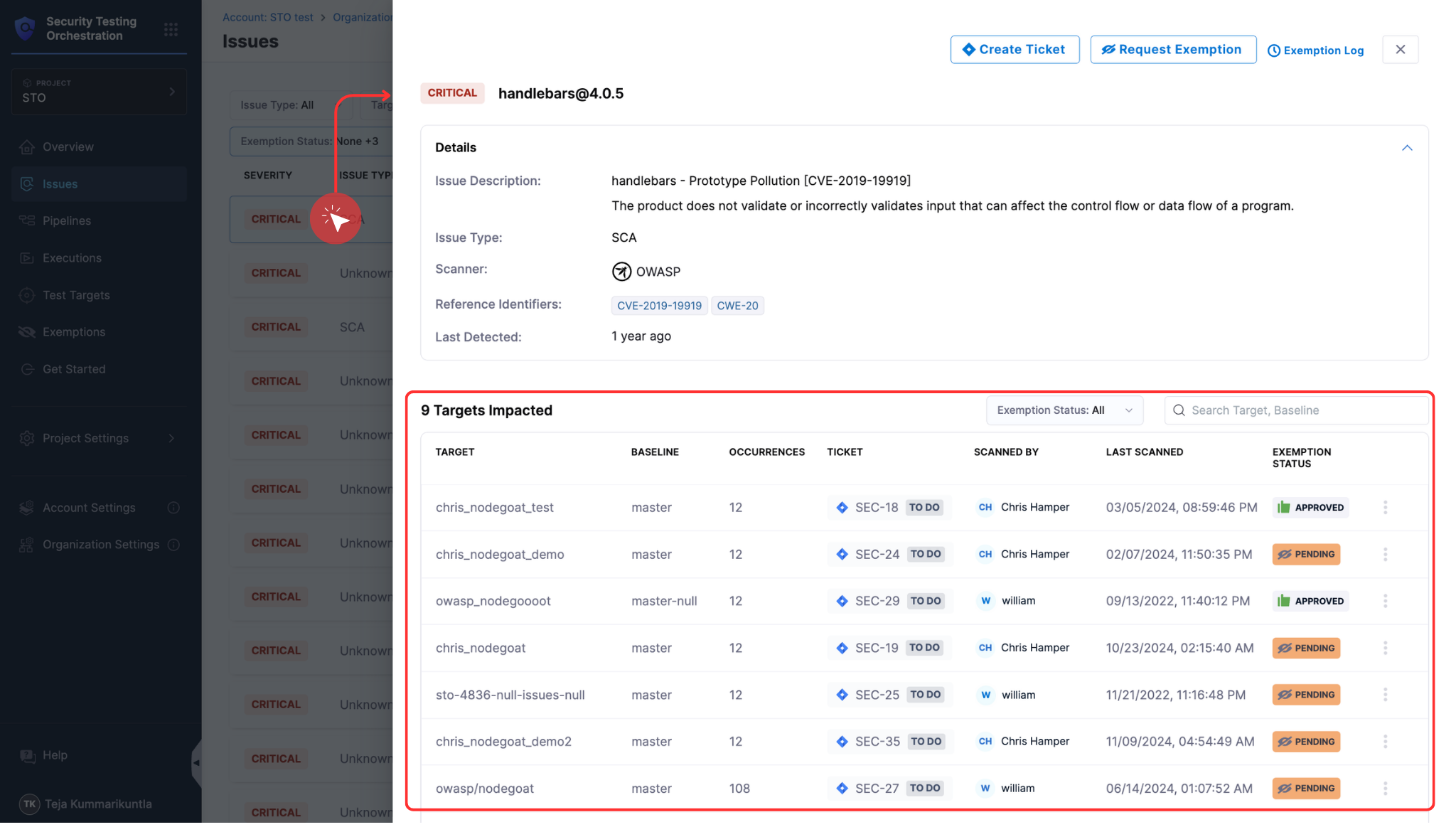
Select an issue from the list in the **Issues** section to open the **Issue Details** pane. This pane shows detailed information about the issue and the affected targets.
From the **Issue Details** pane, you can:
* Create a Jira ticket: Create project-scoped and target-scoped Jira tickets directly from the **Issues** section.
* Request an exemption: Submit and respond to exemption requests from the **Issues** section.
* View the exemption log: View the list of exemption requests carried out against the issue.
* [View impacted targets](#target-details): View targets that are impacted by the selected issue.
* [View occurrences of the issue](#occurrence-details): View occurrences of the issue for the selected target.
Issue Details Pane
#### Exemption status
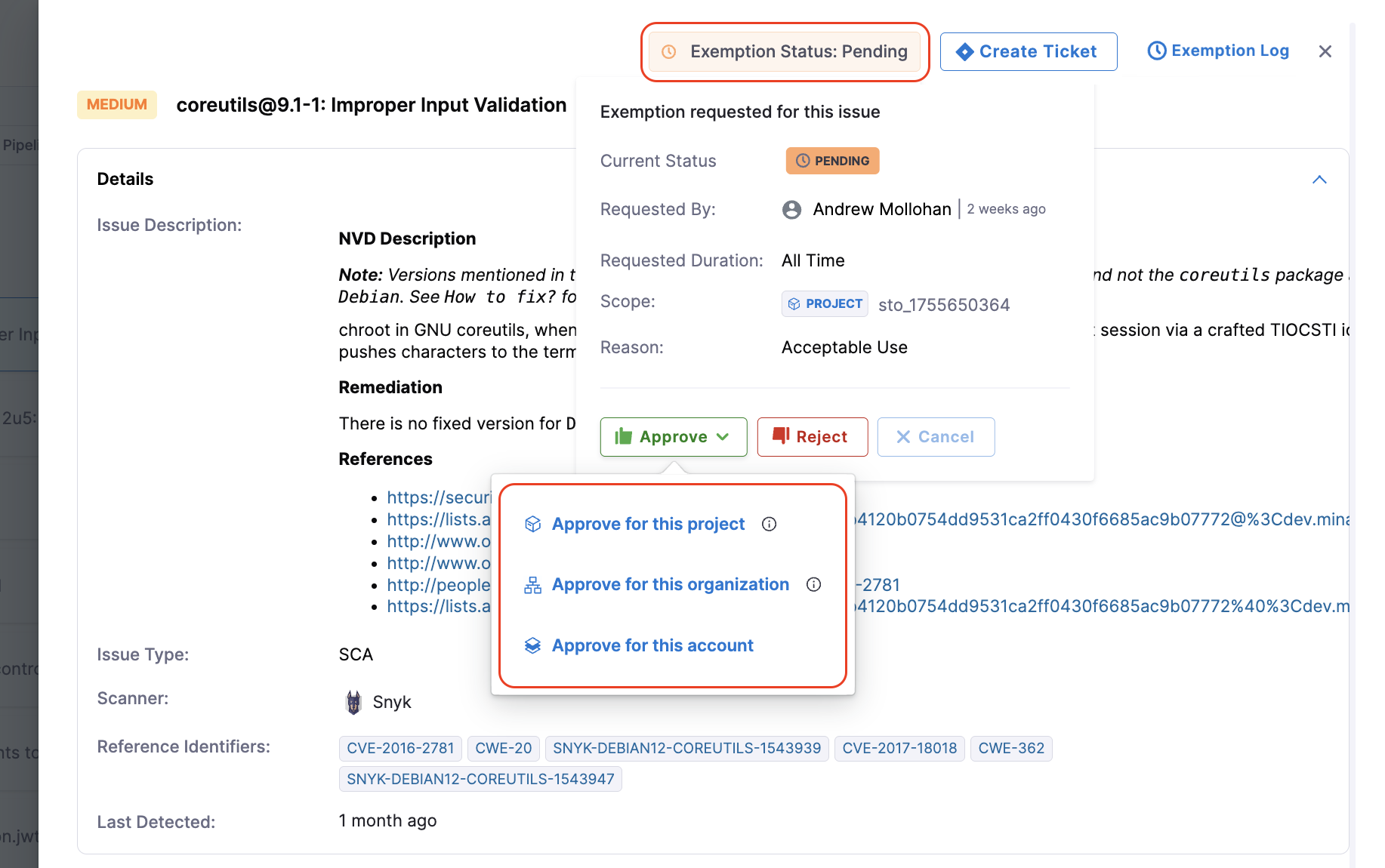
If an issue has an exemption status, the **Exemption Status** button will appear at the top of the pane. Here, you can click the button to view exemption details or take actions (**Approve**, **Reject**, **Re-open**) based on your permissions. For more information, see Issue Exemption Workflow.
Exemption Status View
{% hint style="info" %}
The **Issues** section displays the overall exemption status. The exemption status at scan time is shown only in the **Vulnerabilities** tab.
{% endhint %}
***
## Target details
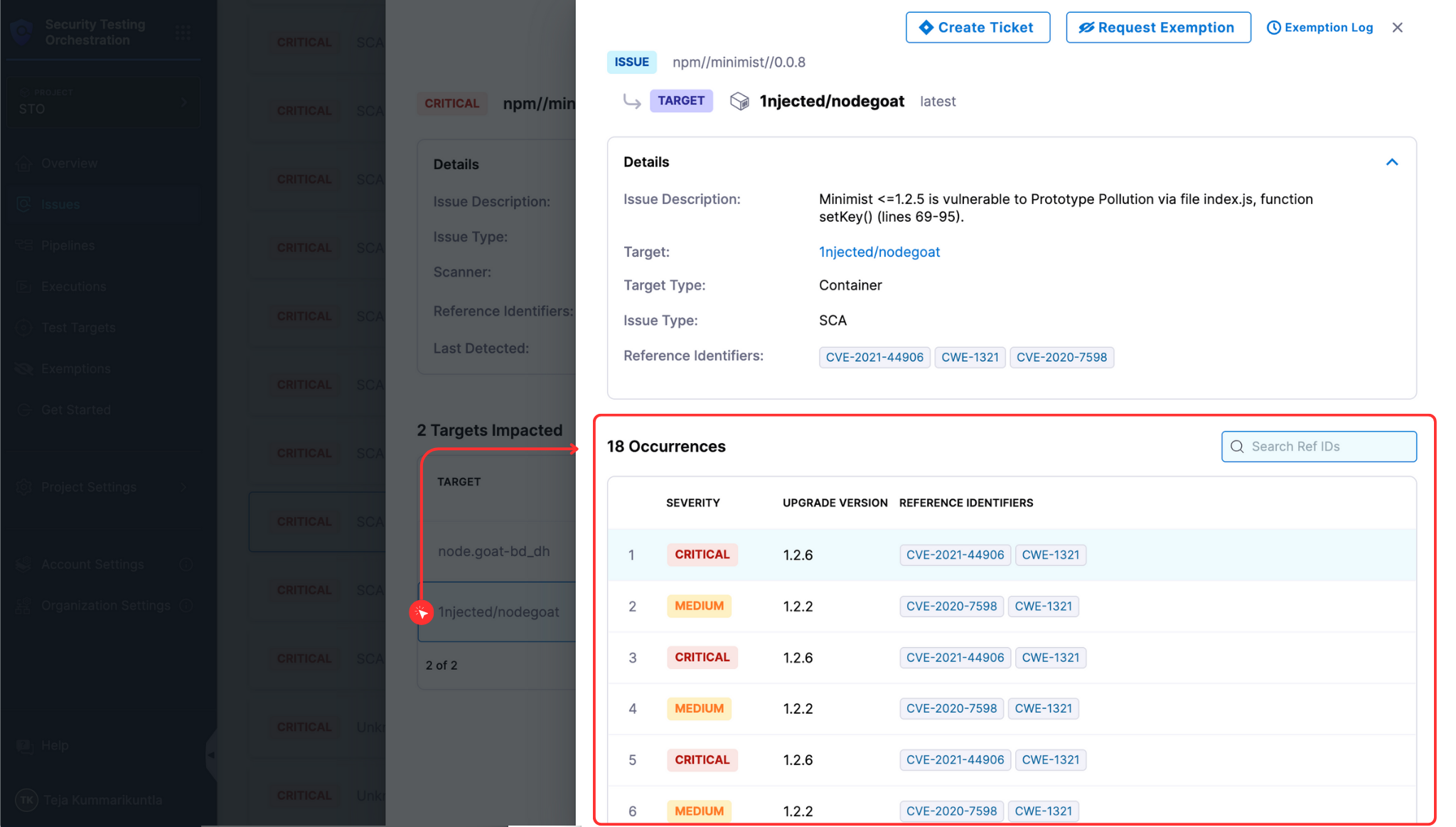
From the **Issue Details** pane, select a target to open the **Target Details** pane. This pane provides information about the specific target and details about each occurrence of the selected issue.
Target Details Pane
***
## Occurrence details
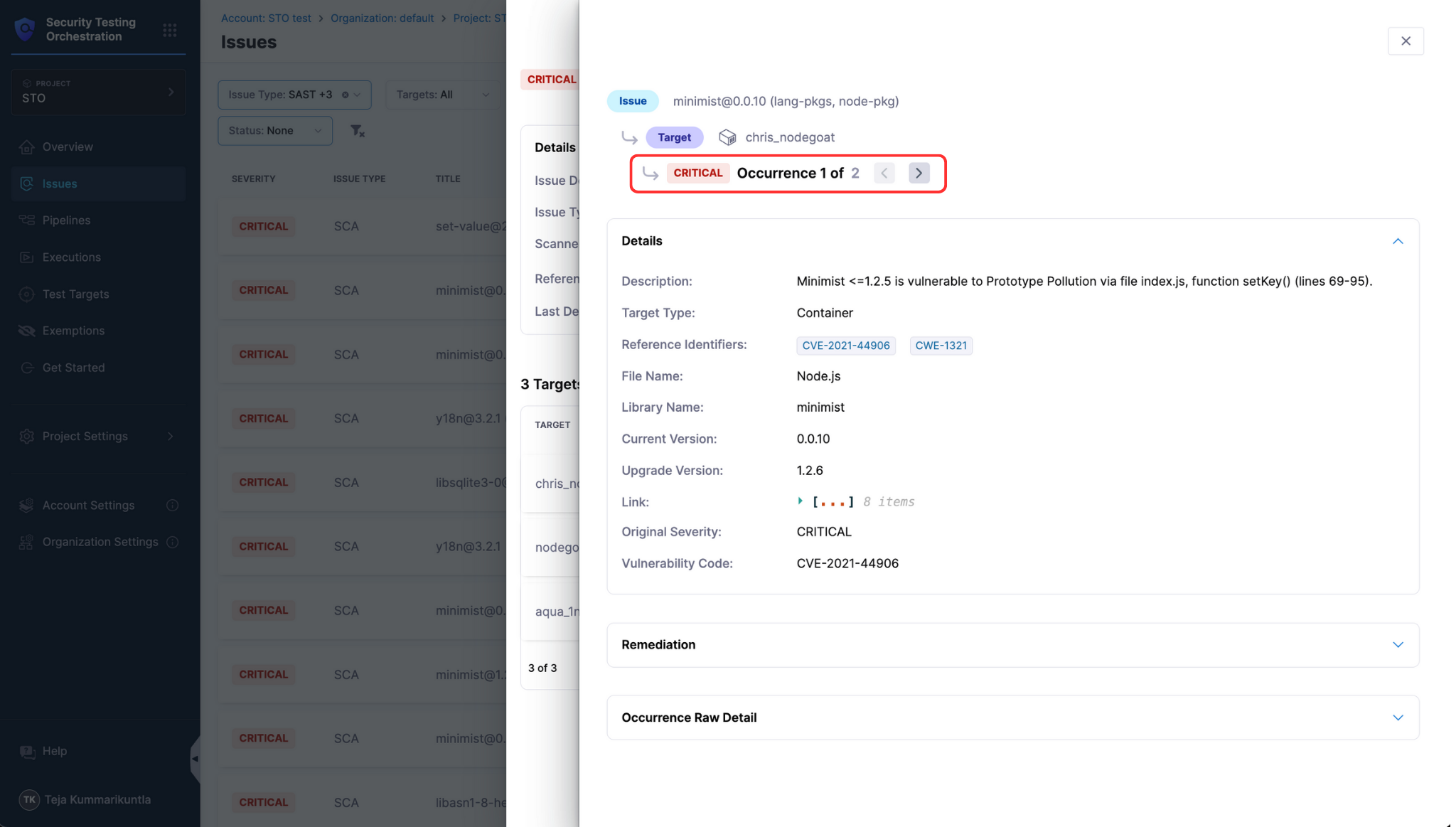
In the **Target Details** pane, you can explore individual occurrences from the latest baseline scan of the selected target and issue. Click an occurrence to open the **Occurrence Details** pane, which includes specific details, remediation recommendations, and raw occurrence data.
Occurrence Details Pane
{% hint style="info" %}
The scanner itself provides remediation suggestions for each occurrence. AI-based remediation powered by Harness AI is not available from the Issues section; it is only available from the **Vulnerabilities** tab.
{% endhint %}
Use the carousel navigation buttons (**<** and **>**) to move through occurrences related to the selected target.
***
## Filters in the issues section
The **Issues** section offers various filters to help narrow down issues:
#### Issue type
Filter issues by type. Multiple selections are allowed.
* SAST
* DAST
* SCA
* IaC
* Secret
* Misconfig
* Bug Smells
* Code Smells
* Code Coverage
* External Policy
#### Targets
Filter issues by target names. Multiple selections are allowed. The dropdown lists all targets scanned within the project.
#### Target type
Filter issues by target type. Multiple selections are allowed.
* Repository
* Container
* Configuration
* Instance
#### Pipelines
Filter issues by pipeline names. Multiple selections are allowed. The dropdown lists all pipelines used in the project.
#### Scanner
Filter issues by scanner names. Multiple selections are allowed. The dropdown lists all scanners used in the project.
#### Severity
Filter issues by severity levels. Multiple selections are allowed.
* Critical
* High
* Medium
* Low
* Info
#### Status
Filter issues by status. Multiple selections are allowed.
* Active
* Remediated
* Exempted
#### Exemption status
Filter issues by exemption status. Multiple selections are allowed.
* None
* Pending
* Partially Exempted
* Rejected
* Expired
#### Severity overridden
Filter issues based on whether the severity has been manually overridden or not.
#### Reachable
Filter issues by whether they are reachable or not.
#### Exploitable
Filter issues by whether they are exploitable or not.
#### EPSS probability
Filter issues by EPSS probability, for example, 15%.
#### EPSS percentile
Filter issues by EPSS percentile, for example, 90th.
#### AI triaged
Filter issues by their AI triage status. Multiple selections are allowed.
* Likely False Positive
* Likely True Positive
* Not Evaluated Yet
{% @harness-feedback/feedback %}