> For the complete documentation index, see [llms.txt](https://developer.harness.io/llms.txt). Markdown versions of documentation pages are available by appending `.md` to page URLs; this page is available as [Markdown](https://developer.harness.io/security-testing-orchestration/use-sto/sto-security-issues/sto-overview.md).
# STO Overview Page
The STO Overview page enables you to see all detected issues in your target baselines.
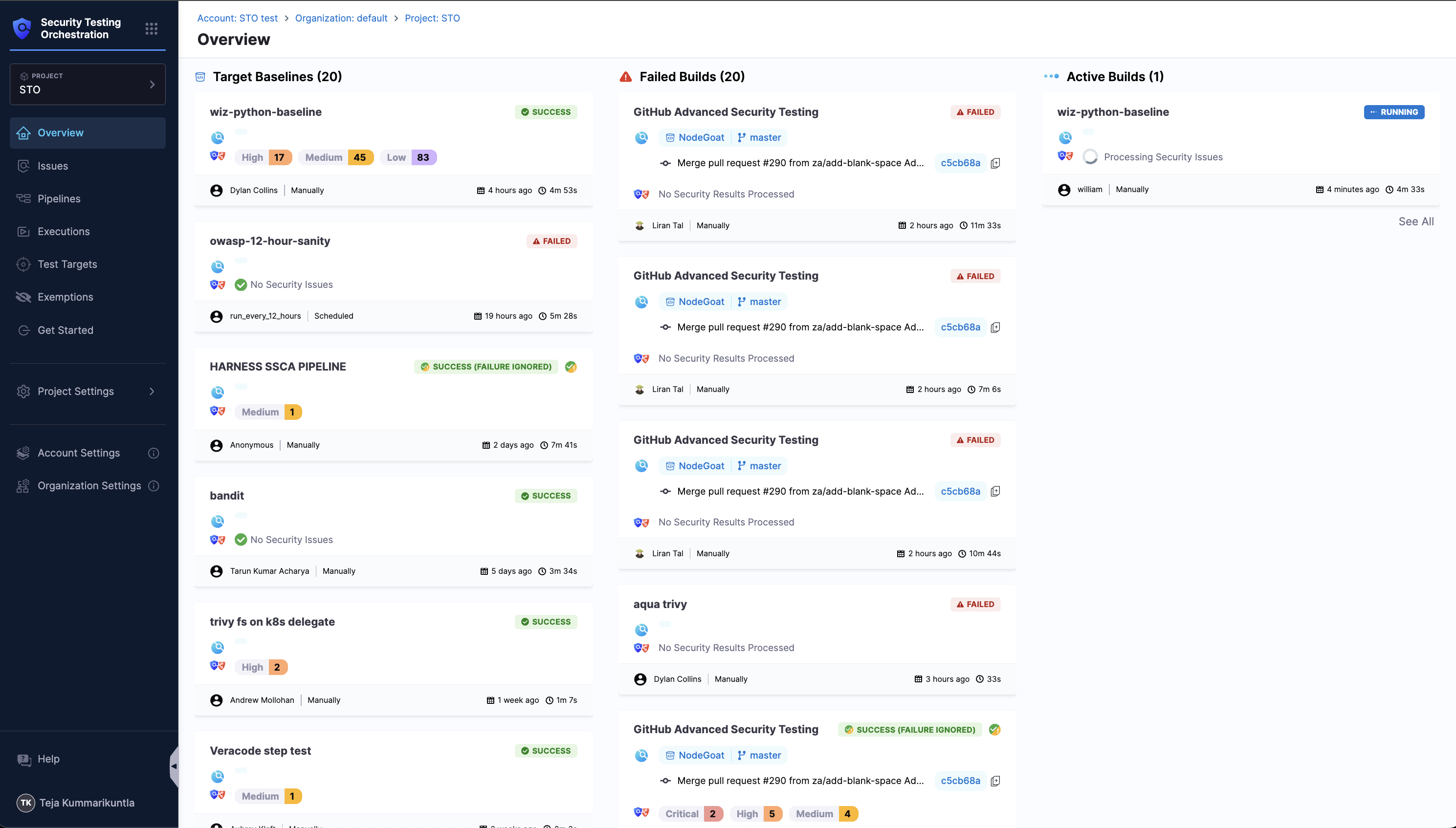
The **Overview** page in Harness Security Testing Orchestration (STO) provides a quick, at-a-glance summary of the security test activities in your project. This page is useful for both **developers** and **security engineers** to monitor target baselines, identify failing builds, and track active builds in progress. The **Overview** page consolidates:
* [**Most Recent Baseline Scan Results**](#target-baselines)
* [**Latest Failed Pipeline Executions**](#failed-builds)
* [**Currently Active Builds**](#active-builds)
STO Overview page
#### Target Baselines
**Target Baselines** shows the most recent scan results for each baseline target in the project.
Why you should define a baseline for every target
[Every target needs a baseline](/security-testing-orchestration/troubleshooting-and-resources/sto-use-cases/set-up-sto-pipelines/set-up-baselines.md) to enable the full suite of STO features. Here's why:
* For developers, it’s critical to distinguish between security issues in the baseline vs. issues in the variant you’re working on. Thus if you’re working in a downstream branch, you want to detect and resolve issues in your branch (the variant) before merging, so you don’t introduce them into the main branch (the baseline).
* When you scan a variant of a target with a baseline defined, the scan results make it easy to identify issues in the variant only (“your” issues) vs. issues also found in the baseline. The [Vulnerabilities tab](/security-testing-orchestration/use-sto/sto-security-issues/view-scan-results.md) divides these issues into two lists:
* **Only in <*****target*****>:<*****variant*****>** Issues found in the scanned variant only.
* **Common to <*****target*****>:<*****baseline*****>** Issues also found in the target baseline.
* The [STO Overview](/security-testing-orchestration/use-sto/sto-security-issues/sto-overview.md) and [Security Testing Dashboard](/security-testing-orchestration/use-sto/sto-dashboards-and-reports/security-testing-dashboard.md) show detected issues for targets with baselines defined. While individual scan results focus on variant issues, these views focus on baseline issues. These views enable security personnel and other non-developers to monitor, investigate, and address issues in production-ready targets and view vulnerability trends over time.
* In short, baselines make it easy for developers to drill down into “shift-left” issues in downstream variants and security personnel to drill down into “shift-right” issues in production targets.
* Each baseline represents a specific target (such as a code repo, container image, or service) configured for scanning.
* The card for each baseline displays:
* **Severity counts** (Critical, High, Medium, Low).
* **Execution details** (who triggered the scan, how it was triggered — scheduled or manual, and when it was last run).
* **Status** (success, failure, ignored, etc.).
This section helps you quickly understand the overall security posture of your targets. For a complete list of all issues found across target baselines, see the [**Issues page**](/security-testing-orchestration/use-sto/sto-security-issues/issues.md).
{% hint style="info" %}
To see detected issues in a non-baseline variant, such as a feature or developer branch, go to a pipeline execution where the variant was scanned and then go to [**Vulnerabilities tab**](/security-testing-orchestration/use-sto/sto-security-issues/view-scan-results.md).
{% endhint %}
#### Failed Builds
**Failed Builds** shows the most recent failed builds that included scans of target baselines.
* Each card shows the pipeline name, branch, commit, who triggered the build, and when it ran.
#### Active Builds
**Active Builds** shows the pipelines currently in progress that include scans of target baselines.
* Each active build card includes:
* **Pipeline name**.
* **Trigger details** (who triggered, when, and how).
* **Current status** (e.g., *Waiting*, *Running*).
* **Elapsed time** since the build started.
This section helps teams track ongoing activity and identify builds that are waiting or running.
{% @harness-feedback/feedback %}