> For the complete documentation index, see [llms.txt](https://developer.harness.io/llms.txt). Markdown versions of documentation pages are available by appending `.md` to page URLs; this page is available as [Markdown](https://developer.harness.io/security-testing-orchestration/use-sto/sto-set-notifications/slack-notifications.md).
# Set up Slack notifications for detected issues in STO
Set up Slack notifications based on severity levels
This topic describes how to generate Slack notifications for STO-related events such as:
* A scan detected new vulnerabilities.
* A scan detected critical- or high-severity vulnerabilities.
* A scan step failed because it crossed my [Fail on Severity](/security-testing-orchestration/new-to-sto/key-concepts/fail-pipelines-by-severity.md) threshold or violated one or more of my [OPA policies](/security-testing-orchestration/use-sto/enforce-sto-policies-for-governance/create-opa-policies.md).
To set up Slack notifications, you add a simple script to your pipeline that does the following:
1. Determines whether to send a notification.
2. Creates a string variable with your notification content.
3. Posts the notification to your Slack webhook.
### Before you begin
1. Add an incoming webhook to your Slack app.
2. Run a cURL command to verify that you can post notifications to the webhook.
For information about these steps, go to [Sending messages using incoming webhooks](https://api.slack.com/messaging/webhooks) in the Slack documentation.
3. Create a [Harness secret](/harness-ai/use-harness-platform/secrets/add-use-text-secrets.md) for your webhook URL.
### Add the script to your pipeline
1. In your scan stage, add a **Run** step after the scan step.
2. Set the shell type. This example workflow uses **Bash**.
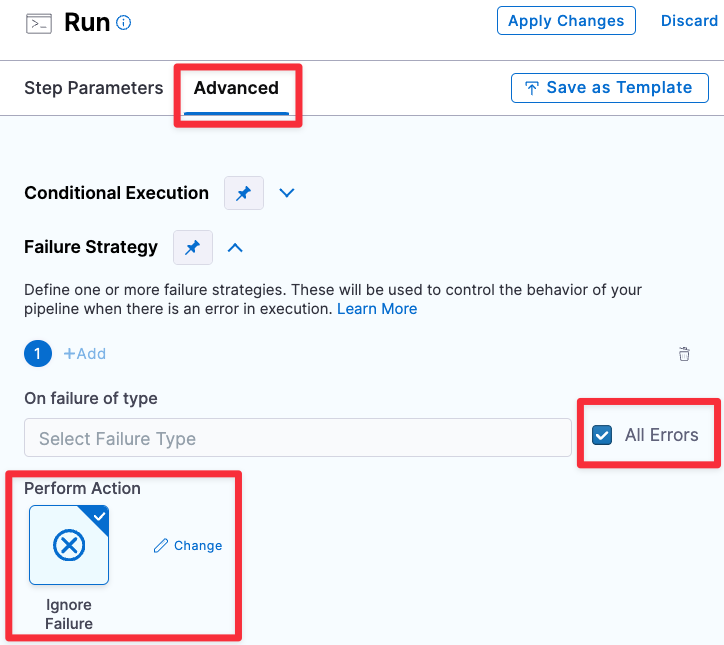
3. If you want to send a Slack when the scan step fails, add a failure strategy to ignore the failure for all errors.
Send a Slack when the scan step fails
4. Set up your script as follows.
#### Add variables for your pipeline and scan results
This is optional but can make your script easier to understand and update.
Here's an example:
```bash
pipeline_url="YOUR_HARNESS_PIPELINE_URL"
new_critical="<+pipeline.stages.YOUR_SCAN_STAGE.spec.execution.steps.YOUR_SCAN_STEP.output.outputVariables.NEW_CRITICAL>"
new_high="<+pipeline.stages.YOUR_SCAN_STAGE.spec.execution.steps.YOUR_SCAN_STEP.output.outputVariables.NEW_HIGH>"
```
{% hint style="info" %}
To get the full expression for an output variable:
* Go to the **Pipeline Execution** page for a previous run of your STO pipeline.
* Navigate to Pipeline > *scan\_stage\_id* > Output.
* Hover next to the variable name to access **Click to Copy**.
Add shared path for scan results
{% endhint %}
#### Send the notification?
If you want to send notifications based on your scan results, check the output variables from the previous scan step. If all the variables you're interested in are zero, there's no need to send a notification.
```bash
issues_total=$(( $new_critical + $new_high))
if [ "$issues_total" == "0" ]; then
exit 0
fi
```
#### Generate the notification content
Create a string variable for your notification content. Include the pipeline URL, the scan output, and any other relevant information. For example:
```bash
slack_msg="======================================================= \n"
slack_msg="$slack_msg WARNING: New vulnerabilities detected with severity CRITICAL or HIGH. \n"
slack_msg="$slack_msg $pipeline_url \n"
slack_msg="$slack_msg - NEW_CRITICAL issues: \t $new_critical \n"
slack_msg="$slack_msg - NEW_HIGH issues: \t = $new_high \n"
slack_msg="$slack_msg ======================================================= \n"
```
#### Post the notification
Add a cURL command to post the notification to your Slack webhook. In this example, `$slack_hook` is the Harness secret for the Slack webhook URL.
```bash
curl -X POST --data-urlencode "payload={
\"channel\": \"YOUR_SLACK_CHANNEL\",
\"username\": \"YOUR_SLACK_USERNAME\",
\"type\": \"mrkdwn\",
\"text\": \"$slack_msg \",
\"icon_emoji\": \":harnesshd:\"
}" <+secrets.getValue("YOUR_SLACK_WEBHOOK_URL_SECRET")>
```
### Script and pipeline examples for STO Slack notifications
#### Notify on scan results
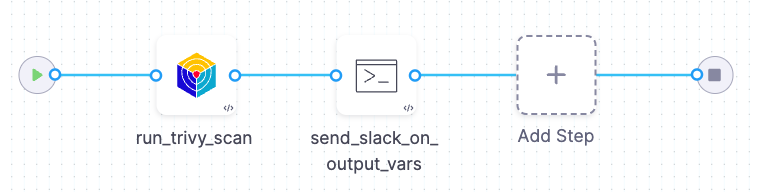
This pipeline does the following:
1. Runs a Trivy scan on a container image.
2. Sends a Slack notification if the scan results include any CRITICAL, HIGH, NEW\_CRITICAL, or NEW\_HIGH vulnerabilities.
Add shared path for scan results
Full script - Try it yourself
To add this script to an existing pipeline:
1. Do the steps in [Before you begin](#before-you-begin).
2. [Add the script](#add-the-script-to-your-pipeline) to your pipeline.
3. Update the following placeholders:
* `FULL_EXPRESSION_OUTPUT_VARIABLE_NEW_CRITICAL`
* `FULL_EXPRESSION_OUTPUT_VARIABLE_NEW_HIGH`
You can [copy and paste](#add-variables-for-your-pipeline-and-scan-results) these expressions from a previous pipeline execution.
* `YOUR_HARNESS_PIPELINE_URL`
* `YOUR_SLACK_CHANNEL`
* `YOUR_SLACK_USERNAME`
* `YOUR_SLACK_WEBHOOK_URL_SECRET`
4. Save and run the pipeline.
```bash
# 1. Create your variables.
# -------------------------------------------------------
new_critical="FULL_EXPRESSION_OUTPUT_VARIABLE_NEW_CRITICAL"
new_high="FULL_EXPRESSION_OUTPUT_VARIABLE_NEW_HIGH"
pipeline_url="YOUR_HARNESS_PIPELINE_URL"
# 2. If all the variables == 0, exit.
# -------------------------------------------------------
# Get the total # of issues. If the total is 0, exit without sending a notification
issues_total=$(($new_critical + $new_high))
echo "issues_total = $issues_total"
if [ "$issues_total" == "0" ]; then
exit 0
fi
# 3. Create your notification content.
# ---------------------------------------------------------
slack_msg="======================================================= \n"
slack_msg="$slack_msg WARNING: New issues detected with severity CRITICAL or HIGH. \n"
slack_msg="$slack_msg $pipeline_url \n"
slack_msg="$slack_msg - NEW_CRITICAL issues: \t $new_critical \n"
slack_msg="$slack_msg - NEW_HIGH issues: \t = $new_high \n"
slack_msg="$slack_msg ======================================================= \n"
echo "SLACK MESSAGE: \N $slack_msg"
# 4. POST the notification.
# ---------------------------------------------------------
curl -X POST --data-urlencode "payload={
\"channel\": \"YOUR_SLACK_CHANNEL\",
\"username\": \"YOUR_SLACK_CHANNEL\",
\"type\": \"mrkdwn\",
\"text\": \" $slack_msg \",
\"icon_emoji\": \":harnesshd:\"
}" <+secrets.getValue("YOUR_SLACK_WEBHOOK_URL_SECRET")>
```
YAML pipeline - Try it yourself
To run this pipeline yourself:
1. Do the steps in [Before you begin](#before-you-begin).
2. Create a new Harness pipeline.
3. Select the YAML view and copy/paste the YAML pipeline below.
4. Update the following placeholders:
* `YOUR_HARNESS_PIPELINE_URL`
* `YOUR_SLACK_CHANNEL`
* `YOUR_SLACK_USERNAME`
* `YOUR_SLACK_WEBHOOK_URL_SECRET`
5. Save and run the pipeline.
```yaml
pipeline:
identifier: slack_on_output_vars
name: slack_on_output_vars
projectIdentifier: default
orgIdentifier: default
tags: {}
stages:
- stage:
name: container_scan_stage
identifier: container_scan_stage
description: ""
type: CI
spec:
cloneCodebase: false
platform:
os: Linux
arch: Amd64
runtime:
type: Cloud
spec: {}
execution:
steps:
- step:
type: AquaTrivy
name: run_trivy_scan
identifier: run_trivy_scan
spec:
mode: orchestration
config: default
target:
type: container
detection: auto
advanced:
log:
level: info
fail_on_severity: none
privileged: true
image:
type: docker_v2
name: <+input>
tag: <+input>
- step:
type: Run
name: send_slack_on_output_vars
identifier: send_slack_on_output_vars
spec:
shell: Sh
command: |
# 1. Create your variables.
# -------------------------------------------------------
critical="<+pipeline.stages.container_scan_stage.spec.execution.steps.run_trivy_scan.output.outputVariables.CRITICAL>"
high="<+pipeline.stages.container_scan_stage.spec.execution.steps.run_trivy_scan.output.outputVariables.HIGH>"
new_critical="<+pipeline.stages.container_scan_stage.spec.execution.steps.run_trivy_scan.output.outputVariables.NEW_CRITICAL>"
new_high="<+pipeline.stages.container_scan_stage.spec.execution.steps.run_trivy_scan.output.outputVariables.NEW_HIGH>"
pipeline_url="YOUR_HARNESS_PIPELINE_URL"
# 2. If all the variables == 0, exit.
# -------------------------------------------------------
# Get the total # of issues. If the total is 0, exit without sending a notification
issues_total=$(($critical + $new_critical + $high + $new_high))
echo "issues_total = $issues_total"
if [ "$issues_total" == "0" ]; then
exit 0
fi
# 3. Create your notification content.
# ---------------------------------------------------------
slack_msg="======================================================= \n"
slack_msg="$slack_msg WARNING: Issues detected with severity CRITICAL or HIGH. \n"
slack_msg="$slack_msg $pipeline_url \n"
slack_msg="$slack_msg - CRITICAL issues: \t $critical \n"
slack_msg="$slack_msg - NEW_CRITICAL issues: \t $new_critical \n"
slack_msg="$slack_msg - HIGH issues: \t = $high \n"
slack_msg="$slack_msg - NEW_HIGH issues: \t = $new_high \n"
slack_msg="$slack_msg ======================================================= \n"
echo "SLACK MESSAGE: \N $slack_msg"
# 4. POST the notification.
# ---------------------------------------------------------
curl -X POST --data-urlencode "payload={
\"channel\": \"YOUR_SLACK_CHANNEL\",
\"username\": \"YOUR_SLACK_USERNAME\",
\"type\": \"mrkdwn\",
\"text\": \" $slack_msg \",
\"icon_emoji\": \":harnesshd:\"
}" <+secrets.getValue("YOUR_SLACK_WEBHOOK_URL_SECRET")>
caching:
enabled: false
paths: []
```
#### Notify when the scan step fails
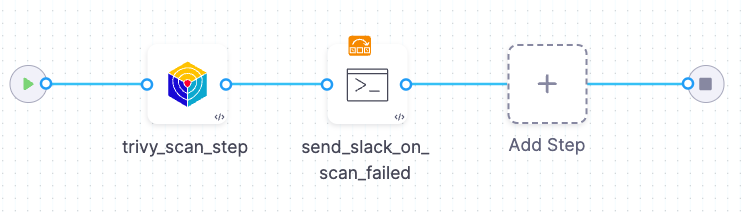
This pipeline does the following:
1. Runs a Trivy scan on a container image.
2. Sends a Slack notification if the scan step fails — for example, if it exceeds the [Fail on Severity](/security-testing-orchestration/new-to-sto/key-concepts/fail-pipelines-by-severity.md) threshold or violates an [OPA policy](/security-testing-orchestration/use-sto/enforce-sto-policies-for-governance/create-opa-policies.md).
Add shared path for scan results
Full script - Try it yourself
To add this script to an existing pipeline:
1. Do the steps in [Before you begin](#before-you-begin).
2. [Add the script](#add-the-script-to-your-pipeline) to your pipeline.
3. Update the following placeholders:
* `FULL_EXPRESSION_OUTPUT_VARIABLE_CRITICAL`
* `FULL_EXPRESSION_OUTPUT_VARIABLE_HIGH`
* `FULL_EXPRESSION_OUTPUT_VARIABLE_NEW_CRITICAL`
* `FULL_EXPRESSION_OUTPUT_VARIABLE_NEW_HIGH`
You can [copy and paste](#add-variables-for-your-pipeline-and-scan-results) these expressions from a previous pipeline execution.
* `YOUR_HARNESS_PIPELINE_URL`
* `YOUR_SLACK_CHANNEL`
* `YOUR_SLACK_USERNAME`
* `YOUR_SLACK_WEBHOOK_URL_SECRET`
4. Save and run the pipeline.
```bash
# 1. Create your variables.
# -------------------------------------------------------
critical="FULL_EXPRESSION_OUTPUT_VARIABLE_NEW_CRITICAL"
high="FULL_EXPRESSION_OUTPUT_VARIABLE_HIGH"
new_critical="FULL_EXPRESSION_OUTPUT_VARIABLE_NEW_CRITICAL"
new_high="FULL_EXPRESSION_OUTPUT_VARIABLE_NEW_HIGH"
pipeline_url="YOUR_HARNESS_PIPELINE_URL"
# 2. Generate the output message.
# -------------------------------------------------------
slack_msg="======================================================= \n"
slack_msg="$slack_msg ERROR: Scan step failed. \n"
slack_msg="$slack_msg $pipeline_url \n"
slack_msg="$slack_msg - CRITICAL issues: \t $critical \n"
slack_msg="$slack_msg - NEW_CRITICAL issues: \t $new_critical \n"
slack_msg="$slack_msg - HIGH issues: \t = $high \n"
slack_msg="$slack_msg - NEW_HIGH issues: \t = $new_high \n"
slack_msg="$slack_msg ======================================================= \n"
# 3. POST the notification.
# ---------------------------------------------------------
curl -X POST --data-urlencode "payload={
\"channel\": \"YOUR_SLACK_CHANNEL\",
\"username\": \"YOUR_SLACK_CHANNEL\",
\"type\": \"mrkdwn\",
\"text\": \" $slack_msg \",
\"icon_emoji\": \":harnesshd:\"
}" <+secrets.getValue("YOUR_SLACK_WEBHOOK_URL_SECRET")>
```
YAML pipeline - Try it yourself
To run this pipeline yourself:
1. Do the steps in [Before you begin](#before-you-begin).
2. Create a new Harness pipeline.
3. Select the YAML view and copy/paste the YAML pipeline below.
4. Update the following placeholders:
* `YOUR_HARNESS_PIPELINE_URL`
* `YOUR_SLACK_CHANNEL`
* `YOUR_SLACK_USERNAME`
* `YOUR_SLACK_WEBHOOK_URL_SECRET`
5. Save and run the pipeline.
```yaml
pipeline:
identifier: slack_on_scan_failed_test_1
name: slack_on_scan_failed_test_1
projectIdentifier: default
orgIdentifier: default
tags: {}
stages:
- stage:
name: container_scan_stage
identifier: container_scan_stage
description: ""
type: CI
spec:
cloneCodebase: false
platform:
os: Linux
arch: Amd64
runtime:
type: Cloud
spec: {}
execution:
steps:
- step:
type: AquaTrivy
name: trivy_scan_step
identifier: trivy_scan_step
spec:
mode: orchestration
config: default
target:
type: container
detection: auto
advanced:
log:
level: info
fail_on_severity: medium
privileged: true
image:
type: docker_v2
name: <+input>
tag: <+input>
- step:
type: Run
name: send_slack_on_scan_failed
identifier: send_slack_on_scan_failed
spec:
shell: Bash
command: |
# 1. Create your variables.
# -------------------------------------------------------
critical="<+pipeline.stages.container_scan_stage.spec.execution.steps.trivy_scan_step.output.outputVariables.CRITICAL>"
high="<+pipeline.stages.container_scan_stage.spec.execution.steps.trivy_scan_step.output.outputVariables.HIGH>"
new_critical="<+pipeline.stages.container_scan_stage.spec.execution.steps.trivy_scan_step.output.outputVariables.NEW_CRITICAL>"
new_high="<+pipeline.stages.container_scan_stage.spec.execution.steps.trivy_scan_step.output.outputVariables.NEW_HIGH>"
pipeline_url="YOUR_HARNESS_PIPELINE_URL"
# 2. Generate the output message.
# -------------------------------------------------------
slack_msg="======================================================= \n"
slack_msg="$slack_msg ERROR: Scan step failed. \n"
slack_msg="$slack_msg $pipeline_url \n"
slack_msg="$slack_msg - CRITICAL issues: \t $critical \n"
slack_msg="$slack_msg - NEW_CRITICAL issues: \t $new_critical \n"
slack_msg="$slack_msg - HIGH issues: \t = $high \n"
slack_msg="$slack_msg - NEW_HIGH issues: \t = $new_high \n"
slack_msg="$slack_msg ======================================================= \n"
# 3. POST the Slack notification.
# -------------------------------------------------------
curl -X POST --data-urlencode "payload={
\"channel\": \"YOUR_SLACK_CHANNEL\",
\"username\": \"YOUR_SLACK_USERNAME\",
\"type\": \"mrkdwn\",
\"text\": \" $slack_msg \",
\"icon_emoji\": \":harnesshd:\"
}" <+secrets.getValue("YOUR_SLACK_WEBHOOK_URL_SECRET")>
failureStrategies:
- onFailure:
errors:
- AllErrors
action:
type: Ignore
when:
stageStatus: Failure
caching:
enabled: false
paths: []
- stage:
name: echo_on_previous_stage_not_failing
identifier: echo_on_previous_stage_not_failing
description: ""
type: Custom
spec:
execution:
steps:
- step:
type: ShellScript
name: echo_msg
identifier: echo_msg
spec:
shell: Bash
executionTarget: {}
source:
type: Inline
spec:
script: echo "Hello, you will only see this if the previous stage didn't fail."
environmentVariables: []
outputVariables: []
timeout: 10m
tags: {}
```
{% @harness-feedback/feedback %}