> For the complete documentation index, see [llms.txt](https://developer.harness.io/llms.txt). Markdown versions of documentation pages are available by appending `.md` to page URLs; this page is available as [Markdown](https://developer.harness.io/service-reliability-management/use-srm/srm-dashboards/srm-manage-dashboard.md).
# Manage dashboards
Learn how to configure and customize dashboards.
You can perform various actions on both dashboards and tiles to enhance your user experience and data management.
## Harness dashboard
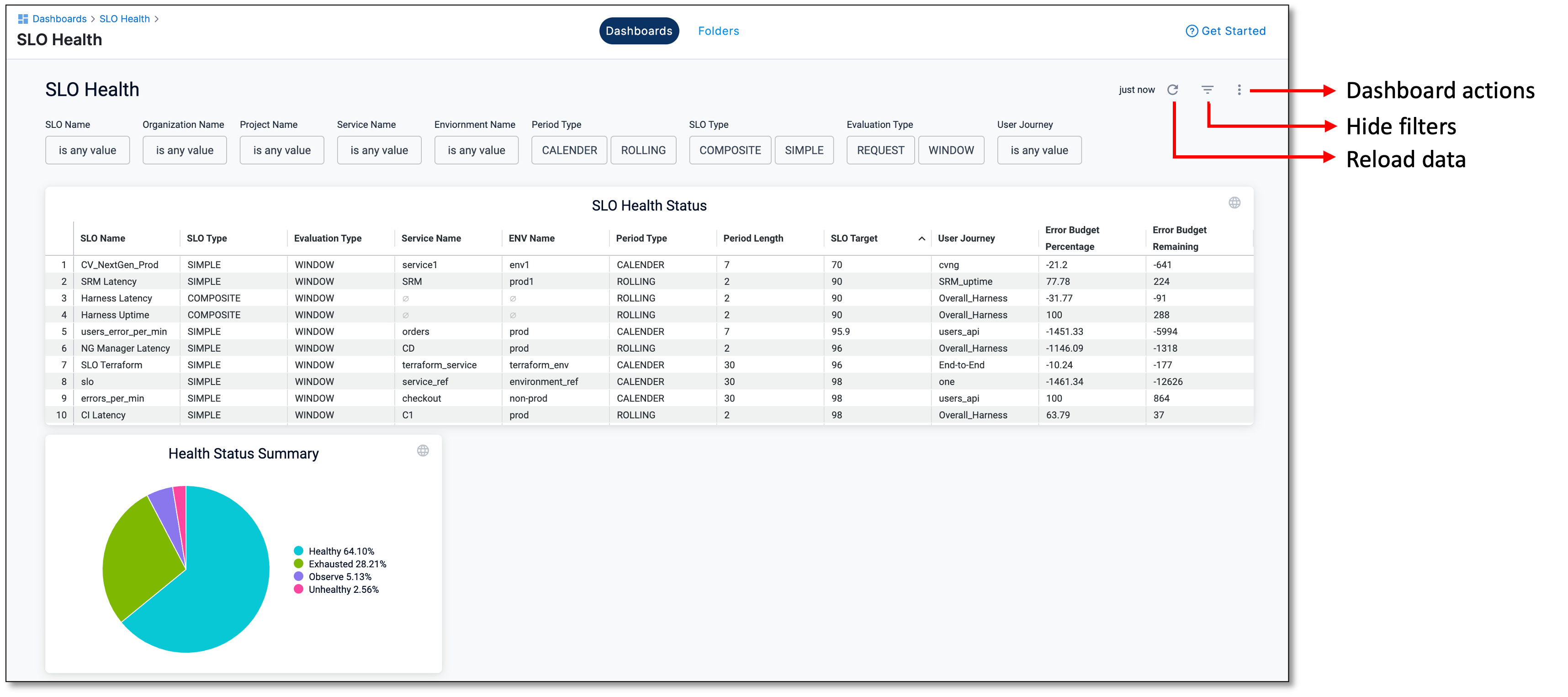
On a Harness dashboard, you can perform the following actions:
* **Reload the data**: Refresh the dashboard data to ensure you're viewing the most up-to-date information.
* **Hide filters**: Customize your dashboard view by hiding filters as needed.
* **Dashboard actions**: When you select this option, you can see the following choices:
* **Clear the cache and refresh the data**: Clear cached data and retrieve the latest information for your dashboard.
* **Download the data**: Save dashboard data in either PDF or CSV format.
* **Reset dashboard filters**: Restore the default filter settings for your dashboard.
* **Change the dashboard time zone**: Adjust the time zone settings for your dashboard to align with your preferences.
For more detailed information, go to [Use dashboard actions](/harness-platform/use-harness-platform/harness-dashboards/dashboard-legacy/use-dashboard-actions.md).
## Dashboard tile
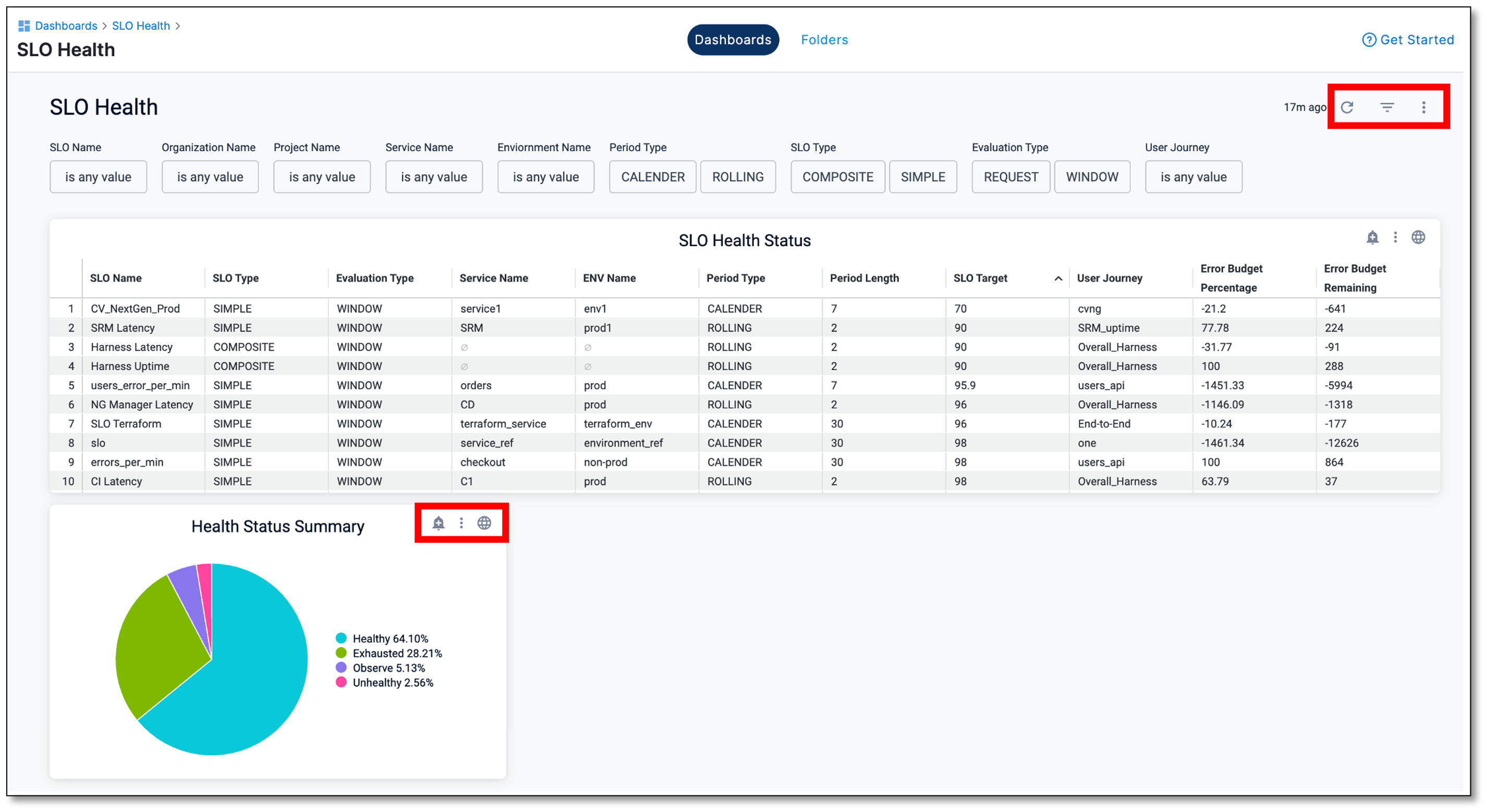
Hover over a Harness dashboard tile to access the following actions:
* **Set up alerts**: Configure alerts to receive notifications based on specific conditions within the tile.
* **Change the dashboard time zone**: Modify the time zone settings for the individual tile to suit your requirements.
* **Tile actions**: When you select this option, you can see the following choices:
* **Download the data**: Download the tile's data in PDF or CSV format.
* **Auto-resize or reset columns**: Adjust the tile's layout by enabling auto-resize or resetting column configurations.
* **View the report in zoom**: Zoom in to get a better view of the tile's report.
* **Clear the cache and refresh the data**: Clear cached data and refresh it to display the most current information.
{% @harness-feedback/feedback %}