> For the complete documentation index, see [llms.txt](https://developer.harness.io/llms.txt). Markdown versions of documentation pages are available by appending `.md` to page URLs; this page is available as [Markdown](https://developer.harness.io/software-supply-chain-assurance/troubleshooting-and-resources/how-to-guides/label-components-from-image.md).
# How to detect base images in SBOM
Track the deployment of your open-source components
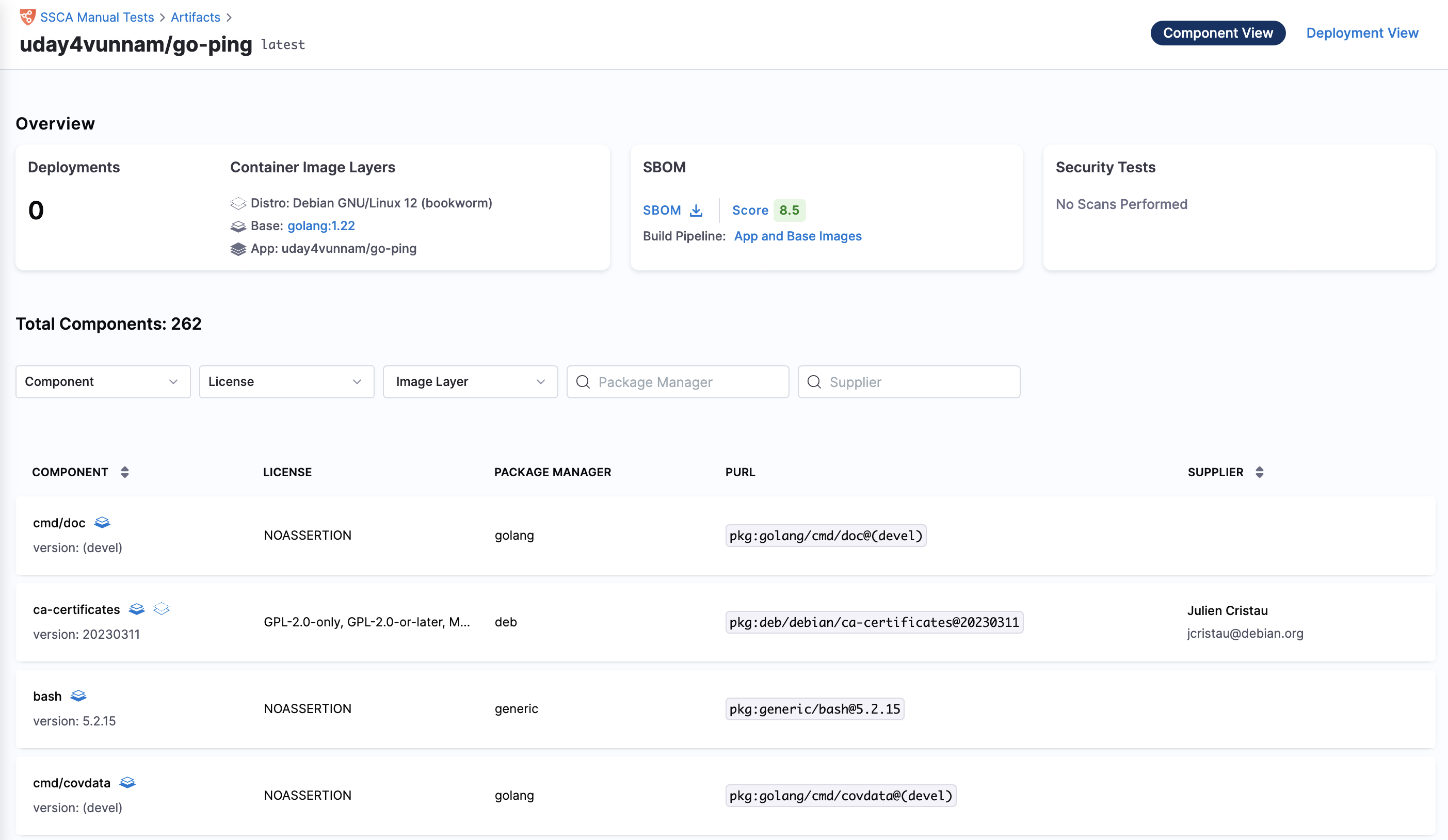
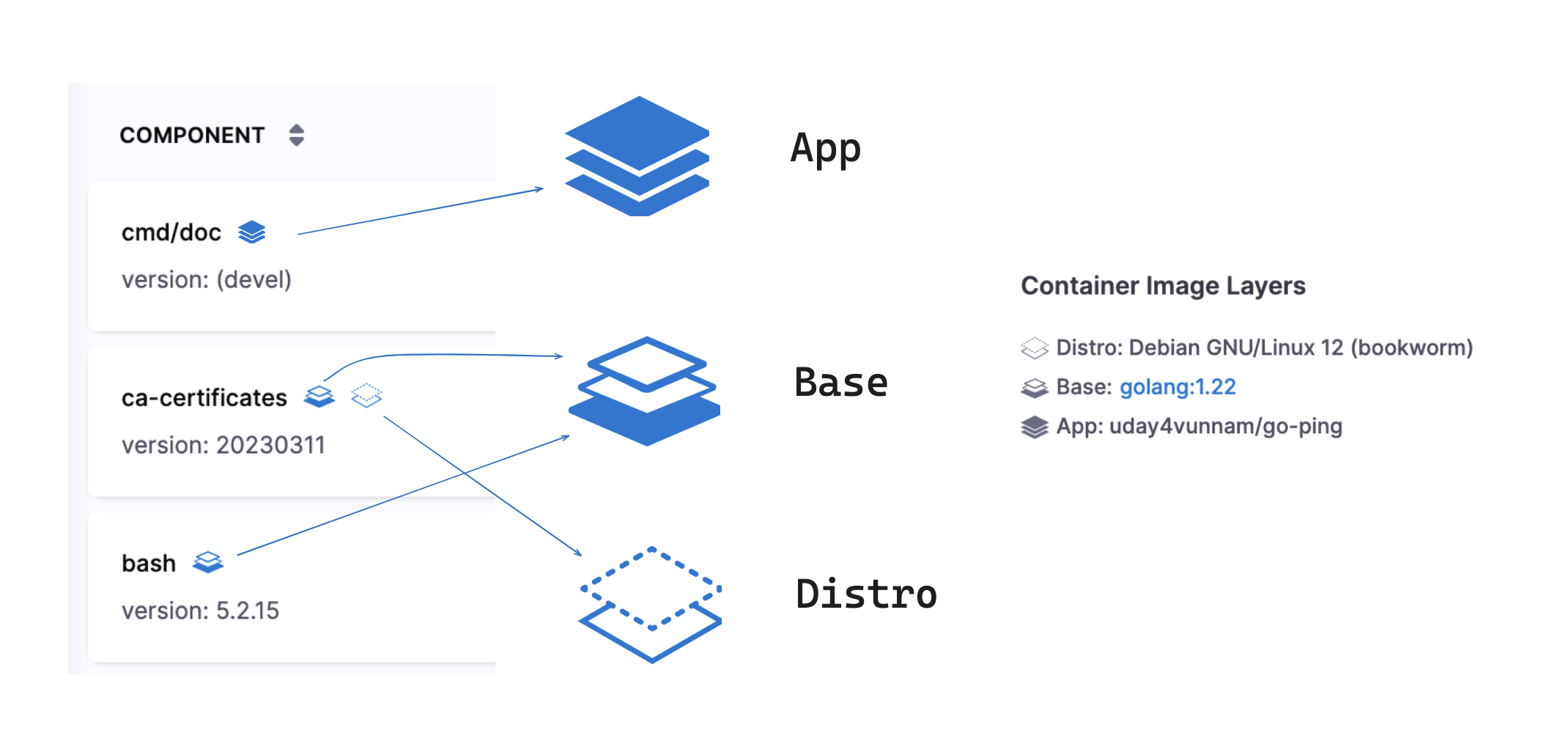
The SBOM orchestration process extends beyond generating the SBOM. It also analyzes the artifact's metadata to determine the origin of each component within the image. These components are then labeled in the artifact view with tags such as **app**, **base**, and **distro**. This clear labeling pinpoints the origin of each component, offering deeper visibility into your software's composition, ultimately empowering you to effectively mitigate security risks.
* **App**: components that are part of the application layer of your container image
* **Base**: Image from which your application image originates.
* **Distro**: The underlying operating system distribution used as the foundation for the container image. This could be a specific Linux distribution (e.g., Ubuntu, Debian, Alpine).
For easy identification, each component in the Artifact view is accompanied by a unique icon signifying its origin (app, base, distro)
{% hint style="info" %}
The SBOM orchestration process now automatically recognizes and assigns "app" and "distro" tags to components. However, it labels components with the "base" tag solely in cases where the application’s image explicitly provides the label names for your base image and orchestrates the base image with SCS. Go to [Base image identification](#base-image-identification) for the details.
{% endhint %}
### Base image identification
To enable the SBOM Orchestration step to accurately identify the Base image of your container, it is crucial to have the following things:
1. The Dockerfile for your application should include the [labels](https://github.com/opencontainers/image-spec/blob/main/annotations.md) specifying the digest and name of your base image. For instance:
```go
LABEL org.opencontainers.image.base.digest="sha256:ccb33c3ac5b02588fc1d9e4fc09b952e433d0c54d8618d0ee1afadf1f3cf2455"
LABEL org.opencontainers.image.base.name="debian:bookworm-slim"
```
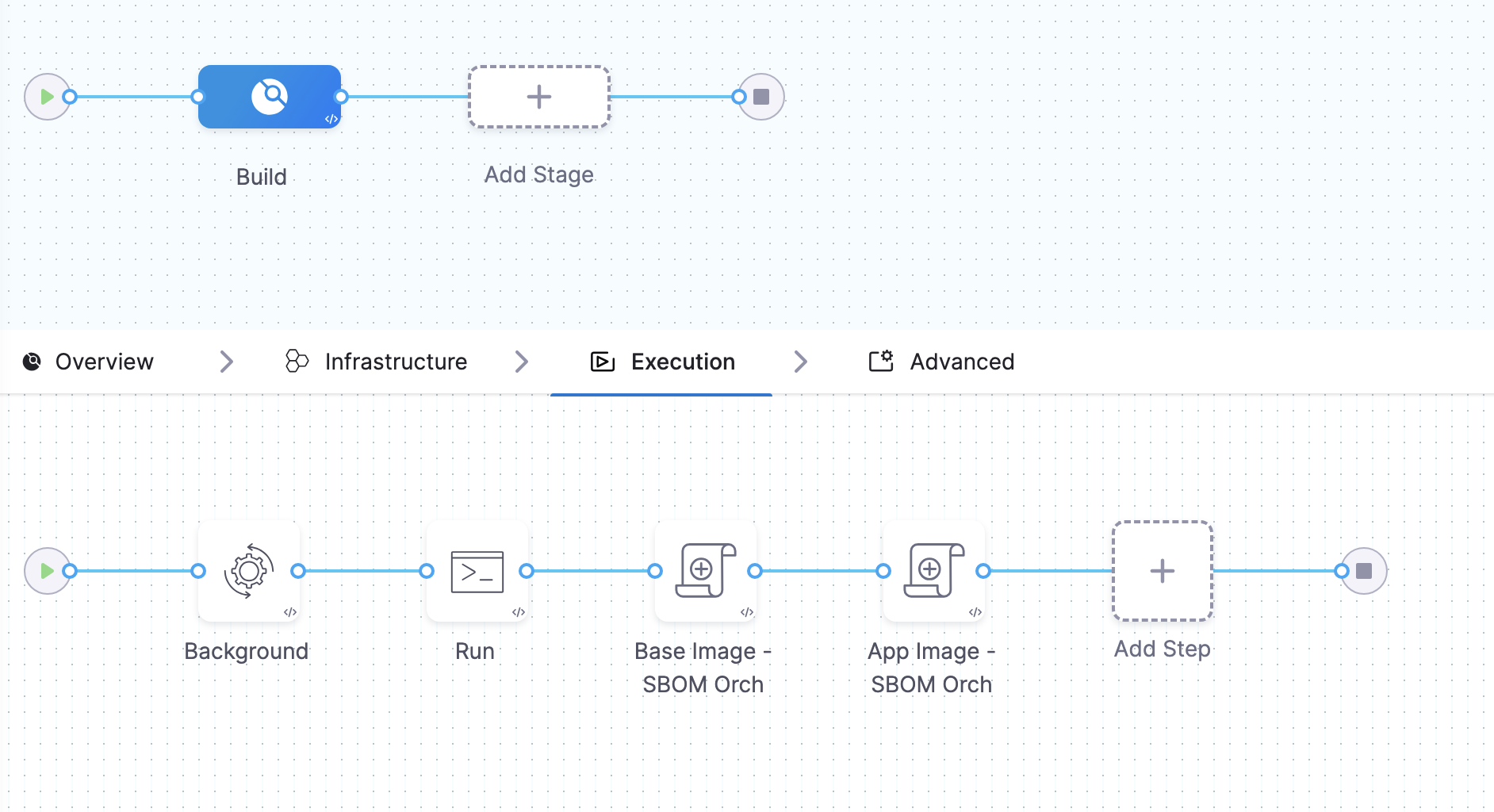
2. Your pipeline should orchestrate the base image with [SBOM orchestration](/software-supply-chain-assurance/use-scs/open-source-management/generate-sbom-for-repositories.md) step.
Incorporating these two steps allows the SBOM Orchestration step to delve deeper and effectively tag the component with the base image labels.
If you are not familiar with the details of your container's base image, or you prefer not to alter the Dockerfile, the subsequent section will guide you on how to leverage Harness CI to accomplish this for you.
### Use Harness CI to build and push the image with labels in the Dockerfile
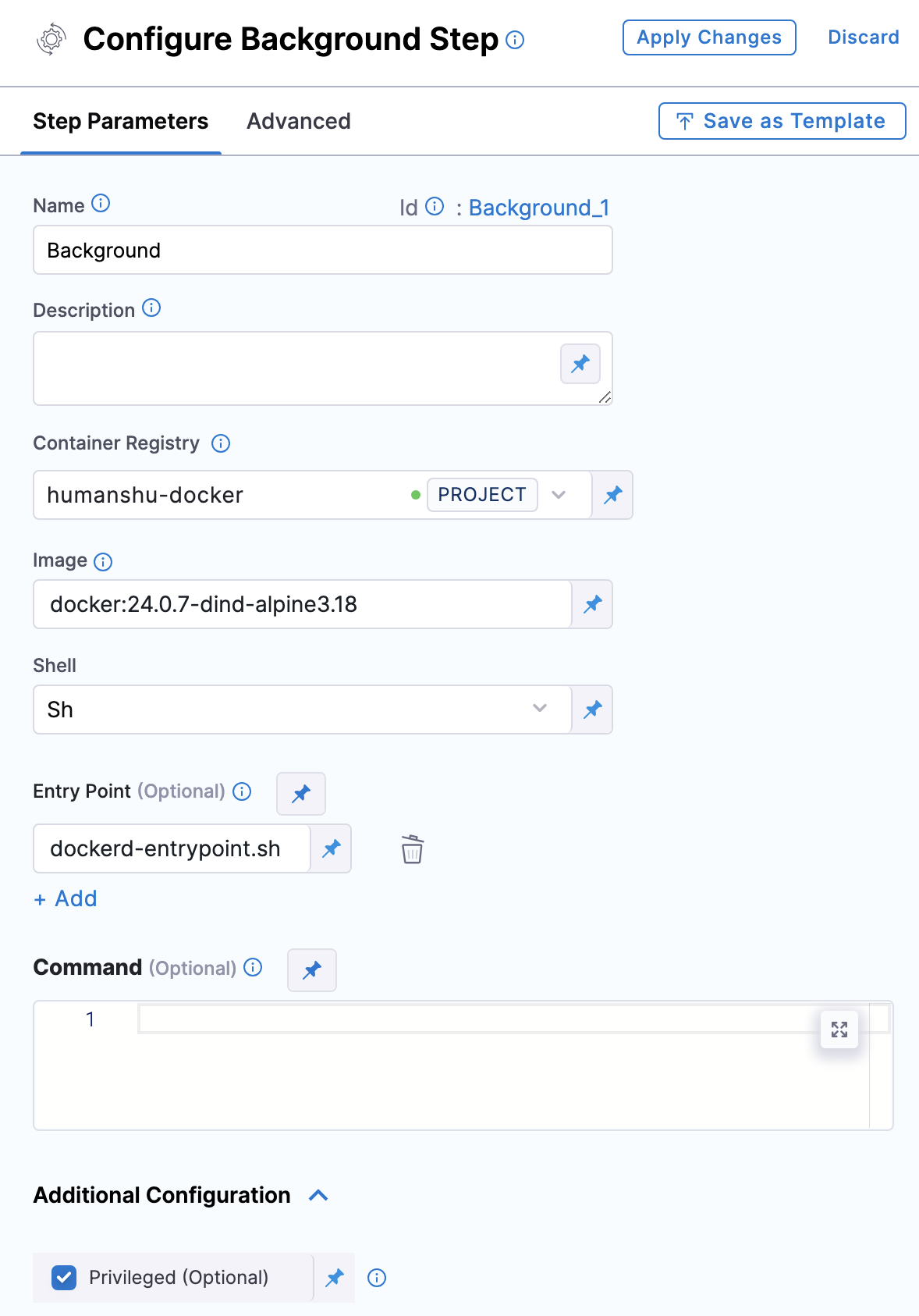
To incorporate base image labels into your Dockerfile and push the updated image, you will employ a shell script within a Docker-in-Docker (DIND) workflow. Ensure you initiate a background step utilizing the image `docker:24.0.7-dind-alpine3.18`.
Subsequently, add the script below into a **Run** step:
```go
set -eu
apk add --no-cache jq
docker_user="tejakummarikuntla"
docker_repo="tejakummarikunlta/easy-buggy-app"
while ! docker ps ;do
sleep 5
echo "Docker not available yet"
done
echo "Docker Service Ready"
# Get Docker version information
docker_info=$(docker version)
# Extract OS/Arch from the Server section
os_arch=$(echo "$docker_info" | grep 'OS/Arch' | tail -n 1 | awk '{print $2}')
echo "The Docker host's platform is: $os_arch"
docker login -u ${docker_user} -p ${password}
#cd /harness
docker build -t ${docker_repo}:${build_tag} --build-arg VERSION=${build_tag} -f ${docker_file} . 2>&1 | tee docker_build.log
# Check if jq is installed
if ! command -v jq &> /dev/null; then
echo "jq could not be found. Please install jq to run this script."
exit 1
fi
# Inputs
LOG_FILE_PATH="docker_build.log"
ORIGINAL_IMAGE="${docker_repo}:${build_tag}"
NEW_TAG="$ORIGINAL_IMAGE"
if [[ -z "$LOG_FILE_PATH" || -z "$ORIGINAL_IMAGE" || -z "$NEW_TAG" ]]; then
echo "Usage: $0 "
exit 1
fi
# Extracting the last mentioned stage as the inferred target, focusing on just the stage name
last_mentioned_stage=$(grep -o '#\d\+ \[[^]]*\]' "$LOG_FILE_PATH" | sed 's/.* \[\([^ ]*\).*\]/\1/' | tail -1)
echo "Docker Target $last_mentioned_stage"
# Extract base image URL and digest from the build log
#base_image_line=$(grep -o 'FROM [^@\s]\+@sha256:[a-f0-9]\{64\}' "$LOG_FILE_PATH" | tail -1)
base_image_line=$(grep -A 2 "$last_mentioned_stage" "$LOG_FILE_PATH" | grep -o 'FROM .\+@sha256:[a-f0-9]\{64\}' | tail -1)
if [ -z "$base_image_line" ]; then
echo "finding base image"
#base_image_line=$(grep -o 'FROM [^@\s]\+@sha256:[a-f0-9]\{64\}' "$LOG_FILE_PATH" | tail -1)
base_image_line=$(grep -o 'FROM .\+@sha256:[a-f0-9]\{64\}' "$LOG_FILE_PATH" | tail -1)
fi
echo "base image line from log: $base_image_line"
base_image_url=$(echo $base_image_line | sed 's/FROM \([^@]*\).*/\1/')
base_image_digest=$(echo $base_image_line | sed 's/.*@\([^ ]*\)/\1/')
echo "base image URL: $base_image_url"
echo "base image index digest: $base_image_digest"
# Get Docker version information
docker_info=$(docker version)
# Extract OS/Arch from the Server section
os_arch=$(echo "$docker_info" | grep 'OS/Arch' | tail -n 1 | awk '{print $NF}')
# Use cut to separate OS and Arch based on the '/' delimiter
PLATFORM_OS=$(echo $os_arch | cut -d'/' -f1)
PLATFORM_ARCH=$(echo $os_arch | cut -d'/' -f2)
echo "==================================================================================="
echo "Current Platform OS: $PLATFORM_OS"
echo "Current Platform Architecture: $PLATFORM_ARCH"
echo "==================================================================================="
# Inputs
IMAGE_NAME="$base_image_url"
if [[ -z "$IMAGE_NAME" || -z "$PLATFORM_OS" || -z "$PLATFORM_ARCH" ]]; then
echo "Usage: $0 "
echo "Example: $0 nginx linux amd64"
exit 1
fi
# Fetching the manifest
echo "Downloading manifest for $IMAGE_NAME"
manifest=$(docker manifest inspect "$IMAGE_NAME")
if [ $? -ne 0 ]; then
echo "Failed to fetch manifest for $IMAGE_NAME."
exit 1
fi
echo "Parsing the manifest to find the digest for the $PLATFORM_OS/$PLATFORM_ARCH"
digest=$(echo "$manifest" | jq -r --arg os "$PLATFORM_OS" --arg arch "$PLATFORM_ARCH" \
'.manifests[] | select(.platform.os == $os and .platform.architecture == $arch) | .digest')
if [ -z "$digest" ]; then
echo "Digest not found for platform $PLATFORM_OS/$PLATFORM_ARCH."
echo "Falling back to Index Digest $base_image_digest"
digest=$base_image_digest
fi
echo "==================================================================================="
echo "Manifest Digest for $IMAGE_NAME on platform $PLATFORM_OS/$PLATFORM_ARCH is $digest"
echo "==================================================================================="
# Note: In case of multiple platforms images $digest is the manifest digest while base_image_digest is the index digest
base_image_digest=$digest
if [ -z "$base_image_url" ] || [ -z "$base_image_digest" ]; then
echo "Failed to extract base image URL or digest from the log."
exit 1
else
echo "==================================================================================="
echo "Inferred build target based on the log is: $last_mentioned_stage"
echo "Base image URL: $base_image_url"
echo "Manifest Digest: $base_image_digest"
echo "==================================================================================="
fi
# Create a temporary Dockerfile for relabeling
TEMP_DOCKERFILE=$(mktemp)
cat << EOF > $TEMP_DOCKERFILE
FROM $ORIGINAL_IMAGE
LABEL org.opencontainers.image.base.name="$base_image_url"
LABEL org.opencontainers.image.base.digest="$base_image_digest"
EOF
# Build the new image with labels
docker build -f $TEMP_DOCKERFILE -t "$NEW_TAG" .
# Cleanup
rm $TEMP_DOCKERFILE
echo "New image tagged as $NEW_TAG with labels added."
docker push ${docker_repo}:${build_tag}
```
Remember to perform the following adjustments:
1. Update the `docker_user` and `docker_repo` variables with your Docker Hub username and the repository name where you want to push the image.
2. Configure your Docker registry login credentials, the build tag, and the location of the Dockerfile in the "Optional configuration" section of your run step. This ensures that the script has all the necessary information.
Following the provided instructions will enable the successful identification and tagging of the base image components. You can then view the details of your components in the [Artifact view](/software-supply-chain-assurance/use-scs/artifact-security/overview.md).
{% @harness-feedback/feedback %}