> For the complete documentation index, see [llms.txt](https://developer.harness.io/llms.txt). Markdown versions of documentation pages are available by appending `.md` to page URLs; this page is available as [Markdown](https://developer.harness.io/software-supply-chain-assurance/use-scs/artifact-security/slsa/slsa-gitlab-ci-cd/verify-slsa.md).
# Verify SLSA with Harness GitLab CI/CD
Use Harness GitLab CI/CD to Verify SLSA Provenance
Modern software supply chains often rely on provenance to establish how software artifacts were built and where they originated. However, simply generating provenance is not enough. Without verifying its authenticity, organizations cannot determine whether an artifact was produced by a trusted build process or whether its provenance has been modified or forged before deployment.
Harness Supply Chain Security (SCS) integrates with [GitLab CI/CD](https://gitlab.com/explore/catalog/harness-scs/gitlab-plugins?tab=components) to automate SLSA provenance verification as part of your GitLab workflow. It enables you to verify the provenance associated with container images or local artifacts during pipeline execution before they are promoted or deployed. By validating the provenance against trusted signing identities, you can establish confidence in your software artifacts and strengthen software supply chain security.
***
### What will you learn in this topic?
By the end of this topic, you will be able to:
* Set up Harness GitLab CI/CD integration from your SCS project.
* Configure SLSA provenance verification in your GitLab workflow using the **SLSA Verification** component.
* Configure provenance verification using keyless, key-based, or Secret Manager verification methods.
* Verify SLSA provenance before promoting or deploying software artifacts.
***
### Before you begin
Make a note of the following before you proceed with verifying SLSA provenance using GitLab CI/CD:
* Understand how to create Harness API keys using Personal API Keys or Service Account API Keys. Go to [Manage API Keys](/harness-ai/use-harness-platform/automation/api/add-and-manage-api-keys.md) and [Service Account API Keys](/harness-ai/use-harness-platform/automation/api/add-and-manage-api-keys.md#create-service-account-api-keys-and-tokens) to create them.
* If you are using key-based or Secret Manager signing or verification, create or configure a Cosign key pair before configuring the pipeline. Go to [Quickstart Signing and Verifying with Cosign](https://docs.sigstore.dev/quickstart/quickstart-cosign/#quickstart-signing-and-verifying-with-cosign) to generate a local key pair or create one using a supported KMS provider. The key should be generated using Cosign of type `ecdsa-P256`. You do not need to install Cosign on your GitLab runner. The `harness/ssca-plugin` container image used by the Harness GitLab CI/CD components includes Cosign, so no additional installation is required.
* If you plan to use Secret Manager attestation, store your verification key in a supported secret manager. Currently, Harness supports HashiCorp Vault. For GitLab CI/CD, you point the component at the key through pipeline variables such as `KMS_KEY` (and `VAULT_ADDR` when the key is stored in HashiCorp Vault), so you do not need to configure a Harness Secret Manager connector. For setup steps specific to HashiCorp Vault, go to [Add a HashiCorp Vault secret manager](/harness-ai/use-harness-platform/secrets/secrets-management/add-hashicorp-vault.md).
* Ensure that your GitLab runners support Docker-in-Docker (DinD). The component runs using the `docker:24-dind` service. Go to [Use Docker-in-Docker](https://docs.gitlab.com/ci/docker/docker_in_docker/) to configure DinD support.
***
### Understand SLSA verification with Harness GitLab CI/CD
Harness SCS integrates with GitLab CI/CD through reusable GitLab CI/CD components. These components enable you to automate software supply chain security tasks in your GitLab pipelines, helping you build, verify, and govern software artifacts without adding custom implementation to your CI/CD workflow.
The SLSA Verification component validates the SLSA provenance associated with a container image or local artifact during pipeline execution. It confirms that the artifact originated from a trusted build process and that the associated provenance has not been modified before the artifact proceeds through your delivery pipeline. It supports keyless, key-based, and Secret Manager verification methods to verify the provenance against a trusted identity or verification key. It verifies that the artifact originated from the expected build process before allowing it to proceed through subsequent stages of the pipeline. By verifying provenance as part of your GitLab workflow, you can establish trust in software artifacts, strengthen software supply chain security, and ensure that only artifacts with valid provenance are promoted or deployed.
| **Why use it?** | **When to use it?** | **How can you leverage it?** |
| ---------------------------------------------------------------------------------- | ------------------------------------------------------------------------------------------------------------- | --------------------------------------------------------------------------------------------------------------------------------------------------------- |
| Verify the authenticity and integrity of software artifacts using SLSA provenance. | When you want to ensure that artifacts originate from a trusted build process before promotion or deployment. | Use provenance verification to strengthen software supply chain security and prevent untrusted artifacts from progressing through your delivery pipeline. |
***
### Set up Harness GitLab CI/CD
Before configuring SLSA verification in your GitLab pipeline, set up Harness GitLab CI/CD from your SCS project. The setup guides you through creating or selecting a Harness API key and generates a project-specific YAML configuration with your Harness account ID, organization ID, project ID, and account URL already populated. You can copy this configuration into your GitLab workflow and update the remaining inputs as needed.
Complete the following steps to set up Harness GitLab CI/CD:
1. Navigate to the **Integrations** page under the **Manage** section from the sidebar navigation of your SCS account.
2. Click the `Add Integration` button to go to the **Configure Integration** page.\
Alternatively, you can access this page by clicking **Get Started > Get Started** from the sidebar navigation of your SCS account.
3. Scroll down to the GitLab collapsible and click it to expand.
4. Click the `Configure` button under **Configure GitLab CI/CD in your pipeline to generate SBOM and SLSA, and sign artifacts** to open the **Configure Integration** page, where the Artifact Security feature cards are displayed.
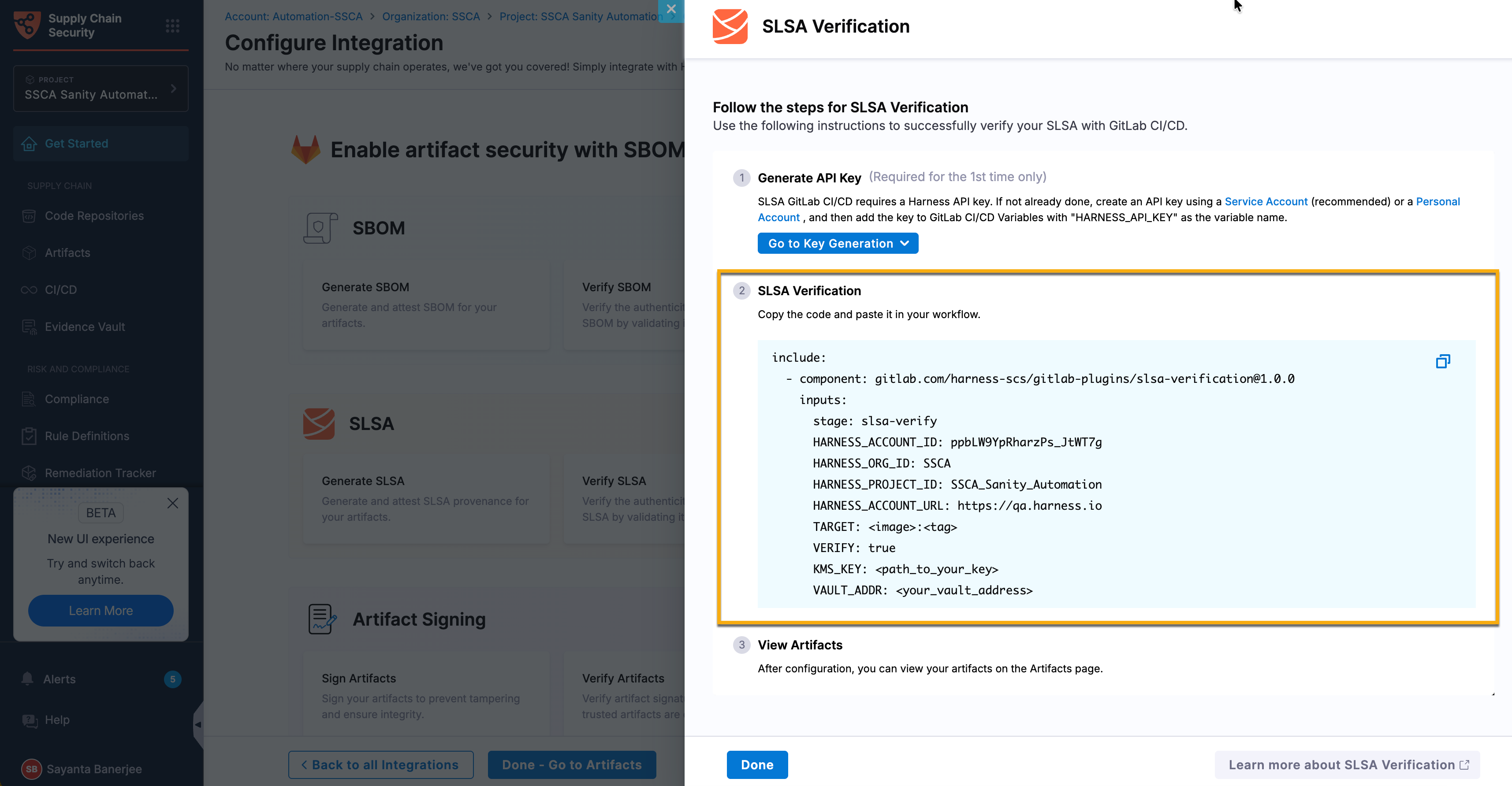
5. Click the **Verify SLSA** card to open the **SLSA Verification** sidepanel.
6. Click the `Go to Key Generation` button to create the Harness API key required to configure Harness GitLab CI/CD.
* Select **Using Service Account** from the dropdown to create the API key using a service account. Go to [Service Account API Keys](/harness-ai/use-harness-platform/automation/api/add-and-manage-api-keys.md#create-service-account-api-keys-and-tokens) to create one.
* Select **Using Personal Account** from the dropdown to create a personal API key. Personal API keys are created at the account level and inherit the permissions assigned to your user account. Go to [Manage API Keys](/harness-ai/use-harness-platform/automation/api/add-and-manage-api-keys.md) to manage them.
7. Click **Copy** in the upper-right corner of the code block to copy the generated GitLab CI/CD configuration, and then paste it into your GitLab workflow file.
Click to view full size image
***
### Configure SLSA verification in GitLab CI/CD
After setting up Harness GitLab CI/CD, configure the **SLSA Verification** component in your GitLab workflow file. Add the required GitLab CI/CD variables to your GitLab project, configure the component inputs, configure the provenance verification settings, and run the pipeline. During pipeline execution, the component verifies the provenance associated with the specified artifact before allowing the pipeline to proceed. For the authoritative list of component inputs and defaults, see the CI/CD Catalog at [SCS GitLab Plugins](https://gitlab.com/explore/catalog/harness-scs/gitlab-plugins?tab=components#slsa-verification).
{% hint style="info" %}
If you are using **GitLab Self-Managed**, mirror the required Harness GitLab CI/CD components to your GitLab instance before configuring your pipeline. After mirroring the components, update the `component` reference in your workflow file to use the mirrored component. Go to [Use a GitLab.com component on GitLab Self-Managed](https://docs.gitlab.com/ci/components/#use-a-gitlabcom-component-on-gitlab-self-managed) to mirror components.
{% endhint %}
Complete the following steps to configure SLSA verification:
1. [Add the required GitLab CI/CD variables](#step-1-add-the-required-gitlab-cicd-variables)
2. [Include the SLSA Verification component](#step-2-include-the-slsa-verification-component)
3. [Configure SLSA provenance verification in the workflow](#step-3-configure-provenance-verification)
4. [Review the workflow](#step-4-review-the-workflow)
5. [Run the pipeline](#step-5-run-the-pipeline)
#### Step 1: Add the required GitLab CI/CD variables
Before configuring the SLSA Verification component, add the following variables to your GitLab project. Go to [Define a CI/CD Variable for a project](https://docs.gitlab.com/ci/variables/#for-a-project) to add them.
| Variable | Description | Required | Example | Masked? |
| --------------------- | -------------------------------------------------------------------------------------- | -------- | ---------------------------- | ------- |
| `HARNESS_API_KEY` | Harness Personal API Key or Service Account API Key used to authenticate with Harness. | Yes | `pat.xxxxxxxxx` | Yes |
| `HARNESS_ACCOUNT_ID` | Harness account identifier. | Yes | `AbCdEf123456` | No |
| `HARNESS_ORG_ID` | Harness organization identifier. | Yes | `SCS_Org` | No |
| `HARNESS_PROJECT_ID` | Harness project identifier. | Yes | `SCS` | No |
| `HARNESS_ACCOUNT_URL` | Harness account URL. | Yes | `https://example.harness.io` | No |
{% hint style="info" %}
Masked GitLab CI/CD variables cannot be passed through component inputs. For this reason, the Harness scope variables (`HARNESS_ACCOUNT_ID`, `HARNESS_ORG_ID`, `HARNESS_PROJECT_ID`, and `HARNESS_ACCOUNT_URL`) must remain unmasked so that they can be wired through the component `inputs`. `HARNESS_API_KEY` remains masked and is consumed directly from the job environment, not passed as a component input. These values are included in the generated YAML provided during the [Set up Harness GitLab CI/CD](#set-up-harness-gitlab-cicd) workflow.
{% endhint %}
#### Step 2: Include the SLSA Verification component
Add an `scs` stage to your GitLab workflow file, or set the `stage` input on the component to an existing stage. Then, include the Harness **SLSA Verification** component in your GitLab workflow file.
The following code snippet demonstrates how to add the `scs` stage and include the SLSA Verification component in your GitLab workflow file. The snippet includes the minimum required component inputs because the component requires the Harness scope variables and the target artifact to run.
```yaml
stages: [scs]
include:
- component: gitlab.com/harness-scs/gitlab-plugins/slsa-verification@1.0.0
inputs:
HARNESS_ACCOUNT_ID: $HARNESS_ACCOUNT_ID
HARNESS_ORG_ID: $HARNESS_ORG_ID
HARNESS_PROJECT_ID: $HARNESS_PROJECT_ID
HARNESS_ACCOUNT_URL: $HARNESS_ACCOUNT_URL
TARGET: $CI_REGISTRY_IMAGE:$CI_COMMIT_SHA
```
Configure the component using the GitLab CI/CD variables created in the previous step and the following component inputs.
| **Input** | **Description** | **Required** | **Default** | **Example** |
| --------------------- | ------------------------------------------------------------------------------------------------------- | ------------ | ----------------------- | ----------------------------------- |
| `HARNESS_ACCOUNT_ID` | Harness account ID. Pass a non-masked CI/CD variable reference. | Yes | N/A | `$HARNESS_ACCOUNT_ID` |
| `HARNESS_ORG_ID` | Harness organization ID. Pass a non-masked CI/CD variable reference. | Yes | N/A | `$HARNESS_ORG_ID` |
| `HARNESS_PROJECT_ID` | Harness project ID. Pass a non-masked CI/CD variable reference. | Yes | N/A | `$HARNESS_PROJECT_ID` |
| `HARNESS_ACCOUNT_URL` | Harness base URL with scheme. Pass a non-masked CI/CD variable reference. | Yes | N/A | `$HARNESS_ACCOUNT_URL` |
| `TARGET` | Container image reference when `SOURCE` is `container`, or artifact file path when `SOURCE` is `local`. | Yes | N/A | `$CI_REGISTRY_IMAGE:$CI_COMMIT_SHA` |
| `VERIFY` | Verifies the SLSA provenance attestation. | No | `false` | `true` |
| `SOURCE` | Artifact source. Supported values are `container` and `local`. | No | `container` | `local` |
| `ARTIFACT_NAME` | Display name for a local artifact. Applicable when `SOURCE` is `local`. | No | File name from `TARGET` | `payment-service` |
| `ARTIFACT_VERSION` | Artifact version. Applicable when `SOURCE` is `local`. | No | N/A | `$CI_COMMIT_SHORT_SHA` |
| `stage` | GitLab pipeline stage in which the component runs. | No | `scs` | `security` |
| `job-name` | Name of the GitLab job created by the component. | No | `scs-slsa-verification` | `verify-slsa` |
{% hint style="info" %}
By default, the component verifies the SLSA provenance associated with a container image. To verify the SLSA provenance associated with a local artifact, set `SOURCE` to `local`. When using a local artifact, specify the artifact path in `TARGET` and provide an `ARTIFACT_VERSION`.
{% endhint %}
To verify the SLSA provenance attestation, configure the verification inputs (`VERIFY_WITH`, `OIDC_PROVIDER`, `FULCIO_URL`, `KMS_KEY`, and `VAULT_ADDR`) as described in [Step 3: Configure provenance verification](#step-3-configure-provenance-verification).
**Override the generated job**
Standard GitLab job keywords, such as `needs`, `before_script`, `script`, `after_script`, `allow_failure`, and `tags`, are not component inputs. To set them, redeclare the generated job (default name `scs-slsa-verification`, or the value of `job-name`) in your workflow file. GitLab merges your keys into the generated job.
```yaml
scs-slsa-verification:
needs: [build-image]
tags: [docker, linux]
before_script:
- echo "Starting provenance verification"
after_script:
- echo "Verification complete"
```
{% hint style="info" %}
If you are verifying provenance for an image in a private registry that is not the GitLab container registry, provide the registry credentials as masked GitLab CI/CD variables so that the component can access the image.
{% endhint %}
#### Step 3: Configure provenance verification
Harness supports the following verification methods:
* **Keyless verification** – Uses OpenID Connect (OIDC) identities to verify the signed SLSA provenance without managing long-lived signing keys.
* **Key-based verification** – Uses a cryptographic key managed through your organization's key management solution.
* **Secret Manager** – Uses verification keys stored in a supported secret manager.
{% hint style="info" %}
* SLSA verification is disabled by default (`VERIFY: false`). When verification is disabled, the component skips Cosign verification and does not require the `VERIFY_WITH`, `KMS_KEY`, or `VAULT_ADDR` inputs.
* To verify the signed SLSA provenance, set `VERIFY: true`. The `VERIFY_WITH` input specifies the verification method and defaults to `secret-manager`, which requires `KMS_KEY` and `VAULT_ADDR`.
{% endhint %}
Configure the appropriate verification inputs based on the verification method you want to use.
{% tabs %}
{% tab title="Configure keyless verification" %}
If you enable SLSA verification, you can configure **keyless verification** to verify the signed SLSA provenance using an OpenID Connect (OIDC) identity. For GitLab CI/CD, set `OIDC_PROVIDER` to `non-harness`. The `harness` OIDC provider is not supported as of now. Keyless verification requires **GitLab 15.7** or later, because it depends on GitLab `id_tokens`. Configure the following inputs.
| Input | Description | Required |
| --------------- | ----------------------------------------------------------------------------------------------------------------------------- | -------- |
| `VERIFY_WITH` | Specifies the verification method. Set the value to `keyless`. | Yes |
| `OIDC_PROVIDER` | OIDC provider used to obtain the verification identity. For GitLab CI/CD, set the value to `non-harness`. | Yes |
| `FULCIO_URL` | Fulcio certificate authority endpoint. Used when `OIDC_PROVIDER` is `non-harness`. Defaults to `https://fulcio.sigstore.dev`. | No |
Provide the OIDC token to the generated job using `id_tokens`. The component reads the token from `PLUGIN_NON_HARNESS_OIDC_TOKEN`.
```yaml
stages: [scs]
include:
- component: gitlab.com/harness-scs/gitlab-plugins/slsa-verification@1.0.0
inputs:
HARNESS_ACCOUNT_ID: $HARNESS_ACCOUNT_ID
HARNESS_ORG_ID: $HARNESS_ORG_ID
HARNESS_PROJECT_ID: $HARNESS_PROJECT_ID
HARNESS_ACCOUNT_URL: $HARNESS_ACCOUNT_URL
TARGET: $CI_REGISTRY_IMAGE:$CI_COMMIT_SHA
VERIFY: true
VERIFY_WITH: keyless
OIDC_PROVIDER: non-harness
scs-slsa-verification:
id_tokens:
PLUGIN_NON_HARNESS_OIDC_TOKEN:
aud: sigstore
```
{% endtab %}
{% tab title="Configure key-based verification" %}
To verify the signed SLSA provenance using a cryptographic key, set `VERIFY_WITH` to `keybased` and provide the Cosign key material as masked GitLab CI/CD variables on the job. `KMS_KEY` is not used for key-based verification. It applies only to Secret Manager verification.
| Input | Description | Required |
| ------------- | --------------------------------------------------------------- | -------- |
| `VERIFY_WITH` | Specifies the verification method. Set the value to `keybased`. | Yes |
Provide the following masked GitLab CI/CD variable on the job:
| Variable | Description | Required |
| ------------------------------------------ | ----------------------------------------------------------------- | -------- |
| `SSCA_SLSA_VERIFICATION_COSIGN_PUBLIC_KEY` | Cosign public key used to verify the SLSA provenance attestation. | Yes |
| {% endtab %} | | |
{% tab title="Configure Secret Manager verification" %}
To use a verification key stored in a supported secret manager, configure the following inputs.
| Input | Description | Required |
| ------------- | --------------------------------------------------------------------------- | ----------- |
| `VERIFY_WITH` | Specifies the verification method. Set the value to `secret-manager`. | Yes |
| `KMS_KEY` | KMS or Vault key URI for the verification key stored in the secret manager. | Yes |
| `VAULT_ADDR` | HashiCorp Vault address. Required when `KMS_KEY` uses a Vault URI. | Conditional |
| {% endtab %} | | |
| {% endtabs %} | | |
#### Step 4: Review the workflow
After configuring the required GitLab CI/CD variables and component inputs, your GitLab workflow file should resemble the following example. This example verifies the SLSA provenance for a container image in Harness SCS using Cosign with a verification key stored in HashiCorp Vault. The Harness scope variables are wired through `inputs`, `HARNESS_API_KEY` remains a masked GitLab CI/CD variable, and the Vault variables (`KMS_KEY` and `VAULT_ADDR`) are provided because verification is enabled.
```yaml
include:
- component: gitlab.com/harness-scs/gitlab-plugins/slsa-verification@1.0.0
inputs:
HARNESS_ACCOUNT_ID: $HARNESS_ACCOUNT_ID
HARNESS_ORG_ID: $HARNESS_ORG_ID
HARNESS_PROJECT_ID: $HARNESS_PROJECT_ID
HARNESS_ACCOUNT_URL: $HARNESS_ACCOUNT_URL
TARGET: $CI_REGISTRY_IMAGE:$CI_COMMIT_SHA
VERIFY: true
VERIFY_WITH: secret-manager
KMS_KEY: hashivault://cosign
VAULT_ADDR: $VAULT_ADDR
```
#### Step 5: Run the pipeline
Commit and push your changes to trigger the GitLab pipeline. During pipeline execution, the SLSA Verification component verifies the provenance associated with the specified artifact. Based on the verification results, the pipeline determines whether the artifact can proceed to subsequent stages. Go to [Tutorial: Create and run your first GitLab CI/CD pipeline](https://docs.gitlab.com/ci/quick_start/) to run a GitLab pipeline.
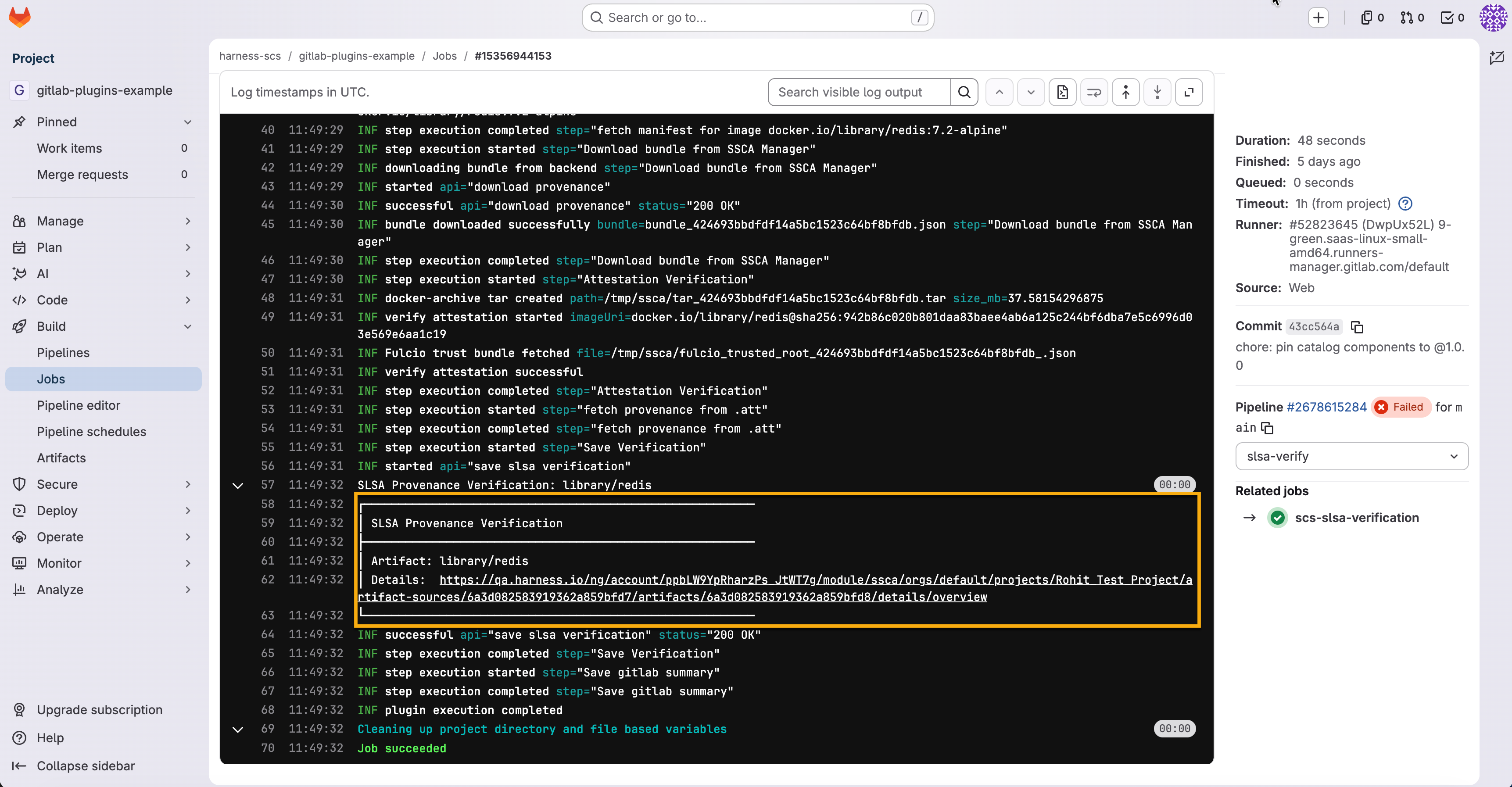
After the pipeline completes, open the job execution logs and click the **Harness Artifact Details** link to view the generated artifact in SCS. Go to [View the status of your pipeline and jobs](https://docs.gitlab.com/ci/quick_start/#view-the-status-of-your-pipeline-and-jobs) to check job status and pipeline details.
Click to view full size image
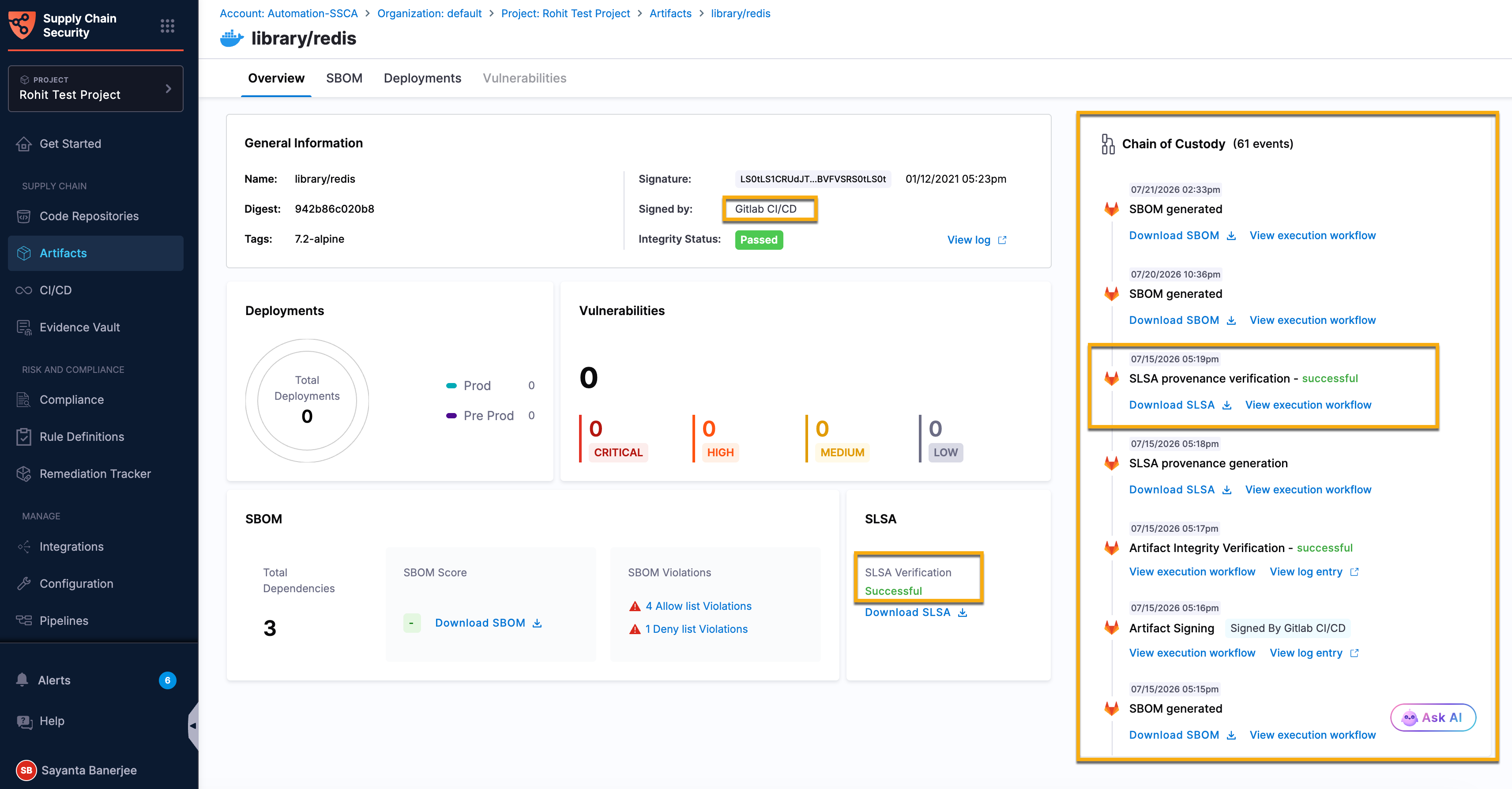
The Artifact Details page displays the SLSA verification results for the artifact. The verification results are also recorded in the [Chain of Custody](/software-supply-chain-assurance/use-scs/artifact-security/overview.md#chain-of-custody), providing an immutable audit trail of the artifact lifecycle and the associated GitLab CI/CD pipeline execution. Go to [Artifact Overview](/software-supply-chain-assurance/use-scs/artifact-security/overview.md) to navigate through artifacts.
Click to view full size image
***
### Example SLSA Verification workflow Example SLSA verification workflow for a container image
The following example demonstrates how to configure the SLSA Verification component in a GitLab workflow to verify the provenance associated with a container image. The example uses a verification key stored in HashiCorp Vault to validate the provenance before the pipeline proceeds.
```yaml
stages:
- build
- scs
build-image:
stage: build
image: docker:24.0.5
services:
- docker:24.0.5-dind
script:
- docker build -t $CI_REGISTRY_IMAGE:$CI_COMMIT_SHA .
- docker push $CI_REGISTRY_IMAGE:$CI_COMMIT_SHA
include:
- component: gitlab.com/harness-scs/gitlab-plugins/slsa-verification@1.0.0
inputs:
stage: scs
job-name: verify-slsa
HARNESS_ACCOUNT_ID: $HARNESS_ACCOUNT_ID
HARNESS_ORG_ID: $HARNESS_ORG_ID
HARNESS_PROJECT_ID: $HARNESS_PROJECT_ID
HARNESS_ACCOUNT_URL: $HARNESS_ACCOUNT_URL
TARGET: $CI_REGISTRY_IMAGE:$CI_COMMIT_SHA
VERIFY: true
VERIFY_WITH: secret-manager
KMS_KEY: hashivault://cosign
VAULT_ADDR: $VAULT_ADDR
```
Example SLSA verification workflow for a local artifact
The following example verifies provenance for a local artifact. It builds the artifact in an earlier job, passes it forward with `artifacts`, and uses `needs` so the verification job runs after the artifact is available. When `SOURCE` is `local`, `TARGET` is the artifact file path and `ARTIFACT_VERSION` is required.
```yaml
stages:
- build
- scs
build-artifact:
stage: build
script:
- ./build.sh -o $CI_PROJECT_DIR/target/myapp.jar
artifacts:
paths:
- target/myapp.jar
scs-slsa-verification:
needs: [build-artifact]
include:
- component: gitlab.com/harness-scs/gitlab-plugins/slsa-verification@1.0.0
inputs:
HARNESS_ACCOUNT_ID: $HARNESS_ACCOUNT_ID
HARNESS_ORG_ID: $HARNESS_ORG_ID
HARNESS_PROJECT_ID: $HARNESS_PROJECT_ID
HARNESS_ACCOUNT_URL: $HARNESS_ACCOUNT_URL
SOURCE: local
TARGET: $CI_PROJECT_DIR/target/myapp.jar
ARTIFACT_VERSION: $CI_COMMIT_SHORT_SHA
VERIFY: true
VERIFY_WITH: secret-manager
KMS_KEY: hashivault://cosign
VAULT_ADDR: $VAULT_ADDR
```
***
### Next steps
* [Generate SBOM with GitLab CI/CD](/software-supply-chain-assurance/use-scs/open-source-management/sbom-gitlab-ci-cd/generate-sbom.md): Generate, attest, and upload SBOMs to Harness SCS during pipeline execution.
* [Enforce SBOM policies with GitLab CI/CD](/software-supply-chain-assurance/use-scs/open-source-management/sbom-gitlab-ci-cd/enforce-sbom-policies.md): Verify SBOM attestations and enforce software supply chain policies during pipeline execution.
* [Ingest SBOM with GitLab CI/CD](/software-supply-chain-assurance/use-scs/open-source-management/sbom-gitlab-ci-cd/ingest-sbom.md): Upload existing SBOMs generated by external tools or build processes to Harness SCS.
{% @harness-feedback/feedback %}