> For the complete documentation index, see [llms.txt](https://developer.harness.io/llms.txt). Markdown versions of documentation pages are available by appending `.md` to page URLs; this page is available as [Markdown](https://developer.harness.io/software-supply-chain-assurance/use-scs/open-source-management/enforce-sbom-policies.md).
# Enforce SBOM policies
Use SCS to implement SBOM Policy Enforcement.
The creation of a Software Bill of Materials (SBOM) significantly enhances software transparency. The comprehensive view not only brings visibility but also opens up the opportunity to improve security and ensure compliance. It enables organizations to define and implement specific rules governing the use of open source components, including the criteria to allow or deny components. By applying these rules, organizations can effectively mitigate security risks, comply with licensing obligations, and exert greater control over their software supply chain.
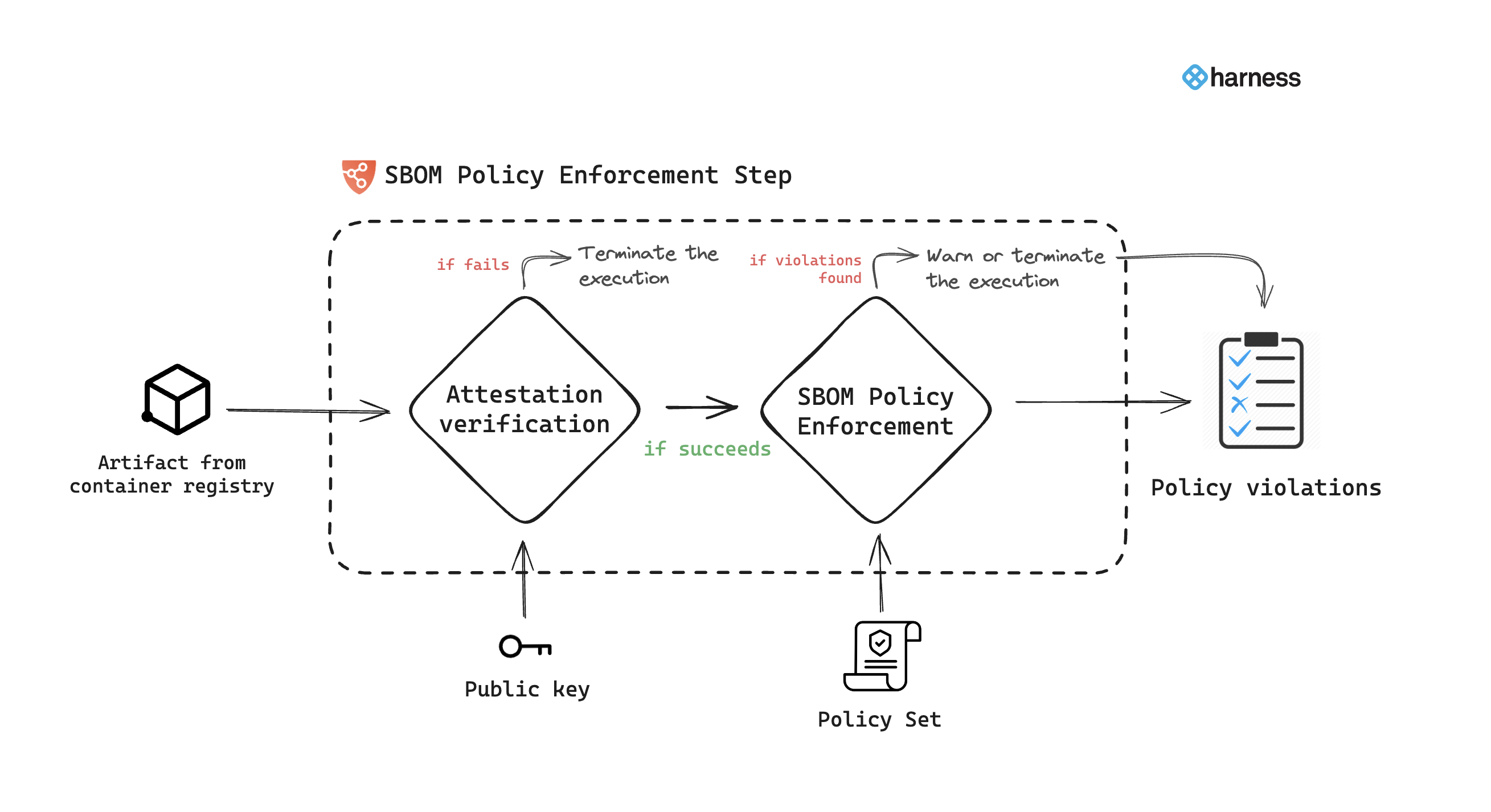
The Harness SCS module enables you to create these rules as policies that align with your organization's security regulations and legal compliance requirements. These policies can then be enforced on SBOMs. This entire process is facilitated through the **SBOM Policy Enforcement** step.
Enforce SBOM policies in the CI and CD stages of your Harness pipelines to ensure that your artifacts only contain approved components.
The following is a breakdown of the overall steps involved:
1. Create an [OPA policy set](/continuous-delivery/use-continuous-delivery/cd-building-blocks/advanced/cd-governance/harness-governance-overview.md)
2. [Write policy definitions](/software-supply-chain-assurance/troubleshooting-and-resources/how-to-guides/define-sbom-policies.md)
3. [Enforce the policies on SBOM](#policy-configuration)
4. View [policy violations](#view-policy-violations) and take actions
### Requirements
To enforce SBOM policies in a Harness pipeline, you need:
* A pipeline with a [CI (build) stage](/continuous-integration/use-harness-ci/use-harness-ci/prep-ci-pipeline-components.md), a [CD (deploy) stage](/continuous-delivery/new-to-continuous-delivery/overview.md#stage), or both. You will add the SBOM Enforcement step to one of these stages.
* [SBOM OPA policies that you want to enforce.](/software-supply-chain-assurance/use-scs/open-source-management/create-sbom-policies.md#create-an-sbom-policy)
* SBOM to compare policies against. For example, you can [use SCS to generate SBOM](/software-supply-chain-assurance/use-scs/open-source-management/generate-sbom-for-repositories.md) or [import SBOM](/software-supply-chain-assurance/use-scs/open-source-management/ingest-sbom-data.md).
* A [Harness file secret](/harness-platform/use-harness-platform/secrets/add-file-secrets.md) containing the public key from the [key pair used to sign and attest the SBOM](/software-supply-chain-assurance/use-scs/open-source-management/generate-sbom-for-repositories.md).
{% hint style="info" %}
For SBOM Policy Enforcement, an SBOM needs to be generated or ingested beforehand through the SBOM Orchestration step. Refer to the dedicated [SBOM generation document](/software-supply-chain-assurance/use-scs/open-source-management/generate-sbom-for-repositories.md) for further details.
{% endhint %}
### Add SBOM Policy Enforcement step
You can add the **SBOM Policy Enforcement** step to either the **Build** or **Deploy** stage of a Harness pipeline.
* In a **Build** stage, add the step after the [SBOM generation](/software-supply-chain-assurance/use-scs/open-source-management/generate-sbom-for-repositories.md) step.
* In a **Deploy** stage, add the step before the deployment step.
{% hint style="info" %}
SBOM Orchestration and Enforcement steps in deploy stage can only be used in the [Containerized Step Groups](/continuous-delivery/use-continuous-delivery/cd-building-blocks/cd-steps/containerized-steps/containerized-step-groups.md) and ensure you enable the `container based execution`.
{% endhint %}
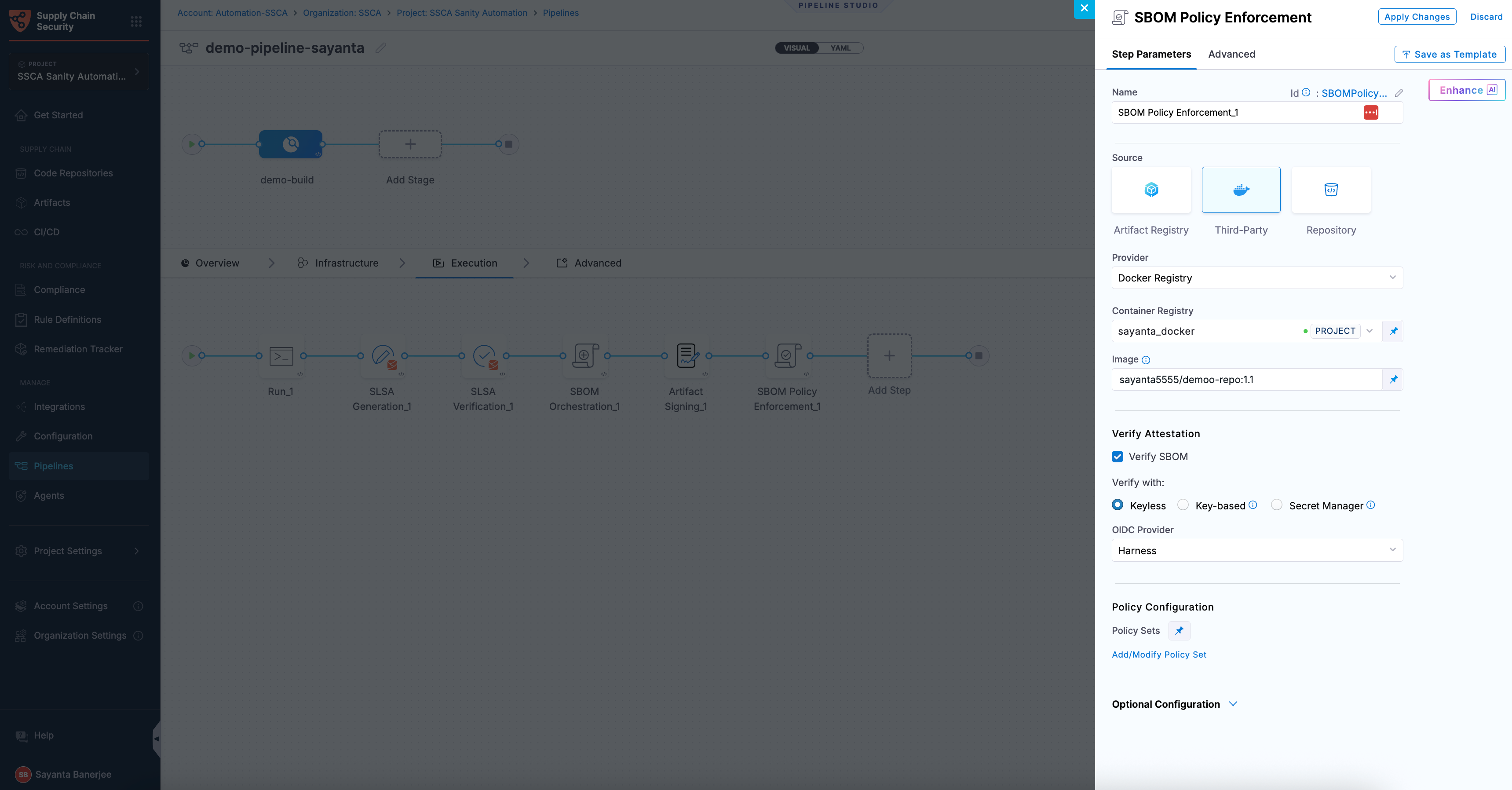
The **SBOM Policy Enforcement** step has the following settings:
* **Name:** Enter a name for the step.
* **Source**: Select the Source by choosing either a supported container registry from the list or Repository.
{% tabs %}
{% tab title="HAR" %}
* **Registry:** Select the Harness Registry configured for the Harness Artifact Registry where your artifact is stored.
* **Image:** Enter the name of your image with tag or digest, such as `imagename:tag` or `imagename:digest`.
{% endtab %}
{% tab title="Docker Registry" %}
* **Container Registry:** Select the [Docker Registry connector](/harness-platform/use-harness-platform/connectors/artifact-repositories/add-a-docker-registry-connector/docker-registry-connector-settings-reference.md) that is configured for the DockerHub container registry where the artifact is stored.
* **Image:** Enter the name of your image using either a tag or a digest. For example: `my-docker-org/repo-name:tag` or `my-docker-org/repo-name@sha256:`
{% hint style="info" %}
Unlike other artifact sources, JFrog Artifactory requires additional permissions for attestation. The connector’s user or token must have `Read`, `Annotate`, `Create/Deploy`, and `Delete` permissions.
{% endhint %}
{% endtab %}
{% tab title="ECR" %}
* **Container Registry:** Select the [Docker Registry connector](/harness-platform/use-harness-platform/connectors/artifact-repositories/add-a-docker-registry-connector/docker-registry-connector-settings-reference.md) that is configured for the Elastic container registry where the artifact is stored.
* **Image:** Enter the name of your image with tag or digest for the image for which you are generating an SBOM, such as `my-docker-repo/my-artifact:latest` or `my-docker-repo/my-artifact@sha256:`.
* **Region:** The geographical location of your ECR repository.
* **Account ID:** The unique identifier associated with your AWS account.
{% endtab %}
{% tab title="GAR" %}
* **Container Registry:** Select the [Docker Registry connector](/harness-platform/use-harness-platform/connectors/artifact-repositories/add-a-docker-registry-connector/docker-registry-connector-settings-reference.md) that is configured for the Google artifact registry where the artifact is stored.
* **Image:** Enter the name of your image with tag or digest for which you are generating the SBOM, example `repository-name/image:tag` or `repository-name/image@sha256:`.
* **Host:** Enter your GAR Host name. The Host name is regional-based. For example, `us-east1-docker.pkg.dev`.
* **Project ID:** Enter the unique identifier of your Google Cloud Project. The Project-ID is a distinctive string that identifies your project across Google Cloud services. example: `my-gcp-project`
{% endtab %}
{% tab title="ACR" %}
* **Container Registry:** Select the [Docker Registry connector](/harness-platform/use-harness-platform/connectors/artifact-repositories/add-a-docker-registry-connector/docker-registry-connector-settings-reference.md) that is configured for the Azure container registry where the artifact is stored.
* **Image:** Enter your image details with a tag or digest in the format `/:` or `/@sha256:`. The `` is a fully qualified name of your Azure Container Registry. It typically follows the format `.azurecr.io`, where `` is the name you have given to your container registry instance in Azure. Example input: `automate.azurecr.io/acr:test`
* **Subscription Id:** Enter the unique identifier that is associated with your Azure subscription.
{% endtab %}
{% endtabs %}
#### Verify the SBOM attestation
Verification is the process of validating an SBOM signature to ensure its authenticity and integrity. It confirms that the SBOM was signed by a trusted source, has not been tampered with, and corresponds to the expected artifact. In the SBOM Policy Enforcement step, this ensures that only trusted and compliant SBOMs are used for downstream analysis and decision-making. Go to [attestation and verification](/software-supply-chain-assurance/new-to-scs/key-concepts.md#attestation-and-verification) to understand the verification process.
You can perform verification using Cosign with the following verification methods:
* **Keyless** - Uses short-lived, automatically generated keys based on identity to verify attested SBOM without storing private keys.
* **Key-based** - Uses a user-managed private and public key pair to verify attested SBOM, requiring secure key storage and handling.
* **Secret Manager** - A secure service used to store, manage, and access sensitive data such as cryptographic keys without exposing them directly in pipelines.
Based on the verification type you select, click the tab below and specify the configurations for the SBOM Policy Enforcement step to perform the verification.
{% tabs %}
{% tab title="Keyless" %}
Keyless verification using Cosign allows you to verify the authenticity and integrity of an attested SBOM without requiring access to a private signing key. During verification, Cosign uses the certificate and signature associated with the SBOM to validate that it was signed by a trusted identity and has not been tampered with. It checks the certificate chain against trusted root certificates, verifies the signature using the public key embedded in the certificate, and ensures that the certificate was valid at the time of signing.
{% hint style="info" %}
In air-gapped environments, transparency log (Tlog) checks are skipped. The transparency log records signing events in a tamper-evident log, enabling independent verification. By default, the [airgap setting](/software-supply-chain-assurance/troubleshooting-and-resources/settings-1/default-settings.md) is enabled, which prevents attestations from being pushed to the Rekor transparency log.
{% endhint %}
To configure SBOM verification with Keyless verification using cosign, complete the following steps:
1. Click the checkbox beside `Verify SBOM` to enable SBOM verification. The radio button beside `Keyless` will be selected by default.
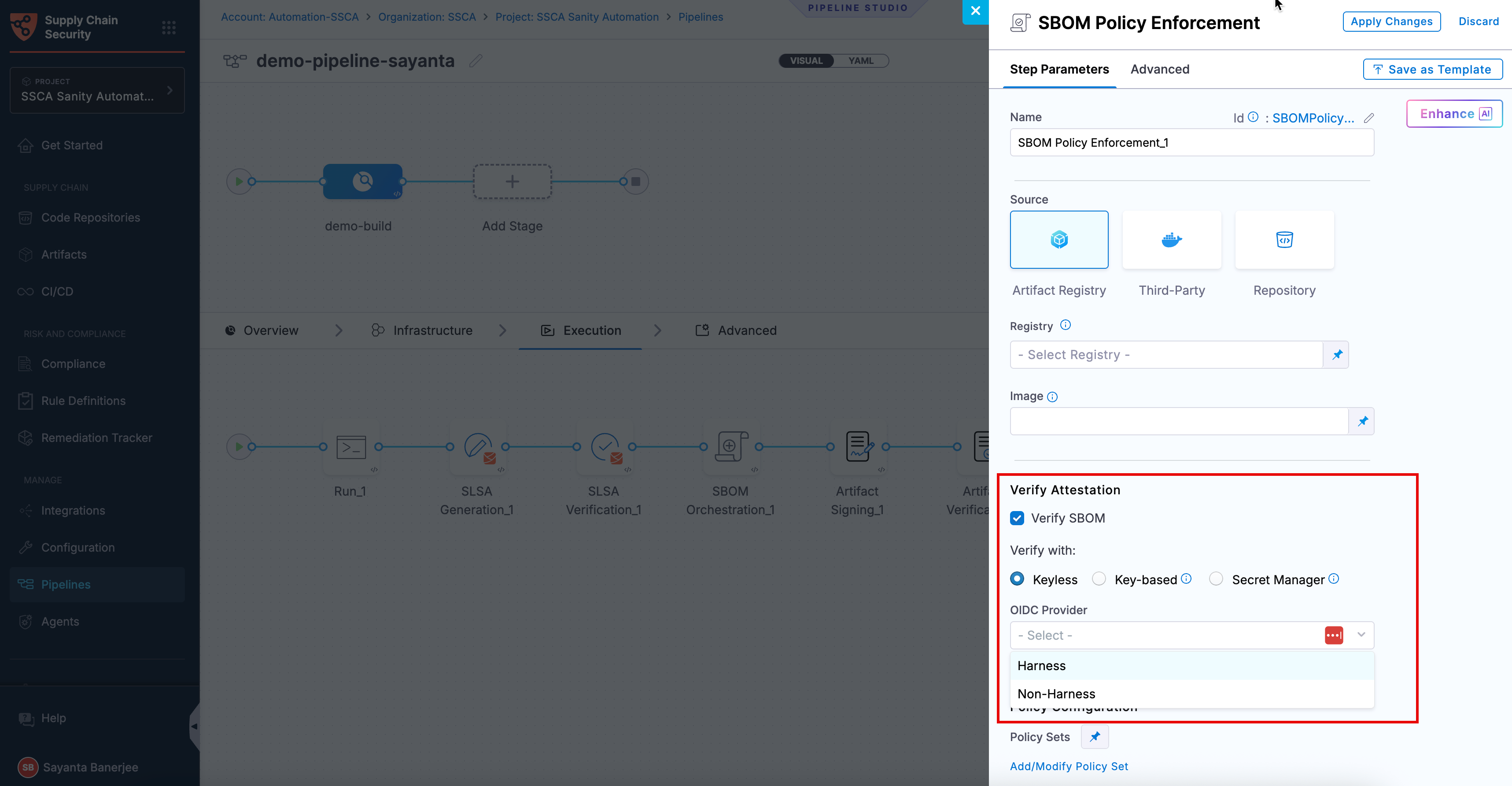
2. Select your preferred OIDC Provider from the dropdown under `OIDC Provider`. The available options are:
* [Harness](/software-supply-chain-assurance/use-scs/open-source-management/enforce-sbom-policies.md#harness-oidc)
* [Non-Harness](/software-supply-chain-assurance/use-scs/open-source-management/enforce-sbom-policies.md#non-harness-oidc)
{% hint style="info" %}
This verification method is not supported for SMP at the moment.
{% endhint %}
**Harness OIDC**
Harness OIDC allows you to use the pipeline’s built-in identity for keyless verification. In this approach, Harness acts as the OIDC provider and automatically generates an OIDC token during pipeline execution, which Cosign uses to verify the SBOM signature without requiring access to a private key.
The verification process uses the certificate and signature associated with the SBOM along with the identity provided through the OIDC token to confirm that the SBOM was signed by a trusted source, has not been tampered with, and corresponds to the expected artifact. No additional configuration is required when using Harness as the OIDC provider.
**Non-Harness OIDC**
Non-Harness OIDC allows you to use an external identity provider for keyless verification. In this approach, the OIDC token is retrieved during pipeline execution from a configured connector, such as AWS, Azure, or GCP. This token is then used by Cosign to verify the SBOM signature against the identity issued by the external provider.
The verification process checks the SBOM’s signature and certificate to ensure that it was signed by a trusted identity, has not been tampered with, and corresponds to the expected artifact. To use a Non-Harness OIDC provider for verification, you must configure the OIDC connector for keyless signing. For setup instructions, see the [Non-Harness OIDC](/software-supply-chain-assurance/use-scs/open-source-management/generate-sbom-for-artifacts.md#non-harness-oidc) section in the [Generate SBOM for Artifacts](/software-supply-chain-assurance/use-scs/open-source-management/generate-sbom-for-artifacts.md) documentation.
{% endtab %}
{% tab title="Key-based" %}
To perform the attestation verification with Cosign selected, you need to pass the key from the Harness Secret Manager
* **Public Key**: Input your Public key from the [Harness file secret](/harness-platform/use-harness-platform/secrets/add-file-secrets.md).
{% endtab %}
{% tab title="HashiCorp Vault" %}
If you used **HashiCorp Vault** as your Secret Manager for attestation, you can also use it for verifying the attestation.
* **Connector**: Select the same HashiCorp Vault connector that was used during the attestation process.
* **Key**: Enter the path to the Transit Secrets Engine in your HashiCorp Vault where your **public key** is stored. This should be the same path used for the attestation process. Note that **HashiCorp Vault** does not allow viewing the private key directly.
{% endtab %}
{% tab title="GCP KMS" %}
When you verify an SBOM attestation signed using GCP KMS, Harness uses Cosign to verify the signature against the corresponding signing key. GCP KMS provides access to the key's public key, which Cosign uses to verify the signature. The private key remains in GCP KMS and is not exposed to the build environment.
Before configuring verification, complete Steps 1 to 6 in [Configure GCP KMS for SBOM attestation](https://developer.harness.io/software-supply-chain-assurance/use-scs/open-source-management/generate-sbom-for-artifacts#gcp-kms). These steps cover enabling the Cloud KMS API, creating the key ring and signing key, configuring IAM permissions, retrieving the enabled key version and signing the generated SBOM. After completing these steps, verification requires configuring the GCP KMS connector to verify the attested SBOM.
#### Configure the GCP KMS connector for SBOM verification
Configure the GCP KMS connector in the SBOM Policy Enforcement step to verify attested SBOM using the verification key managed by Google Cloud KMS. To configure SBOM verification for attested SBOMs with GCP KMS using cosign, complete the following steps:
1. Under **Verify with**, select the **Secret Manager** radio button to configure SBOM verification using a secret manager.
2. Click `-Select-` to open the `Create or Select an Existing Connector` dialog.
3. Select your required connector from the list of existing connectors. You can search for your created connector or filter connectors by **Project**, **Organization**, and **Account**.
4. Alternatively, click `+ New Connector` to create a new GCP KMS connector. For more information, see [Add Google KMS as a Harness secret manager](https://developer.harness.io/harness-platform/use-harness-platform/secrets/secrets-management/add-google-kms-secrets-manager).
5. In the **Key Name** field, enter the verification key name and version in the following format:
```
COSIGN_KEY/versions/KEY_VERSION
```
Replace `COSIGN_KEY` with your GCP KMS verification key name and `KEY_VERSION` with the enabled key version retrieved in [Step 5](https://developer.harness.io/software-supply-chain-assurance/use-scs/open-source-management/generate-sbom-for-artifacts#step-5-retrieve-the-enabled-key-version). For example, `cosign-sign/versions/1`.
{% hint style="info" %}
Use the same key name you specified in [Step 3](https://developer.harness.io/software-supply-chain-assurance/use-scs/open-source-management/generate-sbom-for-artifacts#step-3-create-an-assymetric-signing-key) when configuring GCP KMS for SBOM attestation.
{% endhint %}
GCP KMS secret manager in SBOM policy enforcement
{% endtab %}
{% endtabs %}
#### Policy configuration
You can configure the step to enforce policies on the SBOM by selecting the appropriate policy set.
* **Policy Sets:** Choose the policy sets you want to use for enforcement. You can select multiple policy sets from the **Account**, **Org**, or **Project** levels. Go to [Creating SBOM Policies](/software-supply-chain-assurance/use-scs/open-source-management/create-sbom-policies.md#create-an-sbom-policy) and [Writing SBOM Policy Definitions](/software-supply-chain-assurance/troubleshooting-and-resources/how-to-guides/define-sbom-policies.md) to create policies and write policy definitions respectively.
### Run the pipeline
When the pipeline runs, the **SBOM Policy Enforcement** step does the following:
* With the artifact details, the step verifies the authenticity of the attestation.
* Applies policies defined in the specified policy set.
* If violations are detected based on the policy evaluation criteria, the pipeline may issue a warning and proceed, or it may generate an error and terminate.
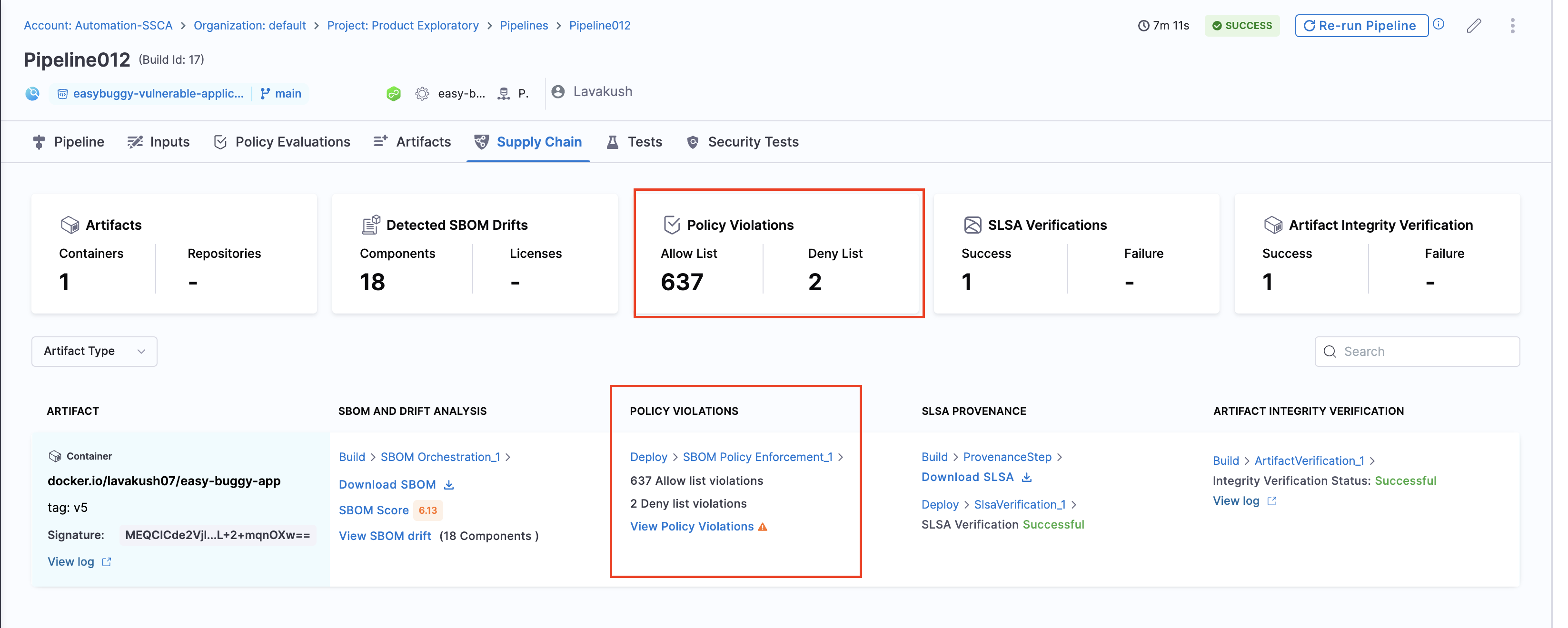
* Records policy violations and shows them on the **Supply Chain** tab on the **Execution details** page.
SCS evaluates the components described in the artifact's SBOM against your [policy definitions](/software-supply-chain-assurance/troubleshooting-and-resources/how-to-guides/define-sbom-policies.md). For a component to pass the evaluation, it must meet these conditions:
* The component *must not* be denied based on the rules in the `deny_list`.
* The component *must* be allowed based on the rules in the `allow_list`.
* If the `allow_list` has multiple sections, the component must be allowed by *all* sections. For example, if the `allow_list` has `licenses` and `suppliers` sections, then the component's license must be allowed according to the `licenses` section, and the component's supplier must be allowed according to the `suppliers` section. If the component fails to pass either section, the policy evaluation fails for that component.
All components must meet the conditions described in *both* the `allow_list` and `deny_list` to fully pass the policy evaluation.
### View policy violations
The policy violations arising from the SBOM Policy Enforcement step in your pipeline are accessible under the "Policy Violations" section of the artifact list. Also, the Policy Violations card in the overview displays a cumulative count of all the allow list and deny list items across all artifacts.
{% @harness-feedback/feedback %}