> For the complete documentation index, see [llms.txt](https://developer.harness.io/llms.txt). Markdown versions of documentation pages are available by appending `.md` to page URLs; this page is available as [Markdown](https://developer.harness.io/software-supply-chain-assurance/use-scs/open-source-management/generate-aibom-for-repositories.md).
# Generate and Manage AI Bill of Materials (AIBOM)
Learn how to generate an AI Bill of Materials (AIBOM) for your repositories to gain visibility into AI model dependencies and supply chain risks.
Software Supply Chain Security (SCS) helps organizations gain visibility into the components that make up their software supply chain. Traditional Software Bills of Materials (SBOMs) provide insight into open-source packages and dependencies, enabling teams to identify vulnerabilities, license risks, and compliance issues. However, as organizations increasingly adopt AI technologies, many AI-specific components remain outside the scope of traditional dependency analysis.
The growing adoption of AI creates a visibility gap for AI-specific components such as models, datasets, agents, vector databases, and Model Context Protocol (MCP) integrations. As a result, security, compliance, and governance teams can find it difficult to understand how AI is being used across their software ecosystem. AI Bill of Materials (AIBOM) extends SCS by discovering AI-related components within source repositories and generating a structured inventory of AI assets, helping organizations improve AI governance and supply chain visibility.
{% hint style="info" %}
AIBOM generation is currently supported only for source code repositories.
{% endhint %}
***
### What you will learn from this topic
By the end of this topic, you will be able to:
* Understand AI Bill of Materials (AIBOM) generation in SCS.
* Configure the AIBOM Orchestration step in a pipeline.
* Customize AIBOM generation using optional AIBOM flags and execution settings.
* Generate, review, filter, and download the generated AIBOM.
***
### Before you begin
Make a note of the following before you proceed with AIBOM generation:
* Clear understanding of the build stage configuration within the pipeline. Go to [Build Stage Settings](/continuous-integration/use-harness-ci/use-harness-ci/set-up-build-infrastructure/ci-stage-settings.md#execution) to review the settings.
* Clear understanding of the security stage configuration within the pipeline. Go to [Get Started](/security-testing-orchestration/use-sto/scan-code-end-to-end-with-sto.md#set-up-your-pipeline) to set up your pipeline.
***
### Understand AIBOM generation in SCS
An AI Bill of Materials (AIBOM) is a machine-readable inventory of AI components detected within a repository. Unlike a traditional SBOM, which focuses on software packages and dependencies, an AIBOM captures AI-specific assets used by an application. When AIBOM generation runs, SCS analyzes repository source code, dependency manifests, and supported configuration files to identify AI-related components. Detected components are classified into categories such as frameworks, models, agents, datasets, and packages. For each component, SCS collects metadata including the component name, type, provider, package URL (PURL), and source location when available.
The generated AIBOM is stored in CycloneDX format and made available within SCS. You can use the AIBOM to review detected AI components, investigate where they are used, and export the inventory for downstream governance and compliance workflows.
The following table provides a structured overview of why AIBOM is used, when it should be used, and how it can be leveraged within SCS to discover, inventory, and manage AI-related components across source repositories.
| Why use it? | When to use it? | How can you leverage it? |
| ---------------------------------------------------------------------------------------------------------------------------------------------------------------------------------------------------------------------------------------------------- | ----------------------------------------------------------------------------------------------------------------------------------------------------------------------------------------------------------------------------------------------------------------------------------------------------------------------------------------------------------------------------------------------------------------------- | -------------------------------------------------------------------------------------------------------------------------------------------------------------------------------------------------------------------------------------------------------------------------------------------------------------------------------------------------------------------------------------------- |
|
1. Discover AI-related components used within your repositories. 2. Track AI adoption across your software supply chain. 3. Support AI governance and compliance initiatives. 4. Investigate AI component usage within repositories.
|
1. When you need visibility into AI frameworks, models, agents, datasets, and packages used by an application. 2. When multiple teams are building or integrating AI-powered applications. 3. When your organization requires visibility into AI usage for internal reviews or regulatory requirements. 4. When you need to understand where AI-related components are being referenced in source code.
|
1. Generate an inventory of AI assets and review detected components in SCS. 2. Identify the AI technologies being used and maintain a centralized inventory of AI assets. 3. Export AIBOMs in CycloneDX format for governance, auditing, and reporting workflows. 4. Review component metadata such as provider, PURL, and source location to trace AI component usage.
|
***
### Configure AIBOM orchestration
Configuring the AIBOM Orchestration step enables you to analyze a source repository for AI-related components and generate an AI Bill of Materials (AIBOM) in CycloneDX format. Add this step to a Build or Security stage to identify AI-related components used within the repository and upload the generated AIBOM to SCS.
To configure the AIBOM Orchestration step within your pipeline, complete the following steps:
1. [Select the AIBOM Orchestration step](#step-1-select-the-aibom-orchestration-step-in-your-pipeline)
2. [(Optional) Use AIBOM flags](#step-2-use-the-aibom-flags-optional)
3. [Configure the repository source](#step-3-configure-the-repository-source)
4. [(Optional) Add any optional configuration](#step-4-add-any-optional-configuration-optional)
5. [(Optional) Configure the advanced settings](#step-5-configure-the-advanced-settings-optional)
#### Step 1: Select the AIBOM Orchestration step in your pipeline
To select the AIBOM Orchestration step in your pipeline:
1. Navigate to the **Pipelines** page under the **Manage** section from the sidebar navigation of your SCS account and click the `+ Create a Pipeline` button to create a pipeline. The **Create New Pipeline** dialog will open.
2. Create a pipeline after configuring the initial details within the dialog. The **Pipeline Studio** opens. Go to [CI pipeline creation overview](/continuous-integration/use-harness-ci/use-harness-ci/prep-ci-pipeline-components.md#pipelines) to understand pipeline components.
3. Configure a Build stage within the pipeline. Go to [Add a Build Stage to a Pipeline](/continuous-integration/use-harness-ci/use-harness-ci/set-up-build-infrastructure/ci-stage-settings.md#add-a-build-stage-to-a-pipeline) to create one.
4. Select the **Infrastructure** tab for your Build stage and configure your preferred infrastructure settings. Go to [Infrastructure](/continuous-integration/use-harness-ci/use-harness-ci/set-up-build-infrastructure/ci-stage-settings.md#infrastructure) to review the available options.
This procedure assumes that you are adding the AIBOM Orchestration step to an existing Build pipeline configured to build your AI application. Ensure that the Clone Codebase is enabled in the Build stage, as the AIBOM Orchestration step analyzes the cloned repository available in the pipeline workspace. Go to Configure the default codebase to configure the codebase.
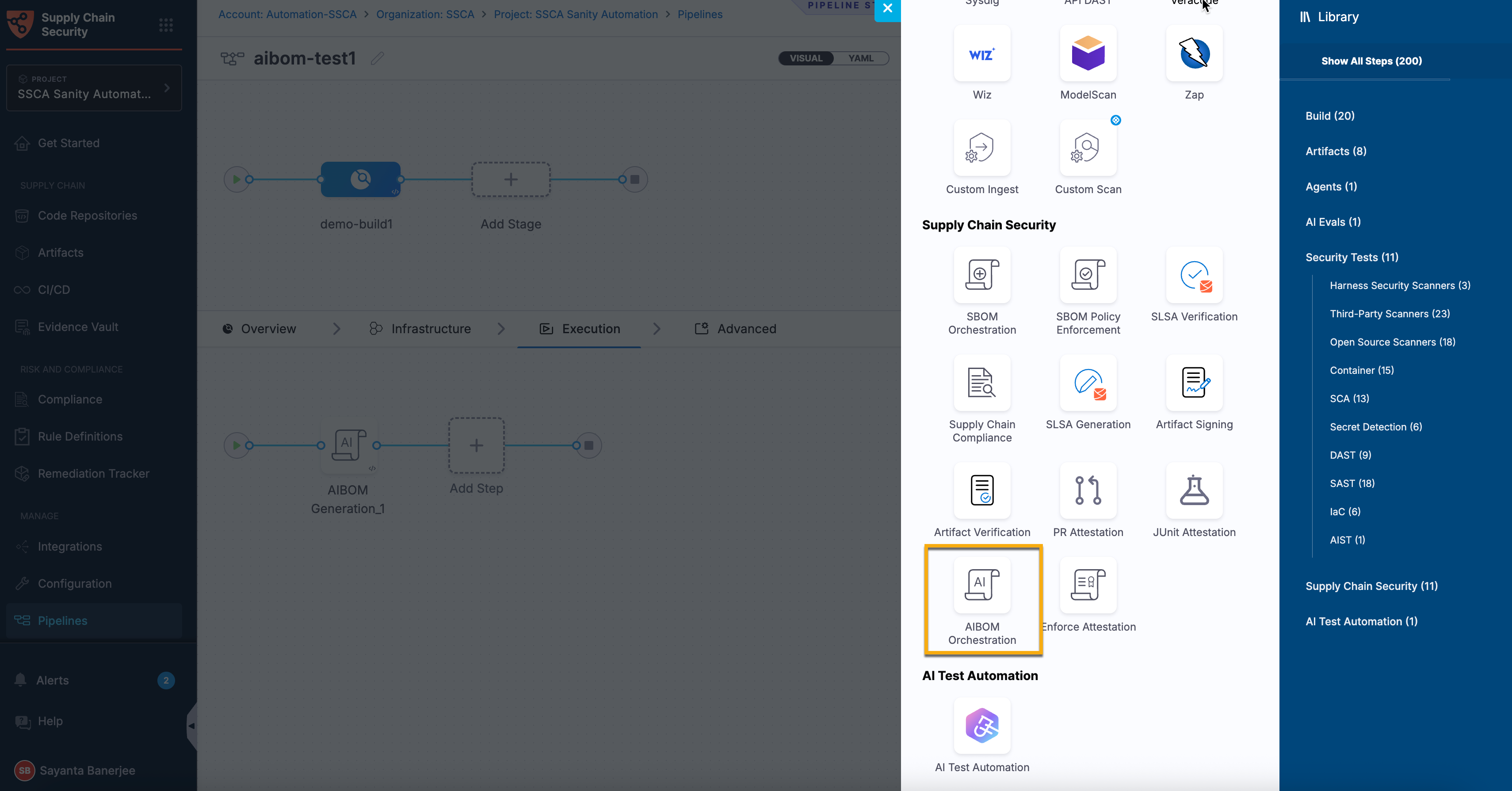
5. Click the **Execution** tab for your Build Stage and click **Add Step > Add Step** to open the **Step Library**.
Click to view full size image
6. Scroll down to the **Supply Chain Security** section or search within the **Step Library** to select the **AIBOM Orchestration** step.\
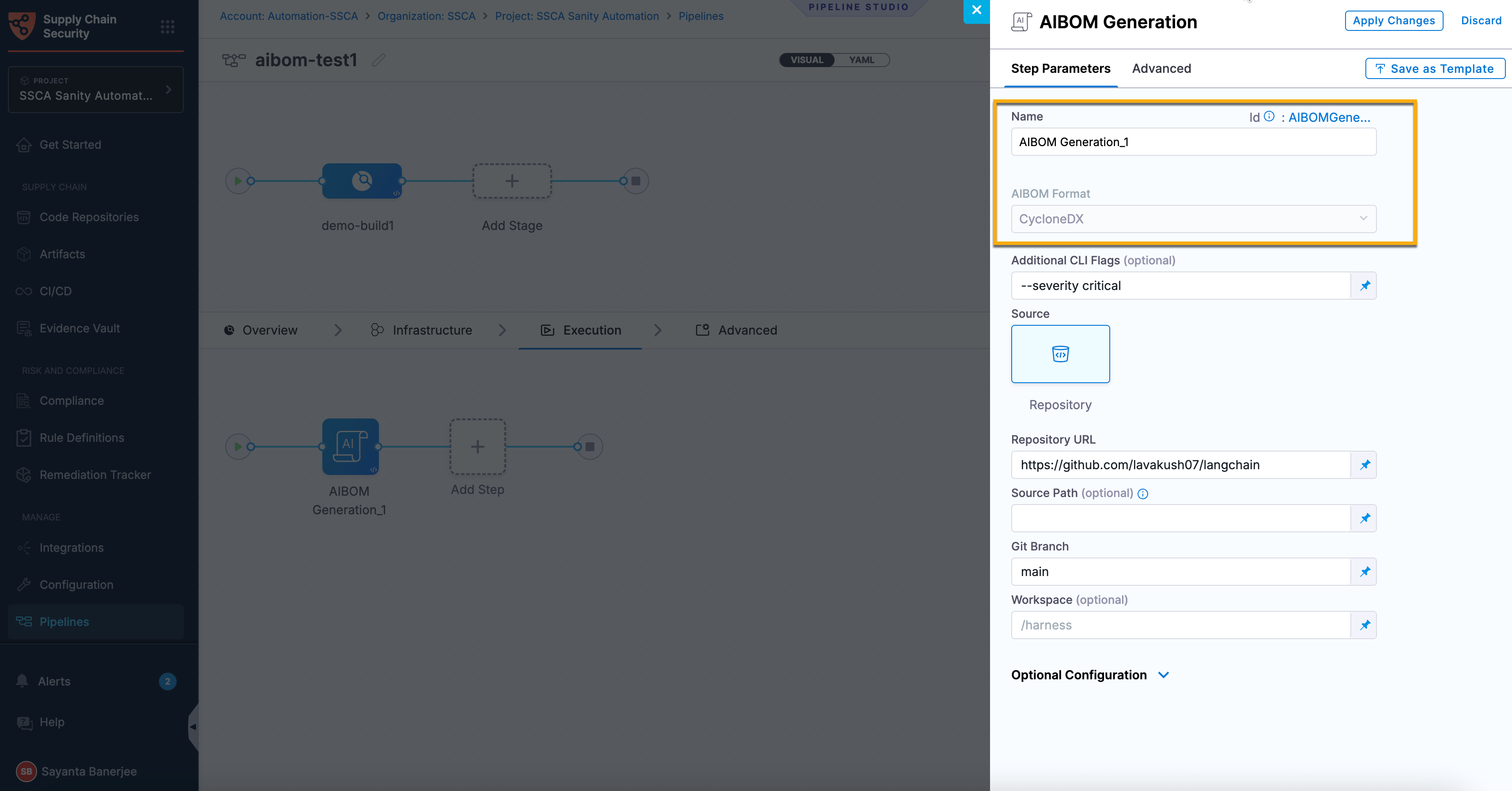
The **Step Parameters** tab in the **AIBOM Generation** side panel opens by default.
7. In the **Name** field, enter a unique name for the step. Harness automatically generates a step ID from the name.\
Once the pipeline is created, you cannot change the ID.
8. The **AIBOM Format** is set to `CycloneDX` by default.\
Currently, `CycloneDX` is the only supported format, so this value cannot be modified.
Click to view full size image
#### Step 2: Use the AIBOM flags (Optional)
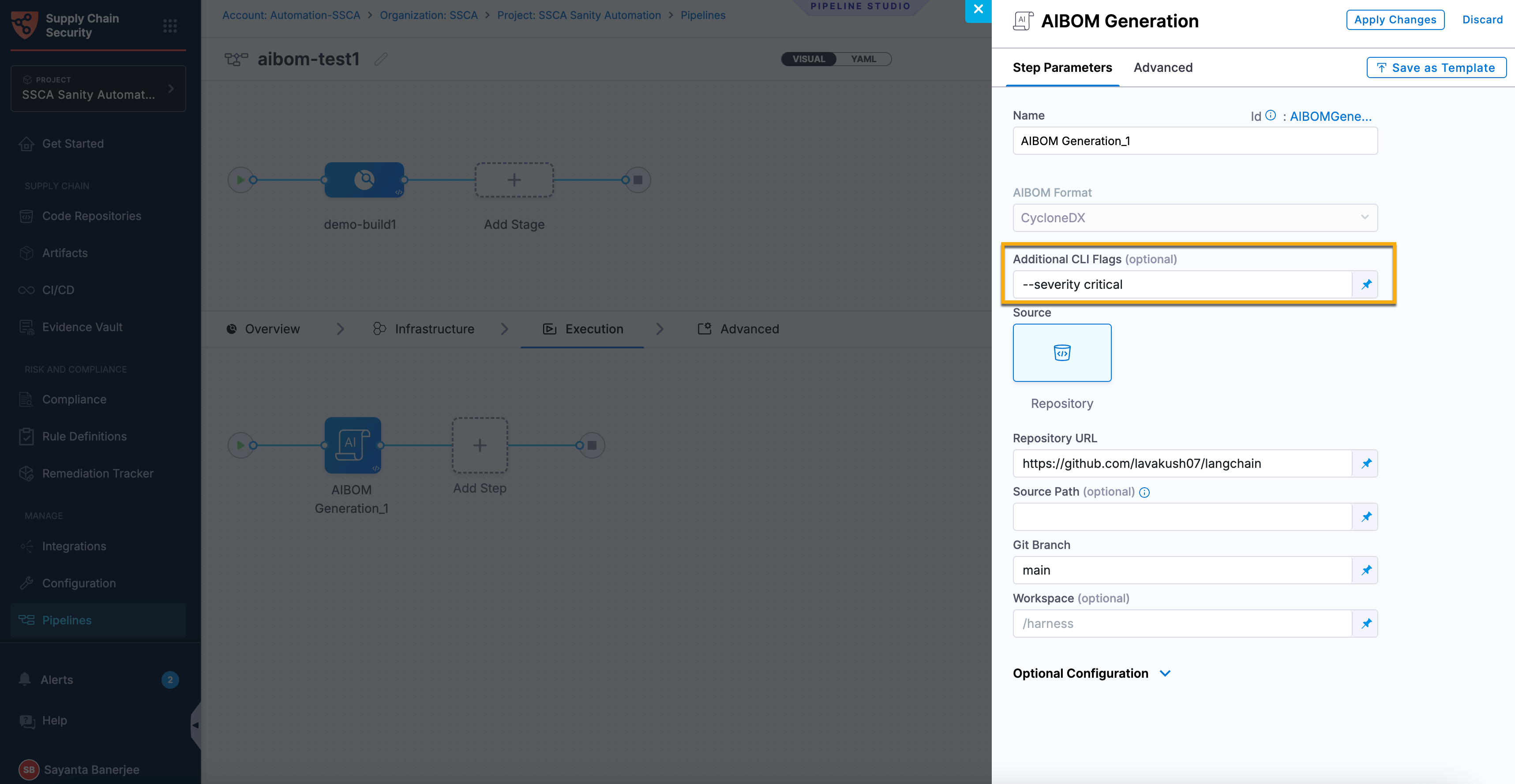
The AIBOM Orchestration step supports optional flags that customize how AI components are discovered and how the generated AIBOM is produced. These flags allow you to control component discovery, output, logging, performance, and AI model enrichment. Use them to tailor AIBOM generation for your specific repository and workflow.
The following table provides a structured overview of why AIBOM flags are used, when they are appropriate, and how they can be effectively leveraged during AIBOM generation.
| **Why use it?** | **When to use it?** | **How can you leverage it?** |
| ---------------------------------------------------------------------------------------------------------------------- | ----------------------------------------------------------------------------------------------------------------- | --------------------------------------------------------------------------------------------------------------------------------------------------------------------- |
| Customize AIBOM generation by controlling component discovery, output format, AI enrichment, logging, and performance. | When the default AIBOM generation behavior does not meet your repository, performance, or reporting requirements. | Configure AIBOM flags to optimize execution, generate different output formats, enable debugging, enrich AI metadata, or customize validation based on your use case. |
To apply AIBOM flags within your AIBOM orchestration step configuration, complete the following steps:
1. In the **Additional CLI Flags** field, enter one or more supported AIBOM flags.
2. Separate multiple flags with spaces.
Click to view full size image
Available AIBOM flags
The following flags are available for common use cases:
| **Flag** | **What it does?** | **When to use?** | **Trade-off** |
| ------------------------ | ----------------------------------------------------------------------- | ------------------------------------------------------------------------------------------------------ | ------------------------------------------------------------------------------- |
| `--deep` | Enables deep AST-based Python analysis. | When more comprehensive Python analysis is required. | Increases execution time. |
| `--quiet` | Suppresses progress output during execution. | When running AIBOM generation in automated CI environments. | Reduces runtime visibility. |
| `--verbose` | Displays detailed execution information. | When troubleshooting AIBOM generation. | Produces more verbose logs. |
| `--debug` | Enables debug logging with stack traces. | When diagnosing execution failures. | Generates extensive log output. |
| `--no-color` | Disables colored output in the AIBOM logs. | When running AIBOM generation in CI/CD systems or log collectors that do not support ANSI color codes. | Log output is plain text, which may be less readable when viewed in a terminal. |
| `--config ` | Uses a custom configuration file for AIBOM generation. | When standard settings are insufficient. | Requires maintaining an external configuration file. |
| `--workers ` | Configures the number of parallel workers used during AIBOM generation. | When optimizing execution performance for large repositories. | Higher values increase resource usage. |
| `--cache` / `--no-cache` | Enables or disables incremental caching during AIBOM generation. | When balancing execution speed and ensuring the latest repository changes are reflected. | Cached results may not reflect the latest repository changes. |
| `--max-file-size ` | Sets the maximum file size to process. | When repositories contain large model files. | Files larger than the configured limit are skipped. |
| `--validate` | Validates the generated JSON against the schema. | When schema compliance is required. | Adds validation time to the execution. |
| `--json` | Outputs results in JSON format. | When integrating with automation or external tools. | Human readability is reduced. |
| `--llm-enrich` | Uses an LLM to enrich detected model information. | When additional model metadata is required. | Requires an accessible LLM provider. |
| `--llm-model ` | Specifies the LLM used for enrichment. | When using a model other than the default. | Depends on model availability and compatibility. |
| `--llm-api-key ` | Specifies the API key for the configured LLM provider. | When authentication is required for enrichment. | Credentials must be securely managed. |
| `--llm-base-url ` | Specifies a custom LLM API endpoint. | When using self-hosted or non-default LLM providers. | Incorrect configuration prevents enrichment. |
{% hint style="info" %}
* You can combine multiple AIBOM flags in a single AIBOM Orchestration step configuration.
* The AIBOM Orchestration step automatically manages the `--format`, `--output`, and `--no-telemetry` flags. Do not specify these flags in the `Additional CLI Flags` field.
* The `--format` flag is fixed to CycloneDX. Specifying a different format (for example, spdx) causes the pipeline to fail during AIBOM processing.
* The `--output` flag is managed by the step to write the generated AIBOM to the location required for subsequent processing and upload.
* The `--no-telemetry` flag is enabled by default to prevent the AIBOM generation process from sending telemetry data to external services.
* Although the underlying AIBOM generation process exposes `--severity` and `--fail-on ` flags, they are not supported by the AIBOM Orchestration step because AI risk assessment is not currently available.
* Depending on the flags used, execution time, output format, AI enrichment, and logging behavior may vary.
* Flags that enable debugging, validation, or AI enrichment can increase execution time.
* LLM enrichment flags require access to a compatible LLM provider and appropriate credentials.
{% endhint %}
#### Step 3: Configure the repository source
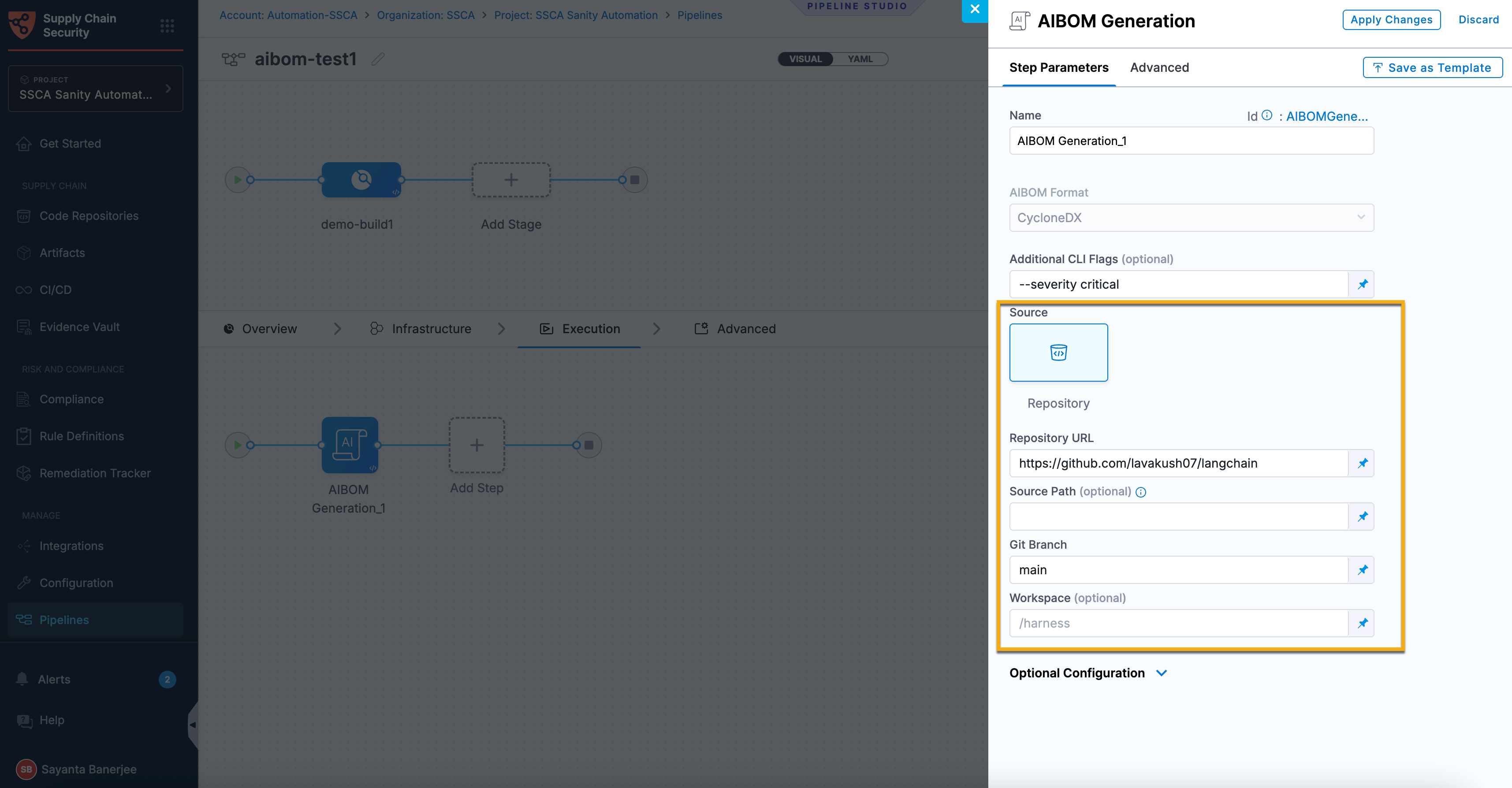
The repository source configuration defines the repository and branch used by the AIBOM Orchestration step to identify AI-related components. To configure the repository source, complete the following steps:
1. The **Source** is set to **Repository** by default.\
Currently, **Repository** is the only supported source. As a result, this selection cannot be modified.
2. In the **Repository URL** field, enter the URL of the repository from which you want to generate the AIBOM.
Ensure that the repository configured as the Codebase in the pipeline stage is the repository you want to scan. The Repository URL field is used only to associate the generated AIBOM with the corresponding repository in SCS and does not determine which repository is scanned.
3. (Optional) In the **Source Path** field, enter the path to the directory or file within the repository that you want the AIBOM Orchestration step to analyze.
4. In the **Git Branch** field, enter the name of the branch containing the repository content that you want to analyze.
5. (Optional) In the **Workspace** field, enter the path to the workspace directory where the repository is available during pipeline execution. If not specified, the default workspace path is `/harness`.
Click to view full size image
#### Step 4: Add any optional configuration (Optional)
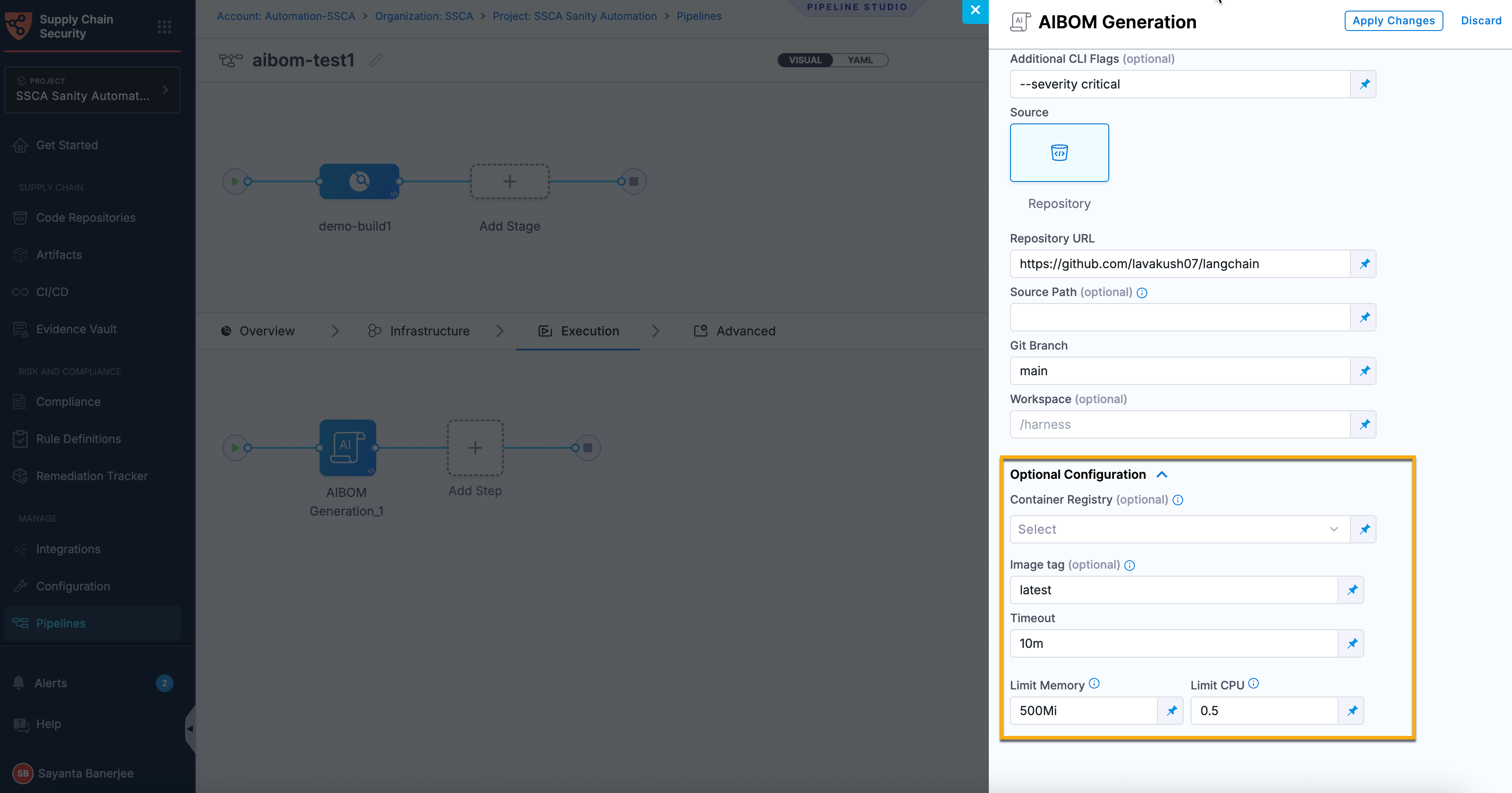
The optional configuration settings allow you to customize the execution environment for the AIBOM Orchestration step. You can configure the container registry, image tag, execution timeout, and resource limits based on your pipeline requirements.
To add optional configuration for the AIBOM Orchestration step, complete the following steps:
1. Click the **Optional Configuration** collapsible to expand it. It is collapsed by default.
2. (Optional) Under the **Container Registry** field, click `Select` to open the `Create or Select an Existing Connector` dialog.
1. Select your required connector from the list of existing connectors.\
You can search for your created connector or filter them by **Project**, **Organization**, and **Account**.
2. Alternatively, click `+ New Connector` to create a new container registry connector that hosts the AIBOM image.\
The available options are **Google Cloud Provider**, **AWS Cloud Provider**, **Docker Registry**, and **Azure Cloud Provider**. Go to [Create a GCP Connector](/harness-platform/use-harness-platform/connectors/cloud-providers/connect-to-google-cloud-platform-gcp.md#create-a-gcp-connector), [Add an AWS connector](/harness-platform/use-harness-platform/connectors/cloud-providers/add-aws-connector.md#create-the-aws-connector), [Docker Connector Settings Reference](/harness-platform/use-harness-platform/connectors/artifact-repositories/add-a-docker-registry-connector/docker-registry-connector-settings-reference.md), and [Add a Microsoft Azure connector](/harness-platform/use-harness-platform/connectors/cloud-providers/add-a-microsoft-azure-connector.md#add-an-azure-connector) to create these connectors.
3. (Optional) In the **Image Tag** field, enter the tag of the AIBOM image to use during pipeline execution.\
By default, `latest` is used, which pulls the latest available image. To use a specific version, enter its image tag (For example, `0.62.1`).
4. In the **Timeout** field, specify the maximum time that the AIBOM Orchestration step can run before it is terminated.
5. In the **Limit Memory** field, specify the maximum amount of memory that can be allocated to the AIBOM Orchestration step during execution. The default value is `500Mi`.
6. In the **Limit CPU** field, specify the maximum CPU resources that can be allocated to the AIBOM Orchestration step during execution. The default value is `0.5`.
Click to view full size image
#### Step 5: Configure the advanced settings (Optional)
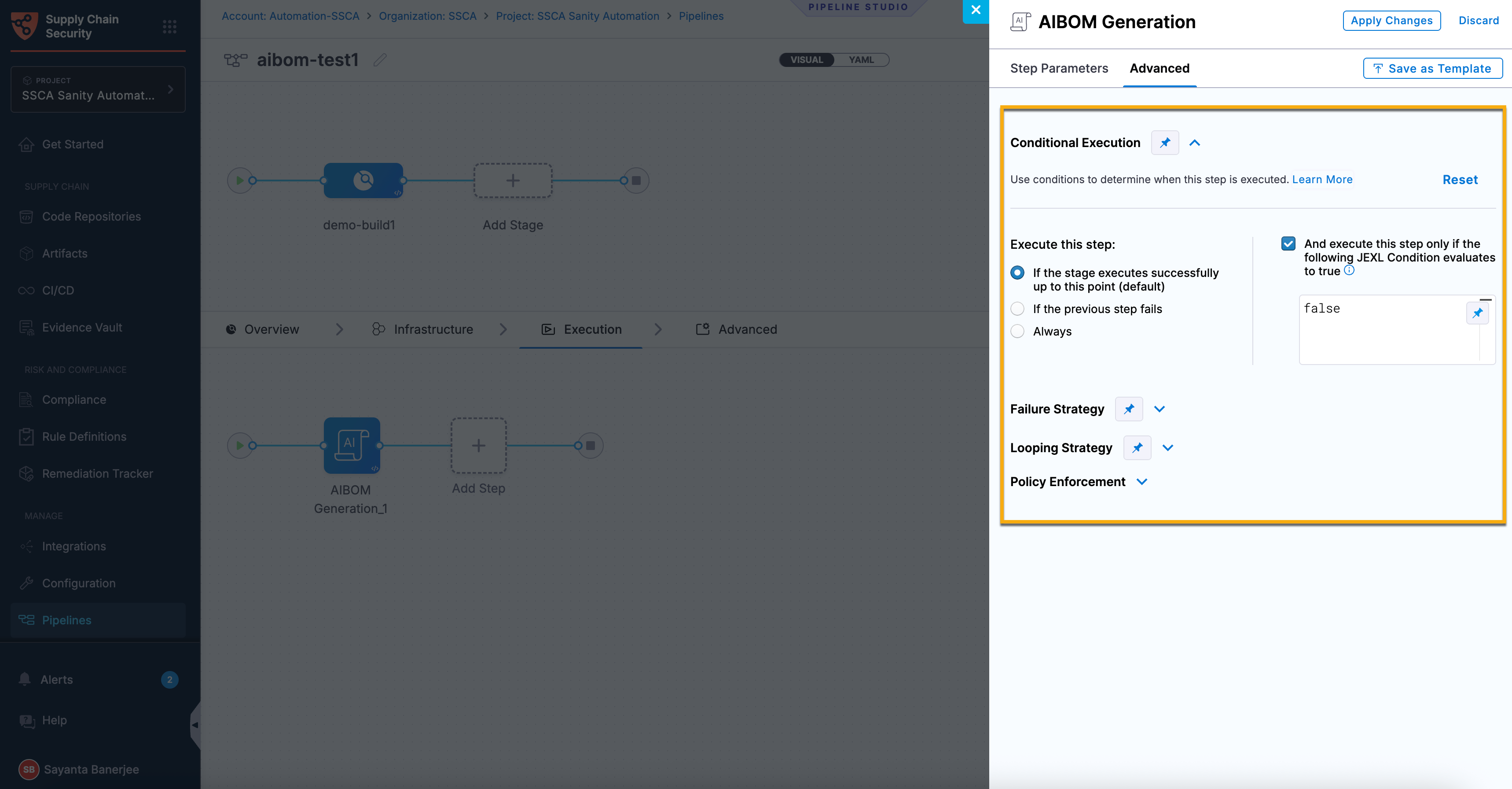
The advanced settings allow you to customize the execution behavior of the AIBOM Orchestration step. You can configure conditional execution, failure strategies, looping strategies, and policy enforcement based on your pipeline requirements.
To configure the advanced settings for the AIBOM Orchestration step, complete the following steps:
1. Select the **Advanced** tab to configure the advanced settings for the AIBOM Orchestration step.
2. Expand the **Conditional Execution** collapsible to configure when the AIBOM Orchestration step runs within the pipeline. Go to [Define conditional executions for stages and steps](/harness-platform/use-harness-platform/pipelines/step-skip-condition-settings.md) to configure conditional execution.
3. Expand the **Failure Strategy** collapsible to configure how the pipeline responds if the AIBOM Orchestration step fails. Go to [Define failure strategies for stages and steps](/harness-platform/use-harness-platform/pipelines/failure-handling/define-a-failure-strategy-on-stages-and-steps.md) to configure failure strategies.
4. Expand the **Looping Strategy** collapsible to configure how the AIBOM Orchestration step executes across multiple iterations. Go to [Use looping strategies](/harness-platform/use-harness-platform/pipelines/looping-strategies/looping-strategies-matrix-repeat-and-parallelism.md) to configure looping.
5. Click **Apply Changes** in the upper-right corner of the side panel to save the step configuration.
The Policy Enforcement setting is not applicable to Supply Chain Security (SCS) stages and is ignored during pipeline execution.
Click to view full size image
***
### Run the pipeline
When the pipeline runs, the AIBOM Orchestration step analyzes the configured repository to identify AI-related components and generates an AIBOM in CycloneDX format. The generated AIBOM is then processed and uploaded to SCS, where the orchestration results are stored.
After the upload completes, SCS generates a summary of the detected AI components and exports the AIBOM summary as pipeline output variables. You can use these output variables in subsequent pipeline steps and review the generated AIBOM and detected AI components in SCS.
To run the pipeline, complete the following steps:
1. Click **Save** in the upper-right corner of Pipeline Studio to save your pipeline changes.
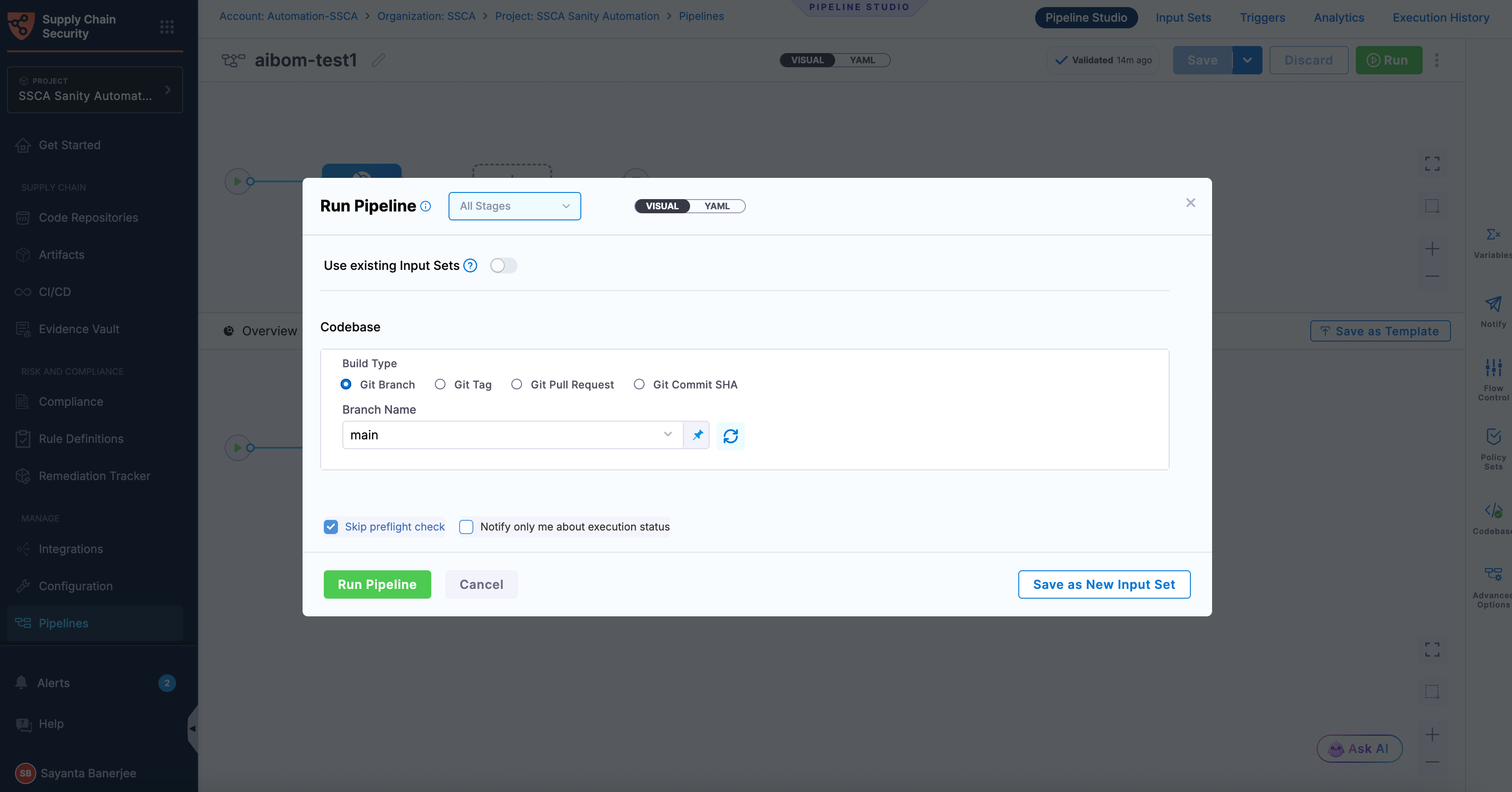
2. Click **Run** to open the **Run Pipeline** dialog.
3. Provide any required runtime inputs, such as:
* If applicable, select the input set or overlay to apply to the pipeline execution. Go to [Input Sets and Overlays](/harness-platform/use-harness-platform/pipelines/input-sets.md#run-pipelines-with-input-sets-or-overlays) to run pipelines with input sets.
* Select the build type for the pipeline execution. By default, **Git Branch** is selected.\
You can also run the pipeline using a **Git Tag**, **Git Pull Request**, or **Git Commit SHA**. The **Branch Name** field is prepopulated with the default branch configured for the code repository connector. If you want to build from a different branch, provide or select the required branch name.
Click to view full size image
4. Click **Run Pipeline** to begin execution.\
After the pipeline starts, you are redirected to the pipeline execution page, where you can monitor the execution status of each pipeline step and view the corresponding execution logs.
***
### View the generated AIBOM
After the AIBOM is generated and uploaded to SCS, you can view the detected AI components, review their associated metadata, and download the generated AIBOM.
To view the generated AIBOM, complete the following steps:
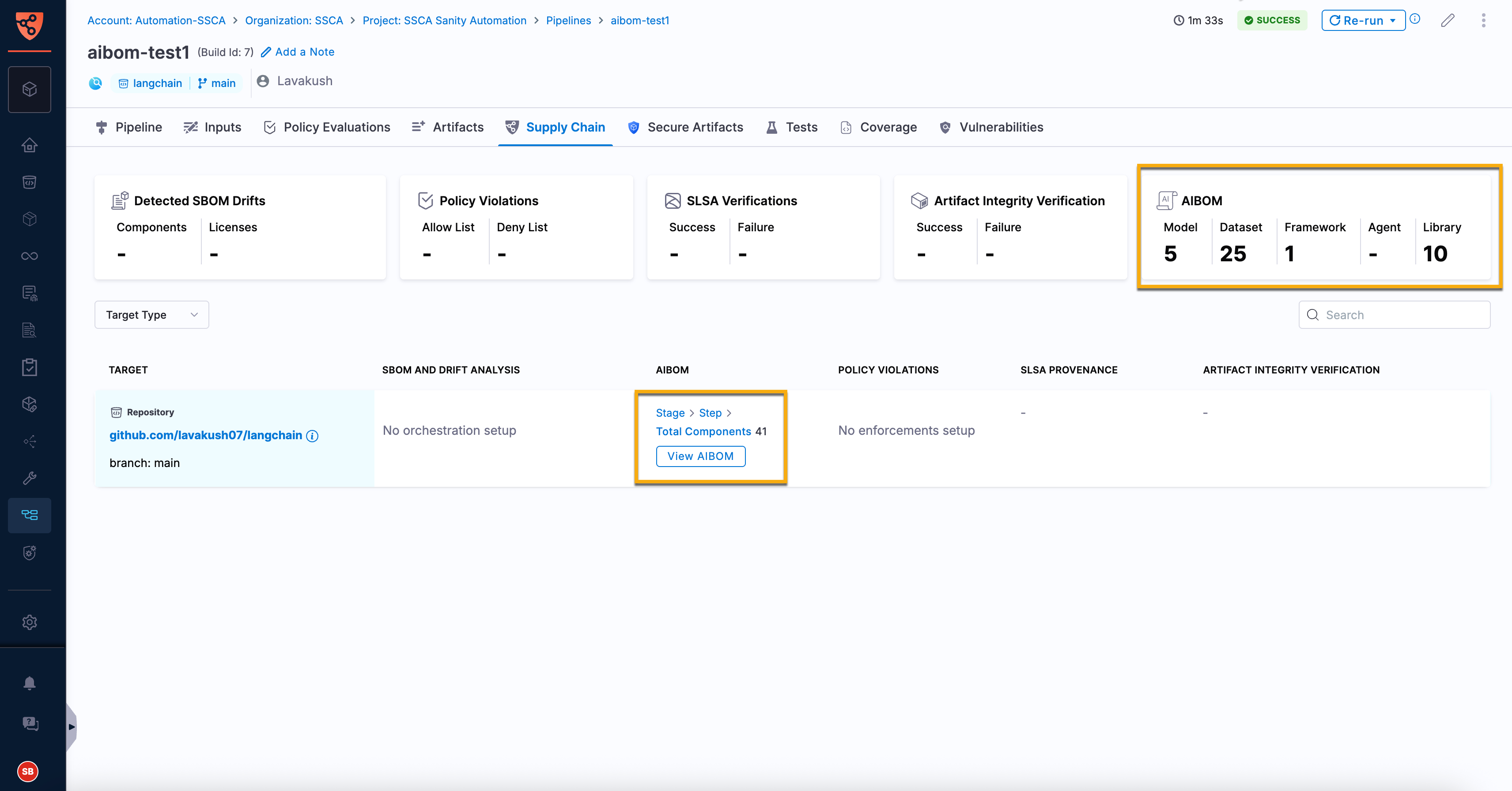
1. Select the **Supply Chain** tab within the pipeline execution page to view the supply chain security results for the pipeline execution.\
The **AIBOM** card displays the total number of AI components, categorized by component type.
Click to view full size image
2. The Target table displays the configured repository along with a summary of its supply chain security information, including AI components and other available orchestration results.
3. In the **AIBOM** column, click `View AIBOM` to open the **AIBOM** tab.\
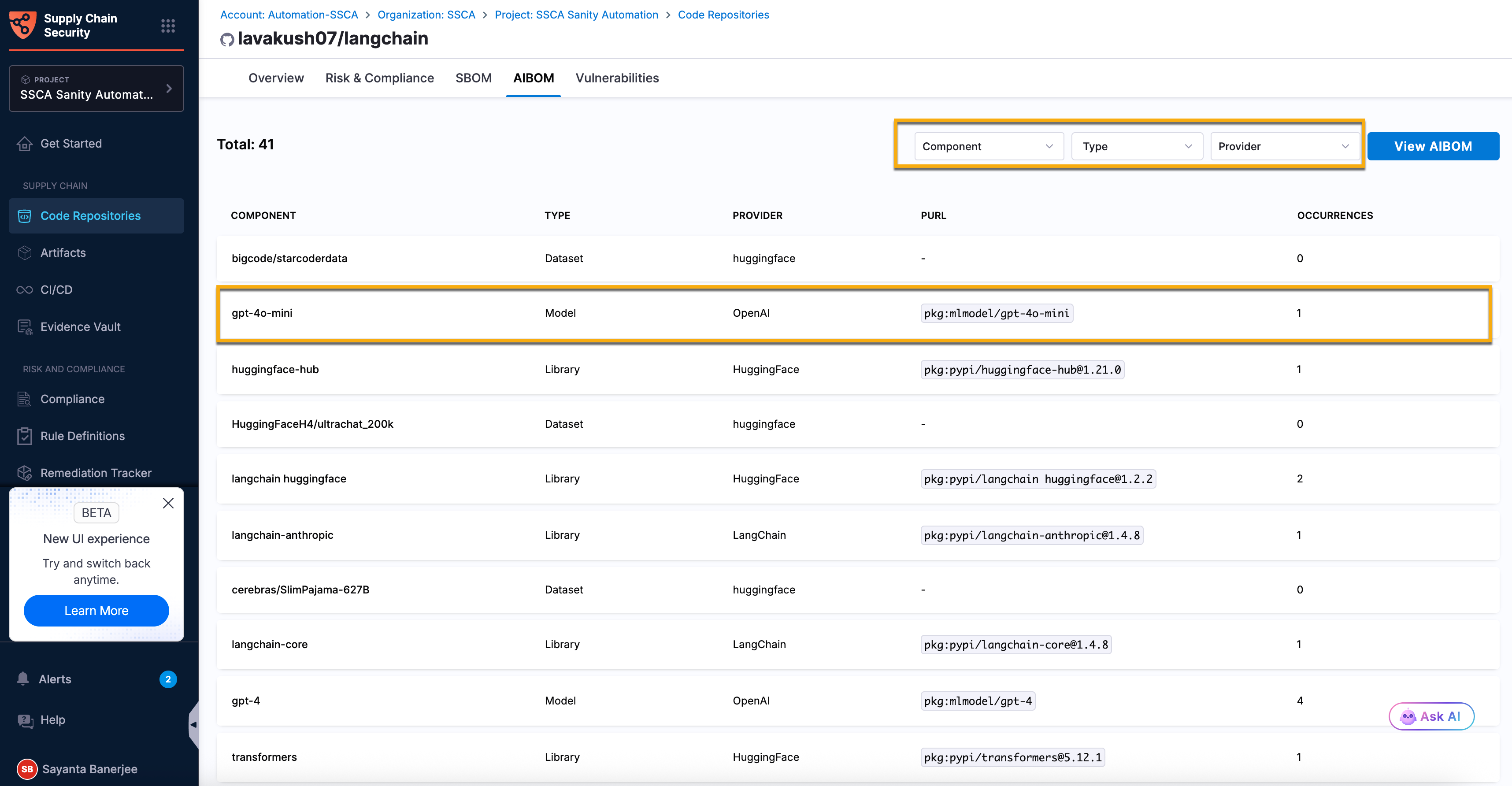
The AIBOM tab provides a comprehensive inventory of the AI components detected within your repository. It displays the total number of detected AI components and a detailed inventory with information such as the component name, type, provider, PURL (Package URL), and the number of occurrences.
* Use the following options to filter and refine the component list:
* **Component**: Find specific AI components based on the component name. Click `Component` to specify the condition for the **Component Name**.
* **Type**: Filter components based on the component type. Click `Type` to select the required component type from the dropdown. The available options are **Model**, **Library**, **Agent**, **Framework**, and **Dataset**.
* **Provider**: Find specific AI components based on the component provider. Click `Provider` to specify the condition for the **Component Provider**.
Click to view full size image
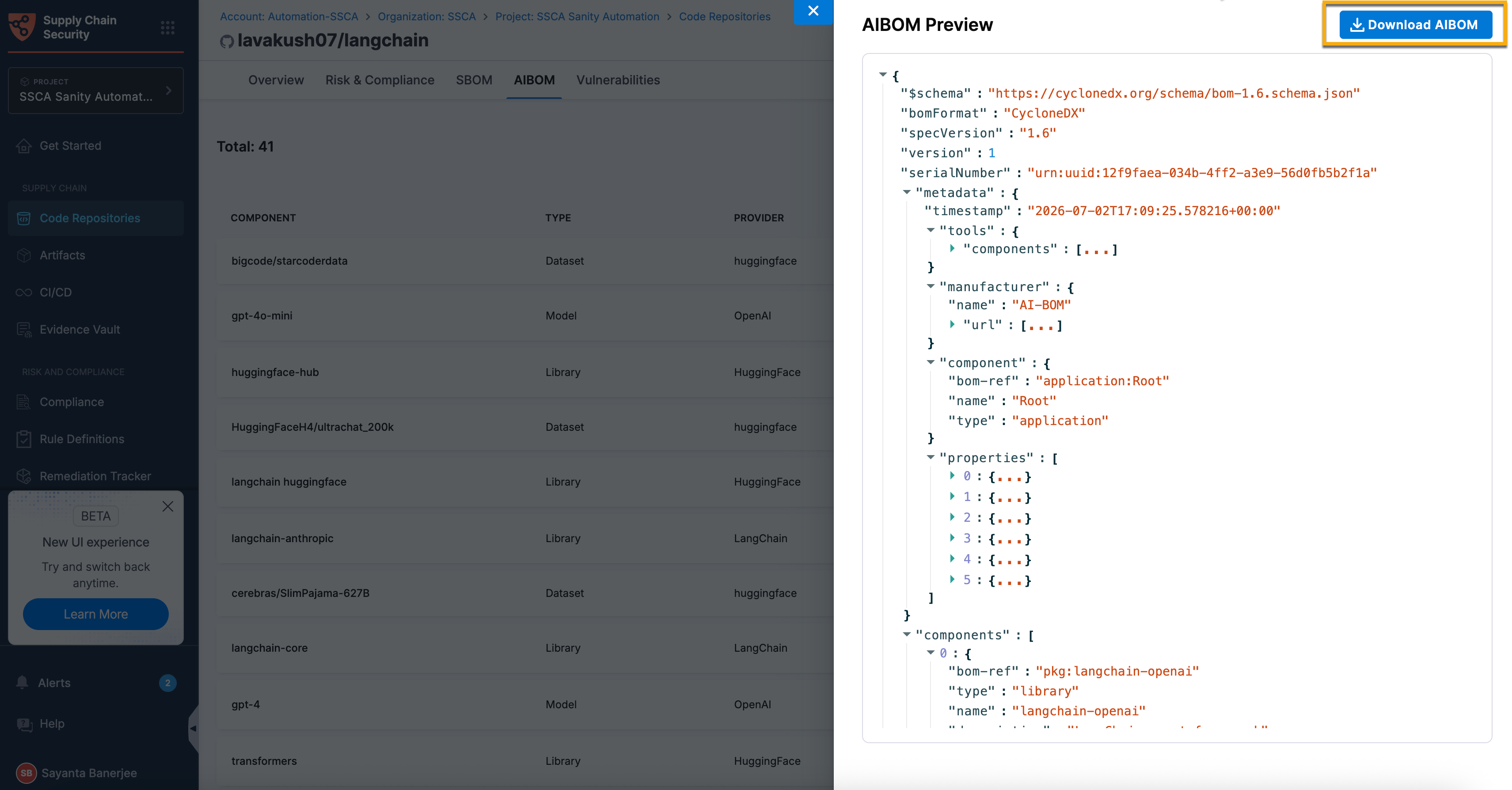
* Click the `View AIBOM` button in the upper right corner to open the **AIBOM Preview** side panel.\
The generated AIBOM is displayed as a formatted CycloneDX JSON document.
* Click the `Download AIBOM` button to download the AIBOM.
Click to view full size image
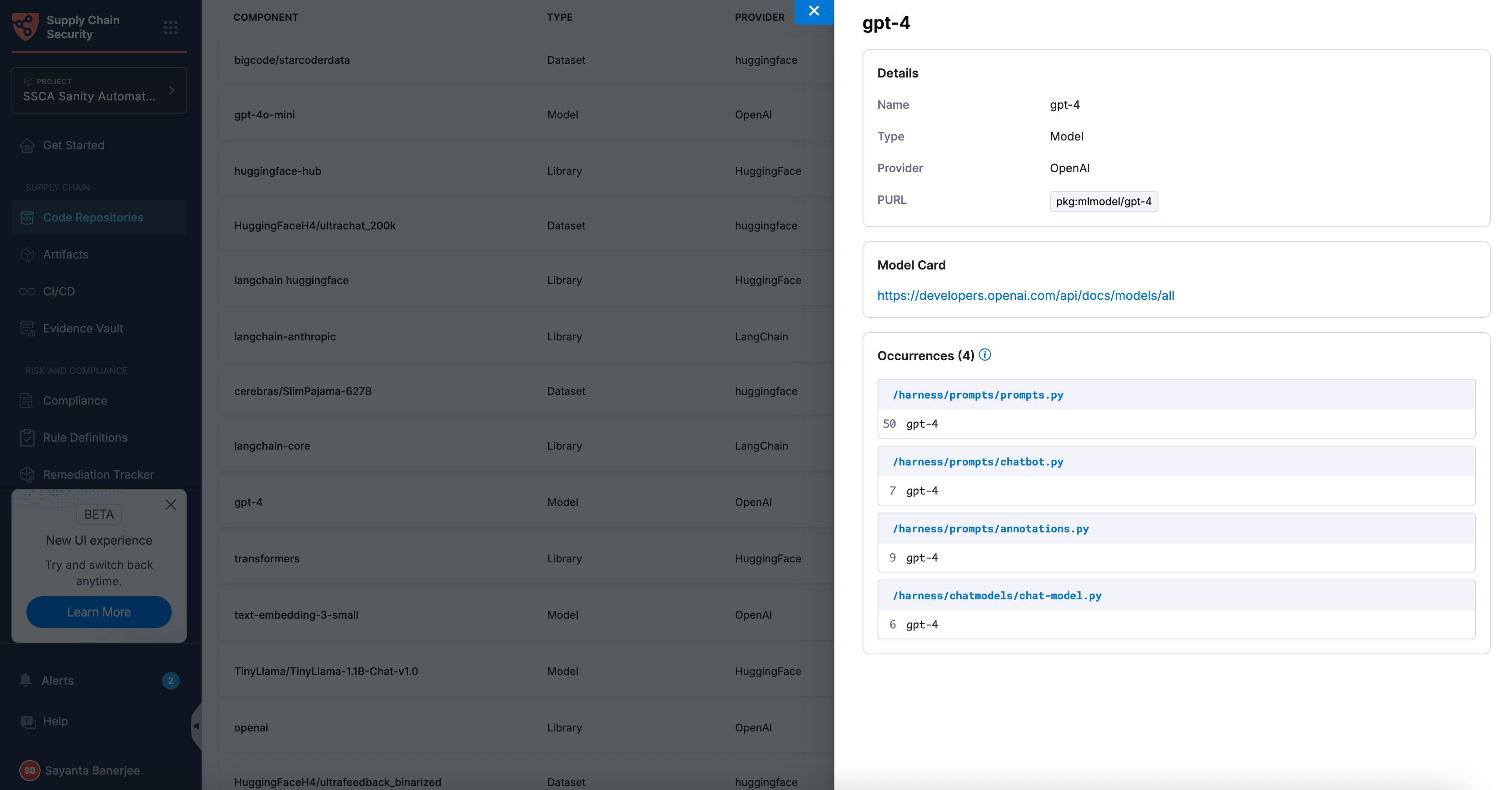
* Click a component row to open the component detail side panel.
* Review the component metadata in the **Details** section, including its name, type, provider, and PURL (Package URL).
* If available, use the **Model Card** link to access additional information about the AI component.
* Review the **Occurrences** section to identify the repository files and line numbers where the component was detected.
Click to view full size image
The AIBOM orchestration step currently supports the following AI frameworks: LangChain, CrewAI, AutoGen, LlamaIndex, Haystack, and LangGraph. If the AIBOM Orchestration step cannot determine the provider for a detected AI component, the Provider column displays Unknown.
***
### Next steps
* [Generate SBOM for Artifacts](/software-supply-chain-assurance/use-scs/open-source-management/generate-sbom-for-artifacts.md) - Generate an SBOM for your artifacts to gain visibility into software components, dependencies, and associated security risks.
* [Generate SBOM for Repositories](/software-supply-chain-assurance/use-scs/open-source-management/generate-sbom-for-repositories.md) - Generate an SBOM for your source repositories to inventory software components and identify security and compliance risks early in development.
* [OSS Risks Remediation](/software-supply-chain-assurance/use-scs/open-source-management/oss-risks-remediation.md) - Remediate detected open-source software (OSS) risks across your repositories and artifacts to strengthen your software supply chain security.
{% @harness-feedback/feedback %}