> For the complete documentation index, see [llms.txt](https://developer.harness.io/llms.txt). Markdown versions of documentation pages are available by appending `.md` to page URLs; this page is available as [Markdown](https://developer.harness.io/software-supply-chain-assurance/use-scs/open-source-management/ingest-sbom-data.md).
# Ingest Software Bill of Materials (SBOM) data into SCS
Harness SCS can ingest data from any scanner that can generate SBOM
A [Software Bill of Materials (SBOM)](https://cyclonedx.org/capabilities/sbom/) is a list of all the components, libraries, and other dependencies used in a software application. While Harness SCS enables you to [generate SBOMs](/software-supply-chain-assurance/use-scs/open-source-management/generate-sbom-for-repositories.md), it also supports the ingestion of SBOMs in JSON, [SPDX](https://spdx.dev/learn/overview/) or [CycloneDX](https://cyclonedx.org/specification/overview/) formats, generated by any third-party tool.
Configure the SBOM Orchestration step in SCS to seamlessly ingest SBOM. In this example, we will generate an SBOM using the Trivy CLI in a CI Run step, and then ingest it using the SBOM Orchestration step.
You can ingest SBOM for both [container](#container-images) and [non-container](#non-container-images) images.
{% hint style="info" %}
In the SBOM, dependency names may differ from their original source names, as SBOM tools sometimes list dependencies under a product or bundle name rather than the actual dependency name.
{% endhint %}
### Configure your pipeline to ingest SBOM
1. In your Harness pipeline, Navigate to the stage where you want to ingest the SBOM, and select the **Overview** tab.
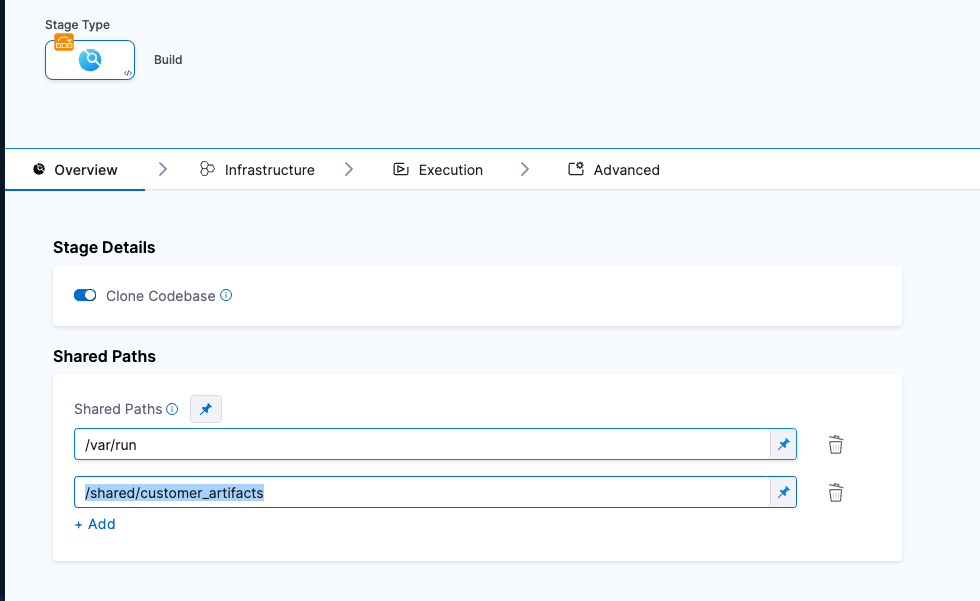
2. In **Shared Paths**, enter a path to a location where your SBOM can be stored on the build machine, such as `/shared/customer_artifacts`.
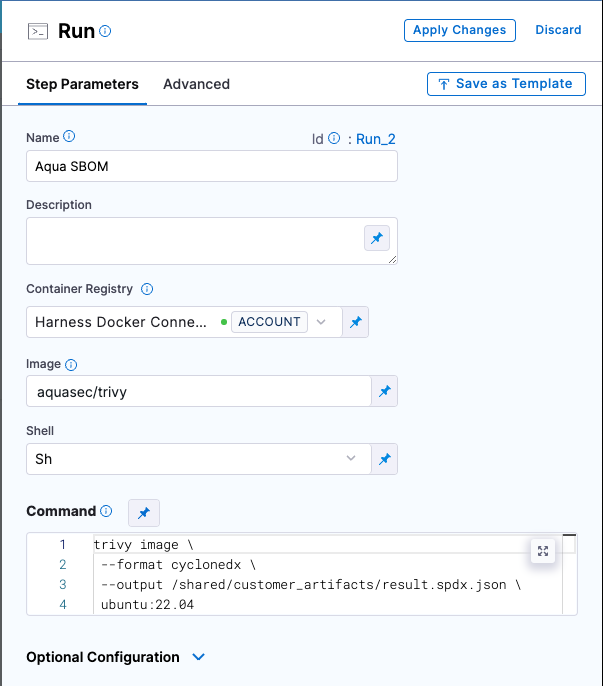
3. Add a step to your stage that generates an SBOM, such as a **Run**, **Plugin**, or **GitHub Action** step.
For example, this **Run** step uses [Aqua Trivy](https://aquasecurity.github.io/trivy/dev/docs/supply-chain/sbom/) to generate an SBOM.
```bash
trivy image \
--format spdx-json \
--output /shared/customer_artifacts/result.spdx.json \
ubuntu:22.04
```
4. If your SBOM tool cannot output directly to your **Shared Path**, then add commands or a **Run** step to copy the SBOM into the directory specified in **Shared Paths**.
{% hint style="info" %}
**SBOM Orchestration** step in deploy stage can only be used in the [Containerized Step Groups](/continuous-delivery/use-continuous-delivery/cd-building-blocks/cd-steps/containerized-steps/containerized-step-groups.md)
{% endhint %}
#### Container images
Follow the instructions below to ingest the SBOM for container images:
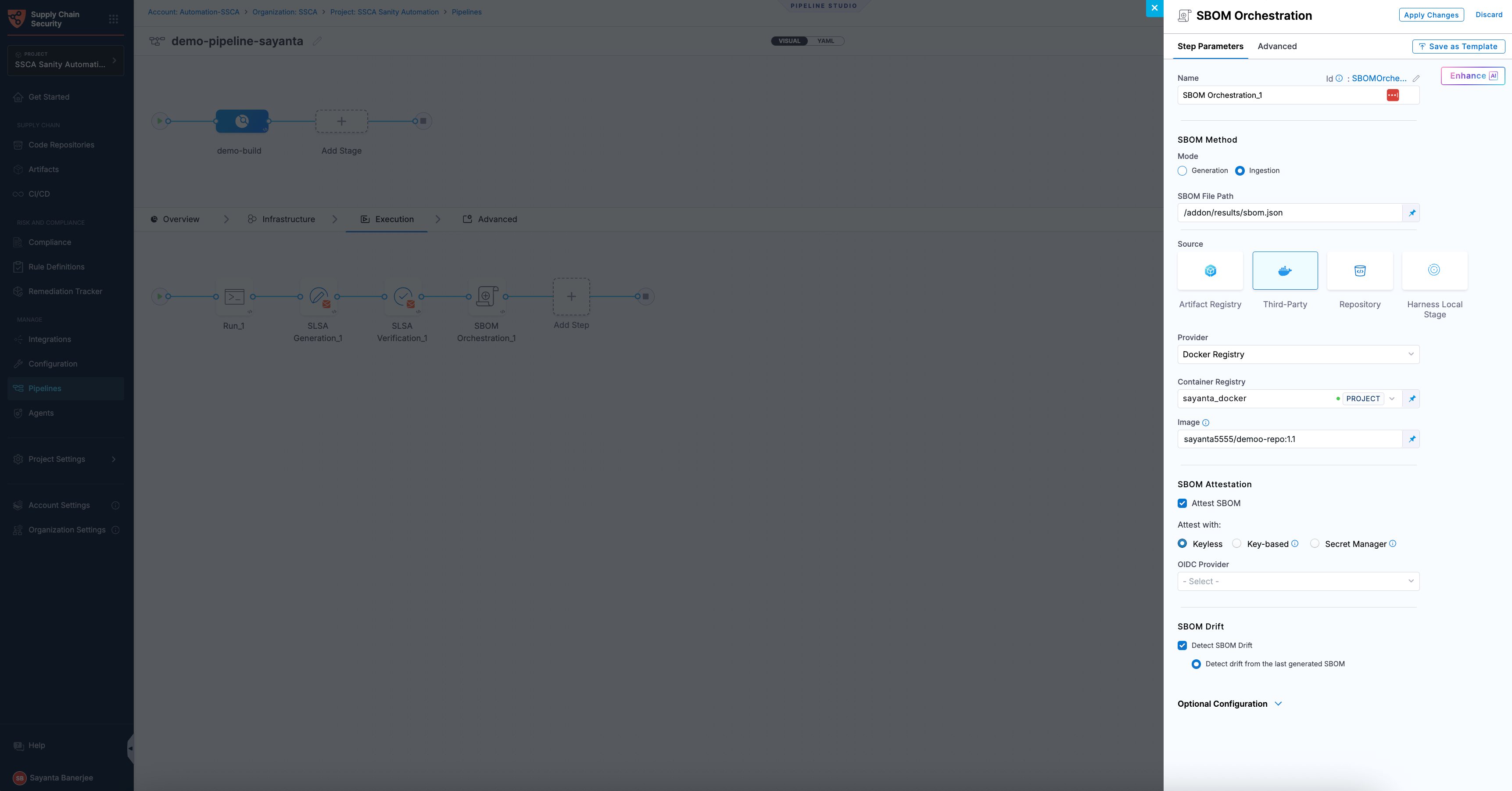
* **Step Mode:** Set the step mode to **Ingestion**.
* **SBOM File Path:** enter the path to the SBOM file generated by your SBOM tool.
* **Source:** Set the source, which can be Third party (Docker Registry, ECR, ACR, GAR) or Harness Artifact Registry. Depending on your selection, a unique set of fields will appear, each specific to the source you have chosen. Address these fields as required, this is similar to configuring the source in SBOM Orchestration step. Go to the [documentation on SBOM Orchestration](/software-supply-chain-assurance/use-scs/open-source-management/generate-sbom-for-repositories.md) to understand what each field entails. If you are using Docker Registry, you can follow along.
* **Image:** Enter the name of your image with tag or digest, such as `my-docker-org/repo-name:tag` or `my-docker-org/repo-name@sha256:digest` .
#### Attest the ingested SBOM
SBOM signing is the process of cryptographically signing an ingested SBOM to ensure its authenticity and integrity. It ensures that externally sourced SBOMs have not been tampered with and can be trusted by downstream systems for analysis and compliance. Go to [attestation and verification](/software-supply-chain-assurance/new-to-scs/key-concepts.md#attestation-and-verification) to understand the signing and verification process.
You can perform attestation using Cosign with the following signing methods:
* **Keyless** - Uses short-lived, automatically generated keys based on identity to sign ingested SBOMs without storing private keys.
* **Key-based** - Uses a user-managed private and public key pair to sign ingested SBOMs, requiring secure key storage and handling.
* **Secret Manager** - A secure service used to store, manage, and access sensitive data such as cryptographic keys without exposing them directly in pipelines.
Based on the attestation type you select, click the tab below and specify the configurations for the SBOM Orchestration step to perform the attestation.
{% tabs %}
{% tab title="Keyless" %}
Keyless signing using Cosign lets you sign ingested SBOMs without managing long-lived signing keys. Instead, Cosign uses your workload identity (via OIDC) to obtain a short-lived signing certificate during pipeline execution, which is then used to sign the SBOM. The signing key is generated and used only in memory and is not persisted. This reduces the risk of key compromise while ensuring externally sourced SBOMs remain verifiable and trusted.
To configure SBOM attestation for ingested SBOMs with Keyless signing using cosign, complete the following steps:
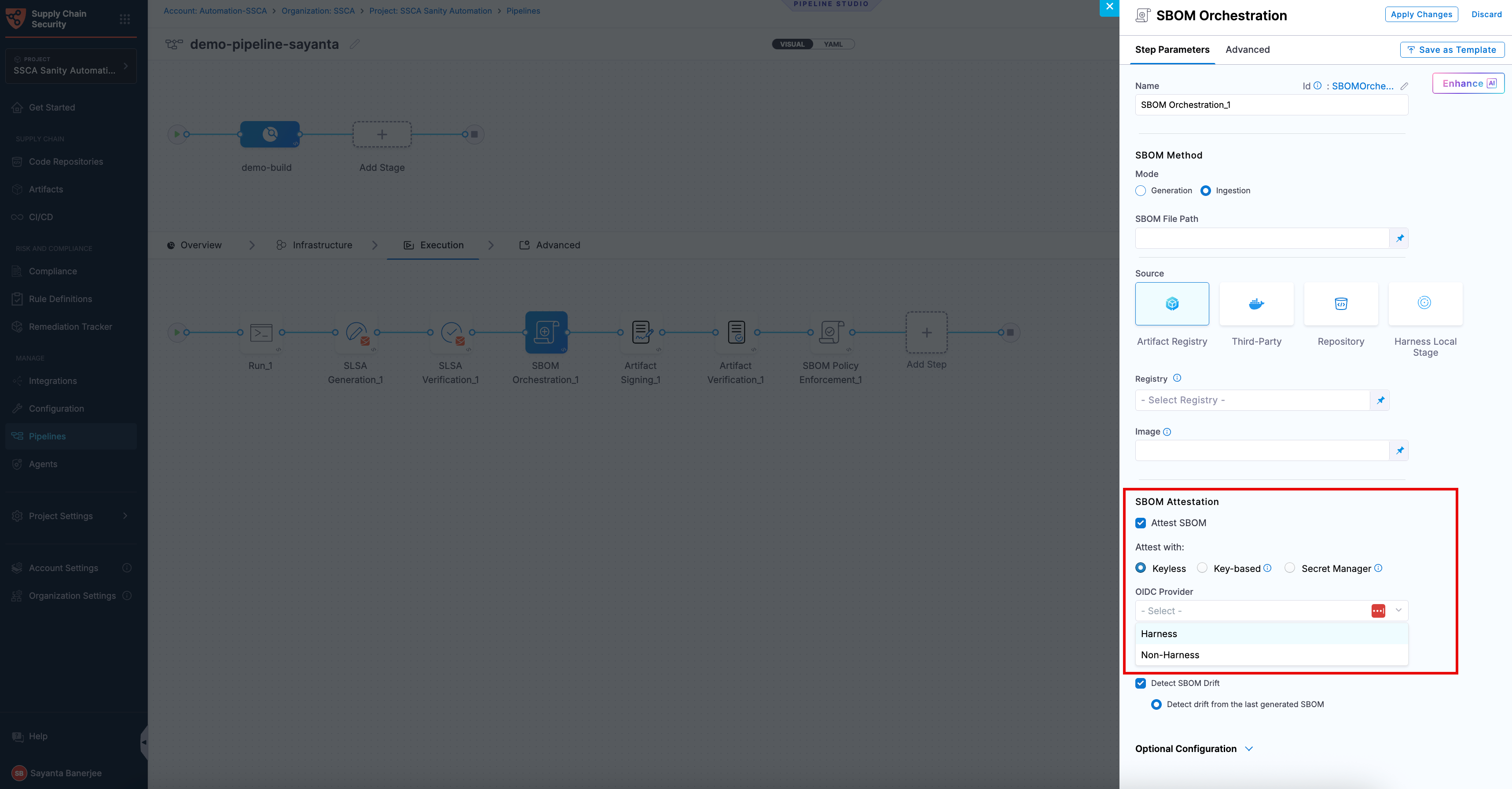
1. Click the checkbox beside `Attest SBOM` to enable SBOM attestation. The radio button beside `Keyless` will be selected by default.
2. Select your preferred OIDC Provider from the dropdown under `OIDC Provider`. The available options are:
* [Harness](/software-supply-chain-assurance/use-scs/open-source-management/ingest-sbom-data.md#harness-oidc)
* [Non-Harness](/software-supply-chain-assurance/use-scs/open-source-management/ingest-sbom-data.md#non-harness-oidc)
{% hint style="info" %}
This attestation method is not supported for SMP at the moment.
{% endhint %}
**Harness OIDC**
Harness OIDC allows you to use the pipeline’s built-in identity for keyless signing of ingested SBOMs. In this approach, Harness acts as the OIDC provider and automatically supplies the identity required during pipeline execution, eliminating the need for external identity configuration.
**Non-Harness OIDC**
Non-Harness OIDC allows you to use an external identity provider for keyless signing of ingested SBOMs. In this approach, the OIDC token is retrieved from a configured connector (such as AWS, Azure, or GCP) during pipeline execution and used to obtain a signing certificate. This option is useful when you want to integrate with your organization’s existing identity and access management system instead of using Harness as the OIDC provider.
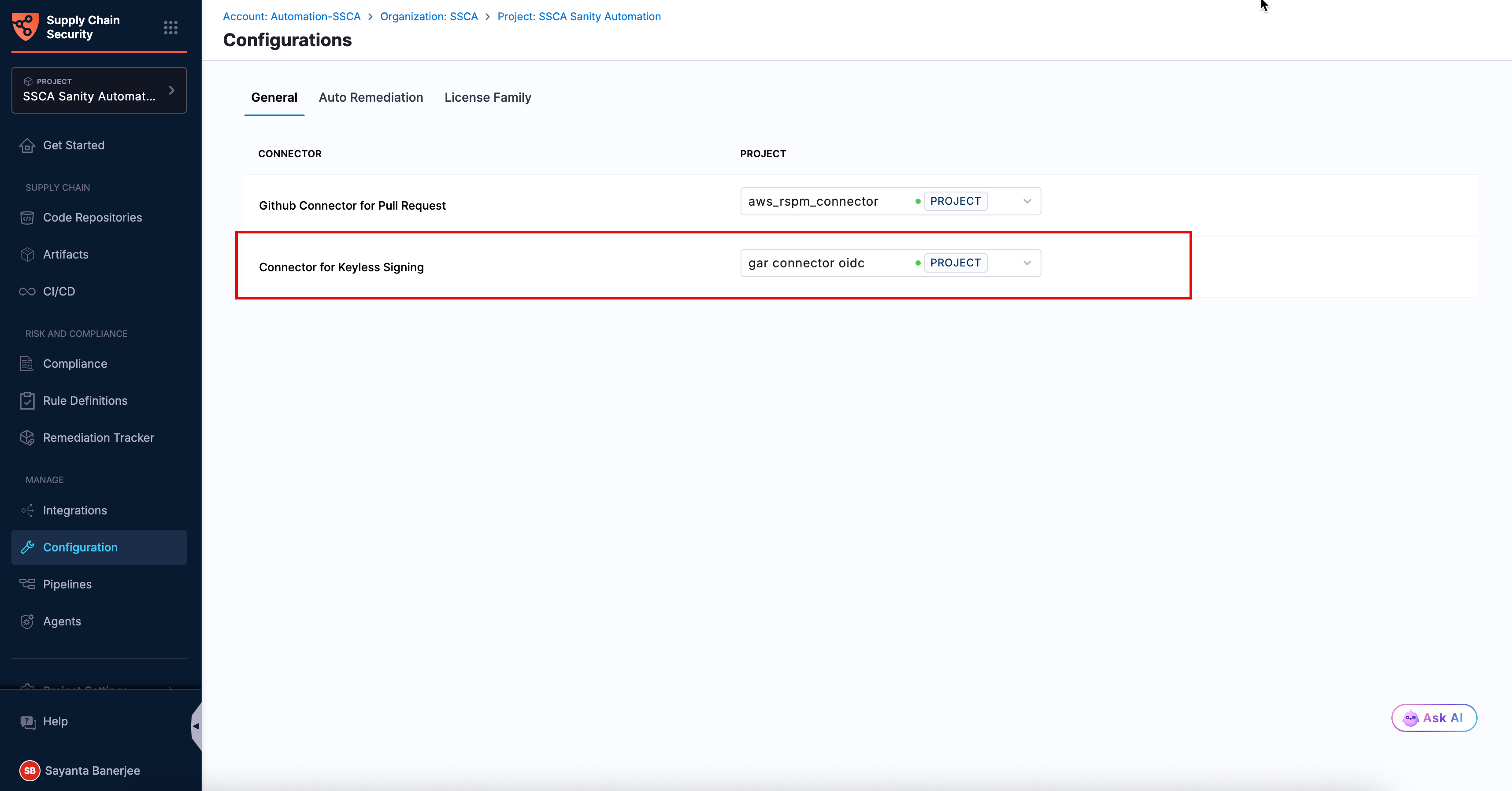
To use a Non-Harness OIDC provider, you need to configure the Connector for Keyless Signing. To configure the Connector:
1. Navigate to the **Configurations** page under the **Manage** section from the sidebar navigation of your SCS account. The **General** tab opens by default.
2. Click `Select Connector` next to `Connector for Keyless Signing` to open the `Create or Select an Existing Connector` dialog.
3. Select your required connector from the list of existing connectors. You can search for your created connector or filter connectors by **Project**, **Organization**, and **Account**.
4. Alternatively, click `+ New Connector` to create a new OIDC connector for your preferred cloud provider. For more information, see [Connectors for Cloud Providers](https://app.gitbook.com/s/3F2TpHXhur2QtQnORSM9/use-harness-platform/connectors/cloud-providers/README).
5. Click `Apply Selected`. Once selected, you can view the **Configuration Saved Successfully** toaster message at the top, indicating that the connector has been selected or created successfully.
Once the connector configuration is done successfully, you can perform attestation using keyless signing with a Non-Harness OIDC provider.
{% endtab %}
{% tab title="Key-based" %}
To perform attestation with **Cosign** selected, you need a key pair. Follow the instructions below to generate the key pair.
Generate key pairs using Cosign for SBOM attestation
* **Private Key**: Input your Private key from the [Harness file secret](/harness-platform/use-harness-platform/secrets/add-file-secrets.md).
* **Password**: Input your Password for the Private key from the [Harness file secret](/harness-platform/use-harness-platform/secrets/add-file-secrets.md).
{% endtab %}
{% tab title="HashiCorp Vault" %}
In this mode, you can pass your **Cosign keys** using a **Secret Manager**. Currently, SCS supports only the **HashiCorp Vault** secret manager. You can connect your Vault with Harness using the [Harness HashiCorp Vault connector](/harness-platform/use-harness-platform/secrets/secrets-management/add-hashicorp-vault.md). Here are the key points to consider when connecting your Vault:
1. **Enable the Transit Secrets Engine** on your HashiCorp Vault. This is essential for key management and cryptographic operations.
2. Configure your HashiCorp Vault connector using the following authentication methods [**AppRole**](/harness-platform/use-harness-platform/secrets/secrets-management/add-hashicorp-vault.md#option-app-role), [**Token**](/harness-platform/use-harness-platform/secrets/secrets-management/add-hashicorp-vault.md#option-token) , [**JWT Auth**](https://developer.harness.io/docs/platform/secrets/secrets-management/add-hashicorp-vault/#option-jwtoidc-auth) or [**Vault Agent**](/harness-platform/use-harness-platform/secrets/secrets-management/add-hashicorp-vault.md#option-vault-agent).
3. Create a Cosign key pair of type `ecdsa-p256`,`rsa-2048`, or `rsa-4096` in the Transit Secrets Engine. You can do this in two ways:
* **CLI**: Run the command:
```bash
vault write -f / type=ecdsa-p256
```
* **Vault UI**: Create the key pair directly from the Vault interface.
4. Ensure the Vault token generated has the [**required policy**](https://docs.sigstore.dev/cosign/key_management/overview/#hashicorp-vault) applied for Cosign to perform attestation operations.
{% hint style="info" %}
Harness Vault Connector now supports fetching keys from Vault subfolder paths. This feature is behind the FF `SSCA_COSIGN_USING_VAULT_V2`. To enable it contact [Harness Support](mailto:support@harness.io), and also ensure to upgrade your Harness delegate version to `25.10.87000` or higher.
{% endhint %}
Configure the following fields in the step to perform the attestation
* **Connector**: Select the HashiCorp Vault connector.
* **Key**: Enter the path to the Transit Secrets Engine in your HashiCorp Vault where the keys are stored.
{% hint style="info" %}
Harness Vault Connector is supported only for Kubernetes and VM infrastructure. Ensure your Harness delegate is on version `25.10.87000` or higher.
{% endhint %}
{% endtab %}
{% tab title="GCP KMS" %}
GCP Key Management Service (KMS) enables you to sign and attest ingested SBOMs using cryptographic keys managed by Google Cloud. Harness SCS uses Cosign to sign and attest SBOMs through GCP KMS without exposing private key material to the build environment.
GCP KMS performs signing operations using an asymmetric cryptographic key stored in Google Cloud. To use this key for SBOM signing and attestation during ingestion, configure GCP KMS, grant the required permissions to the identity used to access the key, and create a GCP KMS connector in Harness. The setup includes enabling the Cloud KMS API, creating a key ring and signing key, configuring authentication, and retrieving an enabled key version. You can then use the connector and key version when configuring SBOM attestation in the SBOM Orchestration step.
To configure GCP KMS for SBOM attestation, complete the following steps:
1. [Enable the Cloud KMS API](#step-1-enable-the-cloud-kms-api)
2. [Create a key ring](#step-2-create-a-key-ring)
3. [Create an asymmetric signing key](#step-3-create-an-assymetric-signing-key)
4. [Configure IAM permissions for the service account or workload identity](#step-4-configure-iam-permissions-for-the-service-account-or-workload-identity)
5. [Retrieve the enabled key version](#step-5-retrieve-the-enabled-key-version)
6. [Configure the GCP KMS connector](#step-6-configure-the-gcp-kms-connector-for-sbom-attestation)
#### Step 1: Enable the Cloud KMS API
Enable the Cloud Key Management Service (KMS) API in your Google Cloud project to allow applications and services to interact with Cloud KMS.
Execute the following command in your Google Cloud terminal:
```bash
gcloud services enable cloudkms.googleapis.com \
--project="PROJECT_ID"
```
Replace `PROJECT_ID` with your Google Cloud project ID.
If the command succeeds, it returns no output. The Cloud KMS API is enabled for the specified project.
#### Step 2: Create a key ring
Create a key ring in Google Cloud KMS to organize the cryptographic keys used for SBOM attestation signing.
{% hint style="info" %}
You only need to create the key ring during the initial setup. If the key ring already exists, skip this step.
{% endhint %}
Run the following command in your Google Cloud terminal:
```bash
gcloud kms keyrings create "KEY_RING" \
--project="PROJECT_ID" \
--location="LOCATION"
```
Replace the following placeholders:
* `KEY_RING` with a name for your key ring.
* `PROJECT_ID` with your Google Cloud project ID.
* `LOCATION` with the location where you want to create the key ring, such as `global`.
If the command succeeds, it returns no output. The key ring is created in the specified project and location.
#### Step 3: Create an assymetric signing key
Create an asymmetric signing key in Google Cloud KMS to sign SBOM attestations. The key must have the `ASYMMETRIC_SIGN` purpose, which enables it to create digital signatures. It must also use a signing algorithm supported by Cosign. For more information on key purposes, go to [Key purposes and algorithms](https://docs.cloud.google.com/kms/docs/algorithms).
{% hint style="info" %}
You only need to create the signing key during the initial setup. If the key already exists, skip this step.
{% endhint %}
Run the following command in your Google Cloud terminal:
```bash
gcloud kms keys create "COSIGN_KEY" \
--project="PROJECT_ID" \
--location="LOCATION" \
--keyring="KEY_RING" \
--purpose=asymmetric-signing \
--default-algorithm=ec-sign-p256-sha256 \
--protection-level=software
```
Replace the following placeholders:
* `COSIGN_KEY` with a name for your signing key.
* `PROJECT_ID` with your Google Cloud project ID.
* `LOCATION` with the location of your key ring.
* `KEY_RING` with the name of your key ring.
If the command succeeds, it returns no output. The asymmetric signing key is created in the specified key ring.
After creating the key, retrieve its enabled version by following [Step 5](#step-5-retrieve-the-enabled-key-version). You will need this version when configuring SBOM attestation.
#### Step 4: Configure IAM permissions for the service account or workload identity
Configure the Identity and Access Management (IAM) permissions to grant the required IAM roles to the service account (SA) and Workload Identity Federation (WIF) principal used by the Harness GCP KMS connector. The `roles/cloudkms.signerVerifier` role allows the identities to sign and verify data using the key. The `roles/cloudkms.publicKeyViewer` role allows them to retrieve the public key. For more information, see [Access control with IAM](https://docs.cloud.google.com/kms/docs/iam) and [Cloud KMS roles and permissions](https://docs.cloud.google.com/iam/docs/roles-permissions/cloudkms).
Run the following commands in your Google Cloud terminal:
```bash
gcloud kms keys add-iam-policy-binding "${COSIGN_KEY}" \
--project="${PROJECT_ID}" \
--location="${LOCATION}" \
--keyring="${KEY_RING}" \
--member="${SA}" \
--role=roles/cloudkms.signerVerifier
gcloud kms keys add-iam-policy-binding "${COSIGN_KEY}" \
--project="${PROJECT_ID}" \
--location="${LOCATION}" \
--keyring="${KEY_RING}" \
--member="${SA}" \
--role=roles/cloudkms.publicKeyViewer
gcloud kms keys add-iam-policy-binding "${COSIGN_KEY}" \
--project="${PROJECT_ID}" \
--location="${LOCATION}" \
--keyring="${KEY_RING}" \
--member="${WIF}" \
--role=roles/cloudkms.signerVerifier
gcloud kms keys add-iam-policy-binding "${COSIGN_KEY}" \
--project="${PROJECT_ID}" \
--location="${LOCATION}" \
--keyring="${KEY_RING}" \
--member="${WIF}" \
--role=roles/cloudkms.publicKeyViewer
```
{% hint style="info" %}
The above commands use the variables defined in the initial configuration. Ensure that `SA` contains the service account identity and `WIF` contains the Workload Identity Federation principal identifier for your GCP project.
{% endhint %}
If the commands succeed, they return no output. The specified IAM permissions are added to both identities for the signing key.
#### Step 5: Retrieve the enabled key version
Retrieve the enabled version of your signing key in Google Cloud KMS to specify it when configuring the SBOM attestation. Each key can have one or more versions. Using an explicit key version ensures that the step uses the intended version for signing.
Run the following command in your Google Cloud terminal:
```bash
gcloud kms keys versions list \
--project="${PROJECT_ID}" \
--location="${LOCATION}" \
--keyring="${KEY_RING}" \
--key="${COSIGN_KEY}" \
--filter="state=ENABLED" \
--format="value(name)"
```
{% hint style="info" %}
The above command uses the variables defined during the initial configuration. It lists the enabled versions of the specified signing key.
{% endhint %}
Copy the key version returned by the command. You will use it to specify the version during SBOM attestation.
#### Step 6: Configure the GCP KMS connector for SBOM attestation
Configure the GCP KMS connector in the SBOM Orchestration step to attest ingested SBOM using the signing key managed by Google Cloud KMS. To configure SBOM attestation for ingested SBOMs with GCP KMS using cosign, complete the following steps:
1. Under **Verify with**, select the **Secret Manager** radio button to configure SBOM attestion using a secret manager.
2. Click `-Select-` to open the `Create or Select an Existing Connector` dialog.
3. Select your required connector from the list of existing connectors. You can search for your created connector or filter connectors by **Project**, **Organization**, and **Account**.
4. Alternatively, click `+ New Connector` to create a new GCP KMS connector. For more information, see [Add Google KMS as a Harness secret manager](https://developer.harness.io/harness-platform/use-harness-platform/secrets/secrets-management/add-google-kms-secrets-manager).
5. In the **Key Name** field, enter the signing key name and version in the following format:
```
COSIGN_KEY/versions/KEY_VERSION
```
Replace `COSIGN_KEY` with your GCP KMS signing key name and `KEY_VERSION` with the enabled key version retrieved in [Step 5](#step-5-retrieve-the-enabled-key-version). For example, `cosign-sign/versions/1`.
GCP KMS secret manager in SBOM ingestion
{% hint style="info" %}
Before enabling GCP KMS signing, ensure that the following requirements are met:
* **Delegate and feature flag**
* **Delegate version:** `26.09.90103` or later. Upgrade the Delegate before enabling the feature flag. For more information, go to [Delegate automatic upgrades and expiration policy](https://developer.harness.io/harness-platform/use-harness-platform/delegates/delegate/install-delegates/delegate-upgrades-and-expiration).
* **Feature flag:** This feature is behind the `SSCA_GCP_KMS_SIGNING` feature flag. Contact [Harness Support](https://www.harness.io/support) to enable the feature in your account.
* **GCP KMS key requirements:** The GCP KMS key configuration depends on the operation:
* **SBOM attestation signing:** Use an asymmetric key with the Elliptic Curve P-256 algorithm and SHA-256 digest.
* **GCP KMS connector test:** Use a symmetric key for the existing Google KMS Secret Manager integration, which performs secret encryption and decryption. Grant the required `roles/cloudkms.cryptoKeyEncrypterDecrypter` IAM role.
GCP KMS does not support using an `ASYMMETRIC_SIGN` key for encryption or decryption. This is an expected limitation of GCP KMS.
* **Plugin versions:** If you pin plugin versions, use the following tags:
```
{
"sscaOrchestrationTag": "harness/ssca-plugin:0.68.4",
"sscaEnforcementTag": "harness/ssca-plugin:0.68.4",
"sscaArtifactSigningTag": "harness/ssca-artifact-signing-plugin:0.68.4",
"sscaArtifactVerificationTag": "harness/ssca-artifact-signing-plugin:0.68.4",
"sscaCdxgenOrchestrationTag": "harness/ssca-cdxgen-plugin:0.68.4",
"provenanceTag": "harness/slsa-plugin:0.68.4",
"slsaVerificationTag": "harness/slsa-plugin:0.68.4"
}
```
{% endhint %}
{% endtab %}
{% endtabs %}
#### Non-container images
Artifacts are not limited to container images. With the SBOM Orchestration step, you can also ingest SBOMs for non-container artifacts. When the artifact file path is provided, the artifact is uniquely identified using its digest (SHA). If the file path is not provided, the artifact is identified using its version.
The following are the non-container artifact types are supported:
* Helm (`.tgz`)
* YAML manifest (`.yaml`, `.yml`)
* Jar (`.jar`)
* War (`.war`)
* Artifacts that are not listed above will be considered as `Unknown` type.
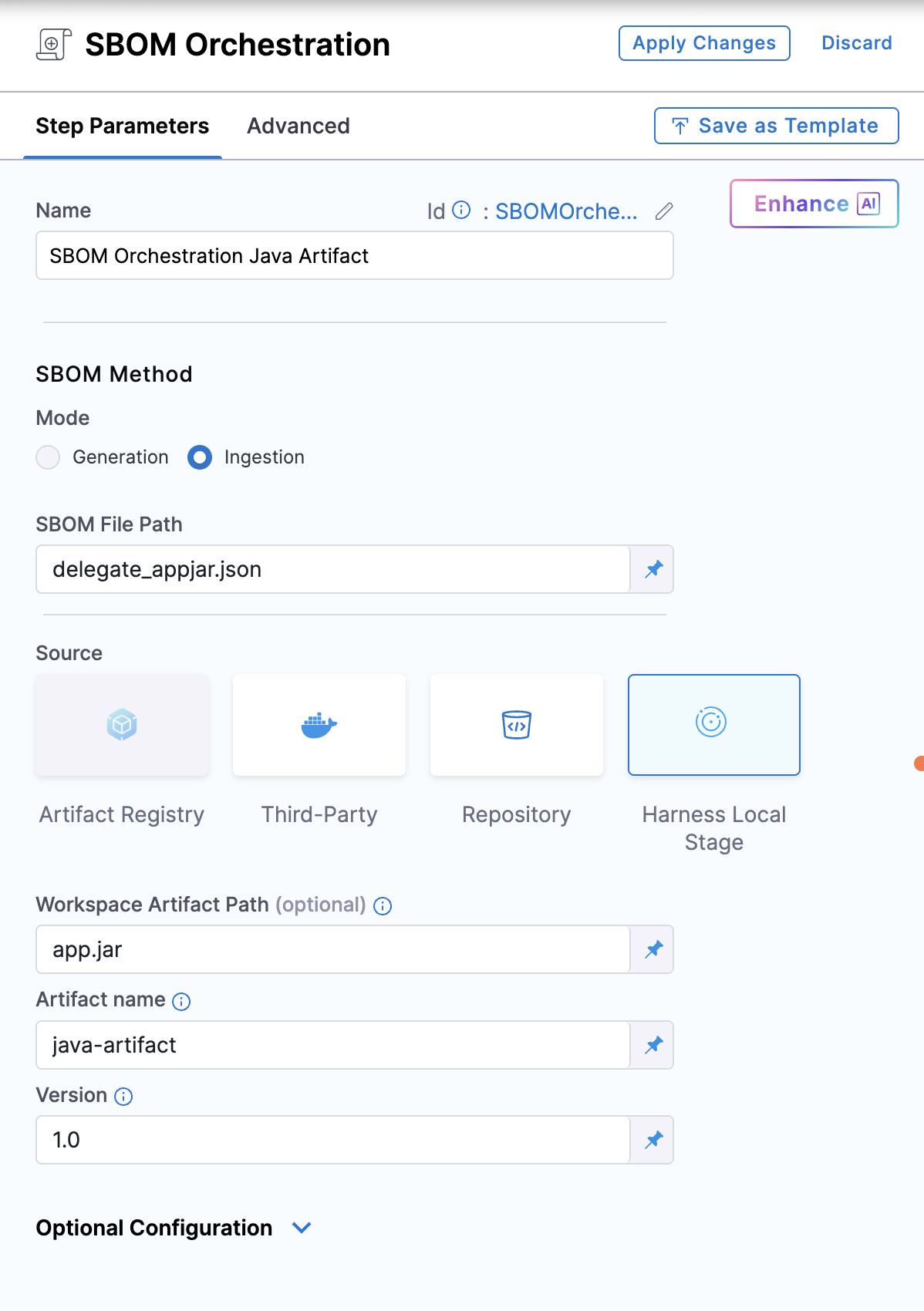
Follow the instructions below to ingest the SBOM for non-container images:
* **Name:** Provide a name for the SBOM step.
* **SBOM File Path:** Enter the path to the SBOM file generated by the SBOM tool.
* **Artifact Source:** Select the Harness Local Stage as the source of the artifact.
* **Workspace Artifact Path:** Provide the exact path to the artifact within the workspace. Ensure that you run a custom step to pull the artifact into the workspace directory.
* **Artifact Name:** Specify the name of the artifact.
* **Version:** Provide the artifact version.
{% hint style="info" %}
SBOM ingestion for non-container artifacts does not currently support attestation, and the SBOM policy enforcement step.
{% endhint %}
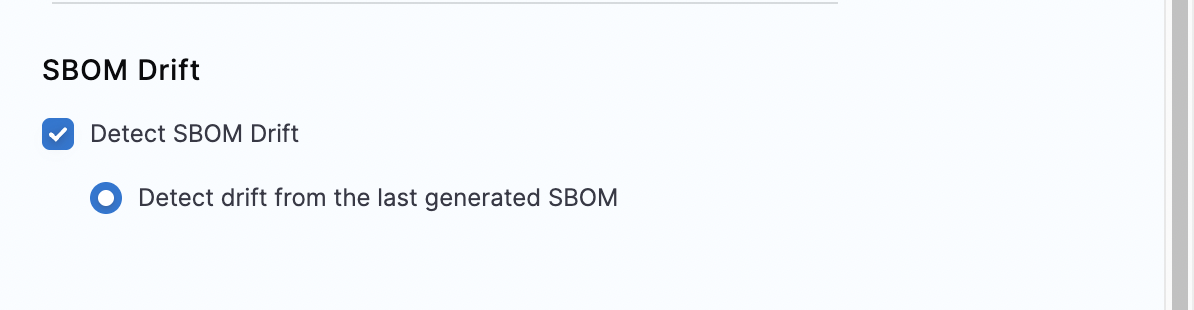
#### Configure SBOM drift for artifacts
This feature allows you to track changes in SBOMs by comparing against the last generated SBOM. It provides a detailed analysis of addition or removal of components and licenses, helping you manage and oversee software artifacts more effectively. However, this is optional and not required for SBOM generation. If you prefer not to detect changes in SBOMs, leave this option unchecked.
#### Repository:
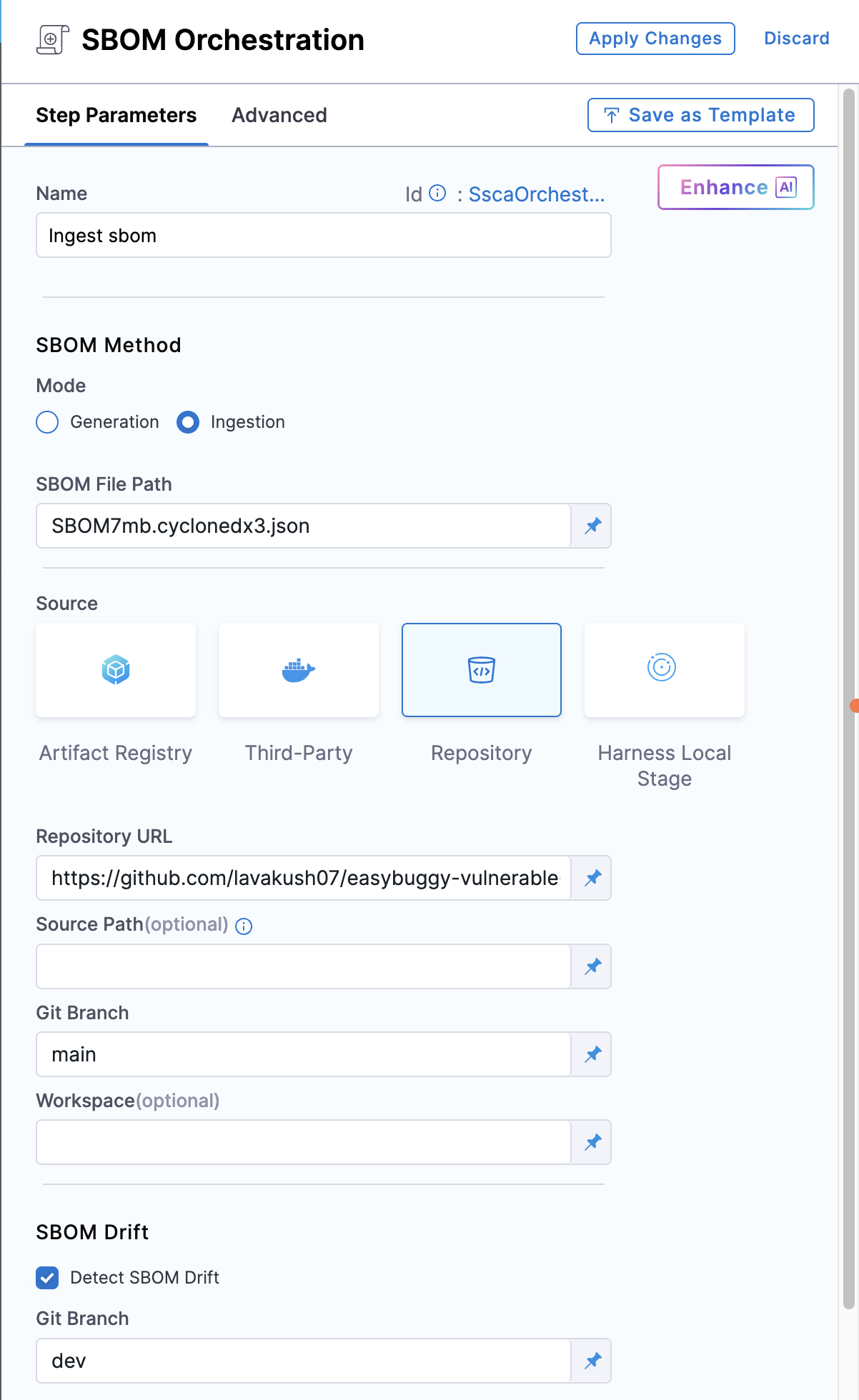
Follow the instructions below to ingest the SBOM for repository:
* **Name:** Provide a name for the SBOM step.
* **Step Mode:** Set the step mode to **Ingestion**.
* **SBOM File Path:** Enter the path to the SBOM file generated by your SBOM tool.
* **Source:** Select the Repository as the source.
* **Repository URL:** Enter the URL of the repository.
* **Source Path:** Specify the folder inside your repository where the SBOM file is located.
* **Git Branch:** Enter the branch of the repository for which you want to generate the SBOM.
* **Workspace:** Provide the exact path to the repo file within the workspace. Ensure that you run a custom Run step to pull the repository into the workspace directory.
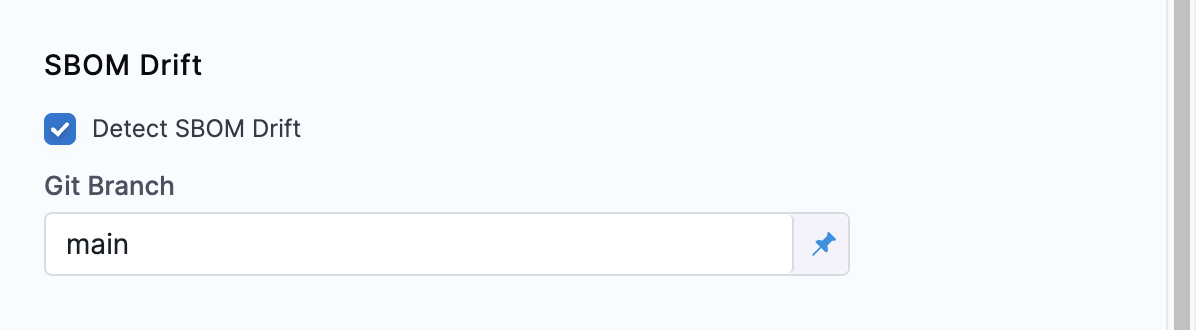
#### Configure SBOM drift for repository
This feature allows you to track changes in SBOMs by comparing them against a Git branch. It provides a detailed analysis of addition or removal of components and licenses, helps you manage and oversee repositories more effectively. You can configure the comparison to be between any two branches. For example, comparing a feature branch against the main branch to identify SBOM drift before merging. However, this is optional and not required for SBOM generation. If you prefer not to detect changes in SBOMs, simply leave this option unchecked.
### Run the pipeline
When the pipeline runs, the SBOM Orchestration step performs the following actions:
* Ingests the SBOM to SCS module.
* Specifically for Containers:
* Generates and signs an attestation using the provided private key and password.
* Stores the SBOM in Harness and uploads the `.att` file to your container registry.
SBOMs for both Containers and Code Repositories are accessible in the [Artifacts view](/software-supply-chain-assurance/use-scs/artifact-security/overview.md). Additionally, you can locate the SBOM for any artifact on the **Supply Chain** tab within the **Execution Details** page in Harness. Go to [view pipeline execution](/software-supply-chain-assurance/use-scs/artifact-security/overview.md#sbom-tab) to review the results in detail.
### Next steps
* [Enforce SBOM policies](/software-supply-chain-assurance/use-scs/open-source-management/enforce-sbom-policies.md): Evaluate the ingested SBOM against your policy sets during pipeline execution.
* [Generate SBOM for repositories](/software-supply-chain-assurance/use-scs/open-source-management/generate-sbom-for-repositories.md): Generate SBOMs with Harness instead of ingesting them.
{% @harness-feedback/feedback %}