> For the complete documentation index, see [llms.txt](https://developer.harness.io/llms.txt). Markdown versions of documentation pages are available by appending `.md` to page URLs; this page is available as [Markdown](https://developer.harness.io/software-supply-chain-assurance/use-scs/open-source-management/ingest-sbom-from-sto-scanners.md).

# Ingest Software Bill of Materials (SBOM) data into SCS

Harness SCS offers flexible SBOM management. It can ingest SBOMs generated from Security Testing Orchestration (STO) scanner steps, like the [Aqua Trivy STO step](/security-testing-orchestration/use-sto/sto-scanner-configuration/trivy/aqua-trivy-scanner-reference.md), provided the SBOM is in JSON format ([SPDX](https://spdx.dev/learn/overview/) or [CycloneDX](https://cyclonedx.org/specification/overview/)). This guide details configuring a pipeline to seamlessly ingest SBOMs generated by Trivy. Similarly, you can follow the same steps for the other STO scanners (Blackduck, Snyk).

Alternatively, you can leverage built-in tools in SCS for SBOM generation or ingest SBOMs from any external tool. Refer to our dedicated guides for these functionalities:

* [Generate SBOM using Harness SCS](/software-supply-chain-assurance/use-scs/open-source-management/generate-sbom-for-repositories.md).
* [Ingest SBOM from any SBOM tool](/software-supply-chain-assurance/use-scs/open-source-management/ingest-sbom-data.md).

{% hint style="info" %}
In the SBOM, dependency names may differ from their original source names, as SBOM tools sometimes list dependencies under a product or bundle name rather than the actual dependency name.
{% endhint %}

### Configure the STO scan step to generate SBOM <a href="#configure-the-sto-scan-step-to-generate-sbom" id="configure-the-sto-scan-step-to-generate-sbom"></a>

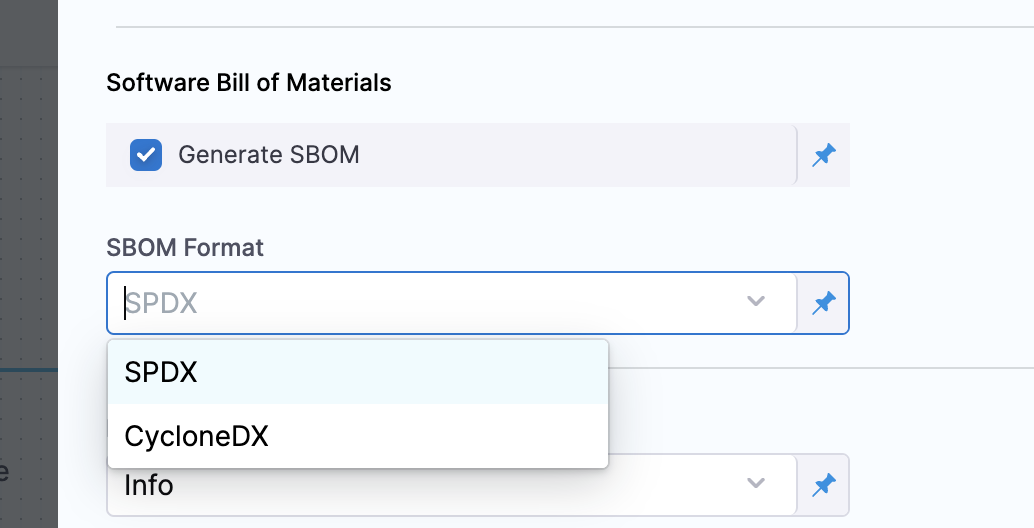
Configure an STO scanner step, such as the [Aqua Trivy STO step](/security-testing-orchestration/use-sto/sto-scanner-configuration/trivy/aqua-trivy-scanner-reference.md), and make sure you select **Generate SBOM** and the **SBOM Format**.

<figure><img src="/files/WDxy8xKRaWoMfPLxggpS" alt=""><figcaption><p>Click to view full size image</p></figcaption></figure>

### Get the SBOM file path <a href="#get-the-sbom-file-path" id="get-the-sbom-file-path"></a>

The Aqua Trivy STO step creates a `JOB_ID` [output variable](/continuous-integration/use-harness-ci/use-harness-ci/run-step-settings.md#output-variables) that you can use to reference the SBOM file path in the **SBOM Orchestration** step.

1. Replace `STAGE_ID` and `STEP_ID` in the following [Harness expression](/harness-ai/use-harness-platform/variables-and-expressions/runtime-inputs.md#expressions) with the stage ID and step ID for your Aqua Trivy STO step.

   ```yaml
   <+pipeline.stages.STAGE_ID.spec.execution.steps.STEP_ID.output.outputVariables.JOB_ID>
   ```
2. Use the expression in your SBOM file path. The exact path depends on where your scanner outputs SBOM files. For example, this filepath references an Aqua Trivy STO step with the ID `myaquatrivystep` in a stage with the ID `mybuildstage`:

   ```yaml
   /addon/results/<+pipeline.stages.mybuildstage.spec.execution.steps.myaquatrivystep.output.outputVariables.JOB_ID>.sbom
   ```

{% hint style="info" %}
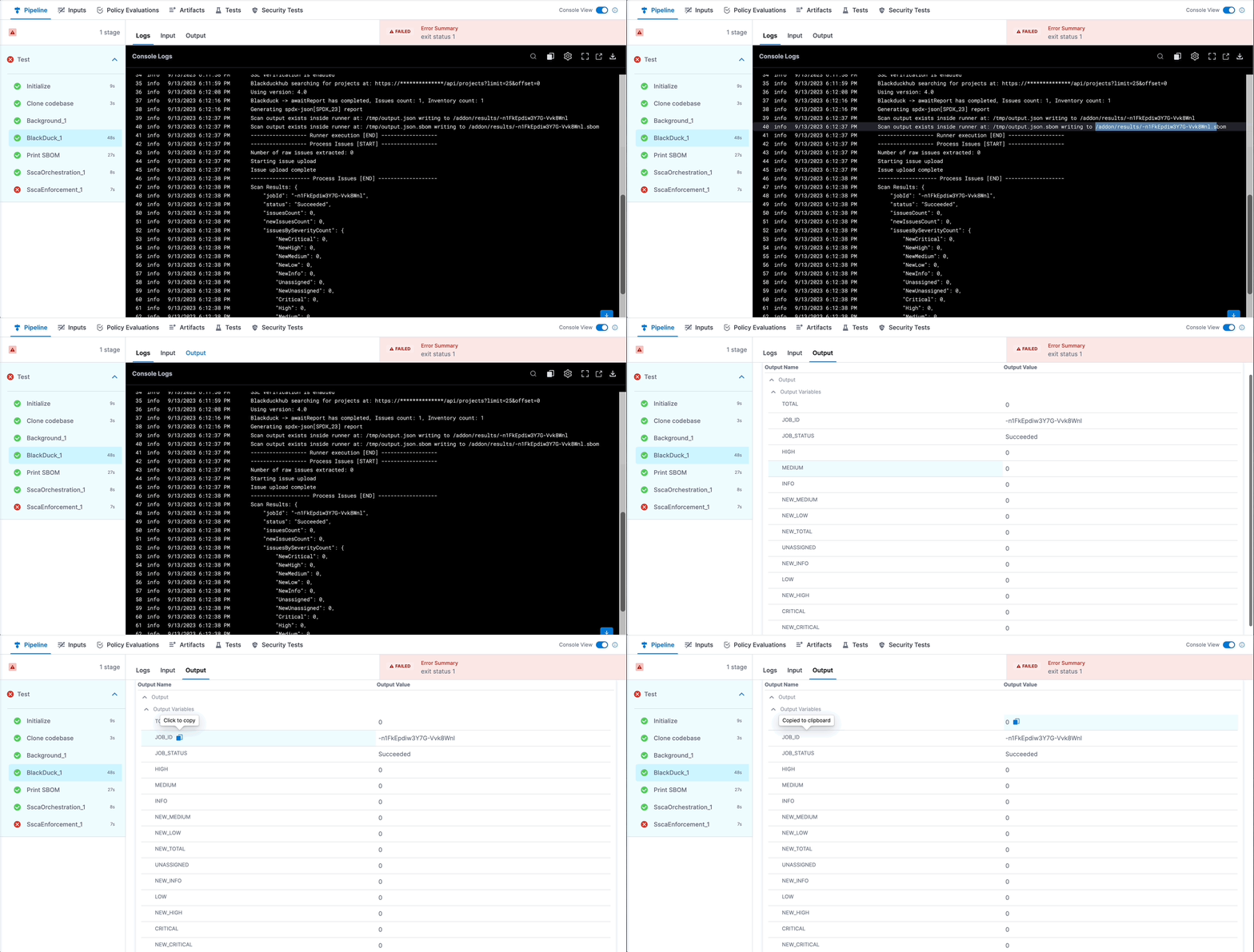
Alternately, you can get the output path and output variable expression from a previous run of the same pipeline. To do this, go to the execution details page, select the stage with the STO scanner step, and then select the STO scanner step. In the step's logs, you can find the output path, and you can get the output variable from the **Output** tab.

<img src="/files/B5HuwY2R8rvih2EUCjEC" alt="Click to view full size image" data-size="original">
{% endhint %}

### Configure the SBOM Orchestration step <a href="#configure-the-sbom-orchestration-step" id="configure-the-sbom-orchestration-step"></a>

Add an [SBOM Orchestration step](/software-supply-chain-assurance/use-scs/open-source-management/generate-sbom-for-repositories.md#sbom-orchestration-step-configuration) and configure to ingest the SBOM.

{% hint style="info" %}
**SBOM Orchestration** step in deploy stage can only be used in the [Containerized Step Groups](/continuous-delivery/use-continuous-delivery/cd-building-blocks/cd-steps/containerized-steps/containerized-step-groups.md)
{% endhint %}

* **Step Mode:** Set the step mode to **Ingestion**.
* **SBOM File Path:** enter the SBOM file path that uses the `JOB_ID` value, as detailed in [Get the SBOM file path](#get-the-sbom-file-path).
* **Source:** Set the source, which can be DockerHub, ECR, GCR, ACR or Repository. Depending on your selection, a unique set of fields will appear, each specific to the source you've chosen. Address these fields as required, this is similar to configuring the source in SBOM Orchestration step. Go to the [documentation on SBOM Orchestration](/software-supply-chain-assurance/use-scs/open-source-management/generate-sbom-for-repositories.md#sbom-orchestration-step-configuration) to understand what each field entails. If you are using DockerHub, you can follow along.
* **Image:**, Enter the name of your image with tag, such as `my-docker-org/repo-name:tag`.
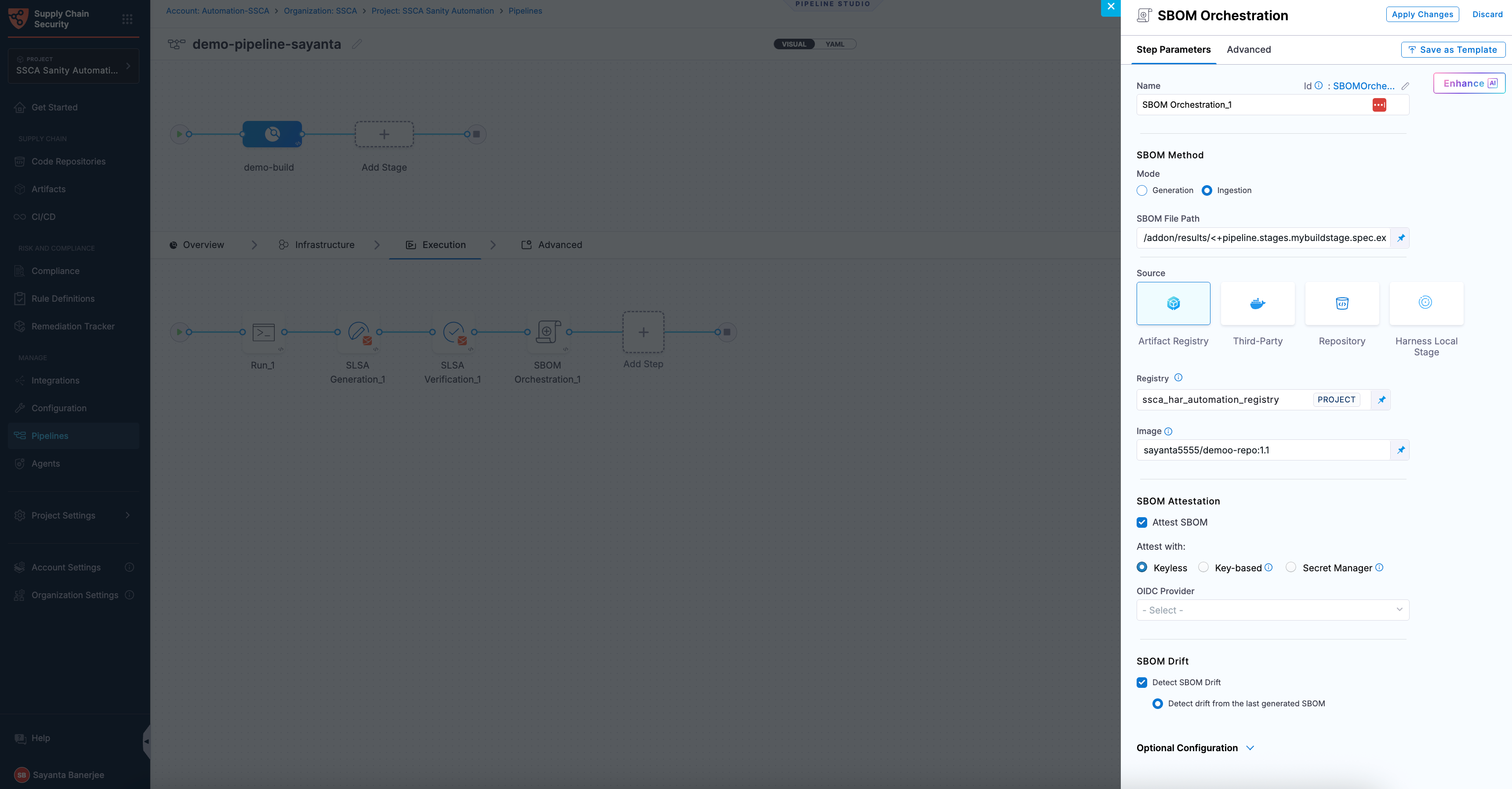
<figure><img src="/files/LSz8JQusWgxg7WWYB6nJ" alt=""><figcaption><p>Click to view full size image</p></figcaption></figure>

#### Attest the ingested SBOM (optional) <a href="#attest-the-ingested-sbom-optional" id="attest-the-ingested-sbom-optional"></a>

SBOM signing is the process of cryptographically signing an ingested SBOM to ensure its authenticity and integrity. It ensures that externally sourced SBOMs have not been tampered with and can be trusted by downstream systems for analysis and compliance. Go to [attestation and verification](/software-supply-chain-assurance/new-to-scs/key-concepts.md#attestation-and-verification) to understand the signing and verification process.

You can perform attestation using Cosign with the following signing methods:

* **Keyless** - Uses short-lived, automatically generated keys based on identity to sign ingested SBOMs without storing private keys.
* **Key-based** - Uses a user-managed private and public key pair to sign ingested SBOMs, requiring secure key storage and handling.
* **Secret Manager** - A secure service used to store, manage, and access sensitive data such as cryptographic keys without exposing them directly in pipelines.

Based on the attestation type you select, click the tab below and specify the configurations for the SBOM Orchestration step to perform the attestation.

{% tabs %}
{% tab title="Keyless" %}
Keyless signing using Cosign lets you sign ingested SBOMs without managing long-lived signing keys. Instead, Cosign uses your workload identity (via OIDC) to obtain a short-lived signing certificate during pipeline execution, which is then used to sign the SBOM. The signing key is generated and used only in memory and is not persisted. This reduces the risk of key compromise while ensuring externally sourced SBOMs remain verifiable and trusted.

To configure SBOM attestation for ingested SBOMs with Keyless signing using cosign, complete the following steps:

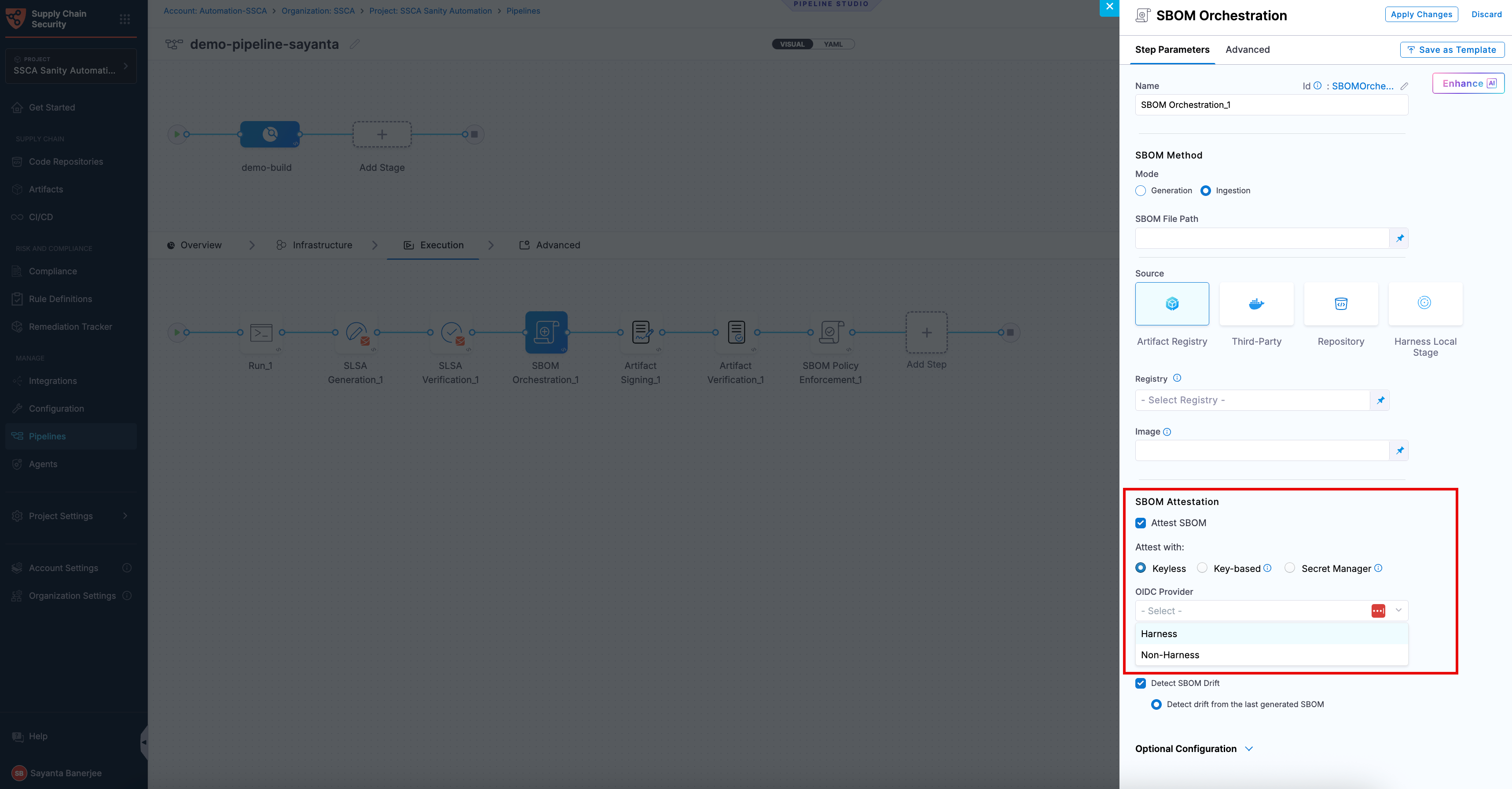
1. Click the checkbox beside `Attest SBOM` to enable SBOM attestation. The radio button beside `Keyless` will be selected by default.
2. Select your preferred OIDC Provider from the dropdown under `OIDC Provider`. The available options are:
   * [Harness](/software-supply-chain-assurance/use-scs/open-source-management/ingest-sbom-data.md#harness-oidc)
   * [Non-Harness](/software-supply-chain-assurance/use-scs/open-source-management/ingest-sbom-data.md#non-harness-oidc)

<figure><img src="/files/fG970z2hQCOLrSF69Mme" alt=""><figcaption></figcaption></figure>

{% hint style="info" %}
This attestation method is not supported for SMP at the moment.
{% endhint %}

**Harness OIDC**

Harness OIDC allows you to use the pipeline’s built-in identity for keyless signing of ingested SBOMs. In this approach, Harness acts as the OIDC provider and automatically supplies the identity required during pipeline execution, eliminating the need for external identity configuration.

**Non-Harness OIDC**

Non-Harness OIDC allows you to use an external identity provider for keyless signing of ingested SBOMs. In this approach, the OIDC token is retrieved from a configured connector (such as AWS, Azure, or GCP) during pipeline execution and used to obtain a signing certificate. This option is useful when you want to integrate with your organization’s existing identity and access management system instead of using Harness as the OIDC provider.

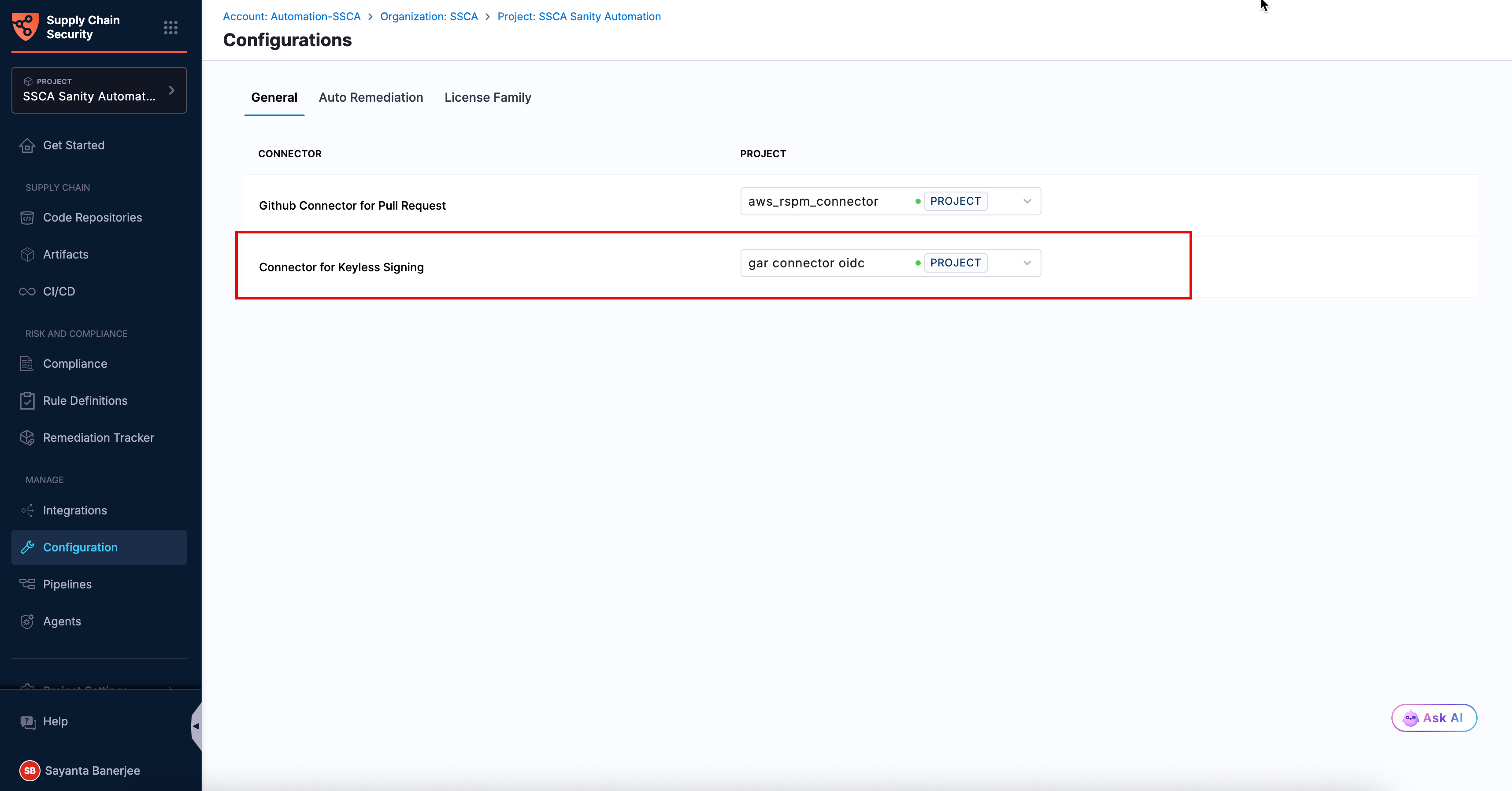
To use a Non-Harness OIDC provider, you need to configure the Connector for Keyless Signing. To configure the Connector:

1. Navigate to the **Configurations** page under the **Manage** section from the sidebar navigation of your SCS account. The **General** tab opens by default.
2. Click `Select Connector` next to `Connector for Keyless Signing` to open the `Create or Select an Existing Connector` dialog.
3. Select your required connector from the list of existing connectors. You can search for your created connector or filter connectors by **Project**, **Organization**, and **Account**.
4. Alternatively, click `+ New Connector` to create a new OIDC connector for your preferred cloud provider. For more information, see [Connectors for Cloud Providers](https://app.gitbook.com/s/3F2TpHXhur2QtQnORSM9/use-harness-platform/connectors/cloud-providers/README).
5. Click `Apply Selected`. Once selected, you can view the **Configuration Saved Successfully** toaster message at the top, indicating that the connector has been selected or created successfully.

<figure><img src="/files/8fd3olUT7hgak3RrFr8q" alt=""><figcaption></figcaption></figure>

Once the connector configuration is done successfully, you can perform attestation using keyless signing with a Non-Harness OIDC provider.
{% endtab %}

{% tab title="Key-based" %}
To perform attestation with **Cosign** selected, you need a key pair. Follow the instructions below to generate the key pair.

<details>

<summary>Generate key pairs using Cosign for SBOM attestation</summary>

</details>

* **Private Key**: Input your Private key from the [Harness file secret](/harness-ai/use-harness-platform/secrets/add-file-secrets.md).
* **Password**: Input your Password for the Private key from the [Harness file secret](/harness-ai/use-harness-platform/secrets/add-file-secrets.md).
  {% endtab %}

{% tab title="Secret Manager" %}
In this mode, you can pass your **Cosign keys** using a **Secret Manager**. Currently, SCS supports only the **HashiCorp Vault** secret manager. You can connect your Vault with Harness using the [Harness HashiCorp Vault connector](/harness-ai/use-harness-platform/secrets/secrets-management/add-hashicorp-vault.md). Here are the key points to consider when connecting your Vault:

1. **Enable the Transit Secrets Engine** on your HashiCorp Vault. This is essential for key management and cryptographic operations.
2. Configure your HashiCorp Vault connector using the following authentication methods [**AppRole**](/harness-ai/use-harness-platform/secrets/secrets-management/add-hashicorp-vault.md#option-app-role), [**Token**](/harness-ai/use-harness-platform/secrets/secrets-management/add-hashicorp-vault.md#option-token) , [**JWT Auth**](https://developer.harness.io/docs/platform/secrets/secrets-management/add-hashicorp-vault/#option-jwtoidc-auth) or [**Vault Agent**](/harness-ai/use-harness-platform/secrets/secrets-management/add-hashicorp-vault.md#option-vault-agent).
3. Create a Cosign key pair of type `ecdsa-p256`,`rsa-2048`, or `rsa-4096` in the Transit Secrets Engine. You can do this in two ways:
   * **CLI**: Run the command:

     ```bash
     vault write -f <transit_name>/<key_name> type=ecdsa-p256
     ```
   * **Vault UI**: Create the key pair directly from the Vault interface.
4. Ensure the Vault token generated has the [**required policy**](https://docs.sigstore.dev/cosign/key_management/overview/#hashicorp-vault) applied for Cosign to perform attestation operations.

{% hint style="info" %}
Harness Vault Connector now supports fetching keys from Vault subfolder paths. This feature is behind the FF `SSCA_COSIGN_USING_VAULT_V2`. To enable it contact [Harness Support](mailto:support@harness.io), and also ensure to upgrade your Harness delegate version to `25.10.87000` or higher.
{% endhint %}

Configure the following fields in the step to perform the attestation

* **Connector**: Select the HashiCorp Vault connector.
* **Key**: Enter the path to the Transit Secrets Engine in your HashiCorp Vault where the keys are stored.

{% hint style="info" %}
Harness Vault Connector is supported only for Kubernetes and VM infrastructure. Ensure your Harness delegate is on version `25.10.87000` or higher.
{% endhint %}
{% endtab %}
{% endtabs %}

### Next steps <a href="#next-steps" id="next-steps"></a>

* [Enforce SBOM policies](/software-supply-chain-assurance/use-scs/open-source-management/enforce-sbom-policies.md): Evaluate the ingested SBOM against your policy sets during pipeline execution.
* [Ingest SBOM data](/software-supply-chain-assurance/use-scs/open-source-management/ingest-sbom-data.md): Ingest SBOMs generated outside of STO scanners.