> For the complete documentation index, see [llms.txt](https://developer.harness.io/llms.txt). Markdown versions of documentation pages are available by appending `.md` to page URLs; this page is available as [Markdown](https://developer.harness.io/software-supply-chain-assurance/use-scs/open-source-management/integrations/github.md).

# Onboard GitHub Repositories

SCS allows you to onboard GitHub repositories to perform security scanning and generate Software Bill of Materials (SBOM) for your codebase. As the number of repositories grows, it can become challenging to consistently track security findings, dependency risks, and repository posture across development teams. GitHub repository onboarding in SCS helps address this challenge by bringing your repositories into a centralized analysis workflow.

After integration, you can discover and select the repositories you want to scan without manually configuring pipelines. SCS performs analysis in the background and makes the results available within the platform. This helps you gain visibility into repository security posture, review findings in a centralized location, and make informed decisions based on the results.

***

### What you will learn from this topic <a href="#what-will-you-learn-in-this-topic" id="what-will-you-learn-in-this-topic"></a>

By the end of this topic, you will be able to understand:

* How GitHub repository onboarding works in SCS.
* How to create or select a GitHub connector for repository onboarding.
* How to choose GitHub repositories for security scanning and SBOM generation.
* How to modify or delete an existing GitHub integration.
* How to view onboarded repositories and their scan results within SCS.

***

### Understand GitHub repository onboarding in SCS <a href="#understand-github-repository-onboarding-in-scs" id="understand-github-repository-onboarding-in-scs"></a>

Repository Security Posture Management (RSPM) in SCS helps organizations maintain visibility into the security and composition of repositories across their software development ecosystem. GitHub repository onboarding extends this capability by allowing GitHub repositories to be discovered, analyzed, and tracked within SCS. By bringing GitHub repositories into a centralized repository inventory, teams can establish a consistent approach to repository analysis, review security findings in context, and maintain visibility across GitHub organizations and projects. Go to [RSPM with Harness SCS](/software-supply-chain-assurance/use-scs/risk-and-compliance/repository-security-posture-management-rspm.md) to understand how RSPM tracks repository posture.

The following table provides a structured overview of why GitHub repository onboarding is used, when it is appropriate, and how it can be effectively leveraged within SCS for security scanning and SBOM generation.

| Why use it?                                                                                                                                                                      | When to use?                                                                                                                                                                                                             | How can you leverage it?                                                                                                                                                                                                         |
| -------------------------------------------------------------------------------------------------------------------------------------------------------------------------------- | ------------------------------------------------------------------------------------------------------------------------------------------------------------------------------------------------------------------------ | -------------------------------------------------------------------------------------------------------------------------------------------------------------------------------------------------------------------------------- |
| Centralize repository visibility within SCS. Reduce manual repository onboarding effort. Maintain continuous repository monitoring across GitHub repositories and organizations. | When onboarding GitHub repositories into SCS for continuous monitoring. When managing security visibility across multiple repositories and organizations. When streamlining repository discovery and analysis workflows. | Onboard selected repositories or automatically include future repositories. Review repository findings and security posture from a centralized view. Track repository insights to support remediation and dependency management. |

***

### Create a GitHub integration <a href="#create-a-github-integration" id="create-a-github-integration"></a>

Creating a GitHub integration allows you to connect your repositories to SCS and enable onboarding for security scanning and SBOM generation. You can create a GitHub integration in the following ways:

* [Harness connector](#via-harness-connector)
* [GitHub application](#via-github-application)

#### Via Harness connector <a href="#via-harness-connector" id="via-harness-connector"></a>

To configure a GitHub integration in SCS through a Harness Connector, complete the following steps:

1. [Create/Select the GitHub connector](#step-1---createselect-the-github-connector)
2. [Choose the repositories to scan](#step-2---choose-the-repositories-to-scan)

#### Step 1 - Create/Select the GitHub connector <a href="#step-1-createselect-the-github-connector" id="step-1-createselect-the-github-connector"></a>

A GitHub connector allows SCS to securely connect to your GitHub account and discover repositories for onboarding. To create or select a GitHub connector, complete the following steps:

1. Navigate to the **Integrations** page under the **Manage** section from the sidebar navigation of your SCS account.\
   The page displays key information for each integration, including the integration type, organization URL (your GitHub URL), integration status (active or inactive), and the last scan time of the associated repositories.
2. Click on the `Add Integration` button to go to the **Configure Integration** page.\
   Alternatively, you can access this page by clicking **Get Started > Get Started** from the sidebar navigation of your SCS account.
3. Scroll down to the GitHub collapsible. It is expanded by default. If it is collapsed, click it to expand.
4. Click the `Configure` button under **Onboard your repositories** to open the **Get Started** page.\
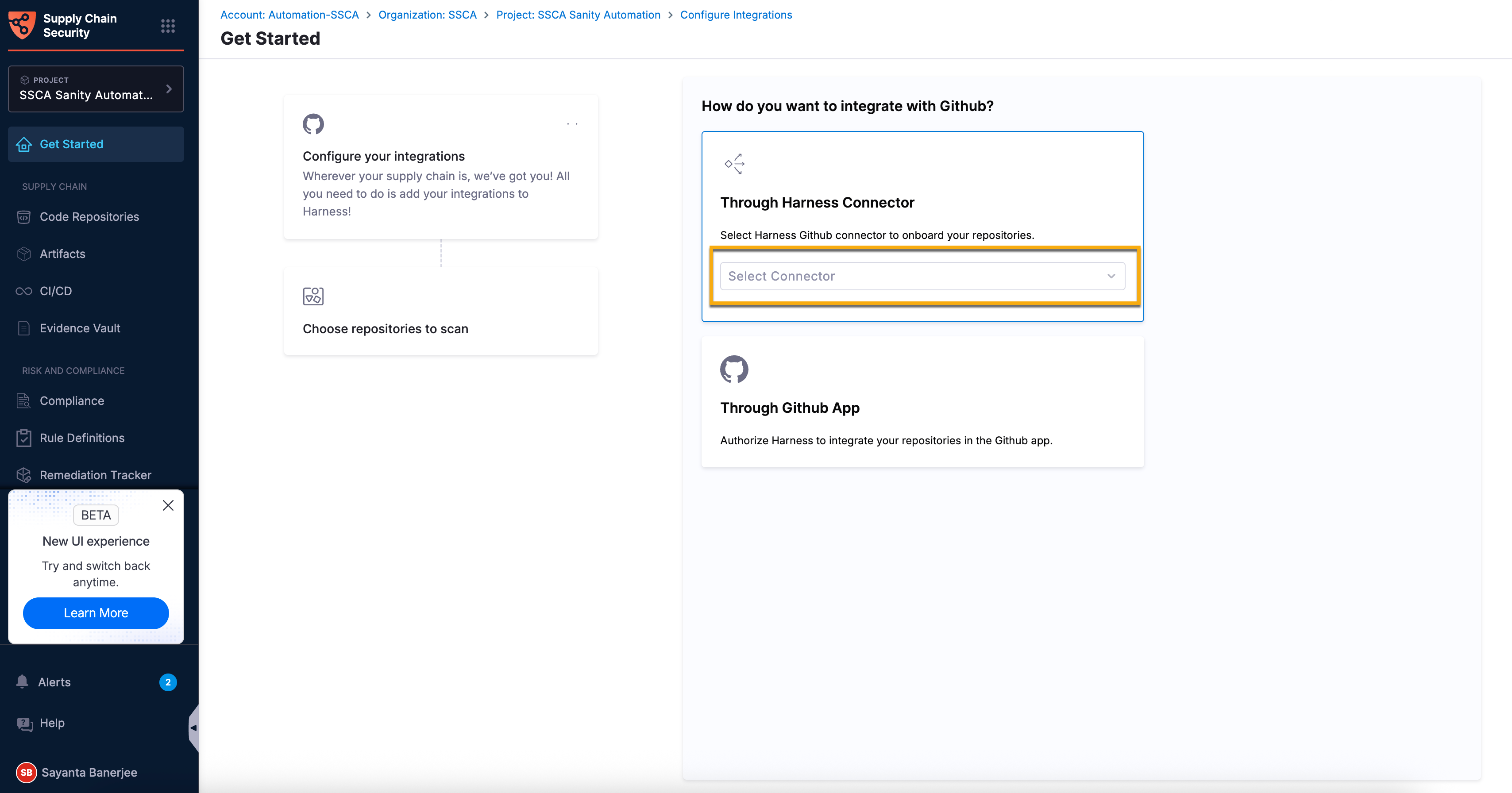
   The **Get Started** page displays options for onboarding through a **Harness Connector** or a **GitHub Application**. By default, the **Through Harness Connector** configuration card is expanded.
5. Within the **Through Harness Connector** configuration card, click `Select Connector` to open the `Create or Select an Existing Connector` dialog.
6. Select your required connector from the list of existing connectors.\
   You can search for your created connector or filter them by **Project**, **Organization**, and **Account**.
7. Alternatively, click `+ New Connector` to create a new GitHub connector for onboarding new repositories. Go to the [GitHub connector settings reference](/harness-ai/use-harness-platform/connectors/code-repositories/ref-source-repo-provider/git-hub-connector-settings-reference.md) to configure the connector fields.
8. Click `Apply Selected` to use the existing or newly created GitHub connector.
9. Click `Next` to open the **Choose repositories to scan** configuration section.

   <figure><img src="/files/R4XThDbmYTd1Lb566TDZ" alt=""><figcaption><p>Click to view full size image</p></figcaption></figure>

#### Step 2 - Choose the repositories to scan <a href="#step-2-choose-the-repositories-to-scan" id="step-2-choose-the-repositories-to-scan"></a>

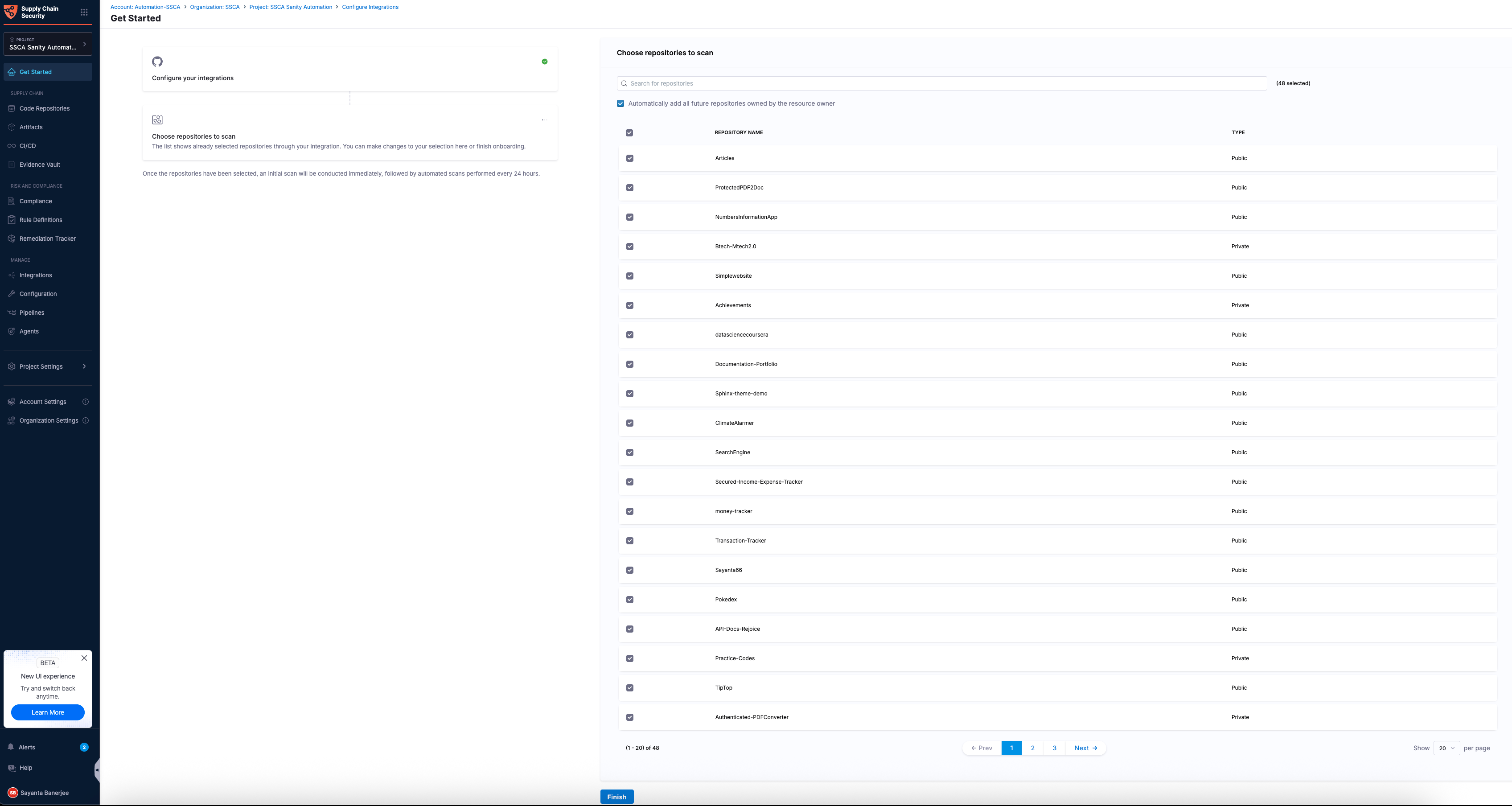
Onboarding GitHub repositories allows you to select either all repositories or only the ones you want to scan. The **Choose repositories to scan** configuration section lists all repositories associated with your GitHub account and lets you search for specific repositories.

{% hint style="info" %}
Forked GitHub repositories are not supported for onboarding and do not appear in the repository selection list. Only repositories that you own are available for selection.
{% endhint %}

To choose the GitHub repositories for scanning, complete the following steps:

1. Select the `Automatically add all future repositories owned by the resource owner` checkbox to include all current repositories and automatically add new repositories for scanning.
2. Alternatively, select the checkbox beside `REPOSITORY NAME` column to select all the repositories in that configuration page, or select the checkbox beside any individual repository name to select that particular repository.
3. After verifying the details, click **Finish**.\
   Once finished, you can view the **You’re Done** toaster message at the top, indicating the successful onboarding of your GitHub repositories.

   <figure><img src="/files/1cWTK8xjy82px3mqvpmt" alt=""><figcaption><p>Click to view full size image</p></figcaption></figure>

#### Via GitHub application <a href="#via-github-application" id="via-github-application"></a>

To configure a GitHub integration in SCS through the GitHub application, complete the following steps:

1. [Configure the GitHub application](#step-1---configure-the-github-application)
2. [Choose the repositories to scan](#step-2---choose-the-repositories-to-scan-1)

#### Step 1 - Configure the GitHub application <a href="#step-1-configure-the-github-application" id="step-1-configure-the-github-application"></a>

The GitHub application allows you to authorize SCS to discover and onboard repositories directly from your GitHub organization or account. To configure the GitHub application, complete the following steps:

1. Navigate to the **Integrations** page under the **Manage** section from the sidebar navigation of your SCS account.\
   The page displays key information for each integration, including the integration type, organization URL (your GitHub URL), integration status (active or inactive), and the last scan time of the associated repositories.
2. Click the `Add Integration` button to go to the **Configure Integration** page.\
   Alternatively, you can access this page by clicking **Get Started > Get Started** from the sidebar navigation of your SCS account.
3. Scroll down to the GitHub collapsible. It is expanded by default. If it is collapsed, click it to expand.
4. Click the `Configure` button under **Onboard your repositories** to open the **Get Started** page.\
   The **Get Started** page displays options for onboarding through a **Harness Connector** or a **GitHub Application**. By default, the **Through Harness Connector** configuration card is expanded.
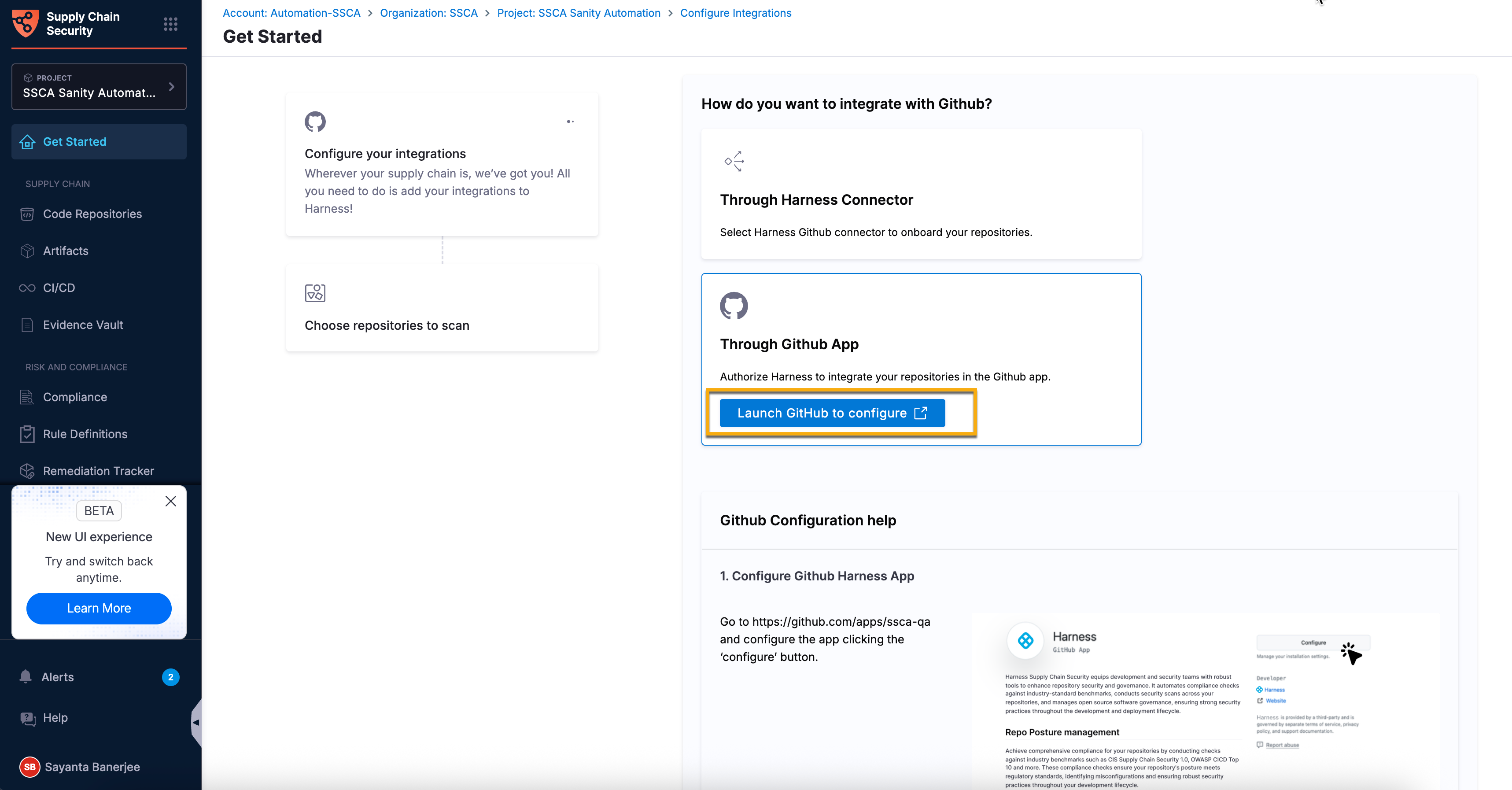
5. Click the **Through GitHub App** configuration card to expand the details.
6. Click the `Launch GitHub to configure` button to open the GitHub page for the application.

   <figure><img src="/files/voC6w3HBbXY23ojKqckf" alt=""><figcaption><p>Click to view full size image</p></figcaption></figure>
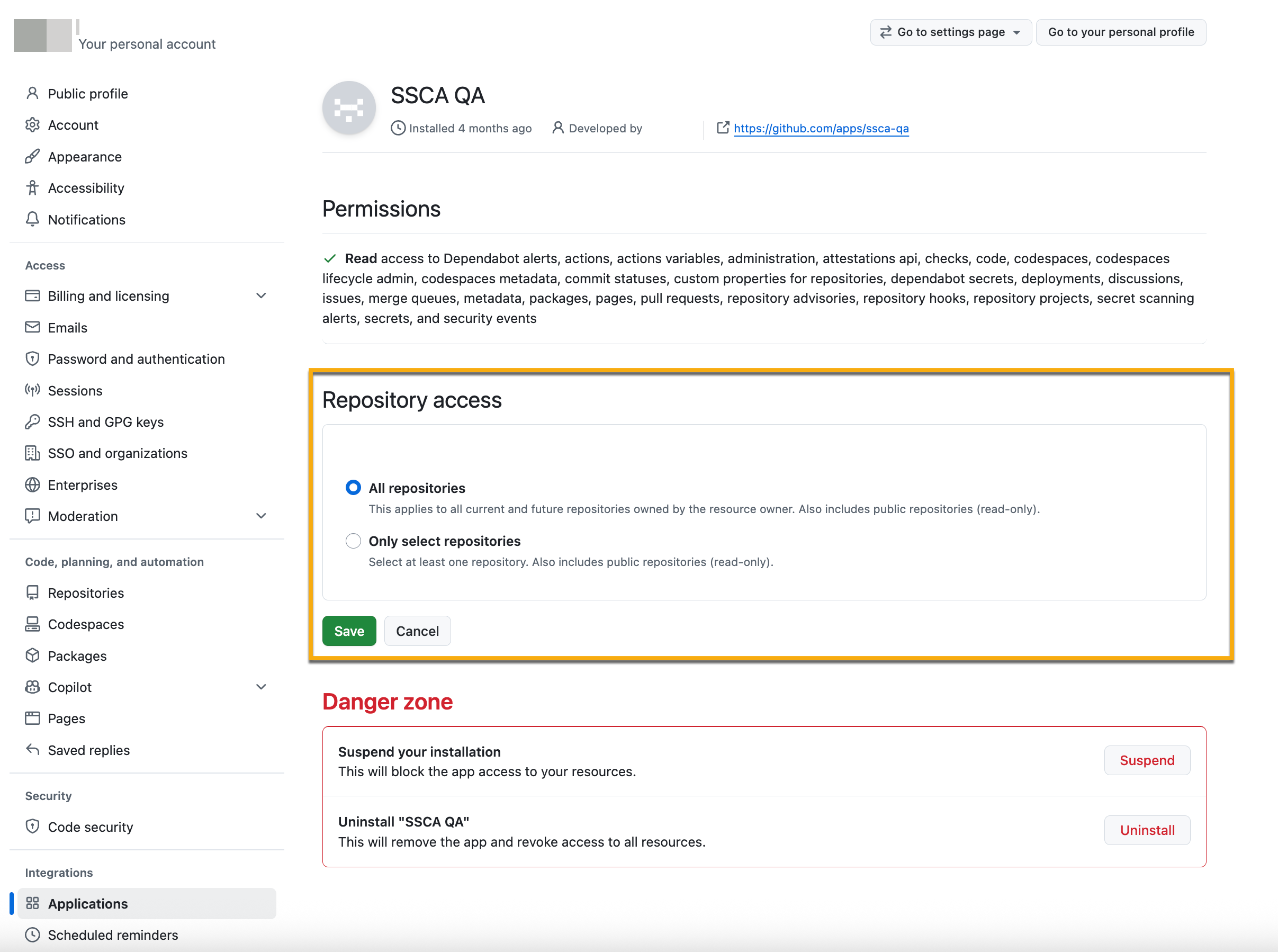
7. Click `Configure` in the upper-right corner to open the installation page for the application.
8. Select your GitHub account to configure the repository access for the application.
   * Select the radio button beside **All repositories** to grant access to all current and future repositories.
   * Select the radio button beside **Only select repositories** to grant access only to the repositories of your choice.
     * Click the `Select repositories` dropdown to select one or multiple repositories.
9. Click **Save** to finish the GitHub application configuration.\
   Upon successful configuration, you will be automatically redirected to the **Choose repositories to scan** configuration section.

   <figure><img src="/files/ZPIa7STrNxCDVlLRurlX" alt=""><figcaption><p>Click to view full size image</p></figcaption></figure>

#### Step 2 - Choose the repositories to scan <a href="#step-2-choose-the-repositories-to-scan" id="step-2-choose-the-repositories-to-scan"></a>

The repository selection workflow is identical for both GitHub onboarding methods. Go to [Step 2 - Choose the repositories to scan](#step-2---choose-the-repositories-to-scan) under [Via Harness connector](#via-harness-connector) to select repositories.

***

### Modify/Delete a GitHub integration <a href="#modifydelete-a-github-integration" id="modifydelete-a-github-integration"></a>

Modifying a GitHub integration allows you to update the repositories selected for scanning, while deleting an integration removes it from SCS. To modify or delete a GitHub integration, complete the following steps:

1. Navigate to the **Integrations** page under the **Manage** section from the sidebar navigation of your SCS account.
2. Find or search your created integration from the list of available integrations.
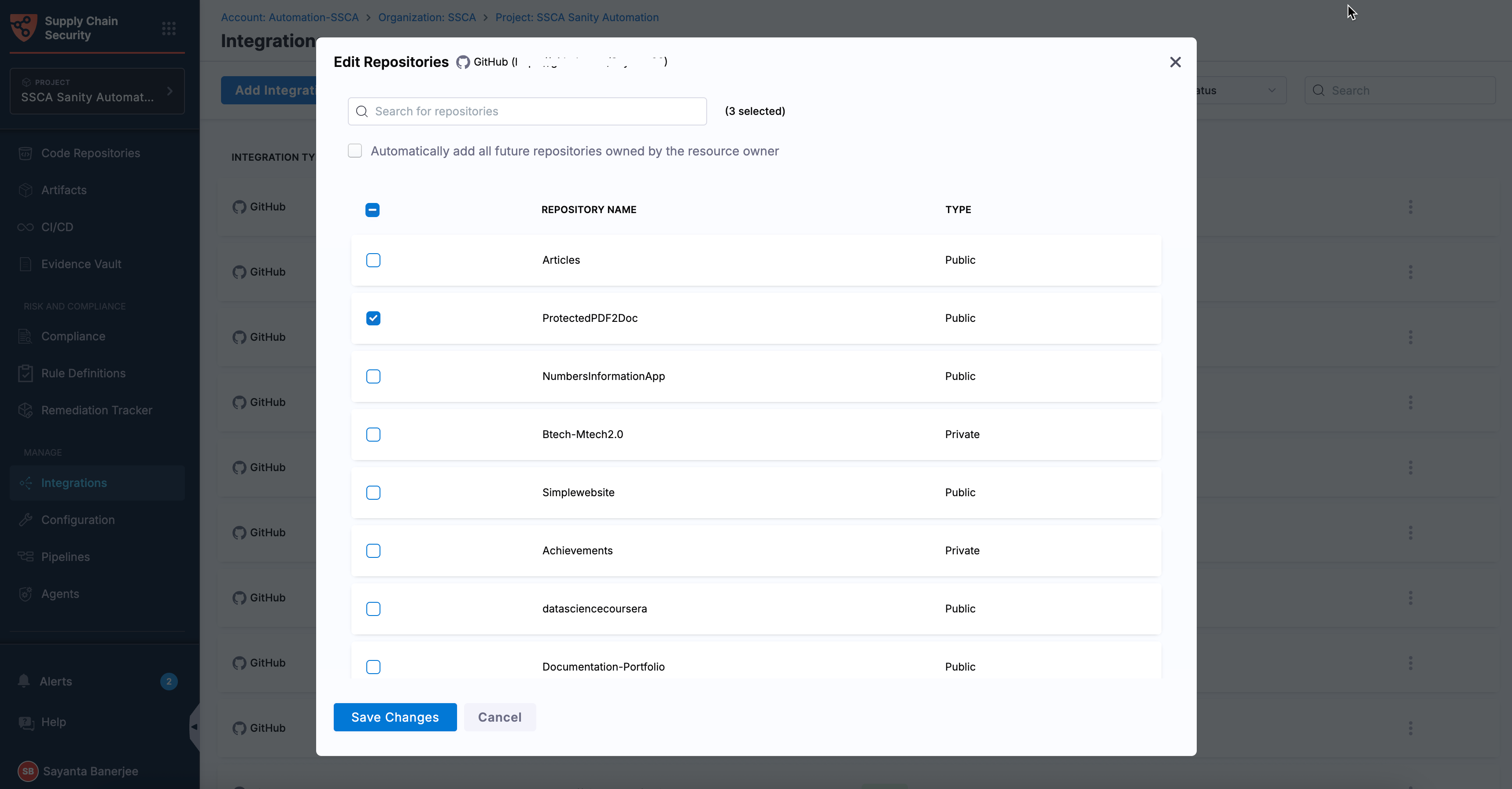
3. Click the `more options (three-dot) icon` on the right side of the integration row to view the `Edit` and `Delete` options.

   * Click the `Edit (pen) icon` to open the **Edit Repositories** dialog.
   * Select the checkboxes for your preferred repositories from the list or select the checkbox to automatically add all future repositories.
   * After verifying the details, click **Save Changes**. Once finished, you can view the **Integration Updated** toaster message at the top, indicating the successful modification of your GitHub integration.

     <div data-gb-custom-block data-tag="hint" data-style="info" class="hint hint-info"><p>When you modify an integration and select additional repositories without unchecking the previously selected repositories, SCS scans both the newly selected repositories and the repositories that were previously selected.</p></div>
   * Alternatively, click the `Delete (trash) icon` to open the **Are you sure you want to delete?** dialog.
   * Click **Confirm** to delete your GitHub integration.

   <figure><img src="/files/SoGdIMKmY3xYo1PaHU7X" alt=""><figcaption><p>Click to view full size image</p></figcaption></figure>

***

### View an onboarded repository <a href="#view-an-onboarded-repository" id="view-an-onboarded-repository"></a>

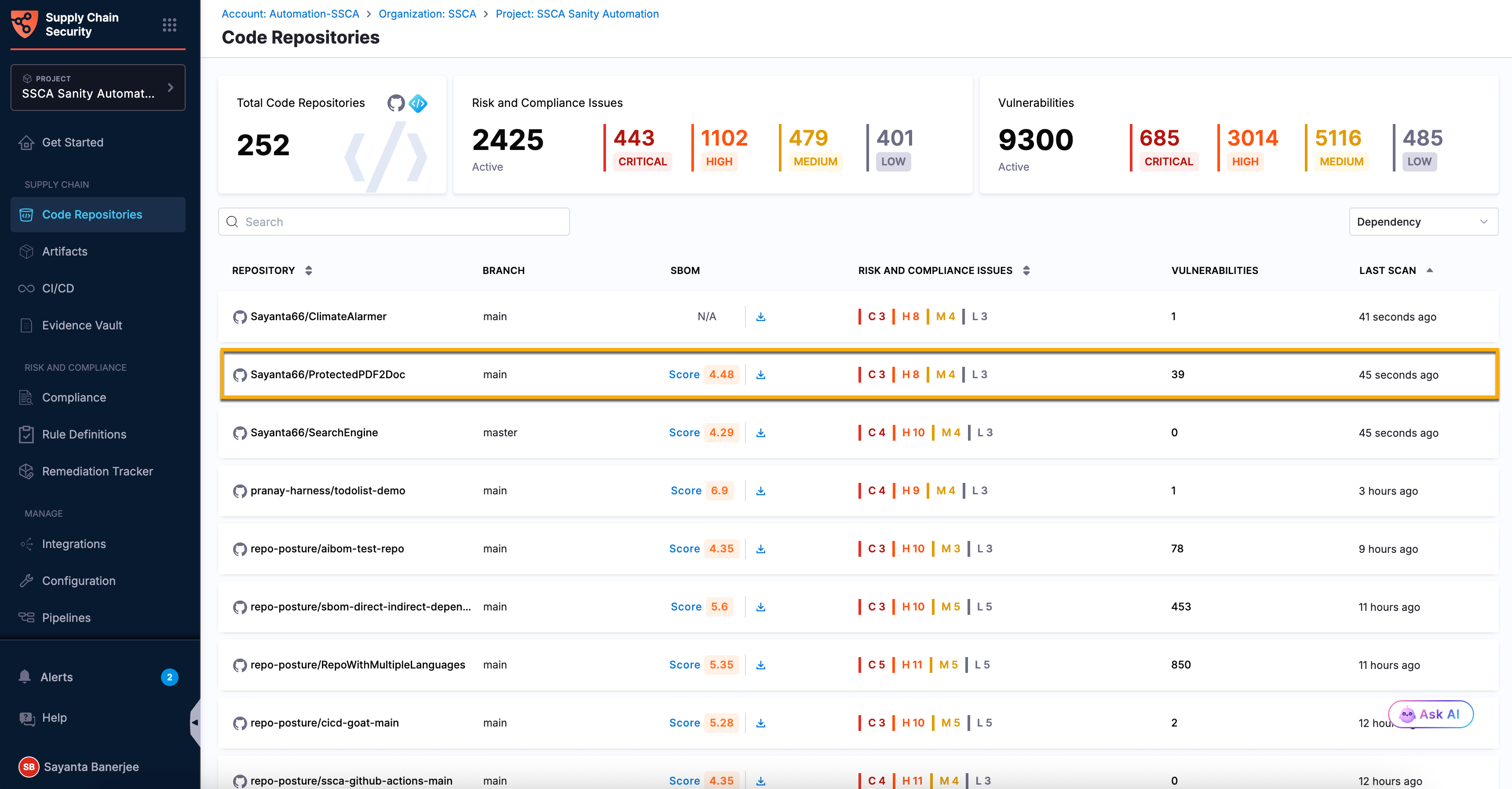
After you add a GitHub integration and select the repositories for scanning, SCS immediately starts scanning the selected repositories in the background. Once the scans are complete, you can view the onboarded repositories and their scan results within SCS. To view an onboarded repository, complete the following steps:

1. Navigate to the **Code Repositories** page under the **Supply Chain** section from the sidebar navigation of your SCS account. The page displays key information for each scanned repository, including the repository branch, SBOM score with an option to download the SBOM, risk and compliance overview, vulnerability count, and last scan status.
2. Identify the repositories from the list or use the search bar to find it.
3. Click the repository to view its scan details.

   <figure><img src="/files/O65N6nY8YJPnY9qzT2wp" alt=""><figcaption><p>Click to view full size image</p></figcaption></figure>

***

### Next steps <a href="#next-steps" id="next-steps"></a>

* [Direct/Indirect Dependency](/software-supply-chain-assurance/use-scs/open-source-management/direct-indirect-dependency.md)
* [OSS Risks Remediation](/software-supply-chain-assurance/use-scs/open-source-management/oss-risks-remediation.md)