> For the complete documentation index, see [llms.txt](https://developer.harness.io/llms.txt). Markdown versions of documentation pages are available by appending `.md` to page URLs; this page is available as [Markdown](https://developer.harness.io/software-supply-chain-assurance/use-scs/risk-and-compliance/manage-compliance-posture.md).
# Compliance Summary
Assess and understand the risk posture of your software supply chain
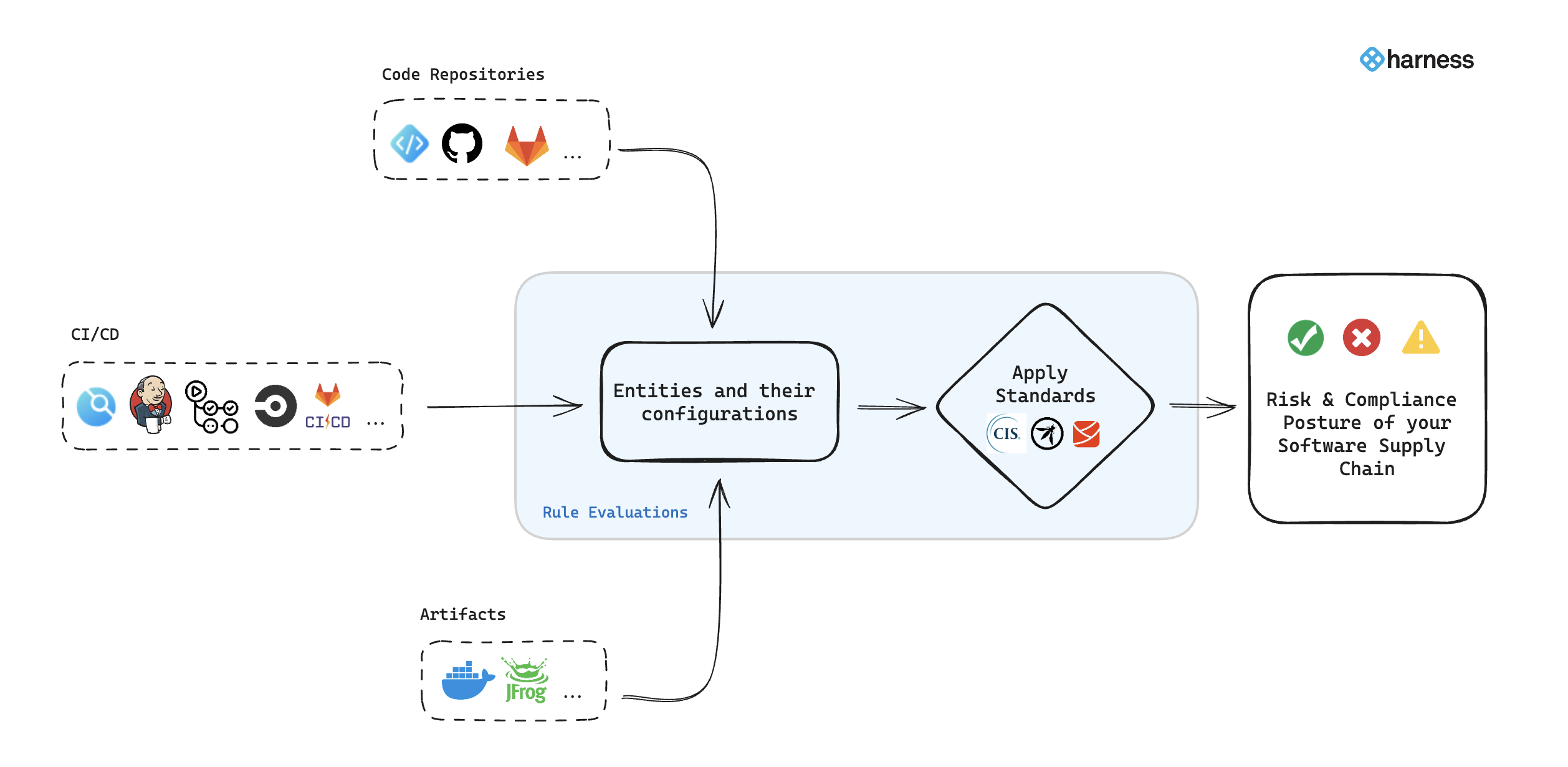
The Compliance section within the SCS module serves as a hub for assessing and understanding the risk posture of your entire supply chain. This section is indispensable for GRC (Governance, Risk, and Compliance) and security teams as it provides detailed evaluation results after applying all relevant rules to various target types within your supply chain. You can access a thorough summary of these evaluations, including the specific rules applied, their execution statuses, and the target types impacted by each rule.
Click to view full size image
Go to [Standards and Rule Definitions](/software-supply-chain-assurance/use-scs/risk-and-compliance/standards-and-rule-definitions.md) to understand the supported standards and the rules applied to targets.
{% hint style="info" %}
Harness supports Code Repositories and CI/CD. Go to [Use SCS](/software-supply-chain-assurance/new-to-scs/ssca-supported.md#use-scs) to review supported integrations for each feature.
{% endhint %}
### Compliance overview
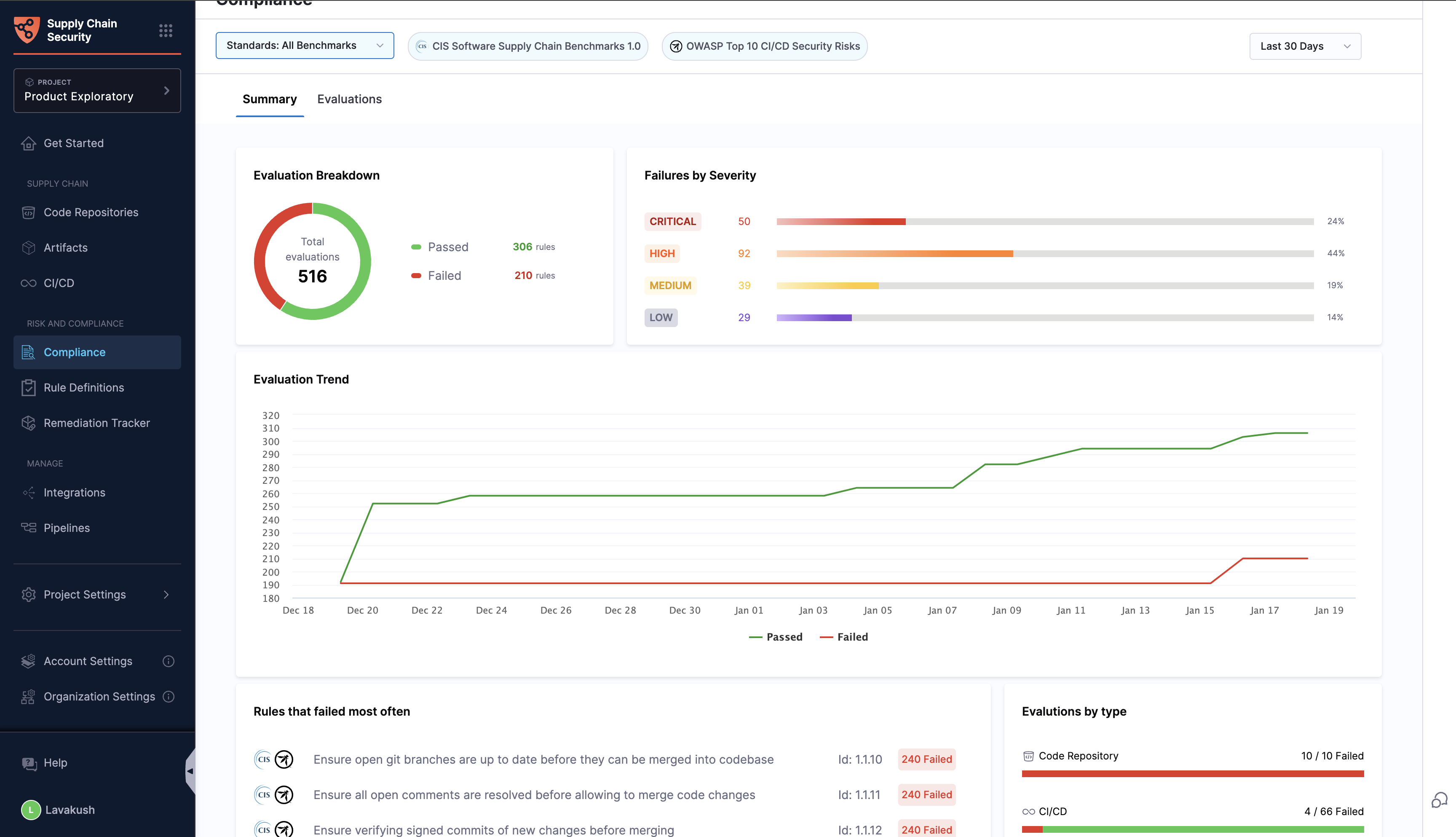
The **Summary** tab provides details of evaluations across your software supply chain. It includes:
Click to view full size image
* **Evaluation Breakdown**: A summary of rules passing versus failing.
* **Failure by Severity**: Displays the number of failures categorized by severity levels: critical, high, medium, and low.
* **Evaluation Trend**: This graph presents the trend of evaluations over time, showing the number of rules passing and failing with respect to the date. It helps users visualize the improvement or decline in the security posture.
* **Rules that Failed the Most Often**: Highlights the rules with the highest number of evaluation failures.
* **Evaluation by Type**: Presents the number of failures in each category, which includes code repositories, artifacts, and CI/CD tools.
You can filter evaluations by standard and severity. You can view data from the last 24 hours, seven days, or 30 days.
### View rule evaluations
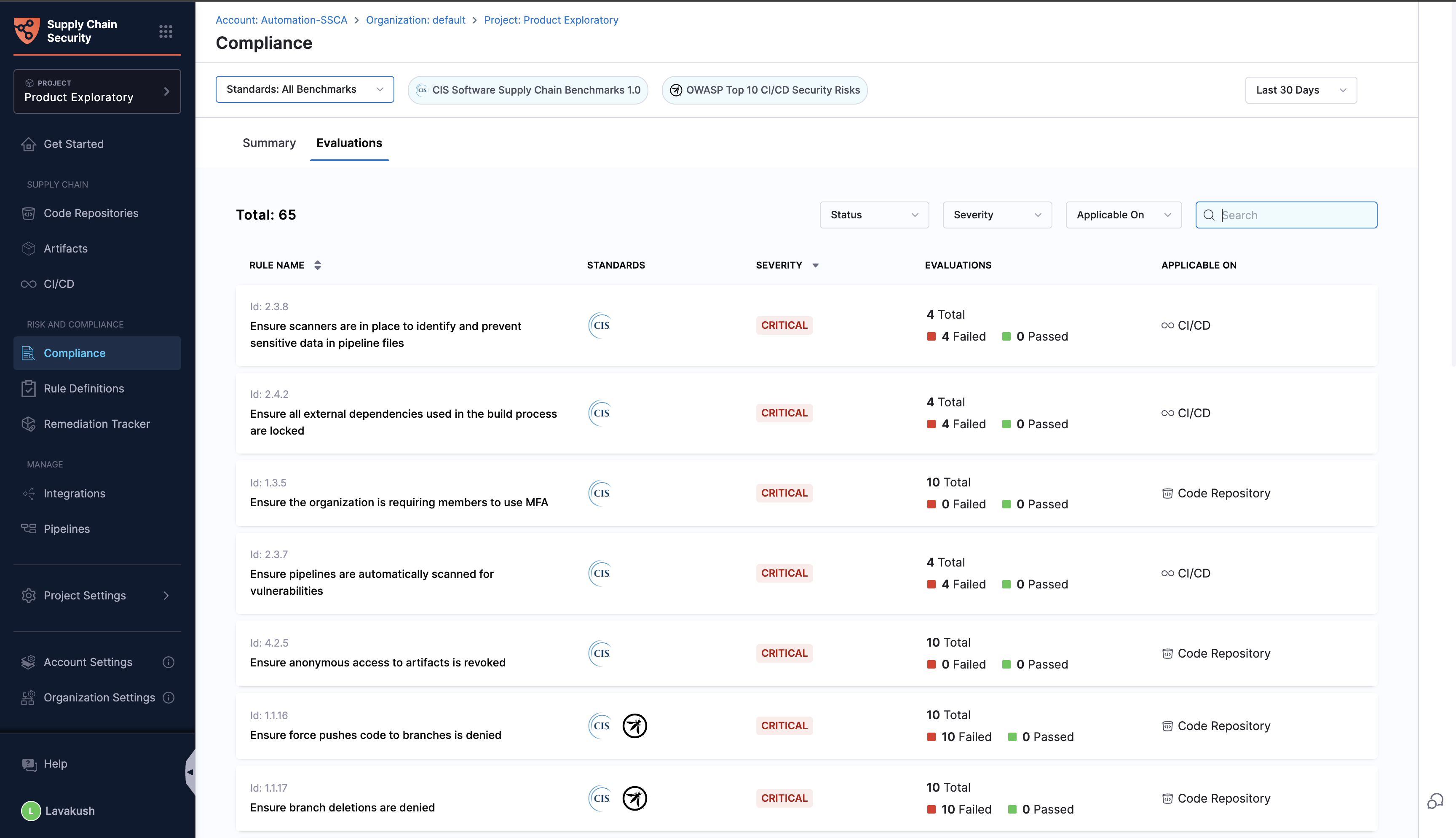
The Rules tab in the **Compliance** section provides a detailed view of all the rules and their complete execution details applied across all the targets configured. For each rule, along with its name and description, the view provides the following information:
Click to view full size image
* **Evaluations**: Displays the total number of evaluations occurred, indicating whether they passed or failed, and the total number of targets to which the rule is applied (e.g., code repositories, artifacts, CI/CD tools).
* **Severity**: Presents the severity of each rule, categorized as critical, high, medium, or low.
* **Standard:** Indicates the standard to which the rule belongs and the rule's ID according to the official ID convention.
You can filter rules by standard and severity. You can search within filtered results. You can view data from the last 24 hours, seven days, or 30 days.
### View impacted target
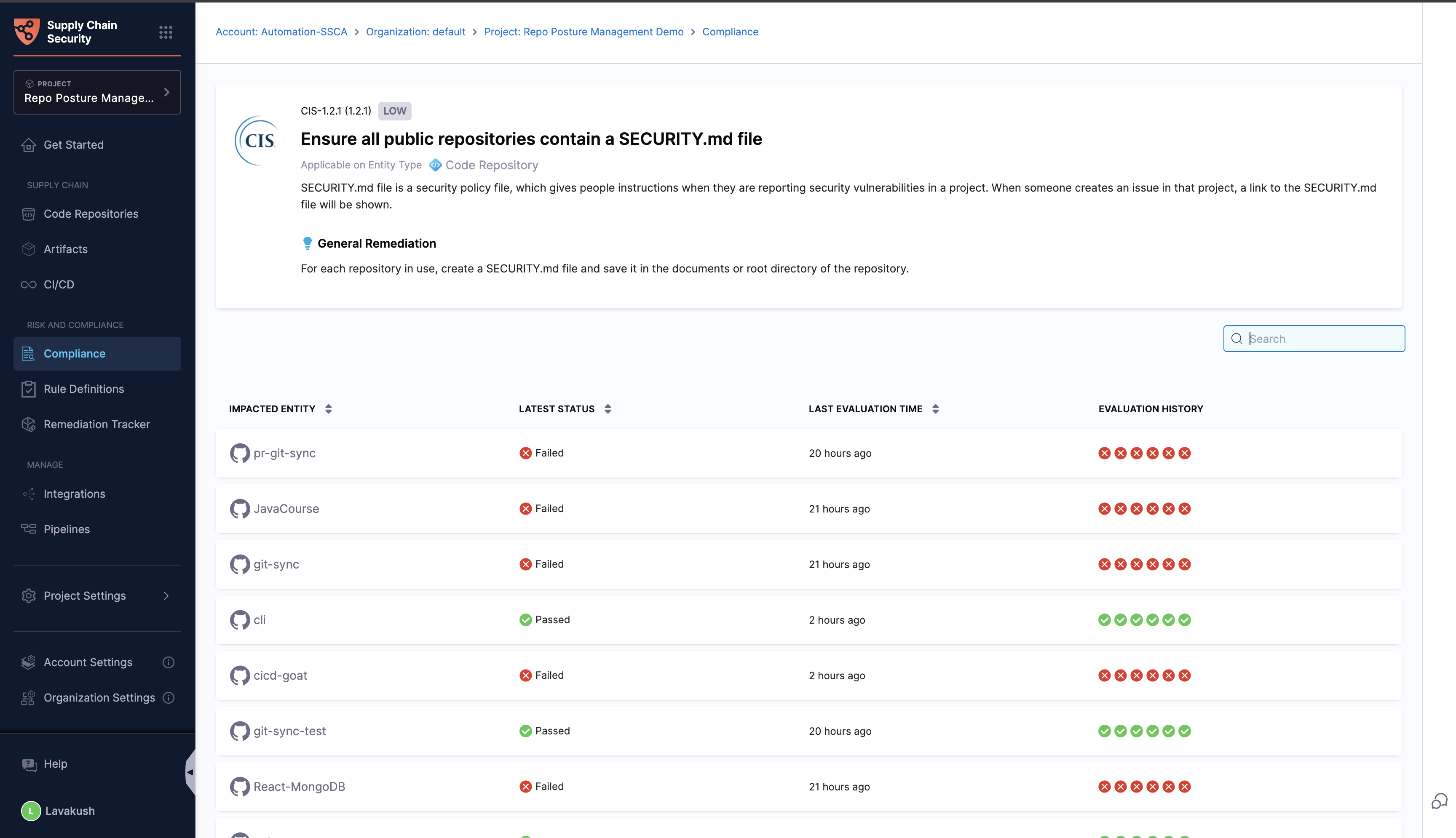
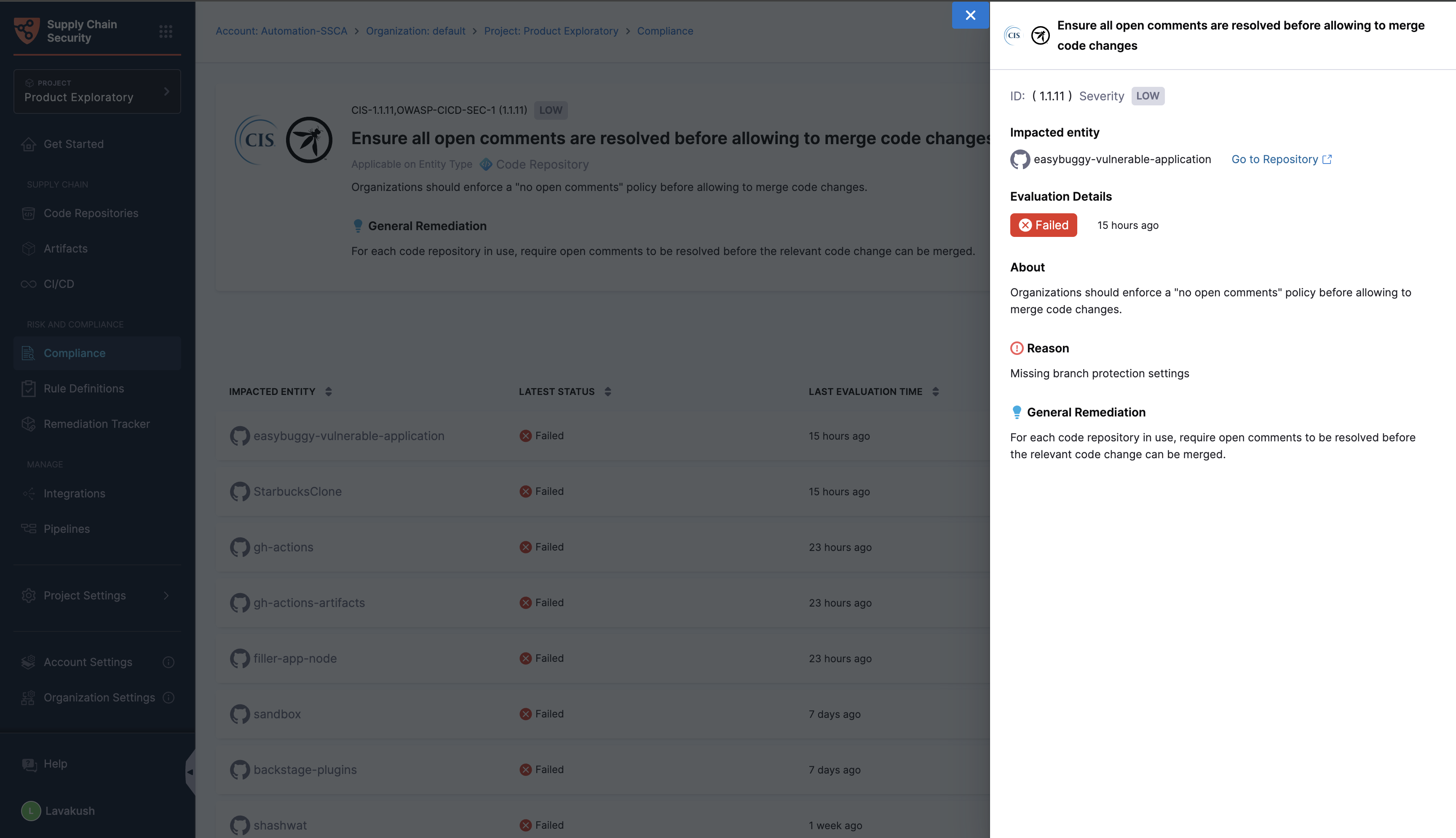
When you click a rule on the **Rules** tab, you see targets affected by its evaluation. This page provides the rule description, evaluation history, and remediation steps.
Click to view full size image
Click an item to view its latest evaluation details. You can also click an evaluation-history icon to view details for that evaluation. The details include its evaluation time, failure reason, and remediation information.