> For the complete documentation index, see [llms.txt](https://developer.harness.io/llms.txt). Markdown versions of documentation pages are available by appending `.md` to page URLs; this page is available as [Markdown](https://developer.harness.io/web-application-and-api-protection-waap-discovery-discovery-api-security-testing/data-collection/gateways-load-balancers/apigee/optional-apigee-agent-tls-configuration.md).
# (Optional) Apigee agent TLS configuration
Configure TLS communication between the Traceable Apigee agent and the Traceable Platform agent, including prerequisites and steps
You can configure TLS communication between Traceable's Apigee agent and Traceable's Platform agent.
## Before you begin
Make a note of the following before you configure Apigee agent TLS:
* Make sure that Traceable Platform agent's TLS is already set up. Configure the following in your Traceable Platform agent's `values.yaml` or `agentconfig.yaml`file (as per your deployment method) for setting up TLS:
```yaml
tls_server:
key_file: "domain.key"
cert_file: "domain.crt"
root_cert_file: "root_ca.crt"
```
You can generate a root CA certificate by following the script documented in this topic.
* Make sure that Apigee agent is set up. Go to [Apigee - Cloud deployment](https://docs.traceable.ai/docs/apigee-cloud-deployment) for details.
***
## Steps
Complete the following steps to configure TLS in Apigee:
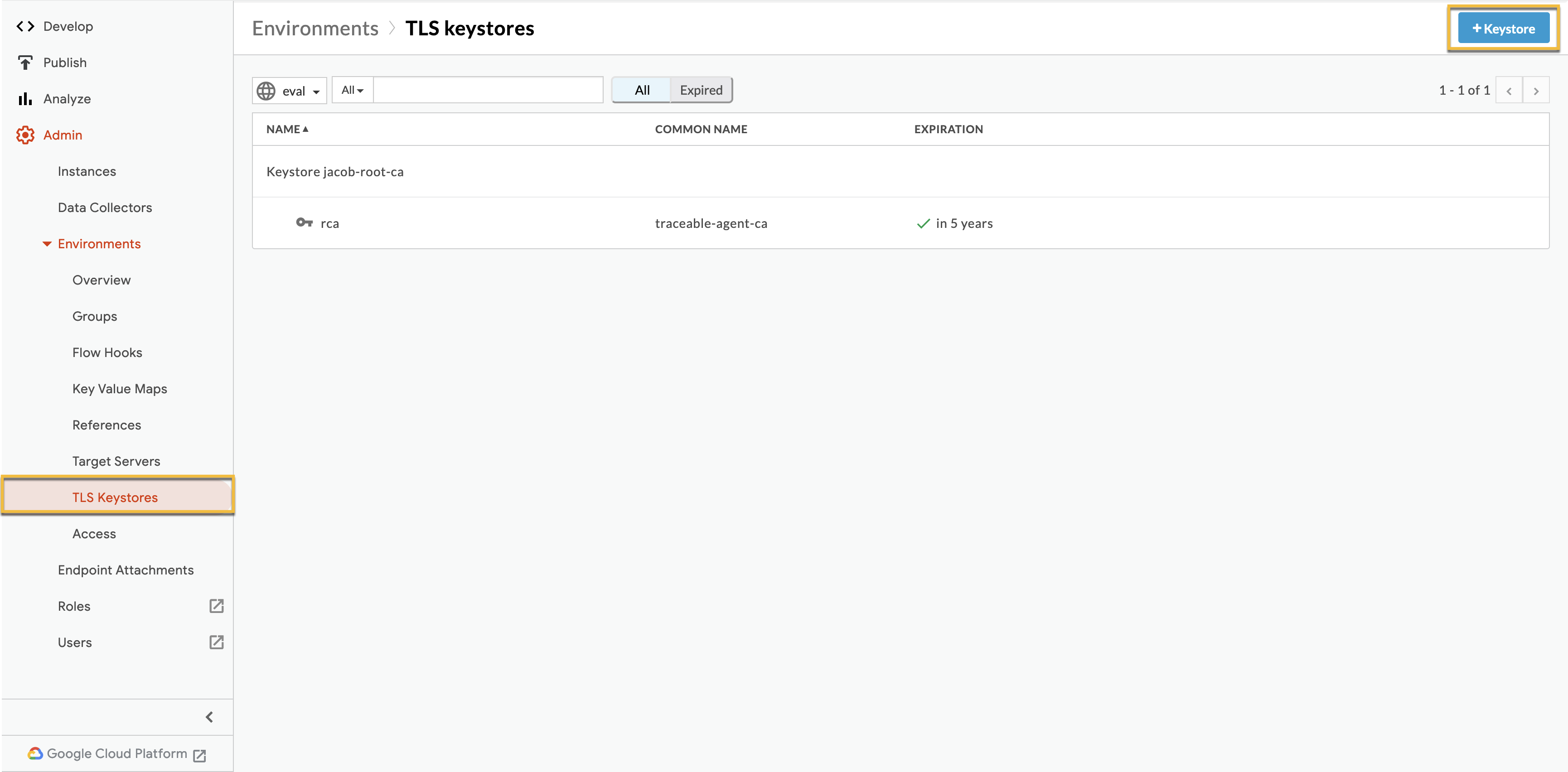
1. Log into your Apigee platform and navigate to Keystore settings under **Admin → Environments → TLS Keystores**.
2. Click on the **+ Keystore** button as shown above to create a new Keystore.
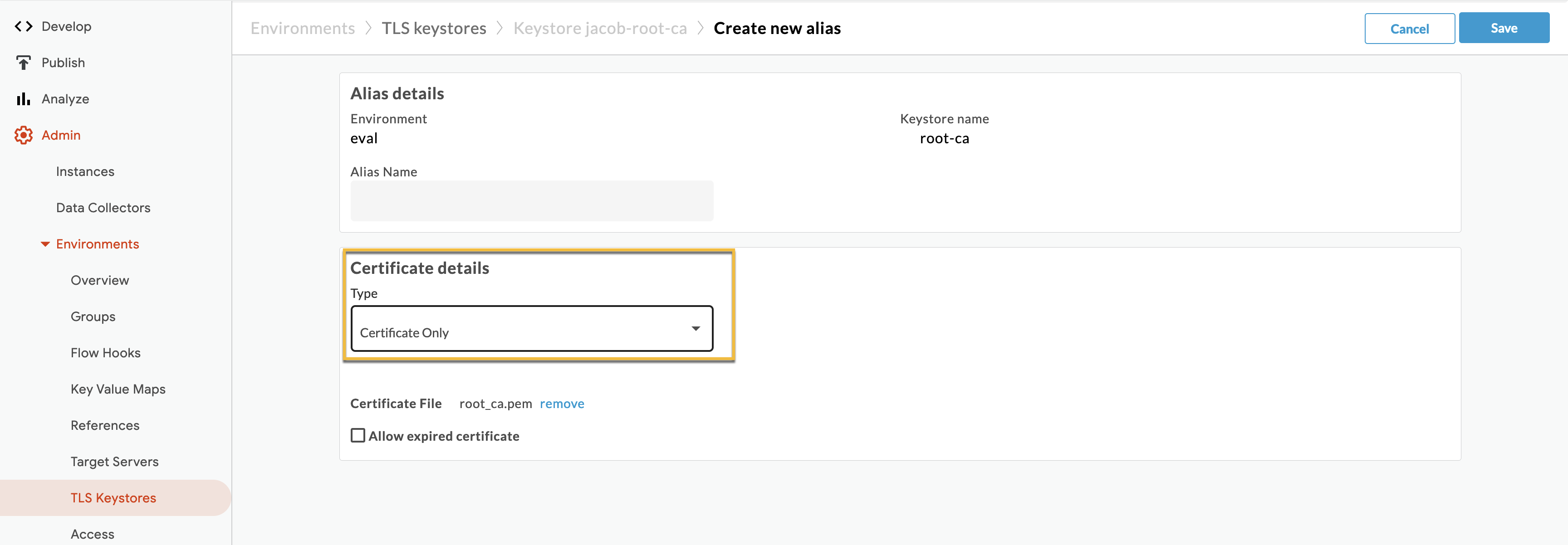
3. Create a new alias by selecting **Certificate Only** option. Provide the `root_ca.crt` corresponding to the certificate used to set up Traceable Platform agent.
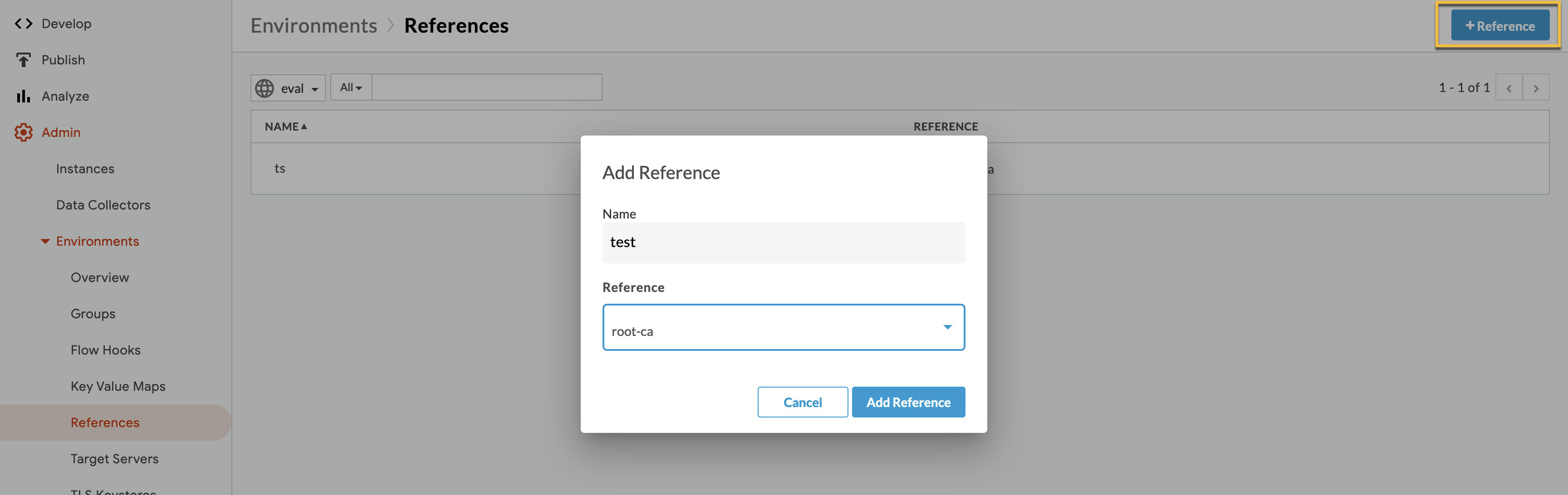
4. Navigate to **Admin → Environments → References**.
5. Create a new reference that points to the Keystore that you have created.
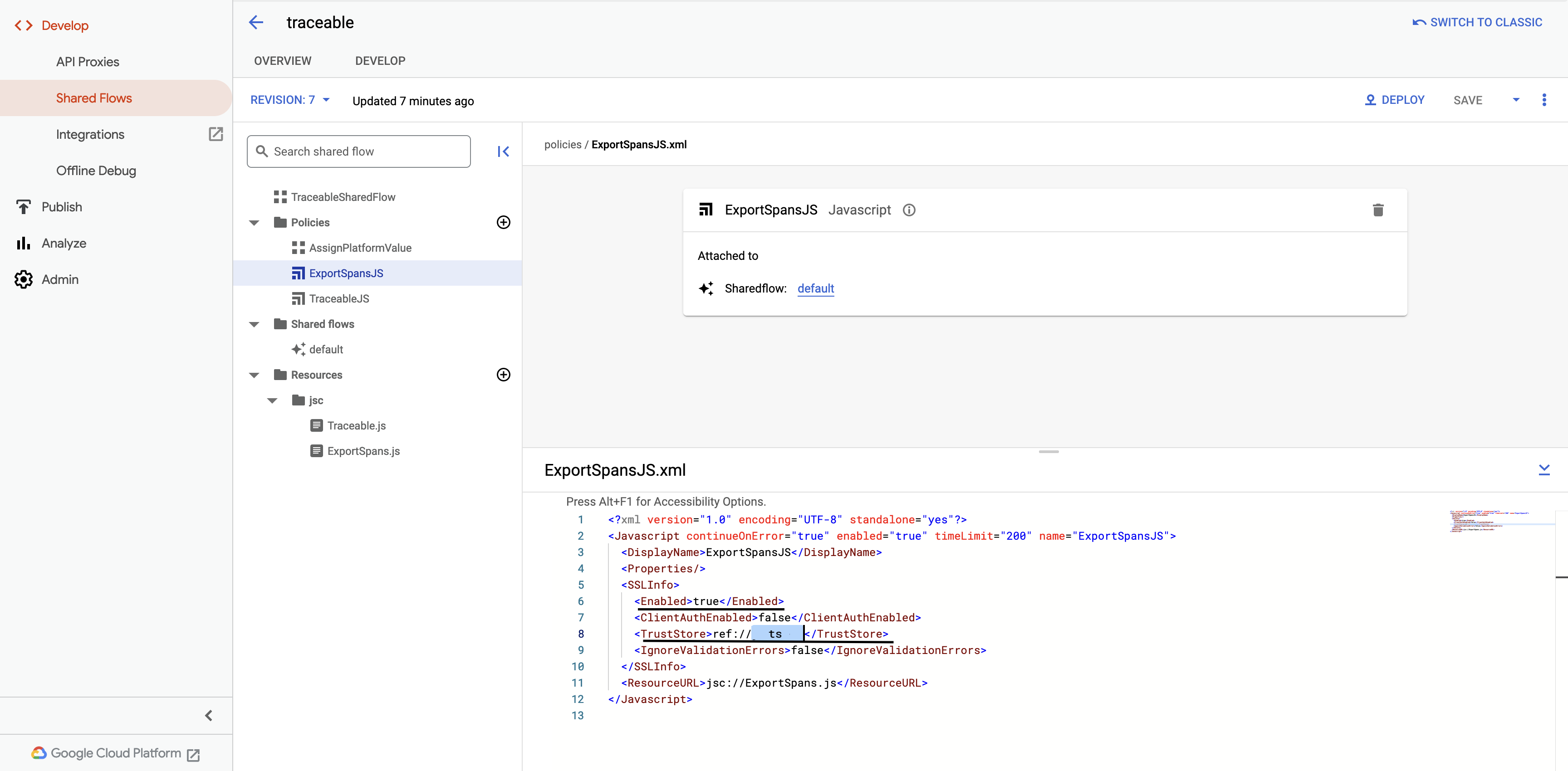
6. Navigate to **Develop → SharedFlows → traceable-sharedflow**.
7. Navigate to **ExportSpansJS**and:
1. Set `SSLEnabled` to `true`
2. Change the Truststore element to the reference created above in `ref://` format.
8. Update your ExportSpanJS to enable TLS and then save and deploy the new version to SharedFlow.
***
## Next steps
Go to [Apigee Policy](https://developer.harness.io/web-application-and-api-protection-waap-discovery-discovery-api-security-testing/data-collection/gateways-load-balancers/apigee/apigee-policy.md) for details.
Go to [Apigee blocking policy](https://developer.harness.io/web-application-and-api-protection-waap-discovery-discovery-api-security-testing/data-collection/gateways-load-balancers/apigee/apigee-blocking-policy.md) for details.
{% @harness-feedback/feedback %}