> For the complete documentation index, see [llms.txt](https://developer.harness.io/llms.txt). Markdown versions of documentation pages are available by appending `.md` to page URLs; this page is available as [Markdown](https://developer.harness.io/web-application-and-api-protection-waap-discovery-discovery/api-security-testing/ast-basics-and-workflow/scan-details.md).
# Scan Details
Review the results of an API Security Testing scan, including its issues, API coverage, reachability tests, scan runs and executed tests
Updates (October 2026 to December 2026)
* *October 2026*: Updated to add information about test grouping and test chain results. Go to [Tests](/web-application-and-api-protection-waap-discovery-discovery/api-security-testing/ast-basics-and-workflow/scan-details/tests.md) for more details.
After a scan execution completes, Traceable highlights key information about the scan on the Scan Details page, including the identified issues, the APIs covered (tested), the endpoints Traceable could reach before testing them, the list of scan runs performed, and the specific tests executed during each scan run.
## What you will learn from this topic
By the end of this topic, you will be able to understand:
* The details displayed on the **Scans** page.
* The way you can leverage the details in issues, API coverage, API endpoint reachability, scan run, and test tabs for a scan.
***
## Before you begin
Make a note of the following before you analyze a scan:
* Ensure that you have created and executed at least one scan, as Traceable populates the Scan Details page only after a scan run. For the steps to create a scan, go to [Creating a Scan](/web-application-and-api-protection-waap-discovery-discovery/api-security-testing/ast-basics-and-workflow/creating-a-scan.md#create-a-scan).
* Make sure that you understand scans and traffic types, because the traffic type you select at scan creation determines which endpoints Traceable can test. Go to [Understanding Scans and Traffic Types](/web-application-and-api-protection-waap-discovery-discovery/api-security-testing/ast-basics-and-workflow/understanding-scans-and-traffic-types.md) for more details.
***
## Understand Scans view
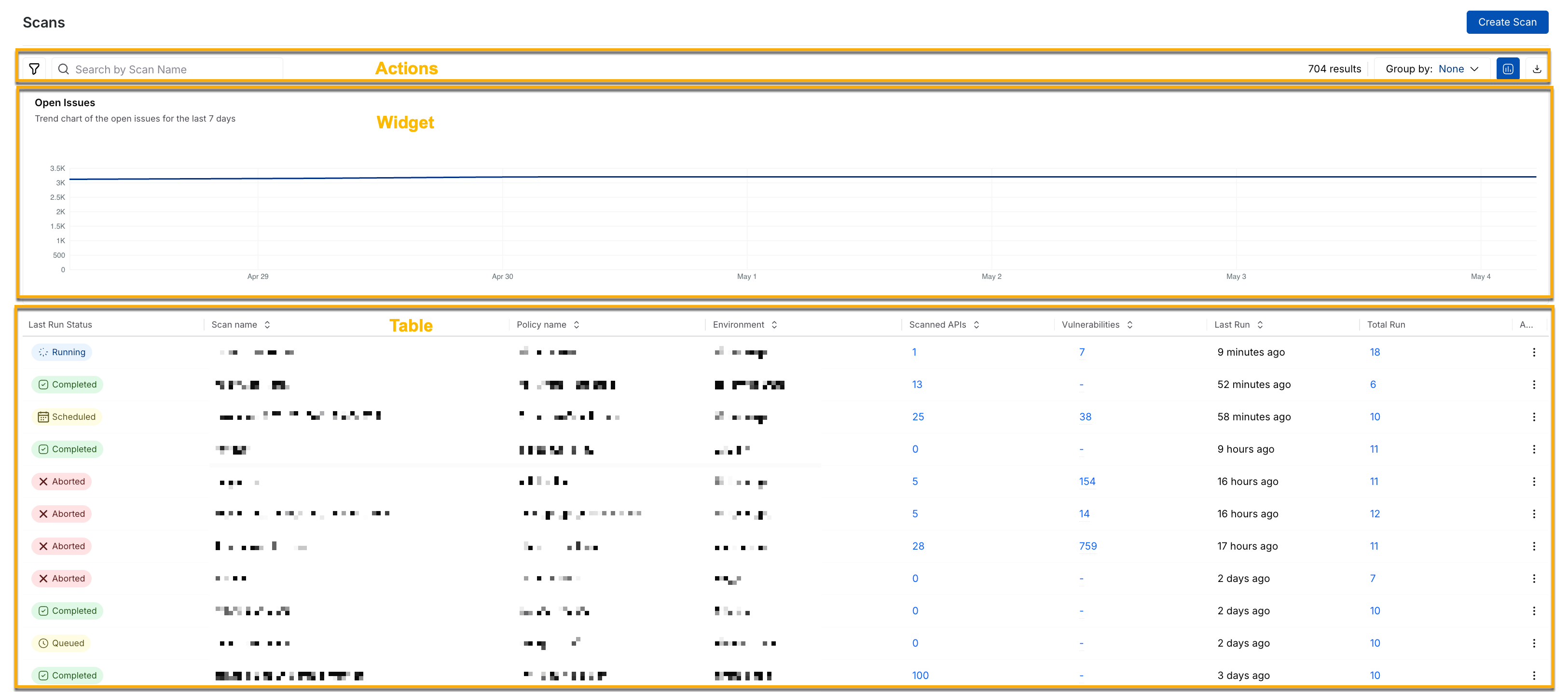
The **Scans** page provides a centralized list of all the configured and executed scans in your environment. You can use this view to monitor scan execution status, review coverage and endpoint reachability, and identify scans that detected issues and require your attention.
Scans View
### Widget on the Scans page
The widget at the top of the page displays the **Open Issues** trend chart, which shows the number of unresolved vulnerabilities over the past 7 days. This helps you:
* Understand whether risk exposure is increasing or decreasing.
* Measure remediation progress over the week.
* Identify sudden spikes after new scan executions.
A steady increase may indicate newly discovered issues or delayed remediation. A downward trend usually reflects effective issue resolution.
### Table on the Scans page
Below the chart, Traceable also displays a scans table that lists execution details and results. Each row highlights a scan configuration and its most recent execution status. The table includes the following columns:
| Column | Description |
| ------------------- | --------------------------------------------------------------------------------------------------------------------------------------------------------------------------------------------------------------------------------------------------------------------------------------------------------------------------------------------- |
| **Last Run Status** | Displays the most recent scan execution. This status can be from *Aborted, Running, Completed, Queued,* or *Undefined*. This helps you identify whether the scan executed successfully or requires your attention. |
| **Scan Name** | Displays the name of the scan. You can click the scan to view detailed execution insights and findings. Go to [Understand and leverage scan details](#understand-and-leverage-scan-details) for more details. |
| **Policy Name** | Displays the policy selected during scan creation. This defines the attack depth and test depth applied to APIs. |
| **Environment** | Displays the environment associated with the scan. |
| **Scanned APIs** | Displays the number of APIs tested during scan execution. A higher number indicates improved coverage. Click the **Scanned APIs** count to view more details. Go to [API Coverage.](/web-application-and-api-protection-waap-discovery-discovery/api-security-testing/ast-basics-and-workflow/scan-details/api-coverage.md) for more details. |
| **Vulnerabilities** | Displays the number of issues identified in the scan. You can click the value to view the detected vulnerabilities for the respective scan on the **Issues** page. Go to [Issues](/web-application-and-api-protection-waap-discovery-discovery/api-security-testing/ast-basics-and-workflow/scan-details/issues.md) for more details. |
| **Last Run** | Displays when the scan was most recently executed. This helps you determine if the scan coverage is up to date. |
| **Total Run** | Displays the total number of scan executions. Higher scan runs may indicate scheduled scans. Go to [Scan Runs](/web-application-and-api-protection-waap-discovery-discovery/api-security-testing/ast-basics-and-workflow/scan-details/scan-runs.md) for more details. |
| **Actions** | Displays the available action for a scan; here, *Delete Scan.* Go to [Actions on the Scans page](#actions-on-the-scans-page) for more details. |
### Actions on the Scans page
The Scans page provides the following actions to organize and manage scans:
| Action | Description |
| ------------------------ | -------------------------------------------------------------------------------------------------------------------------------------------------------------------------------------------------------------------------------------------------------------------------------------------------------------------------------------------------------------------------------------------------------------------------------------------------------------------------------------------------------------------------------------------------------------------------------------------------------------------------------------------------------- |
| **Filter** icon | The **Filter** (:filter: ) icon in the page’s top left corner helps you refine the list of displayed scans based on attributes, such as *Status*. Go to [Scan filters](#scan-filters) for more details. |
| **Search** bar | The **Search** bar in the page’s top left corner helps you locate a specific scan by typing its name. |
| **Group By** drop-down |
The Group By drop-down in the page’s top right corner helps you organize scans based on the following attributes:
Policy: Updates the table displayed on the page based on the policies for which you have configured scans.
Environment: Updates the table displayed on the page based on the environments for which you have configured scans.
Label: Updates the table displayed on the page based on the labels you have assigned to the scans. Go to Manage labels for a scan for more details.
|
| **Visualization** toggle | Displays or hides the widget that highlights open issues from the past 7 scans. |
| **Download** icon | Downloads the issues table as a CSV file for offline analysis. |
| **Delete** a scan |
The Ellipse (:ellipsis:) icon corresponding to a scan in the table helps you delete scans that are no longer required.
You cannot restore a deleted scan.
|
#### Scan filters
Use scan filters to narrow the list of scans and focus on the findings that matter to you. The following table describes the available filters on the Scans page:
| Filter | Description |
| -------------------- | ----------------------------------------------------------------------------------------------------------------------------------------------------------------------------------------------------------------------------------------------------------------------------------------------------------- |
| **Policy** | Specifies the type of policies to detect vulnerabilities. Go to [Policies](/web-application-and-api-protection-waap-discovery-discovery/api-security-testing/advanced-usage/policies.md) for more details. |
| **Environment** | Specifies the environment(s) associated with the issue, helping you focus on findings from particular deployment environments. |
| **Status** | Specifies the execution status of the scan, such as *Aborted, Running, Completed, Queued,* or *Undefined.* |
| **Traffic** **Type** | Specifies the type of traffic configured for the scan, such as *Live, XAST,* or *DAST.* Go to [Understanding Scans and Traffic Types](/web-application-and-api-protection-waap-discovery-discovery/api-security-testing/ast-basics-and-workflow/understanding-scans-and-traffic-types.md) for more details. |
| **Label** | Specifies the labels assigned to a scan, providing additional context and helping you organize findings according to your organization's conventions. |
***
## Understand and leverage scan details
Traceable organizes the details of a scan across the following tabs, each of which helps you analyze a different aspect of the scan and tailor your testing according to your requirements:
* **Issues**: Lists the vulnerabilities that Traceable identified during the scan. Go to [Issues](/web-application-and-api-protection-waap-discovery-discovery/api-security-testing/ast-basics-and-workflow/scan-details/issues.md) for more details.
* **API Coverage**: Shows which API endpoints Traceable exercised during the scan and how thoroughly it tested them. Go to [API Coverage](/web-application-and-api-protection-waap-discovery-discovery/api-security-testing/ast-basics-and-workflow/scan-details/api-coverage.md) for more details.
* **Scan Runs**: Lists all executions of the scan configuration and their outcomes. Go to [Scan Runs](/web-application-and-api-protection-waap-discovery-discovery/api-security-testing/ast-basics-and-workflow/scan-details/scan-runs.md) for more details.
* **Tests**: Provides granular details on the tests Traceable executed during a scan run. Go to [Tests](/web-application-and-api-protection-waap-discovery-discovery/api-security-testing/ast-basics-and-workflow/scan-details/tests.md) for more details.
* **Reachability Tests**: Shows whether Traceable could reach each API endpoint before generating and executing security tests. Go to [Reachability Tests](/web-application-and-api-protection-waap-discovery-discovery/api-security-testing/ast-basics-and-workflow/scan-details/reachability-tests.md) for more details.
***
## Actions on the scan details page
When you open a scan from the **Scans** page, Traceable provides the following actions in the scan details page's top right corner:
| Action | Description |
| ------------------------------------ | ----------------------------------------------------------------------------------------------------------------------------------------------------------------------------------------------------------------------------------------------------------------------------------------------------------------- |
| **Manage Labels** | Assigns one or more labels to the scan so that you can group and organize scans on the **Scans** page. For the steps to do this, go to [Manage labels for a scan.](#manage-labels-for-a-scan) |
| **Start Scan** | Queues the scan for execution without waiting for its configured schedule. |
| **Reset Incremental Scanning** | Clears the incremental scanning state for the scan so that Traceable tests the full set of endpoints on the next run instead of only the changed ones. |
| **Copy shareable link to clipboard** | Copies a link to the scan so that you can share it with others in your organization. |
| **Edit Scan** | Opens the scan configuration so that you can change its settings, such as its environment, traffic type, policy, and evaluation criteria. Go to [Creating a Scan](/web-application-and-api-protection-waap-discovery-discovery/api-security-testing/ast-basics-and-workflow/creating-a-scan.md) for more details. |
Actions on scan details page
***
## Manage labels for a scan
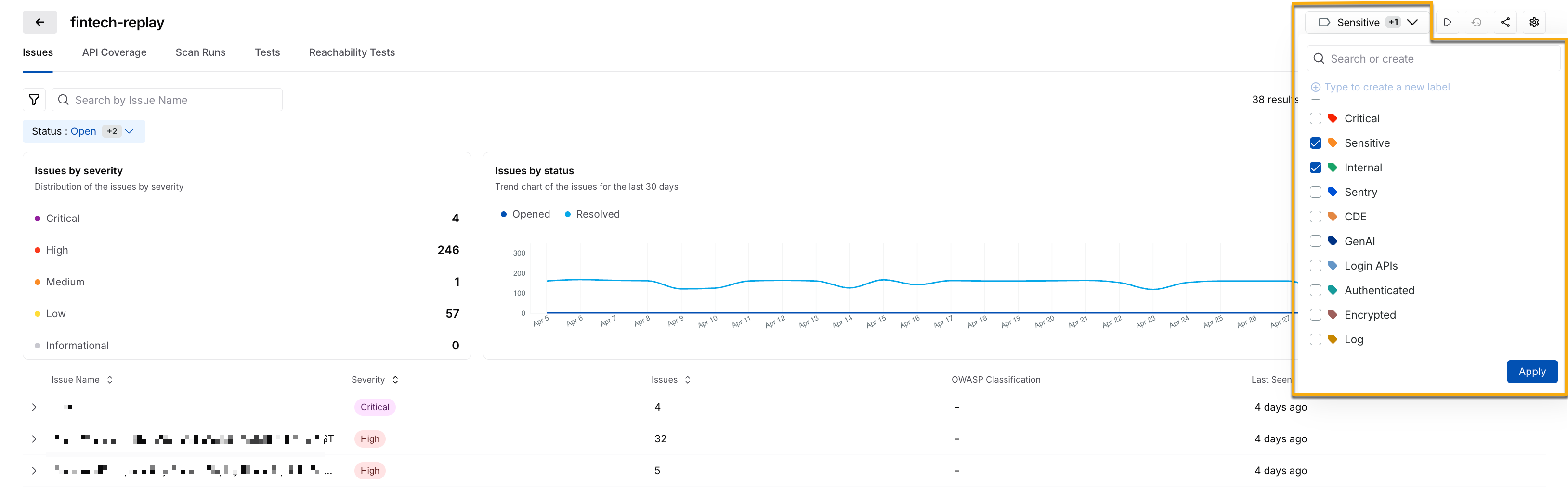
Labels enable you to categorize scans according to your conventions, such as *critical APIs*, *regression*, *production*, and *testing*. Once assigned, you can use these labels to group and organize scans on the **Scans** page. Go to [Actions on the Scans page](#actions-on-the-scans-page) for more details. These labels help you group and organize a large number of scans and improve visibility when you use the **Group By** option. For example, assigning a label named *production* may help you group and review all production-related scans.
To manage the labels for a scan, complete the following steps:
Assign a Scan Label
1. Click a scan in the table on the **Scans** page.
2. In the **Scan Details** page's top right corner, click **Manage Labels**.
3. Select one or more labels from the list of pre-existing labels, or type to create a new one.
4. Click **Apply**.
Once assigned, the label is available for filtering and grouping on the **Scans** page, and grouping on the **Issues** tab of the scan. Go to [Issues](/web-application-and-api-protection-waap-discovery-discovery/api-security-testing/ast-basics-and-workflow/scan-details/issues.md) for more details.
{% @harness-feedback/feedback %}