> For the complete documentation index, see [llms.txt](https://developer.harness.io/llms.txt). Markdown versions of documentation pages are available by appending `.md` to page URLs; this page is available as [Markdown](https://developer.harness.io/web-application-and-api-protection-waap-discovery-discovery/integrations/siem-soar/google-secops-integration.md).
# Google SecOps Integration
Connect Harness WAAP with Google SecOps to send security events for centralized monitoring and investigation, and test the integration
Google Security Operations (Google SecOps) is a cloud-native SIEM and SOAR platform that helps you centrally monitor, investigate, and respond to security events. The Google SecOps integration connects Harness RPA with your Google SecOps environment, allowing you to send security events from Harness RPA to Google SecOps for centralized monitoring and investigation.
### What you will learn from this topic
By the end of this topic, you will be able to understand:
* The purpose of the Google SecOps integration and what it enables.
* The configuration values you need to connect Google SecOps with Harness RPA.
* The steps to add and test the Google SecOps integration.
***
### Before you begin
Before you proceed with the integration, make a note of the following:
* Make sure that you have access to your Google SecOps instance with permissions to view SIEM Settings.
* Make sure that you have the *GCP Project ID, Customer ID*, and *Region* for your Google SecOps instance.
* Make sure that you understand that you can add only one Google SecOps integration, which applies to **All environments**. You do not need to create a separate integration for each environment.
{% hint style="info" %}
**Note**
To send events from specific environments, you can use the same integration in a notification channel. When you create or edit the notification channel, select the required environment from the **Environment** drop-down.
{% endhint %}
***
### Configuration
To configure the Google SecOps integration, complete the following steps:
#### **Step 1: Retrieval of configuration values from Google SecOps**
You need the following three values from your Google SecOps instance:
* **GCP Project ID**: The Google Cloud project associated with your Google SecOps instance.
* **Chronicle Instance ID**: The Customer ID associated with your Google SecOps instance.
* **Region**: The region in which your Google SecOps instance is deployed.
To obtain these values, log in to your Google SecOps instance. Navigate to **Settings** → **SIEM Settings** and complete the following steps:
1. Copy the *GCP Project ID* and the *Customer ID***.**
{% hint style="info" %}
**Note**\
When you configure the integration in Harness RPA, use the **Customer ID** as the **Chronicle Instance ID**.
{% endhint %}
2. Make a note of the *Region* of your Google SecOps instance, for example, *US.*
You can now use these values to configure the integration in Harness RPA.
#### **Step 2: Add a new Google SecOps integration in Harness RPA**
To add the Google SecOps integration, complete the following steps:
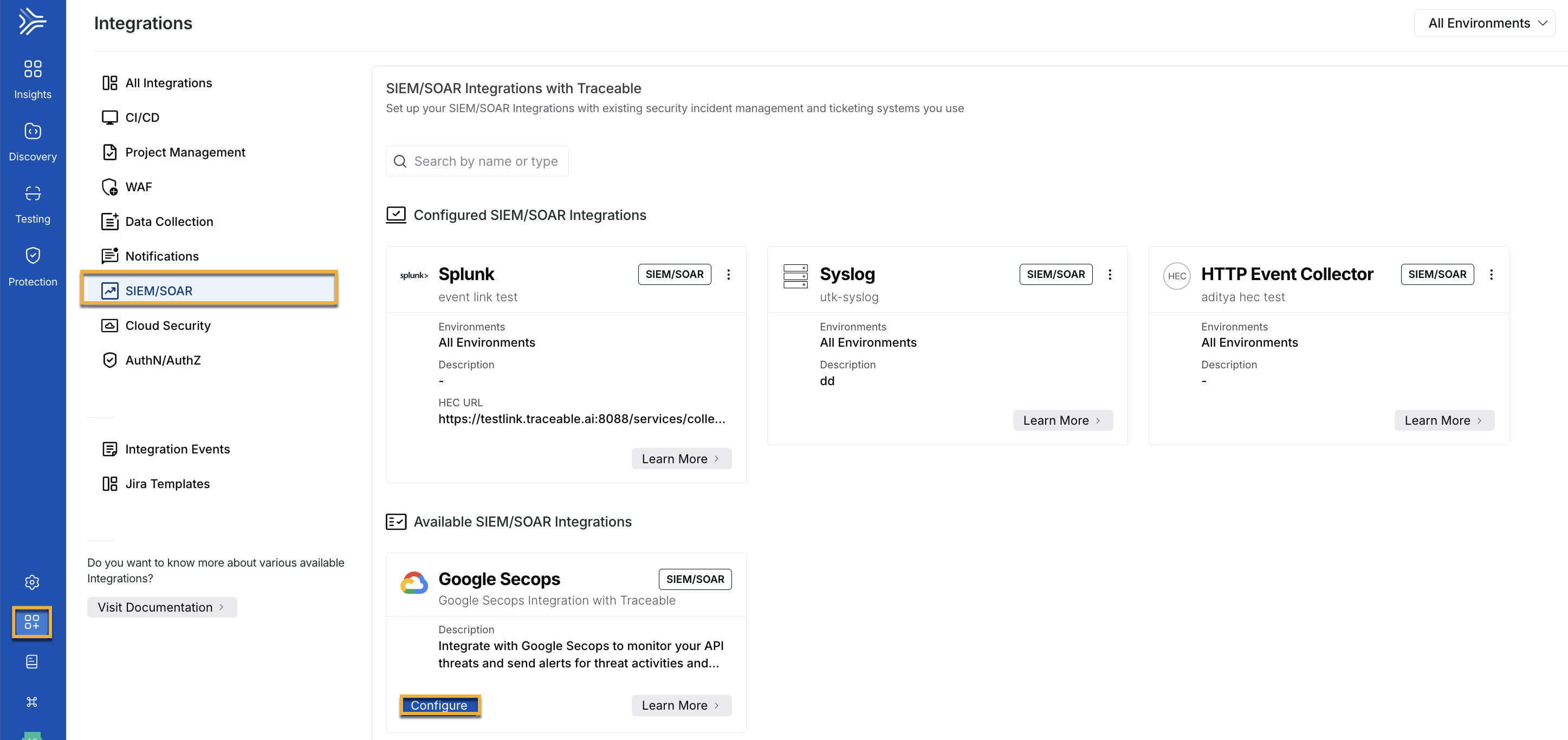
1. Log in to your account and navigate to **Integrations**.
2. Under **All Integrations**, do one of the following:
* Search for *Google SecOps* in the search bar.
* Navigate to **SIEM/SOAR** → **Google SecOps**.
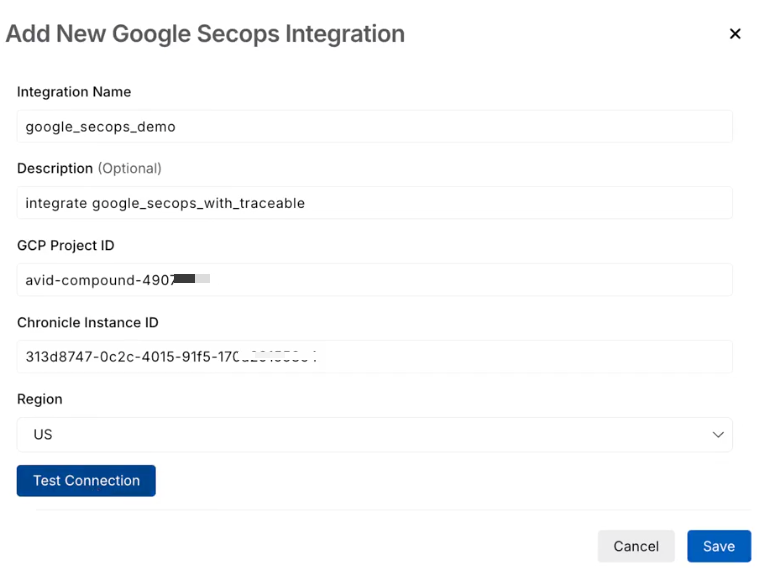
3. In the **Add New Google SecOps Integration** slide-out panel, specify the following details:
* **Integration Name**: Enter a name for the integration, for example, *Google SecOps*.
* **(Optional) Description**: Specify a description for the integration, for example, *Integrate google\_secops with Traceable.*
* **GCP Project ID**: Specify the **GCP Project ID** you retrieved from your Google SecOps instance above.
* **Chronicle Instance ID**: Specify the **Chronicle instance ID** you retrieved from your Google SecOps instance in the previous step. It is the same as the *Customer ID* in the Google SecOps instance. Go to [Step 1](#configuration) for details in the configuration section.
* **Region**: Select the **Region**, as mentioned in your Google SecOps instance.
4. Click **Test Connection**.
5. Once it validates the connection, click **Save**.
{% hint style="info" %}
Note
* Harness RPA connects using only your **GCP Project ID**, **Chronicle Instance ID**, and **Region**.
* Before you delete the Google SecOps integration, make sure to remove it from all associated notification channels. The integration cannot be deleted while it is associated with a notification channel.
{% endhint %}
***
### Verify your Google SecOps integration
After you complete the integration setup, verify that Harness RPA can send security events to your Google SecOps instance. The events you see depend on the security activity Traceable has detected in your environment. When Harness RPA detects security activity, it sends the corresponding event to Google SecOps, and you can search for it using the `metadata.vendor_name` field.
{% hint style="info" %}
**Note**
If you do not see any events, verify the following:
* Traceable has detected security activity in your environment.
* Your *GCP Project ID, Chronicle Instance ID*, and *Region* are correct.
* Your integration connection test was successful.
* Your Google SecOps instance is correctly configured to receive events.
{% endhint %}
### Monitor security events in Google SecOps
Once you configure the integration, Harness RPA sends your security events to your Google SecOps instance. You can then use this event information to investigate security activity alongside the other events you collect in your environment.
{% hint style="info" %}
**Note**
For information about configuring notifications in Harness RPA, go to [Notification](/web-application-and-api-protection-waap-discovery-discovery/integrations/notifications/notification.md).
{% endhint %}
***
### Demo
The following demo walks you through the steps to configure the Google SecOps integration:
{% embed url="" %}