

Google SecOps Integration
Connect Harness WAAP with Google SecOps to send security events for centralized monitoring and investigation, and test the integration
Google Security Operations (Google SecOps) is a cloud-native SIEM and SOAR platform that helps you centrally monitor, investigate, and respond to security events. The Google SecOps integration connects Harness RPA with your Google SecOps environment, allowing you to send security events from Harness RPA to Google SecOps for centralized monitoring and investigation.
What you will learn from this topic
By the end of this topic, you will be able to understand:
The purpose of the Google SecOps integration and what it enables.
The configuration values you need to connect Google SecOps with Harness RPA.
The steps to add and test the Google SecOps integration.
Before you begin
Before you proceed with the integration, make a note of the following:
Make sure that you have access to your Google SecOps instance with permissions to view SIEM Settings.
Make sure that you have the GCP Project ID, Customer ID, and Region for your Google SecOps instance.
Make sure that you understand that you can add only one Google SecOps integration, which applies to All environments. You do not need to create a separate integration for each environment.
Configuration
To configure the Google SecOps integration, complete the following steps:
Step 1: Retrieval of configuration values from Google SecOps
You need the following three values from your Google SecOps instance:
GCP Project ID: The Google Cloud project associated with your Google SecOps instance.
Chronicle Instance ID: The Customer ID associated with your Google SecOps instance.
Region: The region in which your Google SecOps instance is deployed.
To obtain these values, log in to your Google SecOps instance. Navigate to Settings → SIEM Settings and complete the following steps:
Copy the GCP Project ID and the Customer ID.
Make a note of the Region of your Google SecOps instance, for example, US.
You can now use these values to configure the integration in Harness RPA.
Step 2: Add a new Google SecOps integration in Harness RPA
To add the Google SecOps integration, complete the following steps:
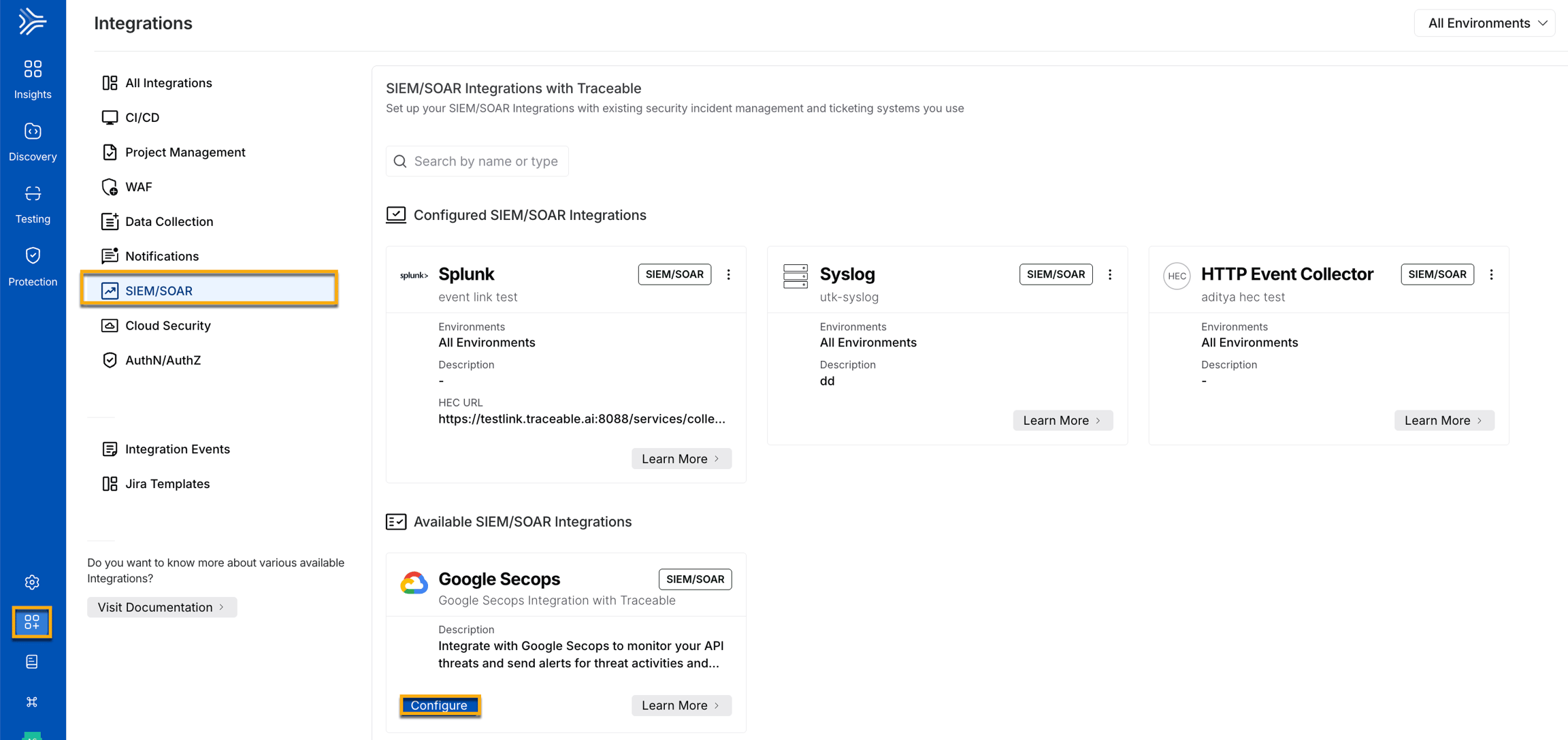
Log in to your account and navigate to Integrations.
Under All Integrations, do one of the following:
Search for Google SecOps in the search bar.
Navigate to SIEM/SOAR → Google SecOps.
In the Add New Google SecOps Integration slide-out panel, specify the following details:
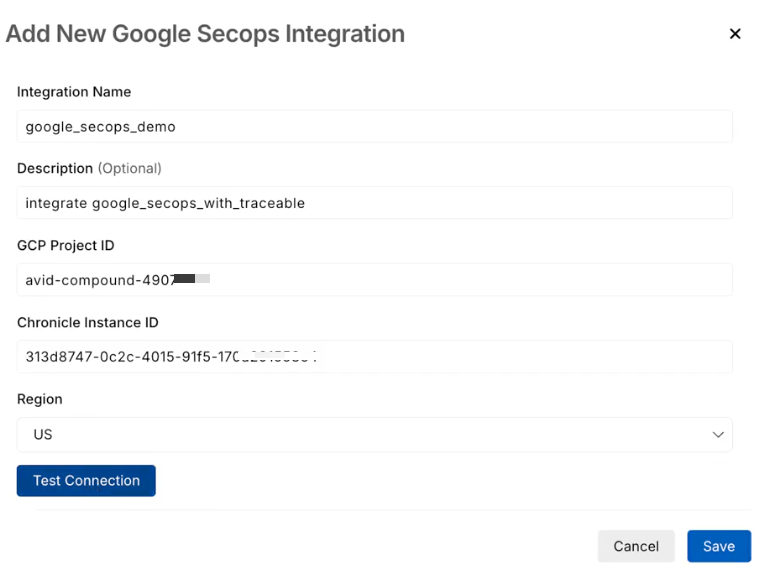
Integration Name: Enter a name for the integration, for example, Google SecOps.
(Optional) Description: Specify a description for the integration, for example, Integrate google_secops with Traceable.
GCP Project ID: Specify the GCP Project ID you retrieved from your Google SecOps instance above.
Chronicle Instance ID: Specify the Chronicle instance ID you retrieved from your Google SecOps instance in the previous step. It is the same as the Customer ID in the Google SecOps instance. Go to Step 1 for details in the configuration section.
Region: Select the Region, as mentioned in your Google SecOps instance.
Click Test Connection.
Once it validates the connection, click Save.
Verify your Google SecOps integration
After you complete the integration setup, verify that Harness RPA can send security events to your Google SecOps instance. The events you see depend on the security activity Traceable has detected in your environment. When Harness RPA detects security activity, it sends the corresponding event to Google SecOps, and you can search for it using the metadata.vendor_name field.
Monitor security events in Google SecOps
Once you configure the integration, Harness RPA sends your security events to your Google SecOps instance. You can then use this event information to investigate security activity alongside the other events you collect in your environment.
Demo
The following demo walks you through the steps to configure the Google SecOps integration:
Was this helpful?