

Google Cloud Armor Integration
Integrate Traceable with Google Cloud Armor to sync blocking rules, and manage the configured integration
Google Cloud Armor is a security service provided by Google Cloud Platform (GCP) to protect web applications and services from various types of cyber threats, including distributed denial-of-service (DDoS) attacks and application-layer attacks. Google Cloud Armor features a Web Application Firewall (WAF) as one of its key components. A WAF protects web applications from various security threats, such as SQL injection, cross-site scripting (XSS), and other malicious activities targeting web applications.
What will you learn in this topic?
By the end of this topic, you will be able to understand:
An overview of the steps required to set up the Azure integration.
The prerequisites for setting up the integration.
The detailed steps for the Google Cloud Armor integration with Traceable.
The support matrix for the creation of Custom Signature rules in Traceable.
Integration overview
This section provides high-level information on integrating Google Cloud Armor (GCA) WAF with your environment and managing threats.
Integration Setup: After deploying the agent, you can retrieve the credentials and configure the Google Cloud Armor integration. To do so, you must complete the following steps:
Prerequisites: Log in to your Google Cloud Armor account and fetch the required credentials to configure the integration. Go to Before you begin for more details.
Integration: After obtaining the credentials from the previous step, navigate to the Traceable platform and configure the integration. Go to Add New Google Cloud Armor Integration for more details.
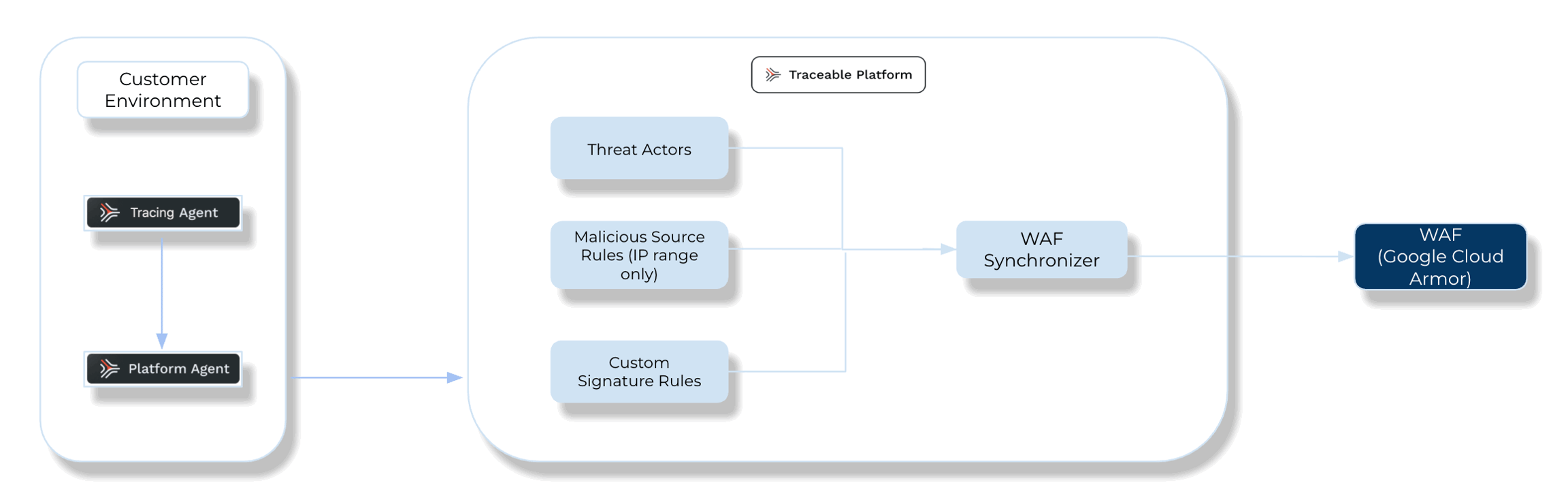
Threat Management: After setting up the integration, you can establish rules to allow, block, or monitor IP addresses according to your specific requirements. Traceable supports the following rules for the Google Cloud Armor integration:
Threat Actors: Traceable enables you to track any status change of a threat actor and communicate it to Google Cloud Armor. Traceable allows creating allowlists using allowed and snoozed states, and supports blocking using deny and suspended states under threat actors. For example, if Traceable detects a threat actor and changes it to a deny state, then the requests from this threat actor can be blocked using Google Cloud Armor. Go to Threat actors for more details.
Malicious Source Rules (IP Range only): Traceable allows you to configure any malicious source rules under Protection → Policies → Custom Policies → Malicious Sources tab to enforce blocking or allow for IP ranges to be executed through Google Cloud Armor. Go to Custom policy for more details. Traceable recommends going through the allow list conditions before creating any IP-range rules. Go to IP address allowlist for more details.
Custom Signature Rules: Traceable allows you to set up Custom Signature rules under Protection → Policies → Custom Policies → Custom Signatures tab to block incoming requests from a specific URL by matching the corresponding endpoints. Go to Custom Policy and Custom signature rules support matrix for more details.
The following is a high-level integration diagram:
Before you begin
Make a note of the following before you proceed with Google Cloud Armor’s integration with Traceable.
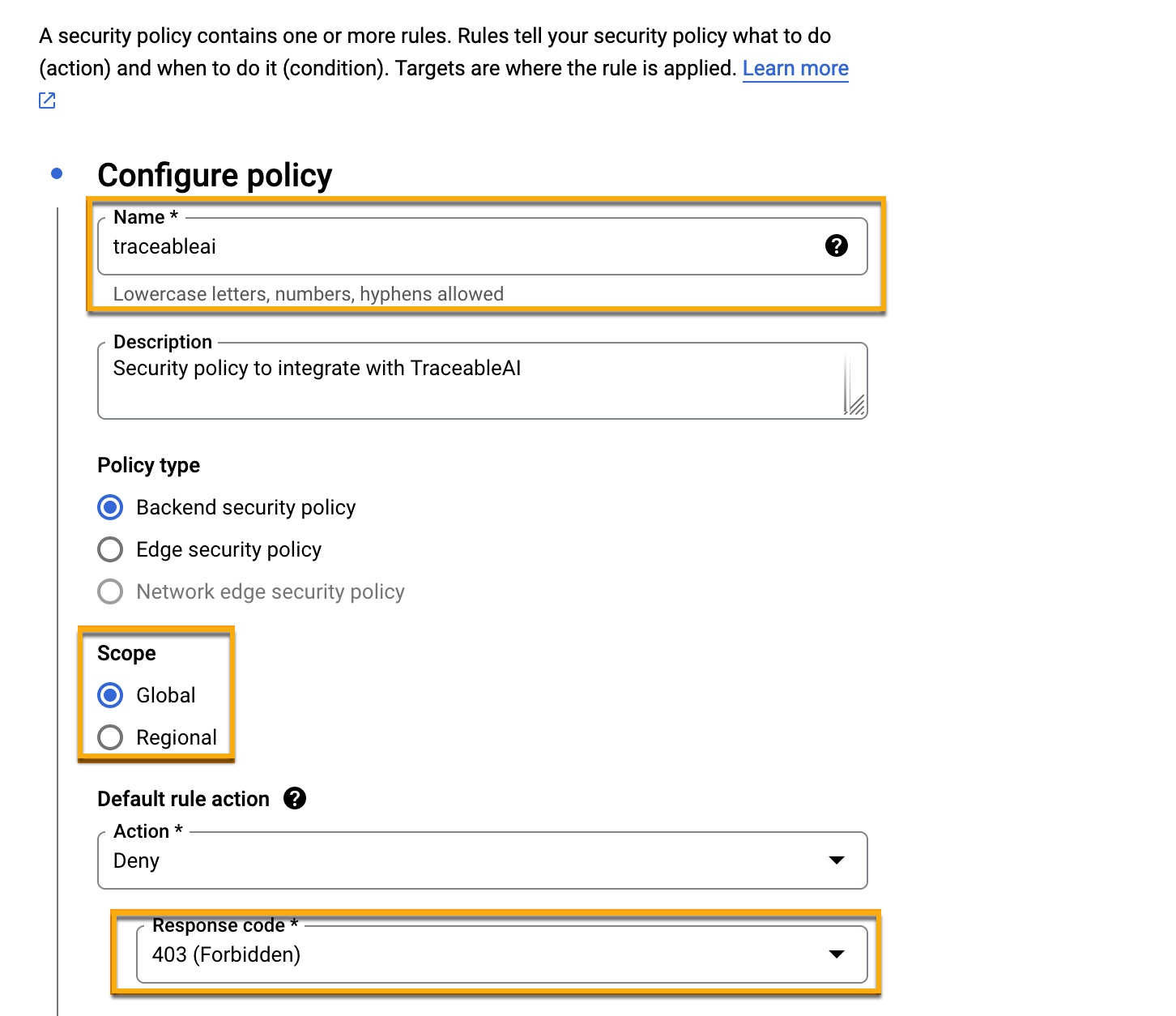
Google Cloud Armor security policy: A security policy is a set of rules that defines what action needs to be taken under which conditions, how traffic should be handled by the Web Application Firewall (WAF), and other security features. Security policies enable you to define criteria and take actions to safeguard your web applications against various attacks and security threats.
Make sure you have the following from Google Cloud Armor security policy:
The Name of the security policy, for example, traceableai.
Whether the Scope of the policy is Regional or Global.
The configured Response code.
Roles required: The following is a list of roles needed for the integration:
compute.securityPolicies.getcompute.securityPolicies.listcompute.securityPolicies.usecompute.securityPolicies.updatecompute.securityPolicies.deletecompute.backendServices.setSecurityPoliciescompute.regionSecurityPolicies.createcompute.regionSecurityPolicies.deletecompute.regionSecurityPolicies.getcompute.regionSecurityPolicies.listcompute.regionSecurityPolicies.updateGo to Configure Cloud Armor security policies for more details on Google Cloud Armor security policy.
Google Cloud Armor Project ID: Each Google project has a unique project ID.
Service account key: A Service Account Key, also known as the JSON key, is a credentials file that allows authentication of a service account within Google Cloud Platform (GCP). It is required for enabling secure, programmatic access to GCP services and is essential for configuring a Google Cloud integration. Go to Create Service Account Key for more details. Ensure that the service account key is created with the roles specified in the above section.
Add new Google Cloud Armor integration
To add a new Google Cloud Armor integration, navigate to the Integrations page from the bottom left corner of your Traceable account, and do one of the following:
Search for Google Cloud Armor in the search bar.
Navigate to WAF → Google Cloud Armor.
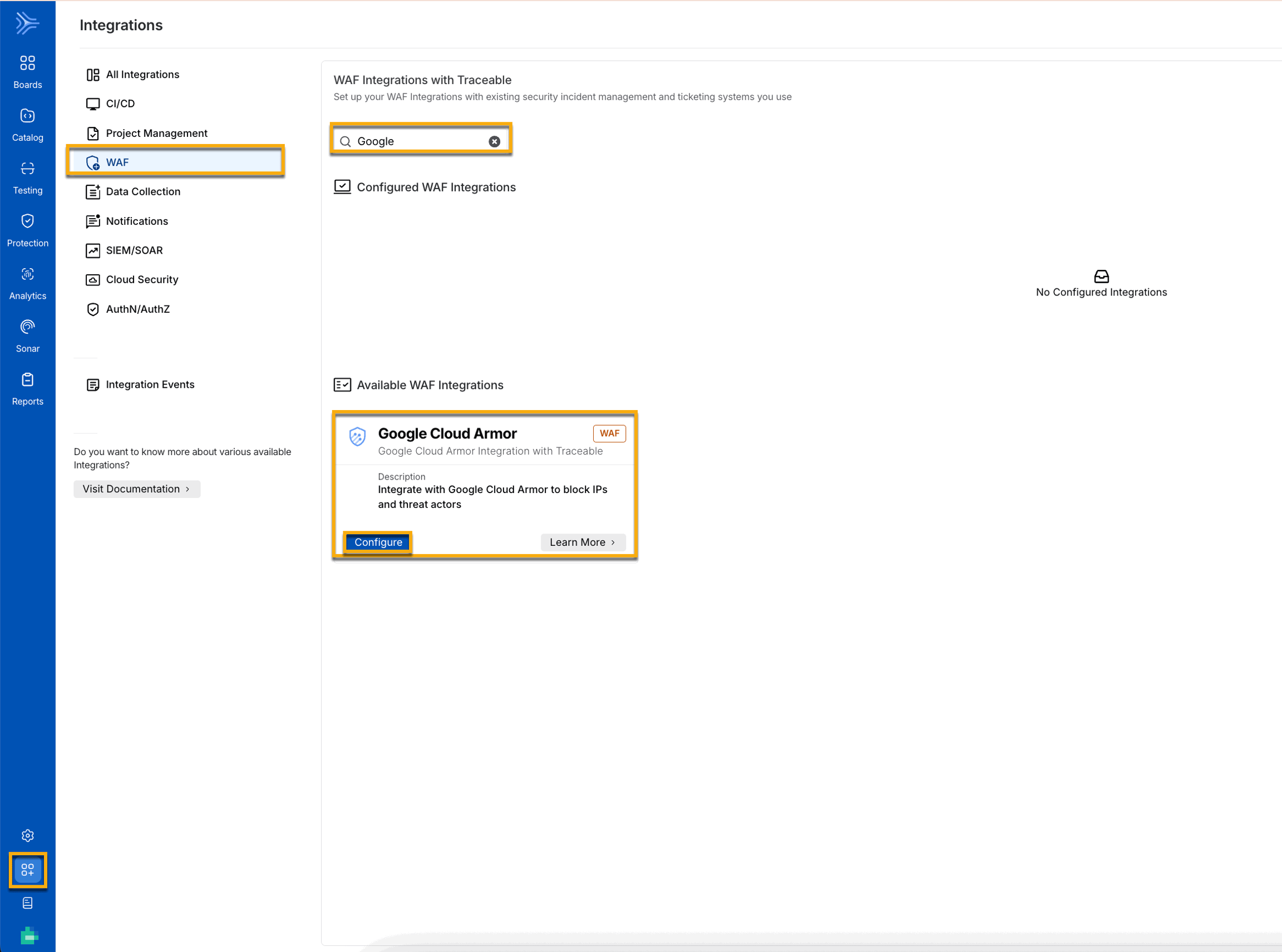
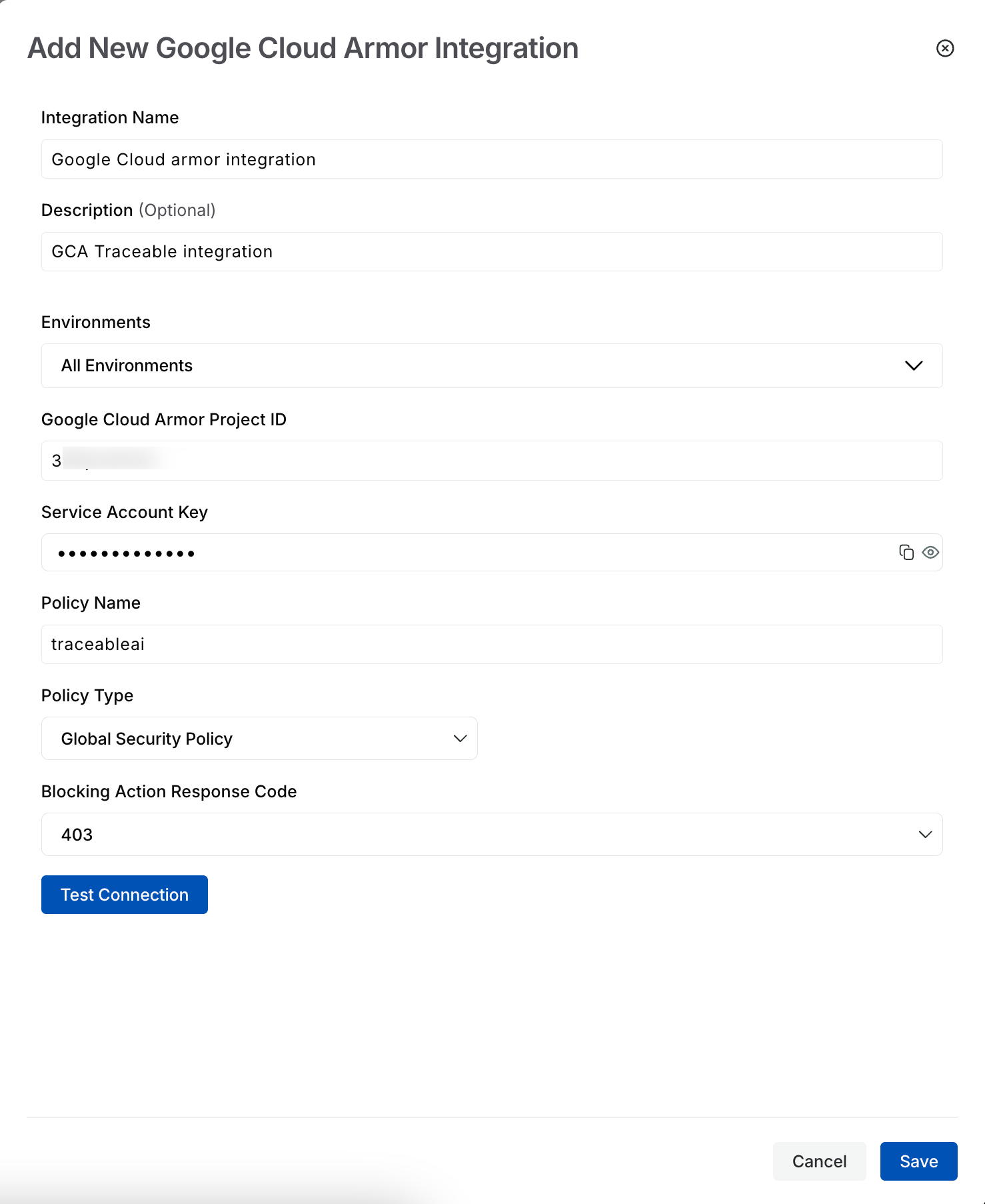
Click Configure the Google Cloud Armor tile and complete the following steps in the Add New Google Cloud Armor Integration slide-out panel:
Integration Name: A unique name for your integration, for example,** **Google Cloud Armor integration.
(Optional) Description: A summary for your integration, for example, GCA Traceable integration.
Environments: The environment for which you wish to integrate from the drop-down list.
Google Cloud Armor Project ID: A project ID associated with the integration fetched above in the Before you begin section.
Service account key: The service key associated to your account fetched above in the Before you begin section.
Policy Name: The name of the policy configured in the Google Cloud Armor security policy, for example, traceableai.
Policy type: The type of policy you configured in the Google Cloud Armor security policy above in the Before you begin section.
Blocking Action Response Code: The blocking action response code from the drop-down list. This should match the response code you configured in the Google Cloud Armor security policy above, in the Before you begin, for example, 403.
Click Test Connection.
Click Save. It is enabled only after Traceable validates a successful connection.
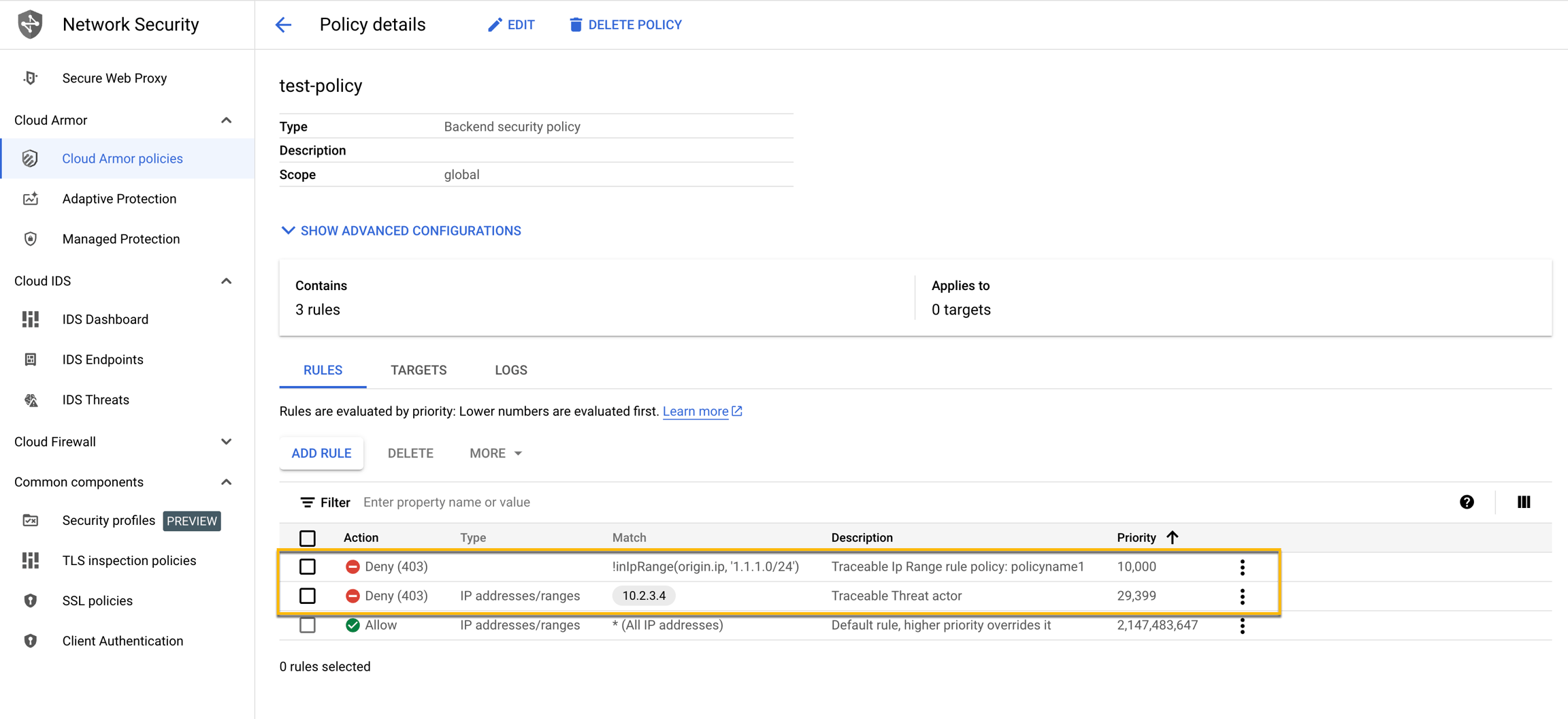
Upon successful integration, you can see the Traceable-created rules in your Google Cloud Armor security policy.
Manage configured integration
After configuring the integration, you can view it under Configured WAF Integrations. Traceable gives you the flexibility to control how the integration operates. You can choose either of the following actions using the drop-down, according to your requirements:
Enabled: You allow Traceable to actively update the WAF with the latest rules to enforce protection and monitor or block threats. When enabled, Traceable continuously sends new rules and updates to the WAF based on policy activity, helping enforce protections with the latest threat information and block suspicious traffic.
Disabled: You stop Traceable from updating the WAF, so it no longer enforces new protections for that environment or region. When disabled, Traceable stops sending new rules and updates to the WAF for the selected environment or region, while other environments continue using their existing integration settings without impact. The WAF continues to enforce existing rules based on their last applied state, without receiving new updates. Traceable continues to detect and evaluate threats, but it does not enforce them through WAF.
Custom signature rules support matrix
Custom signature rules allow you to define precise security policies in Google Cloud Armor using the Common Expression Language (CEL). These rules evaluate the specific request attributes, such as IP addresses, headers, URIs, and HTTP methods, to help protect your applications from unwanted or malicious traffic. Go to Google Cloud Armor Language Support for more details on attributes and expressions. The Support Matrix table below describes the attributes and the supported operations to create custom signature rules in Traceable. Go to Support Matrix for Custom Signature Rules for more details.
Was this helpful?