

Profiles and Overrides in WAF Policies
Manage WAF policy profiles and environment overrides to control threat rule actions per environment
Profiles in Harness’s Web Application Firewall (WAF) Policies provide a structured way for you to manage threat rule actions across environments. These profiles enable you to enforce protection standards by applying default actions, such as monitoring or blocking, across all threat types and rules. This helps reduce manual configuration overhead while enabling you to focus on improving your application security.
While the selected profile applies to all environments by default, Overrides allow individual environments to differ from the default profile to meet your requirements. Whether you modify specific actions for threat rules or select a different profile, Harness RPA displays these deviations through overrides and helps you manage exceptions. Go to Overrides for details.
Using Profiles and Overrides, you can leverage centralized policy enforcement and environment-specific flexibility to manage how Traceable responds to threats.
What you will learn from this topic
By the end of this topic, you will understand:
The concept of Profiles, the available profiles, and their applicability.
The concept of Profile inheritance and hierarchy, and its usefulness.
The concept of Overrides, their usefulness, and visibility of overrides in the Traceable.
An example of policy inheritance and overrides in action.
Profiles
Profiles are predefined configurations of actions set for all threat types and their corresponding rules. The actions define how Traceable should respond to potential threats in your application environment.
The Profiles in the WAF policies tab help you apply a baseline for actions consistent with your security posture.
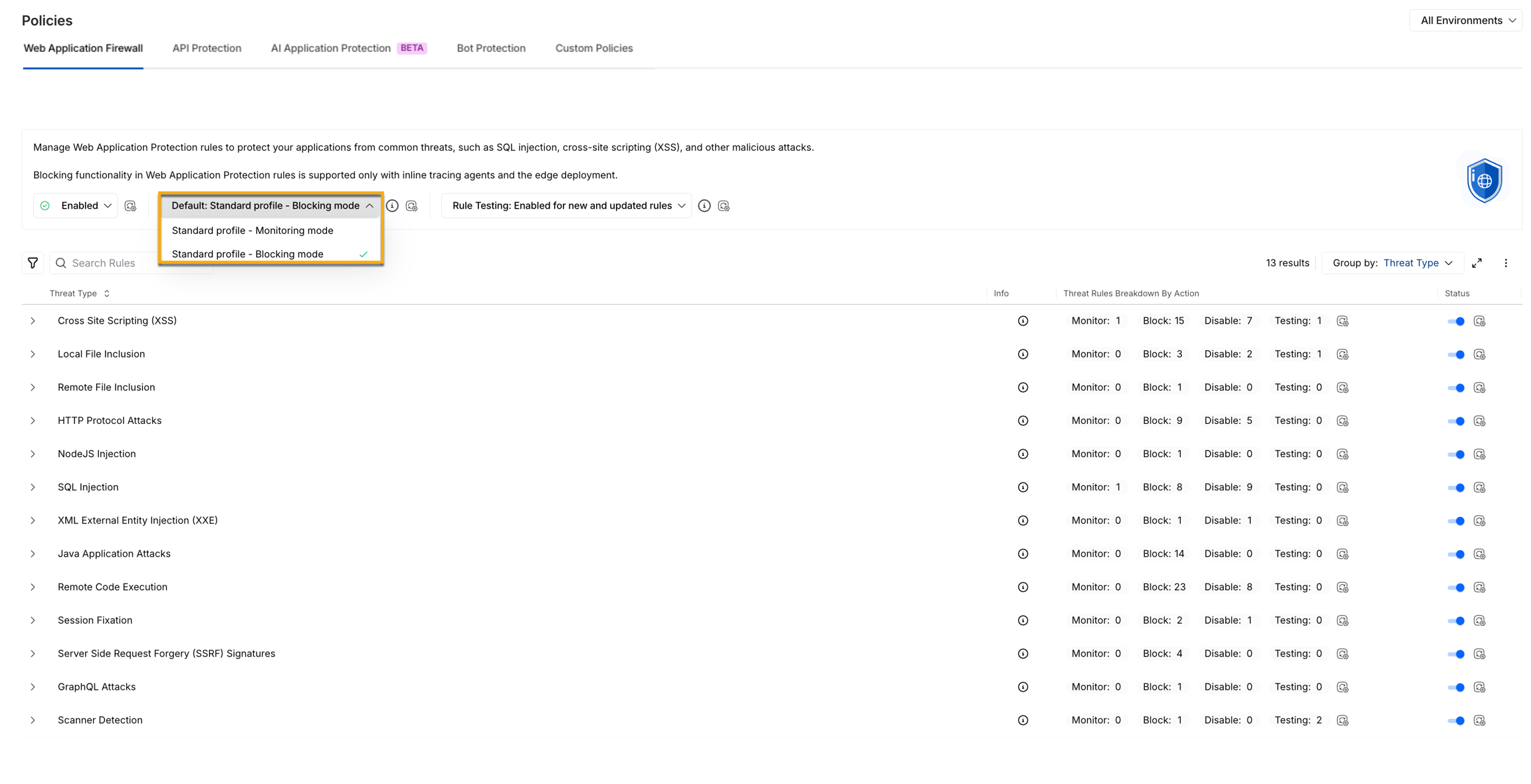
Available profiles
Traceable provides the following standard profiles in the WAF Policies tab:
Monitor Mode
This profile sets all non-aggressive and aggressive threat rules to the Monitor and Disable status, respectively.
Recommendation
You should use this mode if you wish to observe behavior in environments before enforcing protection.
Block Mode
This profile sets all non-aggressive and aggressive threat rules to the Block and Disable status, respectively.
Recommendation
You should use this mode if you wish to proactively prevent threats from affecting your production environments.
Applicability of profiles
You can select these profiles at the All Environments level to apply globally, or at an individual environment level, according to your requirements. When you choose a profile, its predefined actions apply to all threat types and rules in the selected environment context. Regardless of the profile you choose, you can always override the actions for a threat rule or type, according to your requirements.
Profile inheritance and hierarchy
Profile configuration in the WAP policies tab adheres to a top-down inheritance model, enabling you to maintain consistency while supporting environment-specific customizations.
At the highest level, you can select a profile in the All Environments view. The profile (Monitoring or Blocking Mode) you choose serves as the baseline (default), automatically applying the predefined actions to all environments unless you explicitly navigate to the respective environment and override them.
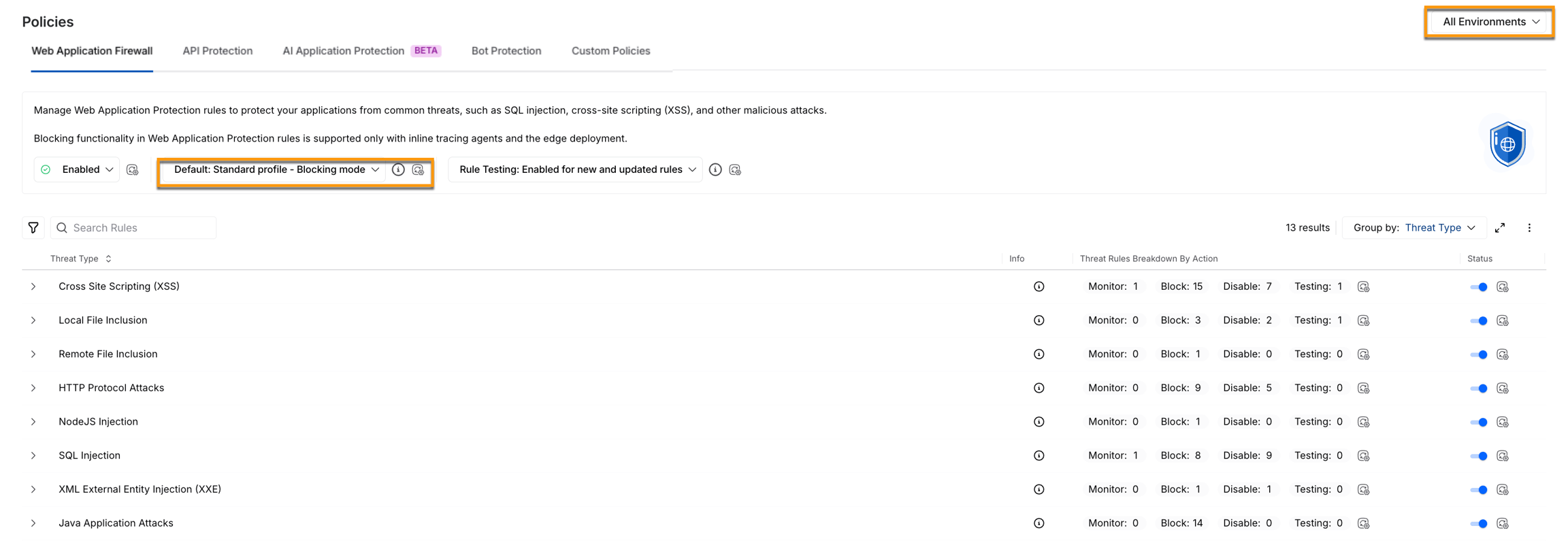
By default, all individual environments inherit the selected profile from All Environments, including the associated threat type and rule actions. This ensures that updates made to the global profile (All environments view), such as switching from Monitor to Block mode, are reflected across environments that do not have any overrides.
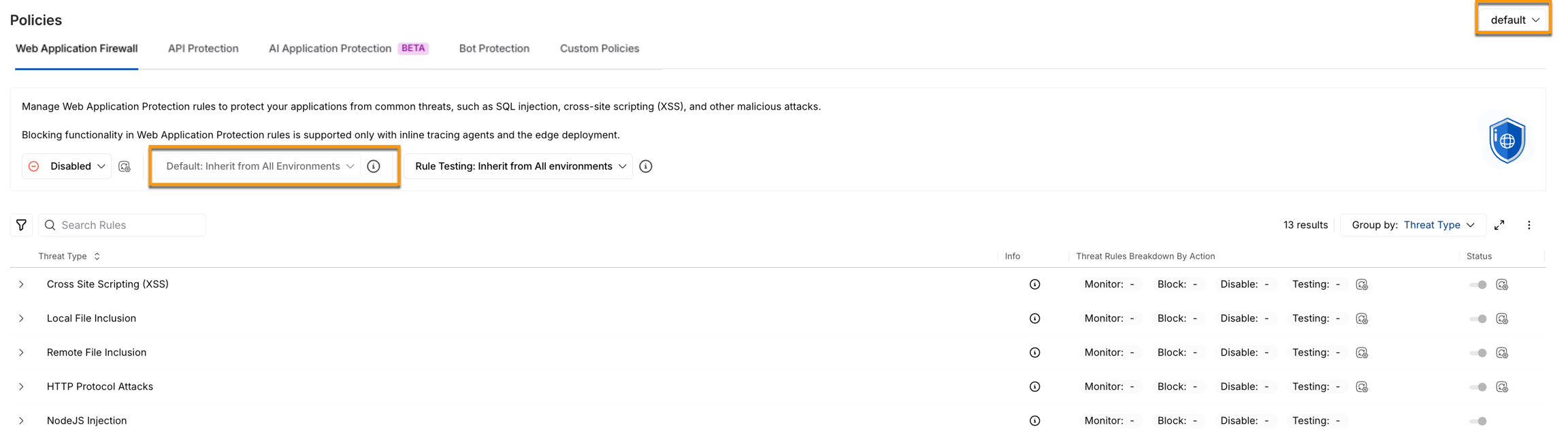
However, environments can override this inherited behavior in the following ways:
Selecting a different profile.
Modifying the status or action of a threat type or rule.
Go to Overrides for details.
Hierarchy Usage
This profile hierarchy helps you:
Apply standard protection strategies across environments.
Make modifications to specific environments according to your requirements.
Maintain visibility and control over new and existing overrides.
Overrides
Overrides occur when an environment or configuration (threat type or rule) no longer follows the global profile (actions set at the All Environments level).
When you select a profile, such as the Monitor or Block mode at the All Environments level, Traceable applies its predefined actions to all threat types and rules across environments. Until you navigate to the respective environment and make any changes, it continues to inherit the existing action. However, if you perform any of the following actions, Traceable considers it an override:
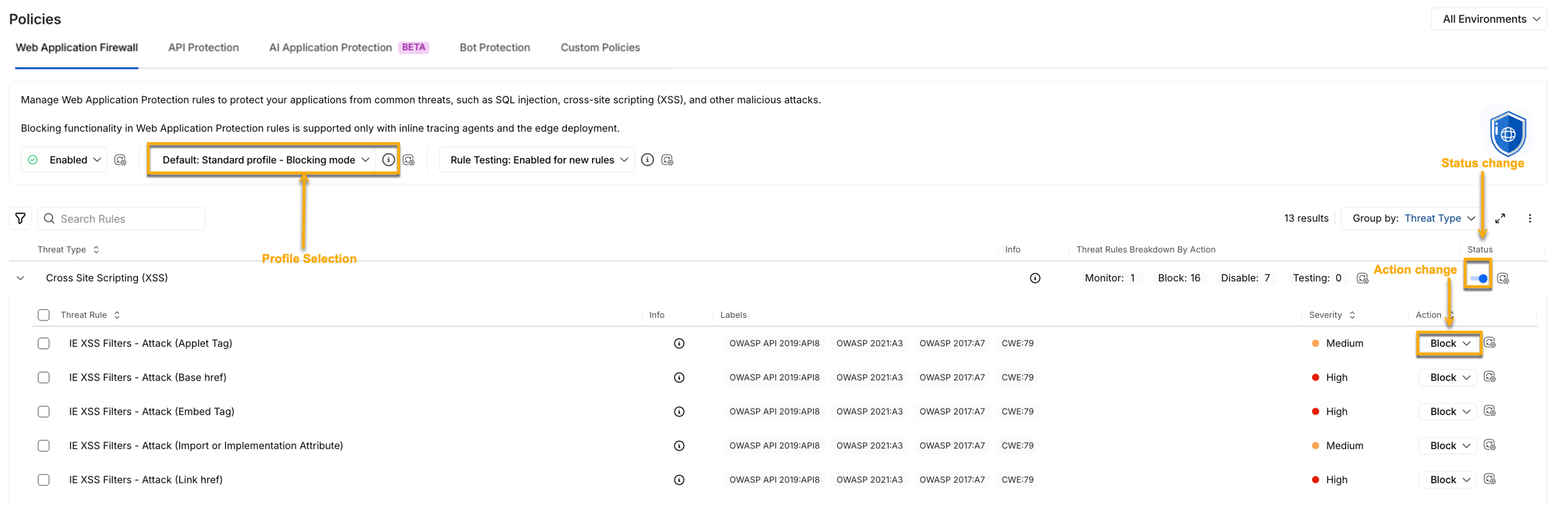
Select a different profile in a specific environment.
Modify the status (Enable or Disable) of a threat type from the inherited value.
Modify the action (Monitor, Block, or Disable) for a threat type or rule in an environment.
Once an override is introduced, that specific environment or rule does not inherit the global profile (All Environments level). This behavior ensures that the customizations are enforced at all times.
How do overrides help?
Overrides give you control over how Traceable responds to threats. These overrides ensure that you have visibility over any modifications and deviations from the global profile.
Overrides identification
Harness RPA highlights these overrides through its ( )icon in the WAF Policies tab. These icons are visible:
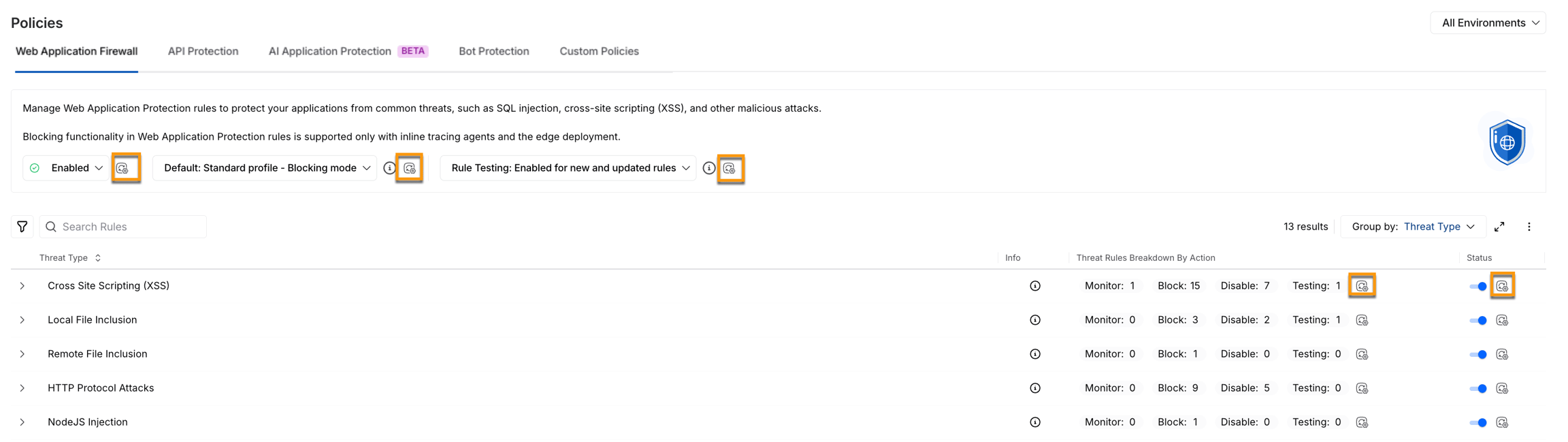
Corresponding to the Profile drop-down in All Environments.
In the Action Breakdown summaries, highlight the number of rules that have been modified.
Corresponding to the Status toggle when threat type enablement differs from the default behavior.
Corresponding to Threat Rule(s) that have a modified action in one or more environments.
Sample Scenario
The following example illustrates how to control the policy inheritance model and overrides provided by WAF policies.
Was this helpful?