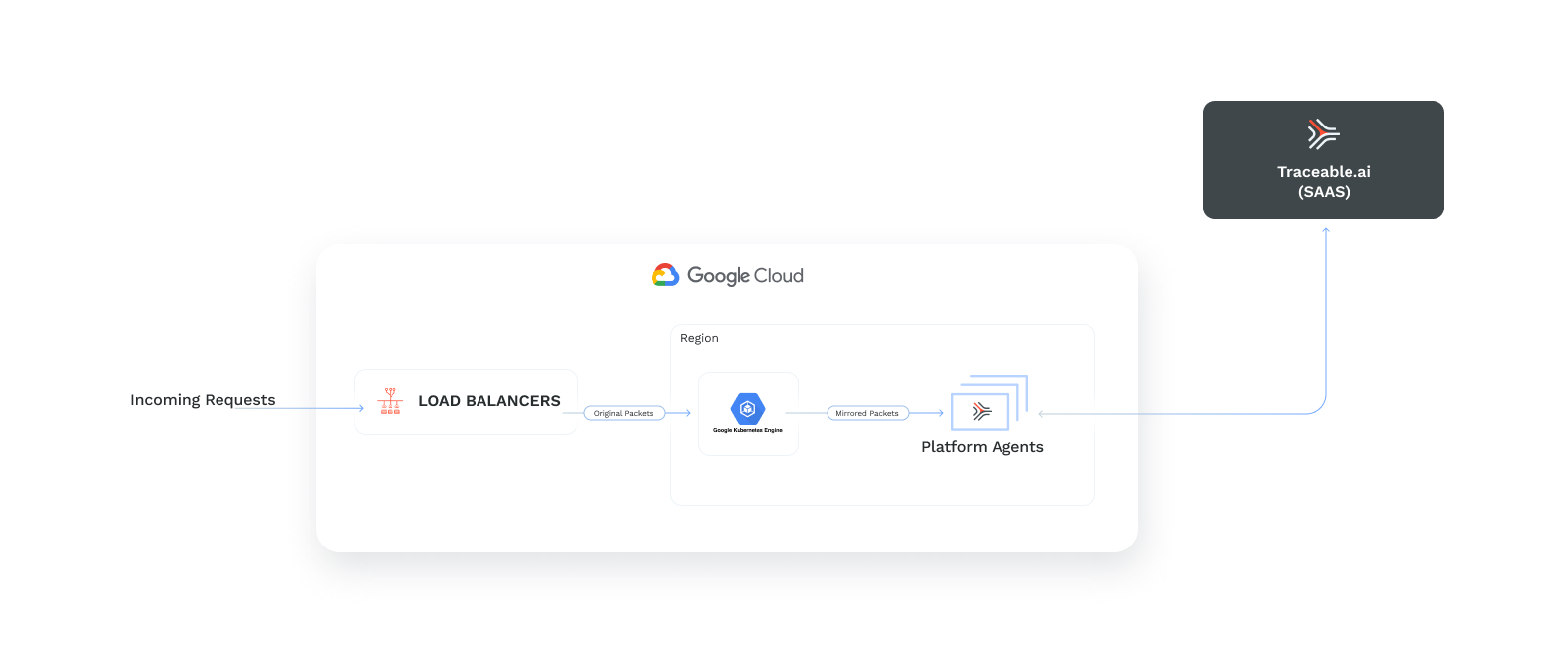
 ***
## Before you begin
* Make sure that you have a GCP account. This account should have access to the GCP project containing instances you want to mirror.
* **Roles:** Your GCP account should have the following set of roles or higher in the GCP project where you wish to install the Traceable agent:
* `roles/compute.admin`
* `roles/container.clusterViewer`
* `roles/iam.serviceAccountUser`
* Keep Traceable's access token handy. The token authenticates the agent during installation. To copy the token, log in to your Traceable Platform. In the top-right corner, under your profile, navigate to **Settings** → **Account** → **Agent Token** and click the copy icon.
***
## Download
There are no separate download steps. Traceable uses a setup script that automatically downloads the agent.
***
## Installation
Traceable Platform agent can be installed as follows:
1. Login to the cloud console
2. Download the setup script
3. Run the setup script
### Step 1 - Login to the cloud console
Navigate to [Google cloud console](https://console.cloud.google.com/) and log in with your account. Click on the terminal button at the top-right corner to activate Cloud Shell.
### Step 2 - Download setup script
Complete the following steps:
1. Enter the following command to download the setup script:
ActionScript
ActionScript
```bash
curl -o setup.sh https://downloads.traceable.ai/install/traffic-mirroring/gcp/latest/setup.sh
```
2. Enter the following command to make the script executable:
ActionScript
ActionScript
```bash
chmod +x setup.sh
```
### Step 3 - Run the setup script
The setup script requires a config.yaml file to set up Traceable's traffic mirroring for your project. Complete the following steps:
1. Enter the following command to print a sample config file:
ActionScript
ActionScript
```bash
./setup.sh sample-create
```
Follow the sample to create `config.yaml` file. For example, if you want to mirror a regional GKE cluster `my-regional-gke-cluster` in region `us-east4` in the project `my-gcp-project`, you may use:
ActionScript
YAML
```yaml
resourcePrefix: traceable-gcp-mirroring
token: ***
agentProject: my-gcp-project
region: us-east4
mirror:
clusters:
- name: my-regional-gke-cluster
```
If you wish to mirror subnet `my-subnet`in the above example, instead, then use:
ActionScript
YAML
```yaml
resourcePrefix: traceable-gcp-mirroring
token: ***
agentProject: my-gcp-project
region: us-east4
mirror:
subnets:
- my-subnet
```
Traceable's traffic mirroring requires the inclusion of a `resourcePrefix` variable in the `config.yaml` file. This is a mandatory field that must be defined alongside the existing parameters like `token`, `agentProject`, and `region`. The `resourcePrefix` is used to identify resources uniquely associated with the traffic mirroring setup. An example value for this field is `traceable-gcp-mirroring`.
The `resourcePrefix` serves as a unique identifier for resources created during the traffic mirroring setup in GCP. Using a specific prefix, you can easily manage and distinguish resources related to Traceable's traffic mirroring from other resources in your project. This helps in organizing, filtering, and potentially cleaning up resources by prefix, ensuring that only relevant resources are associated with this particular setup.
***
## Before you begin
* Make sure that you have a GCP account. This account should have access to the GCP project containing instances you want to mirror.
* **Roles:** Your GCP account should have the following set of roles or higher in the GCP project where you wish to install the Traceable agent:
* `roles/compute.admin`
* `roles/container.clusterViewer`
* `roles/iam.serviceAccountUser`
* Keep Traceable's access token handy. The token authenticates the agent during installation. To copy the token, log in to your Traceable Platform. In the top-right corner, under your profile, navigate to **Settings** → **Account** → **Agent Token** and click the copy icon.
***
## Download
There are no separate download steps. Traceable uses a setup script that automatically downloads the agent.
***
## Installation
Traceable Platform agent can be installed as follows:
1. Login to the cloud console
2. Download the setup script
3. Run the setup script
### Step 1 - Login to the cloud console
Navigate to [Google cloud console](https://console.cloud.google.com/) and log in with your account. Click on the terminal button at the top-right corner to activate Cloud Shell.
### Step 2 - Download setup script
Complete the following steps:
1. Enter the following command to download the setup script:
ActionScript
ActionScript
```bash
curl -o setup.sh https://downloads.traceable.ai/install/traffic-mirroring/gcp/latest/setup.sh
```
2. Enter the following command to make the script executable:
ActionScript
ActionScript
```bash
chmod +x setup.sh
```
### Step 3 - Run the setup script
The setup script requires a config.yaml file to set up Traceable's traffic mirroring for your project. Complete the following steps:
1. Enter the following command to print a sample config file:
ActionScript
ActionScript
```bash
./setup.sh sample-create
```
Follow the sample to create `config.yaml` file. For example, if you want to mirror a regional GKE cluster `my-regional-gke-cluster` in region `us-east4` in the project `my-gcp-project`, you may use:
ActionScript
YAML
```yaml
resourcePrefix: traceable-gcp-mirroring
token: ***
agentProject: my-gcp-project
region: us-east4
mirror:
clusters:
- name: my-regional-gke-cluster
```
If you wish to mirror subnet `my-subnet`in the above example, instead, then use:
ActionScript
YAML
```yaml
resourcePrefix: traceable-gcp-mirroring
token: ***
agentProject: my-gcp-project
region: us-east4
mirror:
subnets:
- my-subnet
```
Traceable's traffic mirroring requires the inclusion of a `resourcePrefix` variable in the `config.yaml` file. This is a mandatory field that must be defined alongside the existing parameters like `token`, `agentProject`, and `region`. The `resourcePrefix` is used to identify resources uniquely associated with the traffic mirroring setup. An example value for this field is `traceable-gcp-mirroring`.
The `resourcePrefix` serves as a unique identifier for resources created during the traffic mirroring setup in GCP. Using a specific prefix, you can easily manage and distinguish resources related to Traceable's traffic mirroring from other resources in your project. This helps in organizing, filtering, and potentially cleaning up resources by prefix, ensuring that only relevant resources are associated with this particular setup.
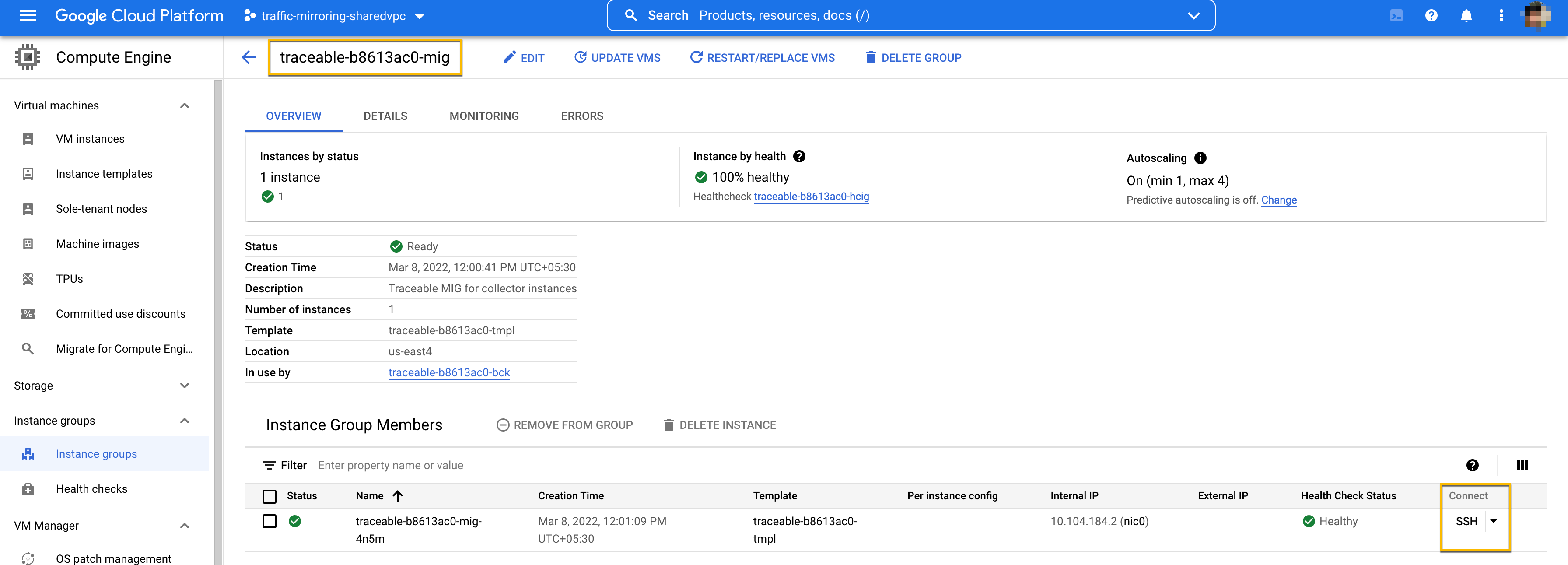 Choose any instance from the **Instance Group Members** list and click on the **SSH** button, as shown. This will open a new terminal for further debugging.
#### Check traceable and Suricata status
Check status of `traceable` and `suricata` agents by running the following commands:
ActionScript
```bash
sudo systemctl status traceable
sudo systemctl status suricata
```
If these appear to be working fine, navigate to `/var/traceable/log` to view log files. Log files are rotated and are timestamped. View the latest log file. All stats are printed at a 5-minute interval:
ActionScript
```json
{"level":"info","time":"2021-09-03T13:19:13.302Z","message":"Stats",
"service":"ext_cap","total":"412","post":"0","get":"387","put":"25",
"delete":"0","head":"0","other":"0","20x":"412","30x":"0","40x":"0",
"50x":"0","RCother":"0","header_summary_blobs_read":"0",
"body_summary_blobs_read":"0","total_blobs_read":"496","queued_work":
"0","active_routines":"0","queue_capacity":"5000","http1x":"412",
"http2":"0","grpc":"0","errors":"0"}
```
If you need further assistance, reach out to [Traceable support](https://support.traceable.ai/hc/en-us).
***
## Upgrade
In Google Cloud console, navigate to **≡** → **Compute Engine** → **Instance Groups**. Look for the Traceable instance group. Click on its name to display the page as shown below:
Click on the **Restart/Replace VMs** button as shown. This will display a new page as shown below: Click on the **Restart** button. This restarts all collector instances while upgrading the Traceable agent installed on them.
***
## Pause
If you want to temporarily pause traffic mirroring while keeping all Traceable resources intact, complete the following steps. Pause or Resume are completely reversible.
In the Google Cloud console, navigate to **≡** → **VPC network** → **Packet mirroring**. Look for the Traceable mirroring policy. Select the checkbox on left-side and then click on **Disable** as shown:
For a disabled policy, click the **Enable** button above to resume mirroring.
***
## Uninstall
To uninstall Traceable resources from your Google Cloud project, complete Installation steps 1 and 2.
### Scenario 1
When you successfully run the setup script in step 3 of Installation, you will see an output similar to this:
ActionScript
```
Creating Traceable resource config file traceable-b8613ac0.yaml
```
If you have this yaml file, enter the following command to uninstall Traceable platform agent:
ActionScript
```bash
./setup.sh delete traceable-b8613ac0.yaml
```
The command prompts for a confirmation before deleting Traceable resources. Enter `yes` to confirm.
### Scenario 2
If you do not have the above yaml file, you must create it manually. Complete the following steps:
1. Enter the following command to print the sample delete config file:
ActionScript
ActionScript
```bash
./setup.sh sample-delete
```
The above command will print a sample delete configuration with three values: project, region, and prefix.
2. In Google cloud console, navigate to **≡** **>** **VPC network > Packet mirroring** or search for Packet mirroring through the search bar. Look for the Traceable mirroring policy. As shown in the image below, extract the project, region, and prefix from there. Create a `config.yaml` using these values. For example, in the case below, you may use:
ActionScript
ActionScript
```yaml
project: traffic-mirroring-sharedvpc
region: us-east4
prefix: traceable-b8613ac0
```

In the above screenshot, the policy name is `traceable-b8613ac0-pktm`, so the prefix would be `traceable-b8613ac0`.
3. Enter the following command to uninstall Traceable platform agent:
ActionScript
ActionScript
```bash
./setup.sh delete config.yaml
```
The command prompts for a confirmation before deleting Traceable resources. Enter `yes` to confirm.
{% @harness-feedback/feedback %}
Choose any instance from the **Instance Group Members** list and click on the **SSH** button, as shown. This will open a new terminal for further debugging.
#### Check traceable and Suricata status
Check status of `traceable` and `suricata` agents by running the following commands:
ActionScript
```bash
sudo systemctl status traceable
sudo systemctl status suricata
```
If these appear to be working fine, navigate to `/var/traceable/log` to view log files. Log files are rotated and are timestamped. View the latest log file. All stats are printed at a 5-minute interval:
ActionScript
```json
{"level":"info","time":"2021-09-03T13:19:13.302Z","message":"Stats",
"service":"ext_cap","total":"412","post":"0","get":"387","put":"25",
"delete":"0","head":"0","other":"0","20x":"412","30x":"0","40x":"0",
"50x":"0","RCother":"0","header_summary_blobs_read":"0",
"body_summary_blobs_read":"0","total_blobs_read":"496","queued_work":
"0","active_routines":"0","queue_capacity":"5000","http1x":"412",
"http2":"0","grpc":"0","errors":"0"}
```
If you need further assistance, reach out to [Traceable support](https://support.traceable.ai/hc/en-us).
***
## Upgrade
In Google Cloud console, navigate to **≡** → **Compute Engine** → **Instance Groups**. Look for the Traceable instance group. Click on its name to display the page as shown below:
Click on the **Restart/Replace VMs** button as shown. This will display a new page as shown below: Click on the **Restart** button. This restarts all collector instances while upgrading the Traceable agent installed on them.
***
## Pause
If you want to temporarily pause traffic mirroring while keeping all Traceable resources intact, complete the following steps. Pause or Resume are completely reversible.
In the Google Cloud console, navigate to **≡** → **VPC network** → **Packet mirroring**. Look for the Traceable mirroring policy. Select the checkbox on left-side and then click on **Disable** as shown:
For a disabled policy, click the **Enable** button above to resume mirroring.
***
## Uninstall
To uninstall Traceable resources from your Google Cloud project, complete Installation steps 1 and 2.
### Scenario 1
When you successfully run the setup script in step 3 of Installation, you will see an output similar to this:
ActionScript
```
Creating Traceable resource config file traceable-b8613ac0.yaml
```
If you have this yaml file, enter the following command to uninstall Traceable platform agent:
ActionScript
```bash
./setup.sh delete traceable-b8613ac0.yaml
```
The command prompts for a confirmation before deleting Traceable resources. Enter `yes` to confirm.
### Scenario 2
If you do not have the above yaml file, you must create it manually. Complete the following steps:
1. Enter the following command to print the sample delete config file:
ActionScript
ActionScript
```bash
./setup.sh sample-delete
```
The above command will print a sample delete configuration with three values: project, region, and prefix.
2. In Google cloud console, navigate to **≡** **>** **VPC network > Packet mirroring** or search for Packet mirroring through the search bar. Look for the Traceable mirroring policy. As shown in the image below, extract the project, region, and prefix from there. Create a `config.yaml` using these values. For example, in the case below, you may use:
ActionScript
ActionScript
```yaml
project: traffic-mirroring-sharedvpc
region: us-east4
prefix: traceable-b8613ac0
```

In the above screenshot, the policy name is `traceable-b8613ac0-pktm`, so the prefix would be `traceable-b8613ac0`.
3. Enter the following command to uninstall Traceable platform agent:
ActionScript
ActionScript
```bash
./setup.sh delete config.yaml
```
The command prompts for a confirmation before deleting Traceable resources. Enter `yes` to confirm.
{% @harness-feedback/feedback %}