> For the complete documentation index, see [llms.txt](https://developer.harness.io/llms.txt). Markdown versions of documentation pages are available by appending `.md` to page URLs; this page is available as [Markdown](https://developer.harness.io/web-application-and-api-protection-waap/installation/platform-agent/windows.md).
# Windows
Traceable supports deploying its Platform agent on a Microsoft Windows machine. The Platform agent runs as a background service similar to `systemctl` in the Unix environment.
## Before you begin
Make a note of the following before you proceed with installation and configuration:
* Make sure that you have login access to the Traceable Platform. You would need to generate a Traceable token to connect the Traceable Platform agent to the Traceable Platform.
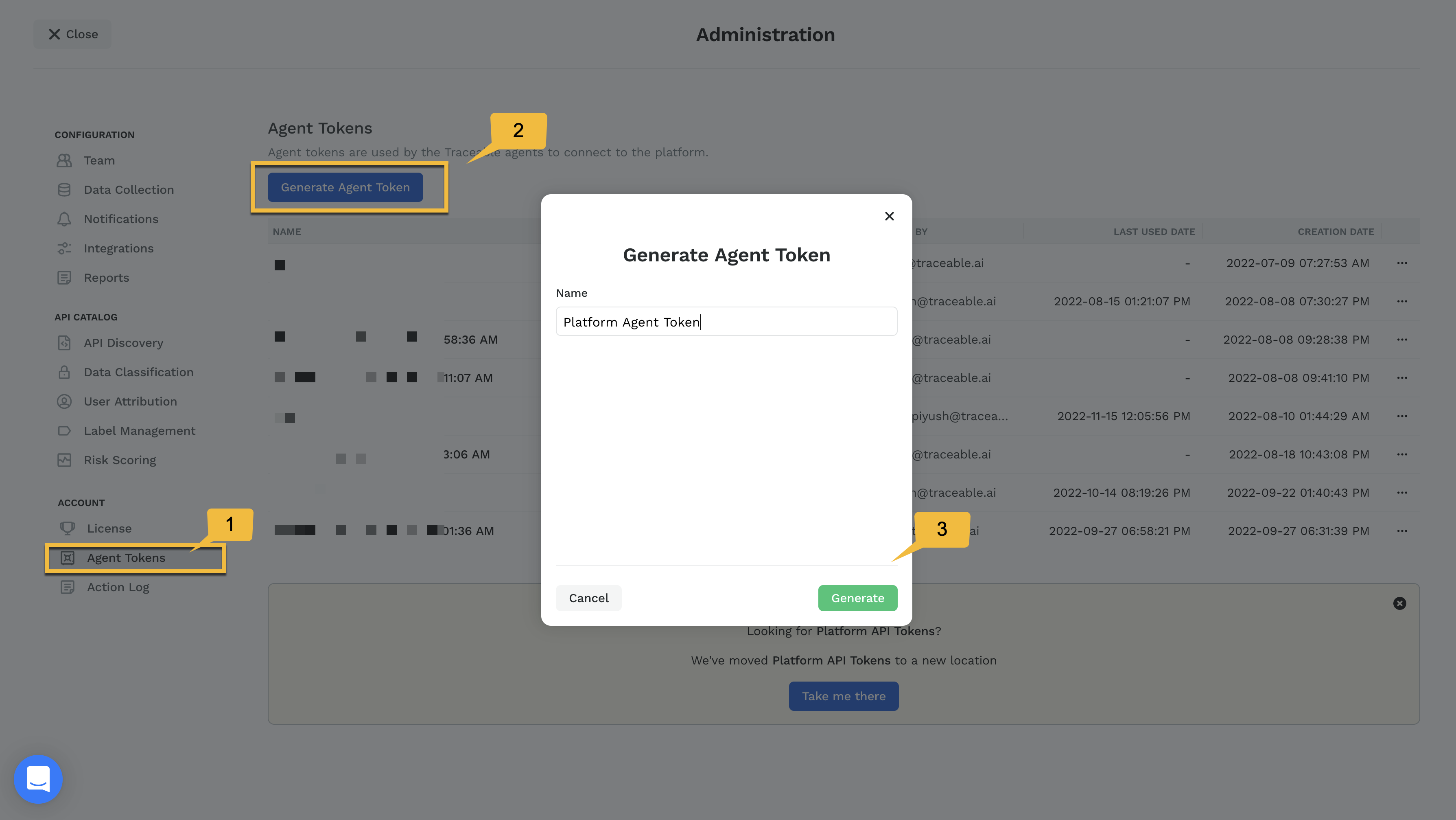
* You can obtain a token by completing the following steps:
1. Log in to your Traceable account.
2. Navigate to **Settings** (:gear:) → **Account** → **Agent Tokens**.
3. Click on **Generate Token**.
Copy and save the generated token, as you cannot reaccess it. You can only edit or delete the name of the token. This token is used in the steps detailed below. If this token is deleted from Traceable Platform (UI), the communication between the Traceable Platform agent and Traceable Platform (UI) will break. In such a case, generate and update a new token in the Platform agent.
 * Download the Windows agent from Traceable’s [download](https://downloads.traceable.ai/#install/traceable-agent/windows/latest/) site. Navigate to **install** → **traceable-agent**→ **windows** → **latest** folder.
* Make sure that you have administrative privileges in PowerShell.
* By default, the Platform agent is installed in the `/Program Files/Traceable` folder.
#### Limitations
Make a note of the following limitations for Traceable’s Platform agent for Windows:
* The following functionalities are not supported with the Windows agent:
* Blocking
* Sampling
* OPA distributor service is not supported.
***
## Configuration
Complete the following steps to install the Traceable Platform agent:
1. Unzip the Platform Agent zip file that you downloaded earlier. An install script is part of the unzipped folder.
2. Open a Powershell window with administrative privileges.
3. Use the install script to install the agent. Enter the following command:
```
.\install.ps1 Install -Endpoint api.traceable.ai -Token
```
The command takes the following inputs:
| **Argument** | **Mandatory** | **Default** | **Description** |
| -------------------- | ------------- | ------------------------------ | ---------------------------------------------------------------------------------------------------- |
| `Endpoint` | Yes | — | Traceable Platform API endpoint. |
| `Token` | Yes | — | API refresh token for connecting to the Traceable Platform. |
| `Environment` | No | `default` | The environment to which TPA reports. |
| `ConfigOverrideFile` | No | — | File path of config override file (use quotes around the path). |
| `HttpProxy` | No | — | HTTP proxy endpoint, if any. |
| `HttpsProxy` | No | — | HTTPS proxy endpoint, if any. |
| `NoProxy` | No | — | Comma-separated list of endpoints to bypass proxying. It supports IPs, CIDR, domains, and wildcards. |
| `InstallDir` | No | `C:\\Program Files\\Traceable` | The directory where binaries and config files are stored. |
| `DataDir` | No | `%LocalAppData%\\Traceable` | Directory for logs and persistent files. |
| `TempDir` | No | `%Temp%\\Traceable` | Directory for temporary files such as trace and metrics buffers. |
A successful installation would give you an output similar to that shown in the screenshot below:
#### Set the environment name for the Traceable Platform agent
Complete the following steps to set the environment name for the Traceable Platform agent:
1. Navigate to "Edit the System environment variables."
* Right-click on "This PC" and select "Properties."
* Click "Advanced system settings" on the left-hand side.
* In the "System Properties" window, click the "Environment Variables" button.
2. Add a new environment variable `TA_ENVIRONMENT` and set the value to the environment name you want to use.
* Under "System variables," click "New."
* In the "New System Variable" window, set `TA_ENVIRONMENT` as the "Variable name" and the environment name (e.g., "Production" or "Development") as the "Variable value."
* Click "OK" to save.
3. Restart the Traceable platform agent service:
* Open the Command Prompt as Administrator.
* Run the following commands to stop and start the service:
```
sc stop Traceable
sc start Traceable
```
***
## Verification
Run the following command to view the current status of the Traceable agent:
```
sc query Traceable
```
The `sc query Traceable` command is equivalent to `systemctl status` command in a Unix environment. It would give you an output similar to as shown below:

***
## Uninstall
You can uninstall the Traceable agent on Windows using the provided script or by manually removing the service and files.
### Option 1: Uninstall using the `install.ps1` script
If you still have the original installation directory, run the following command in an administrative PowerShell window:
```
.\install.ps1 Uninstall
```
This stops and deletes the service, and cleans up the installation files automatically.
### Option 2: Manual uninstallation
If the script is not available or you prefer manual removal, follow these steps:
1. Stop the Traceable service:
```
sc stop Traceable
```
2. Delete the Traceable service:
```
sc delete Traceable
```
Upon successful deletion, you should see a message like:
```
[SC] DeleteService SUCCESS
```
3. Remove the installation directory:
By default, the agent files are located in:
```
C:\Program Files\Traceable
```
Delete this directory to complete the uninstallation process.
***
## Troubleshooting
If there are any errors during the installation process, they are logged in the Windows EventViewer as shown below:

***
##
{% @harness-feedback/feedback %}
* Download the Windows agent from Traceable’s [download](https://downloads.traceable.ai/#install/traceable-agent/windows/latest/) site. Navigate to **install** → **traceable-agent**→ **windows** → **latest** folder.
* Make sure that you have administrative privileges in PowerShell.
* By default, the Platform agent is installed in the `/Program Files/Traceable` folder.
#### Limitations
Make a note of the following limitations for Traceable’s Platform agent for Windows:
* The following functionalities are not supported with the Windows agent:
* Blocking
* Sampling
* OPA distributor service is not supported.
***
## Configuration
Complete the following steps to install the Traceable Platform agent:
1. Unzip the Platform Agent zip file that you downloaded earlier. An install script is part of the unzipped folder.
2. Open a Powershell window with administrative privileges.
3. Use the install script to install the agent. Enter the following command:
```
.\install.ps1 Install -Endpoint api.traceable.ai -Token
```
The command takes the following inputs:
| **Argument** | **Mandatory** | **Default** | **Description** |
| -------------------- | ------------- | ------------------------------ | ---------------------------------------------------------------------------------------------------- |
| `Endpoint` | Yes | — | Traceable Platform API endpoint. |
| `Token` | Yes | — | API refresh token for connecting to the Traceable Platform. |
| `Environment` | No | `default` | The environment to which TPA reports. |
| `ConfigOverrideFile` | No | — | File path of config override file (use quotes around the path). |
| `HttpProxy` | No | — | HTTP proxy endpoint, if any. |
| `HttpsProxy` | No | — | HTTPS proxy endpoint, if any. |
| `NoProxy` | No | — | Comma-separated list of endpoints to bypass proxying. It supports IPs, CIDR, domains, and wildcards. |
| `InstallDir` | No | `C:\\Program Files\\Traceable` | The directory where binaries and config files are stored. |
| `DataDir` | No | `%LocalAppData%\\Traceable` | Directory for logs and persistent files. |
| `TempDir` | No | `%Temp%\\Traceable` | Directory for temporary files such as trace and metrics buffers. |
A successful installation would give you an output similar to that shown in the screenshot below:
#### Set the environment name for the Traceable Platform agent
Complete the following steps to set the environment name for the Traceable Platform agent:
1. Navigate to "Edit the System environment variables."
* Right-click on "This PC" and select "Properties."
* Click "Advanced system settings" on the left-hand side.
* In the "System Properties" window, click the "Environment Variables" button.
2. Add a new environment variable `TA_ENVIRONMENT` and set the value to the environment name you want to use.
* Under "System variables," click "New."
* In the "New System Variable" window, set `TA_ENVIRONMENT` as the "Variable name" and the environment name (e.g., "Production" or "Development") as the "Variable value."
* Click "OK" to save.
3. Restart the Traceable platform agent service:
* Open the Command Prompt as Administrator.
* Run the following commands to stop and start the service:
```
sc stop Traceable
sc start Traceable
```
***
## Verification
Run the following command to view the current status of the Traceable agent:
```
sc query Traceable
```
The `sc query Traceable` command is equivalent to `systemctl status` command in a Unix environment. It would give you an output similar to as shown below:

***
## Uninstall
You can uninstall the Traceable agent on Windows using the provided script or by manually removing the service and files.
### Option 1: Uninstall using the `install.ps1` script
If you still have the original installation directory, run the following command in an administrative PowerShell window:
```
.\install.ps1 Uninstall
```
This stops and deletes the service, and cleans up the installation files automatically.
### Option 2: Manual uninstallation
If the script is not available or you prefer manual removal, follow these steps:
1. Stop the Traceable service:
```
sc stop Traceable
```
2. Delete the Traceable service:
```
sc delete Traceable
```
Upon successful deletion, you should see a message like:
```
[SC] DeleteService SUCCESS
```
3. Remove the installation directory:
By default, the agent files are located in:
```
C:\Program Files\Traceable
```
Delete this directory to complete the uninstallation process.
***
## Troubleshooting
If there are any errors during the installation process, they are logged in the Windows EventViewer as shown below:

***
##
{% @harness-feedback/feedback %}