> For the complete documentation index, see [llms.txt](https://developer.harness.io/llms.txt). Markdown versions of documentation pages are available by appending `.md` to page URLs; this page is available as [Markdown](https://developer.harness.io/web-application-and-api-protection-waap/integrations/ci-cd/beta-github-integration.md).
# Configure GitHub Integration
Configure the GitHub App to scan repository code in Traceable.
Traceable's GitHub App runs code scans against repositories in your GitHub organization. It surfaces repository metadata and scan results in the Traceable dashboard.
### What you will learn from this topic
By the end of this topic, you will be able to:
* Understand GitHub App integration requirements.
* Add a GitHub integration to Traceable.
***
### Before you begin
Prepare the following before you integrate GitHub Actions with Traceable:
* **GitHub access:** You have administrative access or can request app installation.
* **Traceable account:** You are signed in to your Traceable account.
* **Repositories:** Identify the repositories you want to scan.
***
### Configure the GitHub App integration
To configure the GitHub app in Traceable, complete the following steps:
#### Step 1: Navigate to CI/CD integrations
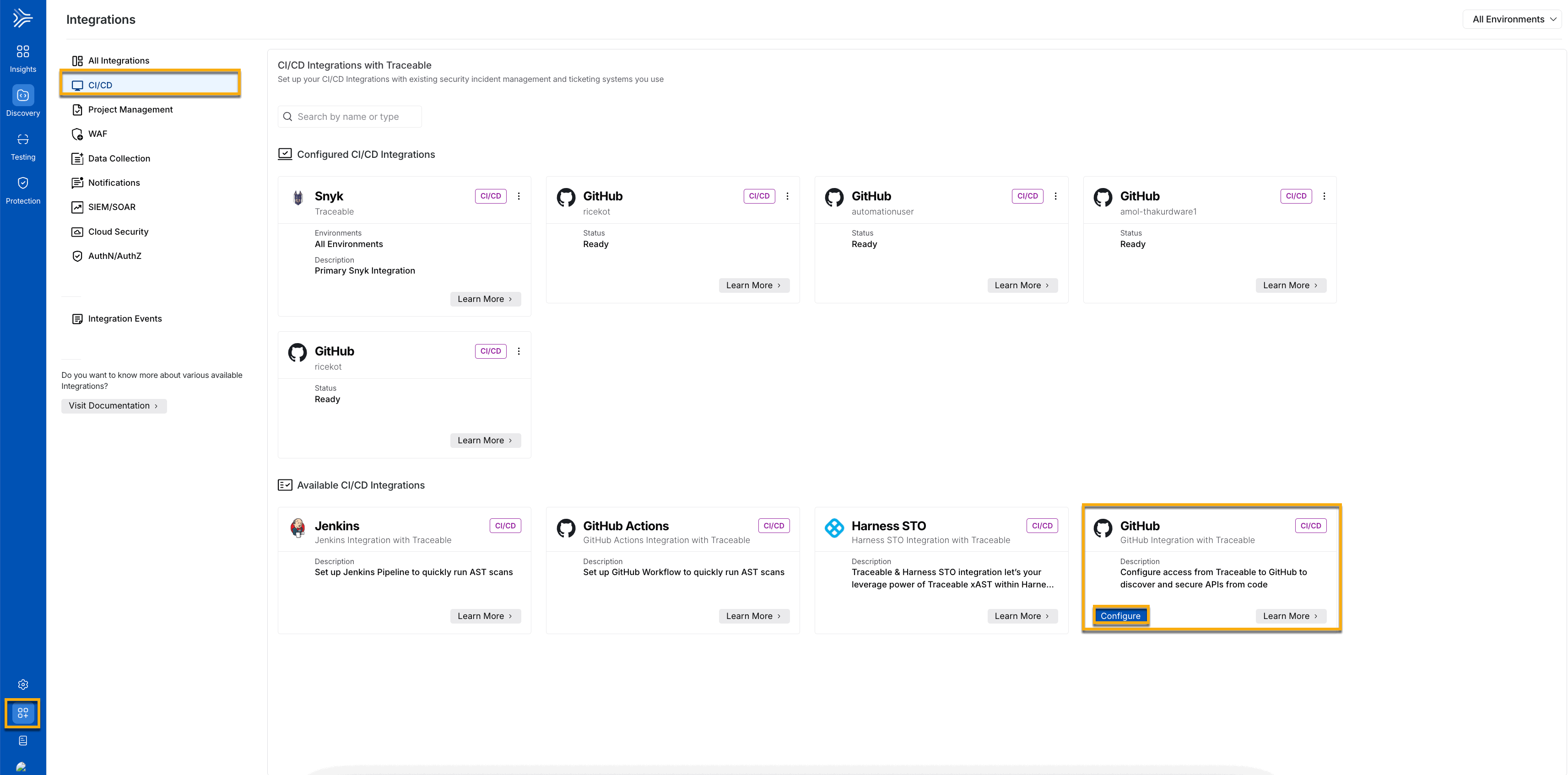
On **All Integrations**, select **CI/CD**. Search for GitHub, then click **Configure** on the **GitHub** tile.
 #### Step 2: Select Traceable's GitHub App
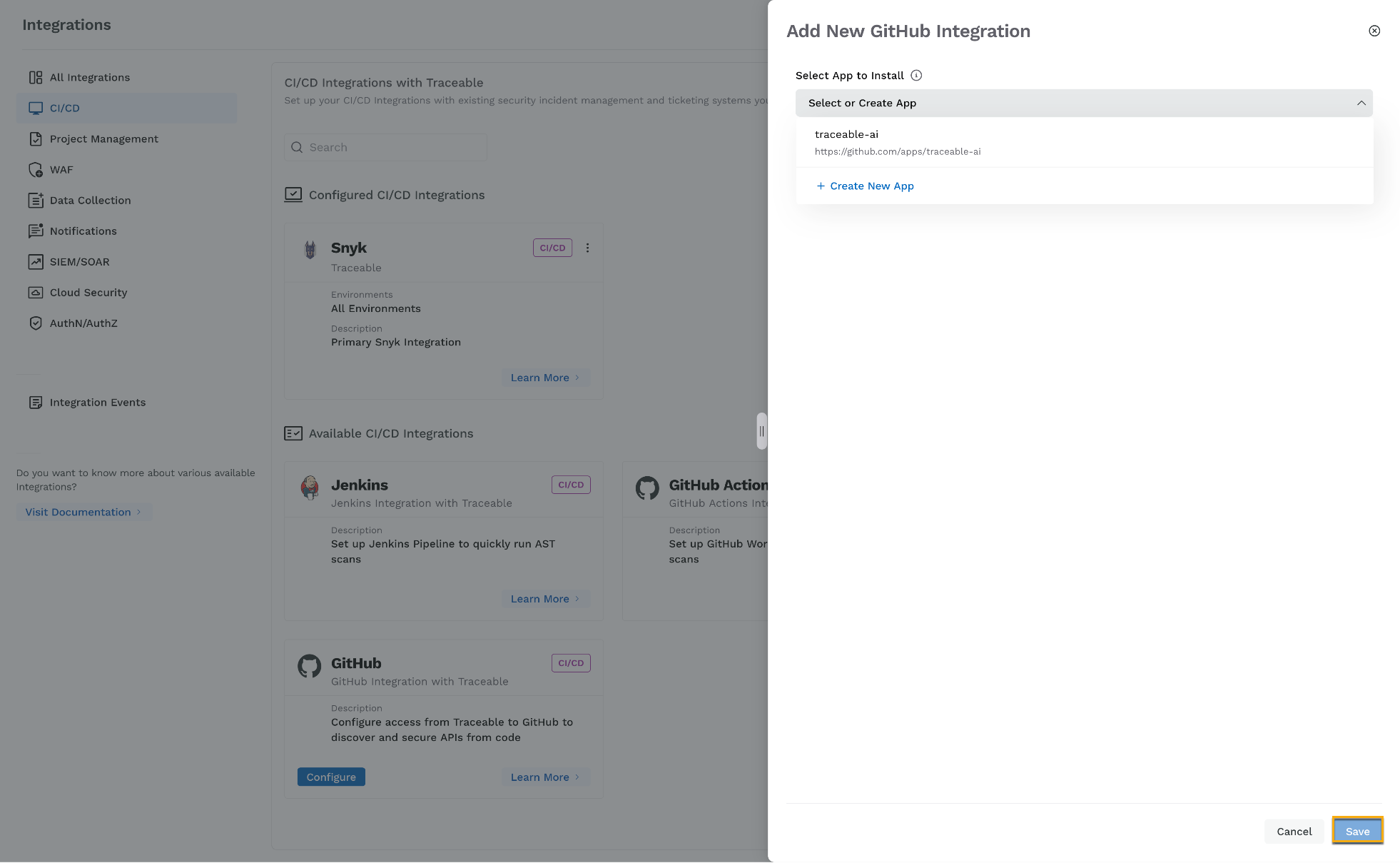
In the **Add New GitHub Integration** panel, select Traceable's GitHub App from the dropdown. Confirm that **Save** is enabled.
#### Step 2: Select Traceable's GitHub App
In the **Add New GitHub Integration** panel, select Traceable's GitHub App from the dropdown. Confirm that **Save** is enabled.
 #### Step 3: Authorize the app in GitHub
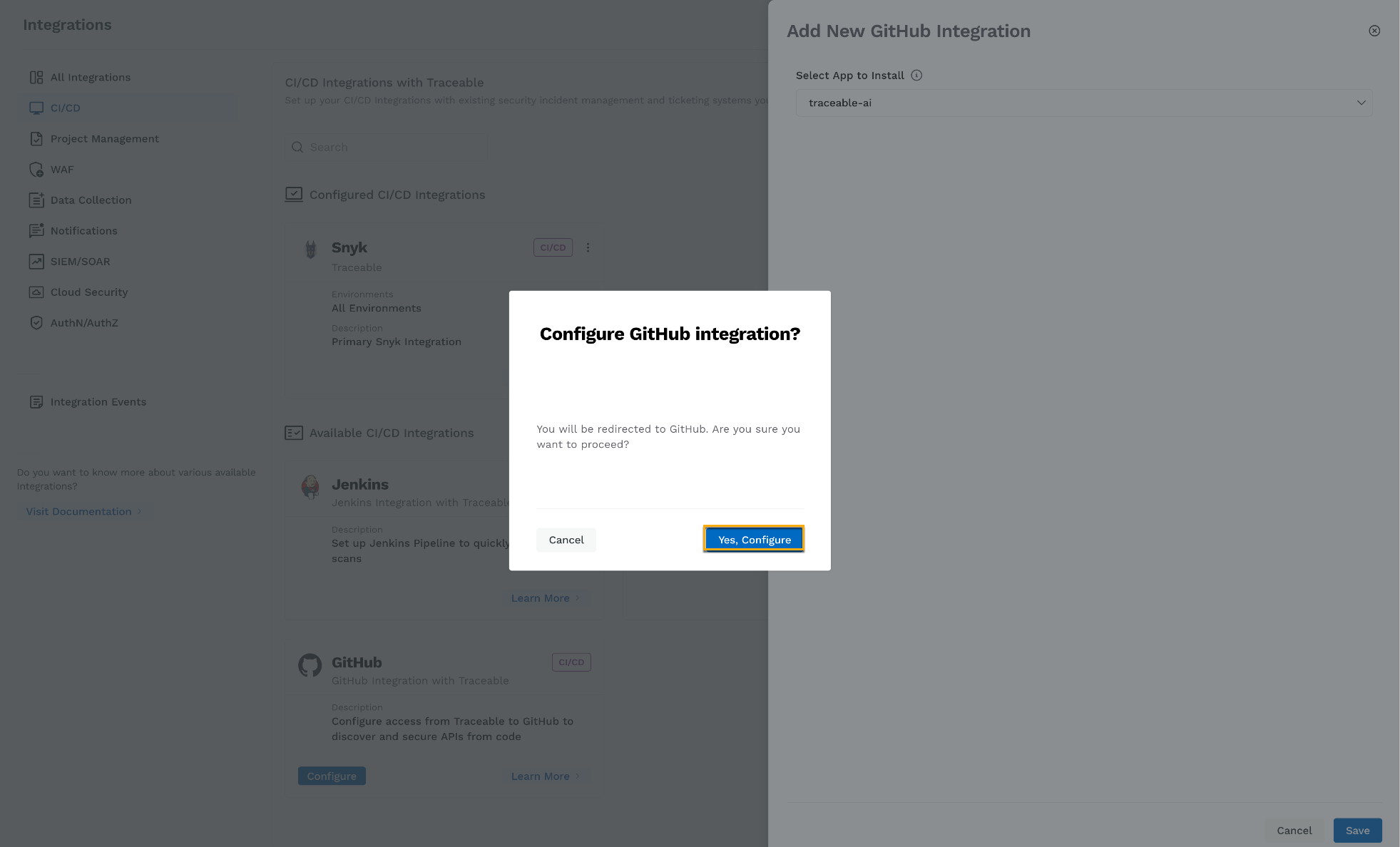
GitHub opens to complete the app installation. Click **Yes, Configure** to confirm the action.
#### Step 3: Authorize the app in GitHub
GitHub opens to complete the app installation. Click **Yes, Configure** to confirm the action.
 #### Step 4: Select your GitHub organization
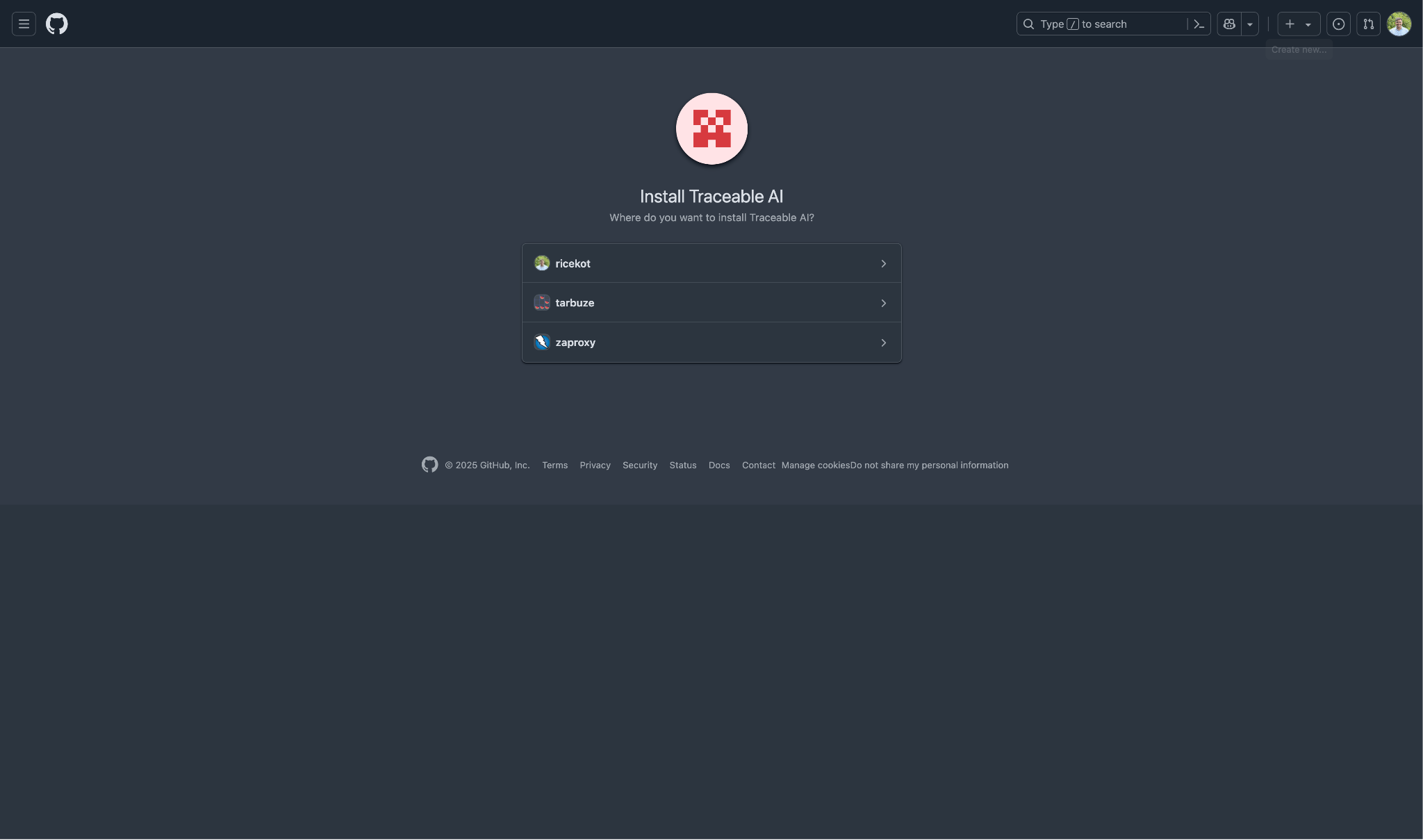
In GitHub, select the organization where you want to install the app.
#### Step 4: Select your GitHub organization
In GitHub, select the organization where you want to install the app.
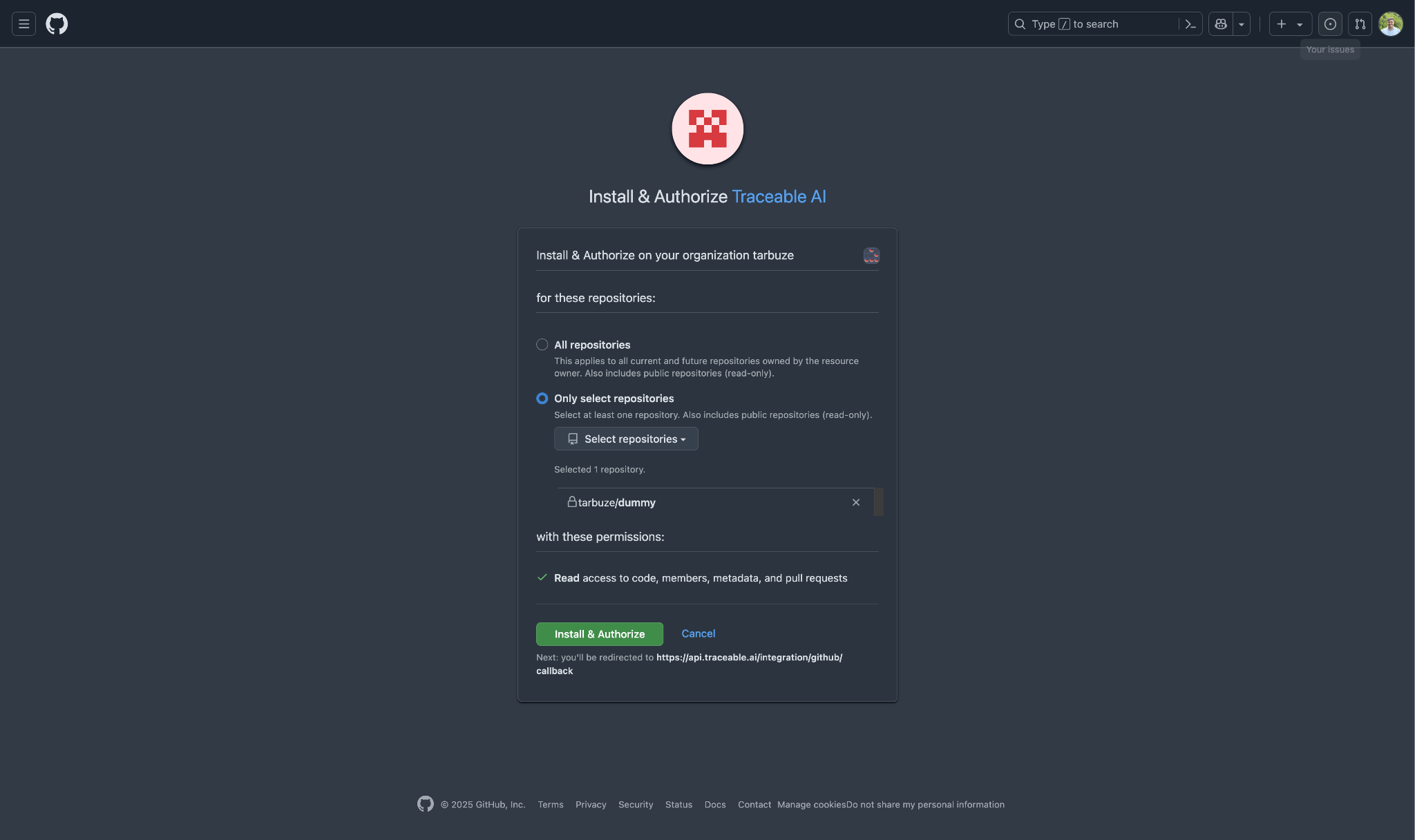
 #### Step 5: Select repositories
Select the repositories that the Traceable GitHub App can access.
* These repositories will be listed under **Discovery →** **Inventory → Repositories** in the Traceable dashboard.
* You can modify repository selection later.
* If you do not have admin access, you will be prompted to send a request to an organization administrator.
Click **Install & Authorize**.
#### Step 5: Select repositories
Select the repositories that the Traceable GitHub App can access.
* These repositories will be listed under **Discovery →** **Inventory → Repositories** in the Traceable dashboard.
* You can modify repository selection later.
* If you do not have admin access, you will be prompted to send a request to an organization administrator.
Click **Install & Authorize**.
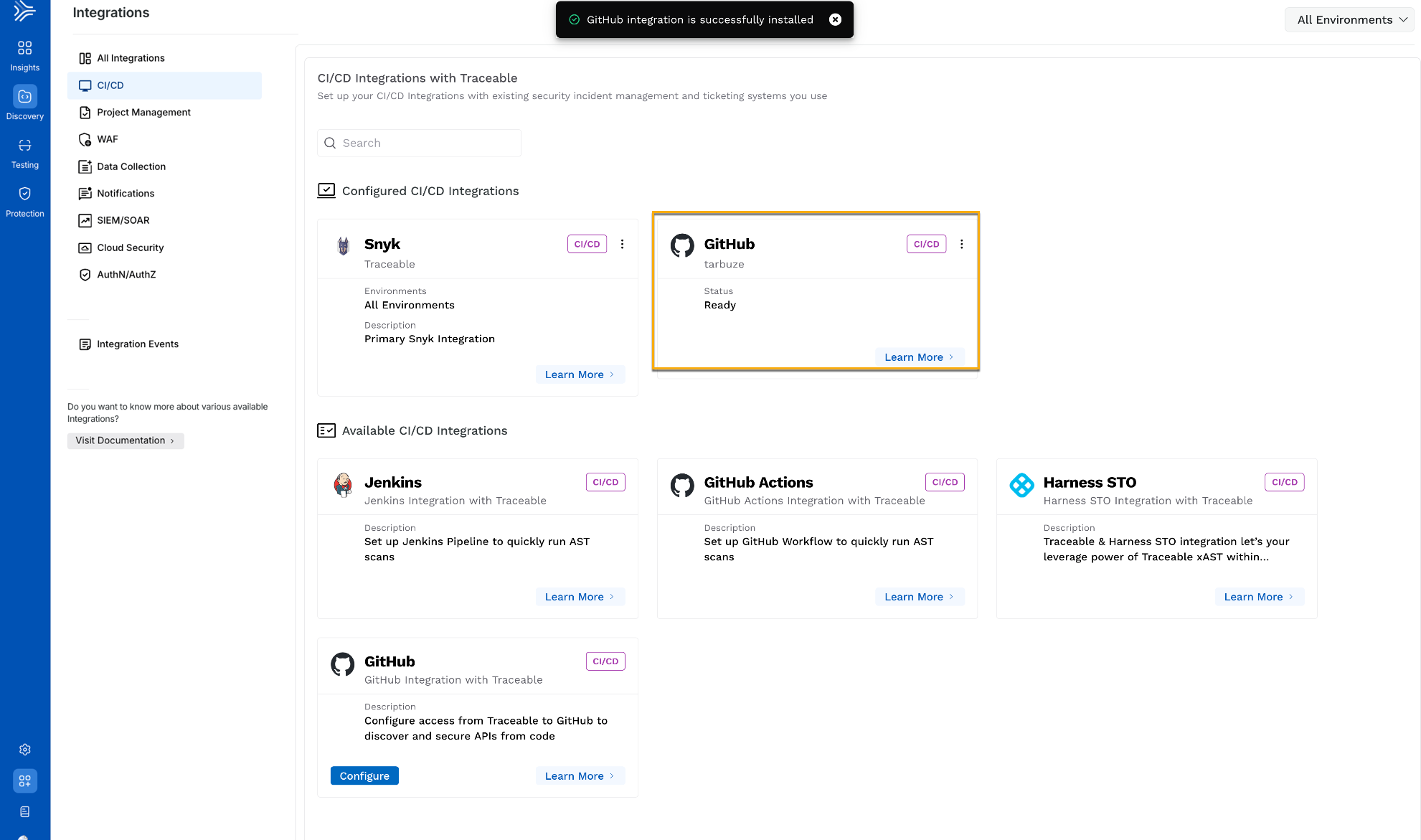
 #### Step 6: Confirm the integration in Traceable
After authorization, Traceable opens. The GitHub tile appears under **Configured CI/CD Integrations**. You can reconfigure the app from this section.
#### Step 6: Confirm the integration in Traceable
After authorization, Traceable opens. The GitHub tile appears under **Configured CI/CD Integrations**. You can reconfigure the app from this section.
 ***
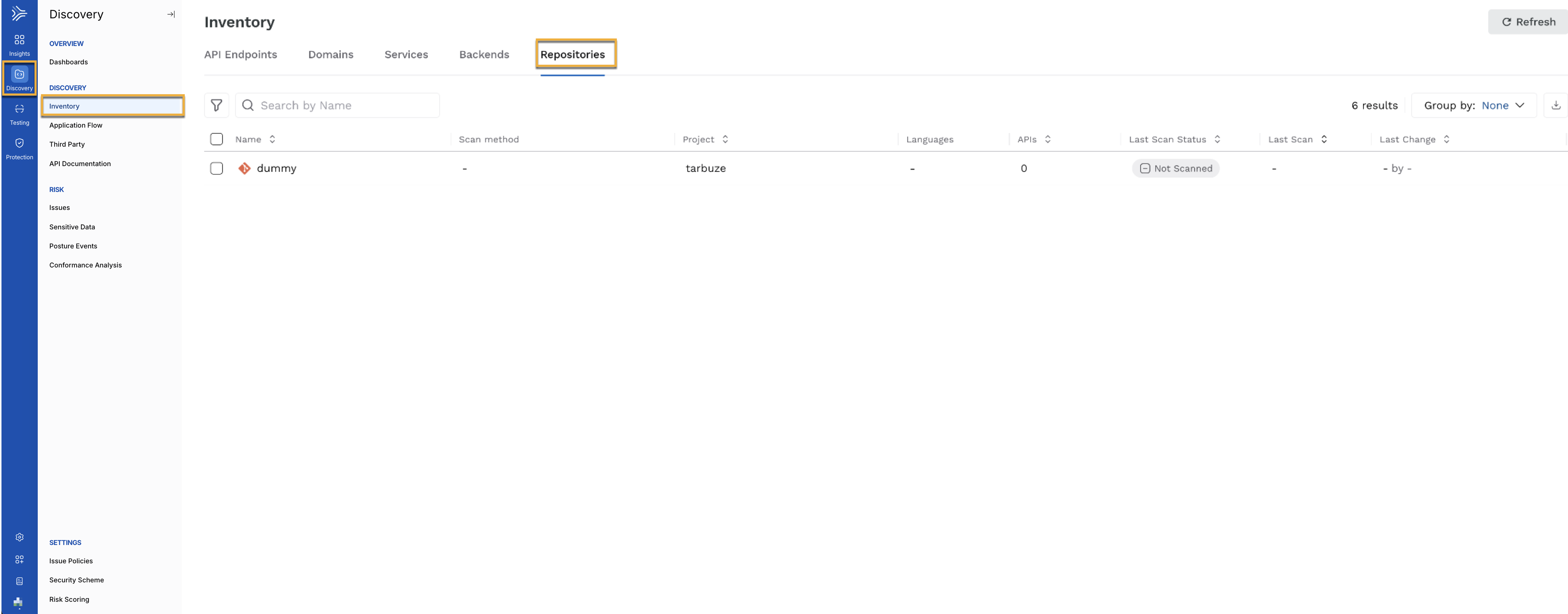
#### View repositories and start a code scan
Navigate to **Discovery → Inventory → Repositories**. The repositories selected during setup appear.
***
#### View repositories and start a code scan
Navigate to **Discovery → Inventory → Repositories**. The repositories selected during setup appear.
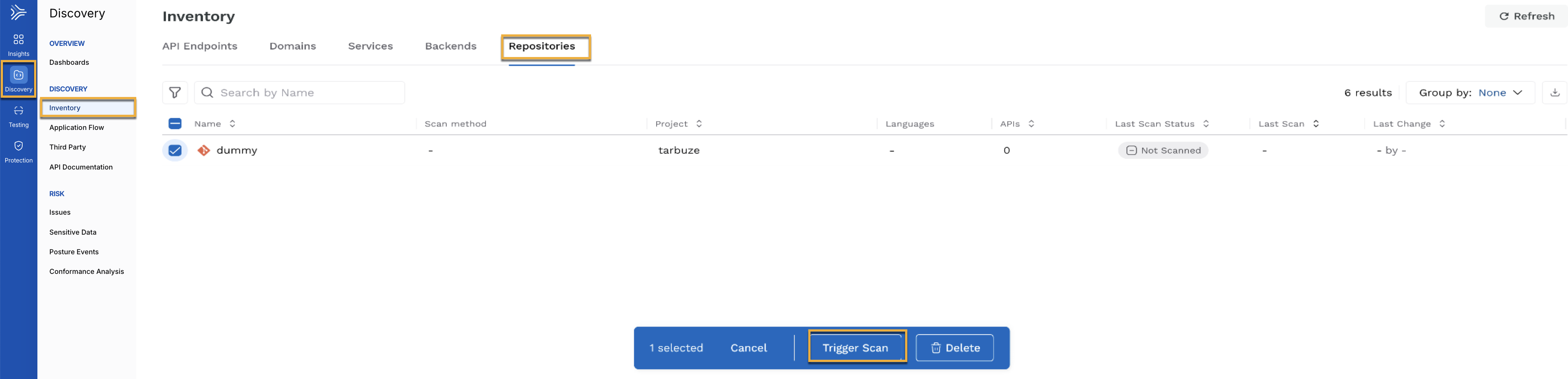
 Select any repository from the list and click **Trigger Scan** to initiate a code scan.
 {% @harness-feedback/feedback %}