Studio
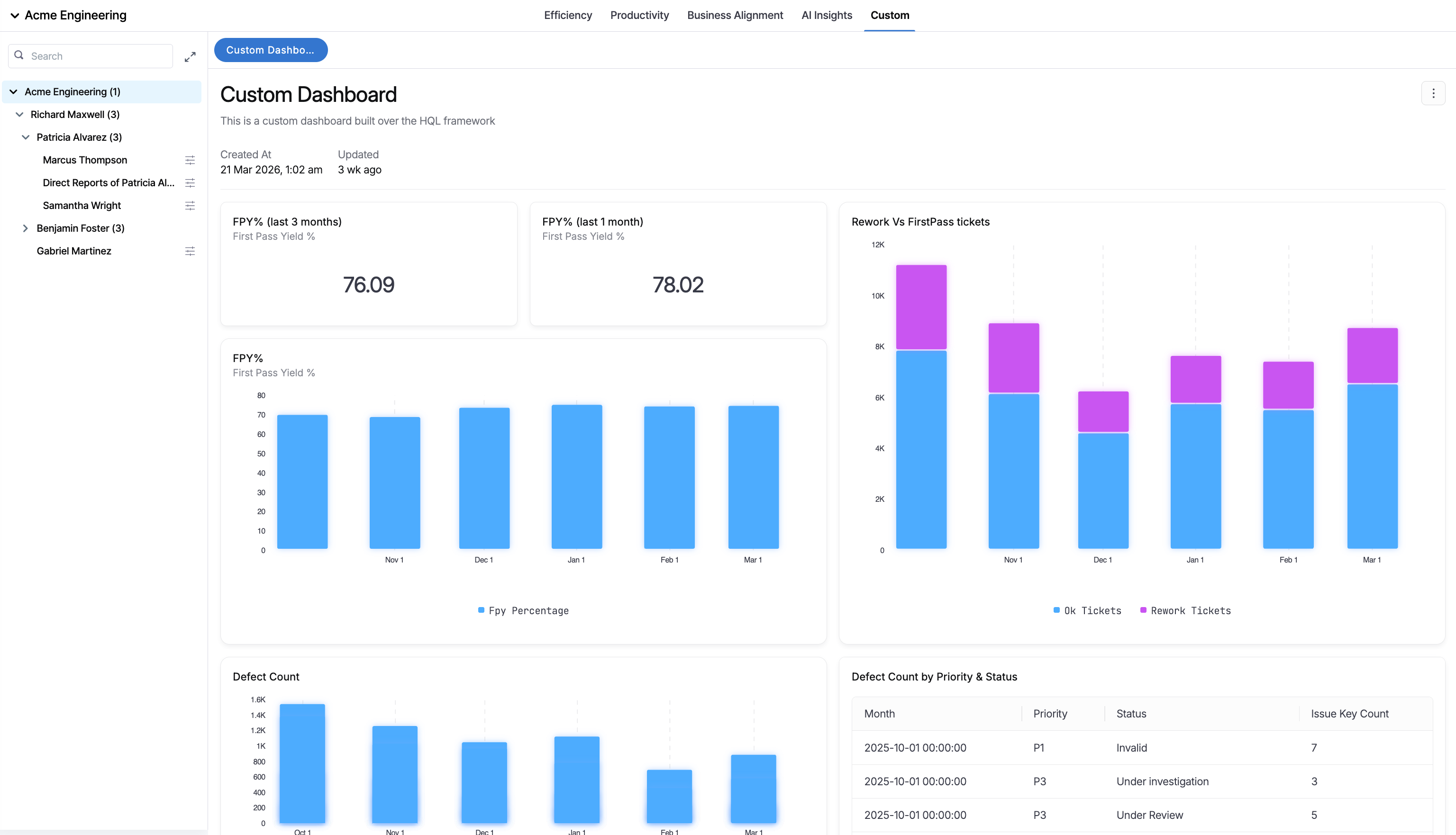
Navigate to the Studio page to create and manage custom dashboards that appear on the Insights page in AI DLC Insights. If the out-of-the-box dashboards on the Insights page do not provide the views your team needs, you can create custom dashboardsA user-created dashboard built in Studio and published to the Insights page for viewing and sharing. It can be tailored to display the most important data for your use case, providing insights and facilitating decision-making. on the Studio page to publish, share, and collaborate with your team.
The Studio page in AI DLC Insights displays all custom dashboards created by your team. You can search, view, and manage dashboards, including details such as the name, description, author, status, timestamps, and tags.
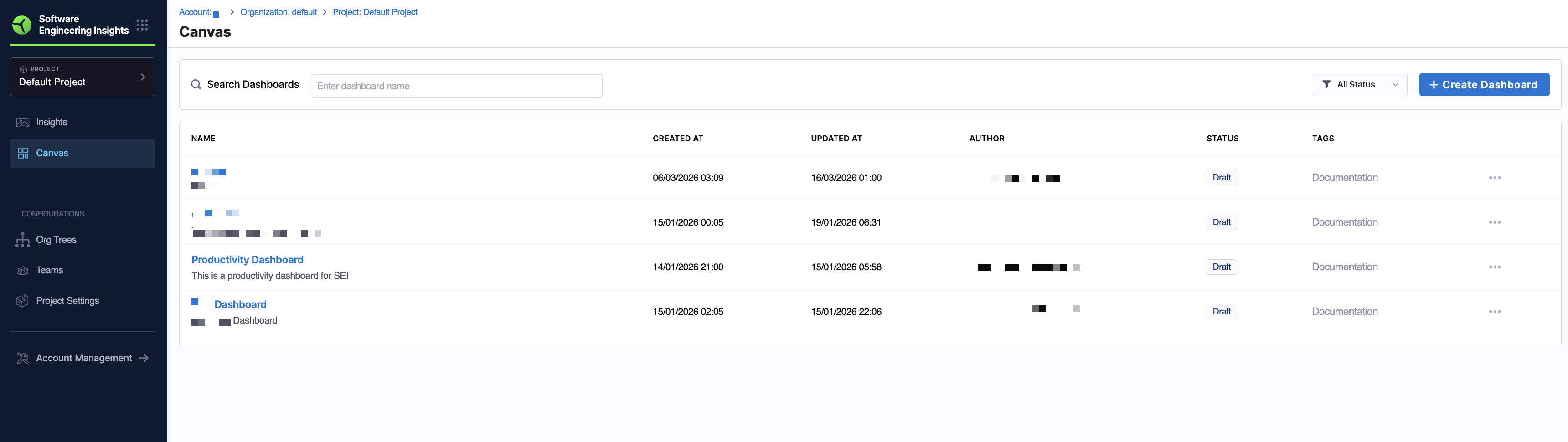
Each dashboard in the Studio list includes the following metadata:
| Field | Description |
|---|---|
| Name | The name of the custom dashboard. |
| Created At | Timestamp when the dashboard was created. |
| Updated At | Timestamp of the most recent update. |
| Author | The user who created the dashboard. |
| Status | Current lifecycle state (Draft or Published). |
| Tags | Optional labels used for grouping and filtering dashboards. |
Studio dashboards support query-level variables, including team-scoped filters and custom variables. This allows dashboards to dynamically adapt based on your configuration in Team Settings.
To filter dashboards by status, click the All Status dropdown menu next to + Create Dashboard.

Studio dashboards support the following statuses:
- Draft: The dashboard is still in progress and not yet shared broadly.
- Published: The dashboard is finalized and visible for wider consumption depending on permissions.
Published Studio dashboards are read-only. To make changes, move the dashboard back to Draft, update it, and then publish it again. For more information, see Managing dashboards in Studio.
Prerequisites
Access to Studio is governed by Harness RBAC. Permissions are managed using roles, resource groups, and role bindings.
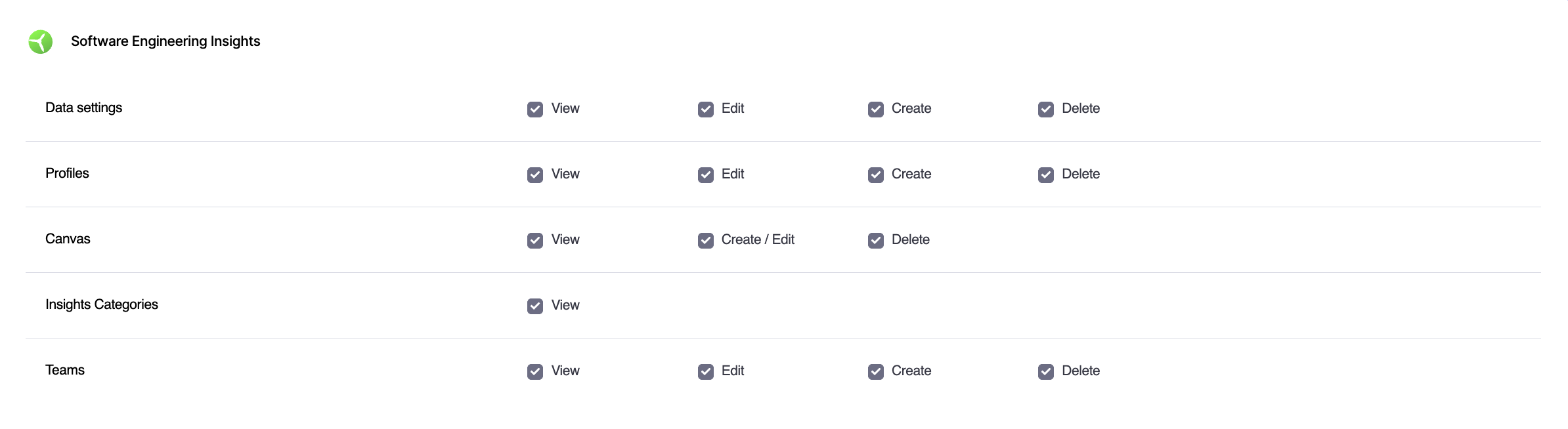
To view and manage Studio dashboards, ensure your role includes the following permissions:
- View SEI Studio (
sei_seicanvas_view) - Create/Edit SEI Studio (
sei_seicanvas_createandsei_seicanvas_edit) - Delete SEI Studio (
sei_seicanvas_delete)
Access to Studio dashboards is also scoped through Harness resource groups.
-
Navigate to Project Settings > Resource Groups.
-
Click + New Resource Group.
-
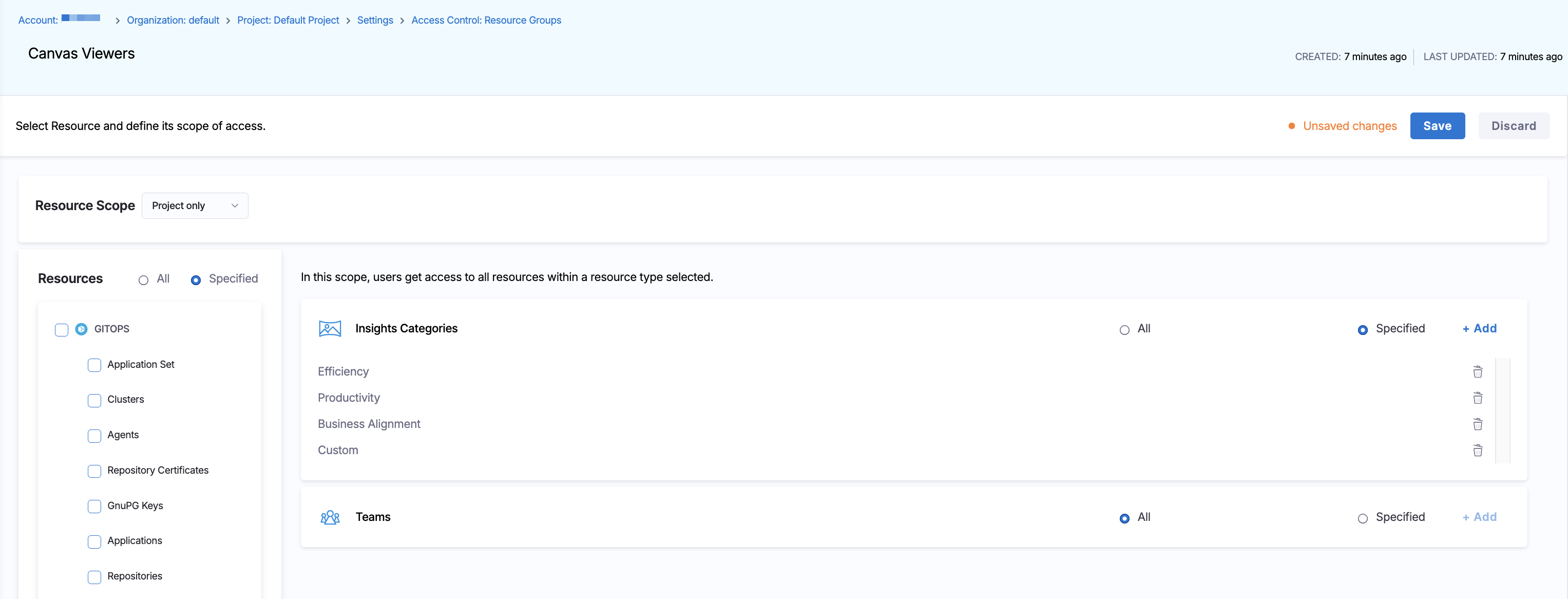
Set the Resource Scope to
Project onlyand under AI DLC Insights, select one or both of the following resources, and configure access:- Insights Categories: Select All or Specified, and click + Add to choose from
Efficiency,Productivity,BusinessAlignment,AI Insights,Security, andCustom. - Teams: Select All or Specified, and click + Add to choose one or more Org Tree teams.
- Insights Categories: Select All or Specified, and click + Add to choose from
-
Click Save.
Next, associate the role with users or user groups by clicking Manage Role Bindings, selecting the role (such as SEI Team Manager), associating it with the appropriate resource group (such as all account-level resources), and clicking Save.
Create a Studio dashboard
- From the Harness AIDI navigation menu, navigate to the Studio page and click + Create Dashboard.
- In the Create New Dashboard modal, enter a name (for example,
[Team Name] Issue Dashboard) and a description. - Optionally, enter tags.
- Click Create Dashboard to save the dashboard.
Edit a Studio dashboard
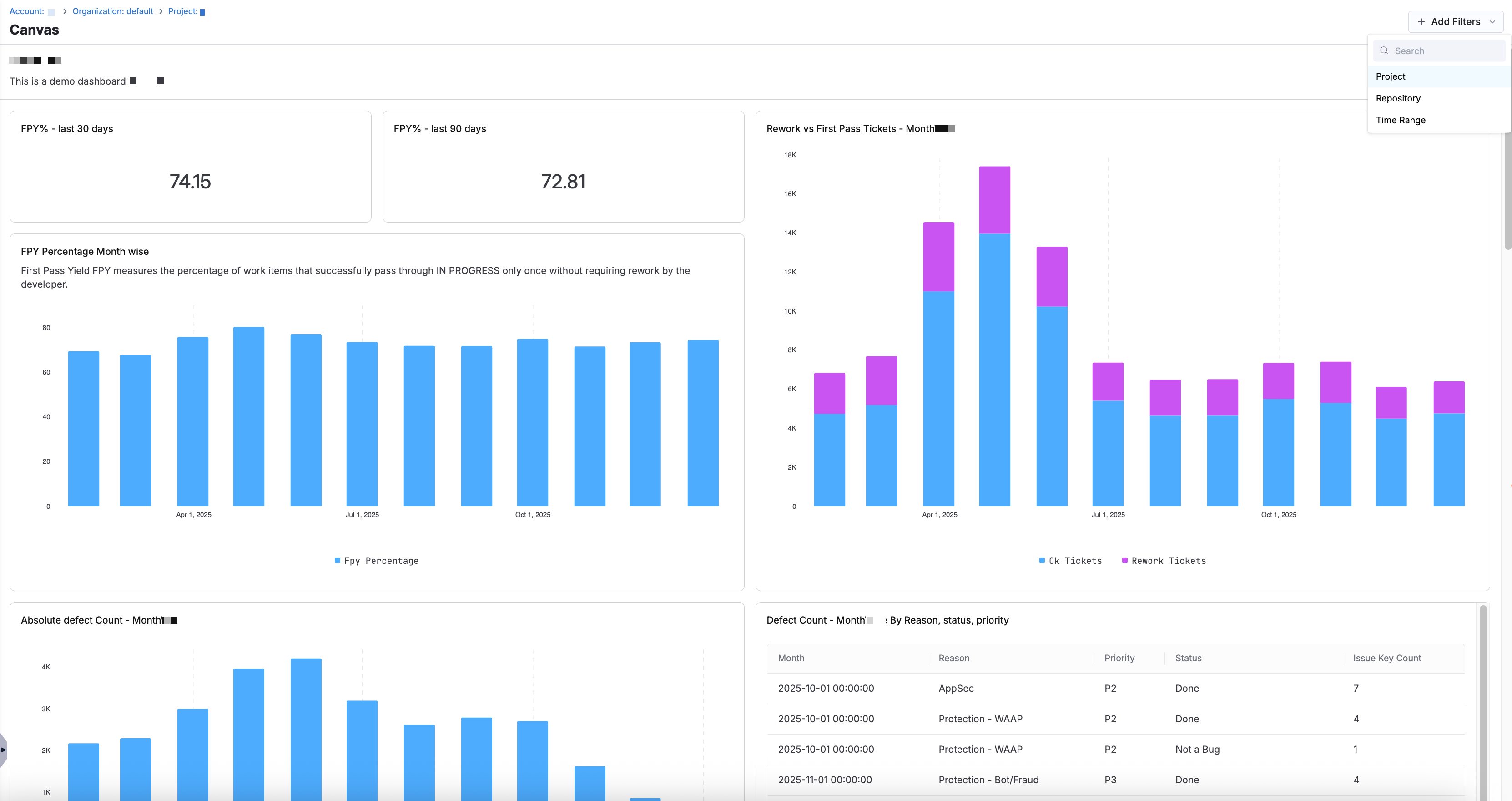
Once you edit or create a dashboard, you enter a Dashboard Editor view where you can customize your dashboard layout and add widgets. To apply dashboard-level filters, click the + Add Filters dropdown menu and select Project, Repository, or Time Range.
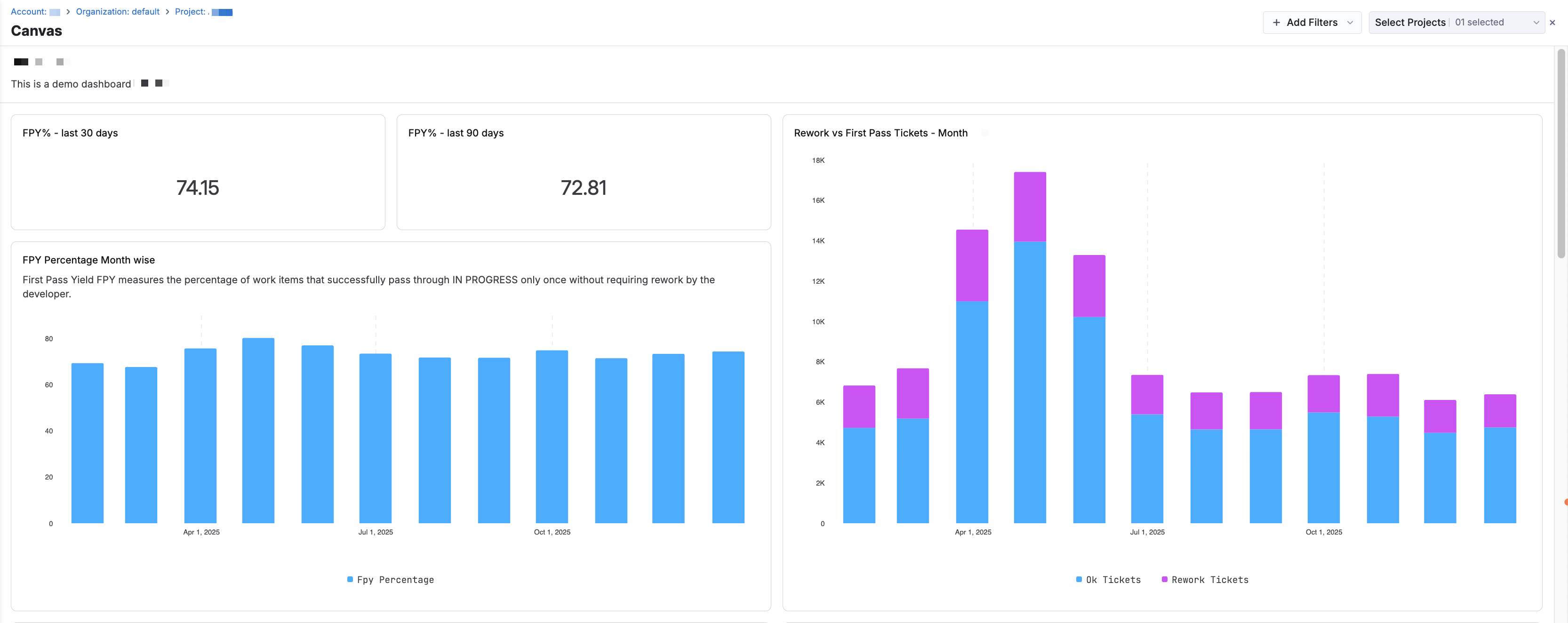
An additional Project filter appears for you to search and select the appropriate project(s) you want to filter the dashboard to.
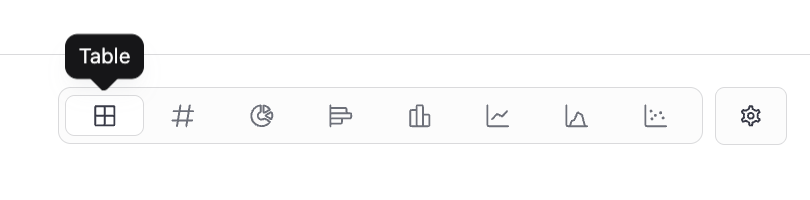
To add a widgetA widget is a visual component that displays specific data or information on a Studio dashboard. Widgets can be customized to show different types of data, such as charts, tables, or metrics, and can be arranged to create a personalized dashboard layout., click + Add Widget to add a new visualization. Widgets are configured on top of dashboards and display the data defined in the query. You can customize the widget name/subtitle, visualization type (Table, Metric Card, Line Chart, Bar Chart, Column Chart, Area Chart, or Scatter Chart), and query configuration.
The Query Configuration section on the right side of the editor includes two tabs: Builder and Code.
- Builder
- Code
On the Builder tab:
-
Select a data sourceA data source is a connection to an external system or database that provides data for use in Studio. It allows you to pull in data from various sources to create visualizations and insights in your custom dashboards. from the
Datasourcedropdown menu. -
In the Select section, click + Select to choose a column (for example,
Integration Type). Optionally, apply an aggregation method (such asCountorDistinct Count). An alias is automatically generated (for example,integration_type_count), which can be used in sorting or visualization. -
In the Filter section, click + Filter to define conditions for your query.
- Choose a field (for example,
Status,Job Name,Created At). - Select an operator (
Equals,Contains,Greater Than,In,Is Null, etc.). - Provide a value.
These filters determine which records are included in the widget.
- Choose a field (for example,
-
In the Sort section, click + Sort to define how results are ordered.
- Select a field or aggregated value.
- Optionally apply an aggregation method (for example,
Count,Average,Max). - Select
AscendingorDescending.
-
In the Limit section, define the maximum number of results returned (for example,
10).
As you configure the query, results update in real time across the preview tabs:

- Widget and Data: Displays both the visualization and the underlying data.
- Widget Only: Displays the visualization only.
- Data Only: Displays the raw query results in table format.
When you're ready to add the widget to a dashboard, click Add Widget.

On the Code tab:
The query is displayed in an editable HQL editor.
-
Edit the query directly using HQL syntax. Click Format to automatically format and clean up the query for readability.
-
Optionally, click the Advanced section and click + Add Variable to define query variables.
- Enter a variable name and a value.
- You can reference variables in your query using
${variableName}.
-
Click Run Query to run and validate the query.
-
Optionally, click Reset to last applied to revert unsaved changes.
As the query runs, results are displayed in the preview tabs:
- Widget and Data: Displays both the visualization and query output.
- Widget Only: Displays the rendered chart.
- Data Only: Displays the raw data returned by the query.
When you're ready to add the widget to a dashboard, click Add Widget.
You can also select pre-defined time ranges above the widget visualization (such as 1W, 1M, 3M, 6M, or 12M) or define a custom date range.
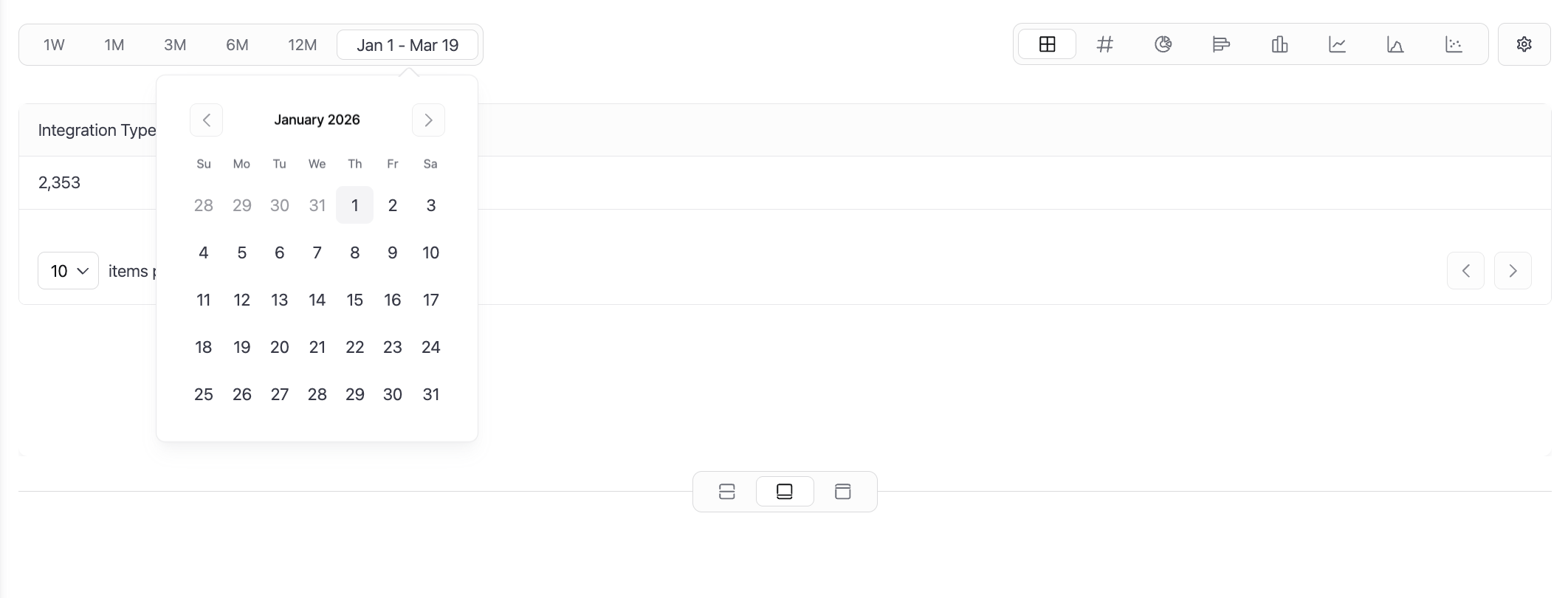
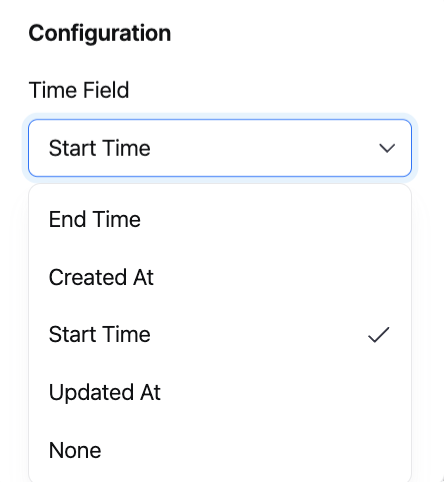
Click the Settings icon to configure how time is applied to your data. You can select a time field (such as Created At, Start Time, End Time, or Updated At) to control how the dashboard filters data.
Additional options under Content Formatting allow you to customize how results are displayed, such as enabling pagination by clicking Show Pagination or formatting numeric columns based on selected aggregations. When you enable a column in the Numeric Columns section (for example, Integration Type Count), you can configure a style to control how values are displayed.
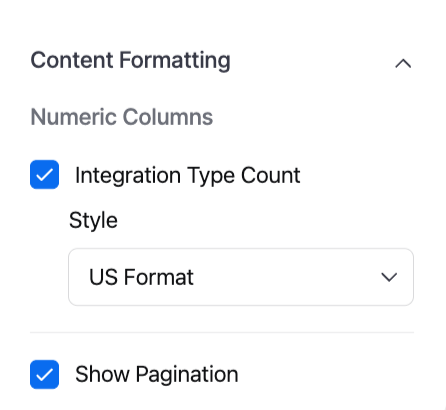
- US Format: Formats numbers using US conventions (for example,
1,234.56). - Locale: Adapts formatting based on the user's locale settings.
- Raw: Displays the unformatted numeric value.
To save your widget to a Studio dashboard:
-
Once you've configured the widget, including selecting a time range and visualize type, click Add Widget to add it to the dashboard.
-
You are redirected to the dashboard view with the widget added. To create additional widgets, click + New Widget.
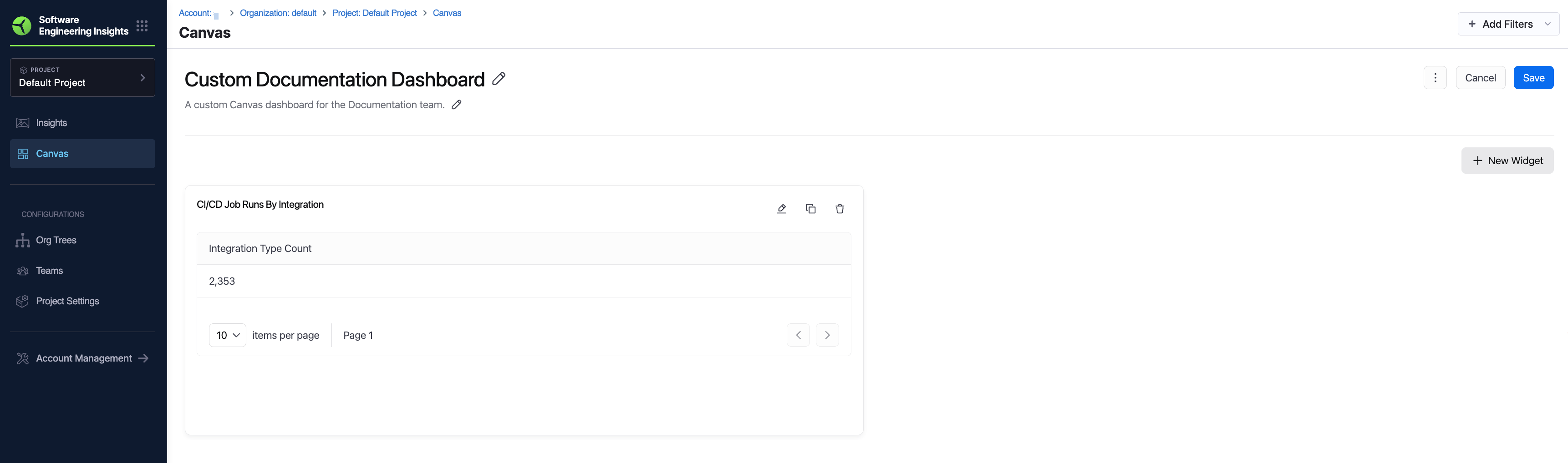
When you are done editing the dashboard, click Save to finalize your changes. Dashboards and their widgets can be edited or updated anytime from the Studio page.
Use query variables in dashboards
Query variablesA query variable is a dynamic parameter that can be used in Studio HQL queries to filter or modify the data being retrieved. It allows you to create more flexible and interactive dashboards by enabling users to input values that affect the displayed data. allow you to create dynamic, reusable queries that automatically adapt based on team configuration and dashboard filters. In the Dashboard Editor, click Query Variables in the upper right corner to access variable options.
You can use these variables inside HQL queries to replace static values with team-specific or time-based values. Query variables are applied as dynamic filters in HQL and are not configurable through the Builder tab. To use query variables, switch to the Code tab and include them using the filter operation.
- Issue Management
- Source Code Management
- CI/CD
- Time Filters
- Custom Variables
Use ${imHqlFilters} to dynamically apply team-level Issue Management filters (such as project or integration) to your query. These values are automatically populated based on the configuration on the Issue Management tab in Team Settings.
The following data columns are exposed:
| Key | Data Type | Description |
|---|---|---|
project | string | Jira or Azure DevOps project identifier. |
integration_id | string | Unique identifier for the integration instance. |
For example, the following HQL query filters SEI issues based on the team's configured projects and integrations:
find entity "sei:issues"
| select { project }
| filter ${imHqlFilters}
Use ${scmHqlFilters} to dynamically apply Source Code Management filters such as repositories or integrations. These values are derived from the configuration on the Source Code Management tab in Team Settings.
The following data columns are exposed:
| Key | Data Type | Description |
|---|---|---|
repo_id | string | Git repository identifier. |
integration_id | string | Unique identifier for the integration instance. |
For example, the following query filters data based on the SEI SCM pull request reviews configured for the team:
find entity "sei:scm_pullrequests_reviews"
| select { repo_id }
| filter ${scmHqlFilters}
Use ${cicdHqlFilters} to dynamically apply CI/CD filters such as job names or integrations. These values are based on the configuration on the CD Pipelines tab in Team Settings.
The following data columns are exposed:
| Key | Data Type | Description |
|---|---|---|
job_name | string | Name of the CI/CD job. |
integration_id | string | Unique identifier for the integration instance. |
For example, the following query filters CI/CD job runs based on team configuration:
find entity "sei:cicd_job_runs"
| filter cd = "true"
| filter ${cicdHqlFilters}
| select { job_name }
Use time variables to make dashboards responsive to the global time picker.
The following variables are available:
| Variable | Data Type | Description |
|---|---|---|
${startTimeFilter} | string | Filters data from the selected start time. |
${endTimeFilter} | string | Filters data up to the selected end time. |
For example, the following query applies the selected dashboard time range:
filter issue_created_at >= ${startTimeFilter}
| filter issue_created_at <= ${endTimeFilter}
Custom variablesA custom variable is a user-defined parameter that can be used in Studio to store and manipulate data. It can be used in queries, calculations, or as part of the dashboard configuration to create more complex and tailored visualizations. allow you to define reusable variables that can be overridden at the team level. You can create and manage these variables directly from the Query Variables panel in the Studio dashboard editor.
To create a custom variable:
-
Navigate to the Custom Variables tab from the Query Variables menu.
-
Click + Add New Variable.
-
Enter the following details for the custom variable:
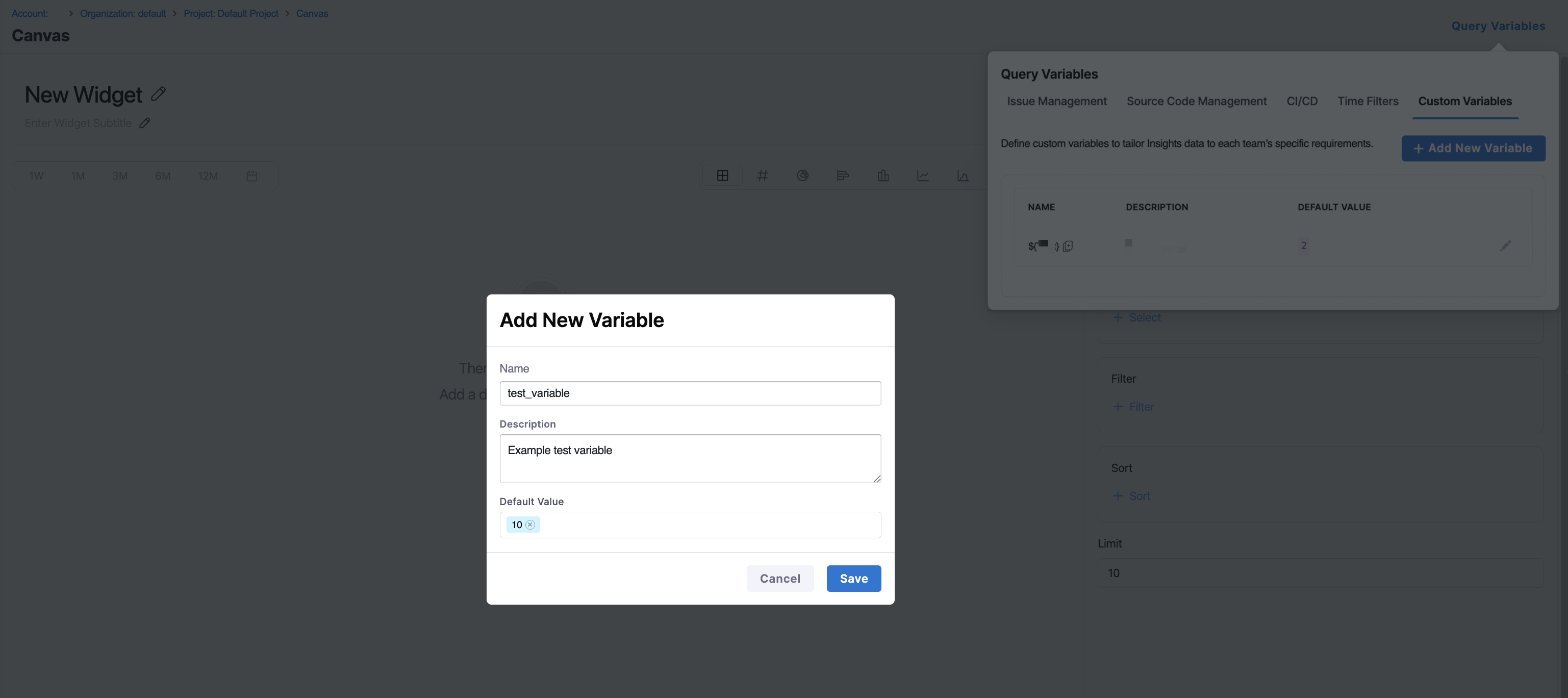
- Name: A unique identifier used in queries (for example,
priority_issues). - Description: Explains the purpose of the variable.
- Default Value: A fallback value used when no team override is defined.
- Name: A unique identifier used in queries (for example,
-
Click Save.
Once created, the variable becomes available for use in your queries:
filter priority = ${priority_issues}
Custom Variables created in Studio are available in the Custom Variables tab in Team Settings, where teams can override the default value.
Manage dashboards in Studio
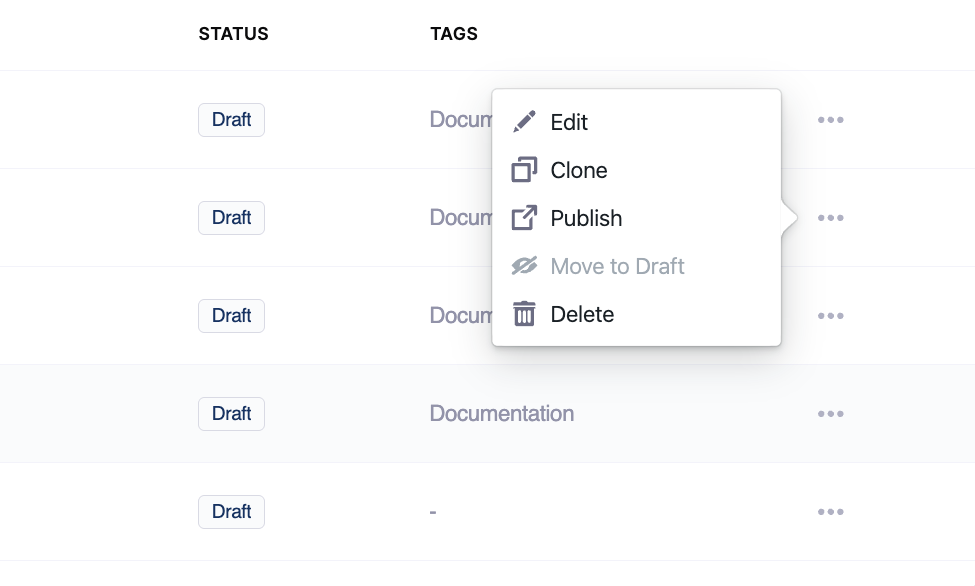
Each custom dashboard in the list on the Studio page includes an overflow menu (...) that contains additional management actions:
-
Edit: Opens a modal where you can update the dashboard name, description, and tags. Click Update to save changes.
-
Clone: Creates a duplicate of the dashboard. This is useful for iterating on an existing dashboard without modifying the original
-
Publish: Marks the dashboard as
Publishedand makes it available for selected Org Trees on the Insights page.
When you click Publish, you are prompted to associate the dashboard with one or more configured Org Trees. You can select multiple Org Trees, then click Publish to confirm. This association controls how the dashboard is scoped and viewed across teams, rather than granting direct access permissions.
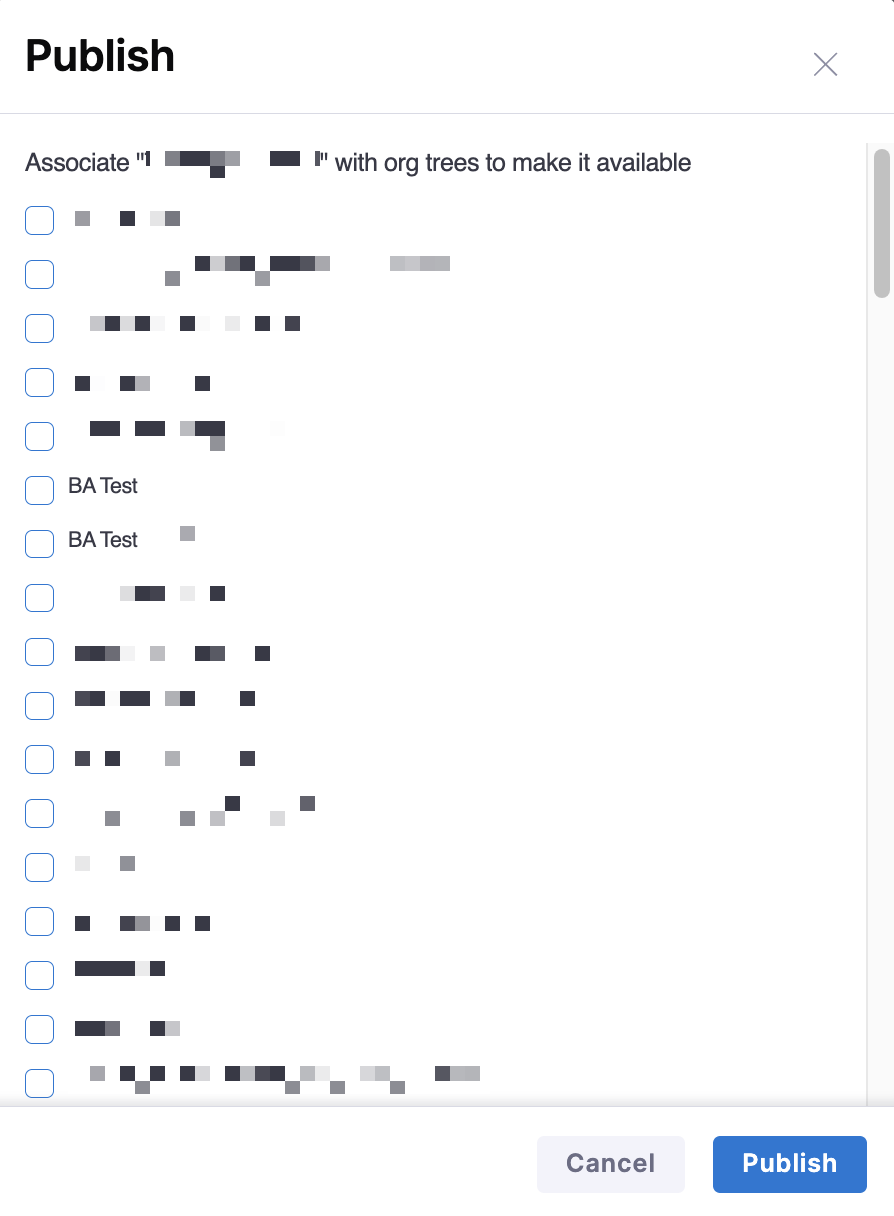
Once published, the dashboard status changes to Published, the dashboard is available in the Studio tab on the Insights page, and the selected Org Trees appear on the left-side panel, allowing you to view the dashboard in the context of each organizational hierarchy.
-
Move to Draft: Reverts a
Publisheddashboard back toDraftstate for further editing. When selected, a confirmation modal displays the Org Trees the dashboard is currently associated with.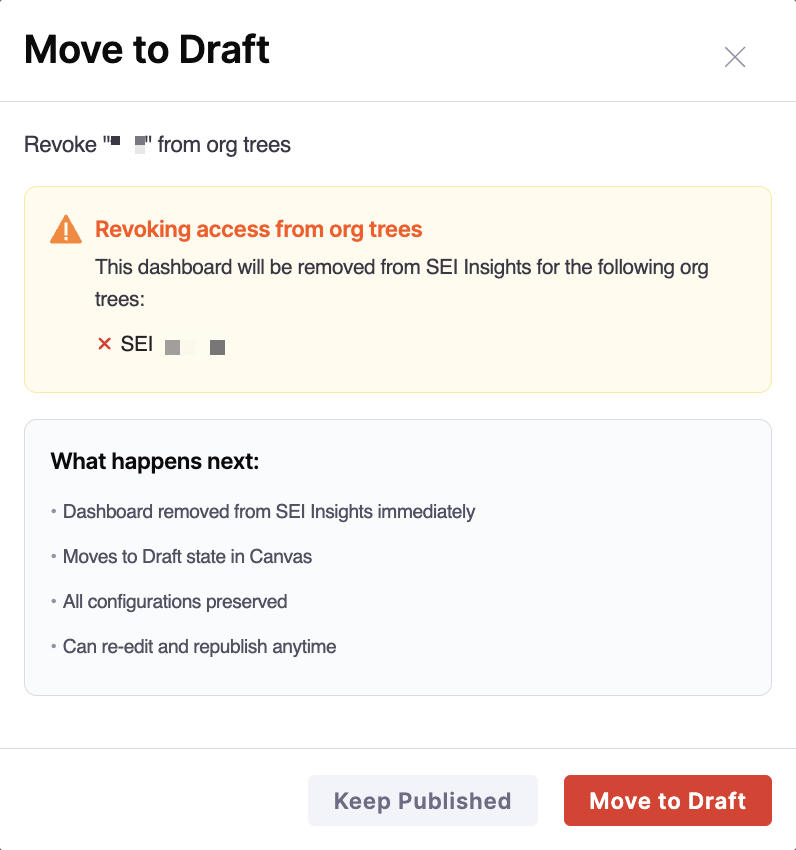
When you click Move to Draft, the dashboard is removed from the Insights page, the status changes to
Drafton the Studio page, all dashboard configurations are preserved, and you can continue editing and republish the dashboard at any time. -
Delete: Permanently removes the dashboard. When you click Delete, a confirmation modal appears. Click Delete to confirm.
These actions allow teams to manage the lifecycle of custom dashboards and iterate before sharing them more broadly.