
A Build stage with multiple services running in Background steps.
A Build stage with multiple services running in Background steps.
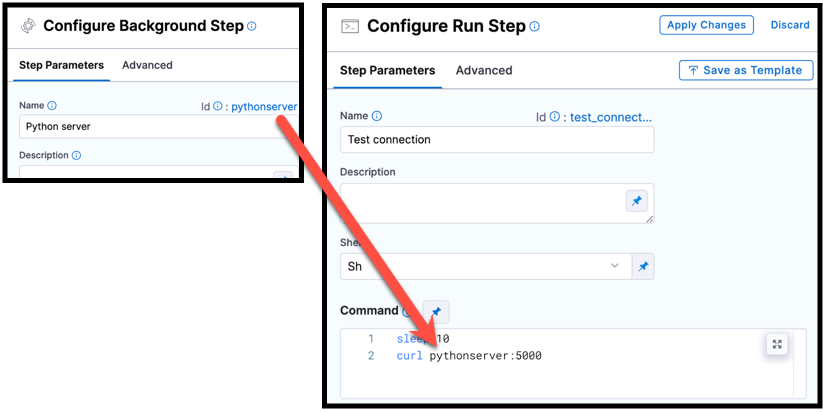 If the Background step is inside a step group, you must include step group ID, such as `curl StepGroupId_BackgroundStepId:5000`, even if both steps are in the same step group.
If the Background step runs directly on the host or in a Kubernetes cluster build infrastructure, do not use the step ID to reference Background steps. Instead, use `localhost:host_port`. For Background steps running MySQL in a Kubernetes cluster build infrastructure, you must use the IP and host port, such as `127.0.0.1:7001`. Go to [Port Bindings](#port-bindings) for more information.
{% endhint %}
### Container Registry and Image
The build environment must have the necessary binaries for the **Background** step to execute your test commands. Depending on the stage's build infrastructure, **Background** steps can use binaries that exist in the build environment, or use **Container Registry** and **Image** to pull an image, such as a public or private Docker image, that contains the required binaries.
The stage's build infrastructure determines whether these fields are required or optional:
* [Kubernetes cluster build infrastructure](/continuous-integration/use-harness-ci/use-harness-ci/set-up-build-infrastructure/k8s-build-infrastructure/set-up-a-kubernetes-cluster-build-infrastructure.md): **Container Registry** and **Image** are always required.
* [Local runner build infrastructure](/continuous-integration/use-harness-ci/use-harness-ci/set-up-build-infrastructure/define-a-docker-build-infrastructure.md): **Run Tests** steps can use binaries available on the host machine. The **Container Registry** and **Image** are required if the machine does not have the binaries you need.
* [Self-managed AWS/GCP/Azure VM build infrastructure](/continuous-integration/use-harness-ci/use-harness-ci/set-up-build-infrastructure/vm-build-infrastructure.md): **Run Tests** steps can use binaries that you have made available on your build VMs. The **Container Registry** and **Image** are required if the VM does not have the necessary binaries. These fields are located under **Additional Configuration** for stages that use self-managed VM build infrastructure.
* [Harness Cloud build infrastructure](/continuous-integration/use-harness-ci/use-harness-ci/set-up-build-infrastructure/use-harness-cloud-build-infrastructure.md): **Run Tests** steps can use binaries available on Harness Cloud machines, as described in the [image specifications](/continuous-integration/use-harness-ci/use-harness-ci/set-up-build-infrastructure/use-harness-cloud-build-infrastructure.md#platforms-and-image-specifications). The **Container Registry** and **Image** are required if the machine does not have the binaries you need. These fields are located under **Additional Configuration** for stages that use Harness Cloud build infrastructure.
**What are the expected values for Container Registry and Image**
For **Container Registry** settings, provide a Harness container registry connector, such as a [Docker connector](broken://spaces/3F2TpHXhur2QtQnORSM9/pages/LZPXMHJjbQyZXdwC5Omo), that connects to a container registry, such as Docker Hub, where the **Image** is located.
For **Image**, provide the FQN (fully-qualified name) or artifact name and tag of the Docker image to use when this step runs commands, for example `us-docker.pkg.dev/gar-prod-setup/harness-public/harness/cache:latest` or `maven:3.8-jdk-11`. If you do not include a tag, Harness uses the `latest` tag. Depending on the connector and feature flags set, **an FQN may be required**.
You can use any Docker image from any Docker registry, including Docker images from private registries. Different container registries require different name formats, for example:
* **Docker Registry:** Input the name of the artifact you want to deploy, such as `library/tomcat`. Wildcards are not supported. FQN is required for images in private container registries.
* **ECR:** Input the FQN of the artifact you want to deploy. Images in repos must reference a path, for example: `40000005317.dkr.ecr.us-east-1.amazonaws.com/todolist:0.2`.
* **GAR:** Input the FQN of the artifact you want to deploy. Images in repos must reference a path starting with the project ID that the artifact is in, for example: `us-docker.pkg.dev/gar-prod-setup/harness-public/harness/cache:latest`.

Configuring a Container Registry and Image settings.
{% hint style="info" %}
**REMOVE FQN REQUIREMENT**
Customers who want to utilize non-FQN references for non public Docker-registry connectors will need to contact Harness Support to add the feature flags, `CI_REMOVE_FQN_DEPENDENCY_FOR_PRIVATE_REGISTRY_CONNECTOR_DOCKER` and `CI_REMOVE_FQN_DEPENDENCY`.
{% endhint %}
**Pulling images from JFrog Artifactory Docker registries**
If you need to pull images from a JFrog Artifactory Docker registry, create a Docker connector that connects to your JFrog instance. **Do not use the Harness Artifactory connector** - The Artifactory connector only supports JFrog non-Docker registries.
To create a Docker connector for a JFrog Docker registry:
1. Go to **Connectors** in your Harness project, organization, or account resources, and select **New Connector**.
2. Select **Docker Registry** under **Artifact Repositories**.
3. Enter a **Name** for the connector. The **Description** and **Tags** are optional.
4. For **Provider Type**, Select **Other**.
5. In **Docker Registry URL**, enter your JFrog URL, such as `https://mycompany.jfrog.io`.
6. In the **Authentication** settings, you must use **Username and Password** authentication.
* **Username:** Enter your JFrog username.
* **Password:** Select or create a [Harness text secret](/harness-platform/use-harness-platform/secrets/add-use-text-secrets.md) containing the password corresponding with the **Username**.
7. Complete any other settings and save the connector. Go to the [Docker connector settings reference](broken://spaces/3F2TpHXhur2QtQnORSM9/pages/LZPXMHJjbQyZXdwC5Omo) for all Docker Registry connector settings.
One completed, please remember to use the FQN location of the image unless you have set the [appropriate feature flags as listed above](#what-are-the-expected-values-for-container-registry-and-image)
{% hint style="info" %}
**JFROG URLS**
The JFrog URL format depends on your Artifactory configuration, and whether your Artifactory instance is local, virtual, remote, or behind a proxy. To get your JFrog URL, you can select your repo in your JFrog instance, select **Set Me Up**, and get the repository URL from the server name in the `docker-login` command. 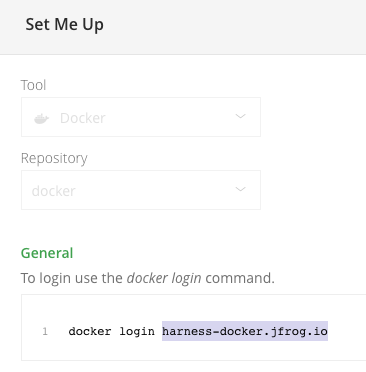
Go to the JFrog documentation on [Repository Management](https://www.jfrog.com/confluence/display/JFROG/Repository+Management) and [Configuring Docker Repositories](https://www.jfrog.com/confluence/display/RTF/Docker+Registry#DockerRegistry-ConfiguringDockerRepositories) for more information.
{% endhint %}
If the Background step is inside a step group, you must include step group ID, such as `curl StepGroupId_BackgroundStepId:5000`, even if both steps are in the same step group.
If the Background step runs directly on the host or in a Kubernetes cluster build infrastructure, do not use the step ID to reference Background steps. Instead, use `localhost:host_port`. For Background steps running MySQL in a Kubernetes cluster build infrastructure, you must use the IP and host port, such as `127.0.0.1:7001`. Go to [Port Bindings](#port-bindings) for more information.
{% endhint %}
### Container Registry and Image
The build environment must have the necessary binaries for the **Background** step to execute your test commands. Depending on the stage's build infrastructure, **Background** steps can use binaries that exist in the build environment, or use **Container Registry** and **Image** to pull an image, such as a public or private Docker image, that contains the required binaries.
The stage's build infrastructure determines whether these fields are required or optional:
* [Kubernetes cluster build infrastructure](/continuous-integration/use-harness-ci/use-harness-ci/set-up-build-infrastructure/k8s-build-infrastructure/set-up-a-kubernetes-cluster-build-infrastructure.md): **Container Registry** and **Image** are always required.
* [Local runner build infrastructure](/continuous-integration/use-harness-ci/use-harness-ci/set-up-build-infrastructure/define-a-docker-build-infrastructure.md): **Run Tests** steps can use binaries available on the host machine. The **Container Registry** and **Image** are required if the machine does not have the binaries you need.
* [Self-managed AWS/GCP/Azure VM build infrastructure](/continuous-integration/use-harness-ci/use-harness-ci/set-up-build-infrastructure/vm-build-infrastructure.md): **Run Tests** steps can use binaries that you have made available on your build VMs. The **Container Registry** and **Image** are required if the VM does not have the necessary binaries. These fields are located under **Additional Configuration** for stages that use self-managed VM build infrastructure.
* [Harness Cloud build infrastructure](/continuous-integration/use-harness-ci/use-harness-ci/set-up-build-infrastructure/use-harness-cloud-build-infrastructure.md): **Run Tests** steps can use binaries available on Harness Cloud machines, as described in the [image specifications](/continuous-integration/use-harness-ci/use-harness-ci/set-up-build-infrastructure/use-harness-cloud-build-infrastructure.md#platforms-and-image-specifications). The **Container Registry** and **Image** are required if the machine does not have the binaries you need. These fields are located under **Additional Configuration** for stages that use Harness Cloud build infrastructure.
**What are the expected values for Container Registry and Image**
For **Container Registry** settings, provide a Harness container registry connector, such as a [Docker connector](broken://spaces/3F2TpHXhur2QtQnORSM9/pages/LZPXMHJjbQyZXdwC5Omo), that connects to a container registry, such as Docker Hub, where the **Image** is located.
For **Image**, provide the FQN (fully-qualified name) or artifact name and tag of the Docker image to use when this step runs commands, for example `us-docker.pkg.dev/gar-prod-setup/harness-public/harness/cache:latest` or `maven:3.8-jdk-11`. If you do not include a tag, Harness uses the `latest` tag. Depending on the connector and feature flags set, **an FQN may be required**.
You can use any Docker image from any Docker registry, including Docker images from private registries. Different container registries require different name formats, for example:
* **Docker Registry:** Input the name of the artifact you want to deploy, such as `library/tomcat`. Wildcards are not supported. FQN is required for images in private container registries.
* **ECR:** Input the FQN of the artifact you want to deploy. Images in repos must reference a path, for example: `40000005317.dkr.ecr.us-east-1.amazonaws.com/todolist:0.2`.
* **GAR:** Input the FQN of the artifact you want to deploy. Images in repos must reference a path starting with the project ID that the artifact is in, for example: `us-docker.pkg.dev/gar-prod-setup/harness-public/harness/cache:latest`.

Configuring a Container Registry and Image settings.
{% hint style="info" %}
**REMOVE FQN REQUIREMENT**
Customers who want to utilize non-FQN references for non public Docker-registry connectors will need to contact Harness Support to add the feature flags, `CI_REMOVE_FQN_DEPENDENCY_FOR_PRIVATE_REGISTRY_CONNECTOR_DOCKER` and `CI_REMOVE_FQN_DEPENDENCY`.
{% endhint %}
**Pulling images from JFrog Artifactory Docker registries**
If you need to pull images from a JFrog Artifactory Docker registry, create a Docker connector that connects to your JFrog instance. **Do not use the Harness Artifactory connector** - The Artifactory connector only supports JFrog non-Docker registries.
To create a Docker connector for a JFrog Docker registry:
1. Go to **Connectors** in your Harness project, organization, or account resources, and select **New Connector**.
2. Select **Docker Registry** under **Artifact Repositories**.
3. Enter a **Name** for the connector. The **Description** and **Tags** are optional.
4. For **Provider Type**, Select **Other**.
5. In **Docker Registry URL**, enter your JFrog URL, such as `https://mycompany.jfrog.io`.
6. In the **Authentication** settings, you must use **Username and Password** authentication.
* **Username:** Enter your JFrog username.
* **Password:** Select or create a [Harness text secret](/harness-platform/use-harness-platform/secrets/add-use-text-secrets.md) containing the password corresponding with the **Username**.
7. Complete any other settings and save the connector. Go to the [Docker connector settings reference](broken://spaces/3F2TpHXhur2QtQnORSM9/pages/LZPXMHJjbQyZXdwC5Omo) for all Docker Registry connector settings.
One completed, please remember to use the FQN location of the image unless you have set the [appropriate feature flags as listed above](#what-are-the-expected-values-for-container-registry-and-image)
{% hint style="info" %}
**JFROG URLS**
The JFrog URL format depends on your Artifactory configuration, and whether your Artifactory instance is local, virtual, remote, or behind a proxy. To get your JFrog URL, you can select your repo in your JFrog instance, select **Set Me Up**, and get the repository URL from the server name in the `docker-login` command. 
Go to the JFrog documentation on [Repository Management](https://www.jfrog.com/confluence/display/JFROG/Repository+Management) and [Configuring Docker Repositories](https://www.jfrog.com/confluence/display/RTF/Docker+Registry#DockerRegistry-ConfiguringDockerRepositories) for more information.
{% endhint %}

An example configuration for the Container Registry and Image fields. Note that this figure shows a Run step, but the fields are populated the same for Background steps.
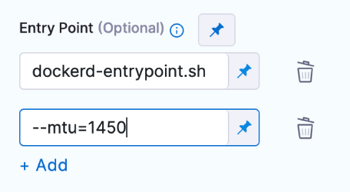
Entry Point arguments in the Pipeline Studio Visual editor.
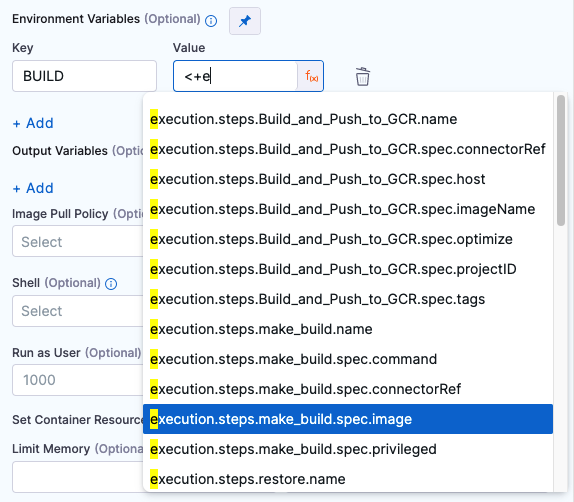
Using an expression for an environment variable's value.