> For the complete documentation index, see [llms.txt](https://developer.harness.io/llms.txt). Markdown versions of documentation pages are available by appending `.md` to page URLs; this page is available as [Markdown](https://developer.harness.io/continuous-integration/use-harness-ci/use-harness-ci/build-and-upload-artifacts/upload-artifacts/upload-artifacts-to-jfrog.md).
# Upload Artifacts to JFrog
Add a step to upload artifacts to JFrog.
Use the **Upload Artifacts to JFrog Artifactory** step in your CI pipelines to [upload artifacts](/continuous-integration/use-harness-ci/use-harness-ci/build-and-upload-artifacts/build-and-upload-an-artifact.md#upload-artifacts) to [JFrog Artifactory](https://www.jfrog.com/confluence/display/JFROG/JFrog+Artifactory) *non-Docker* registries. To learn how to push Docker images to JFrog *Docker* registry, see [Build and Push to JFrog Docker registries](/continuous-integration/use-harness-ci/use-harness-ci/build-and-upload-artifacts/build-and-push/build-and-push-to-docker-jfrog.md).
### Add the Upload Artifacts step
Add the **Upload Artifacts to JFrog Artifactory** step to your pipeline's [Build stage](/continuous-integration/use-harness-ci/use-harness-ci/set-up-build-infrastructure/ci-stage-settings.md).
```yaml
- step:
type: ArtifactoryUpload
name: ArtifactoryUpload_1
identifier: ArtifactoryUpload_1
spec:
connectorRef: YOUR_ARTIFACTORY_CONNECTOR_ID
target: groupId/artifactId/version
sourcePath: path/to/source
```
The **Upload Artifacts to JFrog Artifactory** step has the following settings. Depending on the build infrastructure, some settings might be unavailable or optional.
#### Name, Description, Tags
* **Name**: A name for the step. Harness automatically assigns an **ID** ([Entity Identifier](/harness-platform/use-harness-platform/references/entity-identifier-reference.md)) based on the **Name**. You can change the **ID** until the step is saved, then it is locked.
* **Description** and **Tags**: Optional metadata.
#### Artifactory Connector
Select the [Harness Artifactory connector](/harness-platform/use-harness-platform/connectors/artifact-repositories/add-an-artifactory-connector/artifactory-connector-settings-reference.md) to use for this upload. The JFrog Account associated with the connector must have read/write permission.
This step supports Artifactory connectors that use either anonymous or username and password authentication.
If the connector uses username and password authentication, the `PLUGIN_USERNAME` and `PLUGIN_PASSWORD` used by this step are derived from the selected Artifactory connector.
#### Target, Source Path
The **Target** is the target path in the JFrog Artifactory registry. This is a target repository name relative to the server URL in the connector. If `pom.xml` is not present, then the **Target** must be a full path to an artifacts folder, such as `groupId/artifactId/version`.
**Source Path** is a path, relative to the stage workspace, to the artifact file/folder that you want to upload. The root stage workspace directory is `/harness`.
If you want to upload a compressed file, you must use a [Run step](/continuous-integration/use-harness-ci/use-harness-ci/run-step-settings.md) to compress the artifact before uploading it.
#### Additional container settings
Settings specific to containers are not applicable when using the step in a stage with self-managed VM or Harness Cloud build infrastructure.
**Run as User**
Specify the user ID to use to run all processes in the pod if running in containers. Go to [Set the security context for a pod](https://kubernetes.io/docs/tasks/configure-pod-container/security-context/#set-the-security-context-for-a-pod) for more information.
**Set container resources**
Set maximum resource limits for the resources used by the container at runtime:
* **Limit Memory:** The maximum memory that the container can use. You can express memory as a plain integer or as a fixed-point number using the suffixes `G` or `M`. You can also use the power-of-two equivalents `Gi` and `Mi`. The default is `500Mi`.
* **Limit CPU:** The maximum number of cores that the container can use. CPU limits are measured in CPU units. Fractional requests are allowed; for example, you can specify one hundred millicpu as `0.1` or `100m`. The default is `400m`. Go to [Resource units in Kubernetes](https://kubernetes.io/docs/concepts/configuration/manage-resources-containers/#resource-units-in-kubernetes) for more information.
**Upload as flat**
A boolean value that determines the file structure and hierarchy when uploading to Artifactory. By default, this value is `true`.
If set to:
* `true`: Artifacts or files are uploaded to the exact target path specified and their hierarchy in the source repository is ignored.
* `false`: Artifacts are uploaded to the target path in artifactory while maintaining the hierarchy of the source repository.
{% hint style="info" %}
This setting is available only if the feature flag `CI_ENABLE_UPLOAD_AS_FLAT` is enabled. When enabled, you will see the Upload As Flat option under Optional Configuration in the step configuration UI. To enable the flag, contact [Harness Support](mailto:support@harness.io).
{% endhint %}
#### Timeout
Set the timeout limit for the step. Once the timeout limit is reached, the step fails and pipeline execution continues. To set skip conditions or failure handling for steps, go to:
* [Step Skip Condition settings](/harness-platform/use-harness-platform/pipelines/step-skip-condition-settings.md)
* [Step Failure Strategy settings](/harness-platform/use-harness-platform/pipelines/failure-handling/define-a-failure-strategy-on-stages-and-steps.md)
#### JFrog CLI flags
You can use [stage variables](/harness-platform/use-harness-platform/pipelines/add-a-stage.md#stage-variables) to pass the following optional flags supported by the [JFrog CLI](https://docs.jfrog-applications.jfrog.io/jfrog-applications/jfrog-cli):
* `PLUGIN_BUILD_NAME`: Specify the name of the build associated with the uploaded artifacts in JFrog Artifactory. Use this flag to organize and track artifacts by their build name.
```yaml
variables:
- name: PLUGIN_BUILD_NAME
type: String
description: "Name of the build associated with the uploaded artifacts in JFrog"
required: false
value: <+pipeline.name> # You can use an expression or a fixed value.
```
* `PLUGIN_BUILD_NUMBER`: Specify the build number associated with the uploaded artifacts in JFrog Artifactory. Use this flag to version and identify different builds of the same project or component.
```yaml
variables:
- name: PLUGIN_BUILD_NUMBER
type: String
description: "Build number associated with the uploaded artifacts in JFrog"
required: false
value: <+pipeline.executionID> # You can use an expression or a fixed value.
```
* `JFROG_CLI_HOME_DIR`: to change the folder in which .jfrog will be created, to a path that is writable by the user running the container.
```yaml
variables:
- name: JFROG_CLI_HOME_DIR
type: String
description: "Change the path of where the JFrog is to a writable directory"
required: false
value: /harness/temp # the path to the directory that is writable.
```
### Publish Build metadata to JFrog Artifactory Artifact
The built-in **Upload Artifacts to JFrog Artifactory** step uses the [Artifactory Drone plugin](https://github.com/harness/drone-artifactory). You can used the plugin directly in case there is some configuration or flags that are not supported natively in the built-in step.
To enable the publication of build information, you must set the `publish_build_info` to `true`. This feature requires both `build_name` and `build_number` to be specified, as they are essential for tracking and organizing builds in Artifactory. You can also set `targetProps` to pass additional custom properties.
For example:
```yaml
- step:
type: Plugin
name: plugin
identifier: plugin
spec:
connectorRef: YOUR_IMAGE_REGISTRY_CONNECTOR
image: plugins/artifactory
settings:
access_token: YOUR_JFROG_TOKEN
url: YOUR_JFROG_ARTIFACTORY_URL
source: /path/to/source
target: /path/to/target
build_name: <+pipeline.identifier> # You can use an expression or a fixed value.
build_number: <+pipeline.sequenceId> # You can use an expression or a fixed value.
publish_build_info: true
targetProps: key1=123;projectName=ExampleApp # Optional metadata/properties
```
### Add local files as build dependencies
The built-in **Upload Artifacts to JFrog Artifactory** step uses the [Artifactory Drone plugin](https://github.com/harness/drone-artifactory). You can used the plugin directly in case there is some configuration or flags that are not supported natively in the built-in step.
To add dependencies from the local file system to the build info, you must add the `add-build-dependencies` flag. This feature requires `build_name`, `build_number`, and `dependency` to be specified.
Other options include:
* `exclusions`: Exclude files with the regex defined in this setting.
* `from_rt`: Boolean. If true, will add dependencies from Artifactory instead of the local file system.
* `spec_path`: Add a dependency from a specific file path.
Example:
```yaml
- step:
type: Plugin
name: AddBuildDependencyStep
identifier: AddBuildDependencyStep
spec:
connectorRef: YOUR_IMAGE_REGISTRY_CONNECTOR
image: plugins/artifactory
settings:
command: add-build-dependencies
access_token: YOUR_JFROG_TOKEN
url: YOUR_JFROG_ARTIFACTORY_URL
module: test_module
build_name: <+pipeline.identifier> # You can use an expression or a fixed value.
build_number: <+pipeline.sequenceId> # You can use an expression or a fixed value.
dependency: /harness/add_deps/\*\*/\*.jar
exclusions: /harness/add_deps/exclude_test/\*\*
```
### Post artifacts to the Artifacts tab
When using the built-in steps for Artifacts, the artifacts are automatically posted to the Artifacts tab of a Build execution by Harness.
If you are publishing artifacts through Plugin or Run steps, you can use the [Artifact Metadata Publisher plugin](https://github.com/drone-plugins/artifact-metadata-publisher) to publish artifacts to the [Artifacts tab](/continuous-integration/use-harness-ci/use-harness-ci/viewing-builds.md). To do this, add a [Plugin step](/continuous-integration/use-harness-ci/use-harness-ci/use-drone-plugins/plugin-step-settings-reference.md) after the **Upload Artifacts to JFrog Artifactory** step.
{% tabs %}
{% tab title="Visual" %}
Configure the **Plugin** step settings as follows:
* **Name:** Enter a name.
* **Container Registry:** Select a Docker connector.
* **Image:** Enter `plugins/artifact-metadata-publisher`.
* **Settings:** Add the following two settings as key-value pairs.
* `file_urls`: Provide a URL to the artifact that was uploaded in the **Upload Artifacts to JFrog Artifactory** step. If you uploaded multiple artifacts, you can provide a list of URLs.
* `artifact_file`: Provide any `.txt` file name, such as `artifact.txt` or `url.txt`. This is a required setting that Harness uses to store the artifact URL and display it on the **Artifacts** tab. This value is not the name of your uploaded artifact, and it has no relationship to the artifact object itself.
{% endtab %}
{% tab title="YAML" %}
Add a `Plugin` step that uses the `artifact-metadata-publisher` plugin.
```yaml
- step:
type: Plugin
name: publish artifact metadata
identifier: publish_artifact_metadata
spec:
connectorRef: YOUR_IMAGE_REGISTRY_CONNECTOR
image: plugins/artifact-metadata-publisher
settings:
file_urls: https://complete/url/to/artifact/on/jfrog
artifact_file: artifact.txt
```
* `connectorRef`: Use the built-in Docker connector (`account.harness.Image`) or specify your own Docker connector.
* `image`: Must be `plugins/artifact-metadata-publisher`.
* `file_urls`: Provide the URL to the artifact that was uploaded in the **Upload Artifacts to JFrog Artifactory** step. If you uploaded multiple artifacts, you can provide a list of URLs.
* `artifact_file`: Provide any `.txt` file name, such as `artifact.txt` or `url.txt`. This is a required setting that Harness uses to store the artifact URL and display it on the **Artifacts** tab. This value is not the name of your uploaded artifact, and it has no relationship to the artifact object itself.
{% endtab %}
{% endtabs %}
### Build logs and artifact files
When you run the pipeline, you can observe the step logs on the [build details page](/continuous-integration/use-harness-ci/use-harness-ci/viewing-builds.md).

If the Upload Artifacts step succeeds, you can find the artifact in your JFrog repo.

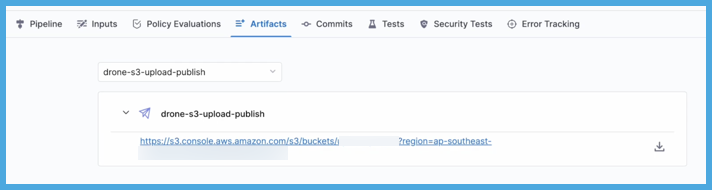
If you used the Artifact Metadata Publisher, you can find a link to the artifact on the [Artifacts tab](/continuous-integration/use-harness-ci/use-harness-ci/viewing-builds.md).
{% hint style="info" %}
On the **Artifacts** tab, select the step name to expand the list of artifact links associated with that step.
If your pipeline has multiple steps that upload artifacts, use the dropdown menu on the **Artifacts** tab to switch between lists of artifacts uploaded by different steps.
 {% endhint %}
### Troubleshoot uploading artifacts
Go to the [CI Knowledge Base](/continuous-integration/troubleshooting-and-resources/ci-articles-and-faqs/continuous-integration-faqs.md) for questions and issues related uploading artifacts, such as:
* [Certificate signed by unknown authority error.](/continuous-integration/troubleshooting-and-resources/ci-articles-and-faqs/continuous-integration-faqs.md#upload-artifacts-to-jfrog-step-throws-certificate-signed-by-unknown-authority)
* [mkdir permission denied when running as non-root.](/continuous-integration/troubleshooting-and-resources/ci-articles-and-faqs/continuous-integration-faqs.md#mkdir-permission-denied-when-running-upload-artifacts-to-jfrog-as-non-root)
* [Can I run the Upload Artifacts to JFrog Artifactory step with a non-root user?](/continuous-integration/troubleshooting-and-resources/ci-articles-and-faqs/continuous-integration-faqs.md#can-i-run-the-upload-artifacts-to-jfrog-artifactory-step-with-a-non-root-user)
* [Can I send artifacts by email?](/continuous-integration/troubleshooting-and-resources/ci-articles-and-faqs/continuous-integration-faqs.md#can-i-send-emails-from-ci-pipelines)
* [How do I show content on the Artifacts tab?](/continuous-integration/troubleshooting-and-resources/ci-articles-and-faqs/continuous-integration-faqs.md#how-do-i-show-content-on-the-artifacts-tab)
{% @harness-feedback/feedback %}
{% endhint %}
### Troubleshoot uploading artifacts
Go to the [CI Knowledge Base](/continuous-integration/troubleshooting-and-resources/ci-articles-and-faqs/continuous-integration-faqs.md) for questions and issues related uploading artifacts, such as:
* [Certificate signed by unknown authority error.](/continuous-integration/troubleshooting-and-resources/ci-articles-and-faqs/continuous-integration-faqs.md#upload-artifacts-to-jfrog-step-throws-certificate-signed-by-unknown-authority)
* [mkdir permission denied when running as non-root.](/continuous-integration/troubleshooting-and-resources/ci-articles-and-faqs/continuous-integration-faqs.md#mkdir-permission-denied-when-running-upload-artifacts-to-jfrog-as-non-root)
* [Can I run the Upload Artifacts to JFrog Artifactory step with a non-root user?](/continuous-integration/troubleshooting-and-resources/ci-articles-and-faqs/continuous-integration-faqs.md#can-i-run-the-upload-artifacts-to-jfrog-artifactory-step-with-a-non-root-user)
* [Can I send artifacts by email?](/continuous-integration/troubleshooting-and-resources/ci-articles-and-faqs/continuous-integration-faqs.md#can-i-send-emails-from-ci-pipelines)
* [How do I show content on the Artifacts tab?](/continuous-integration/troubleshooting-and-resources/ci-articles-and-faqs/continuous-integration-faqs.md#how-do-i-show-content-on-the-artifacts-tab)
{% @harness-feedback/feedback %}